
Shopify catalog guide
How to bulk edit products in Shopify
Shopify gives you two native bulk-editing routes: edit selected items in a table, or export a CSV, change it in a spreadsheet, and import it again. A dedicated app adds filters, reusable transformations, per-product preview, scheduling, and a recoverable operation history. The right method depends on the job, not on a blanket rule.
Reviewed 13 July 2026 · 9 minute read
| Shopify bulk editor | Shopify CSV | Dedicated app | |
|---|---|---|---|
| Best for | A small selected set and direct cell edits | Large row-by-row updates or migrations | Repeatable transformations across filtered catalogs |
| Preview | You see the editable table | Shopify shows an import summary, not a per-field diff | Old and proposed values shown before the run |
| Bulk formulas | Manual fill and copy | Spreadsheet formulas | Built-in set, add, remove, percent, search/replace, and dynamic values |
| Scheduling | No run scheduler | No native scheduled import | Schedule an edit for a sale or launch window |
| Recovery | Correct the cells manually | Re-import a clean backup where the format permits | Undo app-native runs from edit history |
Method 1
Use Shopify’s native bulk editor for small, visible sets
From Products, select the items you want and choose Bulk edit. Add the property columns you need, then type or paste into the table. Shopify documents the same editor for products, variants, collections, and customers.
This is the fastest route when you already know the exact products and the changes are individual: correct twelve SKUs, change a few statuses, or paste distinct prices into a short list. It becomes tedious when the operation is the same across hundreds of rows or when selection depends on several catalog conditions.
Choose the native editor when
- • You can select the exact products directly in Shopify.
- • The list is small enough to inspect as a table.
- • Values differ row by row and are ready to paste.
- • You do not need scheduling or a reusable transformation.
Method 2
Use a CSV when the spreadsheet is the transformation engine
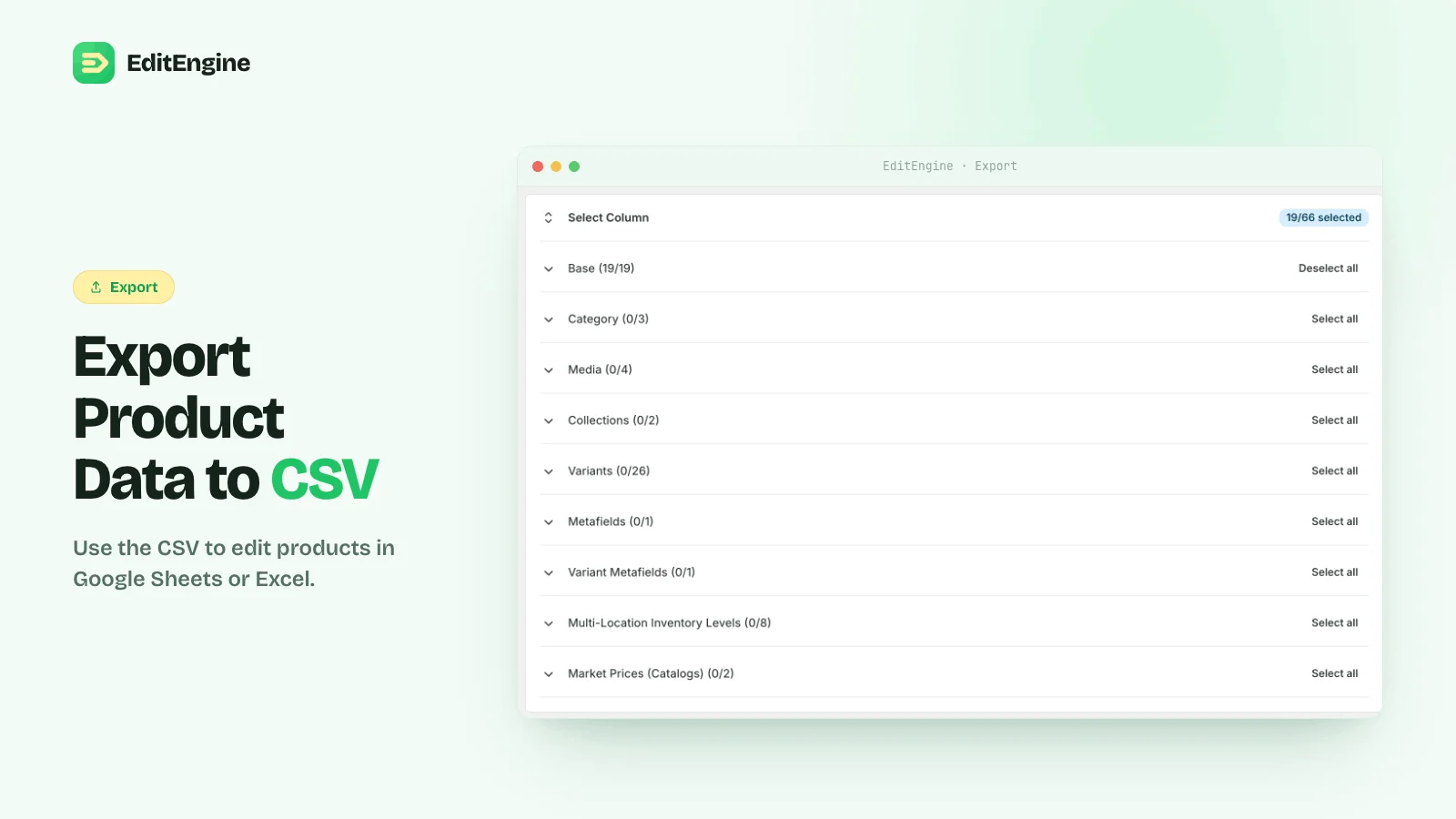
Export the smallest useful set of products and columns. Keep the matching keys untouched, make the changes in Excel or Google Sheets, save as UTF-8 CSV, then import the edited file. Shopify’s current format requires Title for new products and URL handle plus Title for updates; variant fields can depend on option columns.
CSV is powerful because formulas, lookups, and row-specific values are available. It is also unforgiving. Shopify warns that sorting a product CSV can detach variants or image URLs, and missing dependent columns can delete and recreate variants. Preserve the original export and test a few rows first.
Method 3
Use a dedicated editor when the job should be repeatable
An app earns its place when you need to express a rule: increase prices 8%, remove a temporary tag, prepend a sale marker, populate a metafield from another field, or apply several changes to products matched by collection, vendor, status, inventory, and tags.
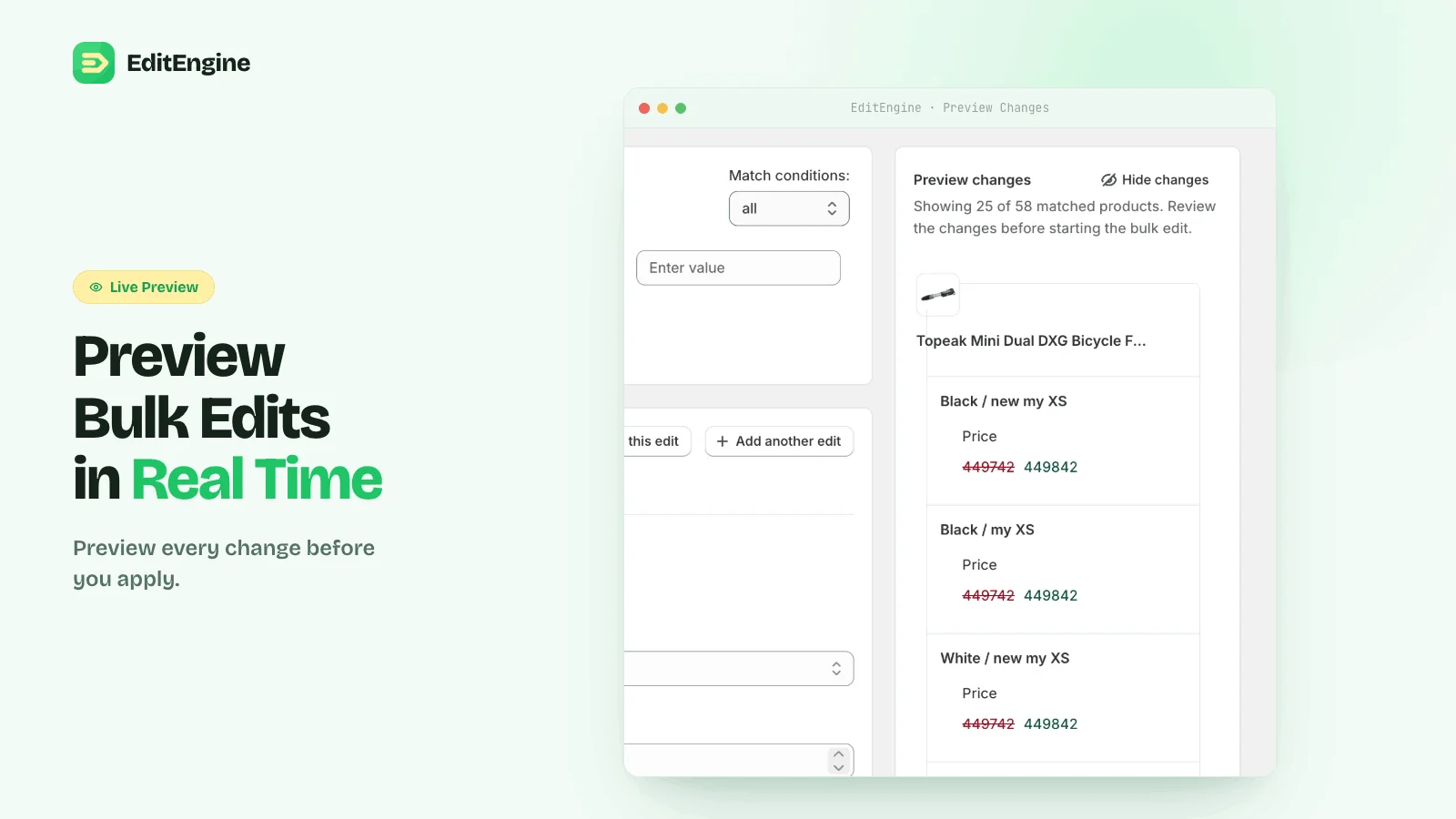
EditEngine resolves that rule against the matched catalog and shows old and new values before applying it. The same run can be scheduled, and app-native edits can be undone from history. CSV import/export remains available when the job genuinely belongs in a spreadsheet.
A safe bulk-editing sequence
- STEP 1
Back up
Export the fields and products in scope before a destructive update.
- STEP 2
Narrow
Use the smallest filter or file that still covers the intended job.
- STEP 3
Test
Run two or three representative products through the entire workflow.
- STEP 4
Verify
Inspect storefront, admin data, and the operation result before scaling up.
Common questions
How many products can Shopify bulk edit at once?
Shopify does not state one universal product limit for its table editor; performance depends on the amount of information being changed. Shopify recommends CSV for larger lists. EditEngine’s free plan handles up to 100 products per task, Standard up to 10,000, and Pro removes the product limit per task.
Can you undo a bulk edit in Shopify?
Shopify’s native table editor does not provide EditEngine’s operation-level undo history. CSV recovery depends on a clean previous export and the fields involved. EditEngine app-native runs can be undone from History.
What is the safest method?
For a tiny visible set, Shopify’s native table is simplest. For a formula-heavy row-by-row update, use a backed-up CSV. For reusable changes across a filtered catalog, use a preview-first app and test a small batch.