
Products
How to Bulk Delete Products
Published by Profitonium Apps · Last updated
Use Delete Product in EditEngine to remove many Shopify products in one run — for example, retiring a discontinued line, clearing out test products, or cleaning a bad import.
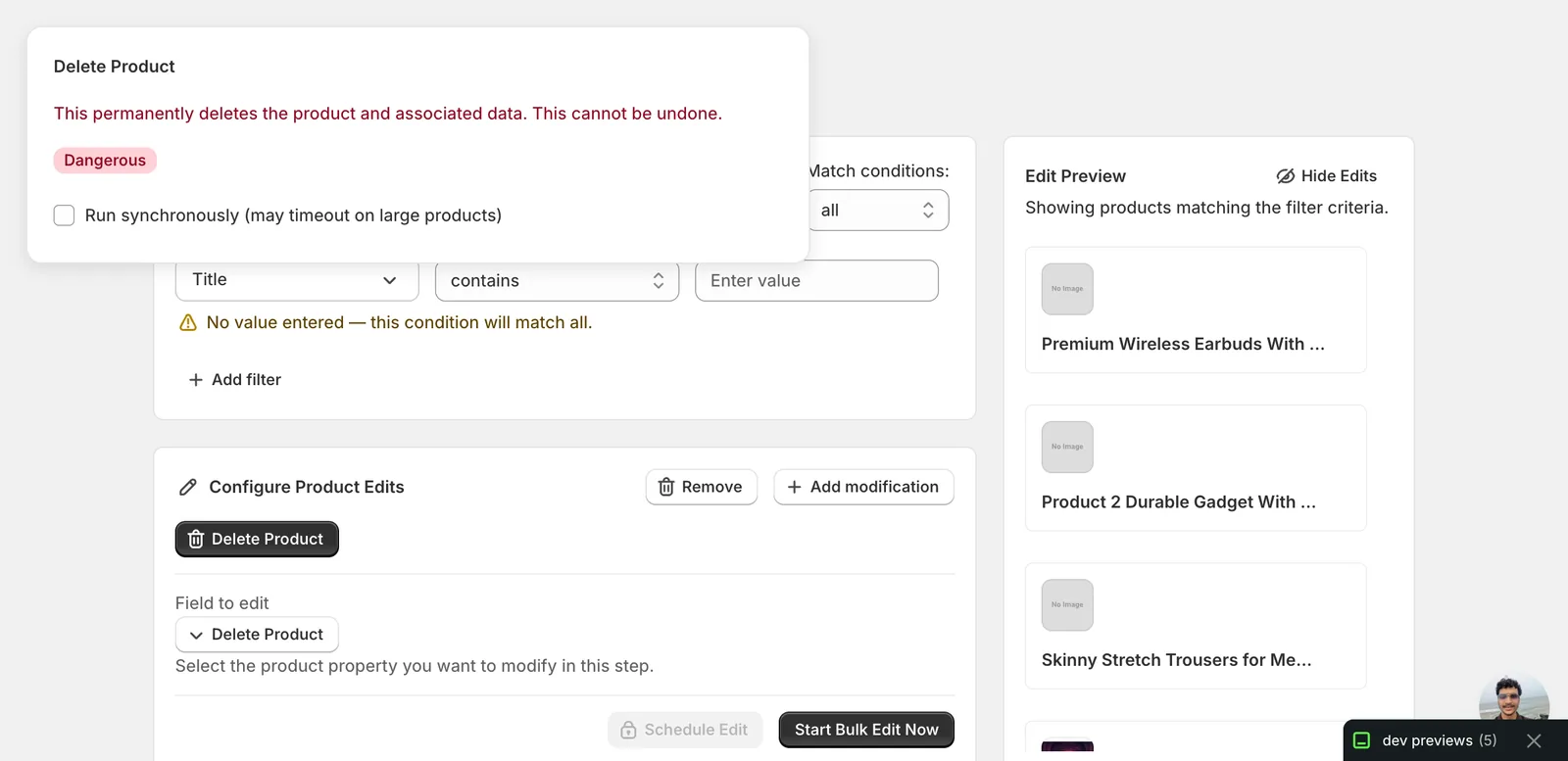
This action is irreversible. Deleted products and their associated data are permanently removed. There is no Undo from the History page for this edit. Filter carefully and check the Edit Preview before you start.
Step 1: Pick the Delete Product field
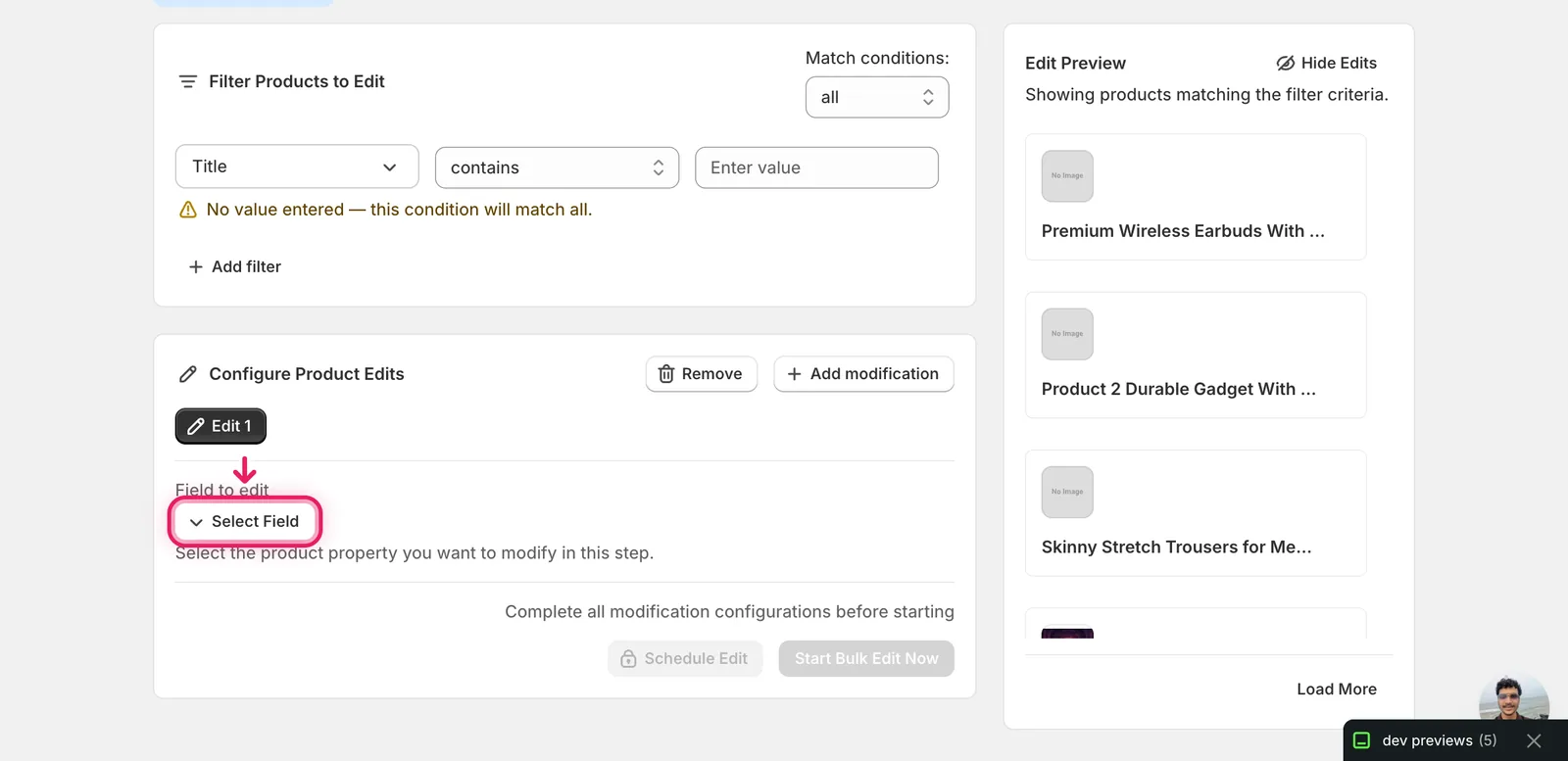
In the EditEngine bulk editor, open the Configure Product Edits panel and click Select Field.
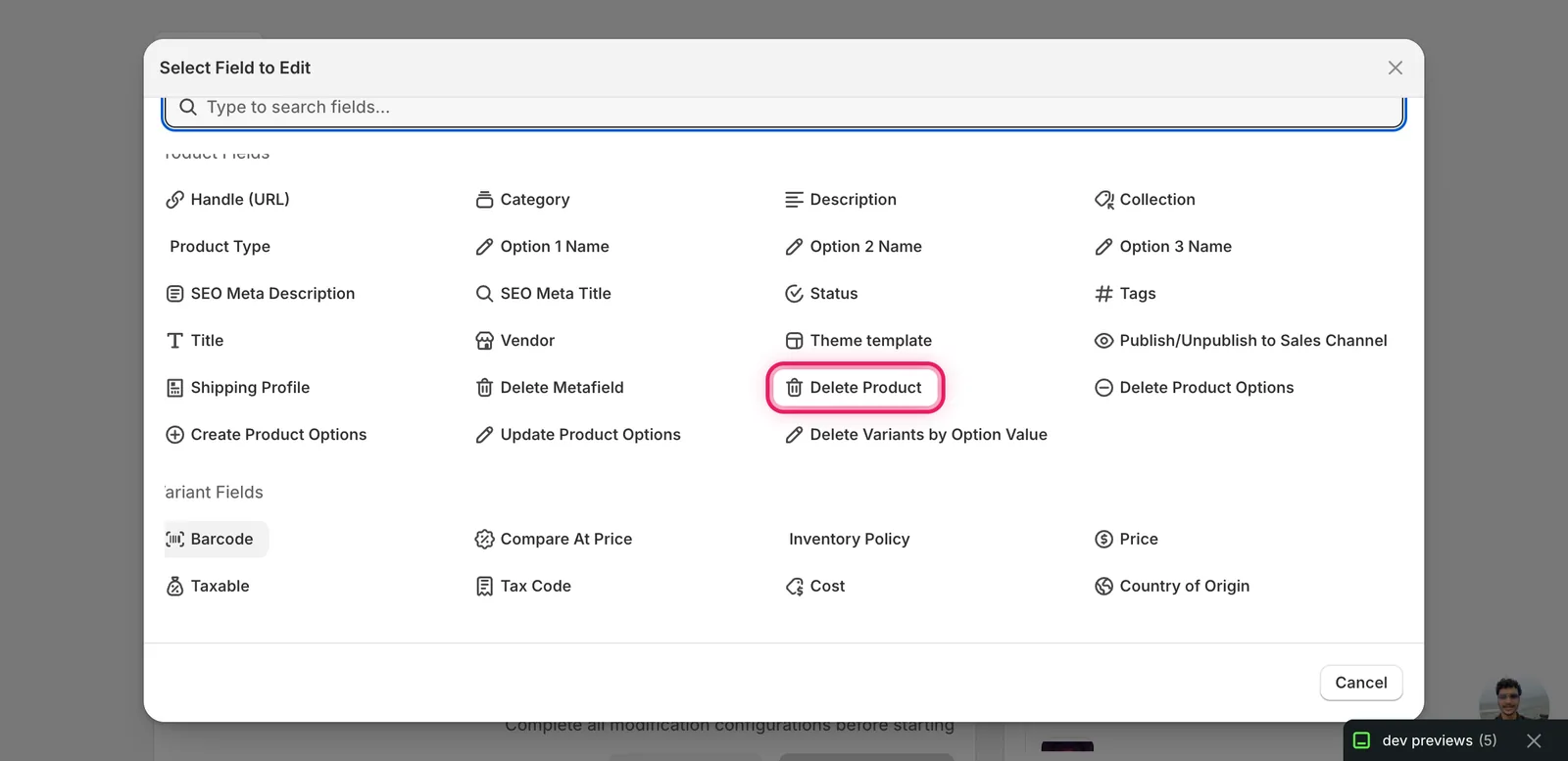
The Select Field modal opens. Scroll to Product Fields and click Delete Product — it sits between Delete Metafield and Delete Product Options.
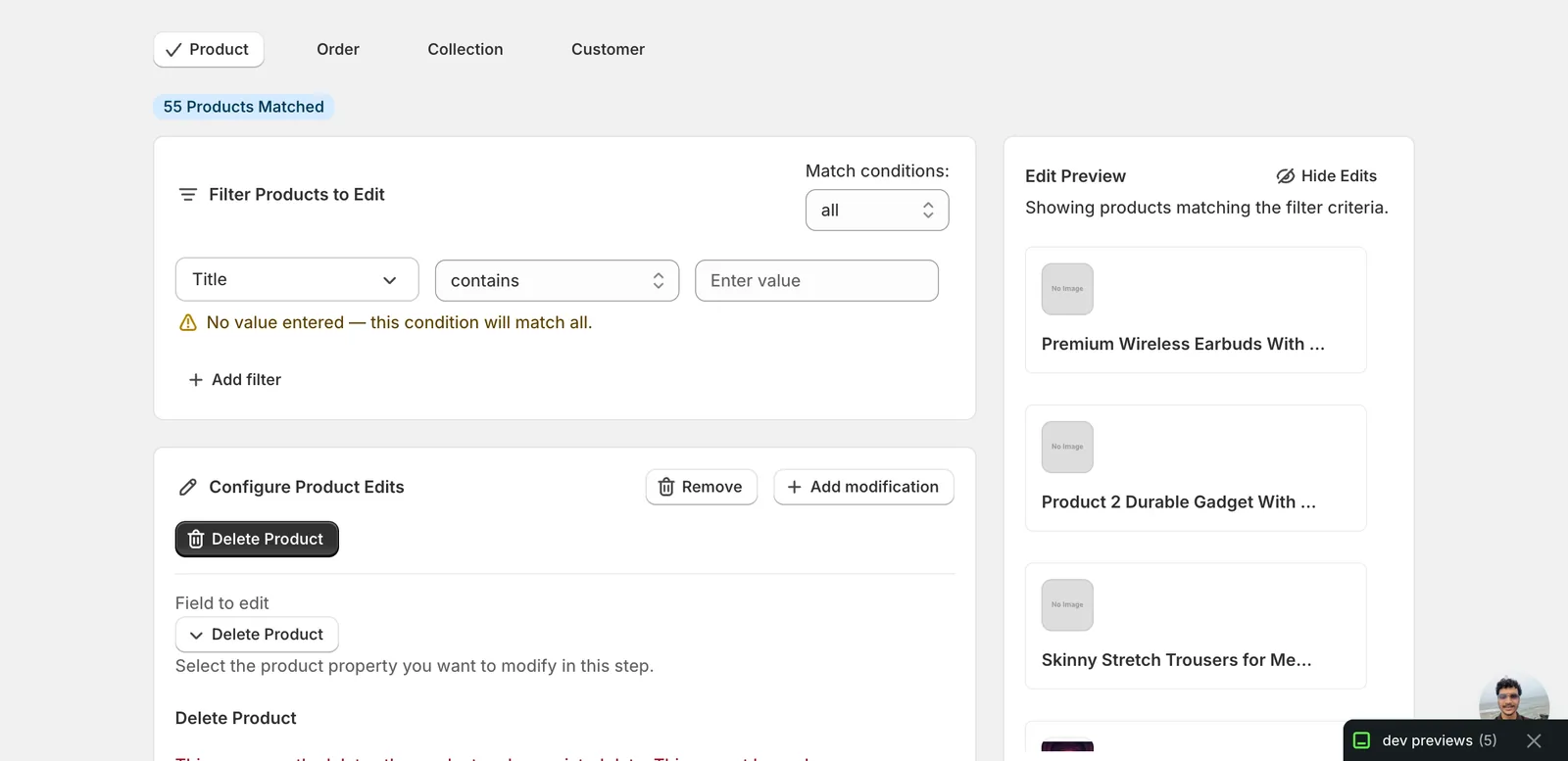
After you click it, the configuration panel switches over. There's no "how to edit" dropdown for this field — Delete Product is an action, not a value edit. There is nothing to type.
Step 2: Read the warning
The form for Delete Product is intentionally minimal. It shows a critical-tone message, a Dangerous badge, and a single optional checkbox.
What gets deleted along with the product:
- The product record itself
- Its variants
- Its images and media
- Its metafields
- Any other data Shopify ties to the product (publication state, inventory items, etc.)
What does not get auto-restored:
- Orders that referenced the product keep their line items, but the product link is gone (so reports that group by product can show "deleted product").
- Collections that listed the product simply lose it from their members.
Reminder: EditEngine's History page has no Undo for
productDelete. The only way to "recover" is to recreate the product from a CSV export taken before the run. Export first if you might want them back.
The "Run synchronously" checkbox
Leave it unchecked for almost every run.
- Unchecked (default) — EditEngine queues each delete with Shopify's async product-delete operation. Recommended for any product with a non-trivial amount of variants, images, or metafields. Works for runs of any size.
- Checked — Shopify performs the delete inline in the API call. Faster confirmation per product, but the request can time out on large products. Use only if you know your products are small (few variants, no media, no metafields) and you want immediate confirmation in the run log.
If you're not sure, leave it off.
Step 3: Filter to exactly the products you want gone
This is the most important step in this guide. Once you click run, matching products are deleted — there is no per-product confirmation prompt.
Use the Filter Products to Edit panel above the configuration to narrow the set:
- Filter by Title contains / does not contain to target a name pattern.
- Filter by Vendor, Product Type, Tags, Status, or any other supported field to scope by attribute.
- Combine multiple conditions with the Match conditions dropdown (
allrequires every condition;anymatches if at least one fits).
The right-hand Edit Preview column lists every product that matches your current filter. Skim it before running. Any product shown there is a product that will be deleted.
Use the Title or Vendor filter as a sanity check. Even if you intend to delete a whole catalog, narrow it by a recognizable substring first, run a tiny test, then widen.
Step 4: Run the bulk delete
When the filter shows exactly the products you mean to remove, click Start Bulk Edit Now.
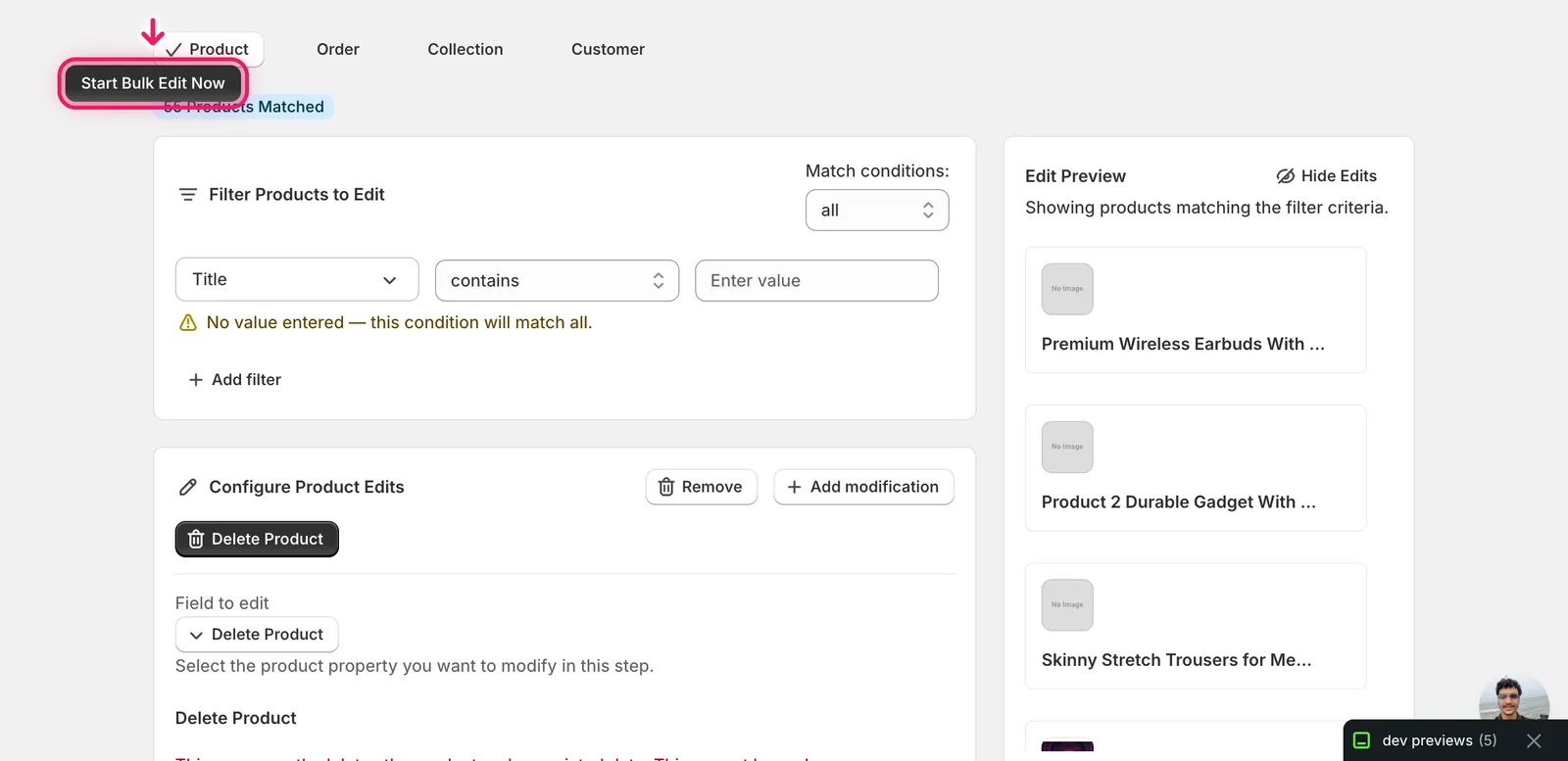
EditEngine queues the run and routes you to the History page where you can watch it progress.
After the run:
- Open the History page to see per-product success/failure counts. The Undo button on the History row is intentionally disabled for Delete Product runs.
- Each successfully deleted product is gone from
admin.shopify.com/store/<store>/products. - Errors (rare, usually permission or API rate issues) are listed against the run; failed products stay in your catalog and can be retried.
If you ran the wrong filter, stop the run from the History page immediately to avoid more deletes. Anything already processed is gone, but stopping prevents the rest.
Why use this instead of Shopify's built-in Bulk Actions
Shopify admin's product list has its own bulk delete, but it caps at 50 products per page and doesn't combine well with complex filtering. EditEngine's Delete Product runs against the same Shopify GraphQL productDelete mutation but applies it across the full filter result — useful when the set you want gone is defined by tags, metafield values, or any condition that isn't easy to express in the native admin.
Frequently asked questions
How do I delete hundreds of Shopify products at once?
In EditEngine, click Select Field and choose Delete Product under Product Fields. There's nothing to type — set the Filter Products to Edit conditions so only the products you mean to remove match, check the Edit Preview, then click Start Bulk Edit Now. EditEngine applies Shopify's productDelete mutation across the full filter result.
Can I undo a bulk product delete in Shopify?
No. Deleting products is permanent — the product record, variants, images, metafields, and related data are removed, and the Undo button on EditEngine's History page is intentionally disabled for Delete Product runs. The only way to recover is recreating products from a CSV export taken before the run, so export first.
What happens to orders and collections when I bulk delete Shopify products?
Orders that referenced a deleted product keep their line items, but the product link is gone, so reports that group by product can show "deleted product." Collections that listed the product simply lose it from their members. None of this is auto-restored if you later recreate the product.
What does the Run synchronously checkbox do when bulk deleting Shopify products?
Leave it unchecked for almost every run. Unchecked, EditEngine queues each delete with Shopify's async product-delete operation, which works for runs of any size. Checked, Shopify deletes inline in the API call — faster confirmation per product, but it can time out on large products with many variants, media, or metafields.
How do I make sure I don't delete the wrong Shopify products?
Filter carefully — there's no per-product confirmation prompt once you click run. Narrow by Title, Vendor, Tags, or other conditions, skim the Edit Preview since every product listed there will be deleted, run a tiny test before widening, and keep a CSV export. If a run starts wrong, stop it immediately from the History page.