
Pricing
How to Bulk Edit Cost
Published by Profitonium Apps · Last updated
Update the per-unit Cost of many variants at once with EditEngine. Cost is what you pay for the product — it powers margin, profit, and inventory valuation reports in Shopify, but isn't shown to customers. Set every variant to a fixed amount, raise or lower by an absolute amount or percent, or clear cost entirely. Optional rounding lets you snap results to .99, .95, whole numbers, or a custom ending.
Cost is a variant field. Each variant has its own cost, so the action runs once per matched variant. A product with three variants gets three cost updates.
The currency prefix in the input matches your store's currency. Cost has no per-variant currency override.
Step 1: Pick the Cost field
In the Configure Product Edits panel, click Select Field.
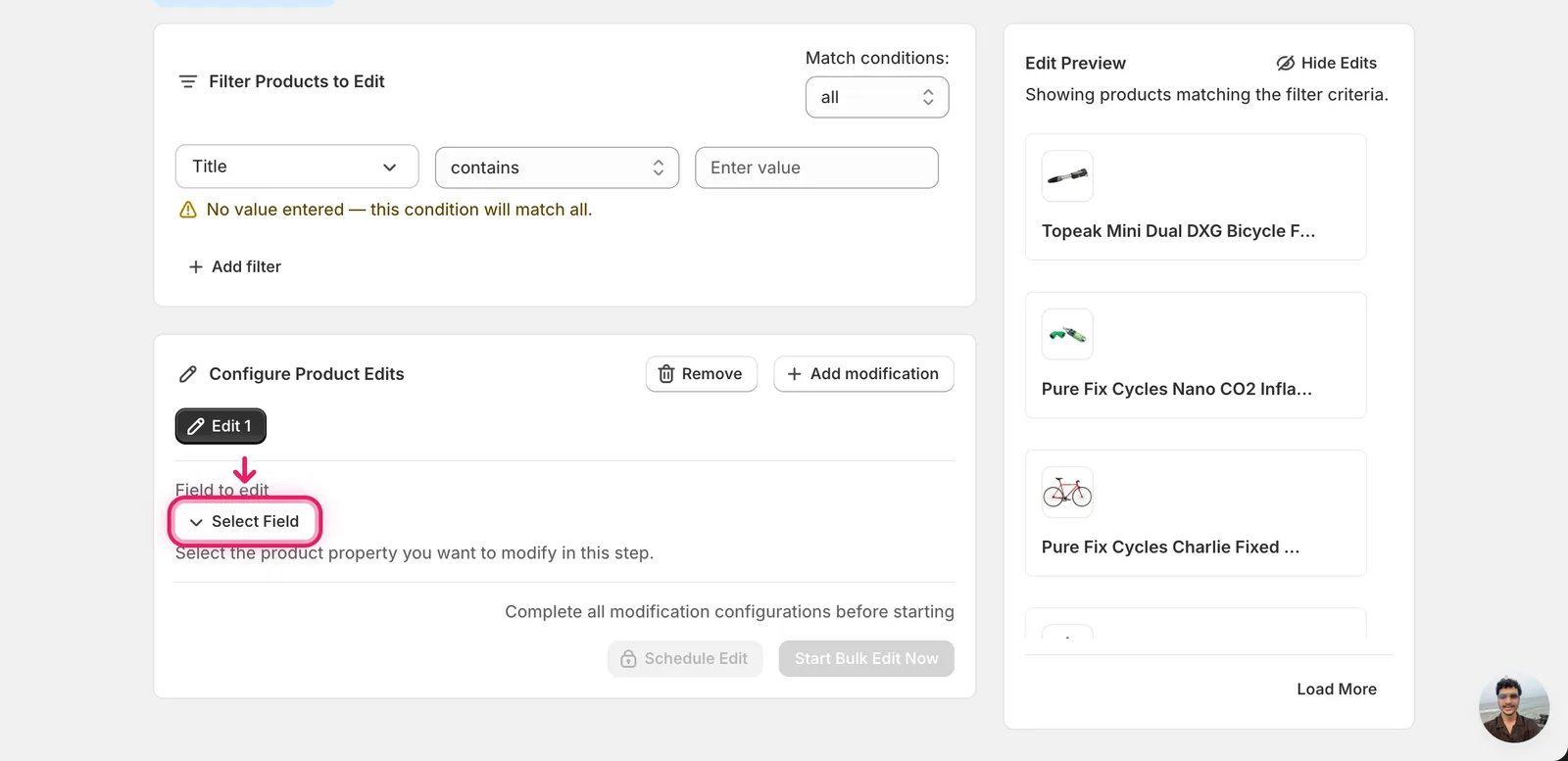
The Select Field modal opens. Cost lives under Variant Fields.
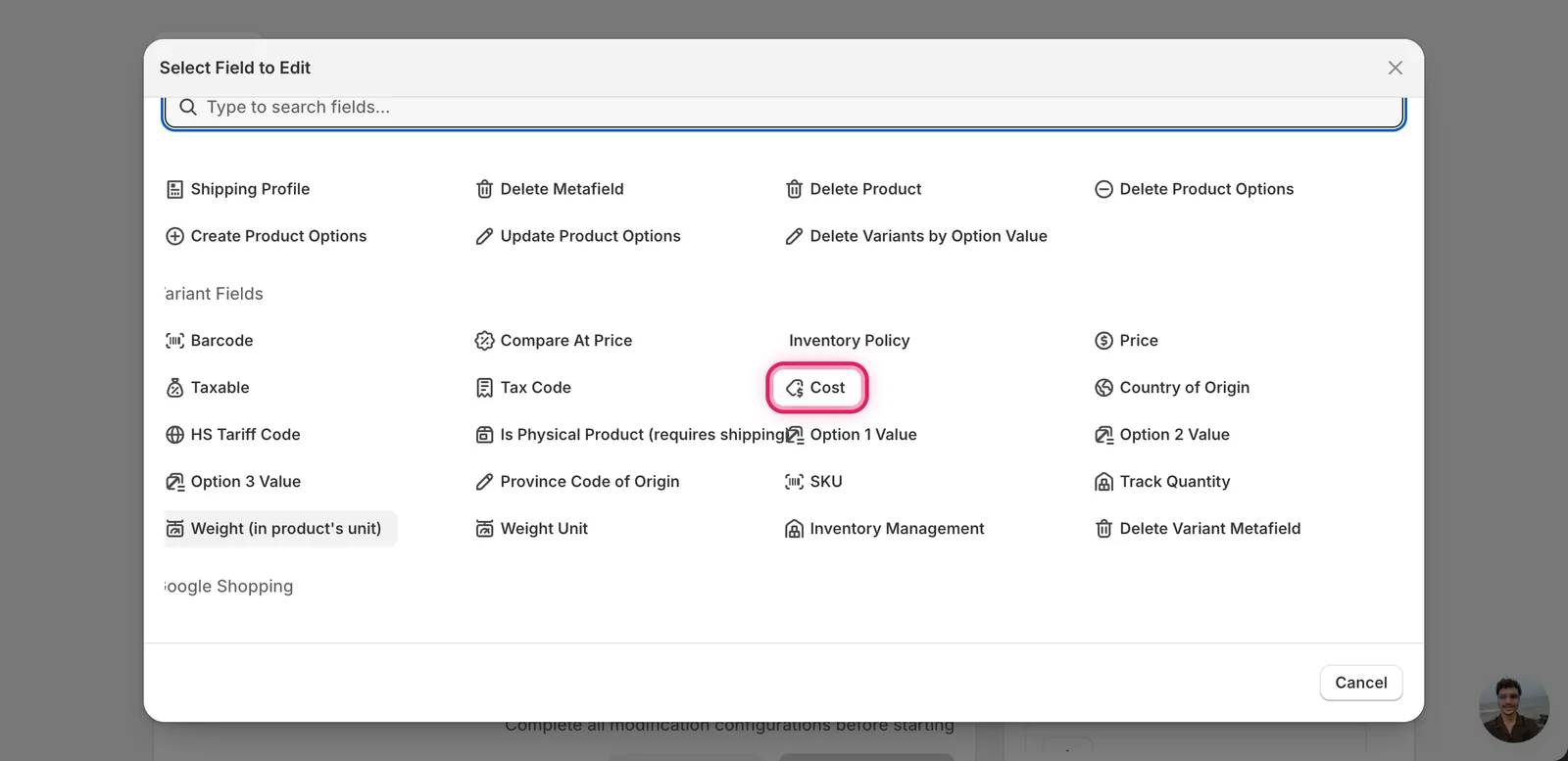
Click Cost. The configuration panel switches to a How to edit Cost dropdown defaulting to Set cost to value.
Step 2: Choose how to change the cost
Six actions are available, in three groups.
Direct value
- Set cost to value — every matched variant becomes this exact cost.
- Set to null/blank — clear the cost. Margin/profit reports for those variants will show as missing data.
Adjust the existing cost
- Increase by amount — add a flat amount (e.g. raise every cost by 2.00 to absorb a supplier increase).
- Decrease by amount — subtract a flat amount.
- Increase by percent — raise by a %.
- Decrease by percent — lower by a %.
The inputs change based on what you pick.
Cost doesn't have the Set as percent of Price / Set as percent of Compare-at derived options that the Price field has. If you need cost to follow another field, use Increase/Decrease by percent in combination with knowing your existing cost.
Step 3: Enter the value (and optional rounding)
Set cost to value
A single currency-prefixed number input. Type the new cost.
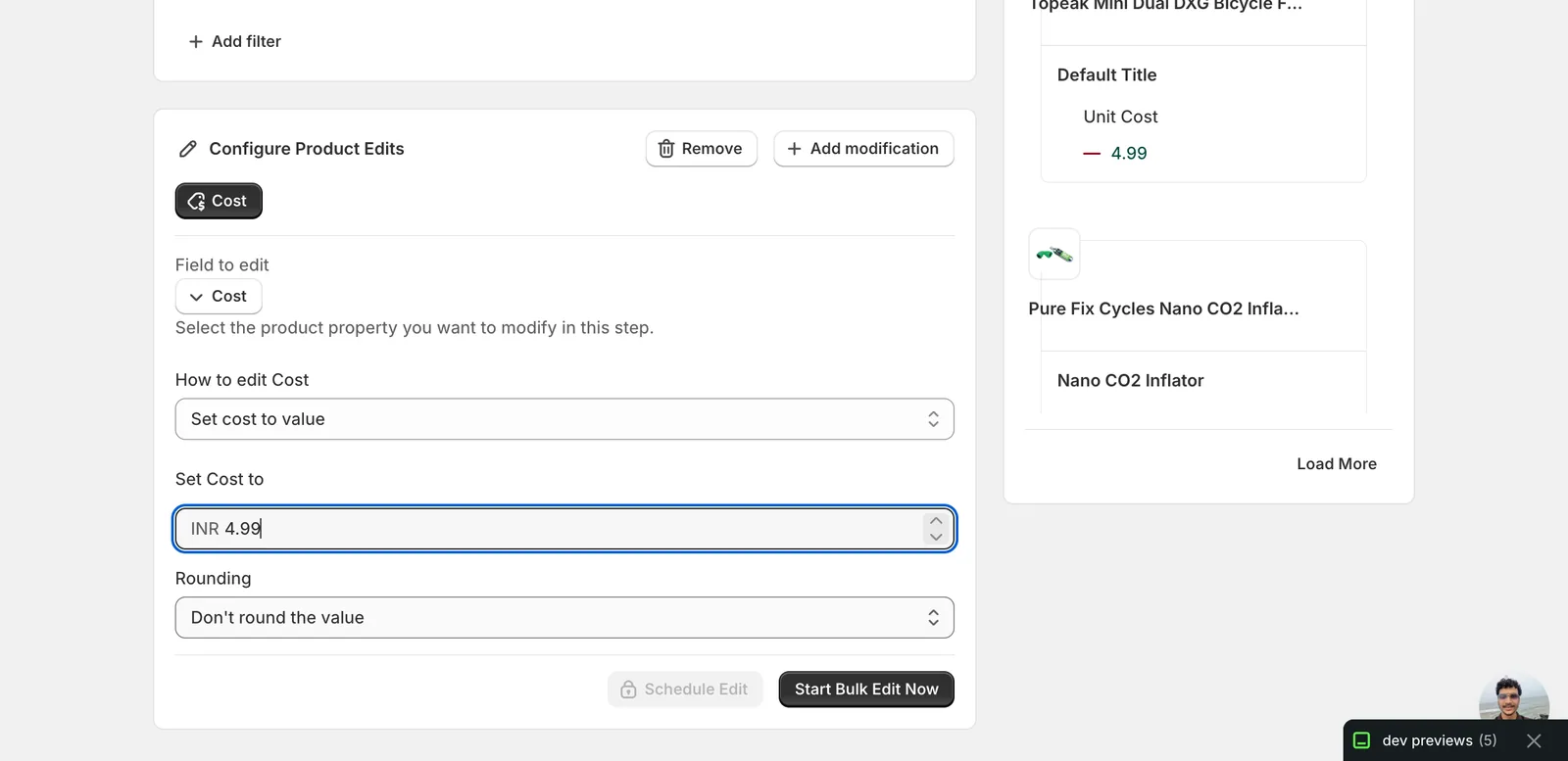
Below the value, a Rounding dropdown lets you snap the result. The rounding options are:
- End prices in .99 — common ending (
4.34 → 4.99) - End prices in .95 / .90 — same idea, different ending
- Round whole number — drops decimals (
4.99 → 5) - Round whole number up — always rounds up (
4.01 → 5) - Round decimals — to nearest cent
- Custom ending — pick your own decimal (e.g.
0.50for.50endings) - Don't round the value — default. Output is whatever the math produces.
Rounding cost mostly matters when you're using percent-style adjustments — a fixed value already lands wherever you typed it.
Increase / Decrease by amount or percent
A single number input — amount uses the currency prefix, percent uses a % suffix. The same Rounding dropdown applies.
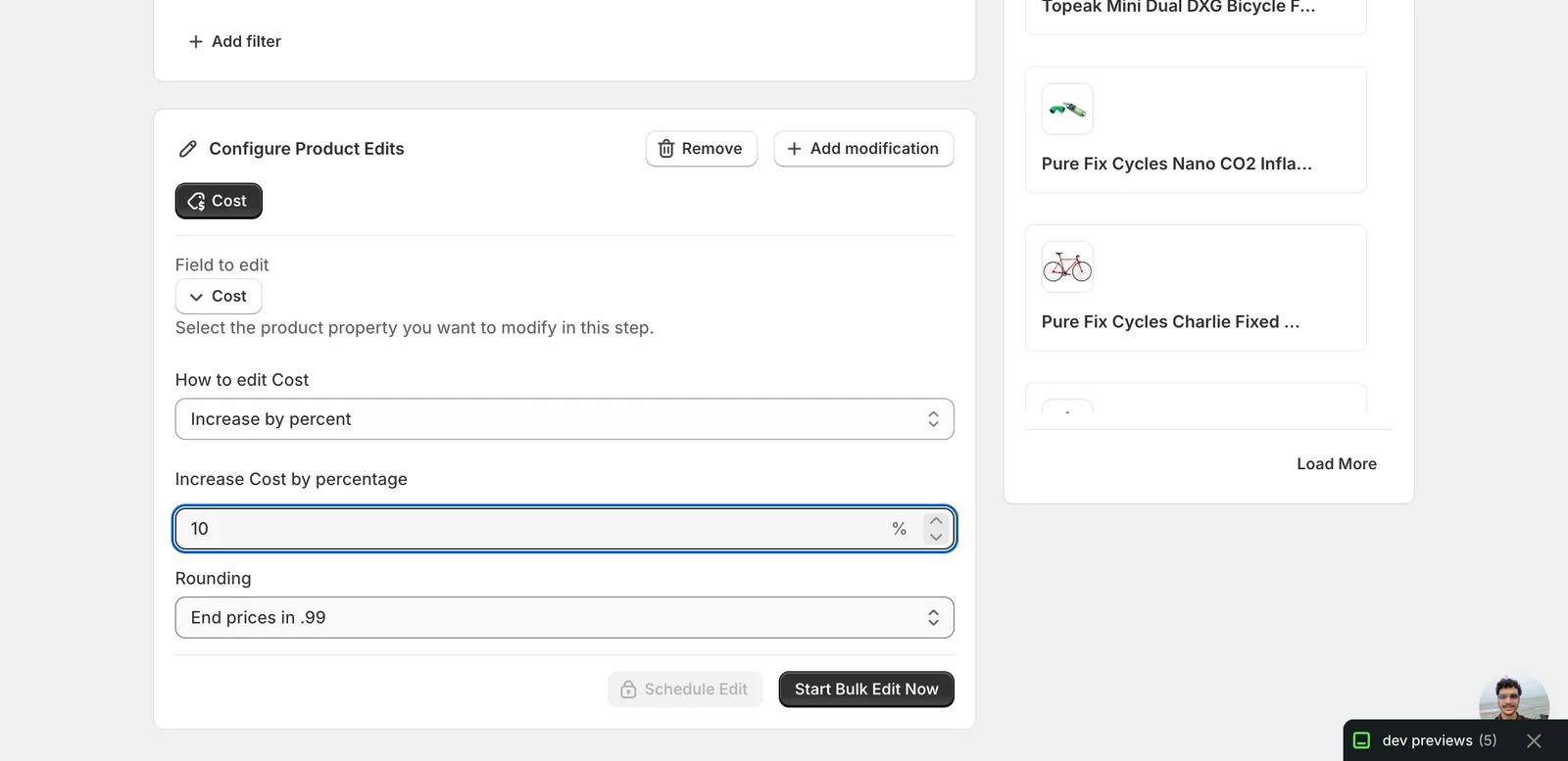
In this example, every matched variant's cost goes up by 10% and the result is rounded to end in .99. So 15.00 → 16.50 → 16.99.
Re-running a percent edit re-applies the change. A 10% raise re-run produces another 10% raise — it's not idempotent.
Variants where the current cost is
0won't move under percent actions —0 × anything = 0. Filter those out, or use Set cost to value instead.
Set to null/blank
No input — the panel just confirms what the action does.
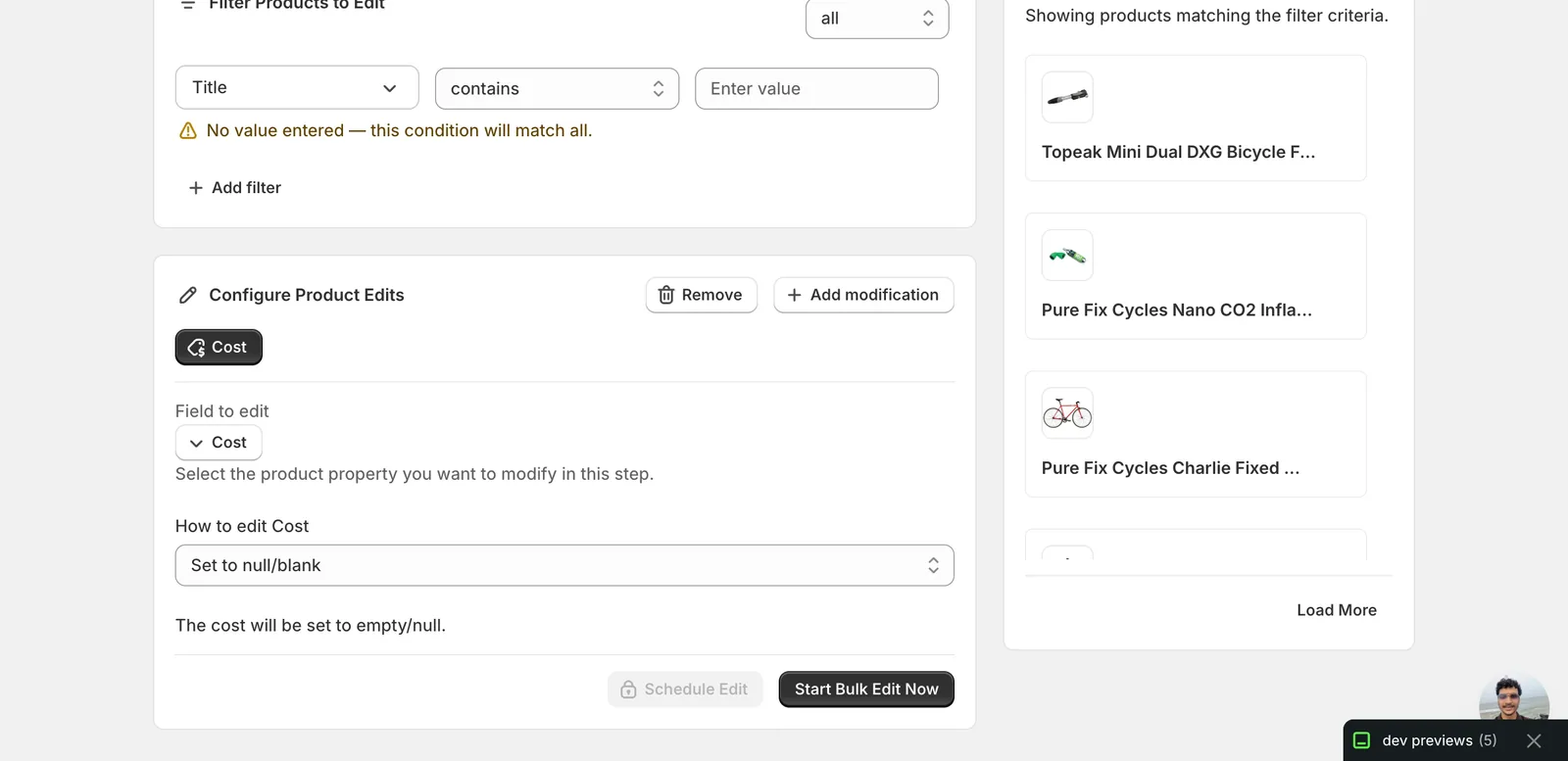
Clearing cost won't break the storefront — customers never see cost. But Shopify reports that depend on it (margin, profit, inventory value) will show as missing data for those variants until you re-enter a cost.
After the run
- Cost changes are reversible from the History page using Undo.
- Variants without a cost set today will pick up the new cost when you use Set cost to value — the action doesn't skip blank costs.
- For Increase/Decrease by percent, variants with a current cost of
0or blank won't change in absolute terms (math on0stays0; blank is treated as no cost to adjust). - Use the Edit Preview on the right to verify the new cost on a few variants before clicking Start Bulk Edit Now.
Frequently asked questions
How do I update cost per item on all Shopify variants at once?
Pick Cost under Variant Fields in EditEngine's Select Field modal, choose an action like Set cost to value, and enter the amount. Cost is a variant field, so the action runs once per matched variant — a product with three variants gets three cost updates. Verify in the Edit Preview before clicking Start Bulk Edit Now.
Can I undo a bulk cost edit in Shopify?
Yes. Cost changes are reversible from EditEngine's History page using Undo. Still, it's worth using the Edit Preview on the right to verify the new cost on a few variants before you run the edit, especially with percent adjustments where the resulting numbers depend on each variant's existing cost.
How do I raise the cost of every Shopify variant by a percentage?
Choose Increase by percent in EditEngine's How to edit Cost dropdown and enter the percentage. An optional Rounding dropdown snaps results to endings like .99 or .95 — for example, a 10% raise turns 15.00 into 16.50, rounded to 16.99. Note that re-running a percent edit re-applies the change; it isn't idempotent.
Why didn't some Shopify variant costs change after a percent increase?
Variants with a current cost of 0 won't move under percent actions, because any percentage of zero is still zero, and blank costs are treated as no cost to adjust. Filter those variants out in EditEngine, or use Set cost to value to give them an explicit amount instead.
Does clearing the cost field break anything in Shopify?
Clearing cost won't break the storefront — customers never see cost. EditEngine's Set to null/blank action simply empties the field. However, Shopify reports that depend on cost, like margin, profit, and inventory valuation, will show missing data for those variants until you re-enter a cost.