
Variants & options
How to Bulk Edit Option 3 Value
Published by Profitonium Apps · Last updated
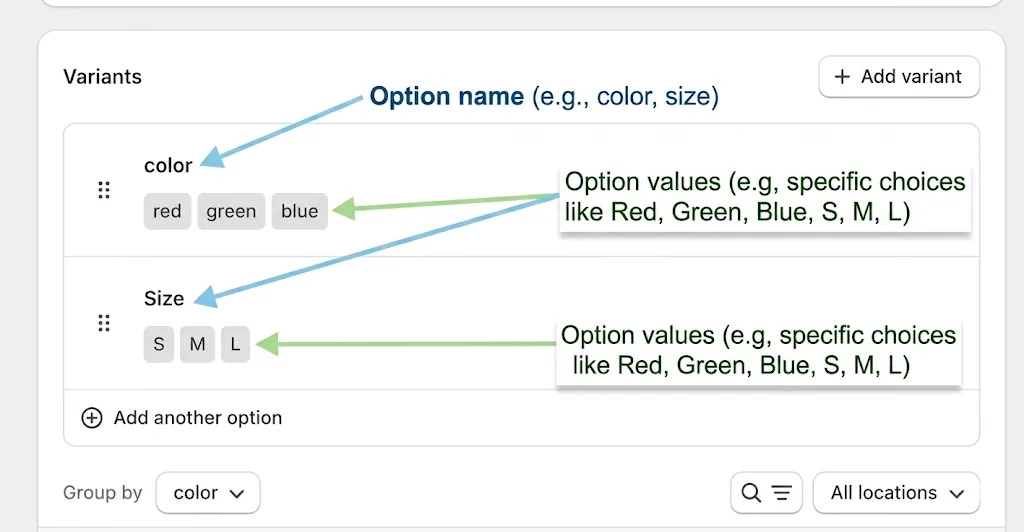
Option 3 Value is the third dropdown choice on a variant — for example, the Wool in a Size / Color / Material product, or the 2026 in a Size / Color / Year product. It's a per-variant field, and EditEngine's Bulk Editor lets you fix typos, normalise wording, or tag a batch of variants in one pass without opening each Shopify product individually.
Only variants that already have a third option get touched. If a product has just two options (or one), there's no Option 3 Value to edit and those variants are skipped. To edit the option name itself (e.g. "Material" → "Fabric"), use Option 3 Name instead.
Step 1: Pick the Option 3 Value field
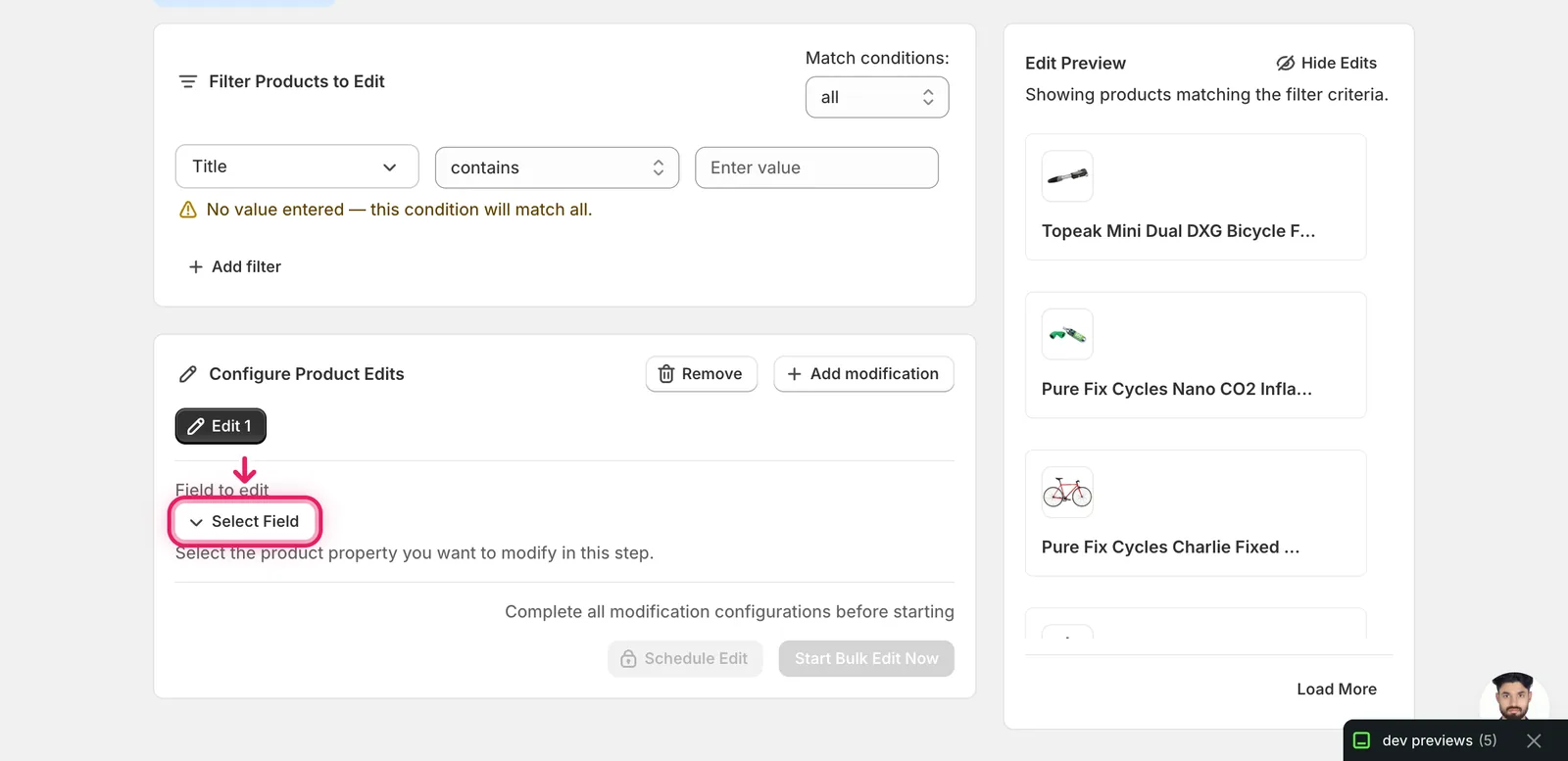
In the Configure Product Edits panel, click Select Field.
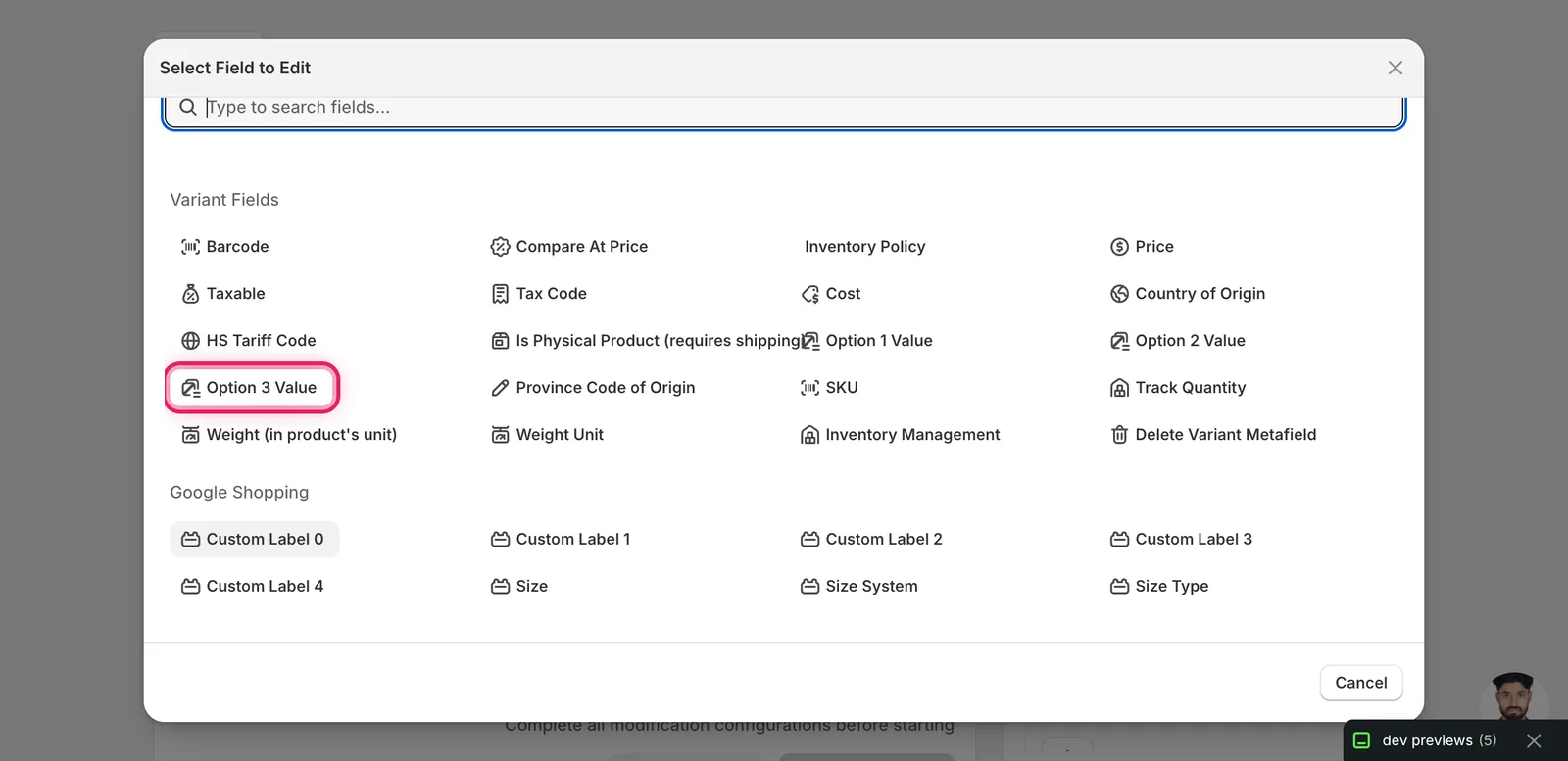
The field picker modal opens. Option 3 Value lives under Variant Fields — scroll to that section or type option 3 in the search bar at the top of the modal.
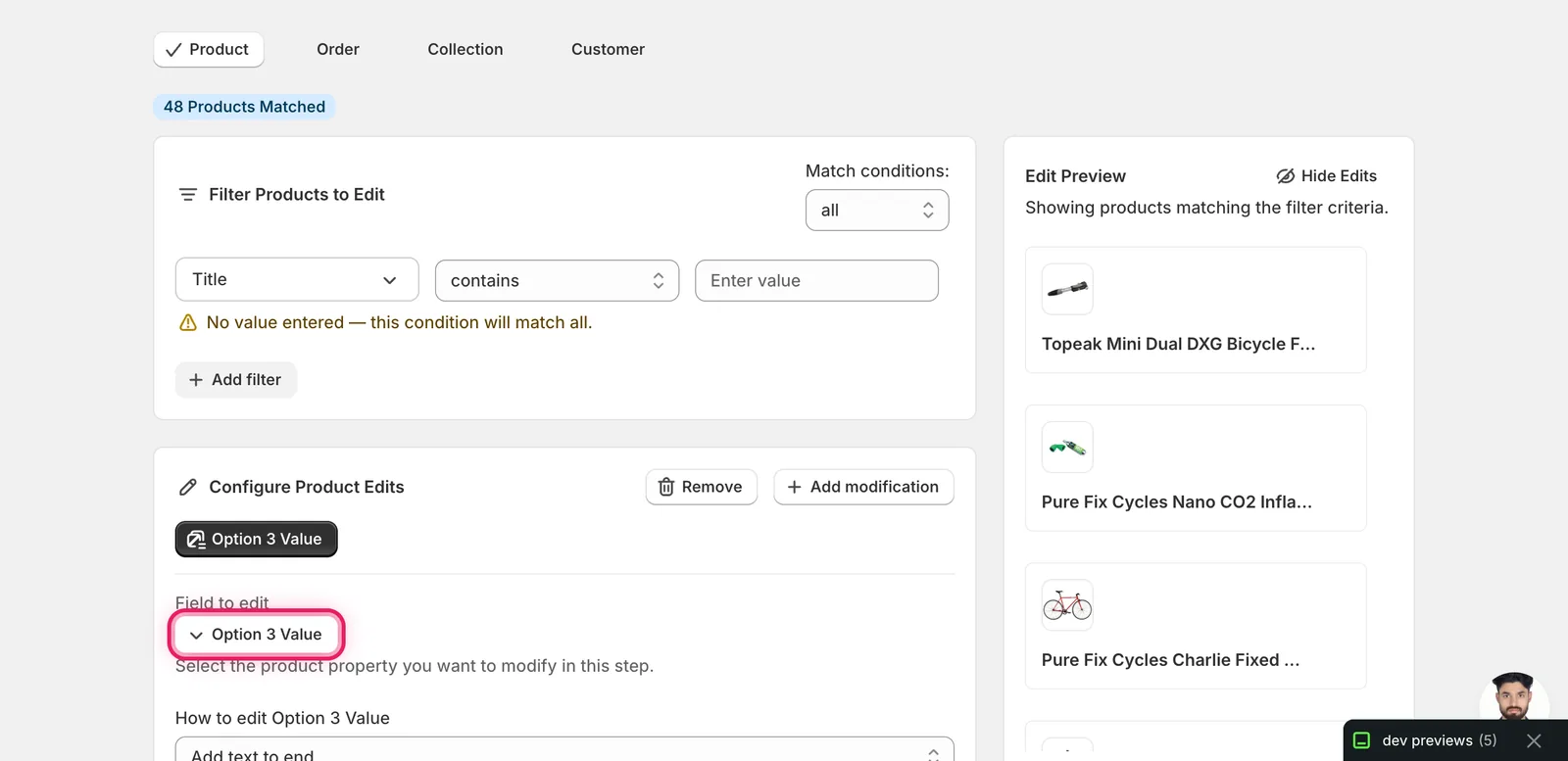
Click it. The modal closes and the configuration panel switches to a How to edit Option 3 Value dropdown.
Step 2: Choose how to change the value
Five actions are available — there's no "set to value" action for option values, so every edit modifies what's already there:
- Add text to end — append text to the existing option value (e.g.
XL→XL (last few)). - Add text to beginning — prepend text (e.g.
Red→New: Red). - Remove text from end — strip a suffix.
- Remove text from beginning — strip a prefix.
- Find text and replace — swap one substring for another, optionally case-insensitive. Best for renaming a value across the whole catalog (e.g. every
XLbecomesExtra Large).
The form below the dropdown changes to match the action.
Inside Shopify, every variant that shares the same Option 3 Value is part of the same option group. If you rename the value on one variant, Shopify creates a new option group and other variants keep the old wording. The Bulk Editor walks every matched variant individually, so all of them flip at once — that's the point.
Step 3: Enter your text
Add text to end / beginning
A single input. Whatever you type gets appended or prepended to every matched variant's Option 3 Value.
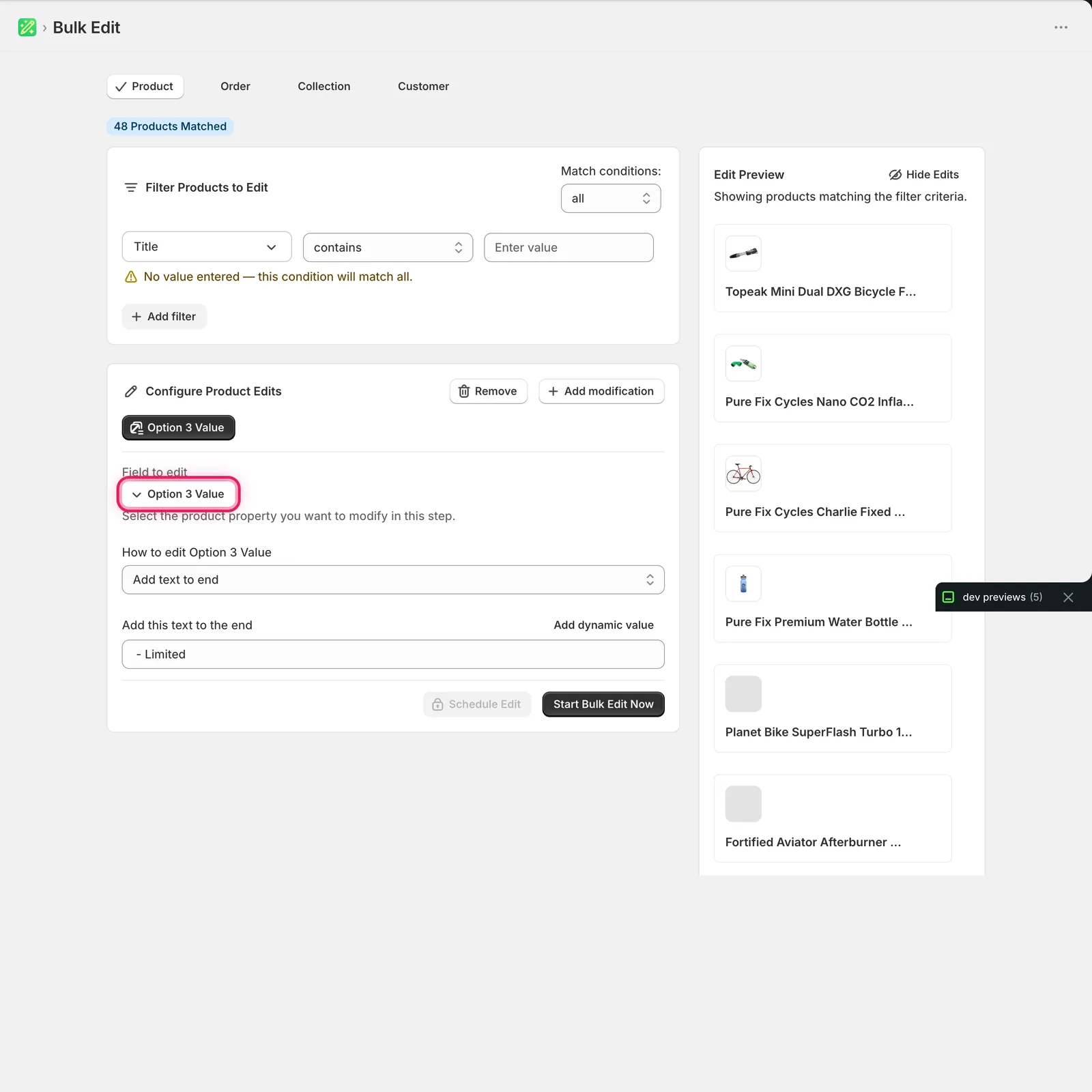
In this example, a variant whose Option 3 Value is Wool becomes Wool - Limited. A variant whose value is empty (no Option 3) is skipped.
Use dynamic values to keep variants distinct. Click Add dynamic value above the input to insert a token like
{{product.vendor}}or{{variant.sku}}. Useful when you want the appended/prepended text to vary per product or variant.
Remove text from end / beginning
A single input — the exact text to strip. Only matching prefixes/suffixes are removed; non-matching variants are untouched.
Find text and replace
Two inputs — what to look for, and what to replace it with — plus a Case insensitive checkbox.
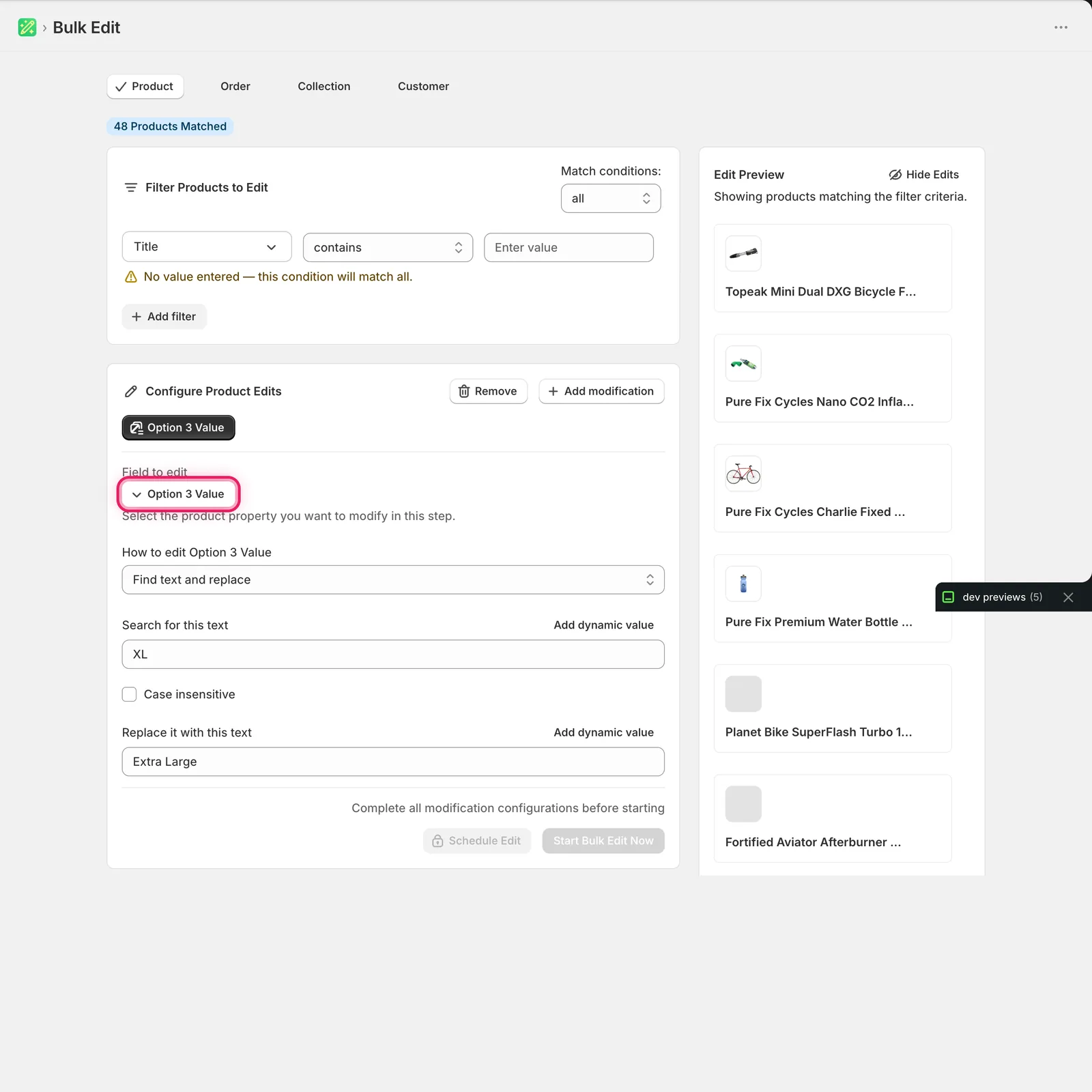
This is the most common shape: standardising abbreviations (XL → Extra Large, S/M → Small/Medium), fixing a misspelling, or retiring a marker word. Leave the replace field blank to delete the matched text outright.
The match is a substring match. With Case insensitive ticked, xl, XL, and Xl all match.
Step 4: Preview, then run
The Edit Preview panel on the right shows the affected variants with the proposed new Option 3 Value. Skim it — make sure the change reads correctly and that you're not catching variants you didn't intend to.
When the preview looks right, click Start Bulk Edit Now at the bottom of the configuration panel. EditEngine queues the job; the History page shows progress and lets you Undo the run if something looks off.
After the run
- Edits are reversible from History → Undo for the run.
- Variants without an Option 3 are skipped silently — they don't fail, they're just not relevant.
- Find/Replace and the Add/Remove actions are not idempotent. Re-running them on the same variants keeps modifying the value (e.g. running
Add text to end: " - Limited"twice gives youWool - Limited - Limited). The Edit Preview helps you sanity-check before each run. - Renaming values across the catalog with the EditEngine Bulk Editor is much faster than the native Shopify product editor, which forces you to open each product to change variant options.
Frequently asked questions
How do I bulk edit third option values like Wool or XL on Shopify variants?
Choose Option 3 Value under Variant Fields in EditEngine — scroll to that section or type option 3 in the search bar. Five actions are available: add text to the end or beginning, remove a suffix or prefix, or find text and replace. It is a per-variant field, so every matched variant is updated without opening each Shopify product individually.
Can I undo a bulk Option 3 value change in Shopify?
Yes. Edits are reversible from EditEngine's History page using Undo for the run. Before committing, the Edit Preview panel shows the affected variants with the proposed new Option 3 Value, so you can confirm the change reads correctly and that you are not catching variants you did not intend to.
How do I rename XL to Extra Large on every Shopify variant at once?
Use Find text and replace on EditEngine's Option 3 Value field, with XL in the search input and Extra Large in the replace input. The match is a substring match, and with Case insensitive ticked, xl, XL, and Xl all match. Leave the replace field blank to delete the matched text outright.
Why does renaming an option value on one Shopify variant leave the others unchanged?
Inside Shopify, every variant sharing the same Option 3 Value belongs to one option group — renaming the value on a single variant creates a new group while the others keep the old wording. EditEngine's Bulk Editor walks every matched variant individually, so all of them flip at once in a single run.
What happens if I run the same Option 3 value edit twice in my Shopify store?
Find/Replace and the Add/Remove actions are not idempotent — re-running keeps modifying the value, so Add text to end with - Limited twice gives Wool - Limited - Limited. Use the Edit Preview to sanity-check before each run, and note that variants without an Option 3 are skipped silently rather than failing.