
Variants & options
How to Bulk Edit Option 1 Value
Published by Profitonium Apps · Last updated
Option 1 Value is the label assigned to a variant for the product's first option — the "Small" in a Size option, the "Red" in a Color option, the "12oz" in a Weight option. EditEngine's bulk editor lets you append, prepend, trim, or find-and-replace this label across many variants at once, instead of opening each Shopify product page by hand.
Option 1 Value is a variant field. A product with five variants gets five updates — one per variant. If a product has no extra options, its single variant uses
Default Titleas the Option 1 Value.
There is no "set to fixed value" action here on purpose. Setting every matched variant's Option 1 Value to the same string would collapse them into duplicate variant identities, which Shopify rejects. The available actions all preserve uniqueness by transforming each existing label.
Step 1: Pick the Option 1 Value field
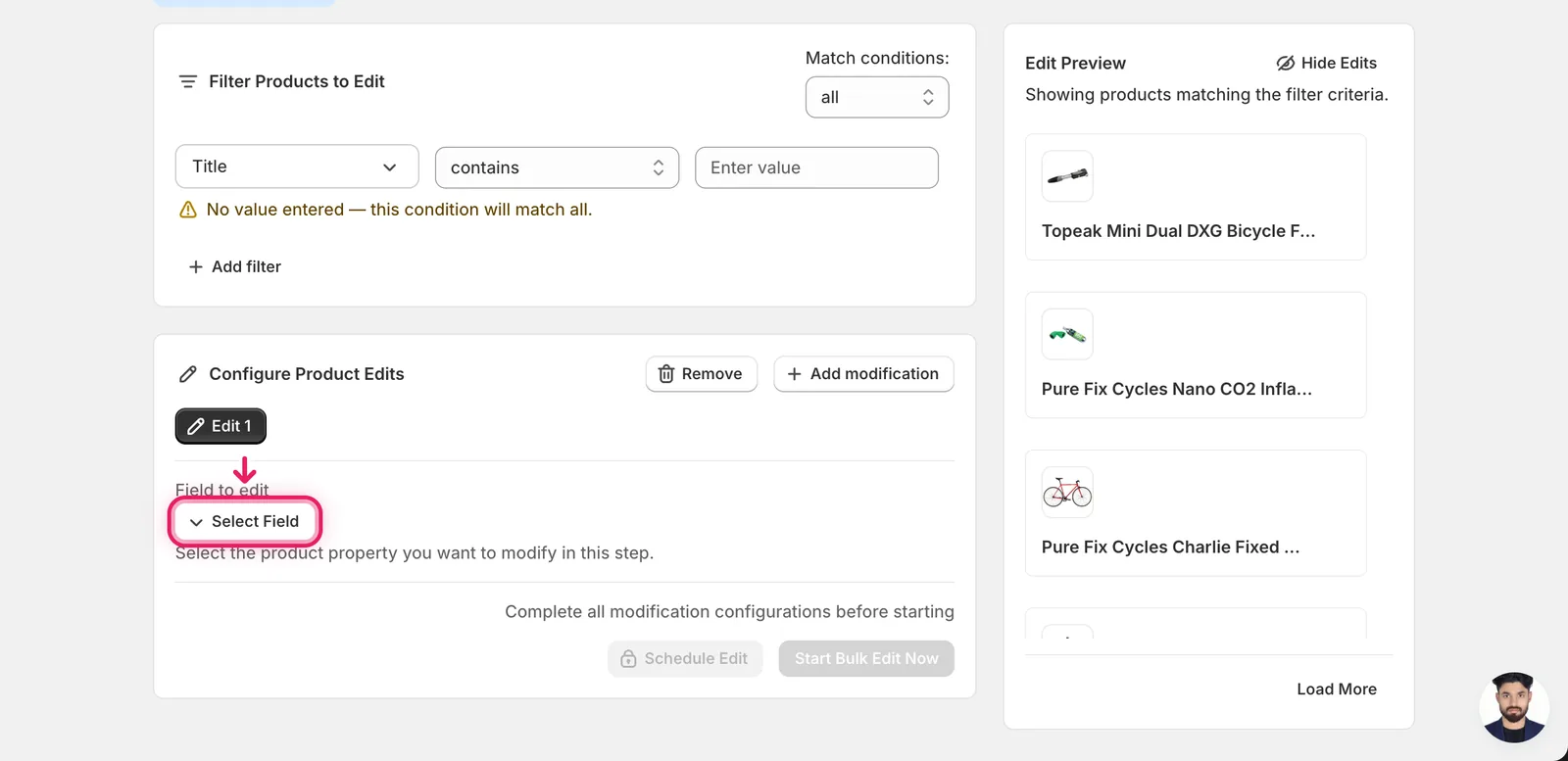
In the Configure Product Edits panel, click Select Field.
The field picker opens. Option 1 Value lives under Variant Fields. Scroll or type "Option 1" in the search box to jump to it.
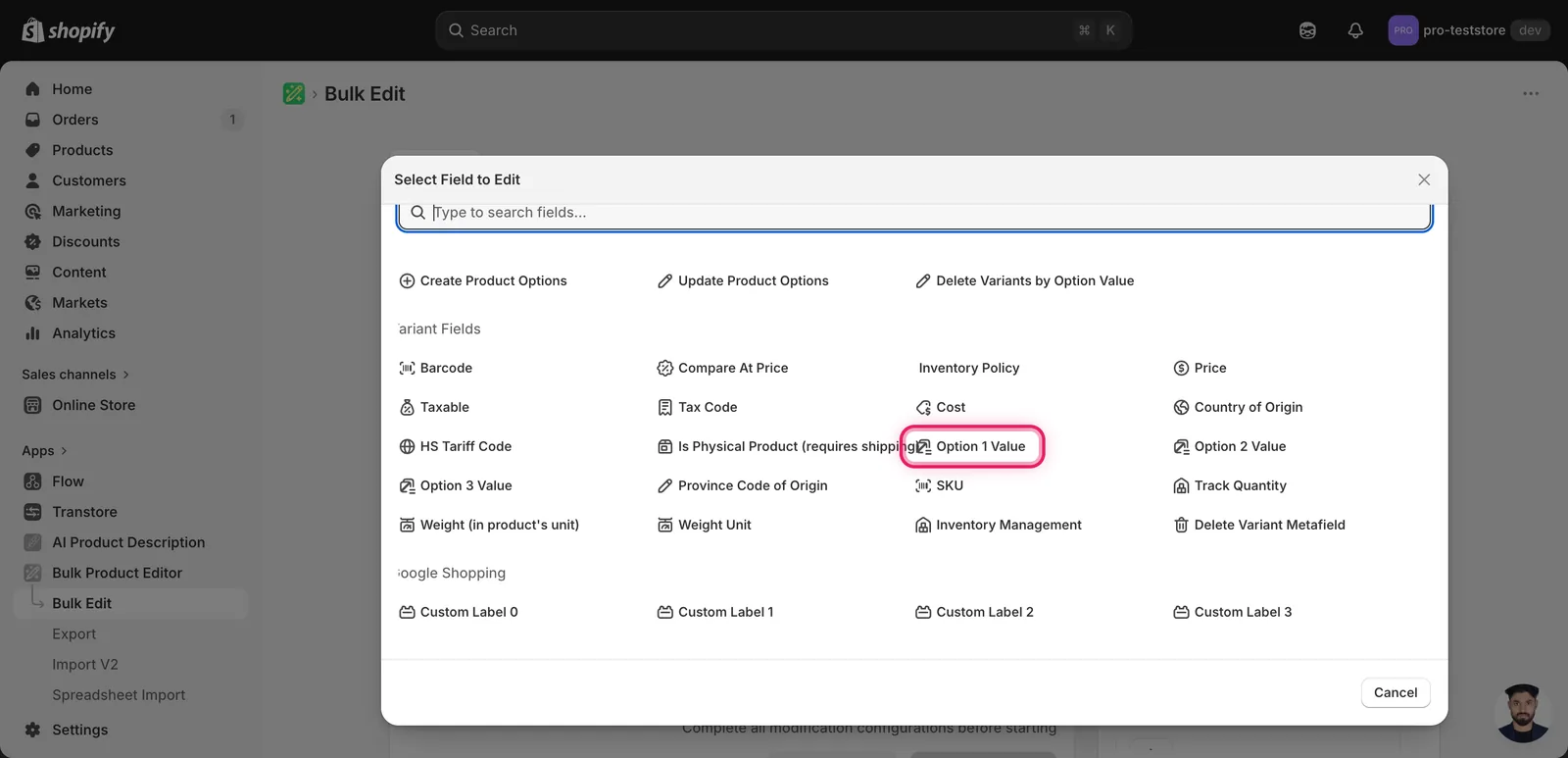
Click Option 1 Value. The configuration panel switches to a How to edit Option 1 Value dropdown defaulting to Add text to end, plus an input for the text to append.
Step 2: Choose how to change the option value
Five actions are available.
Append or prepend
- Add text to end — append text to every variant's Option 1 Value (e.g.
(Old Stock)). - Add text to beginning — prepend text (e.g.
[2025]).
Trim
- Remove text from end — strip a suffix that's appended on every label.
- Remove text from beginning — strip a prefix.
Find and swap
- Find text and replace — swap one substring for another across every matched variant. Optional case-insensitive matching.
The inputs change based on what you pick.
Step 3: Enter the value
Add text to end / Add text to beginning
A single input. Whatever you type gets appended (or prepended) to every matched variant's Option 1 Value. Leading and trailing spaces are kept as-is, so include them if you need a separator.
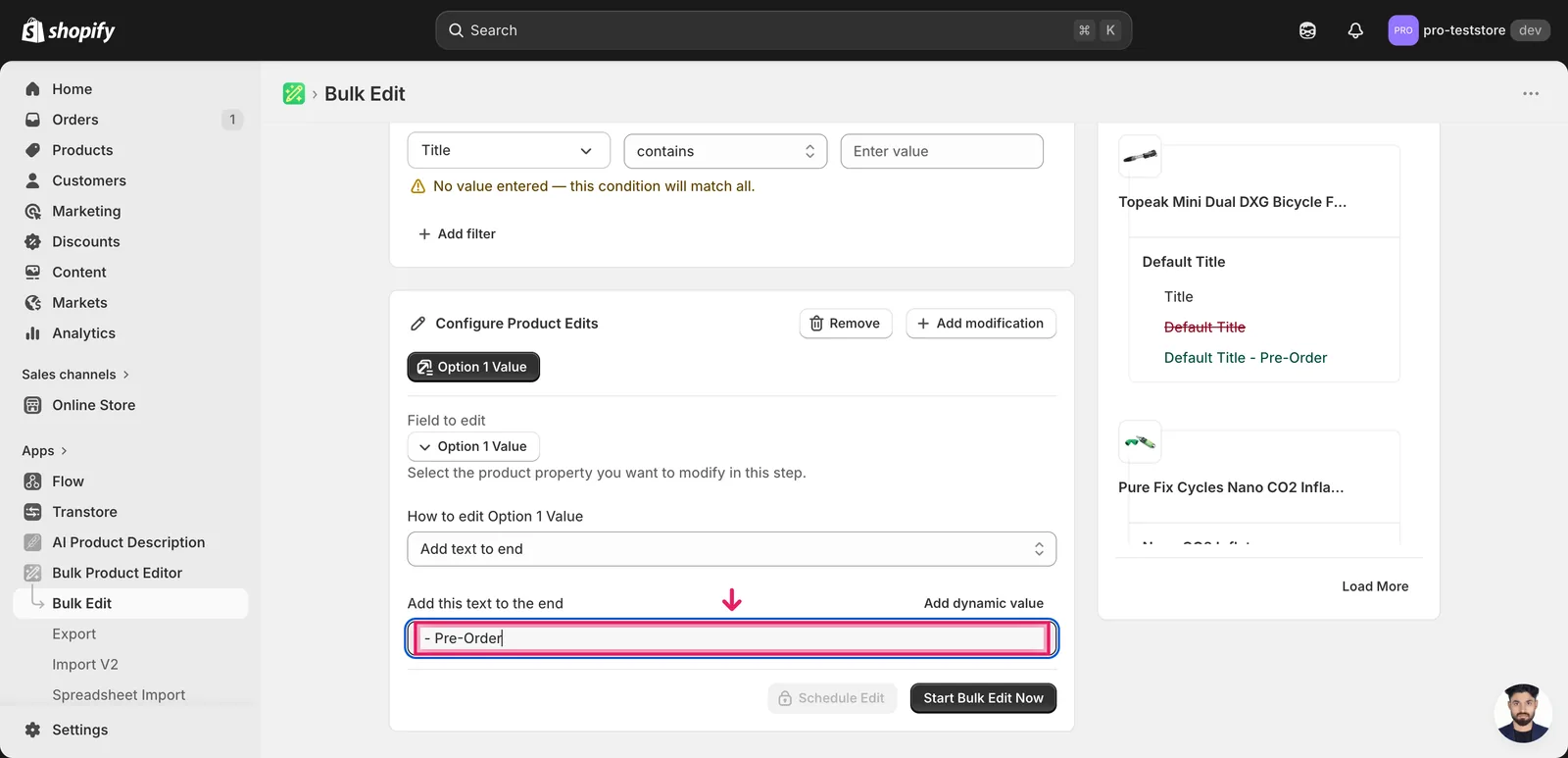
In this example, every matched variant's Option 1 Value gets - Pre-Order tacked onto the end. The Edit Preview on the right resolves the change per variant — a quick way to confirm before you run.
Remove text from end / Remove text from beginning
Same shape — one input. Whatever you type is stripped from the matching end of every label. If a variant doesn't have that prefix or suffix, it's left alone.
Find text and replace
Two inputs (search and replacement) plus a Case insensitive checkbox. Use this to clean up typos, retire a season label, or normalize abbreviations across the catalog.
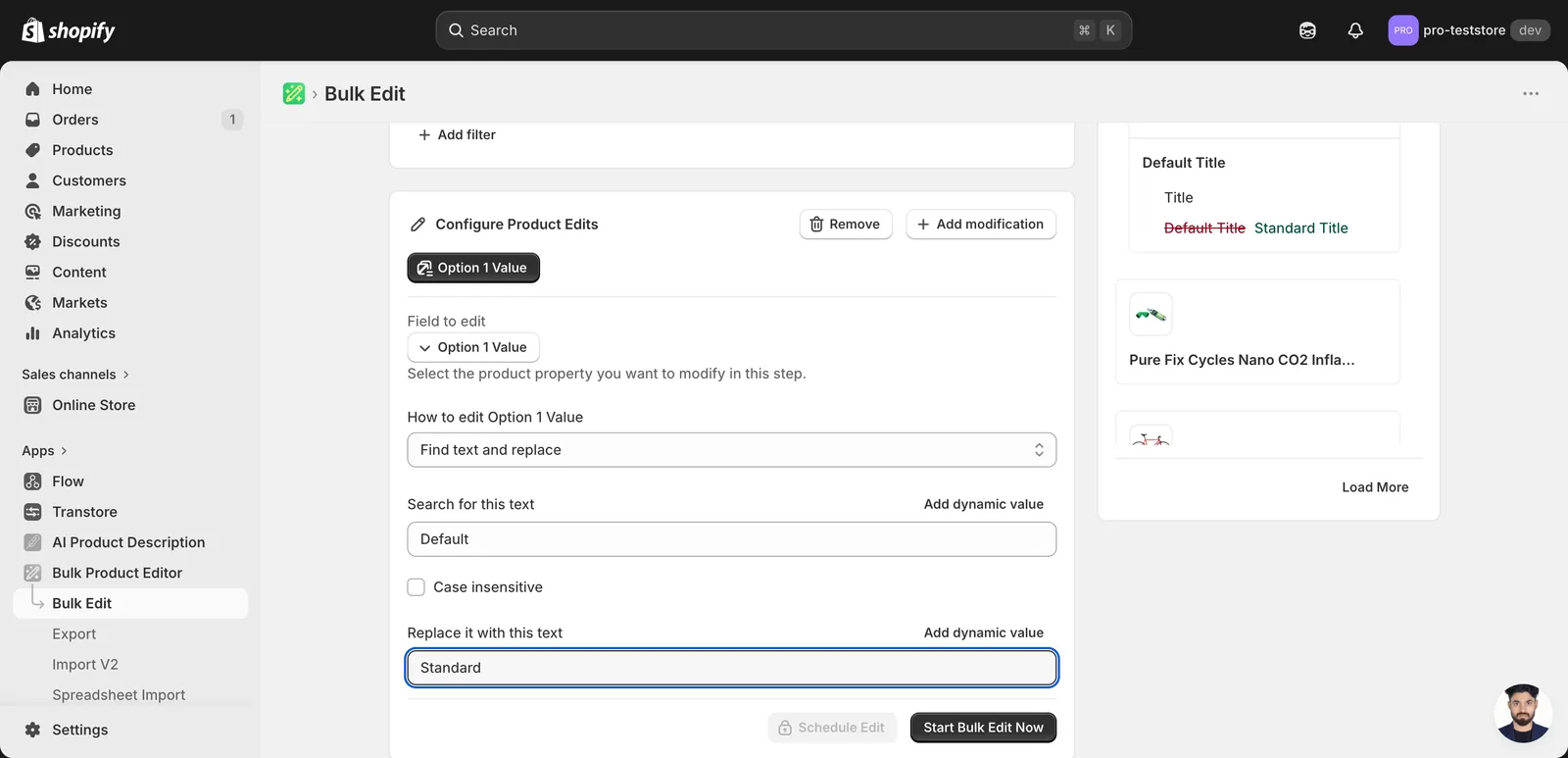
Leave the replace field blank to delete the matched substring outright. Tick Case insensitive when the existing labels mix cases (e.g. red, Red, RED — all matched by red).
Use a dynamic value when the suffix should differ per product. The Add dynamic value link above each input lets you insert a token like
{{product.vendor}}or{{variant.sku}}, so each variant gets a label derived from its own data instead of one literal string.
Step 4: Filter, preview, then run
Use the Filter Products to Edit panel up top to limit the change to the right variants — by collection, vendor, type, tag, or option name. Without a filter, every variant in your catalog is matched.
The Edit Preview on the right shows the original Option 1 Value struck through and the proposed new value next to it, per variant. Skim through a few rows before clicking Start Bulk Edit Now.
After the run
- Option 1 Value changes are reversible from the History page using Undo.
- Renaming an option value affects how variants appear on the storefront and in the admin variant picker. If your theme or apps reference specific values (e.g. URL query params like
?variant=Small), update them too. - The Add / Remove / Find-replace actions are not idempotent — re-running the same edit keeps applying the change. Running "Add text to end:
- Pre-Order" twice produces- Pre-Order - Pre-Order. Always rely on the Edit Preview before a re-run. - For products with three options, repeat the process with Option 2 Value or Option 3 Value if you need parallel edits across all option positions.
Frequently asked questions
How do I bulk rename a first-option variant value like Small across Shopify products?
Use EditEngine's Option 1 Value field under Variant Fields with the Find text and replace action. Enter the text to search for and its replacement, optionally ticking Case insensitive so red, Red, and RED all match. Every matched variant gets the substring swapped in one run — no opening each Shopify product page by hand.
Why is there no action to set every Option 1 value to the same text in Shopify?
It is deliberate. Setting every matched variant's Option 1 Value to one identical string would collapse them into duplicate variant identities, which Shopify rejects. EditEngine instead offers actions that preserve uniqueness — add or remove text at the beginning or end, or find-and-replace — each transforming the variant's existing label.
Can I preview Option 1 value changes before running them on my Shopify store?
Yes. The Edit Preview on the right shows the original Option 1 Value struck through with the proposed new value next to it, per variant, so you can skim a few rows before clicking Start Bulk Edit Now. After the run, Option 1 Value changes are reversible from the History page using Undo.
What happens if I run the same Option 1 value edit twice in Shopify?
The Add, Remove, and Find-replace actions are not idempotent — re-running the same edit keeps applying the change. Running Add text to end with the suffix - Pre-Order twice produces - Pre-Order - Pre-Order on the label. Always rely on the Edit Preview before a re-run to see exactly what each variant will become.
Can I append different text to each Shopify variant's Option 1 value?
Yes. Click the Add dynamic value link above the input to insert a token like {{product.vendor}} or {{variant.sku}}. Each variant then gets a label derived from its own data instead of one literal string — useful when the suffix or prefix should differ per product or per variant.