
Products
How to Bulk Edit Description
Published by Profitonium Apps · Last updated
The product description is the rich-HTML body shown on a product page below the title. EditEngine treats it as HTML, so on top of the usual text actions (set, prefix/suffix, find-replace, limit length) you also get HTML-aware tools: strip every <img>, every <table>, or every link in one shot.
Description is a product field. One description per product (variants don't have their own), so each matched product gets a single update.
Step 1: Pick the Description field
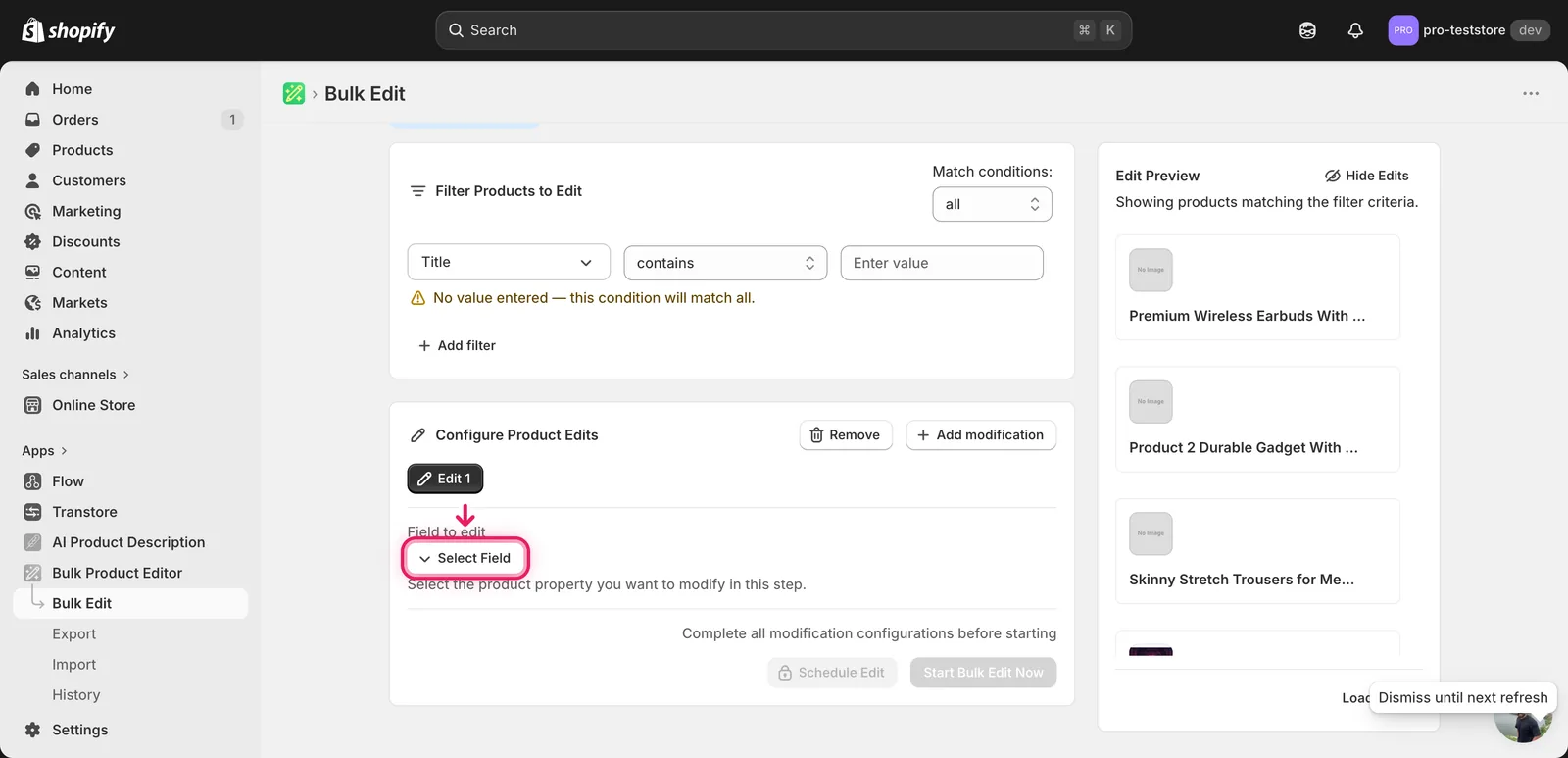
In the Configure Product Edits panel, click Select Field.
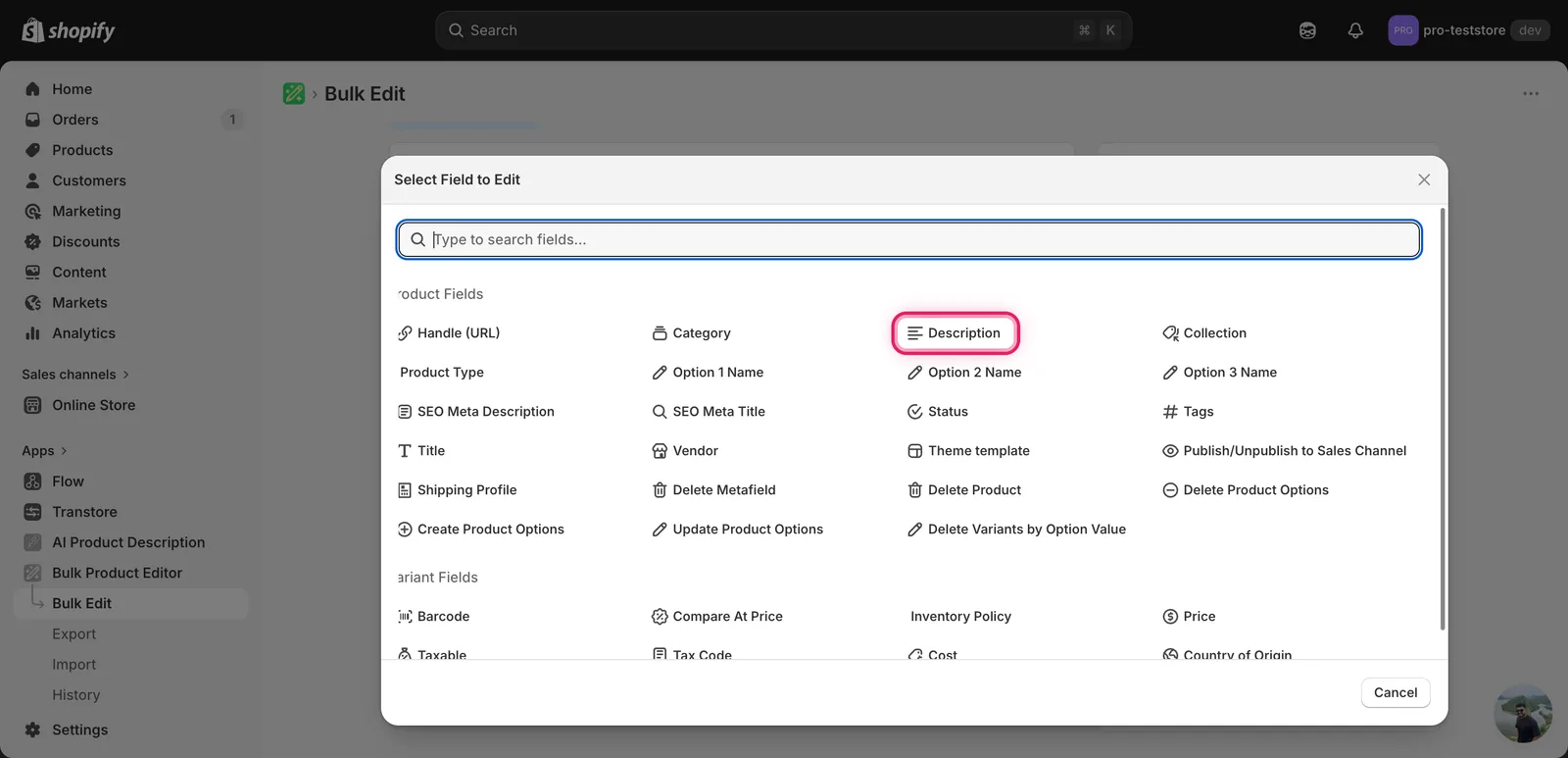
Description lives under Product Fields, between Category and Collection.
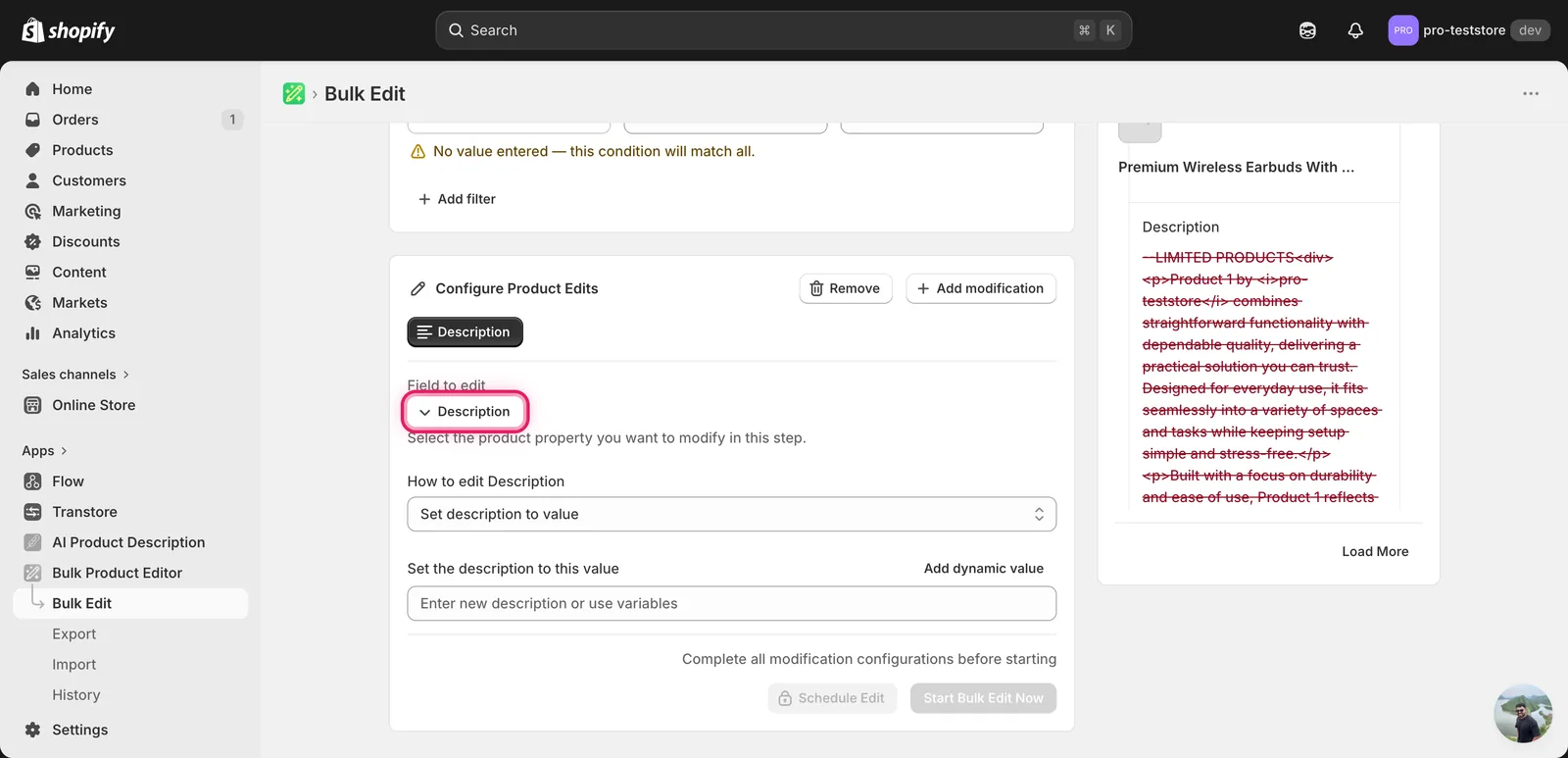
Click it. The configuration panel switches to a How to edit Description dropdown defaulting to Set description to value, plus a value input.
Step 2: Choose how to change the description
Twelve actions are available — more than most fields, because Description is HTML.
Direct value
- Set description to value — overwrite the entire description with whatever you type. Pair with a dynamic value (see Step 3) so each product still gets a unique result.
Adjust the existing description
- Add text to end — append HTML or plain text (e.g.
<p>Free returns within 30 days.</p>). - Add text to beginning — prepend.
- Remove text from end — strip a trailing block.
- Remove text from beginning — strip a leading block.
- Find text and replace — swap one substring for another, optionally case-insensitive. Works on raw HTML, so you can replace tags too (
<h2>→<h3>). - Limit length of text — cap the description at N characters.
- Remove text from a word to the end — find a word, delete it and everything after.
- Remove text up to and including a word — find a word, delete it and everything before.
HTML-aware cleanup (description-only)
- Remove link — strip
<a>tags. Optionally remove the link text too, or just the wrapping anchor. - Remove images — strip every
<img>tag. - Remove tables — strip every
<table>tag and its contents.
The inputs below the dropdown change based on what you pick.
Step 3: Enter the value
Set description to value
Type the new description in the Set the description to this value input. HTML is allowed — paste in <p>...</p>, <ul><li>...</li></ul>, whatever you need.
Use dynamic values to keep descriptions unique. Click Add dynamic value above the input. A modal opens letting you pick from product fields (Title, Vendor, Tags, Type, Handle, Category, Collection Names...) and metafields, with optional capitalization (UPPER, lower, Title Case).
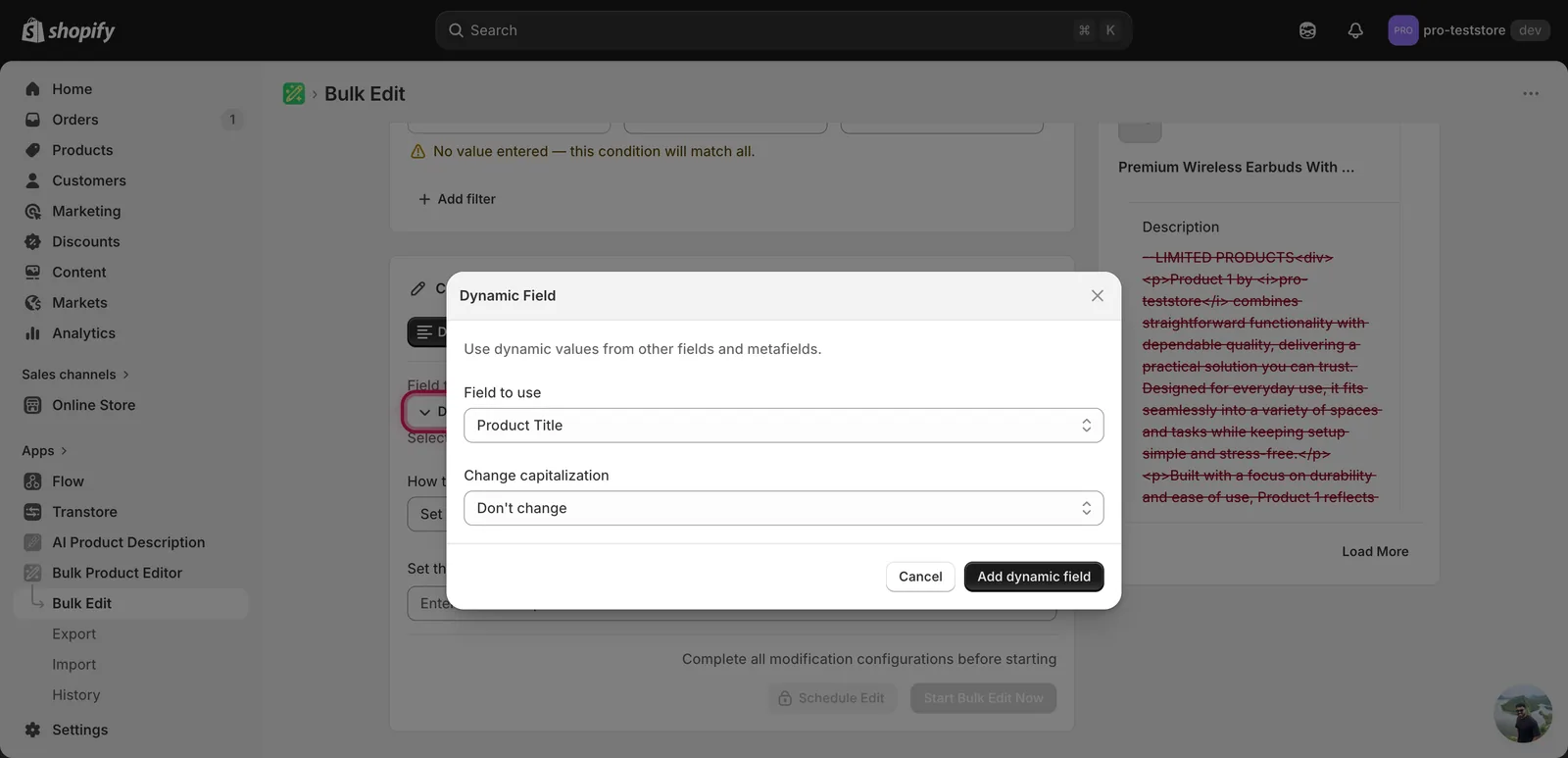
Picking Product Title inserts the token {{product.title}} at the cursor. Combine with literal text (and HTML) to compose new descriptions.
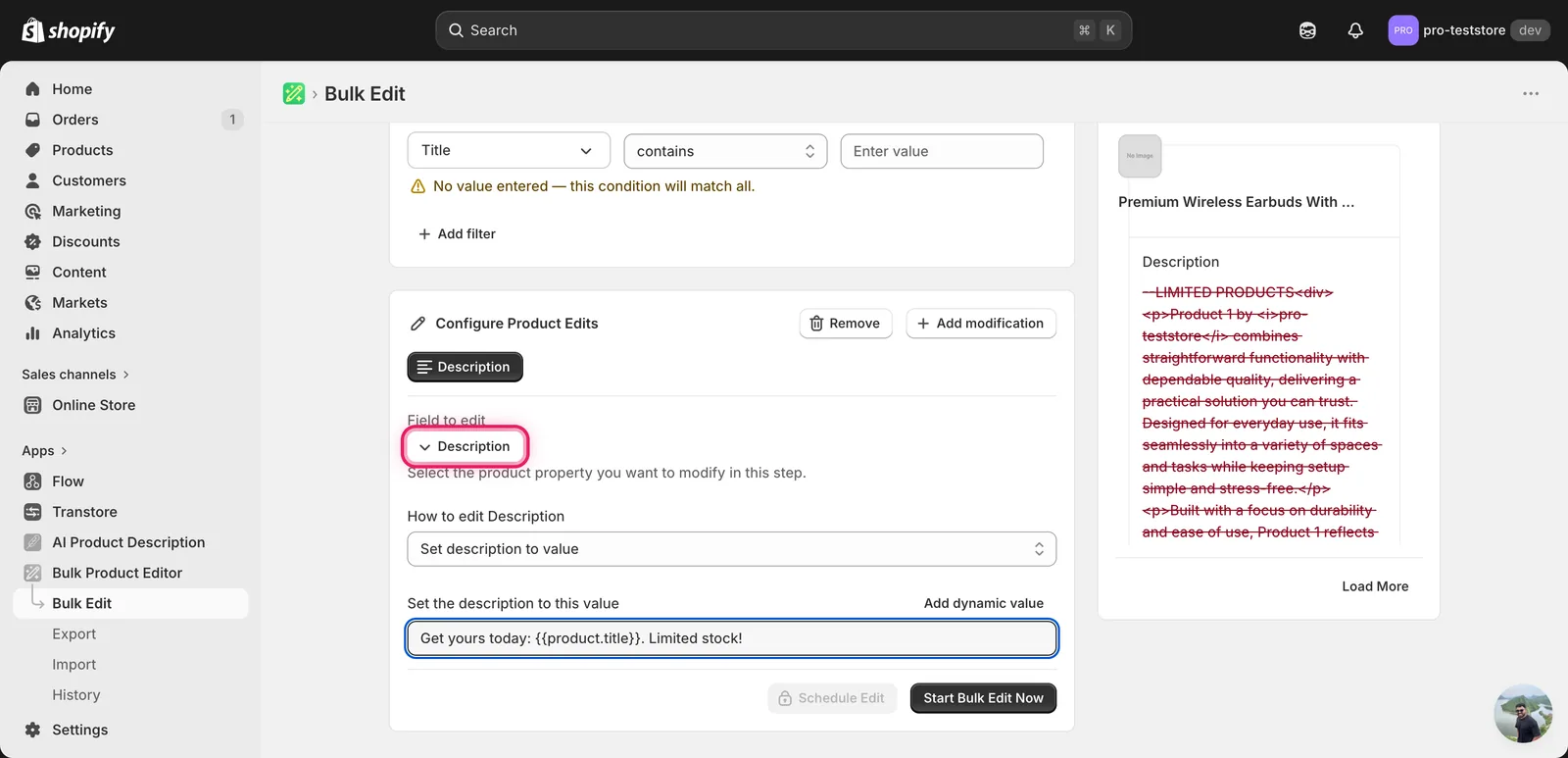
In this example, every matched description becomes Get yours today: <original title>. Limited stock!. The Edit Preview on the right resolves the token per product so you can verify before running.
Setting a literal string with no dynamic token across many products gives every product the same description. Storefront SEO penalises duplicate body content — make sure the value is generic boilerplate or includes a dynamic token before you run.
Find text and replace
Two inputs — what to look for, and what to replace it with — plus a Case insensitive checkbox. Both fields support dynamic values.
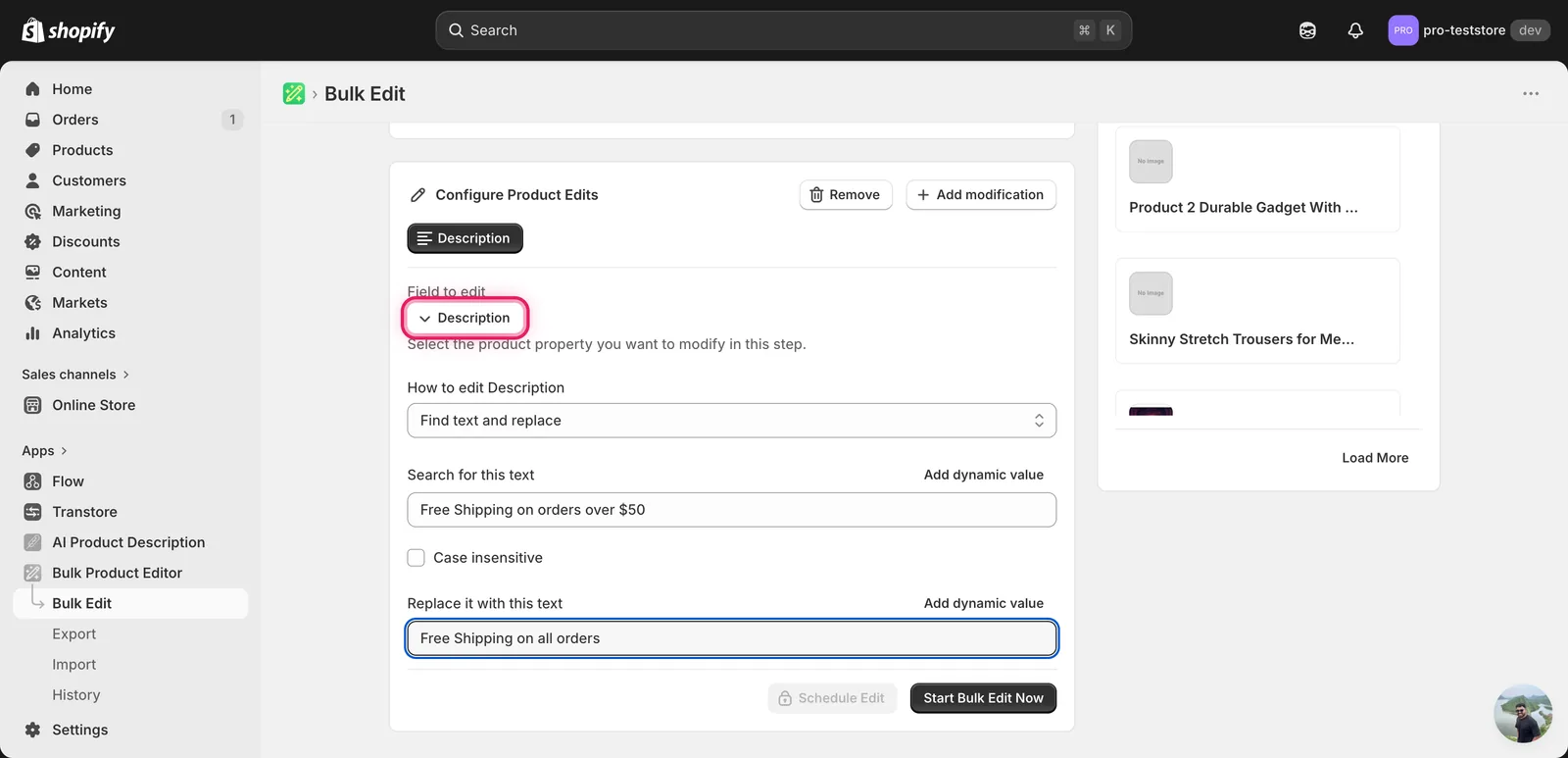
Use this to retire an old promo line, swap in a new tagline, or fix typos catalog-wide. Leave the replace field blank to delete the matched text outright. Because it operates on raw HTML, you can also rewrite tags — replacing <h2> with <h3> to demote every section header in one pass.
Add / Remove text from end or beginning
A single input. Whatever you type — including HTML — gets appended, prepended, or stripped from the matching end of every description.
Limit length of text
A number input plus two checkboxes:
- If the text is trimmed, include '...' at the end — adds an ellipsis when truncation actually happens.
- Don't trim the text in the middle of a word — pulls the cut back to the previous word boundary so descriptions don't end mid-word.
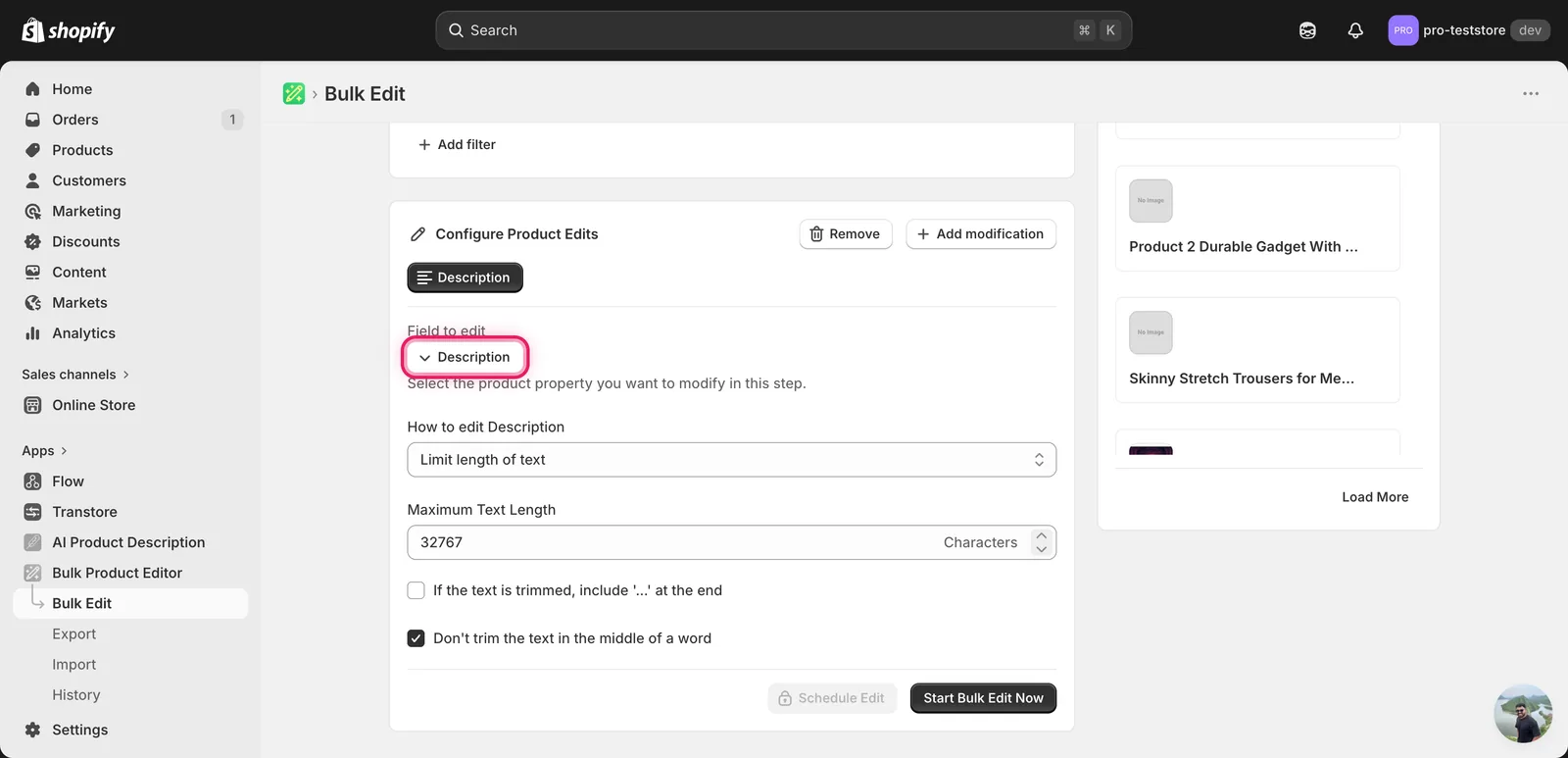
The default cap is 32767 characters — Shopify's hard ceiling. Most stores will want a much smaller number. Note that the limit counts raw HTML characters, so a description that renders as 200 characters of text might be 600+ characters once tags are included.
Remove text from a word to the end / up to and including a word
A single input — the marker word. Everything from that word onward (or up to and including it) is stripped. Useful for trailing or leading boilerplate.
Remove link
A single input plus a checkbox:
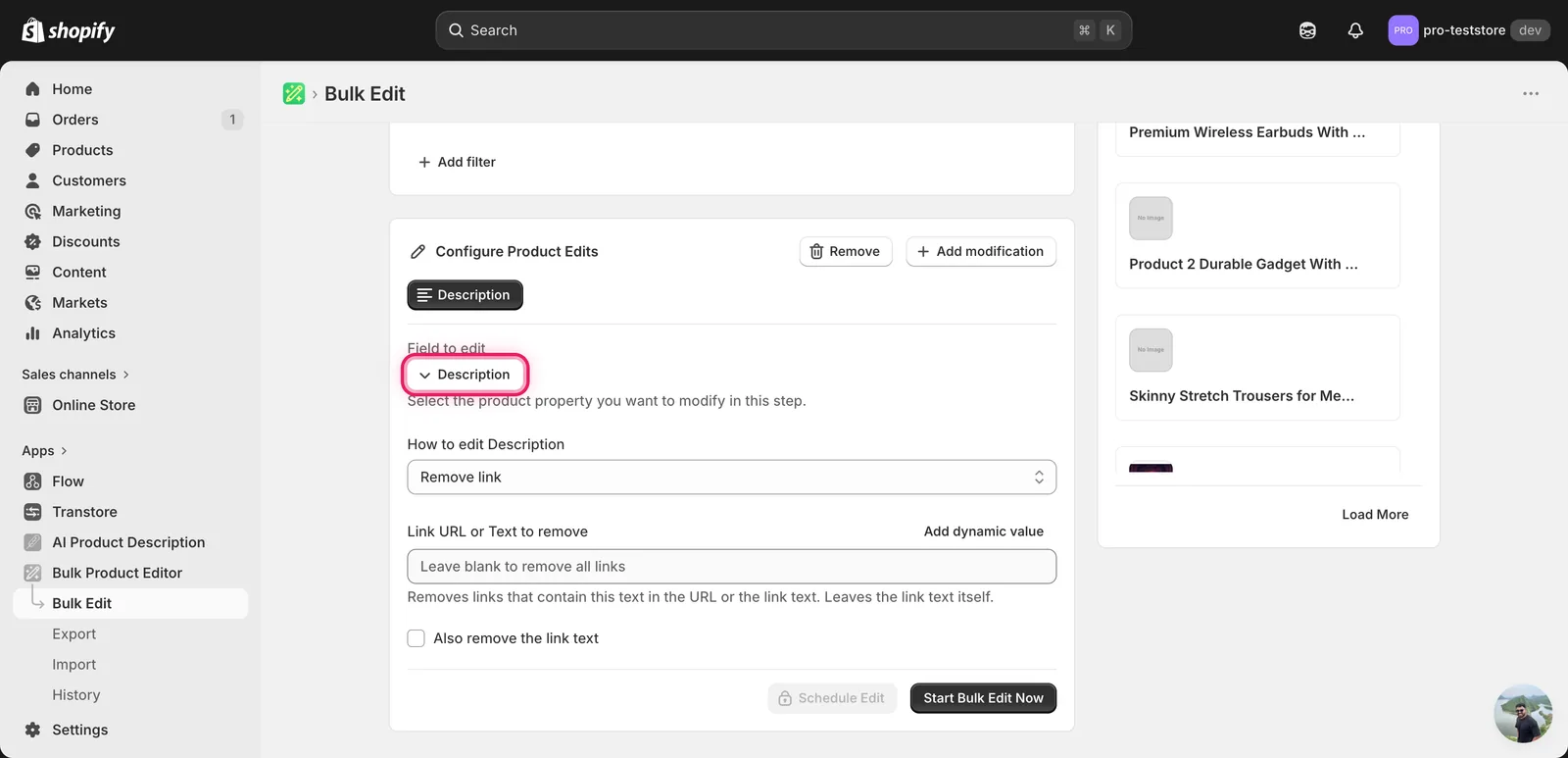
- Empty input — strips every
<a>tag in the description. - Specific URL or text — only strips links whose
hrefor visible text contains what you type (e.g.competitor.comto remove links pointing there). - Also remove the link text — by default the visible text inside the link is preserved (only the wrapping
<a>goes). Tick this box to delete the text too.
Remove images / Remove tables
No value to enter — these actions just declare what they do.
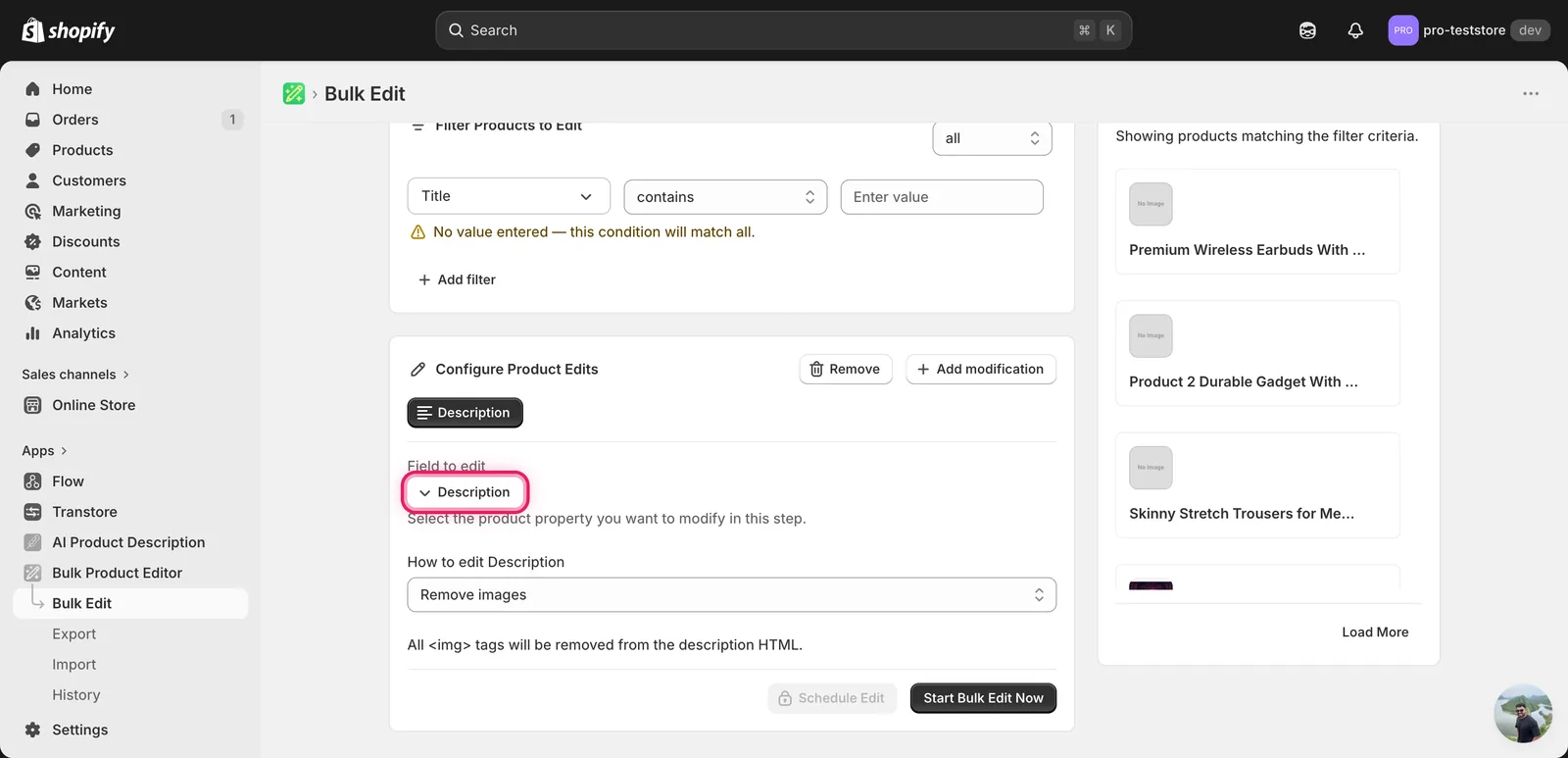
- Remove images — strips every
<img>tag. Image files in your library are not deleted; only the tags referencing them inside the description. - Remove tables — strips every
<table>tag and everything inside it. Cells, rows, headers — all gone.
After the run
- Description changes are reversible from the History page using Undo.
- The Edit Preview on the right shows the proposed new description per product. Scan a few before running, especially when you're using HTML-rewriting find/replace — a stray bracket can cascade.
- Find/replace, Add/Remove, and the word-marker actions are not idempotent — re-running them keeps modifying the description. Limit length, Remove images, and Remove tables are safe to re-run (no-op if there's nothing left to strip).
- Setting an empty description is allowed — Shopify accepts a blank body. If that's not what you want, double-check before hitting Start Bulk Edit Now.
Frequently asked questions
How can I bulk edit product descriptions in Shopify?
Open EditEngine's Configure Product Edits panel, click Select Field, and pick Description under Product Fields. Twelve actions are available because the description is HTML — set a new value, append or prepend, find and replace, limit length, plus HTML-aware cleanup tools. The Edit Preview shows each proposed description before you run.
Can I remove all images or tables from Shopify product descriptions at once?
Yes. EditEngine has description-only cleanup actions: Remove images strips every img tag — your image files are not deleted, only the tags referencing them — and Remove tables strips every table tag and everything inside it. Both are safe to re-run, becoming a no-op when nothing is left to strip.
Is a bulk description edit reversible in Shopify?
Yes. Description changes are reversible from the History page using Undo. Keep in mind that find-and-replace, append, prepend, removal, and the word-marker actions are not idempotent — re-running them keeps modifying the description — so Undo, not another run, is the way back if something goes wrong.
How do I find and replace text inside Shopify product descriptions in bulk?
Choose Find text and replace, enter what to look for and what to replace it with, and optionally tick Case insensitive. It operates on raw HTML, so you can rewrite tags too — for example replacing h2 with h3 to demote every section header. Leave the replace field blank to delete the matched text.
Can I strip links from many Shopify product descriptions in one go?
Yes, with the Remove link action. Leave the input empty to strip every anchor tag, or enter a URL or text so only links whose href or visible text contains it are removed. By default the visible link text stays — tick Also remove the link text to delete it too.