
Metafields
How to Bulk Edit Google Shopping Metafields
Published by Profitonium Apps · Last updated
Google Shopping metafields are the fields Google Merchant Center reads from your Shopify products to control how they show up in Performance Max and Shopping campaigns — Custom Labels 0–4, Age Group, Gender, Condition, Adwords Grouping, Adwords Labels, and the rest. Shopify stores them under the mm-google-shopping namespace on each product. This guide shows how to bulk-fill, find-and-replace, append to, or otherwise edit Google Shopping metafields across many products at once with EditEngine.
We'll use Custom Label 0 as the worked example throughout. The same flow works for any other Google Shopping metafield — pick the corresponding entry under Google Shopping in the Select Field modal and the configuration panel adapts to that field's type.
Google Shopping metafields are product-level fields. One value per product, regardless of how many variants the product has. The action runs once per matched product.
Step 1: Pick the Google Shopping metafield
In the Configure Product Edits panel, click Select Field.
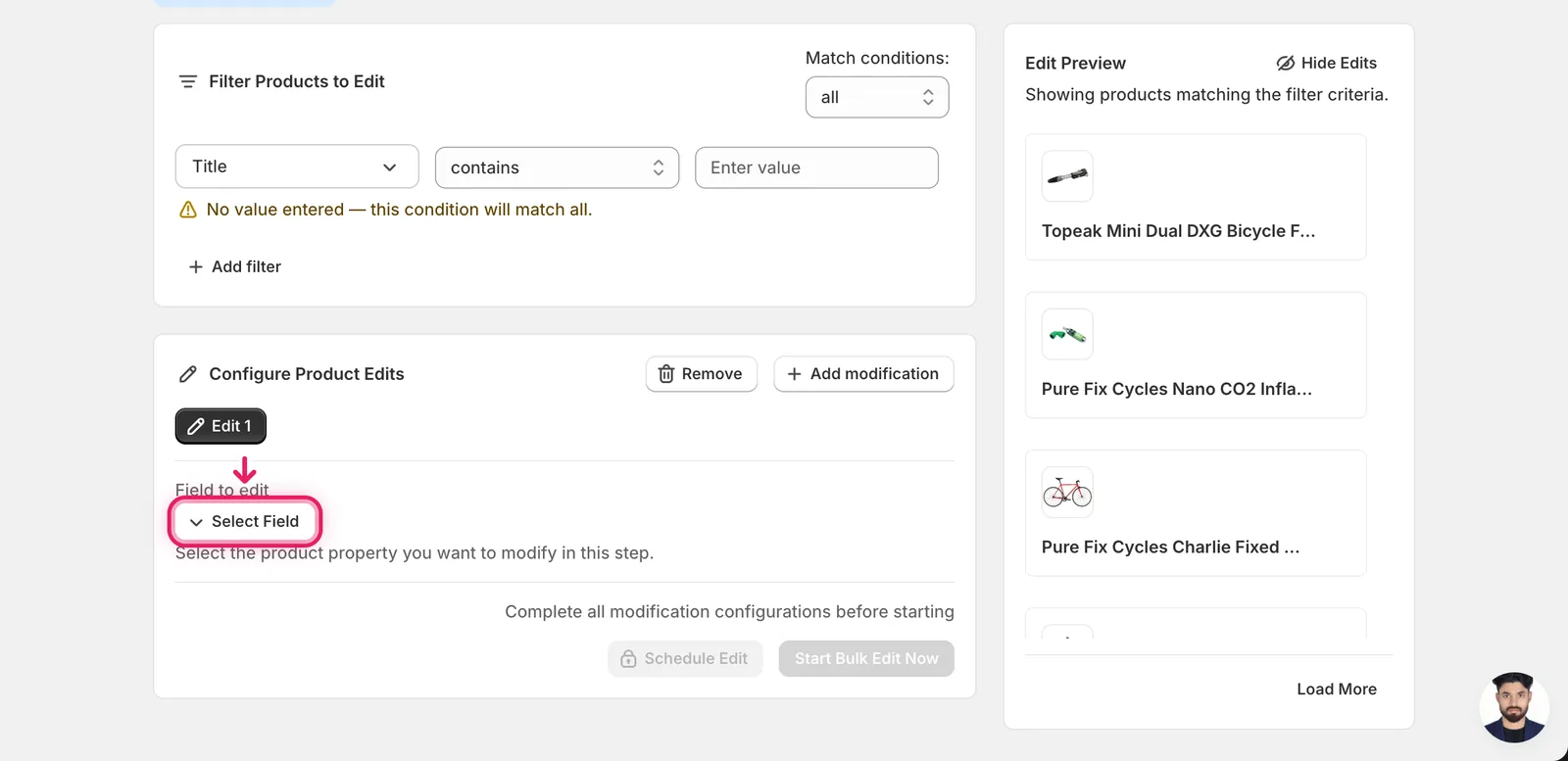
Google Shopping metafields live in the Google Shopping group inside the modal — scroll down past Product Fields and Variant Fields, or type google shopping (or the specific field, e.g. custom label, age group, condition) in the search box at the top.
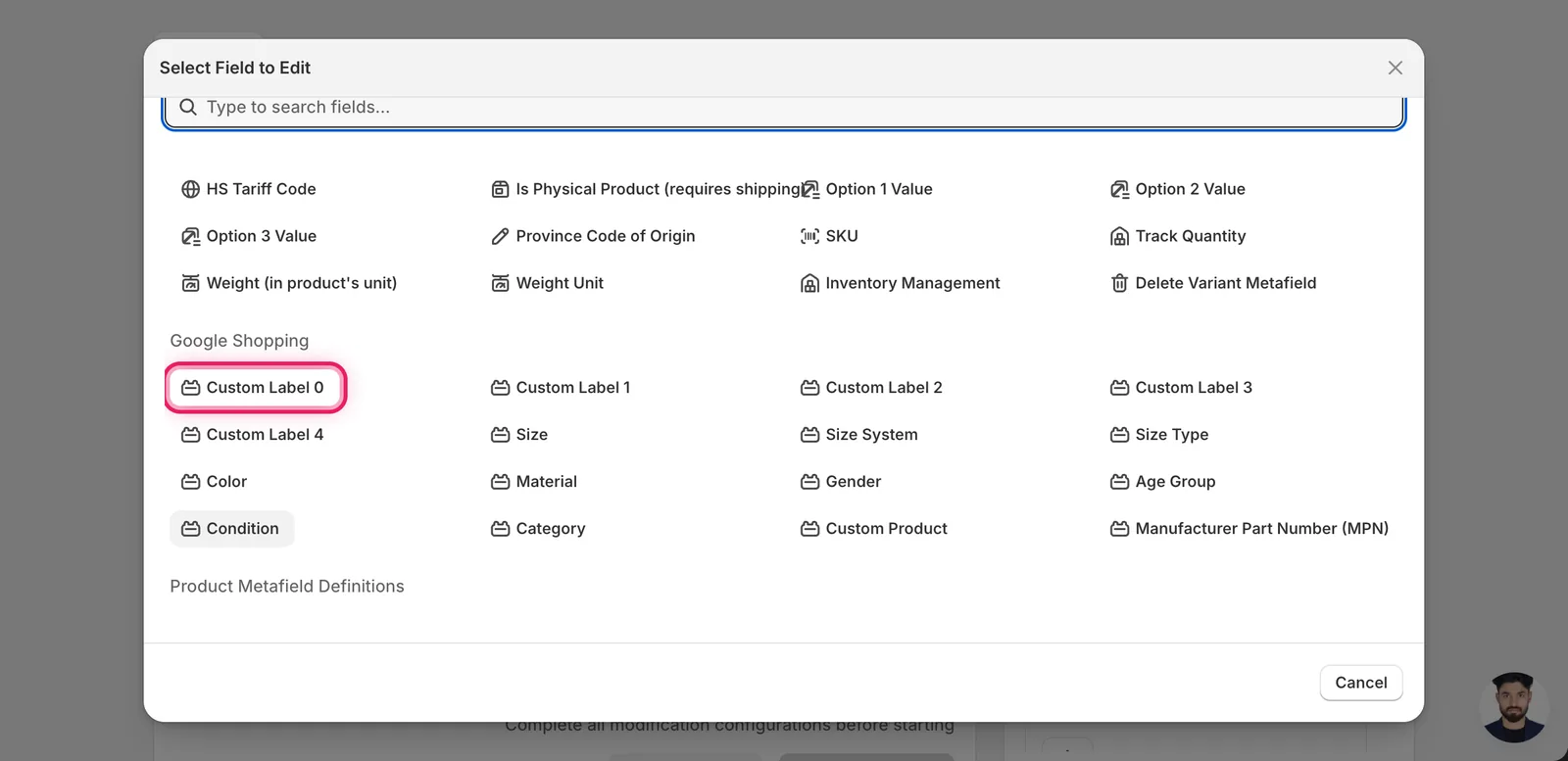
For this example, click Custom Label 0. The modal closes and the configuration panel switches to a How to edit Custom Label 0 dropdown defaulting to Set value, plus a value input. Picking a different Google Shopping field (say, Age Group or Condition) swaps in the right input for that field's type — a dropdown of allowed values for enum fields, a free-text input for the Custom Labels, and so on.
Step 2: Choose how to change the value
For a free-text Google Shopping field like Custom Label 0, seven actions are available — the same set as any text metafield.
Direct value
- Set value — every matched product gets this exact value.
Adjust the existing value
- Add text to end — append text to the current value.
- Add text to beginning — prepend.
- Remove text from end — strip a suffix.
- Remove text from beginning — strip a prefix.
- Find text and replace — swap one substring for another, optionally case-insensitive.
- Limit length of text — cap at N characters.
The inputs change based on what you pick. Enum-style Google Shopping fields (Age Group, Gender, Condition, Adwords Grouping) show only Set value with a dropdown of Google's allowed values instead — so you can't accidentally write an invalid value that Merchant Center rejects.
Step 3: Enter the value
Set value
Type the new value in the Set the custom label 0 to this value input.
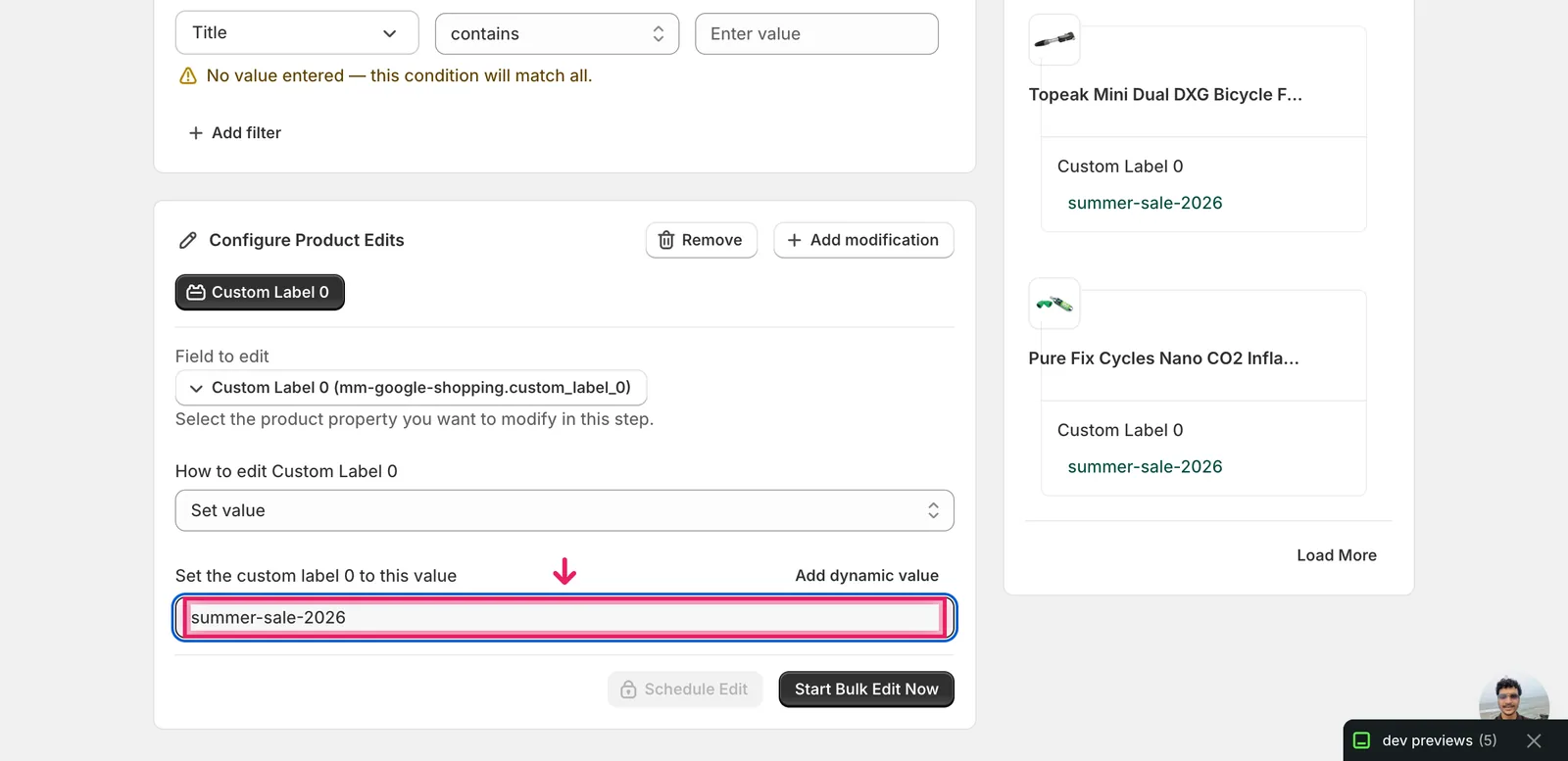
In this example every matched product's Custom Label 0 becomes summer-sale-2026. The Edit Preview on the right resolves it per product so you can verify before running.
Use dynamic values when you want each product to get a different value. Click Add dynamic value above the input — it inserts a token like
{{product.vendor}}or{{product.productType}}at the cursor. Sotier-{{product.vendor}}resolves per product based on the vendor field. Useful when you want a label that mirrors data already on the product.
Setting a literal value with no token across many products gives every product the same value — fine when you genuinely want one segment, not fine when you wanted unique values per product.
Find text and replace
Two inputs — what to search for, and what to swap it with — plus a Case insensitive checkbox.
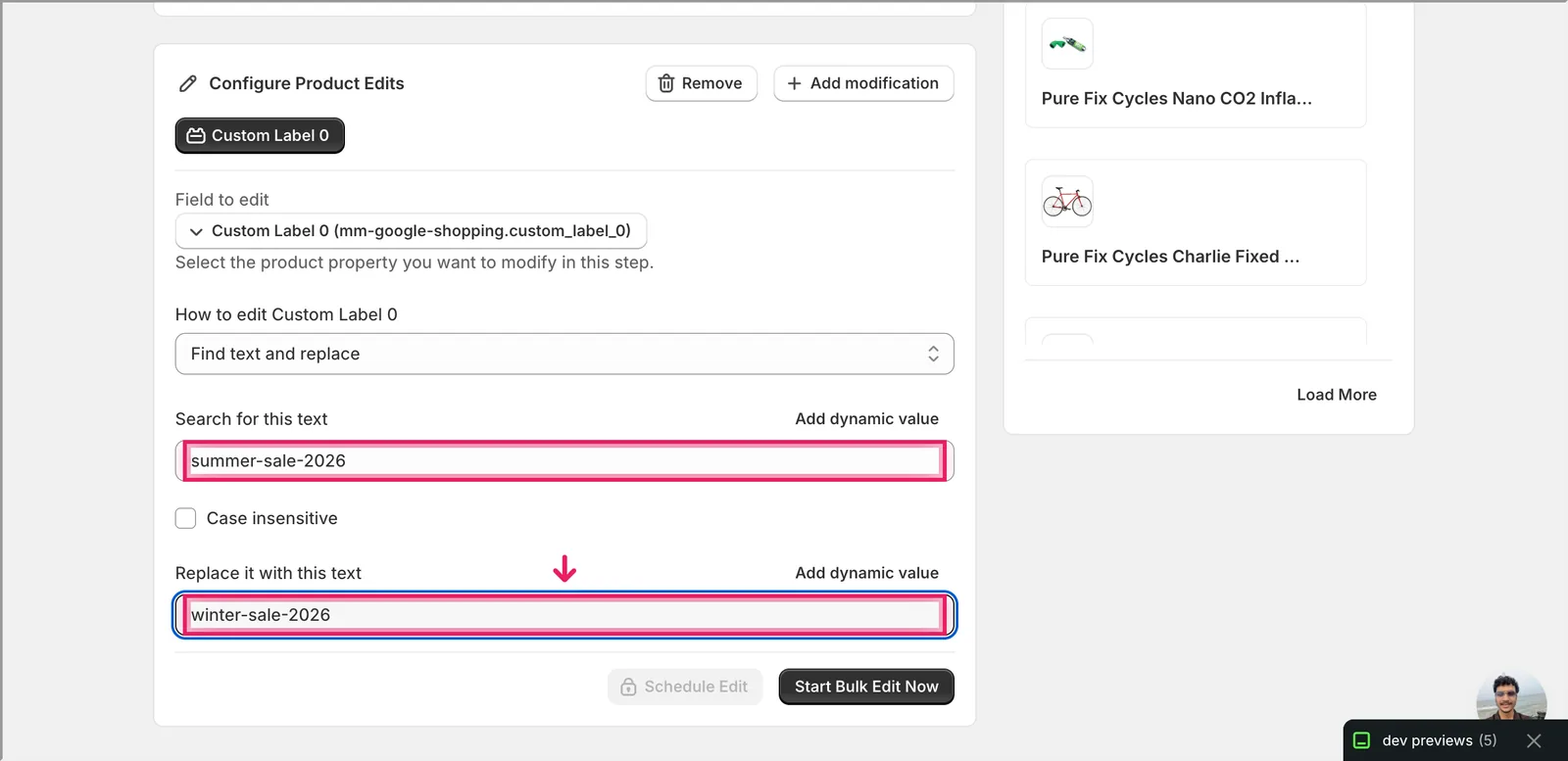
Use this to roll a season tag forward, retire a campaign code, or fix a typo across the catalog. Leave the replace field blank to delete the matched substring outright. Products whose Custom Label 0 doesn't contain the search string are left alone.
Add text to end / Add text to beginning
A single input — whatever you type gets appended or prepended to the current value.
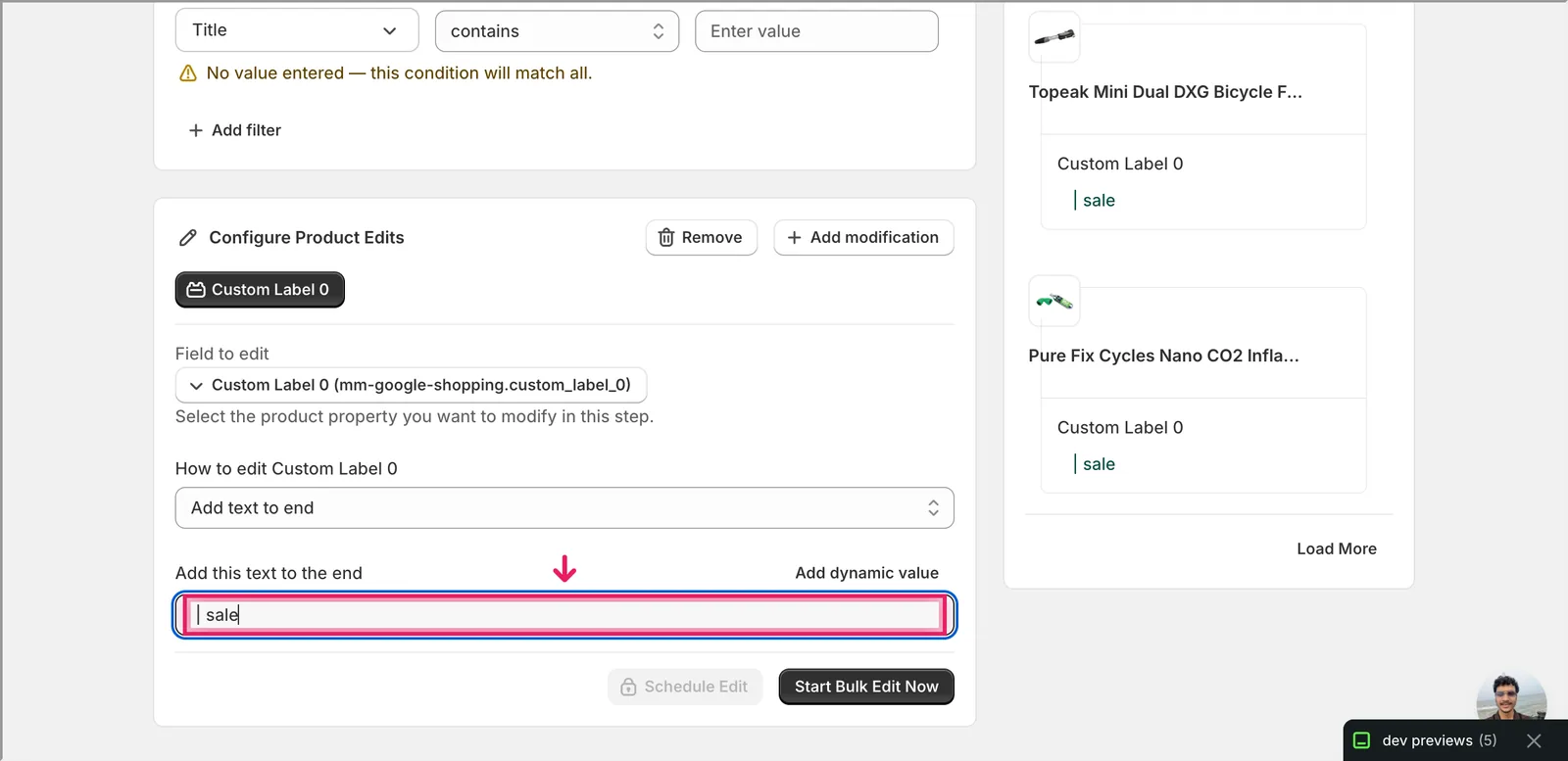
Handy for tagging an existing segment (e.g. add | promo to every product already labelled with a tier). Products with an empty Custom Label 0 still get the appended text — the result will just be the suffix on its own.
Remove text from end / Remove text from beginning
A single input — whatever you type gets stripped off the matching end of every value. Products that don't end (or start) with that text are skipped.
Limit length of text
A number input that caps the value at N characters. Two extra checkboxes:
- If the text is trimmed, include '...' at the end — adds an ellipsis when truncation happens.
- Don't trim the text in the middle of a word — pulls the cut back to the previous space so values don't end mid-word.
Google Merchant Center accepts up to 100 characters per custom label, so this is mostly useful when you've been writing long descriptive values and want to standardize.
After the run
- All Google Shopping metafield changes are reversible from the History page using Undo.
- The new value flows to Google Merchant Center the next time your Google & YouTube channel syncs — usually within a few hours, but check the channel's sync status if your campaigns rely on it.
- Find and replace, Add text, and Remove text are not idempotent — re-running the same edit keeps modifying the value. Adding
| saletwice producesexisting | sale | sale. Use the Edit Preview on the right to scan results before running. - If a product had no value for that Google Shopping metafield yet, EditEngine creates it. Setting a value to empty deletes the metafield.
Tip: Custom Labels 0–4 are five free-text labels Google reads — use one for season, one for margin band, one for stock status, etc. Combined with the structured Google Shopping fields (Age Group, Gender, Condition), your ads team can split bids and budgets across Performance Max and Shopping campaigns however the catalog needs.
Frequently asked questions
How do I bulk edit Google Shopping fields in Shopify?
In EditEngine's Configure Product Edits panel, click Select Field and scroll to the Google Shopping group, or search for the field by name, like custom label or age group. Shopify stores these fields under the mm-google-shopping namespace on each product. Pick the field, choose an action such as Set value or Find text and replace, and the edit runs once per matched product.
Can I bulk set Age Group, Gender, or Condition for Google Shopping in Shopify?
Yes. Enum-style Google Shopping fields like Age Group, Gender, Condition, and Adwords Grouping show only the Set value action with a dropdown of Google's allowed values, so you can't accidentally write an invalid value that Merchant Center rejects. Free-text fields like the Custom Labels offer the full set of seven text actions instead.
How quickly do bulk-edited Google Shopping values reach Merchant Center?
The new value flows to Google Merchant Center the next time your Google & YouTube channel syncs — usually within a few hours, but check the channel's sync status if your campaigns rely on the field. All Google Shopping metafield changes made with EditEngine are reversible from the History page using Undo.
What happens if a Shopify product has no value for a Google Shopping metafield yet?
EditEngine creates the metafield when a product had no value for it yet, and setting a value to empty deletes the metafield. With Add text to end, products with an empty Custom Label 0 still get the appended text — the result is just the suffix on its own, so check the Edit Preview first.
Is it safe to re-run a Google Shopping bulk edit in Shopify?
Be careful — Find and replace, Add text, and Remove text are not idempotent, so re-running the same edit keeps modifying the value. Adding " | sale" twice produces "existing | sale | sale". Use the Edit Preview on the right to scan the resolved result per product before running the edit again.