
Inventory
How to Bulk Edit Track Quantity
Published by Profitonium Apps · Last updated
Turn Shopify inventory tracking on or off across many variants at once. Useful when you've been ignoring stock counts up to now and want Shopify to start watching, or when you've added a service / digital / made-to-order line that shouldn't have a quantity at all.
Track Quantity is a variant field. Each variant tracks (or doesn't) on its own, so the EditEngine bulk editor runs the change once per matched variant. A product with three variants gets three updates.
Two values, no number to type. This isn't where you set the count. It's the on/off switch that decides whether Shopify keeps a count for the variant at all. Counts are managed elsewhere in the Shopify admin.
Step 1: Pick the Track Quantity field
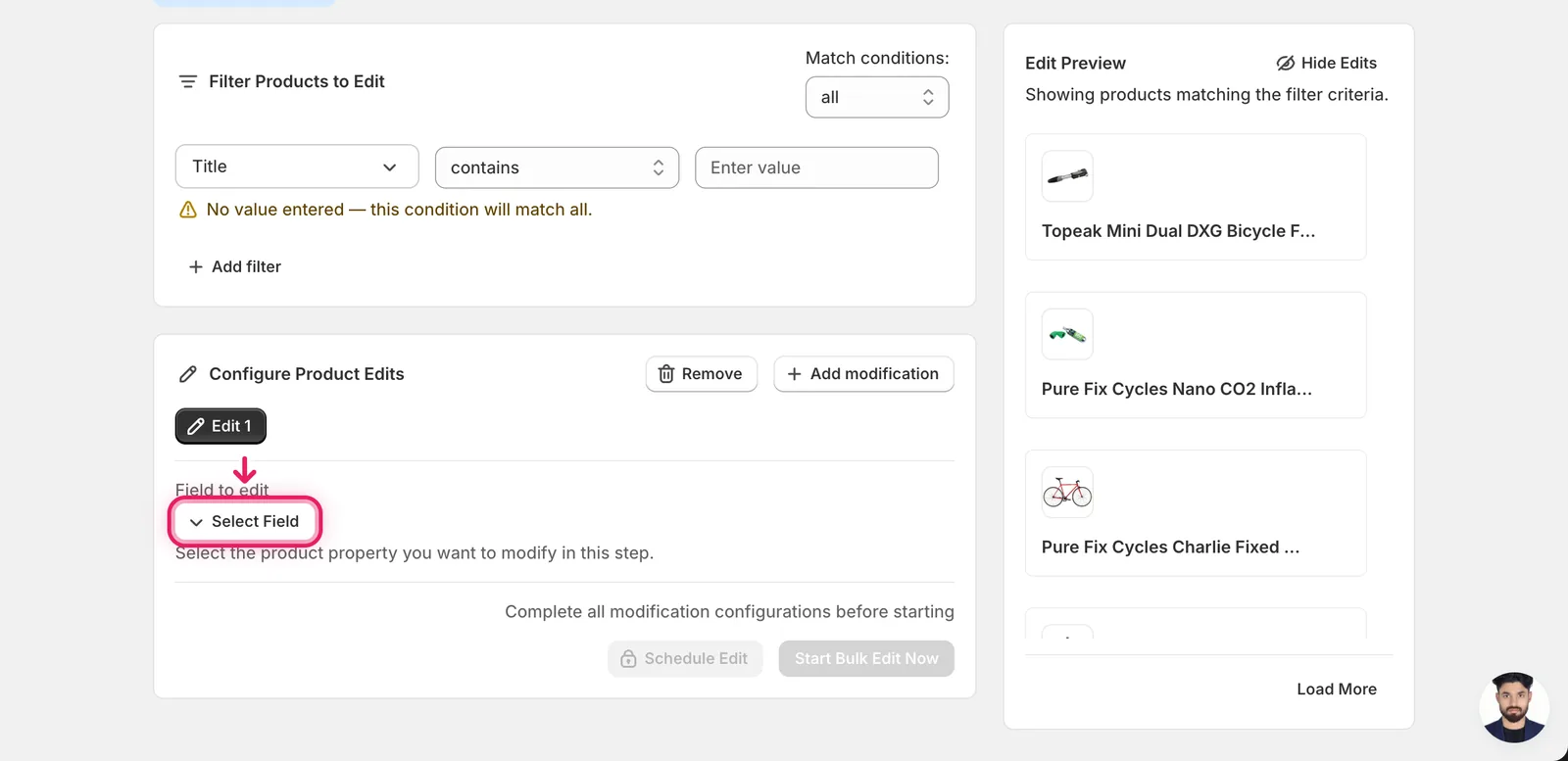
In the Configure Product Edits panel, click Select Field.
The field picker opens. Track Quantity lives under Variant Fields.
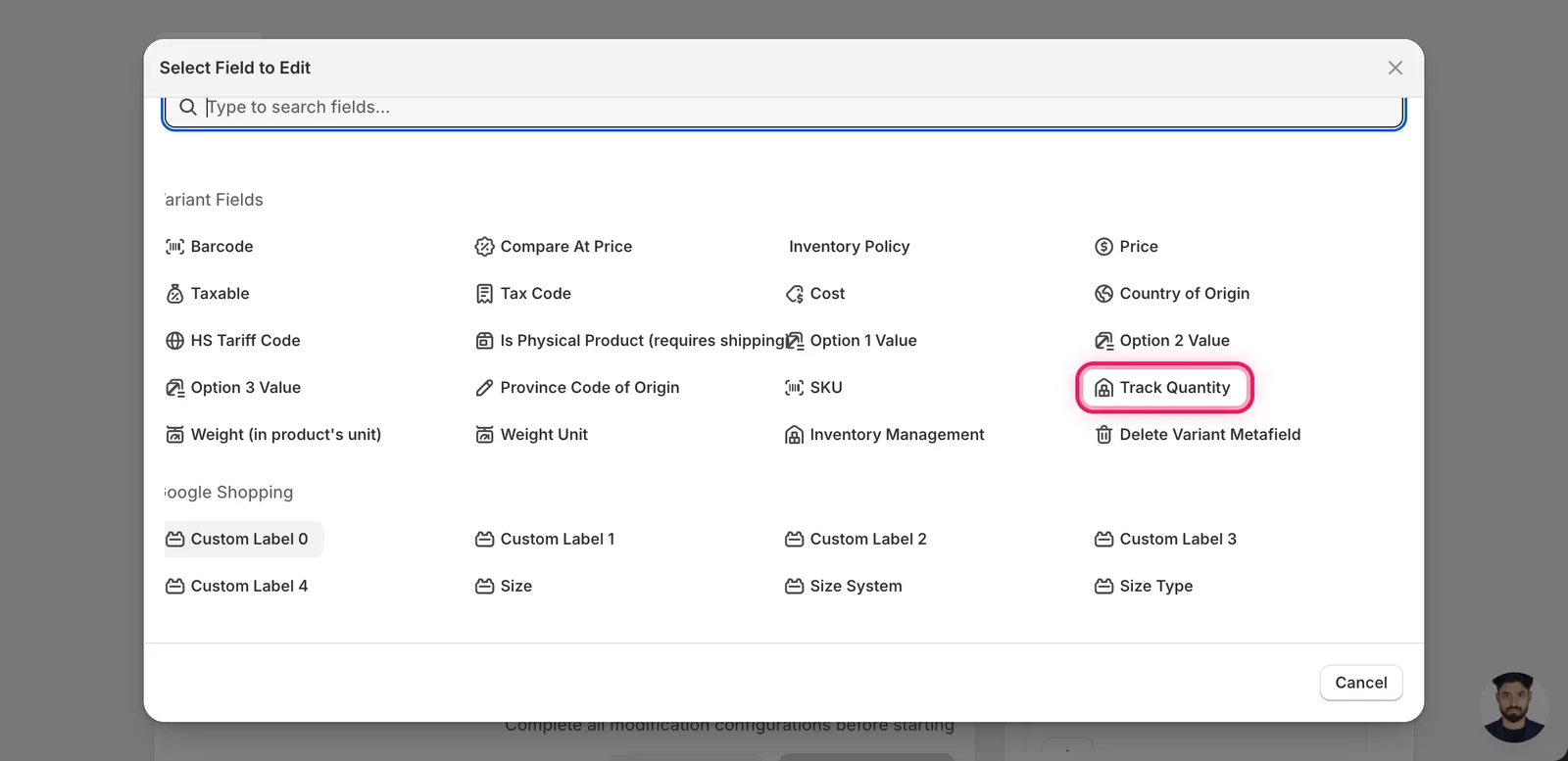
Click Track Quantity. The configuration panel switches to a small form titled Track Quantity with two radio choices.
Step 2: Pick a value
Two options, exactly:
- Shopify tracks inventory — sets
tracked = true. Shopify will keep a quantity per location for each matched variant. Required if you want stock counts, low-stock alerts, or "out of stock" behaviour to work. - Don't track inventory — sets
tracked = false. Shopify stops counting. The variant stays sellable forever; no quantity is shown or decremented when ordered. Use for digital downloads, services, made-to-order, or anything that can never run out.
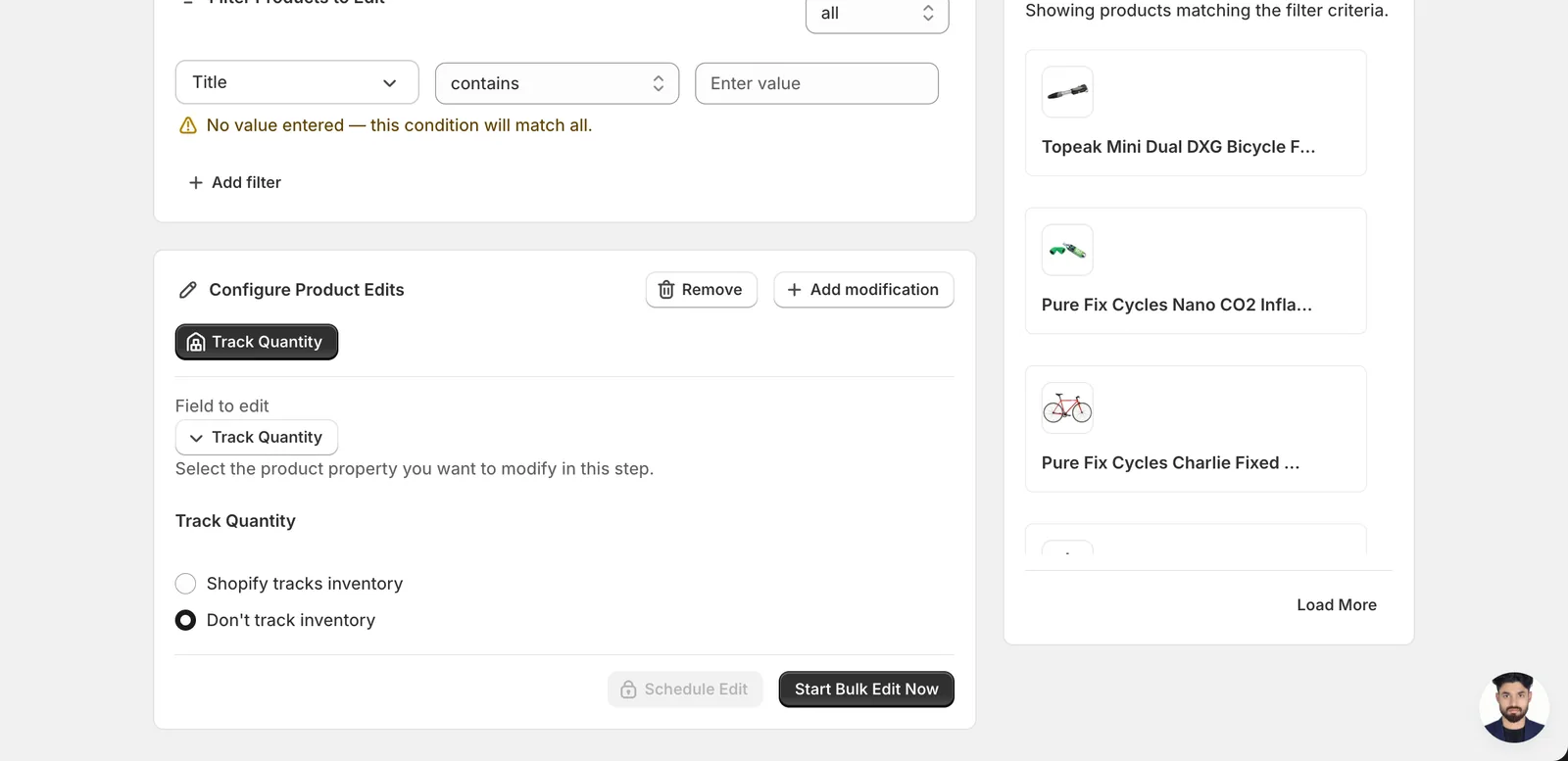
The default when you open the form is Shopify tracks inventory. The Bulk Editor runs whichever option is selected when you press the action button — there's no separate save step inside the form.
Switching from "Don't track" to "Shopify tracks inventory" sets the count to 0. Shopify creates inventory levels for each location with a starting quantity of zero. Variants will read as out-of-stock until you go set real numbers. Plan to follow up with a Shopify Inventory or EditEngine import to populate counts, or run this only on variants that already had tracking on previously.
Switching from "Shopify tracks inventory" to "Don't track" stops decrementing on order, but doesn't clear the count. If you turn tracking back on later, the old quantities are still there.
Step 3: Verify in the preview, then run
The Edit Preview on the right of the screen shows one row per variant being changed. A row with Tracked: false → true means a previously-untracked variant will start being tracked.
If a variant's current value already matches the value you picked, no change is needed and it's skipped (no preview row). That's why the preview list shrinks when you flip the radio between the two options on the same set of products.
When the preview looks right, click Start Bulk Edit Now at the bottom of the configuration card.
After the run
- Track Quantity changes are reversible from the History page using Undo.
- Turning tracking off does not delete inventory data. Shopify just stops counting against orders.
- Turning tracking on for variants that never had it creates a fresh
0-quantity inventory level at each fulfillment location. Variants will display as out of stock until you push real numbers in. - Pair this edit with Inventory Policy if you want Shopify to allow overselling on tracked items — Track Quantity is the whether, Inventory Policy is the what happens at zero.
Frequently asked questions
How do I turn on inventory tracking for all Shopify variants at once?
In EditEngine, pick Track Quantity under Variant Fields and choose Shopify tracks inventory. Track Quantity is a variant field, so the change runs once per matched variant — a product with three variants gets three updates. Verify the rows in the Edit Preview, then click Start Bulk Edit Now.
Can I undo a bulk track quantity change in Shopify?
Yes. Track Quantity changes are reversible from EditEngine's History page using Undo. Also note that turning tracking off doesn't delete inventory data — Shopify just stops counting against orders, and if you turn tracking back on later the old quantities are still there.
What happens when I enable tracking on Shopify variants that were never tracked?
Shopify creates a fresh inventory level at each fulfillment location with a starting quantity of zero, so those variants read as out of stock until you set real numbers. Plan to follow up with a Shopify Inventory or EditEngine import to populate counts, or run the edit only on variants that previously had tracking on.
Should I disable inventory tracking for digital products in Shopify?
Yes — choose Don't track inventory for digital downloads, services, made-to-order items, or anything that can never run out. Shopify stops counting, the variant stays sellable forever, and no quantity is shown or decremented when ordered. EditEngine applies the switch across every matched variant in one run.
Why did some variants disappear from the Edit Preview when bulk editing track quantity?
If a variant's current value already matches the value you picked, no change is needed and it's skipped, so no preview row appears. That's why EditEngine's preview list shrinks when you flip the radio between the two options on the same set of products — only variants that actually change are listed.