
Products
How to Bulk Assign Products to a Shipping Profile
Published by Profitonium Apps · Last updated
Move many products into — or out of — a Shopify shipping profile in one run. This guide walks through the EditEngine bulk editor flow: pick the products, choose Add or Remove, pick the shipping profile, and apply.
Shipping Profile is a product-level edit that affects every variant. EditEngine adds (or removes) every variant of each matched product to the profile you pick. Shopify shipping profiles attach to variants, not to products, so you can't mix-and-match per variant from this screen.
Plan note: the Shipping Profile edit is a Shopify-permission-gated action, not a billing-gated one. If you've never used it before, EditEngine will ask you to grant shipping access before the form unlocks (see Step 2).
Step 1: Pick the Shipping Profile field
In the Configure Product Edits panel, click Select Field.
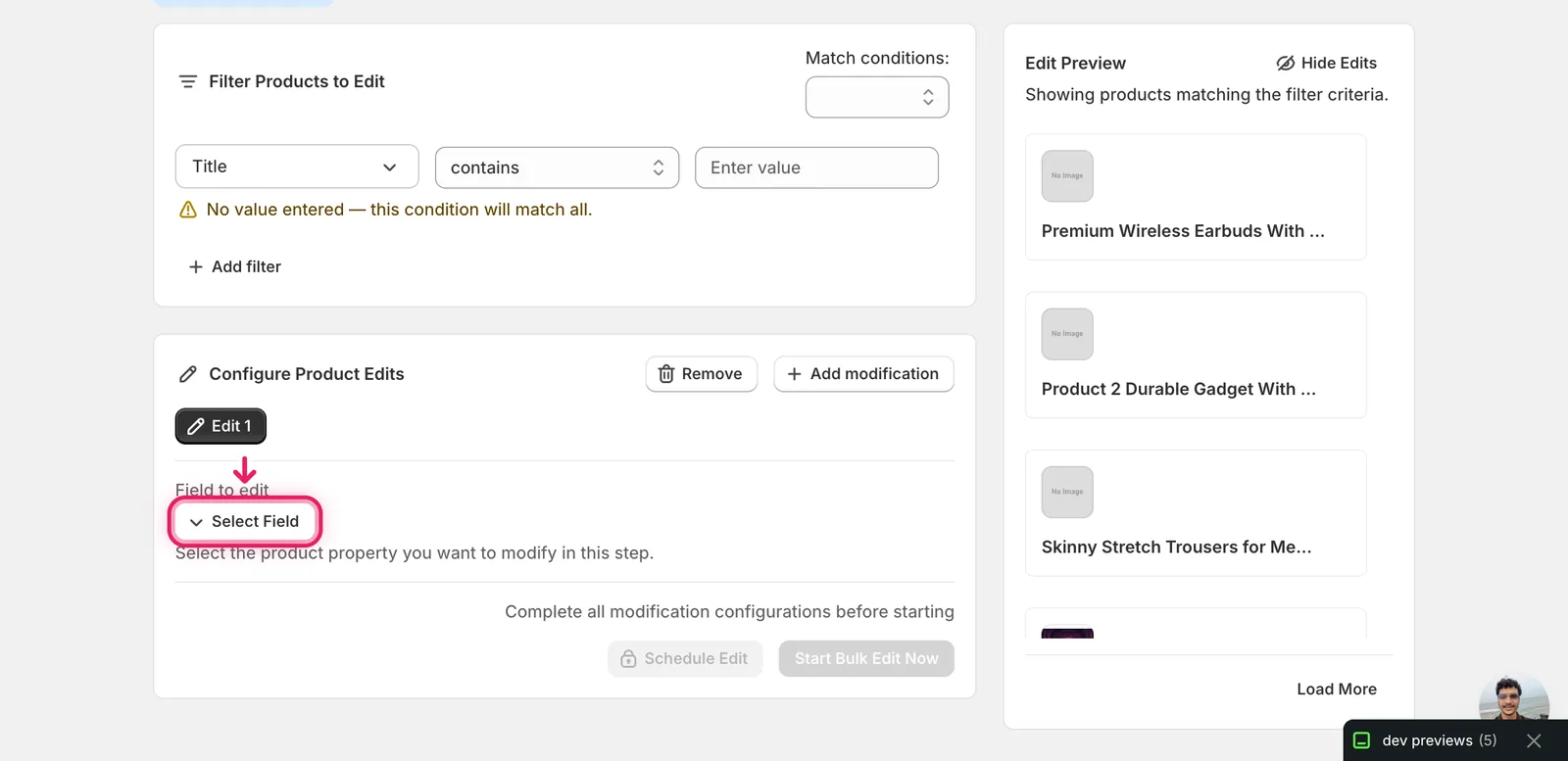
The field picker opens. Shipping Profile lives under Product Fields.
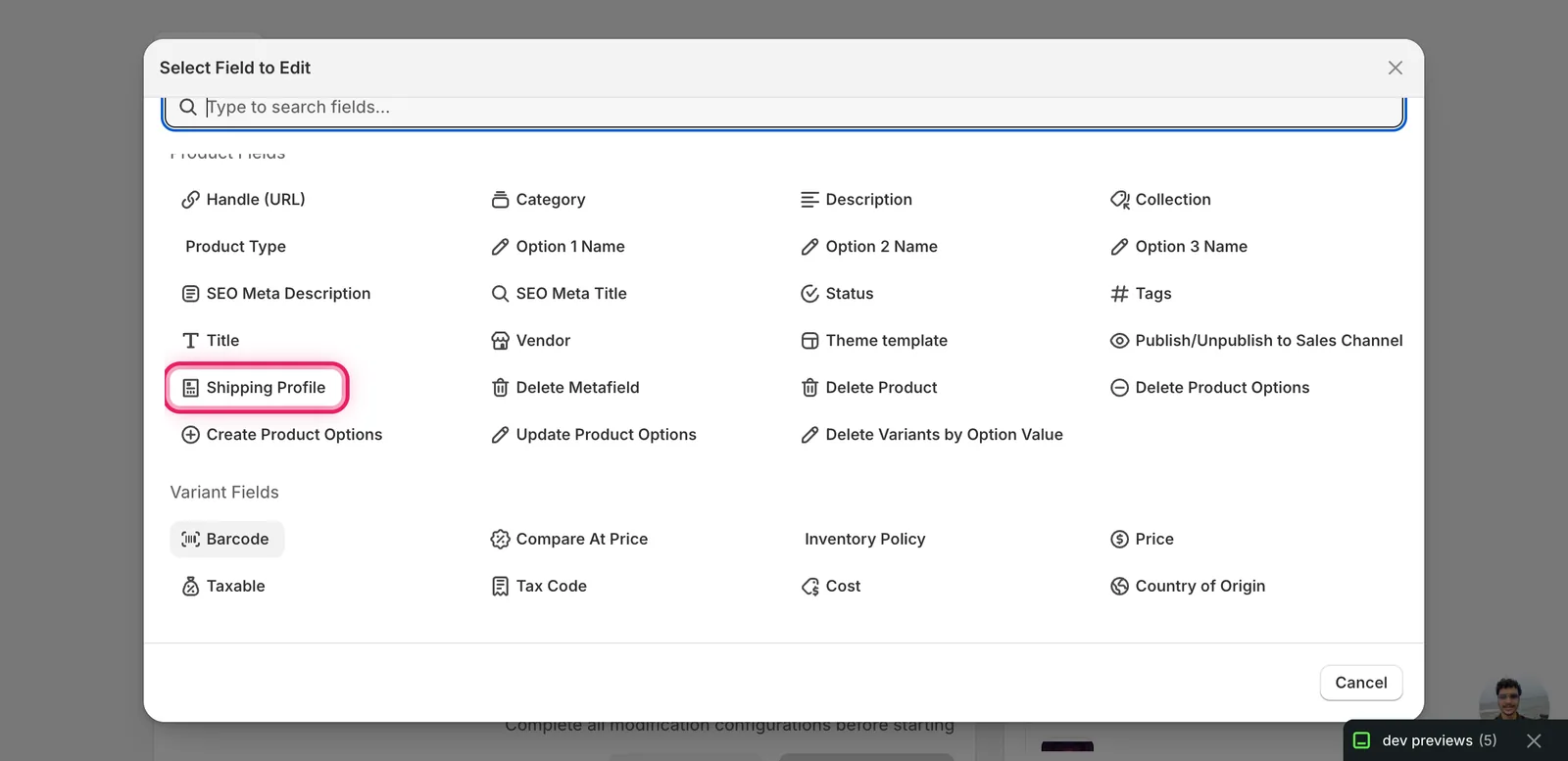
Click Shipping Profile. The configuration panel switches to Add/Remove from Shipping Profile.
Step 2: Grant shipping access (first time only)
The first time you use this field, EditEngine asks Shopify for permission to read and write your shipping settings. Without it, the form stays locked.
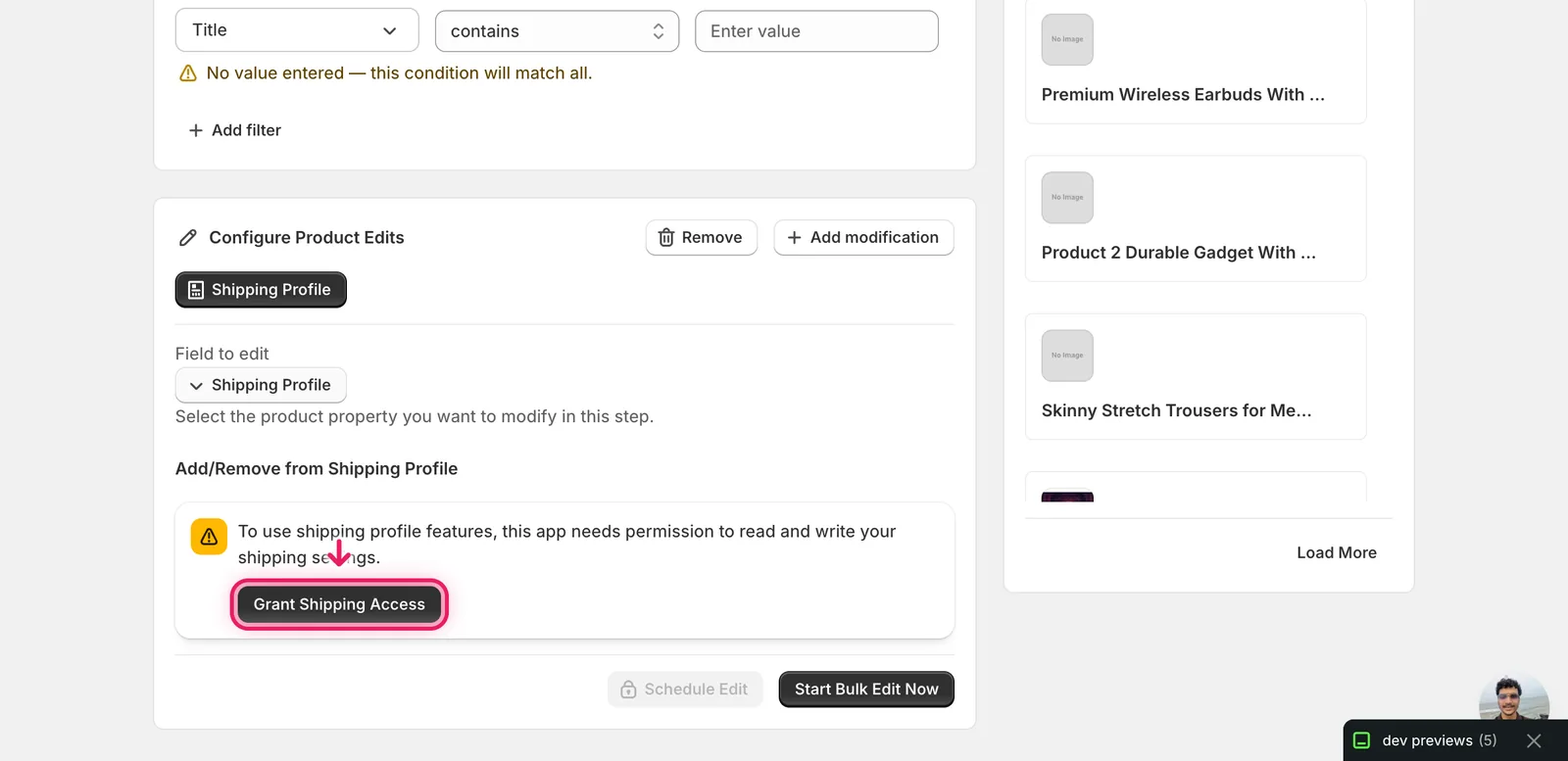
Click Grant Shipping Access. Shopify pops up a standard "Update data access" dialog asking you to approve the new permission. Click Update. You'll see a "Successfully gained access to shipping profiles" toast and the form unlocks.
One-time step. Subsequent runs go straight to the form.
Step 3: Choose Add or Remove
The form has a single Action dropdown with two options.
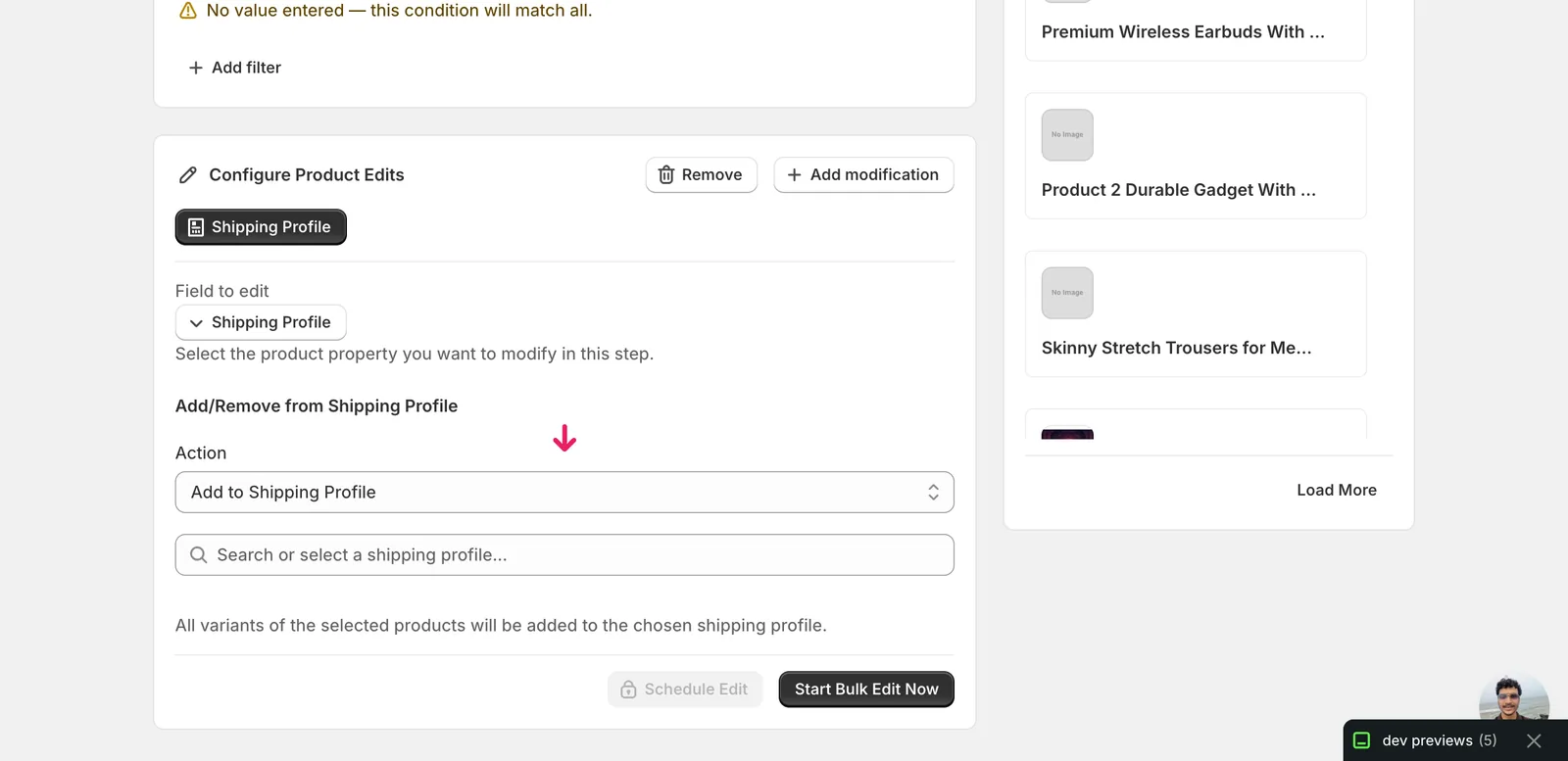
- Add to Shipping Profile — assigns every variant of the matched products to the profile you pick. Variants currently sitting on a different profile get moved.
- Remove from Shipping Profile — pulls every matched variant off the profile you pick and back to the store's General profile (Shopify's default).
If you want to swap products from profile A to profile B, run two edits: remove from A, then add to B. There's no single-step move.
Step 4: Pick the shipping profile
Below the Action dropdown there's a search box listing every shipping profile in your store. Type to filter, or click to see the full list.
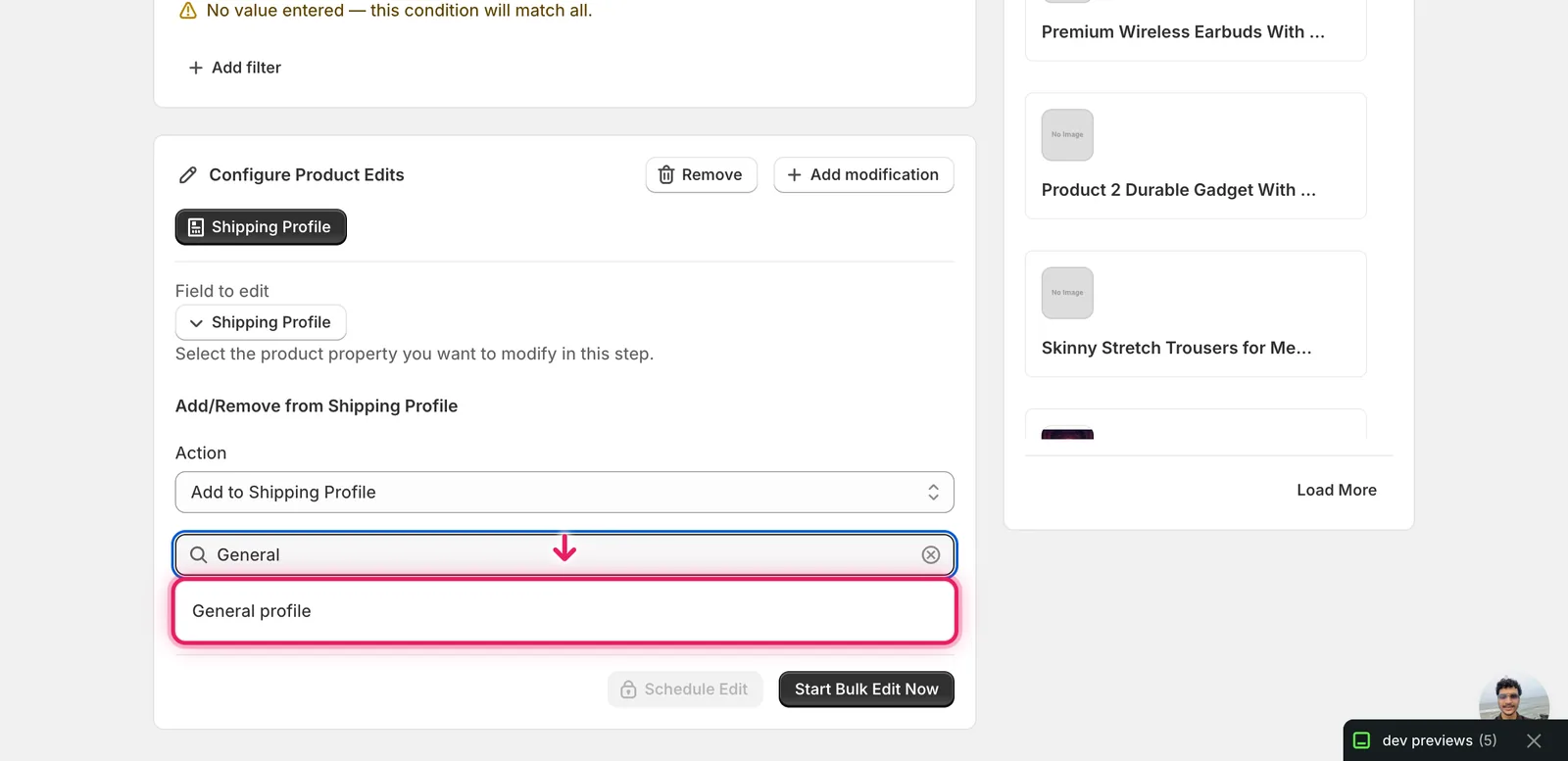
Click the profile you want. The store's default is General profile; named zones (Domestic-Only, EU, Heavy Items, etc.) appear if you've created them in Settings → Shipping and delivery.
Below the picker, the panel reminds you what will happen:
- Add — "All variants of the selected products will be added to the chosen shipping profile."
- Remove — "All variants of the selected products will be removed from the chosen shipping profile and moved back to the default profile."
Step 5: Filter, preview, run
Up top in the Filter Products to Edit panel, set the conditions for which products this should apply to (Title contains, Vendor is, Tag is, etc.). The product count badge updates as you change filters.
The Edit Preview panel on the right lists the products that will be affected. Scan it before running — there's no per-variant override here, so every variant of every listed product moves.
When you're ready, click Start Bulk Edit Now. Or click Schedule Edit to queue it for later (useful for a campaign cutover).
After the run
- Shipping Profile changes are reversible from the History page with Undo. EditEngine re-runs the inverse — Add becomes Remove and vice versa — against the same products.
- Shopify caps shipping profiles at 100 per store, and the picker will only show profiles you actually have. If you don't see the profile you expect, check Settings → Shipping and delivery → Custom shipping rates in Shopify admin.
- The edit runs at the variant level under the hood. A product with 50 variants counts as 50 profile updates against your Shopify API budget — not usually an issue, but worth knowing for very large runs.
- If a product's variants were already on the target profile, the run is a no-op for them and they're skipped without error.
Heads up: removing variants from a profile sends them back to the General profile. If your General profile has different rates (or no rate to a region), the affected products may suddenly become unsellable in that region. Sanity-check rates in Shopify admin before doing a bulk Remove.
Frequently asked questions
How do I move many Shopify products into a shipping profile at once?
In EditEngine, click Select Field and pick Shipping Profile under Product Fields. Choose Add to Shipping Profile, search for the profile you want, and click Start Bulk Edit Now. Every variant of each matched product is assigned to the chosen profile — variants currently sitting on a different profile get moved.
Can I undo a bulk shipping profile change in Shopify?
Yes. Shipping Profile changes are reversible from EditEngine's History page with Undo — it re-runs the inverse, so Add becomes Remove and vice versa, against the same products. If variants were already on the target profile, the run is a no-op for them and they're skipped without error.
What happens when I remove Shopify products from a shipping profile in bulk?
Removing pulls every matched variant off the profile and back to the store's General profile, Shopify's default. If your General profile has different rates — or no rate to a region — the affected products may suddenly become unsellable in that region, so sanity-check rates in Shopify admin before a bulk Remove.
Can I move Shopify products from one shipping profile to another in one step?
Not in a single step. To swap products from profile A to profile B, run two edits in EditEngine: remove from A, then add to B. Each run applies to every variant of the matched products, because Shopify shipping profiles attach to variants rather than products.
Why doesn't my shipping profile appear in EditEngine's picker?
The picker only shows profiles your store actually has, and Shopify caps shipping profiles at 100 per store. If a profile you expect is missing, check Settings → Shipping and delivery → Custom shipping rates in Shopify admin. Also note EditEngine asks you to grant shipping access the first time you use this field.