
Collections
How to Bulk Add or Remove Products from a Collection
Published by Profitonium Apps · Last updated
The Collection field doesn't change a value on the product — it adds matched products to a manual collection or removes them from one. One run, one collection, every matched product joined or left in a single batch.
Manual collections only. Smart (automated) collections build their membership from rules, so this edit can't push or pull products in or out of them.
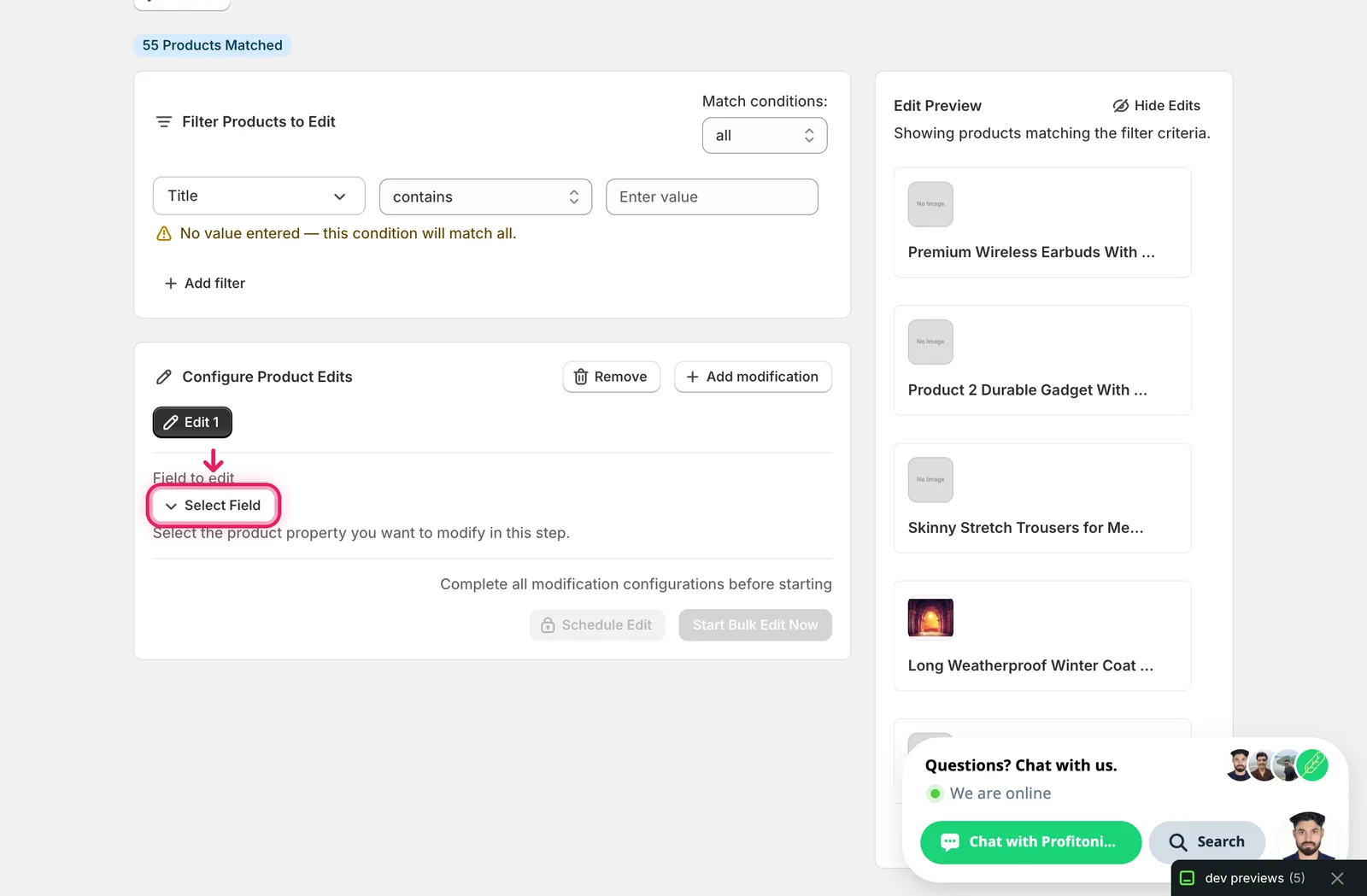
Step 1: Pick the Collection field
In the Configure Product Edits panel, click Select Field.
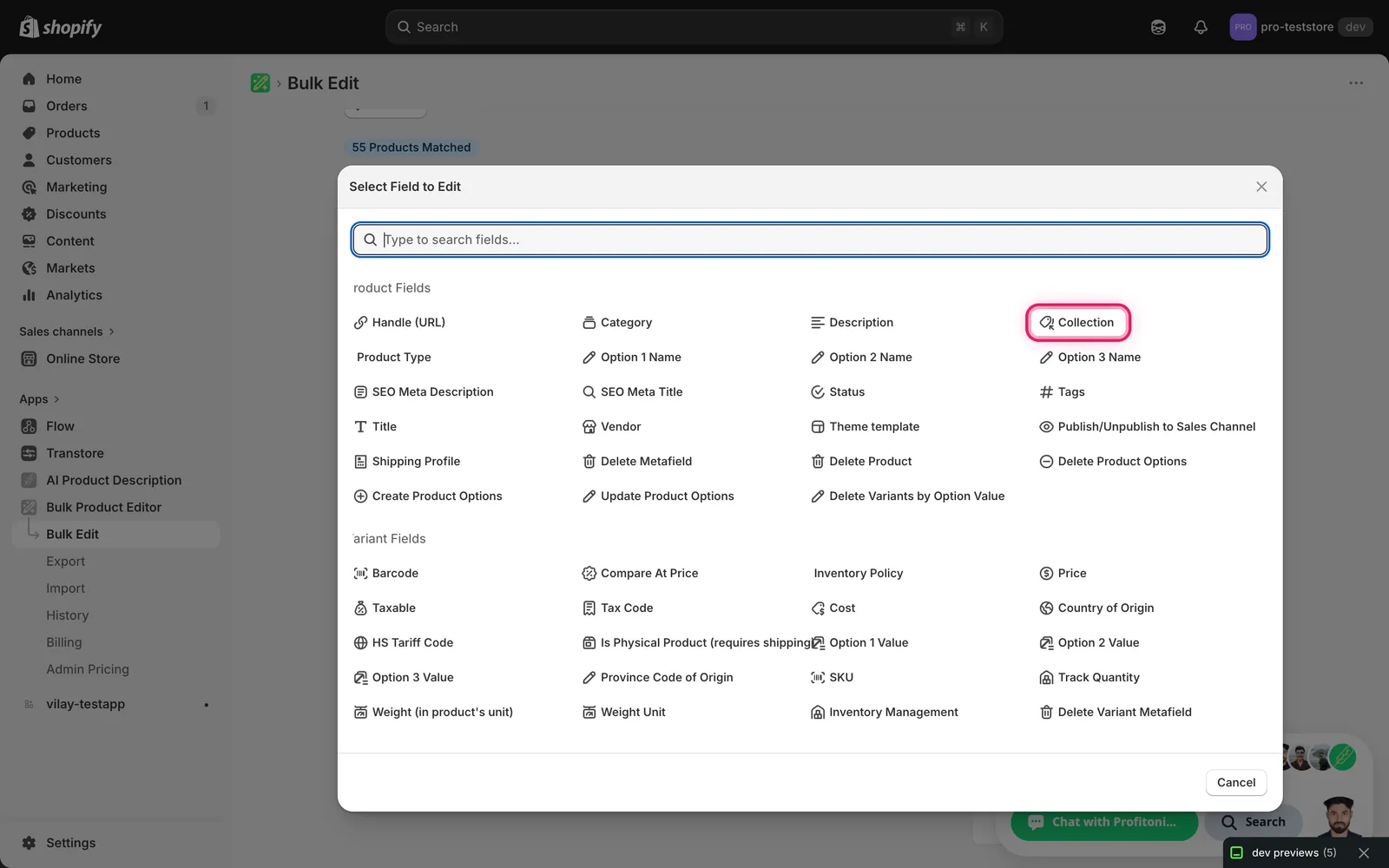
Collection lives under Product Fields.
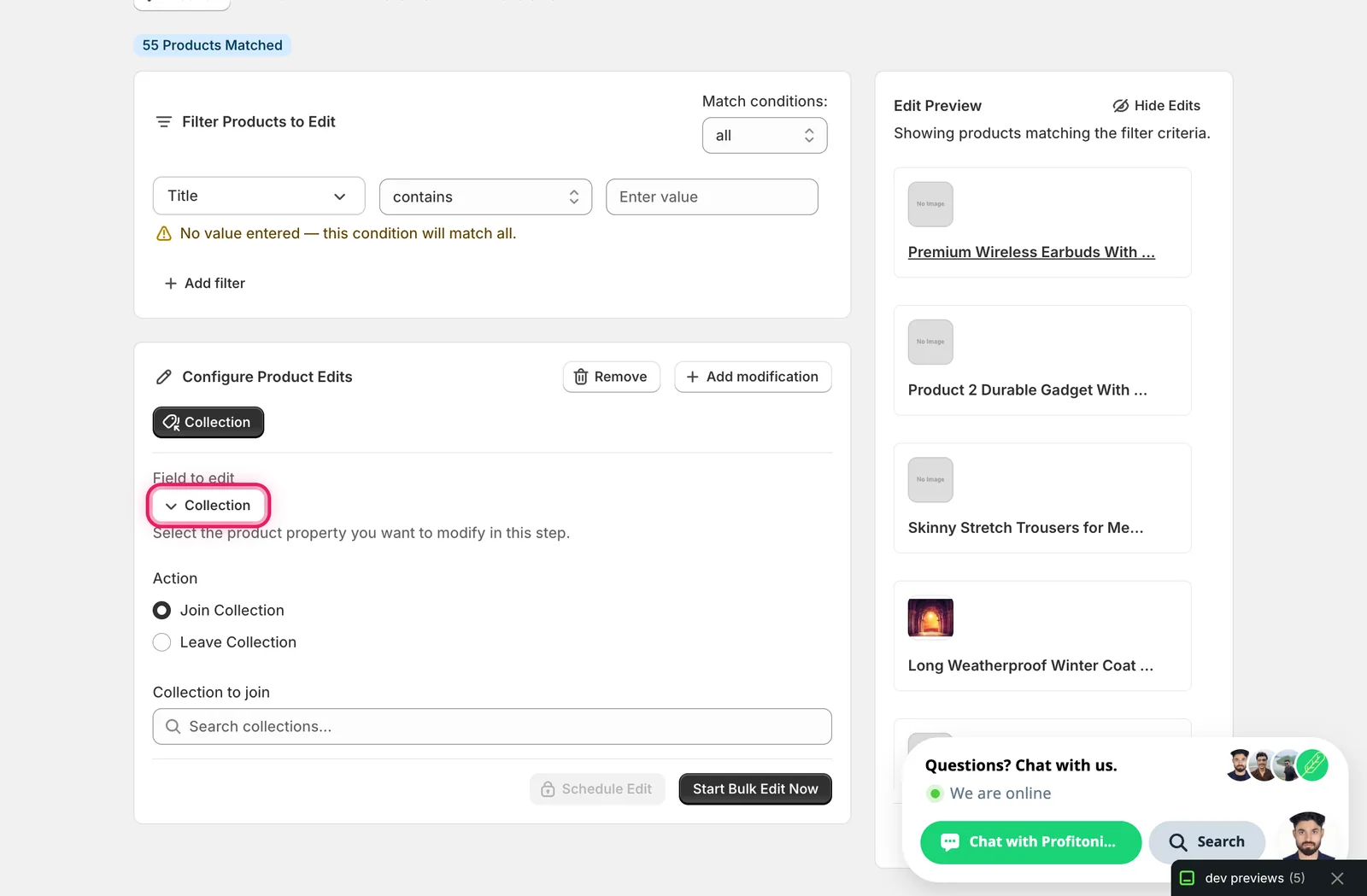
Click it. The configuration panel switches to two Action radios — Join Collection and Leave Collection — plus a Collection to join search input.
Step 2: Pick join or leave
- Join Collection — every matched product gets added to the collection you choose. Already-in-the-collection products are no-ops.
- Leave Collection — every matched product gets removed from the collection. Products that aren't members are no-ops.
The label on the search input updates to "Collection to join" or "Collection to leave" depending on what you pick.
Step 3: Search for the collection
Type into the Collection to join / Collection to leave input. The app calls Shopify after a short pause and shows matching collections in a dropdown.
![Collection search with "Home" typed showing the [EDITED] Home page result in the dropdown](/images/docs/product-collection-id-edit/searchCollection.webp)
Click the result you want. The input fills with the chosen collection's title and a small × appears on the right to clear it.
![Configure Product Edits panel with [EDITED] Home page selected as the collection and Start Bulk Edit Now enabled](/images/docs/product-collection-id-edit/collectionSelected.webp)
Only manual collections show up. If a collection name you expect isn't in the dropdown, it's most likely a smart (rule-based) collection — those are managed by their automatic conditions and can't be bulk-joined or bulk-left from here.
Plan-gated. Each plan caps how many collection edits you can run per task. Hit the limit and the run is blocked — upgrade or break the work into multiple runs.
After the run
- Join is additive. Running it twice doesn't duplicate the product in the collection.
- Leave silently skips products that weren't in the collection to begin with — that's not a failure.
- Collection changes are reversible from the History page using Undo.
- Want to move products between two manual collections? You need two edit steps in one run — one Leave, one Join — using Add modification.
Frequently asked questions
How do I add lots of products to a Shopify collection at once?
In EditEngine, pick the Collection field under Product Fields, choose the Join Collection action, then search for and select the manual collection you want. Every matched product gets added in one run, and products already in the collection are no-ops. Join is additive — running it twice doesn't duplicate the product in the collection.
Why doesn't my collection appear in the Shopify bulk editor dropdown?
It's most likely a smart (automated) collection. Smart collections build their membership from rules, so this edit can't push or pull products in or out of them — only manual collections show up in EditEngine's collection search. If a name you expect is missing from the dropdown, that rule-based behaviour is the usual reason.
Can I bulk remove products from a Shopify collection?
Yes. Pick the Leave Collection action and every matched product gets removed from the manual collection you choose. Products that weren't members to begin with are silently skipped — that's not a failure. Collection changes are reversible from the History page using Undo if you pull out the wrong batch.
How do I move products from one Shopify collection to another in bulk?
Use two edit steps in one EditEngine run — one Leave Collection step for the old manual collection and one Join Collection step for the new one, combined with Add modification. A single run then handles both sides, so every matched product leaves one collection and joins the other in the same batch.
Is there a limit on how many collection edits I can run in Shopify with EditEngine?
Collection edits are plan-gated — each plan caps how many collection edits you can run per task. If you hit the limit the run is blocked, and you can either upgrade or break the work into multiple runs. Each run targets one collection, joining or leaving every matched product in a single batch.