
Inventory
How to Bulk Edit Inventory Policy
Published by Profitonium Apps · Last updated
Inventory Policy controls what happens when a variant runs out of stock — whether Shopify still lets customers buy it (continue selling on backorder) or blocks new orders. EditEngine, the Shopify bulk editor inside Bulk Product Editor, lets you flip this for many variants at once.
Inventory Policy is a variant field. Each variant carries its own setting, so the action runs once per matched variant. A product with three variants gets three updates.
Shopify only honours Allow out-of-stock sales when the variant is being inventory-tracked. If tracking is off, the variant is always purchasable regardless of policy.
Step 1: Pick the Inventory Policy field
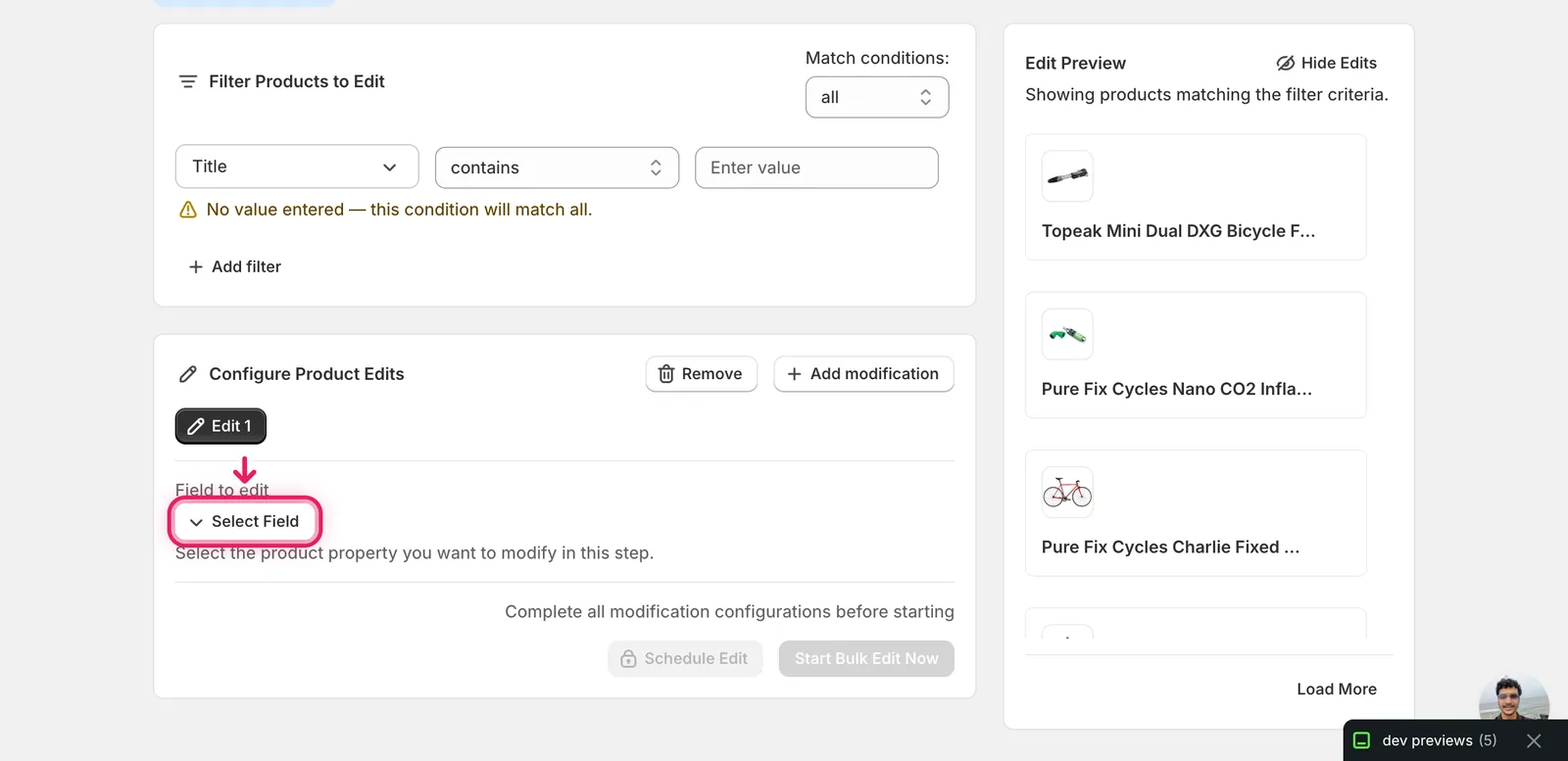
In the Configure Product Edits panel, click Select Field.
The Select Field to Edit modal opens. Inventory Policy lives under Variant Fields.
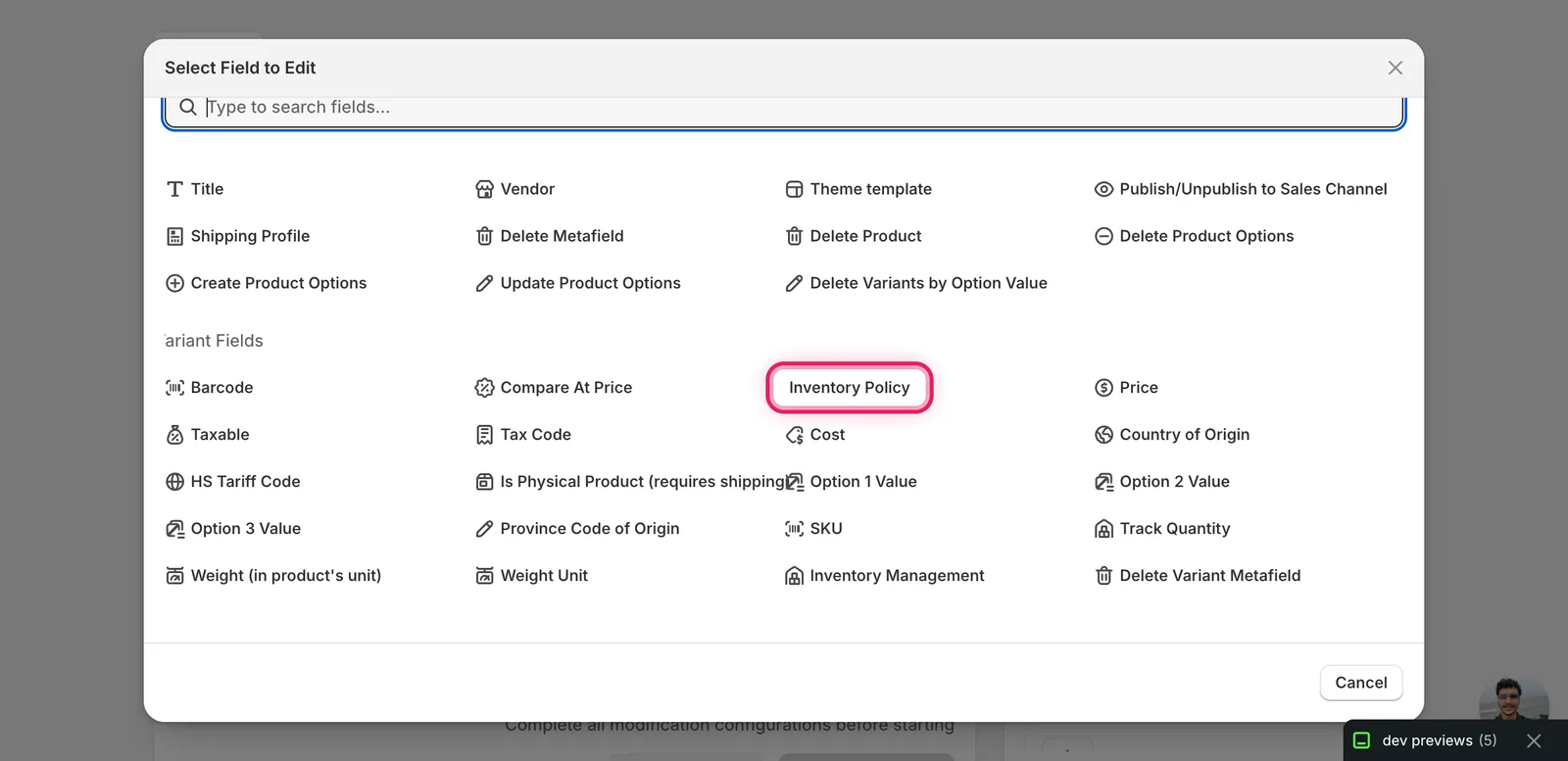
Click Inventory Policy. The configuration panel switches to a single dropdown labelled Inventory Policy, defaulting to Deny out-of-stock sales.
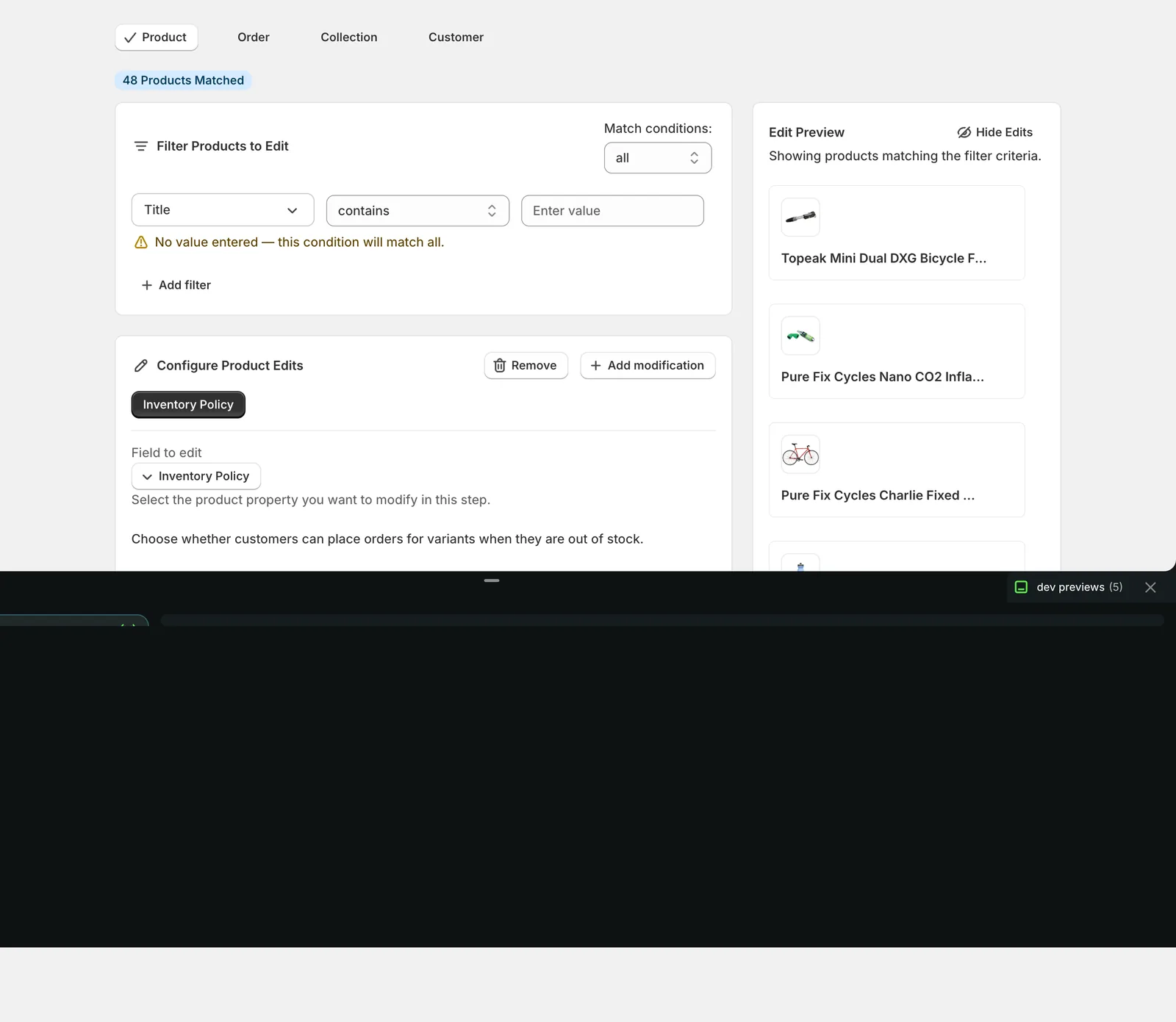
Step 2: Choose the policy
The dropdown has two options. There are no other actions for this field — the value is the action.
- Deny out-of-stock sales (
DENY) — the default. Once a variant hits zero on hand, Shopify stops accepting orders for it. The variant shows as Sold out on the storefront. - Allow out-of-stock sales (continue selling) (
CONTINUE) — Shopify keeps accepting orders even when the variant is at zero. Useful for made-to-order, dropshipped, or pre-order products.
Pick the one you want for the matched variants.
Heads up if you're switching to Continue selling. Allow out-of-stock sales only works for variants with inventory tracking on. For variants where Track Quantity is off, Shopify already lets customers buy without checking stock — the policy doesn't change anything for those.
After the run
- Inventory Policy changes are reversible from the History page using Undo.
- The action is idempotent — re-running the same edit on the same variants produces no change. There's no value to drift, so a repeat run is safe.
- Use the Edit Preview on the right to spot-check which variants will flip before you click Start Bulk Edit Now.
- Pair this with a Track Quantity edit if you want to start tracking inventory and switch to Deny in the same workflow — add a second modification in the same edit.
Frequently asked questions
How do I let customers buy out-of-stock items in Shopify?
Set the variant's inventory policy to Allow out-of-stock sales (continue selling). In EditEngine, pick Inventory Policy under Variant Fields, choose that option from the dropdown, and run the edit — Shopify then keeps accepting orders even when a variant hits zero. It's useful for made-to-order, dropshipped, or pre-order products.
Can I bulk change inventory policy for many Shopify variants at once?
Yes. Inventory Policy is a variant field, so EditEngine runs the change once per matched variant — a product with three variants gets three updates. The dropdown has two options, Deny out-of-stock sales or Allow out-of-stock sales, and the Edit Preview lets you spot-check which variants will flip before you click Start Bulk Edit Now.
Is a bulk inventory policy change reversible in Shopify?
Yes. Inventory Policy changes are reversible from EditEngine's History page using Undo. The action is also idempotent — re-running the same edit on the same variants produces no change, since there's no value to drift, so a repeat run is safe.
Why doesn't continue selling work on some of my Shopify variants?
Shopify only honours Allow out-of-stock sales when the variant is being inventory-tracked. If Track Quantity is off, the variant is always purchasable regardless of policy, so the setting doesn't change anything for those variants. In EditEngine you can pair this with a Track Quantity edit as a second modification in the same edit.
What does deny out-of-stock sales do in Shopify?
Deny is the default policy. Once a variant hits zero on hand, Shopify stops accepting orders for it and the variant shows as Sold out on the storefront. With EditEngine you can apply Deny across many matched variants in one run instead of editing each product individually.