
Products
How to Bulk Edit SEO Meta Description
Published by Profitonium Apps · Last updated
The SEO meta description is the short blurb Google shows under your product link in search results. A clear, keyword-relevant description lifts click-through rates without changing the on-page copy. This guide shows how to set it across many products at once with the EditEngine bulk editor for Shopify — set a new value, append or prepend text, find-and-replace, or trim length.
One description per product. Variants don't have their own meta description, so each matched product gets a single update.
Step 1: Pick the SEO Meta Description field
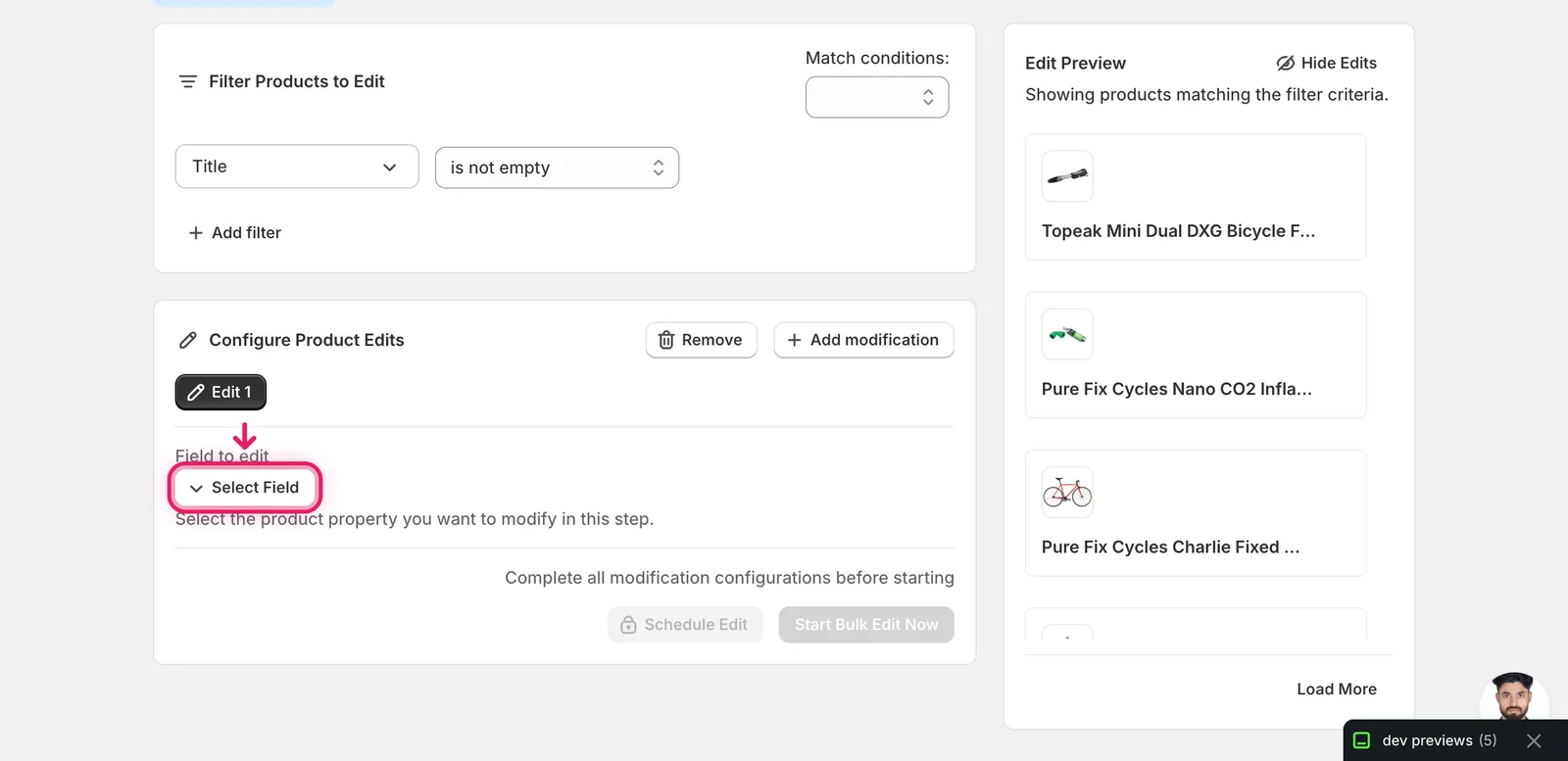
In the Configure Product Edits panel, click Select Field.
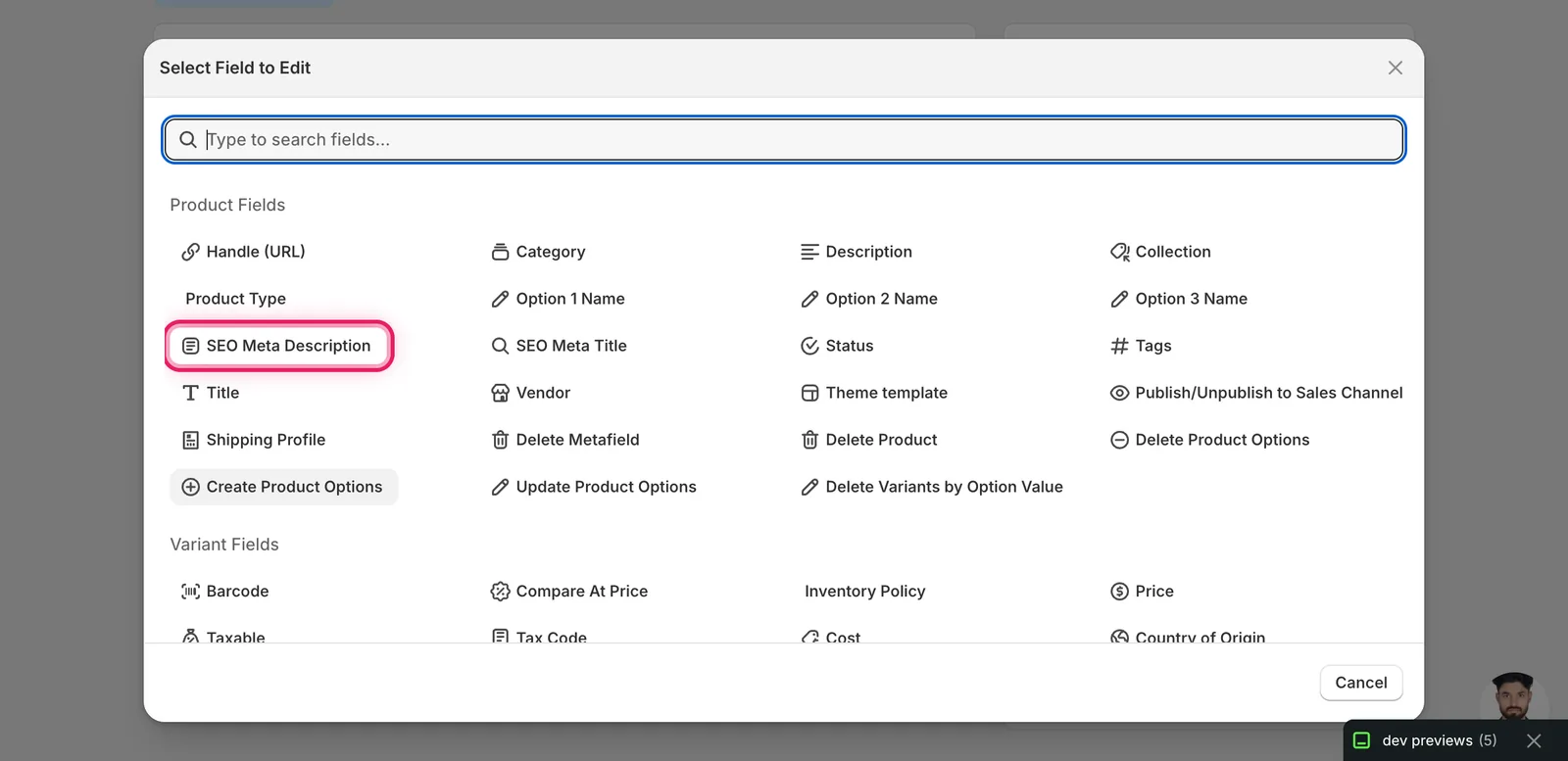
The field picker opens. SEO Meta Description lives under Product Fields, between Option 3 Name and SEO Meta Title. You can also type "seo" into the search box to filter.
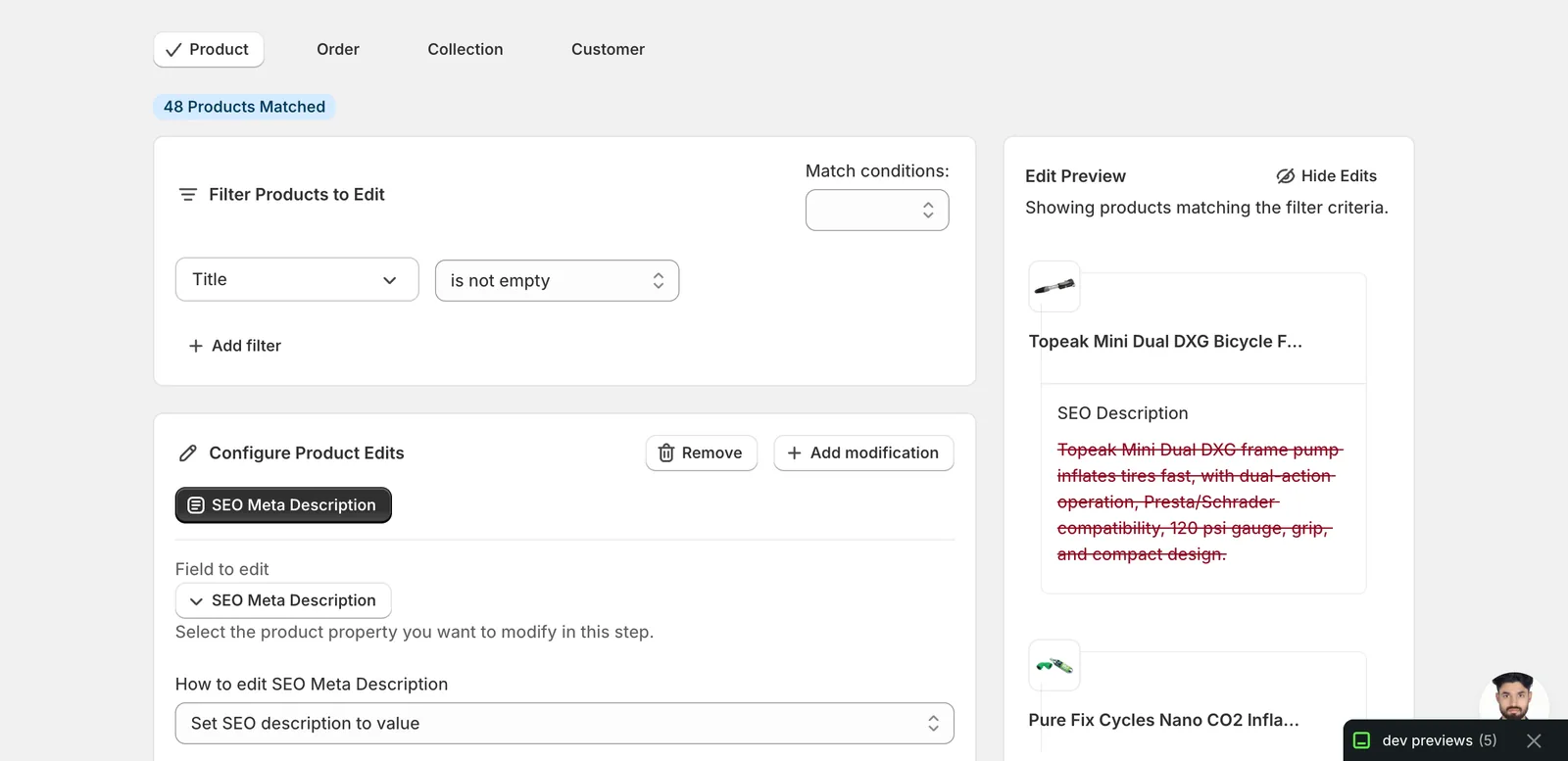
Click it. The configuration panel switches to a How to edit SEO Meta Description dropdown defaulting to Set SEO description to value, plus a value input.
Step 2: Choose how to change the description
Nine actions are available.
Direct value
- Set SEO description to value — every matched product gets this exact description. Pair with a dynamic value (Step 3) so each product still gets its own copy.
Adjust the existing description
- Add text to end — append text (e.g.
Free shipping over $50.). - Add text to beginning — prepend (e.g.
[NEW]). - Remove text from end — strip a trailing phrase.
- Remove text from beginning — strip a leading phrase.
- Find text and replace — swap one substring for another, optionally case-insensitive.
- Limit length of text — cap the description at N characters.
- Remove text from a word to the end — find a word, delete it and everything after.
- Remove text up to and including a word — find a word, delete it and everything before.
The inputs change based on what you pick.
Step 3: Enter the value
Set SEO description to value
Type the description in the Set the seo meta description to this value input.
Use dynamic values to avoid duplicate descriptions across the catalog. Click Add dynamic value above the input. A modal opens with product fields (Title, Vendor, Tags, Type, Handle, SEO Description, SEO Title, Description HTML, Collection Names, metafields, Google Shopping attributes), with optional capitalization (UPPER, lower, Title Case).
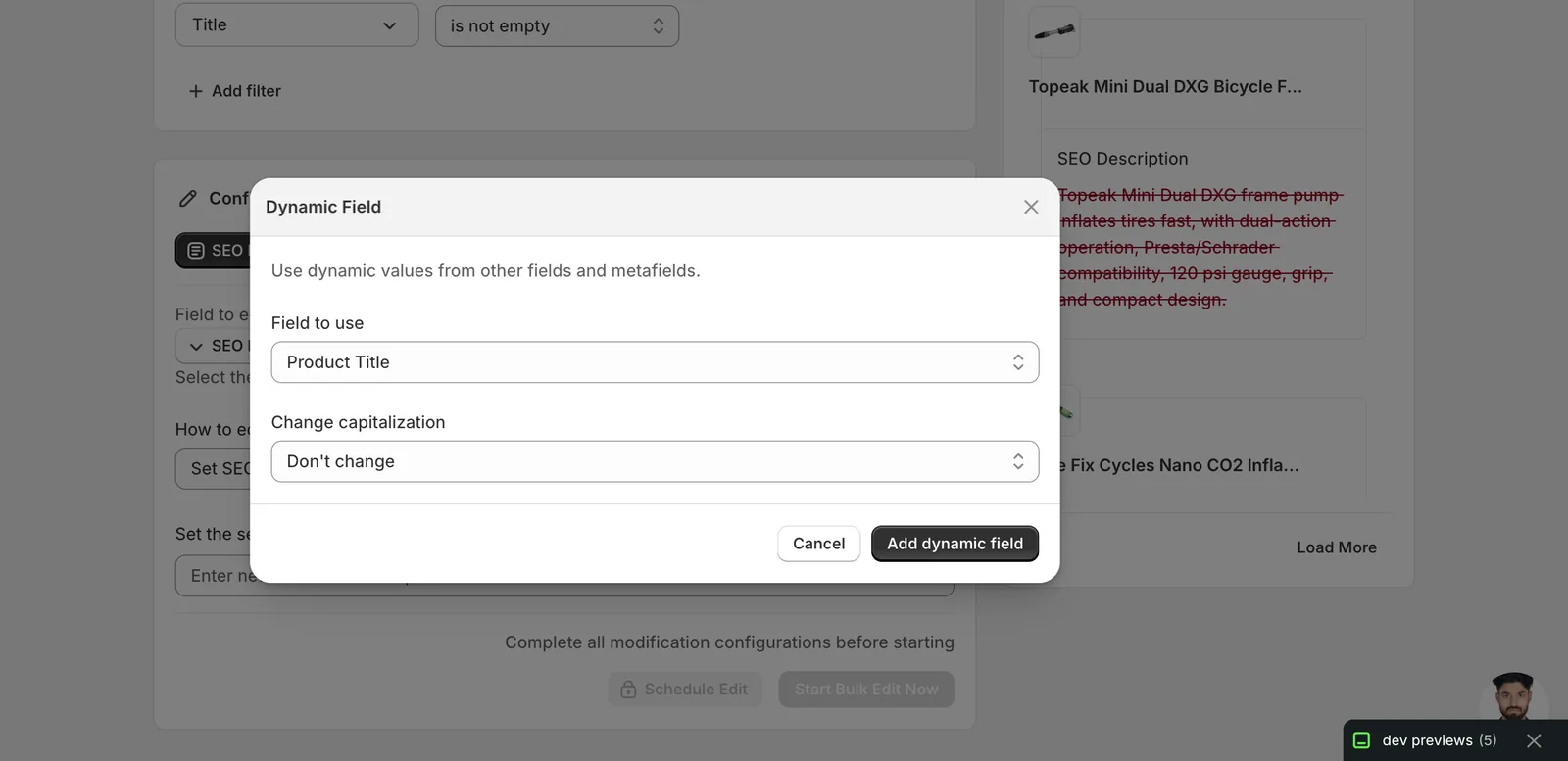
Picking Product Title inserts the token {{product.title}} at the cursor. Combine with literal text to compose unique descriptions.
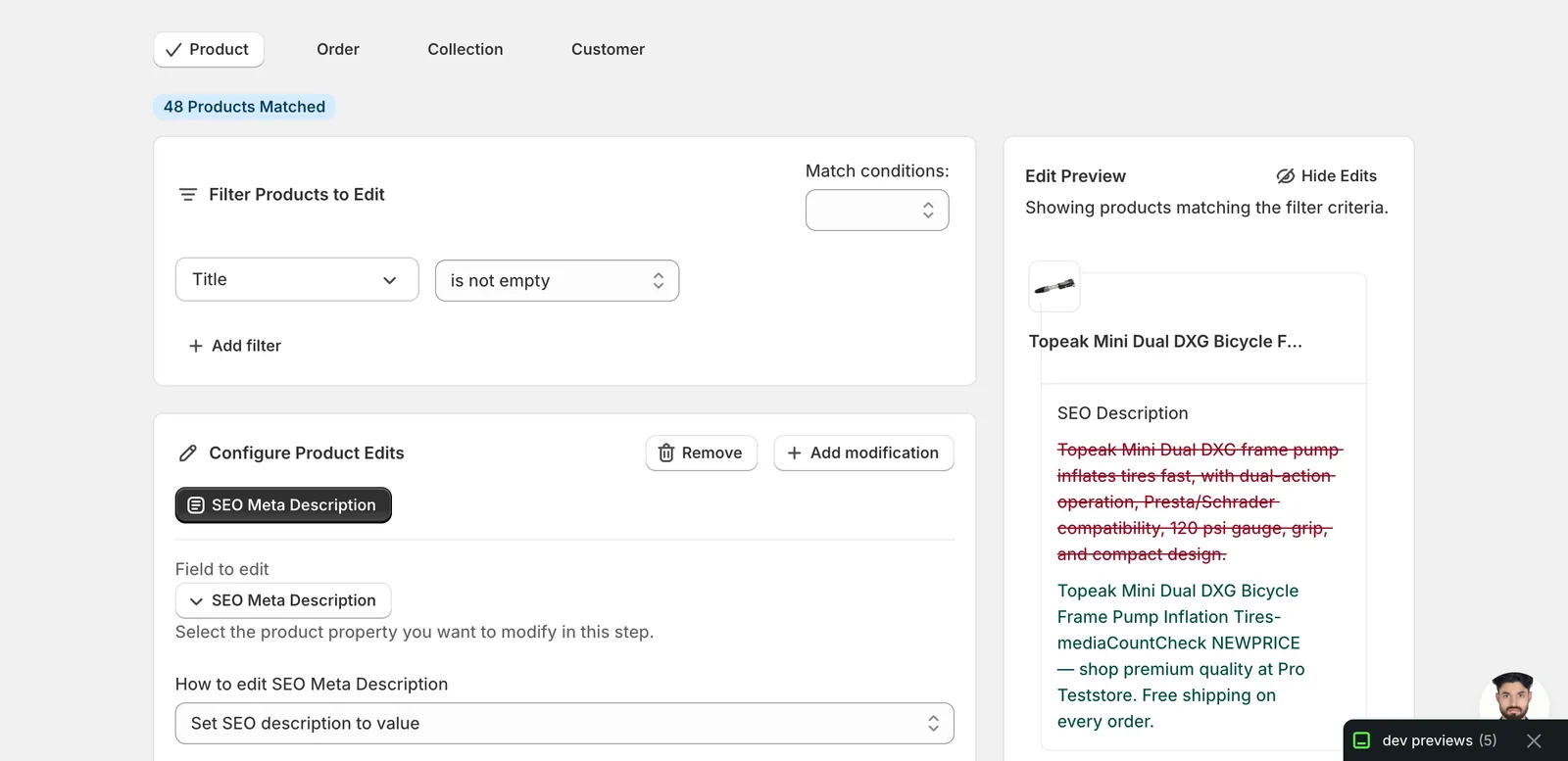
Each matched product's preview resolves the token to its own title, so you can verify before running.
A literal value with no dynamic token gives every product the same SEO description. Google penalises duplicate meta descriptions across many pages — use a dynamic token whenever you set a value across more than a handful of products.
Find text and replace
Two inputs — what to look for, and what to replace it with — plus a Case insensitive checkbox.
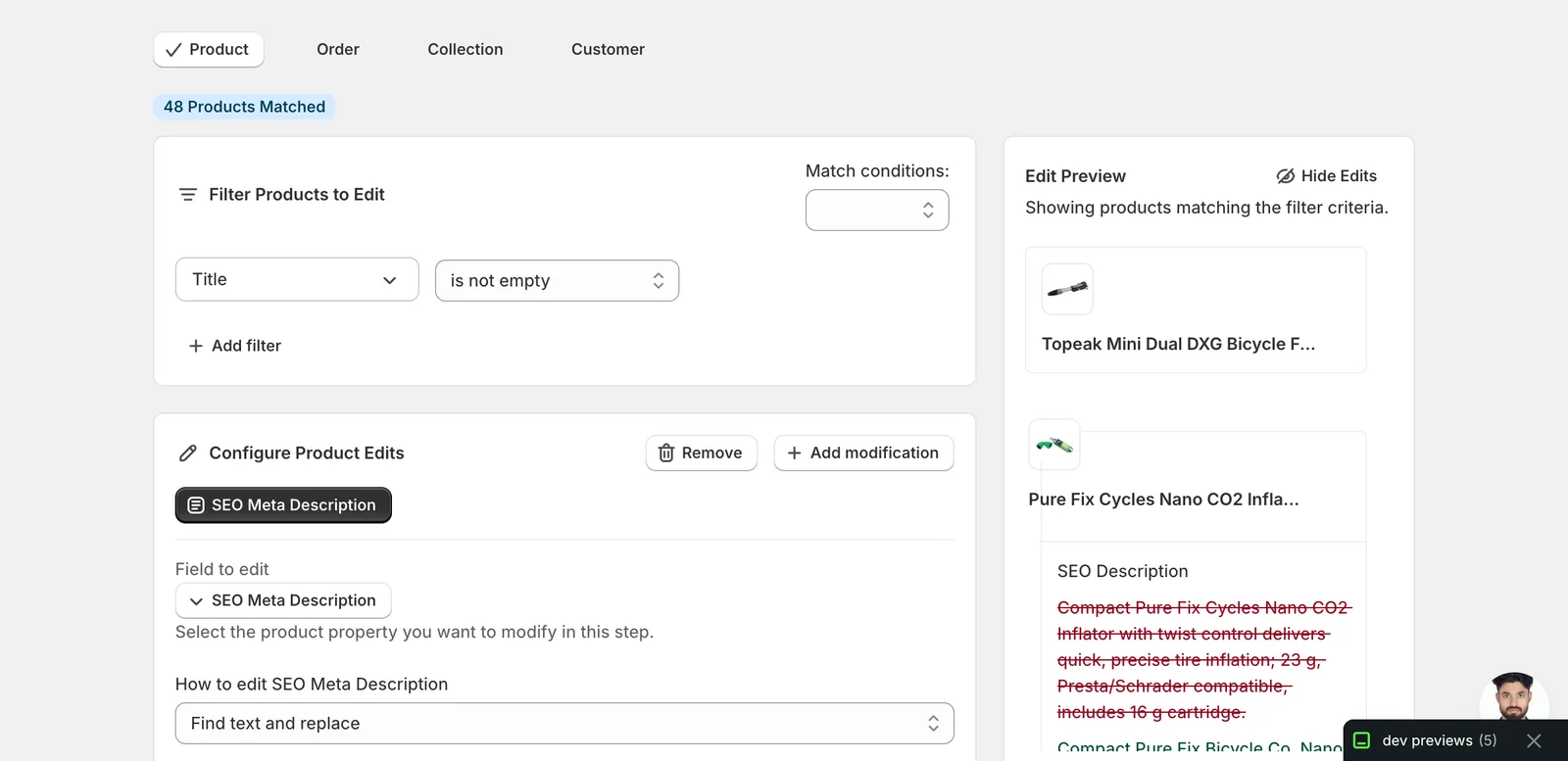
Use this to retire an old brand name, rotate a seasonal phrase, or fix a typo across the catalog. Leave the replace field blank to delete the matched text.
Add / Remove text from end or beginning
A single input. Whatever you type gets appended, prepended, or stripped from the matching end of every description.
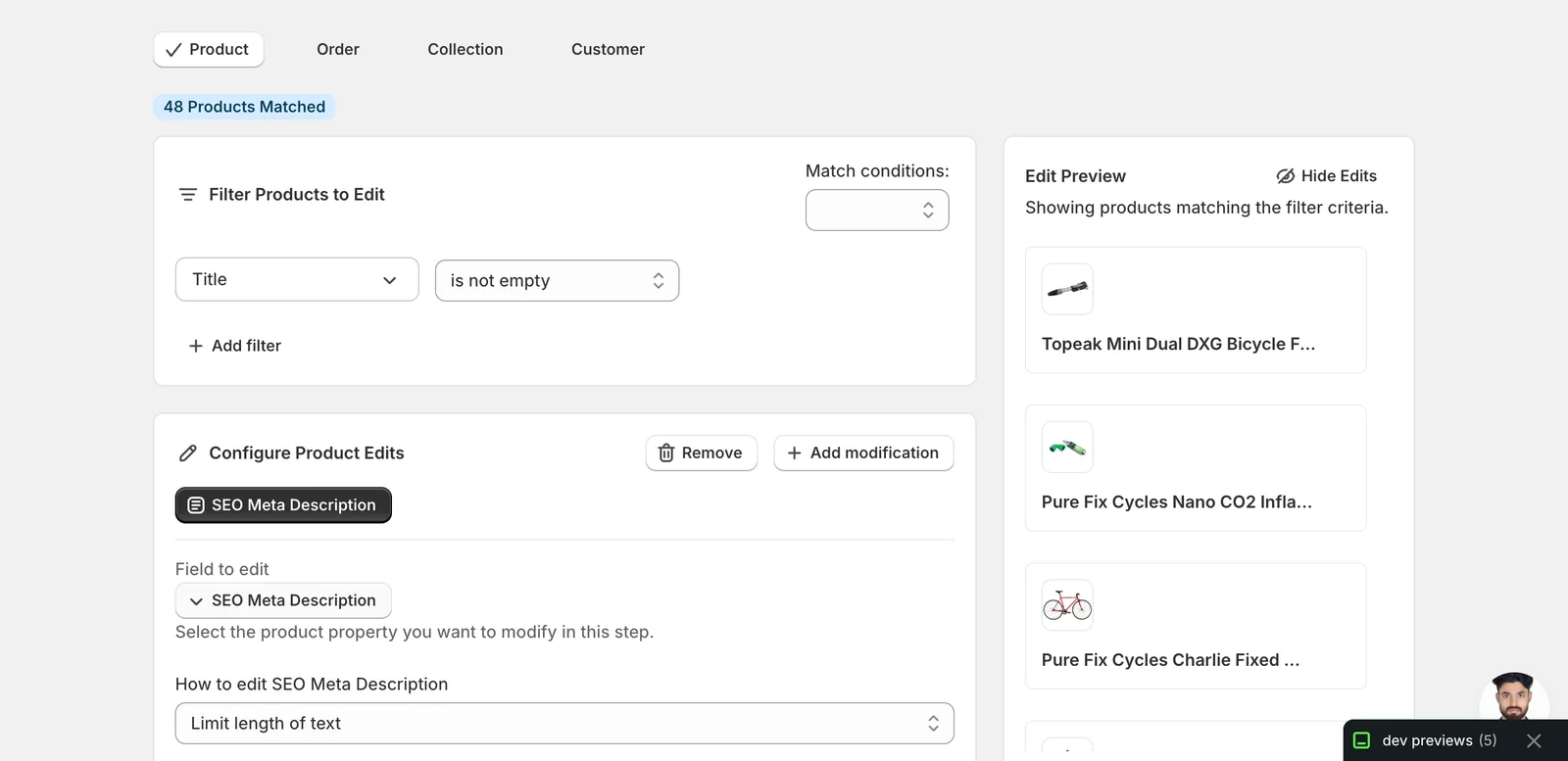
Limit length of text
A number input plus two checkboxes:
- If the text is trimmed, include '...' at the end — adds an ellipsis when truncation happens.
- Don't trim the text in the middle of a word — pulls the cut back to the previous word boundary so the description doesn't end mid-word.
The recommended length is 160–320 characters. Google typically renders up to ~155–160 characters in search snippets; anything beyond that gets clipped on the results page but is still stored on the product.
Remove text from a word to the end / up to and including a word
A single input — the marker word. Everything from that word onward (or up to and including it) is stripped. Useful when a boilerplate suffix or prefix sneaked into a batch of descriptions.
After the run
- SEO meta description changes are reversible from the History page using Undo.
- Empty meta descriptions are accepted — Shopify falls back to deriving one from the product description, so clearing the field is a valid choice if you want Shopify to handle it.
- Find/Replace and the Add/Remove actions are not idempotent — re-running them keeps modifying the description. The Edit Preview on the right shows the proposed new value per product. Scan it before you start the bulk edit.
- Search engines re-crawl on their own schedule, so updated descriptions usually take days to appear in results.
Frequently asked questions
How can I bulk update meta descriptions for Shopify products?
Pick SEO Meta Description under Product Fields in EditEngine's Configure Product Edits panel — typing "seo" in the search box filters straight to it. Nine actions let you set a new value, append or prepend text, find-and-replace, limit length, or strip text around a marker word, applied to every matched product in one run.
What is the ideal length for a Shopify meta description?
The recommended length is 160–320 characters. Google typically renders up to roughly 155–160 characters in search snippets; anything beyond that gets clipped on the results page but is still stored on the product. EditEngine's Limit length of text action can cap descriptions, optionally adding an ellipsis and avoiding cuts mid-word.
How do I avoid duplicate meta descriptions when bulk editing in Shopify?
Use a dynamic value. A literal value with no token gives every product the same description, and Google penalises duplicate meta descriptions across many pages. In EditEngine, click Add dynamic value and insert tokens like {{product.title}} alongside your copy so each matched product resolves to its own unique description in the preview.
Can I reverse a bulk meta description edit in Shopify?
Yes — SEO meta description changes are reversible from the History page using Undo. Before running, scan the Edit Preview, which shows the proposed new value per product. Find/Replace and the Add/Remove actions are not idempotent, so re-running them keeps modifying the description rather than producing the same result twice.
What happens if I leave the meta description blank on Shopify products?
Empty meta descriptions are accepted. Shopify falls back to deriving one from the product description, so clearing the field across products is a valid choice if you want Shopify to handle it. Note that search engines re-crawl on their own schedule, so updated descriptions usually take days to appear in results.