
Variants & options
How to Bulk Edit Taxable in Shopify
Published by Profitonium Apps · Last updated
Switch a batch of variants between Taxable and Non-Taxable in one run. Useful when you start collecting tax on a product line, exempt a charity SKU, fix imports that came in with the wrong flag, or prep variants for a tax-exempt market. EditEngine's bulk editor flips the Shopify variant taxable field — there's no value to type, just pick one of two options.
Taxable is a variant field. Each variant has its own taxable flag, so a product with five variants gets five updates from one run.
What this does NOT change. Taxable controls whether tax is calculated. The actual tax rate still comes from your Shopify tax settings (regions, overrides, tax codes). Flipping a variant to taxable doesn't pick a rate — it just tells Shopify to apply the rate you've configured.
Step 1: Pick the Taxable field
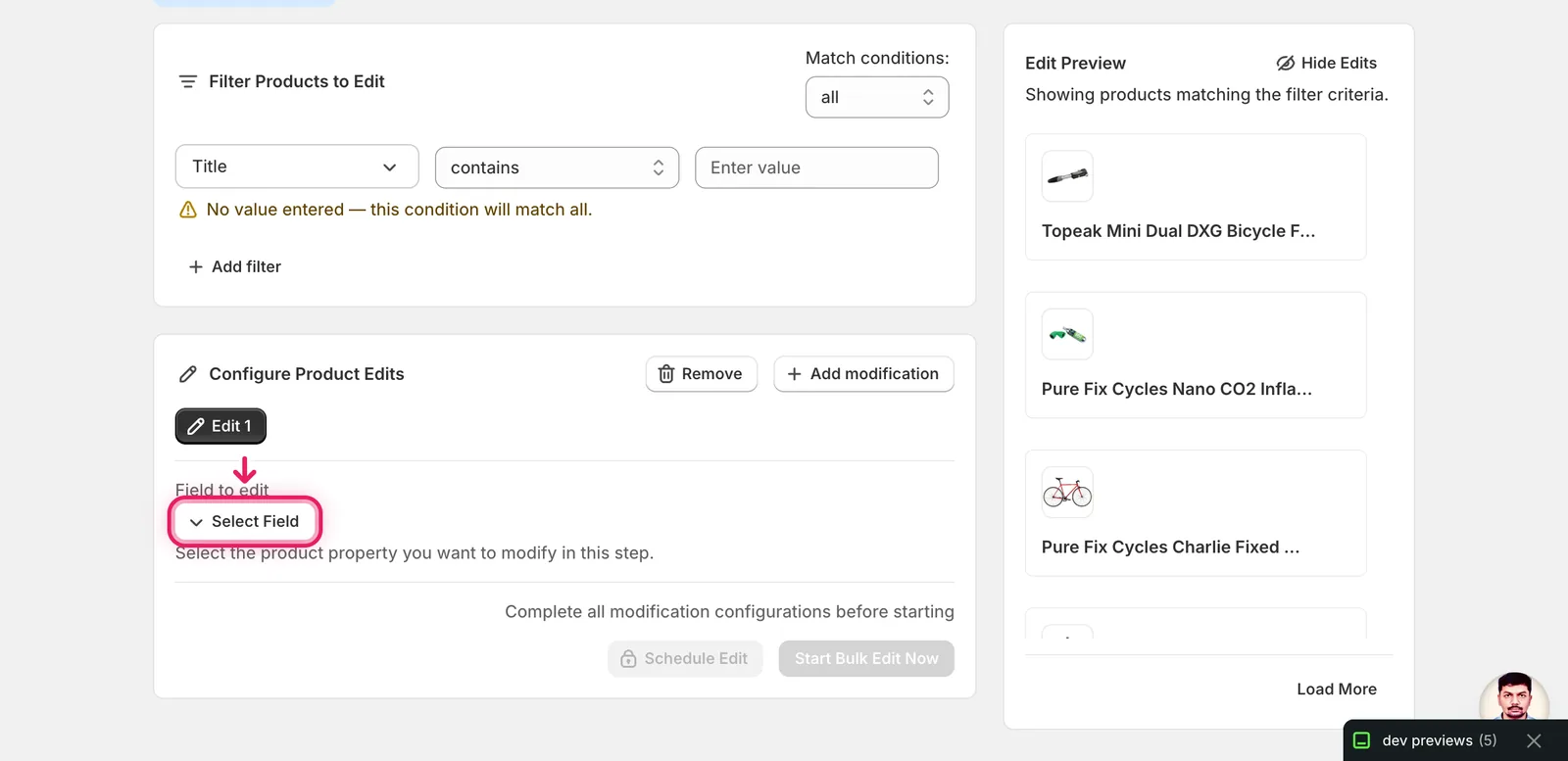
Open the EditEngine bulk editor. In the Configure Product Edits panel, click Select Field.
The field picker opens. Taxable lives under Variant Fields, between Price and Tax Code. You can also start typing taxable into the search box at the top to jump straight to it.
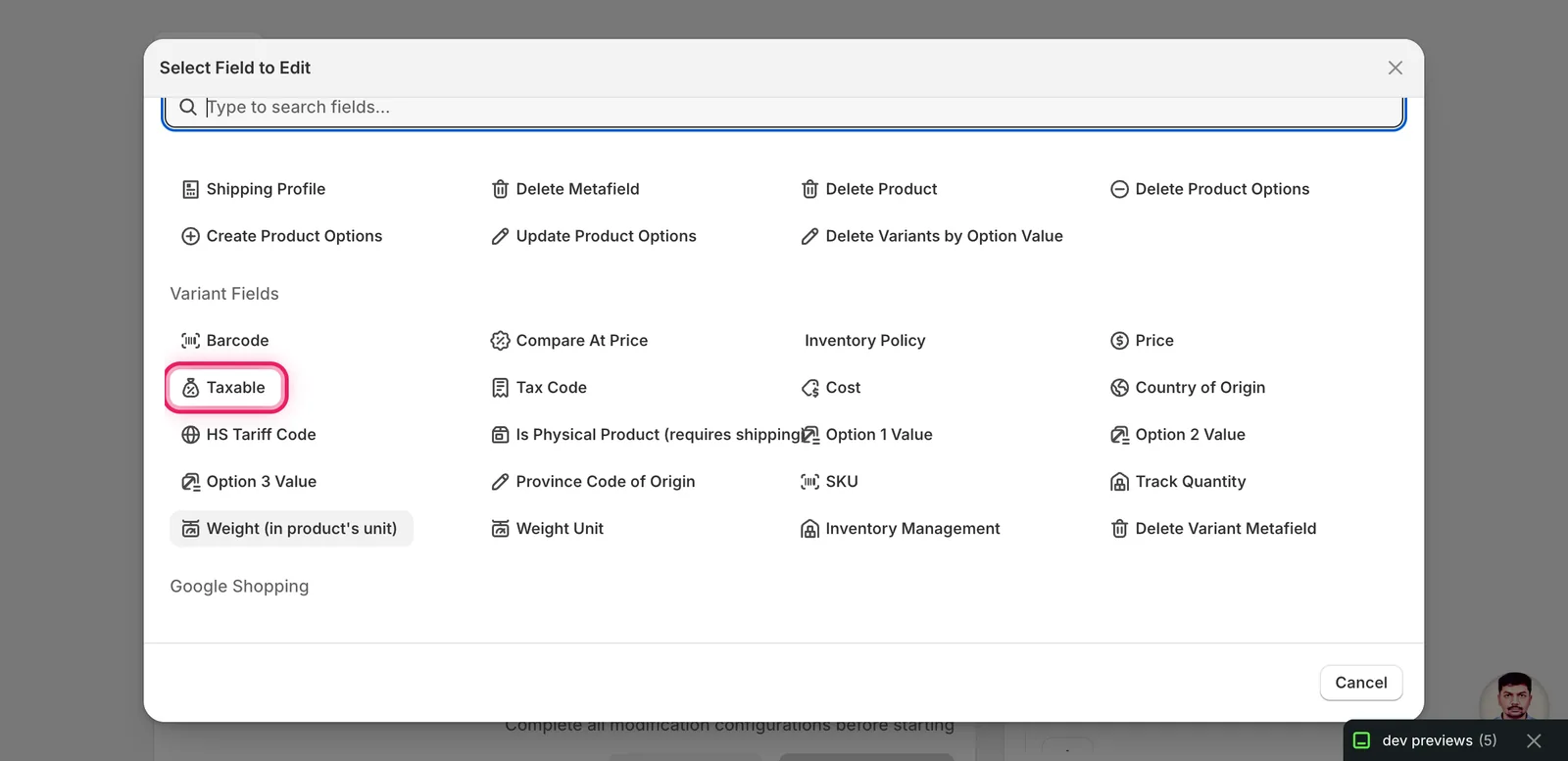
Click Taxable. The modal closes and the configuration panel switches to the Taxable form.
Step 2: Choose Taxable or Non-Taxable
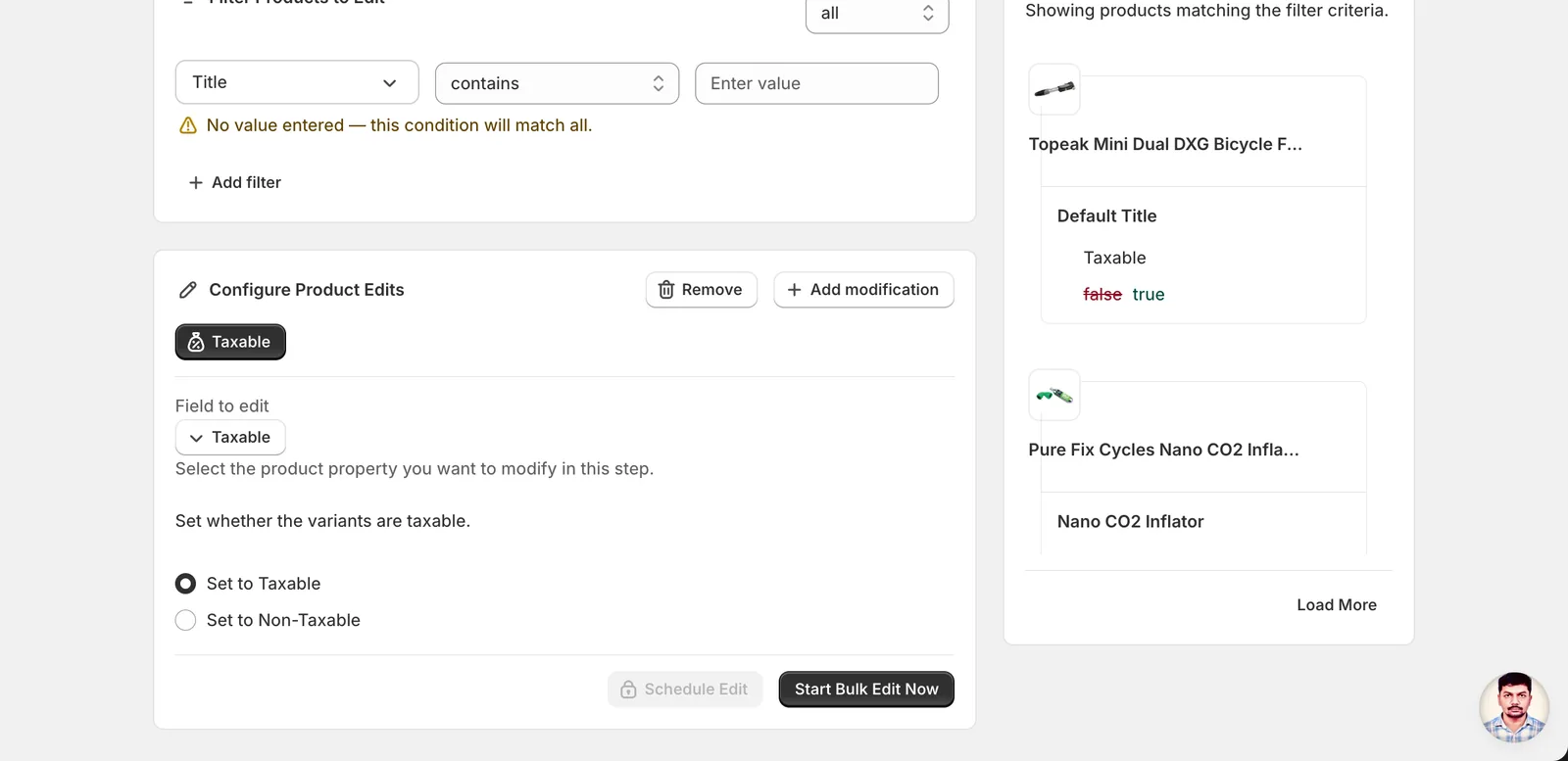
There's no value to type. The form shows one short prompt — "Set whether the variants are taxable." — and two radio buttons:
- Set to Taxable — every matched variant gets
taxable = true. Shopify will apply tax to these variants at checkout based on your store's tax settings. - Set to Non-Taxable — every matched variant gets
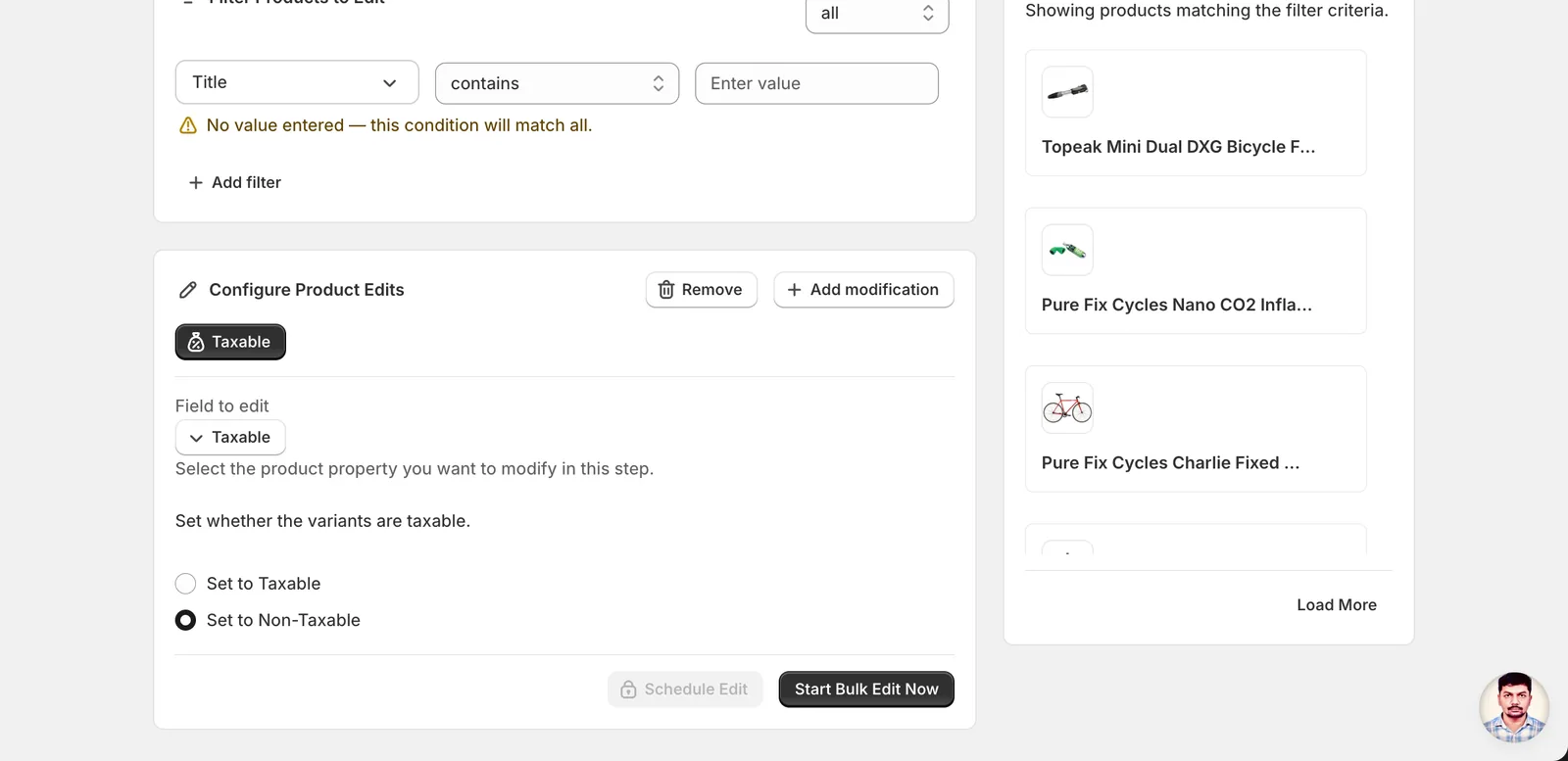
taxable = false. No tax will be charged on these variants regardless of the customer's region.
The default is Set to Taxable.
If you need the opposite, click Set to Non-Taxable instead.
Filter before you run. This action overwrites the flag for every variant that matches your filters — there's no "only flip variants currently set to false" option. If you only want to change a subset, narrow the Filter Products to Edit panel first (e.g. filter by Vendor, Tags, or Product Type).
Step 3: Check the preview, then run
The Edit Preview on the right lists matched products and shows the change per variant — false → true (or true → false) under each variant's Taxable row. Skim it to make sure you're hitting the variants you expect.
When the preview looks right, click Start Bulk Edit Now at the bottom of the panel. Variants with no actual change (e.g. already taxable when you picked Set to Taxable) get a no-op write — they don't break the run.
After the run
- Reversible. Taxable changes are tracked in EditEngine's History page and can be reverted with Undo, which flips the variants back to their previous values.
- Tax rates live elsewhere. If tax still isn't being charged after switching variants to Taxable, check Shopify's Settings → Taxes and duties — the variant flag is just one half of the equation; the other half is having tax rules configured for the customer's region.
- Exempt customers still don't pay. Setting a variant to Taxable doesn't override customer-level tax exemptions. Tax-exempt customers won't be charged tax on a taxable variant.
Frequently asked questions
How do I make all my Shopify products taxable at once?
Open EditEngine's bulk editor, click Select Field in the Configure Product Edits panel, and pick Taxable under Variant Fields. Choose Set to Taxable, check the Edit Preview to confirm the variants flipping from false to true, then click Start Bulk Edit Now. Every matched variant gets taxable = true in a single run.
Can I undo a bulk taxable change in Shopify?
Yes. Taxable changes are tracked in EditEngine's History page and can be reverted with Undo, which flips the variants back to their previous values. Variants that already had the value you set get a no-op write, so they don't break the run if you repeat it.
Why is Shopify still not charging tax after I set variants to taxable?
The taxable flag only tells Shopify whether to calculate tax — the actual rate comes from your store's tax settings. If tax still isn't charged after the edit, check Settings, then Taxes and duties, and make sure tax rules exist for the customer's region. Also note tax-exempt customers won't be charged even on taxable variants.
How do I make only some Shopify variants non-taxable, not the whole store?
Filter before you run. The action overwrites the flag for every variant matching your filters — there's no option to only flip variants currently set to false. Narrow the Filter Products to Edit panel in EditEngine, for example by Vendor, Tags, or Product Type, then choose Set to Non-Taxable so only that subset gets taxable = false.
Does a bulk taxable edit in Shopify update every variant on a product?
Yes. Taxable is a variant field — each variant carries its own flag — so a product with five variants gets five updates from one run. The Edit Preview lists matched products and shows the change per variant, like false to true, so you can skim it before starting the bulk edit.