
Variants & options
How to Bulk Edit SKU
Published by Profitonium Apps · Last updated
The SKU is the stock-keeping code stored on each product variant. This guide shows how to set it from another field, append or prepend text, find-and-replace, or wipe it entirely across many variants at once.
SKU is a variant field. Each variant of a product has its own SKU, so the action runs once per matched variant. A product with five variants gets five SKU updates.
No format check. The app accepts any text — letters, numbers, dashes, spaces. If your warehouse expects a specific pattern, eyeball the Edit Preview before running.
Step 1: Pick the SKU field
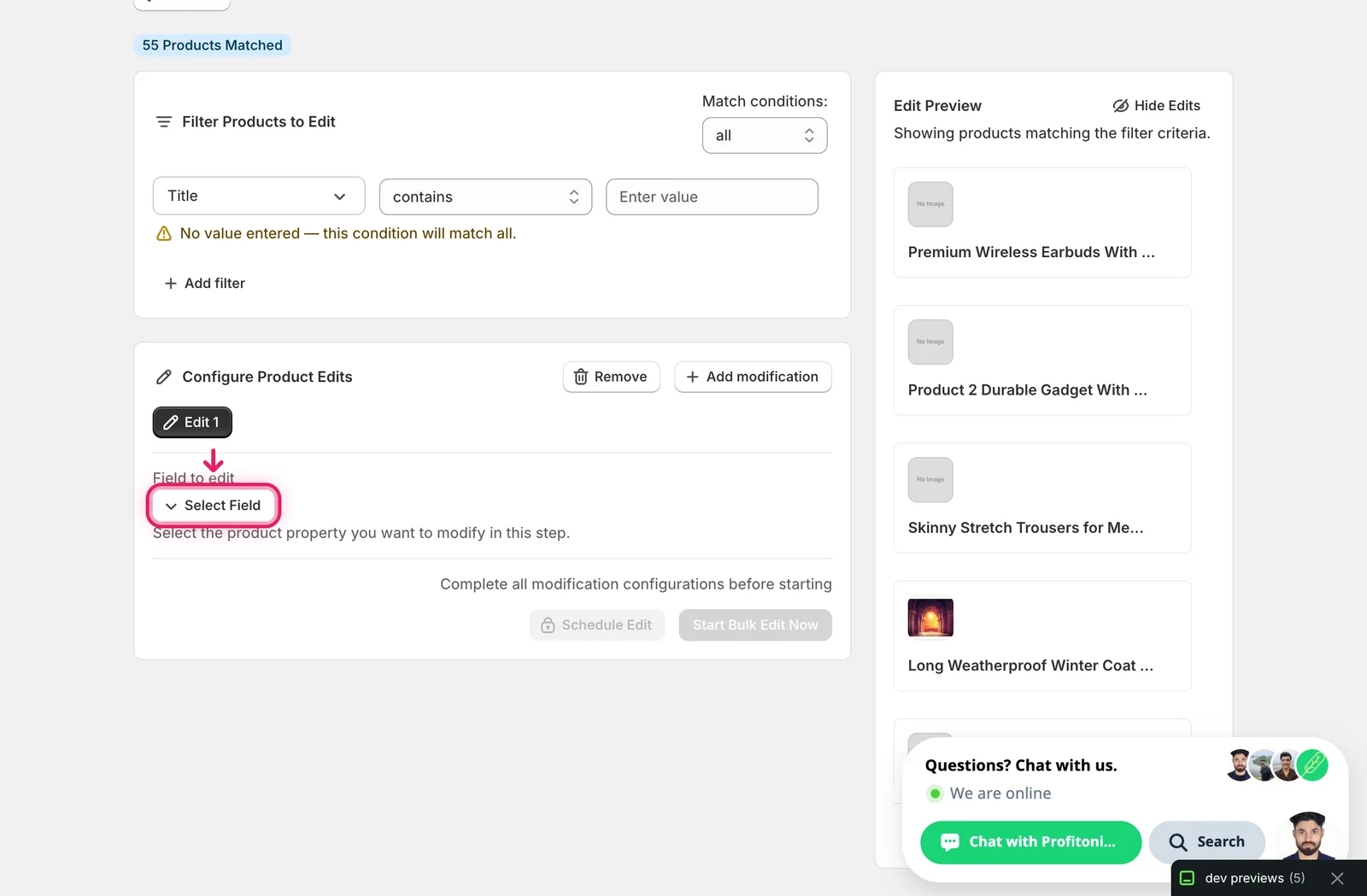
In the Configure Product Edits panel, click Select Field.
SKU lives under Variant Fields.
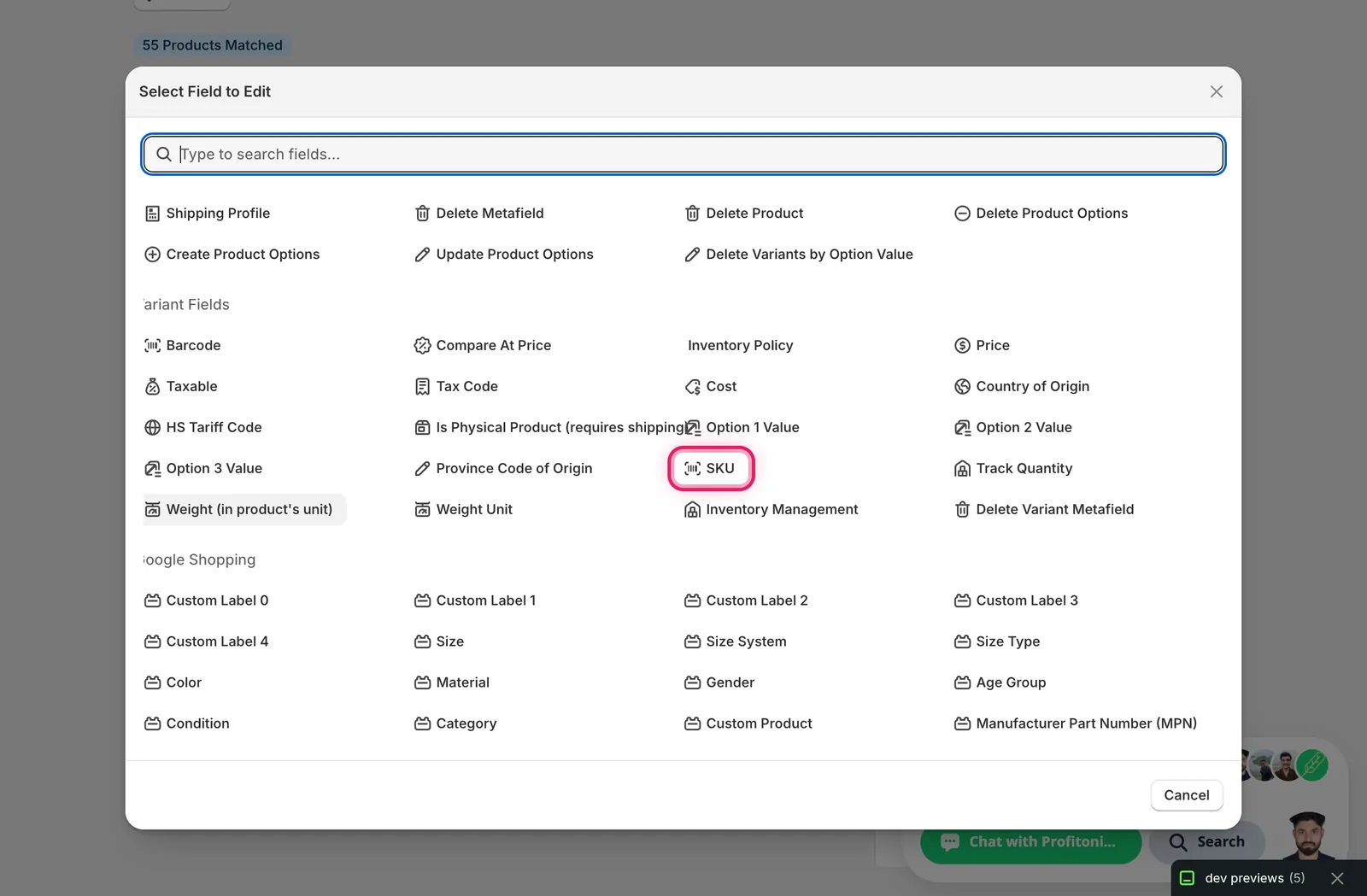
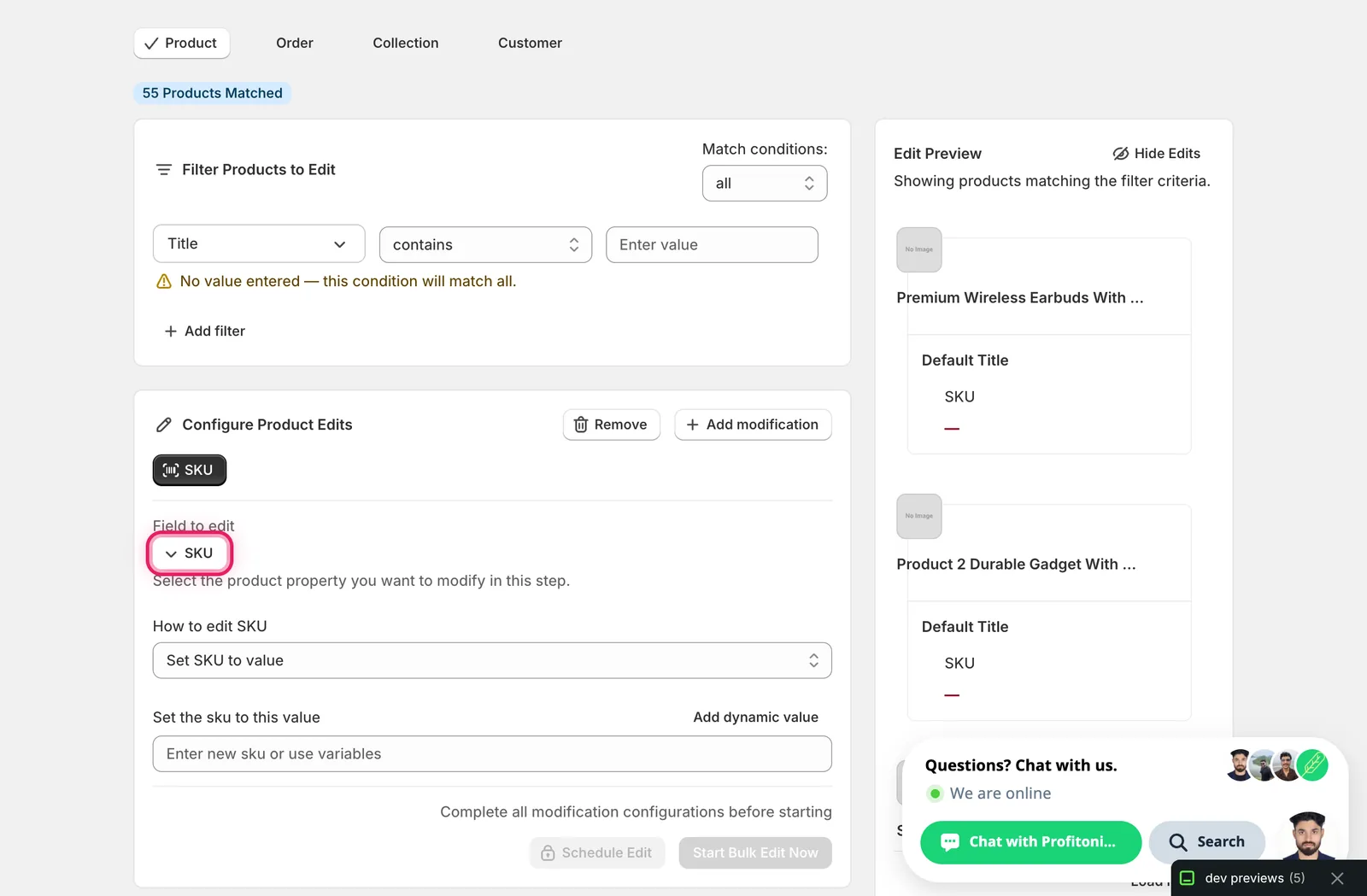
Click it. The configuration panel switches to a How to edit SKU dropdown defaulting to Set SKU to value, plus a value input.
Step 2: Choose how to change the SKU
Seven actions are available.
Direct value
- Set SKU to value — every matched variant gets this exact SKU. Pair with a dynamic value (see Step 3) so each variant still gets a unique code.
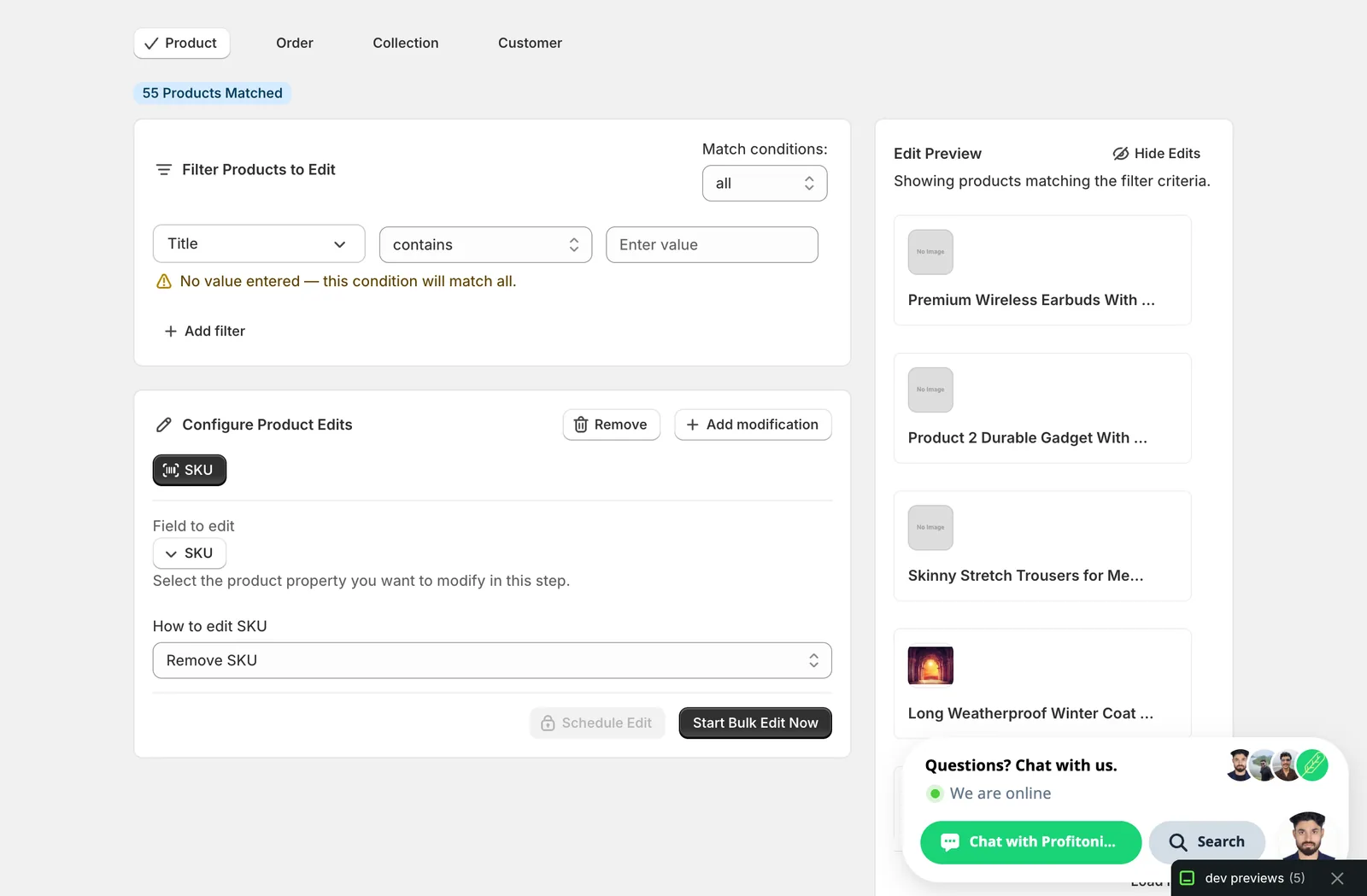
- Remove SKU — clears the SKU field entirely. No input shown, no value to enter.
Adjust the existing SKU
- Add text to end — append text (e.g.
-REFURB). - Add text to beginning — prepend (e.g.
WH-for warehouse). - Remove text from end — strip a suffix.
- Remove text from beginning — strip a prefix.
- Find text and replace — swap one substring for another, optionally case-insensitive.
The inputs below the dropdown change based on what you pick.
Step 3: Enter the value
Set SKU to value
Type the new SKU in the Set the sku to this value input.
Use dynamic values to keep SKUs unique. Click Add dynamic value above the input. A modal opens letting you build a token from product fields (Vendor, Handle, Title, Type, Tags…) and metafields, with optional capitalization (UPPER, lower, Title Case). Picking a field inserts a token like
{{product.handle}}at the cursor — combine tokens with literal text to compose a SKU template.
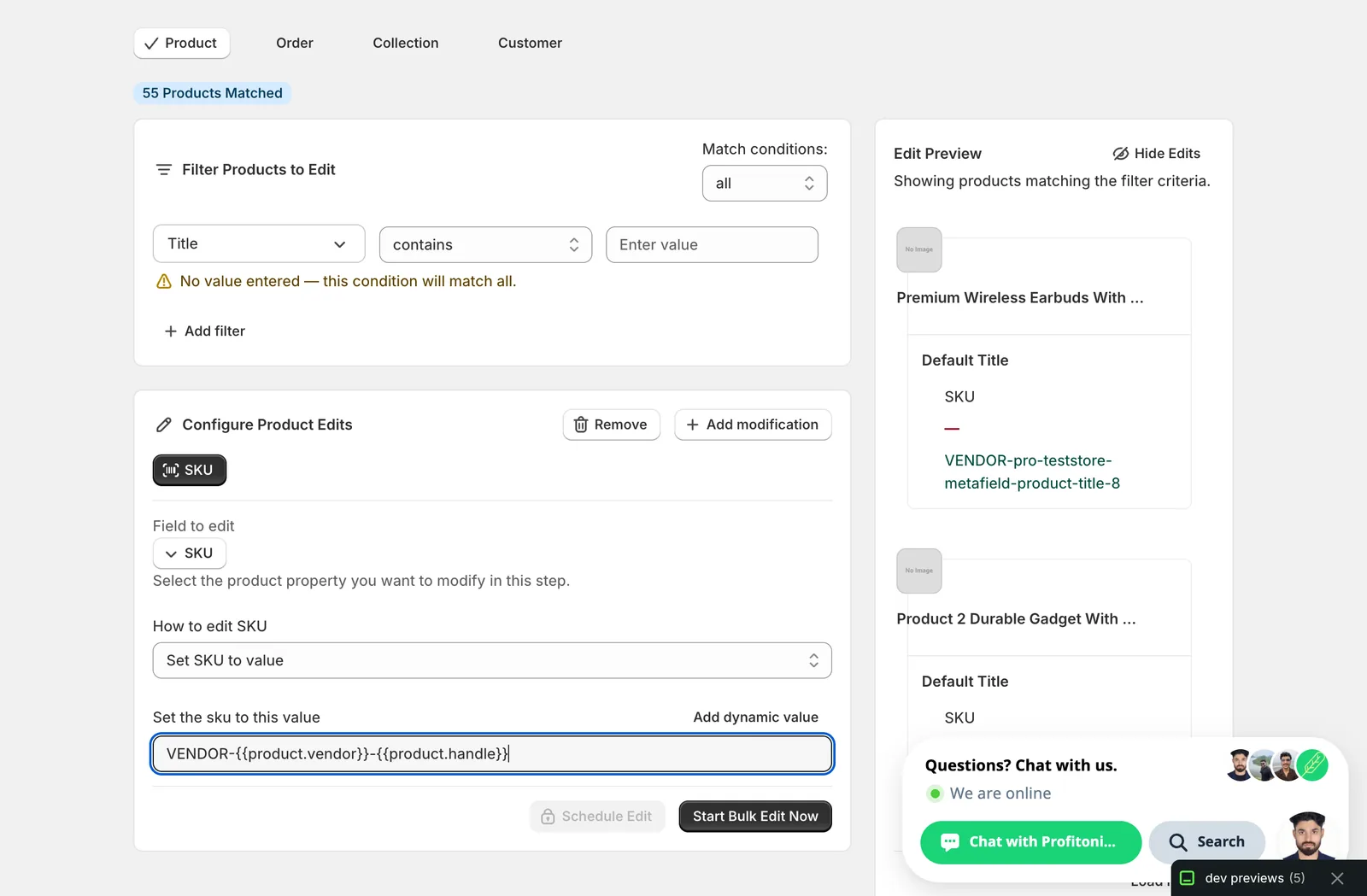
In this example, every matched variant gets a SKU like VENDOR-Pure Fix Cycles Charlie...-pure-fix-cycles-charlie-.... The Edit Preview resolves the tokens per variant so you can verify before running.
Setting a literal value with no dynamic token across many variants gives every variant the same SKU. Shopify lets you save duplicate SKUs, but inventory tools, reports, and integrations get confused fast — almost never what you want.
Find text and replace
Two inputs — what to look for, and what to replace it with — plus a Case insensitive checkbox.
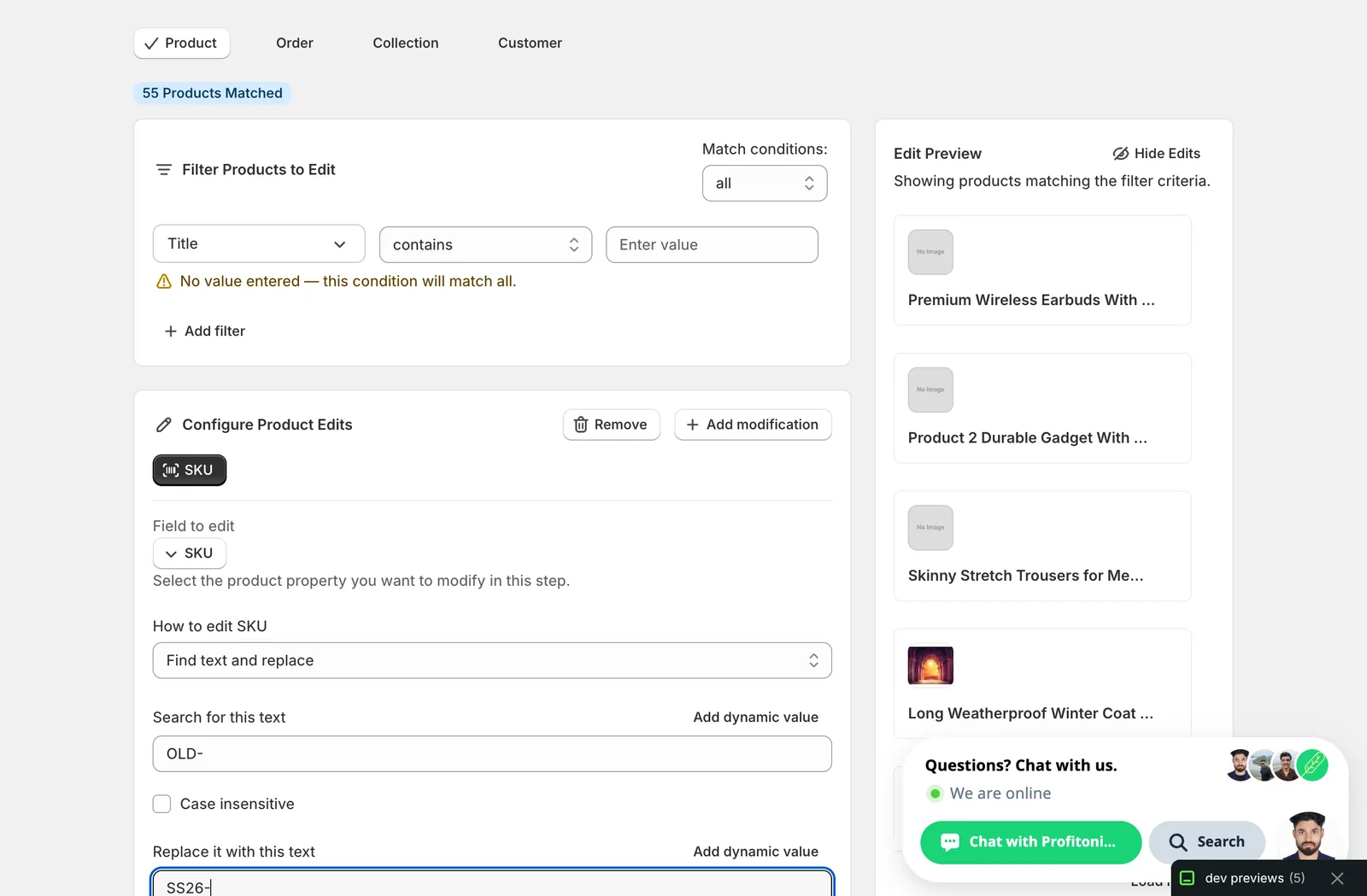
Use this to retire an old prefix, fix a typo across the catalog, or rebrand a SKU range. Leave the replace field blank to delete the matched text outright.
Add / Remove text from end or beginning
A single input. Whatever you type gets appended, prepended, or stripped from the matching end of every SKU.
Remove SKU
No input — the action just clears the SKU field on every matched variant.
After the run
- SKU changes are reversible from the History page using Undo.
- Empty SKUs are allowed by Shopify, but most apps that key off SKU (inventory sync, reports, channel integrations) will skip variants without one.
- Add/Remove and Find-and-Replace actions are not idempotent — re-running them keeps modifying the SKU. Scan the Edit Preview on the right before you run; if a row already shows the prefix or replacement, running again will double-apply it.
Frequently asked questions
How do I bulk edit SKUs across Shopify variants?
In EditEngine's Configure Product Edits panel, click Select Field and pick SKU under Variant Fields. Choose one of seven actions — set a value, remove the SKU, add or remove text from either end, or find-and-replace — then run. Because SKU is a variant field, the action runs once per matched variant, so a product with five variants gets five SKU updates.
Can I undo a bulk SKU change in Shopify?
Yes. SKU changes are reversible from EditEngine's History page using Undo. Still, scan the Edit Preview on the right before you run, because the Add/Remove and Find-and-Replace actions are not idempotent — re-running them keeps modifying the SKU, so an already-applied prefix or replacement would be double-applied.
How do I keep SKUs unique when setting them in bulk?
Use dynamic values. Click Add dynamic value above the input to insert tokens like {{product.handle}} built from product fields or metafields, with optional capitalization, and combine them with literal text to compose a SKU template. Setting a literal value with no token gives every variant the same SKU, which confuses inventory tools, reports, and integrations fast.
Can I add a prefix or suffix to all my Shopify SKUs at once?
Yes. Pick Add text to beginning to prepend something like WH- for a warehouse, or Add text to end to append a suffix like -REFURB. Matching Remove text actions strip a known prefix or suffix, and Find text and replace swaps one substring for another, optionally case-insensitive — useful for retiring an old prefix or fixing a typo.
Does Shopify allow blank or duplicate SKUs after a bulk edit?
Shopify lets you save duplicate SKUs and allows empty ones, but most apps that key off SKU — inventory sync, reports, channel integrations — will skip variants without one, and duplicates confuse those tools fast. EditEngine applies no format check either, so eyeball the Edit Preview if your warehouse expects a specific pattern.