
Metafields
Bulk Edit Shopify Product & Variant Metafields
Published by Profitonium Apps · Last updated
To bulk edit metafields in Shopify, select the products or variants you want to update, choose the metafield, enter the new values, and save or run the edit. Use Shopify's native bulk editor for manual cell updates, or EditEngine when you want one rule applied across a filtered set with a before-and-after preview. Product metafields and variant metafields are separate: choose the scope that owns the data before editing.
This guide walks through editing a custom single-line text metafield — custom.single_line in the test store — but the flow is the same for any metafield definition you've created. The action options change with the metafield's data type (text, number, boolean, money, date, color, etc.), and the configuration panel adapts to match.
A metafield edit runs once per product. If your metafield is defined on products, every matched product gets one update. Variant metafields work the same way but match each variant — pick them from the Variant Metafield Definitions section instead.
EditEngine writes the metafield even if the product doesn't have a value yet. No need to seed the field first — the bulk edit creates the metafield where it's missing.
Choose the right metafield workflow
Shopify supports several bulk paths, but they do not cover the same jobs:
| Method | Best for | Important limit |
|---|---|---|
| Shopify bulk editor | Pasting distinct values into a visible table of selected products or variants | Manual cell work; no reusable transformation or EditEngine-style operation history |
| Shopify product CSV | Row-by-row product metafield updates in a spreadsheet | Shopify's product CSV does not support variant metafields |
| EditEngine bulk editor | Applying one rule across a filtered catalog with preview and undo | Use the definition's correct data type; percentage actions compound if repeated |
| EditEngine CSV/XLSX import | Product and variant metafields with row-specific values or formulas | Preserve matching keys and exact Metafield: namespace.key [type] headers |
Shopify's current product CSV reference supports product metafields and explicitly routes variant-metafield work to the variant bulk editor. EditEngine covers both scopes in the in-app editor and in Matrixify-compatible imports.
If the value is identical or follows the same rule across many records, stay in the bulk editor and use the preview. If every row needs a different value, export a focused spreadsheet, edit the metafield column, and import it back. The free Shopify CSV templates show both native Shopify and EditEngine header formats.
Product vs variant metafields
- Product metafields belong once to the product. Examples: material, care instructions, a size-chart reference, or an internal merchandising note.
- Variant metafields belong to each variant. Examples: a color swatch hex value, per-size measurements, or a variant-specific compliance value.
- Definitions are preferable because Shopify enforces the type. EditEngine also discovers metafields that exist without a definition, but a defined namespace, key, and type are easier to validate and reuse.
- List and reference metafields need type-specific values. For example, reference lists use Shopify GIDs rather than product titles. Use the dedicated list metafields guide for those formats.
For the broader product workflow—filters, preview, scheduling, import/export, and undo—see the Shopify bulk product editor overview.
Quick steps: bulk edit product or variant metafields
- In EditEngine, filter the products you want to change. Start with a small set you can check.
- Open Select Field. Choose Product Metafield Definitions for a value shared by the product, or Variant Metafield Definitions for a value stored on each variant.
- Select the field by name and confirm its namespace, key and type. Choose Set value for one value across the matched records, or another action supported by that type.
- Enter the value and check the Edit Preview, including records that currently have no value. A product-level change applies once per product; a variant-level change applies to each matched variant.
- Run the bulk edit. Check representative records in Shopify and use History → Undo if an app-native edit needs reversing.
For example, set a product's material to Cotton, or update a variant's size-specific measurement. Do not select a product metafield when the value needs to differ by variant. For distinct values in every spreadsheet row, follow the metafield export and import guide instead; Advanced Import does not have app-native one-click undo.
Can I edit metafields without an app?
For product metafields, select products in Shopify admin, open Edit products, and use Columns → Metafields to show the fields. Edit the cells and save. Shopify documents this native bulk-editing workflow. The steps below cover EditEngine's rule-based workflow.
Open EditEngine on the Shopify App Store to use the preview and bulk-edit actions shown in this guide.
Step 1: Pick the metafield
In the Configure Product Edits panel, click Select Field. Custom metafield definitions live under Product Metafield Definitions — scroll past Product Fields, Variant Fields, and Google Shopping to find them. You'll see every definition you've created in Shopify admin under that group, listed by definition name.
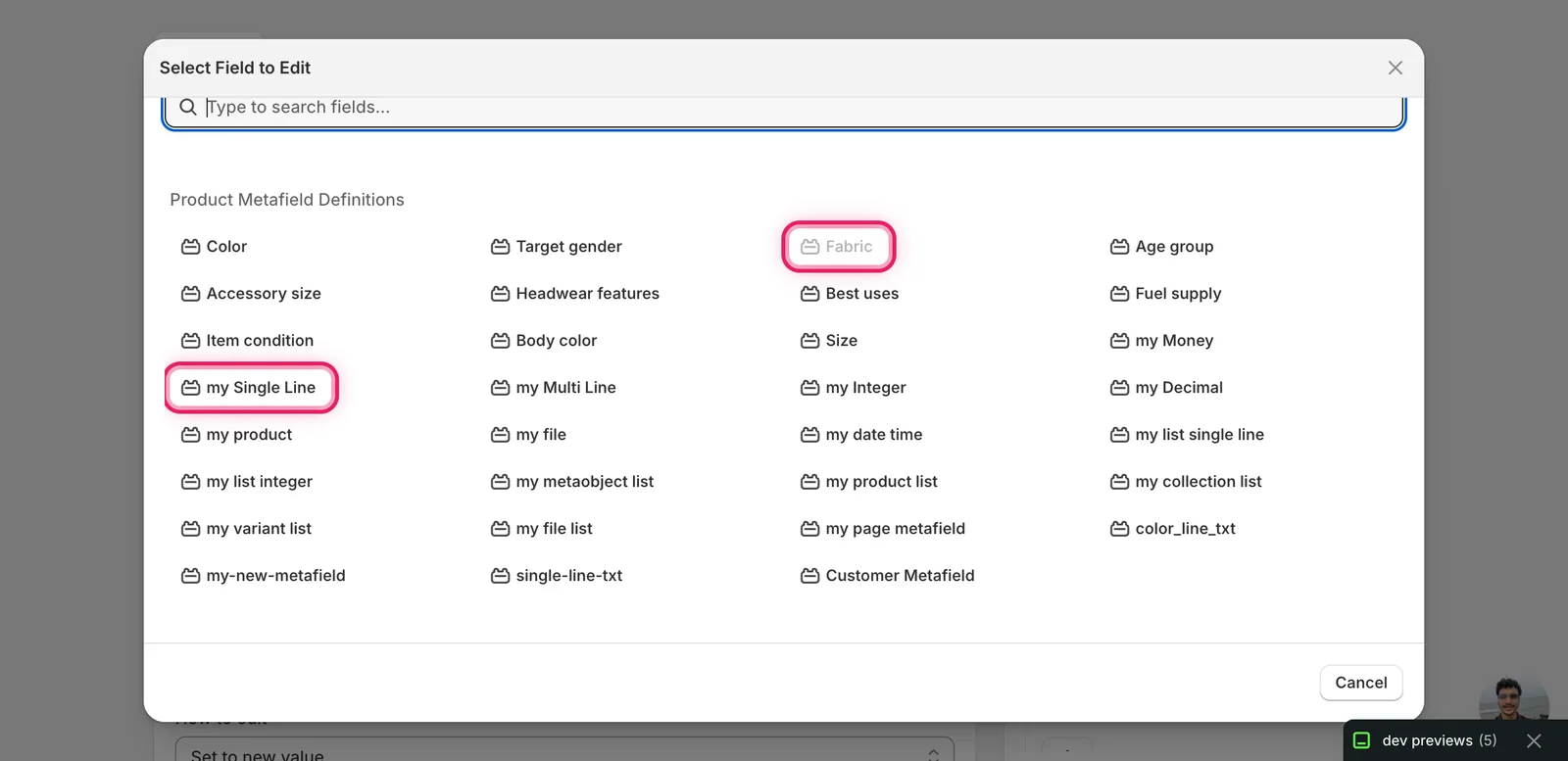
Click the metafield you want to edit. The configuration panel updates to show the field's namespace and key (here custom.single_line) and a How to edit dropdown tailored to the metafield's type.
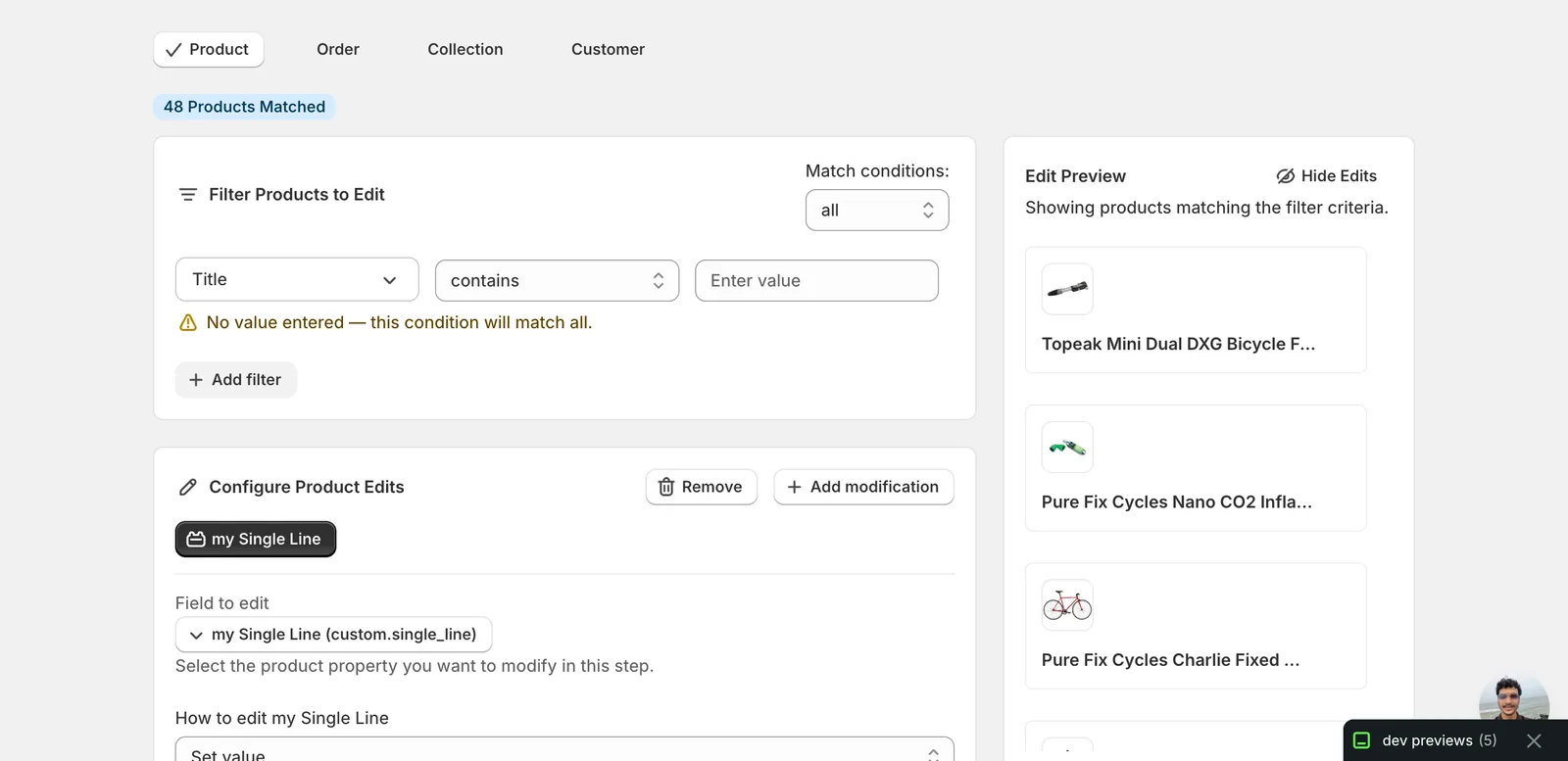
Can't find your metafield? EditEngine groups them by where they're defined. Definitions you set up in Shopify admin appear under Product Metafield Definitions or Variant Metafield Definitions. Metafields that exist on products without a definition show up under Product Metafields (Discovered). Use the search box at the top of the modal — typing a name filters across every group.
Step 2: Choose how to change the value
For a text metafield (single line, multi line, URL), seven actions are available.
Direct value
- Set value — every matched product gets this exact value. Pair with a dynamic value (see Step 3) so each product still gets a unique result.
Adjust the existing value
- Add text to end — append text to whatever the metafield already holds.
- Add text to beginning — prepend.
- Remove text from end — strip a trailing substring.
- Remove text from beginning — strip a leading substring.
- Find text and replace — swap a substring across all matched values, with a Case insensitive checkbox.
- Limit length of text — cap the value at N characters.
The action list adapts to the metafield's type. A number metafield (integer, decimal, money) shows Set value, Increase / Decrease by value, and Increase / Decrease by percentage. A boolean metafield offers Set value and Toggle value. Date / date-time metafields add Set to today and Set to now. Color, rating, measurement, link, and reference metafields render their own pickers — the inputs match what Shopify admin shows for that type, so you're never typing raw JSON.
Step 3: Enter the value
For Set value on a text metafield, type the new value into the input.
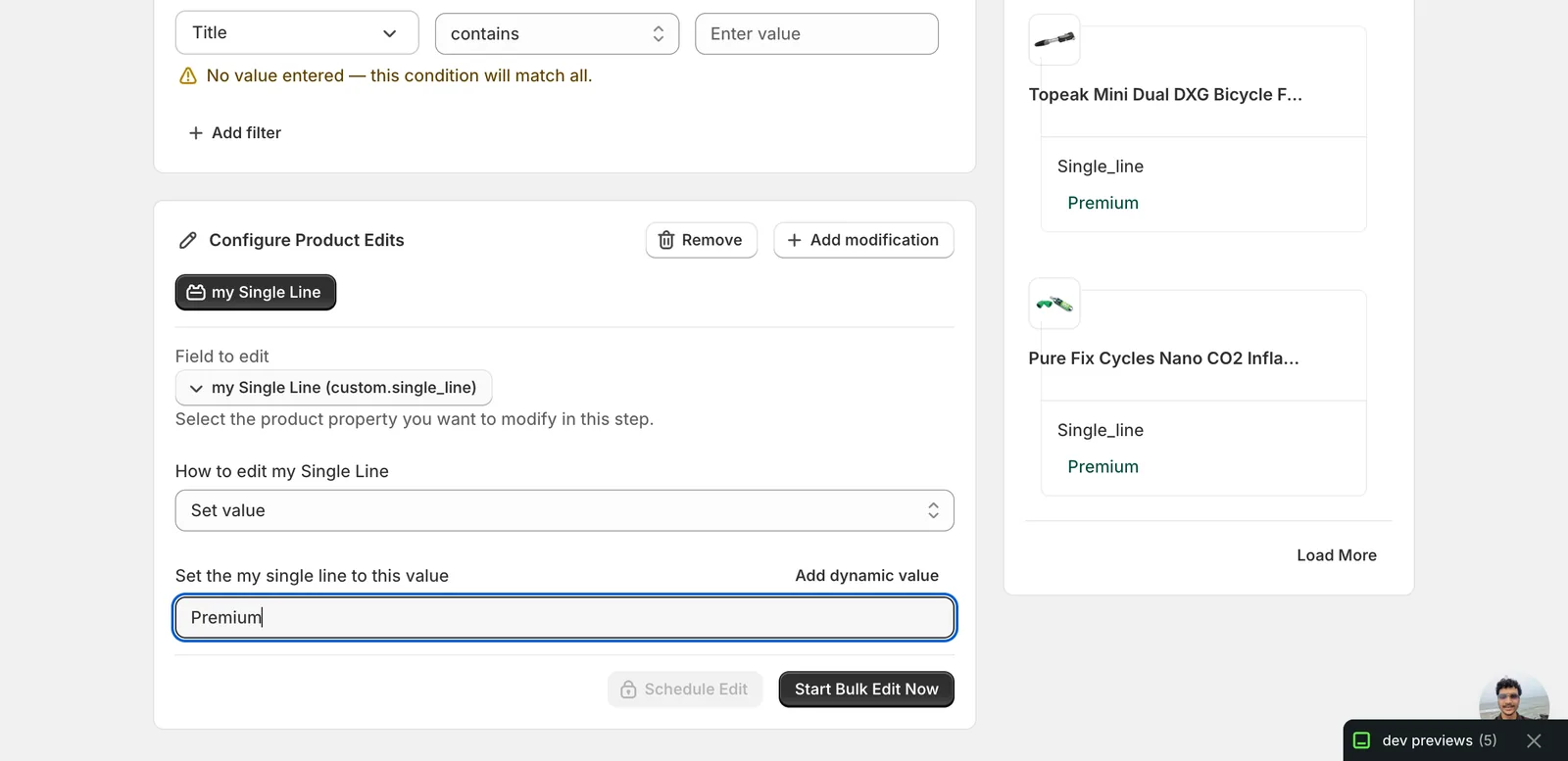
The Edit Preview on the right immediately shows the resolved value per product, labelled with the metafield's key. Use it to spot-check before running the edit.
Use dynamic values to keep entries unique. Click Add dynamic value above the input. A modal opens letting you pick from product fields (Title, Vendor, Tags, Type, Handle…) and other metafields, with optional capitalization. Picking Product Vendor inserts the token
{{product.vendor}}at the cursor. Combine with literal text — e.g.Made by {{product.vendor}}— to compose values that vary per product.
Find text and replace
This action shows two inputs — what to look for, what to replace it with — and a Case insensitive checkbox. Useful for renaming a category across the catalog (e.g. swap cotton for 100% cotton) or fixing a typo. Leave the replace field blank to delete the matched text outright.
Add / Remove text from end or beginning
A single input. Whatever you type gets appended, prepended, or stripped from the matching end of every value. Don't include the leading/trailing space if you don't want one — the text is glued to the existing value verbatim.
Limit length of text
A number input plus checkboxes for include … if trimmed and don't trim mid-word. Useful for tightening a free-text metafield that's grown unwieldy across the catalog.
Number, boolean, date, and other types
When you pick a non-text metafield, the form swaps in the right input for that type. A money metafield shows a currency-prefixed amount. A boolean shows a True/False toggle. A date shows a date picker. A color shows a swatch picker. The action dropdown adapts to match — for example, you won't see Find text and replace on a number field. Pick the action you want and fill in the value the form asks for.
After the run
- The Edit Preview confirms the new value per product before you click Start Bulk Edit Now. If a product already has the same value, EditEngine still writes it (no-op) — that's fine, just slower than necessary on huge catalogs.
- Metafield edits are reversible from the History page using Undo, which restores the previous value (or removes the metafield outright if it didn't exist before).
- Increase / Decrease by percentage on a number metafield is not idempotent — re-running the same edit applies the change again. A 10% raise re-run produces another 10% raise.
- Editing a metafield that doesn't exist on a product yet creates it. Editing one that does exist overwrites it.
- If you need to remove a metafield entirely (not just blank its value), use the Delete Metafield action from the Product Fields section instead — it strips the metafield from matched products rather than setting an empty value.
Next steps: use bulk list metafields for arrays and references, bulk metaobject reference metafields for GID-backed values, or the CSV template resource for row-specific spreadsheet updates.
Frequently asked questions
How do I bulk edit metafields in Shopify?
In EditEngine's Configure Product Edits panel, click Select Field and scroll to Product Metafield Definitions — every definition you've created in Settings → Custom data is listed by name. Pick the metafield, choose an action like Set value, Find text and replace, or Limit length of text, and the edit applies once per matched product instead of you opening each product card.
Can I bulk edit a metafield that some Shopify products don't have yet?
Yes. EditEngine writes the metafield even if the product doesn't have a value yet — there's no need to seed the field first, because the bulk edit creates the metafield where it's missing. Editing a metafield that already exists on a product overwrites its value, and the Edit Preview confirms the new value per product before you run.
Can bulk metafield edits be undone in Shopify?
Yes. Metafield edits are reversible from the History page using Undo, which restores the previous value — or removes the metafield outright if it didn't exist before the run. Note that Increase or Decrease by percentage on a number metafield is not idempotent: re-running a 10% raise produces another 10% raise.
Why can't I find my metafield in the Shopify bulk editor's field list?
EditEngine groups metafields by where they're defined. Definitions created in Shopify admin appear under Product Metafield Definitions or Variant Metafield Definitions, while metafields that exist on products without a definition show up under Product Metafields (Discovered). Use the search box at the top of the modal — typing a name filters across every group.
How do I delete a metafield from many Shopify products instead of editing it?
Use the Delete Metafield action from the Product Fields section. It strips the metafield from matched products entirely rather than setting an empty value — the right choice when you want the field gone, not just blank. Regular metafield edits, by contrast, overwrite the value or create it where it's missing.