
Variants & options
How to Bulk Edit Option 2 Name
Published by Profitonium Apps · Last updated
The Option 2 Name is the label on a product's second variant option — the word "Color" or "Material" that sits next to the first option group on the storefront variant picker. This guide shows how to set it across many products in one run.
Option 2 Name is a product field. It's the label of the second option group on a product (e.g.
Color), not the value of a particular variant (e.g.Red). One name per product, so each matched product gets a single update.
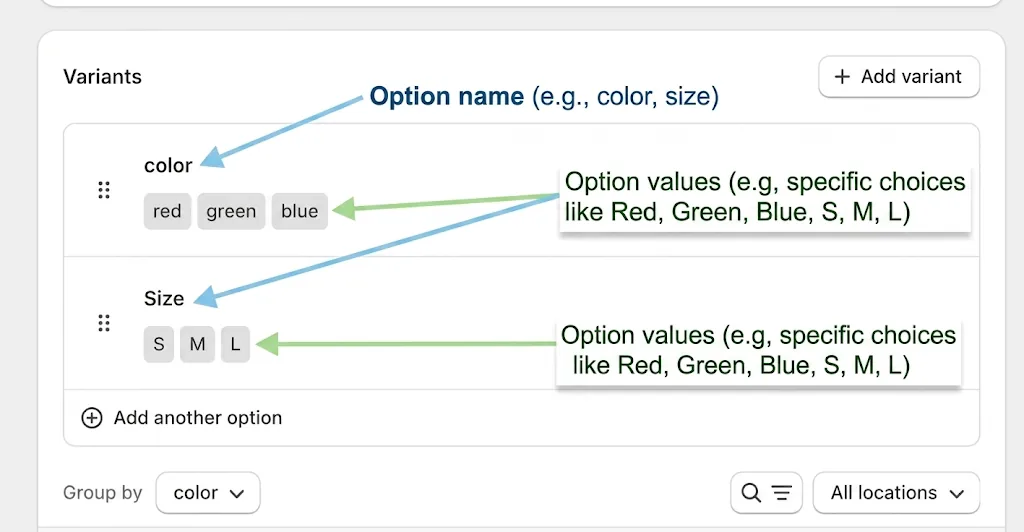
Only products that already have a second option are updated. EditEngine renames the existing Option 2 — it doesn't create a new option on products that have only one. Products without an Option 2 are skipped without error.
Step 1: Pick the Option 2 Name field
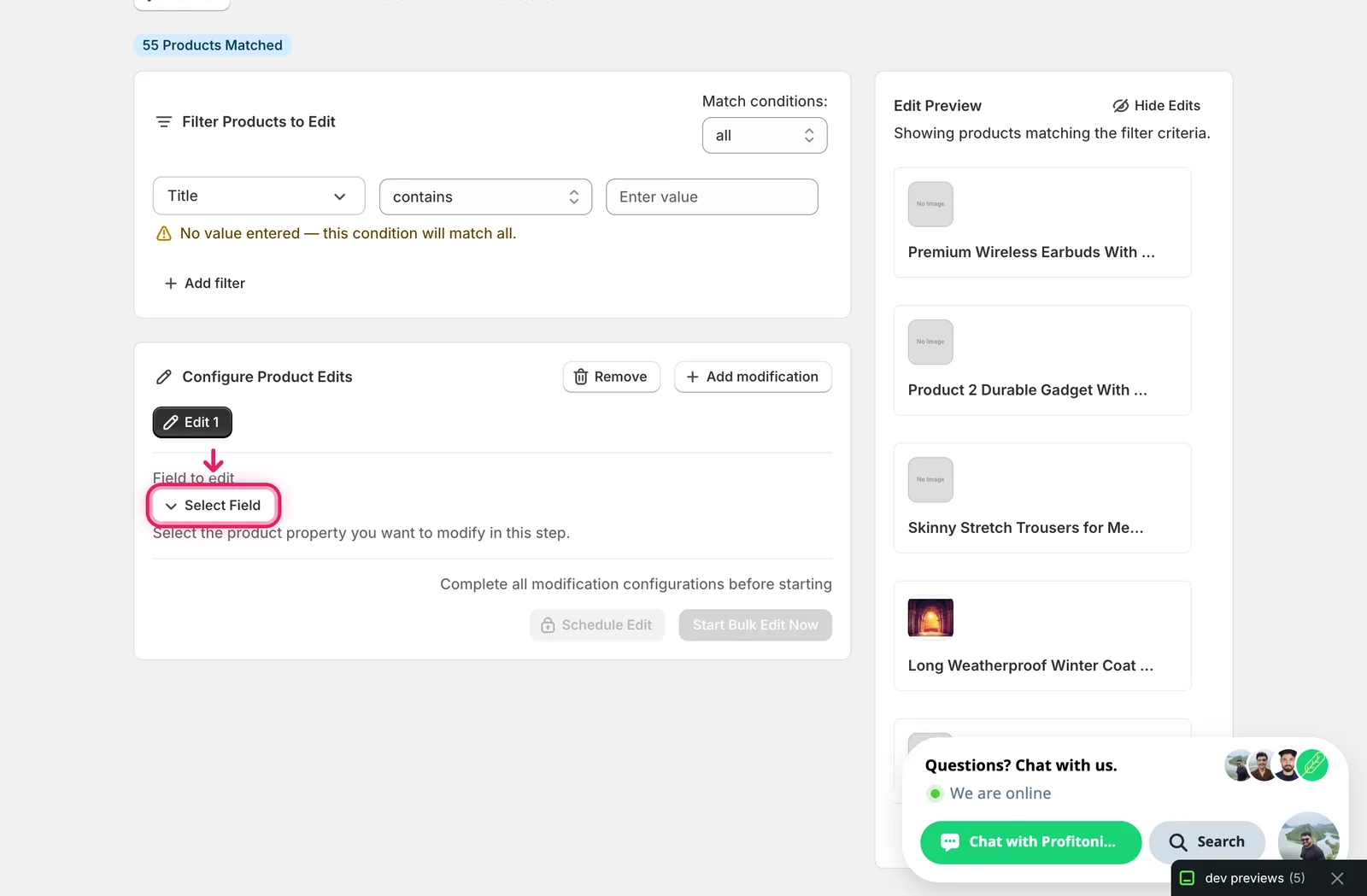
In the Configure Product Edits panel, click Select Field.
Option 2 Name lives under Product Fields.
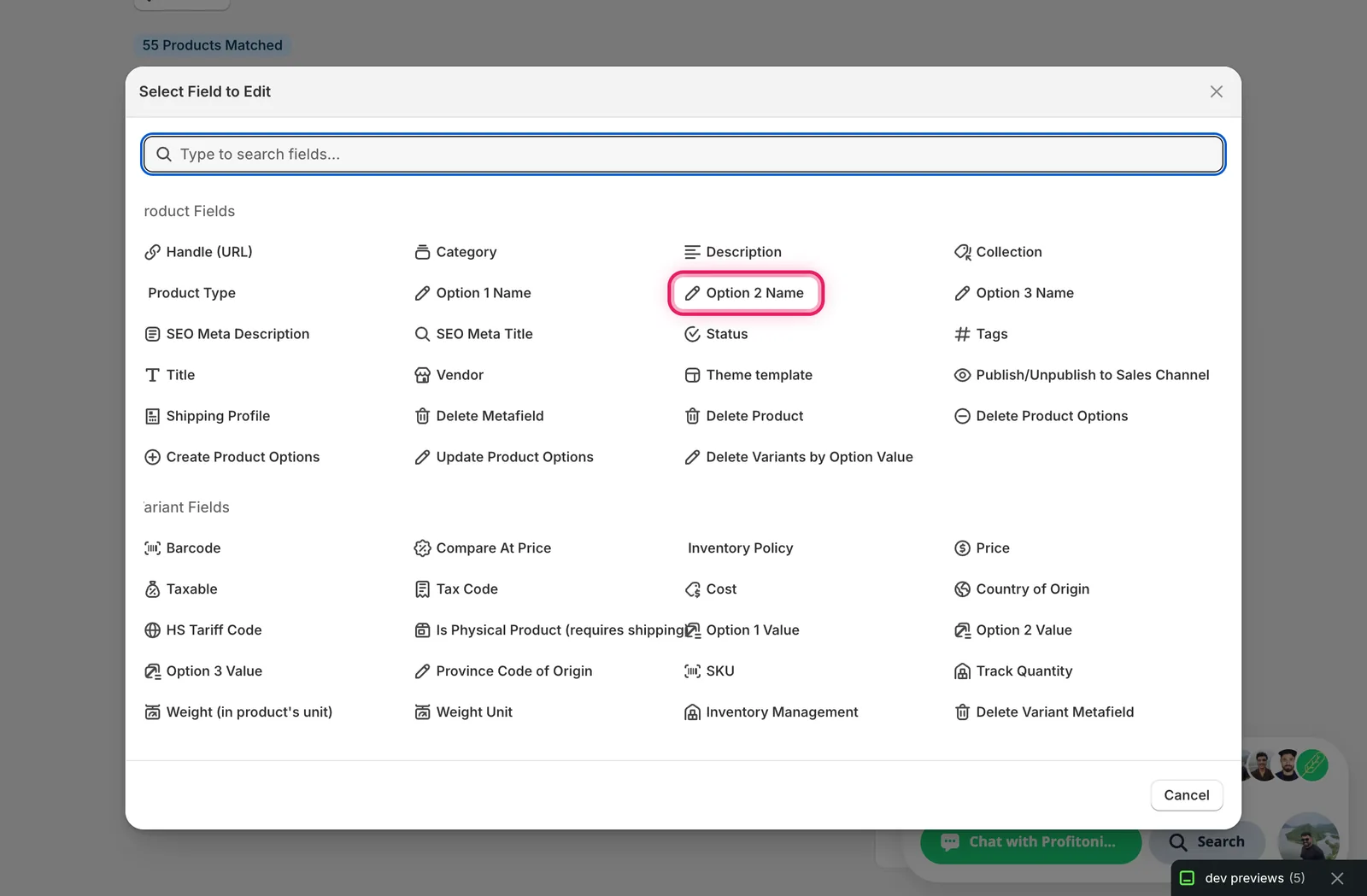
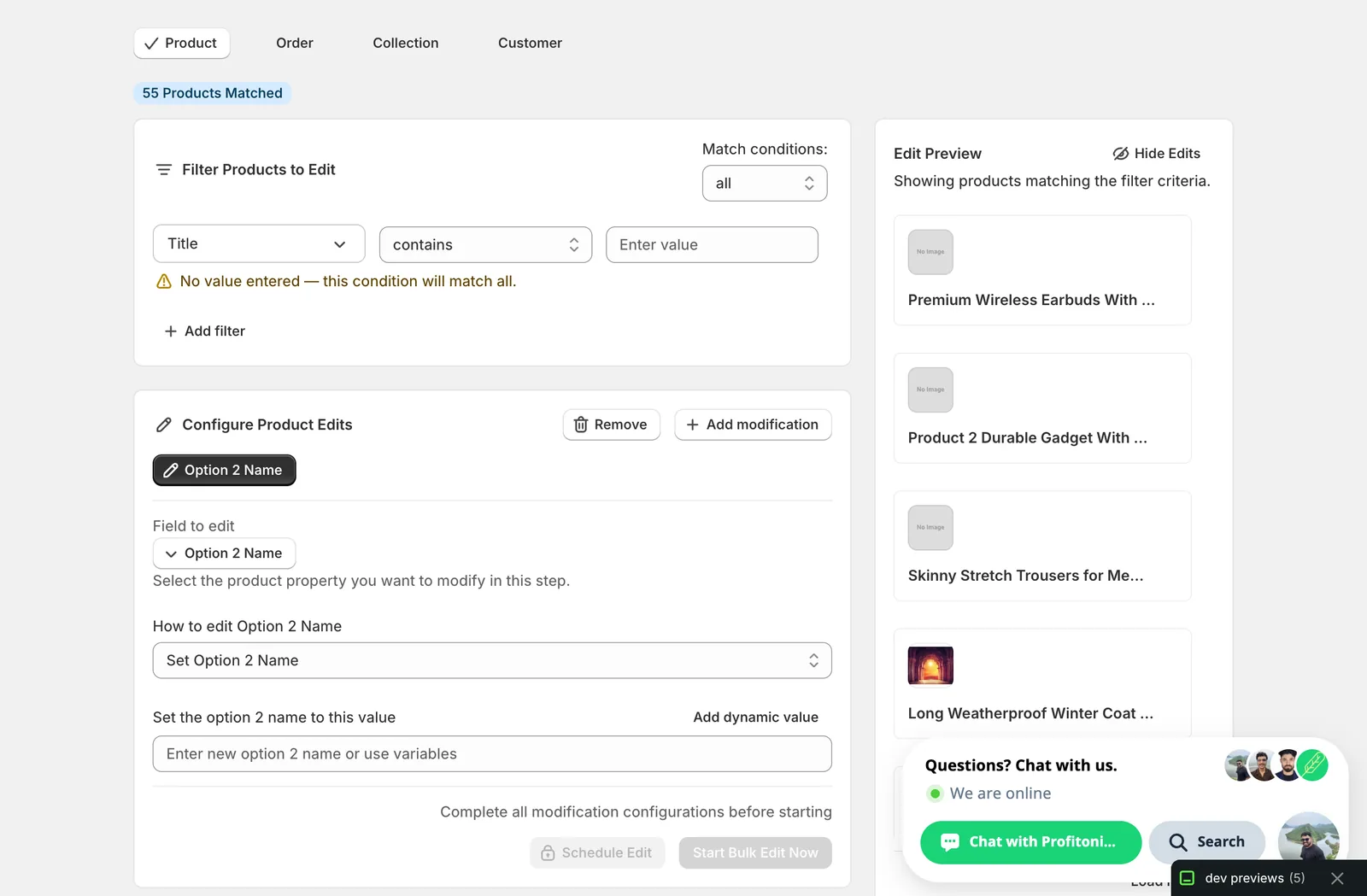
Click it. The configuration panel switches to a How to edit Option 2 Name dropdown, with a value input below.
Step 2: Enter the new option name
Only one action is available: Set Option 2 Name. Type the new label into Set the option 2 name to this value.
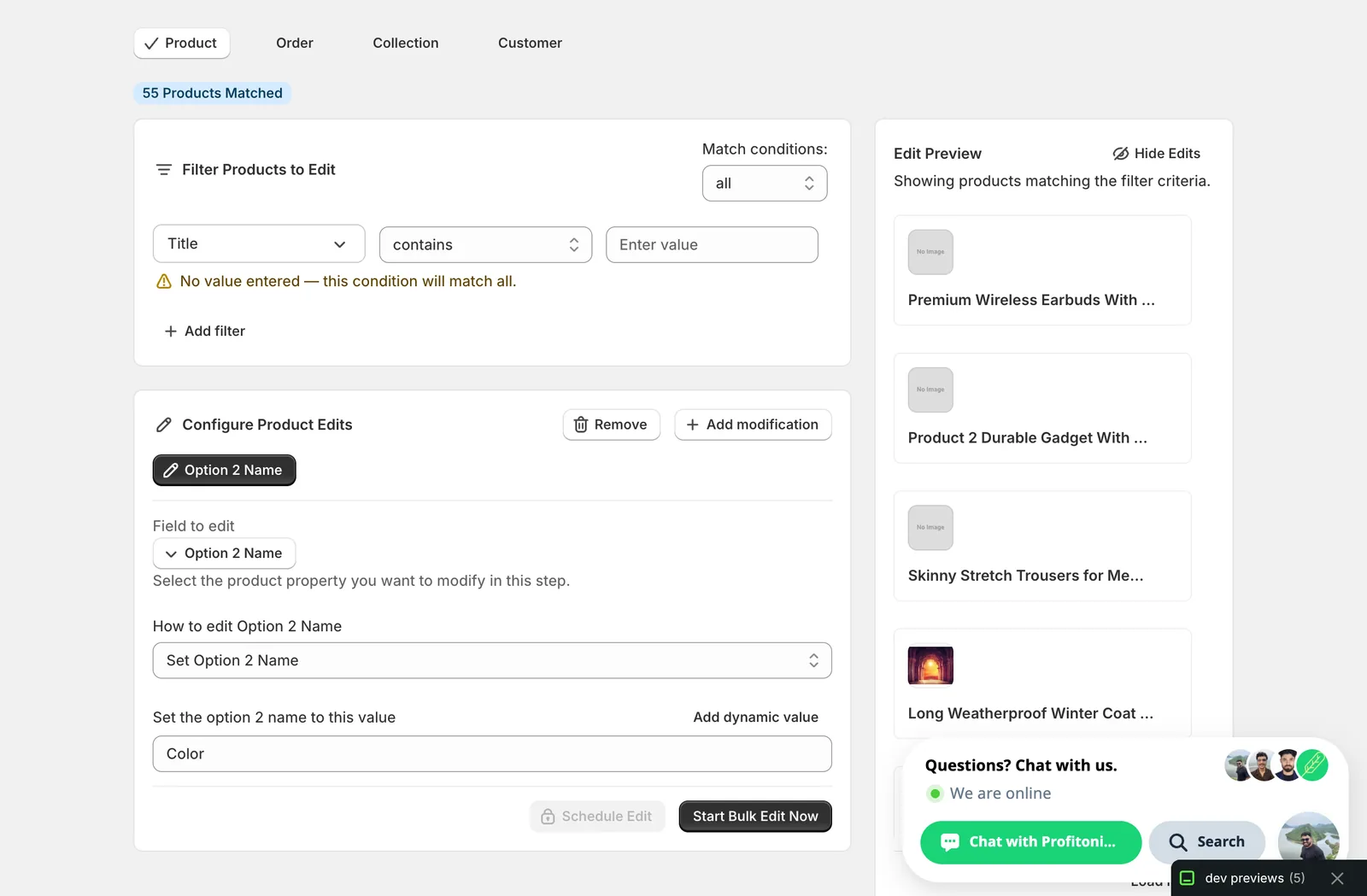
Realistic examples:
Color— when the second option is colour and the first is size.Material— for furniture or accessories with size + material variants.Style— when the second option is a fit or cut.
Pick a name that matches what the existing values actually represent. Renaming Option 2 from
ColortoMaterialdoesn't change the variants underneath — you'll end up with values likeRed,Blue,Greensitting under a header that saysMaterial. Use this when the current name is wrong, inconsistent across products, or you're standardising terminology.
No find/replace, no append/prepend, no dynamic tokens. This field is a straight set-to-value. If you need different new names for different product groups, run separate edits with a filter that targets each group.
Step 3: Filter so the right products get the rename
The edit applies to every product matched by your filter. Before running, narrow the filter so only the products whose Option 2 you actually want to rename are selected — Option 2 Name is a product field with no per-variant skip logic, so a too-broad filter will rename everything in scope.
Useful filter conditions:
- Option 2 Name
iscolour— catch products where the existing label is spelled differently and standardise toColor. - Title
containst-shirt— narrow by product type or naming convention. - Product type
isApparel— bulk-fix all apparel at once.
The Edit Preview on the right shows which products are in scope after filtering. Only products listed there will be touched.
Step 4: Run it
Once a value is entered and at least one product matches the filter, Start Bulk Edit Now activates. Click it to queue the edit, or Schedule Edit to run it later.
Each matched product issues a productOptionUpdate against its second option (position 2). Variant values stay exactly as they were — only the label above them changes.
After the run
- Option 2 Name changes are reversible from the History page using Undo.
- Products that don't have an Option 2 (single-option or no-option products) are silently skipped.
- The storefront option label updates immediately, but cached theme pages may take a few minutes to reflect the new name.
- This action does not rename Option 1 or Option 3 — those have their own fields (
Option 1 Name,Option 3 Name) with the same shape.
Frequently asked questions
How do I bulk rename the second option label like Color on many Shopify products?
Pick Option 2 Name under Product Fields in EditEngine's Configure Product Edits panel, type the new label — Color, Material, or Style — into Set the option 2 name to this value, and click Start Bulk Edit Now. Each matched product gets a single update, since the option name is a product-level field.
Can I undo a bulk Option 2 name change in Shopify?
Yes. Option 2 Name changes are reversible from EditEngine's History page using Undo. Before running, check the Edit Preview to see which products are in scope — only products listed there will be touched. The storefront label updates immediately, though cached theme pages may take a few minutes to reflect it.
Does renaming Option 2 from Color to Material change my Shopify variant values?
No. Renaming the second option only changes the label above the values — variants like Red, Blue, and Green stay exactly as they were, so they would sit under a header reading Material. Use EditEngine's Set Option 2 Name when the current label is wrong, inconsistent across products, or you are standardising terminology.
What happens to Shopify products that don't have a second option?
They are skipped silently, without errors. EditEngine renames an existing Option 2 — it does not create a new option on products that only have one. Each matched product with a second option issues a productOptionUpdate against position 2, while single-option products in the filter are simply left untouched.
Can I use find and replace or dynamic values when renaming Option 2 in Shopify?
No. Option 2 Name is a straight set-to-value field in EditEngine — there is no find/replace, append/prepend, or dynamic tokens. If different product groups need different names, run separate edits with a filter targeting each group, for example Product type is Apparel or Title contains t-shirt.