
Variants & options
How to Bulk Edit Barcode
Published by Profitonium Apps · Last updated
The barcode is the GTIN, UPC, EAN, ISBN, or any other scannable identifier you store on a variant. This guide shows how to set it from another field, tack text onto either end, find-and-replace, trim length, strip everything before or after a marker word, or wipe it entirely.
Barcode is a variant field. Each product variant has its own barcode; the action runs once per matched variant. A product with three variants gets three barcode updates.
No format check. The app accepts whatever you type — there's no UPC/EAN/GTIN validation. If your barcodes need to be exactly 12 or 13 digits, double-check the Edit Preview before running.
Step 1: Pick the Barcode field
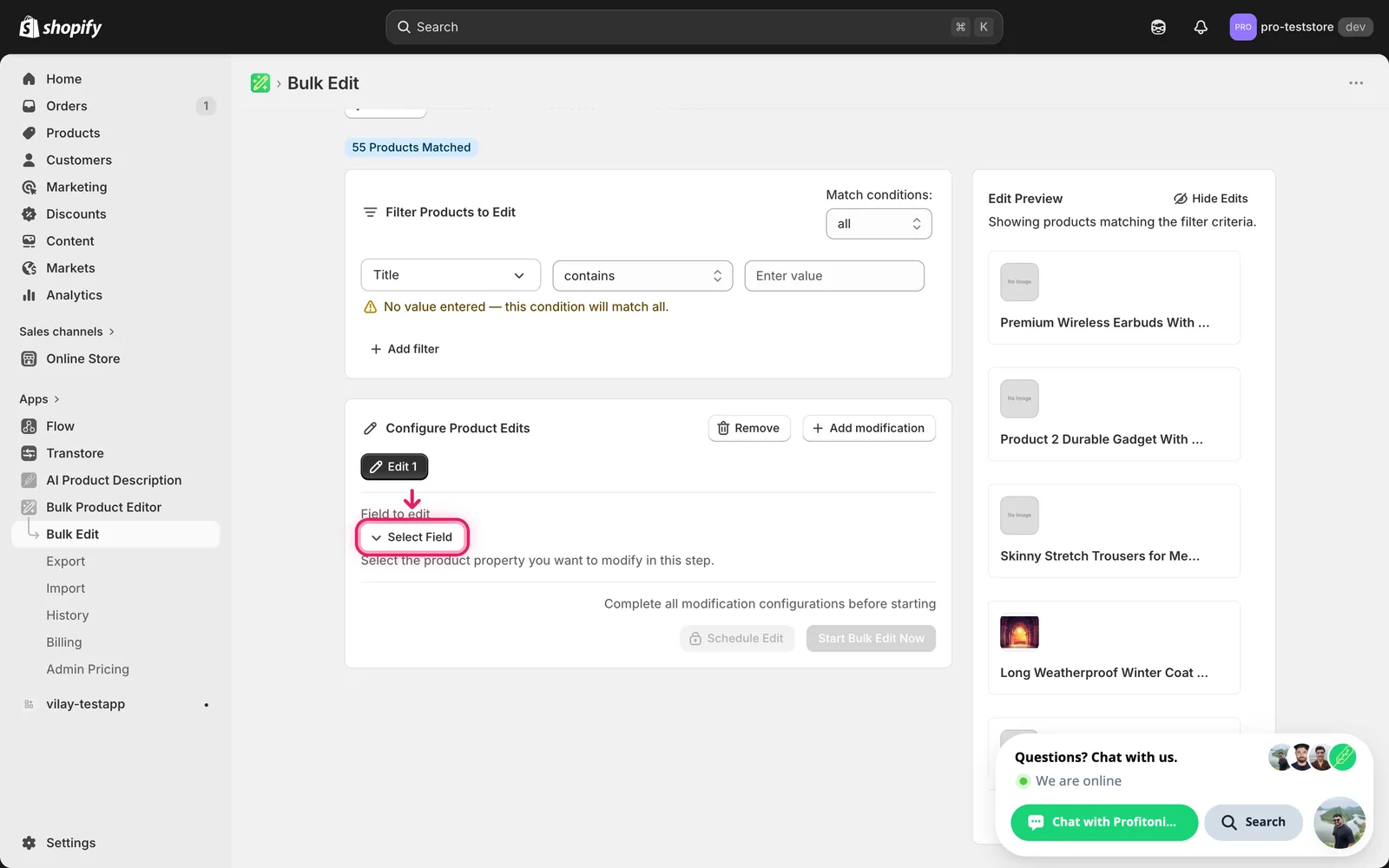
In the Configure Product Edits panel, click Select Field.
Barcode lives under Variant Fields.
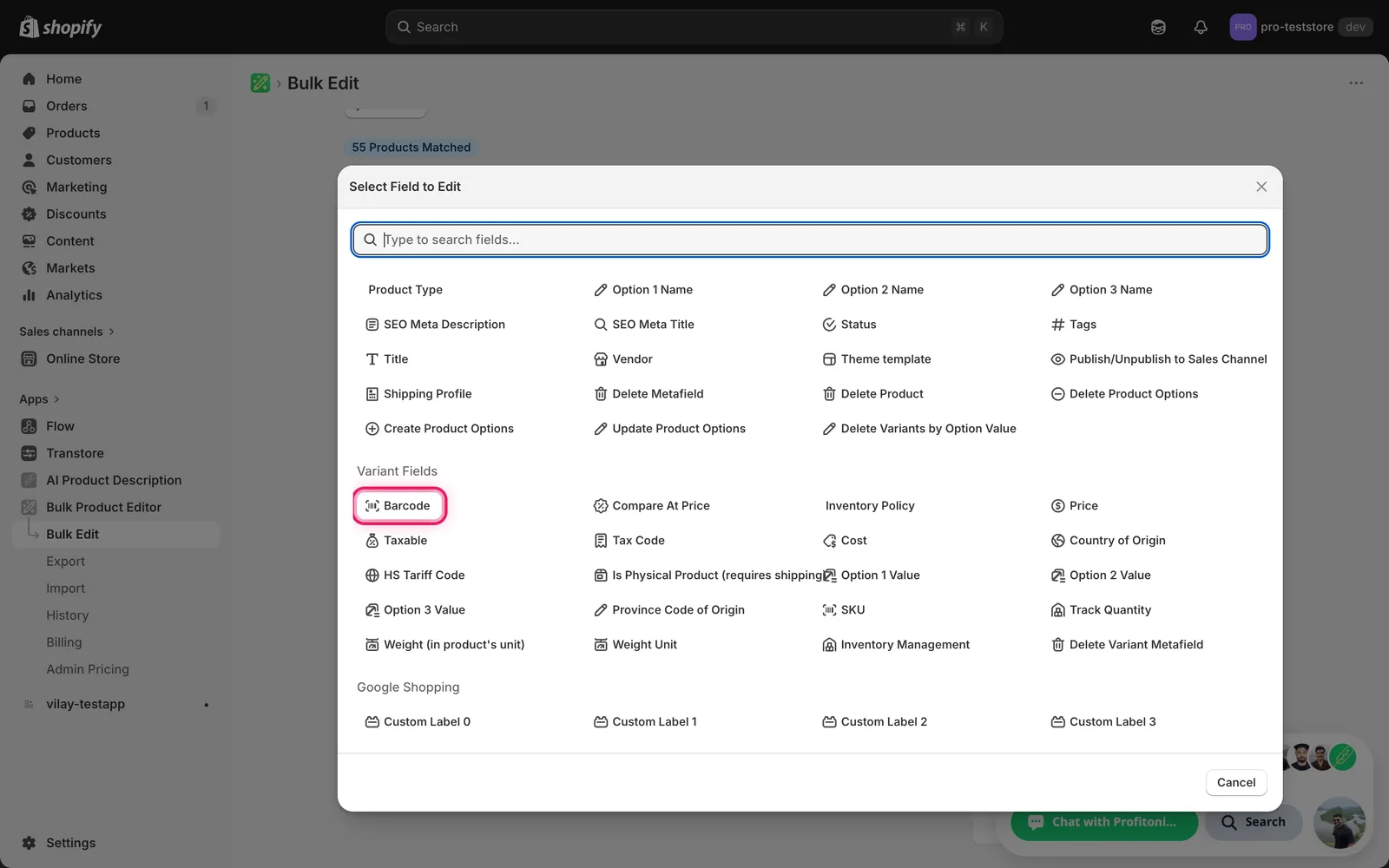
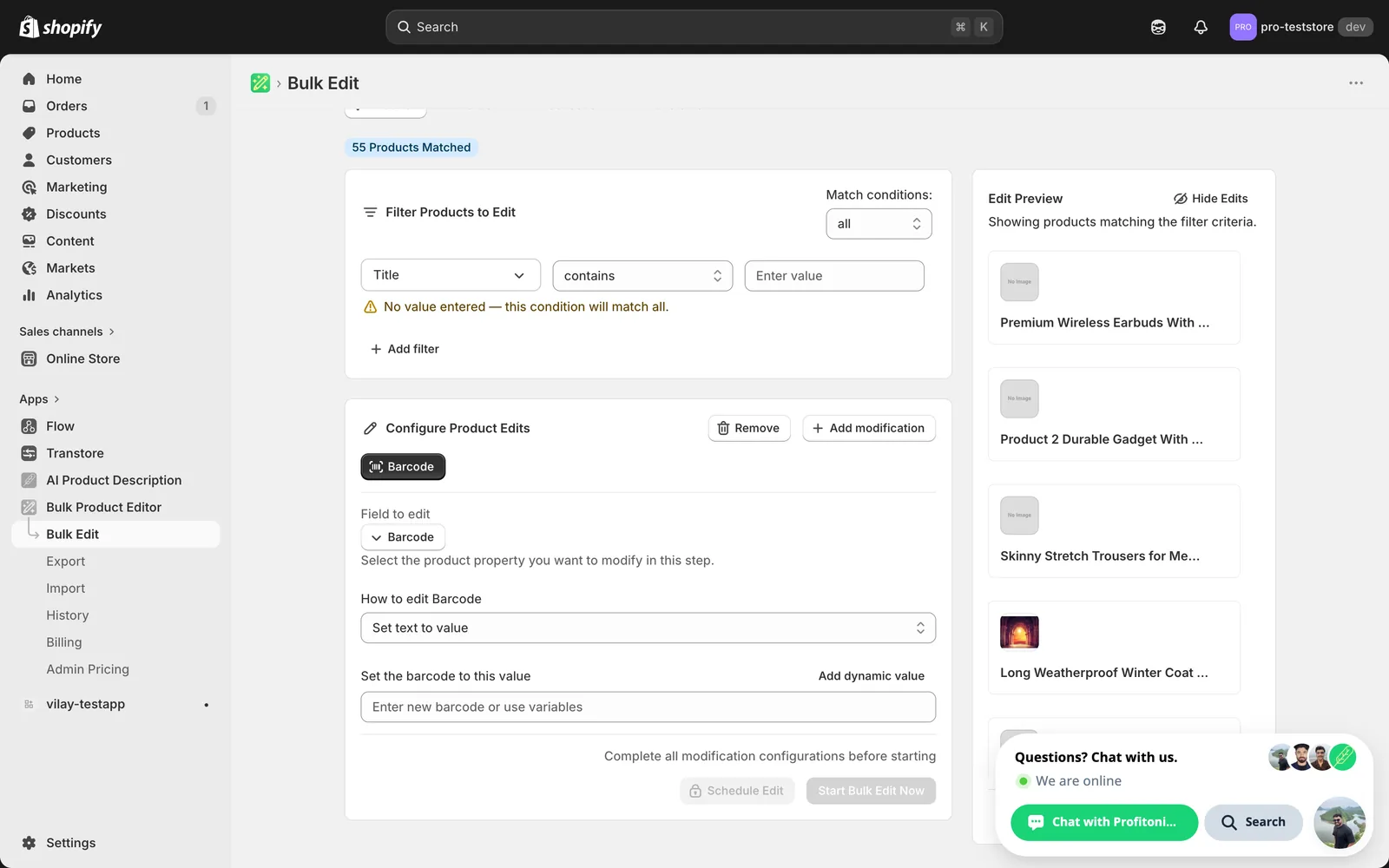
Click it. The configuration panel switches to a How to edit Barcode dropdown defaulting to Set text to value, plus a value input.
Step 2: Choose how to change the barcode
Ten actions are available.
Direct value
- Set text to value — every matched variant gets this exact barcode. Pair with a dynamic value (see Step 3) so each variant still gets a unique result.
- Remove barcode — clears the barcode field entirely.
Adjust the existing barcode
- Add text to end — append text (e.g. a check-digit suffix).
- Add text to beginning — prepend (e.g. a vendor prefix).
- Remove text from end — strip a suffix.
- Remove text from beginning — strip a prefix.
- Search/Replace — swap one substring for another, optionally case-insensitive.
- Limit length of text — cap the barcode at N characters.
- Remove text from a word to the end — find a marker, delete it and everything after.
- Remove text up to and including a word — find a marker, delete it and everything before.
The inputs change based on what you pick.
Step 3: Enter the value
Set text to value
Type the new barcode in the Set the barcode to this value input, or build it from a dynamic field.
Use dynamic values to keep barcodes unique. Click Add dynamic value above the input. A modal opens letting you pick from product or variant fields (SKU, Title, Vendor, Variant ID...) with optional capitalization.
Picking Variant SKU inserts the token {{variant.sku}} at the cursor. Combine with literal text (e.g. BC-{{variant.sku}}) to compose new barcodes.
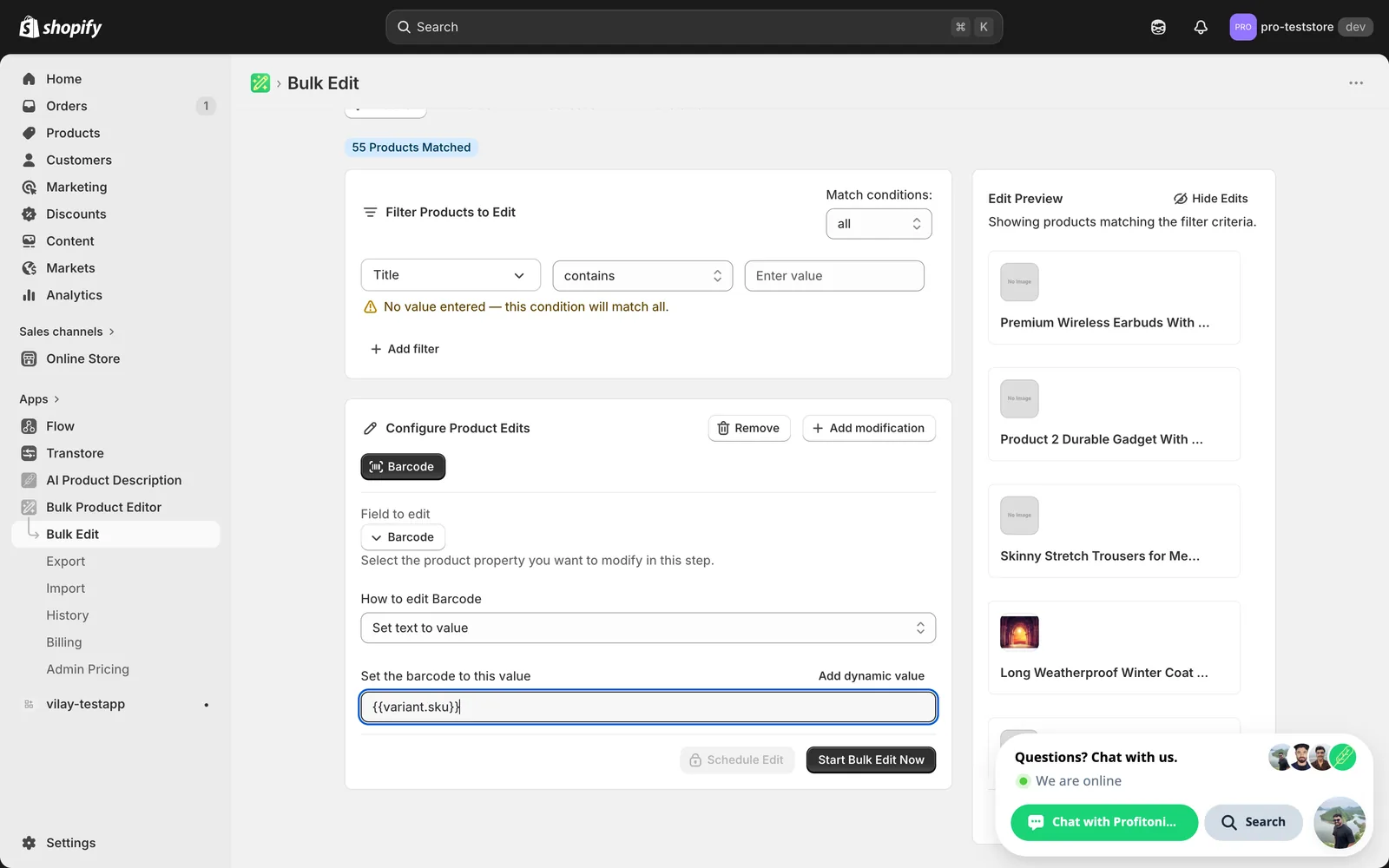
Setting a literal value with no dynamic token across many variants gives every variant the same barcode. That defeats the point of a barcode — point-of-sale scanners can't distinguish them. Always include a per-variant token (
{{variant.sku}},{{variant.id}}, etc.) when bulk-setting.
Search/Replace
Two inputs — what to look for, and what to replace it with — plus a Case insensitive checkbox.
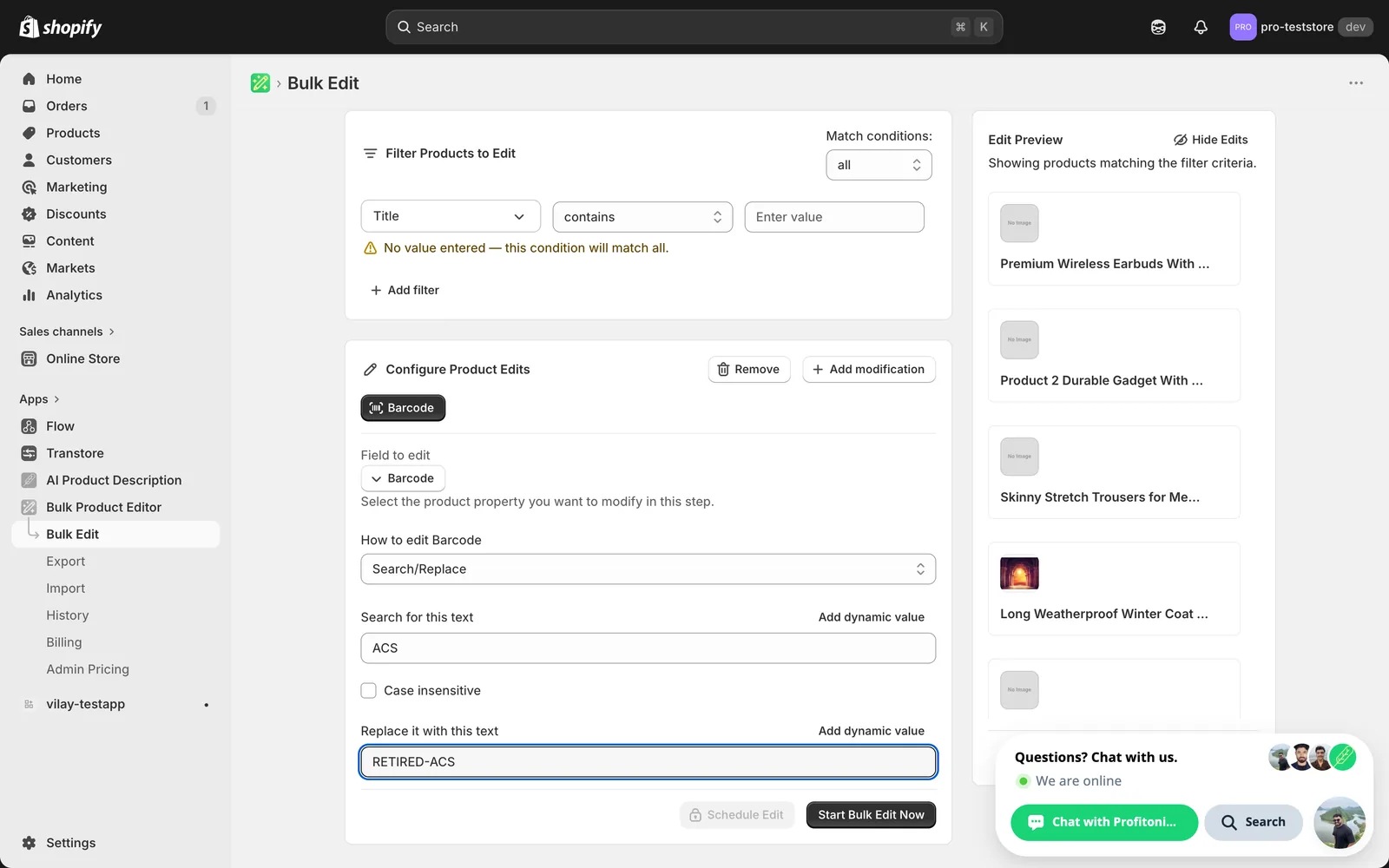
Use this to clean up a temporary marker, retire a vendor prefix, or fix a typo across the catalog. Leave the replace field blank to delete the matched text outright.
Add / Remove text from end or beginning
A single input. Whatever you type gets appended, prepended, or stripped from the matching end of every barcode.
Limit length of text
A number input plus a checkbox.
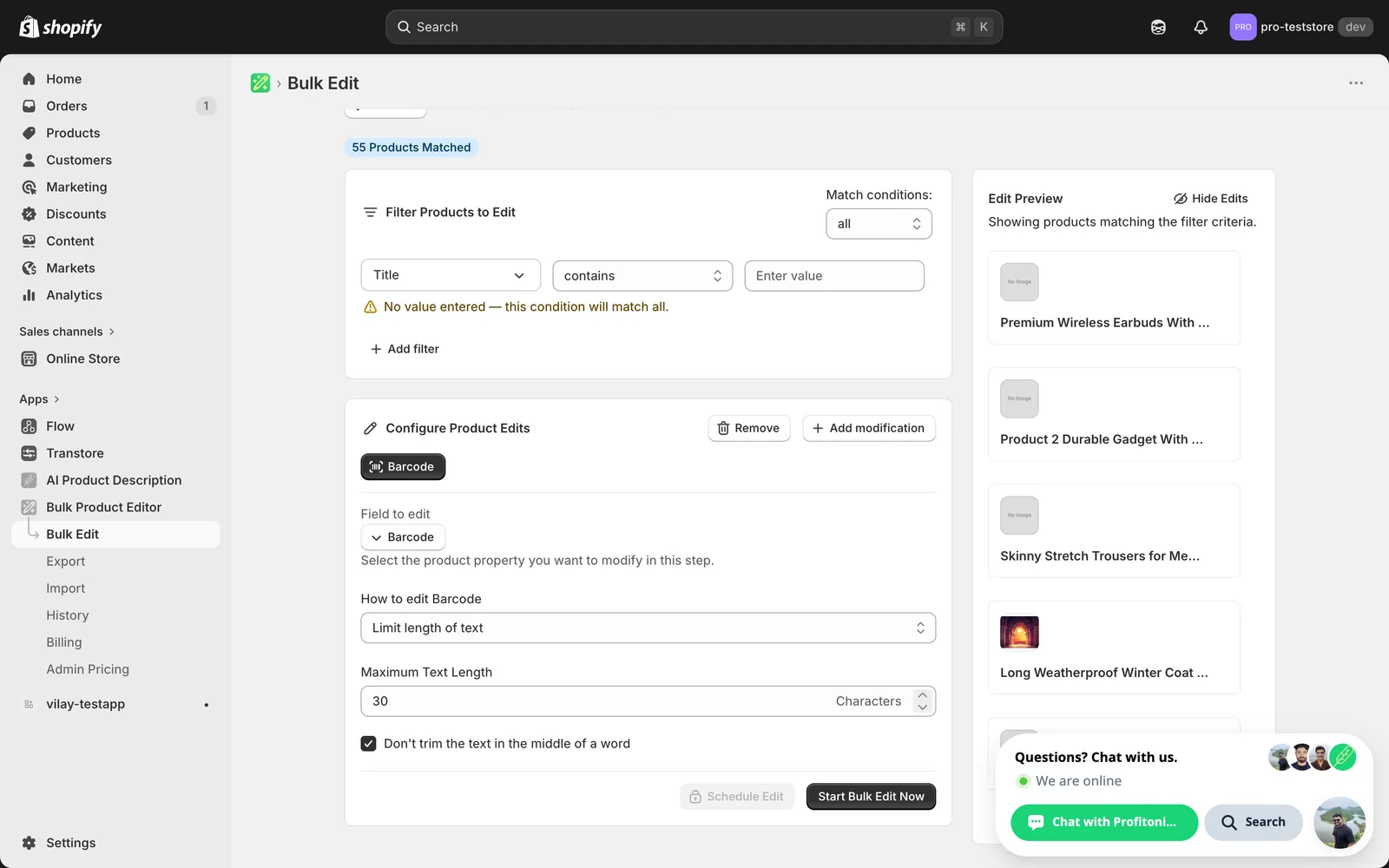
- Maximum Text Length — defaults to 30. EAN-13 is 13 digits, UPC-A is 12, GTIN-14 is 14 — set this to whatever your scanners need.
- Don't trim the text in the middle of a word — pulls the cut back to the previous word boundary so barcodes don't end mid-token. Most barcodes have no word boundaries, so this rarely changes the output.
Remove text from a word to the end / up to and including a word
A single input — the marker. Everything from that marker onward (or up to and including it) is stripped. Useful when barcodes share a trailing or leading boilerplate segment.
Remove barcode
No input — the panel just shows the dropdown. The Edit Preview shows each matched variant's barcode going to — (empty).
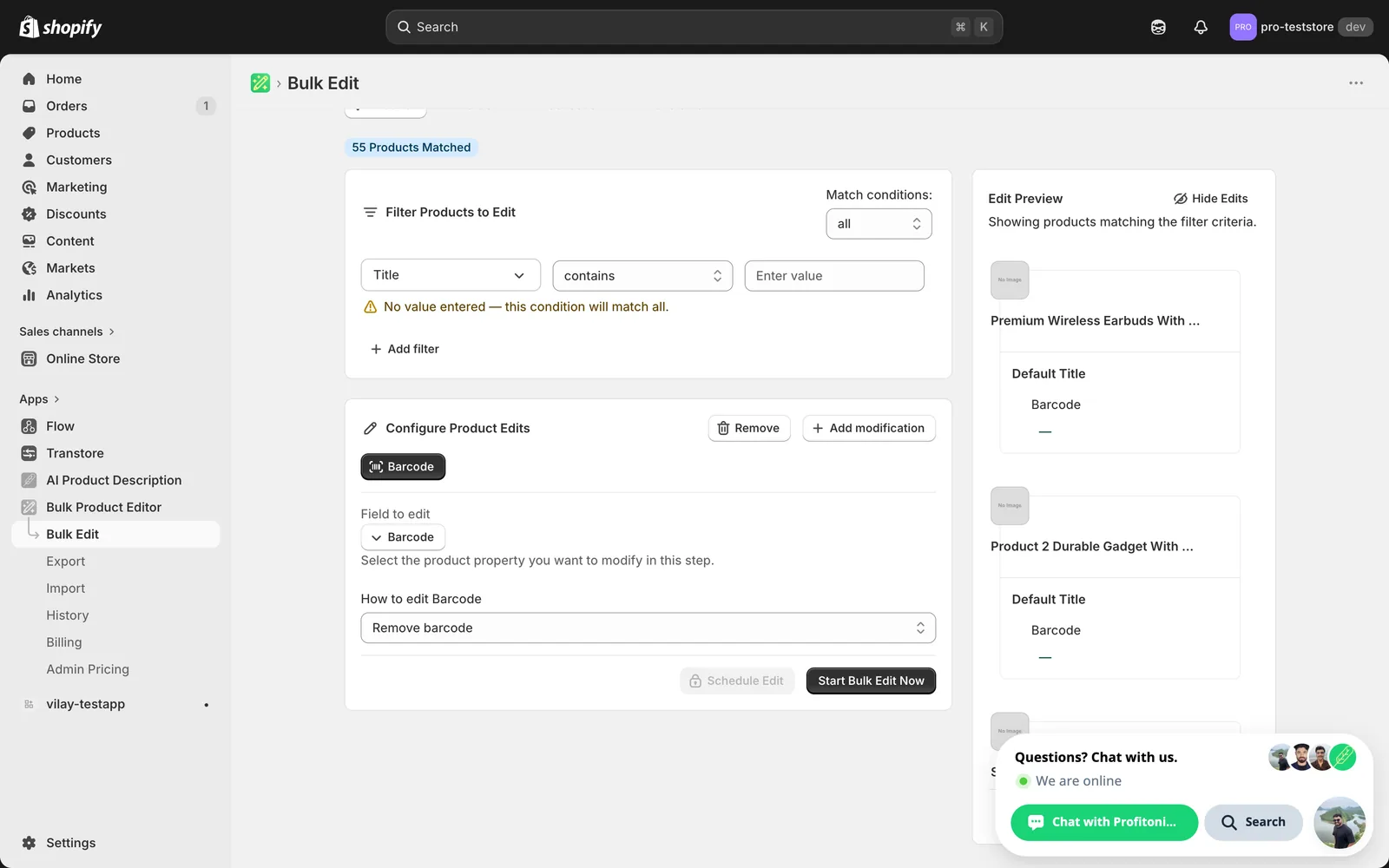
Barcodes are fine to leave blank. Unlike Price, an empty barcode doesn't break Shopify orders. But your POS, inventory tools, and Google Shopping feed may all rely on it — clear them only when you genuinely want them gone.
After the run
- Barcode changes are reversible from the History page using Undo.
- Search/Replace and the Add/Remove actions are not idempotent — re-running them keeps modifying the barcode. The Edit Preview on the right shows the proposed new barcode per variant; scan it before you run.
- The app does not validate that barcodes are unique across your catalog or check digits. If a clean GTIN is mandatory, export the result and verify externally.
Frequently asked questions
How can I bulk edit barcodes on Shopify variants?
Pick Barcode under Variant Fields in EditEngine's Select Field modal, then choose from ten actions: set a value, remove the barcode, add or strip text from either end, search-and-replace, limit length, or remove text around a marker word. The action runs once per matched variant, so a product with three variants gets three barcode updates.
Is a bulk barcode edit reversible in Shopify?
Yes — barcode changes are reversible from the History page using Undo in EditEngine. Note that Search/Replace and the Add/Remove actions are not idempotent, so re-running them keeps modifying the barcode. The Edit Preview on the right shows the proposed new barcode per variant; scan it before you run.
How do I set a unique barcode on every variant instead of the same one?
Use a dynamic value. Click Add dynamic value to insert a per-variant token such as {{variant.sku}} or {{variant.id}} and combine it with literal text, like BC-{{variant.sku}}. Setting a literal value with no token gives every variant the same barcode, which point-of-sale scanners can't distinguish — defeating the point of a barcode.
Does EditEngine validate UPC, EAN, or GTIN formats when bulk editing barcodes?
No. The app accepts whatever you type — there is no UPC/EAN/GTIN validation, no uniqueness check across your catalog, and no check-digit verification. If your barcodes must be exactly 12 or 13 digits, double-check the Edit Preview before running, and if a clean GTIN is mandatory, export the result and verify externally.
Can I trim Shopify barcodes to a fixed number of characters in bulk?
Yes — the Limit length of text action caps each barcode at a maximum length, defaulting to 30 characters. Set it to whatever your scanners need: EAN-13 is 13 digits, UPC-A is 12, GTIN-14 is 14. An optional checkbox avoids trimming mid-word, though most barcodes have no word boundaries.