
Products
How to Bulk Edit Category
Published by Profitonium Apps · Last updated
The product category maps every product to one node in Shopify's Standard Product Taxonomy — the tree that powers Shop, Markets routing, and downstream channels like Google Shopping. This guide shows how to assign one taxonomy category to every matched product in a single run.
Category is a product field with one shape: pick from the taxonomy. No prefix/suffix, no find-and-replace, no formulas — it's a single typeahead picker. Every matched product gets the same category.
Don't confuse the two "Category" entries. The picker under Product Fields → Category is the Shopify taxonomy. The one under Google Shopping → Category is the legacy Google Product Category attribute. Different systems, different IDs. This guide is for the Product Fields one.
Step 1: Pick the Category field
In the Configure Product Edits panel, click Select Field. Category is the second item under Product Fields.
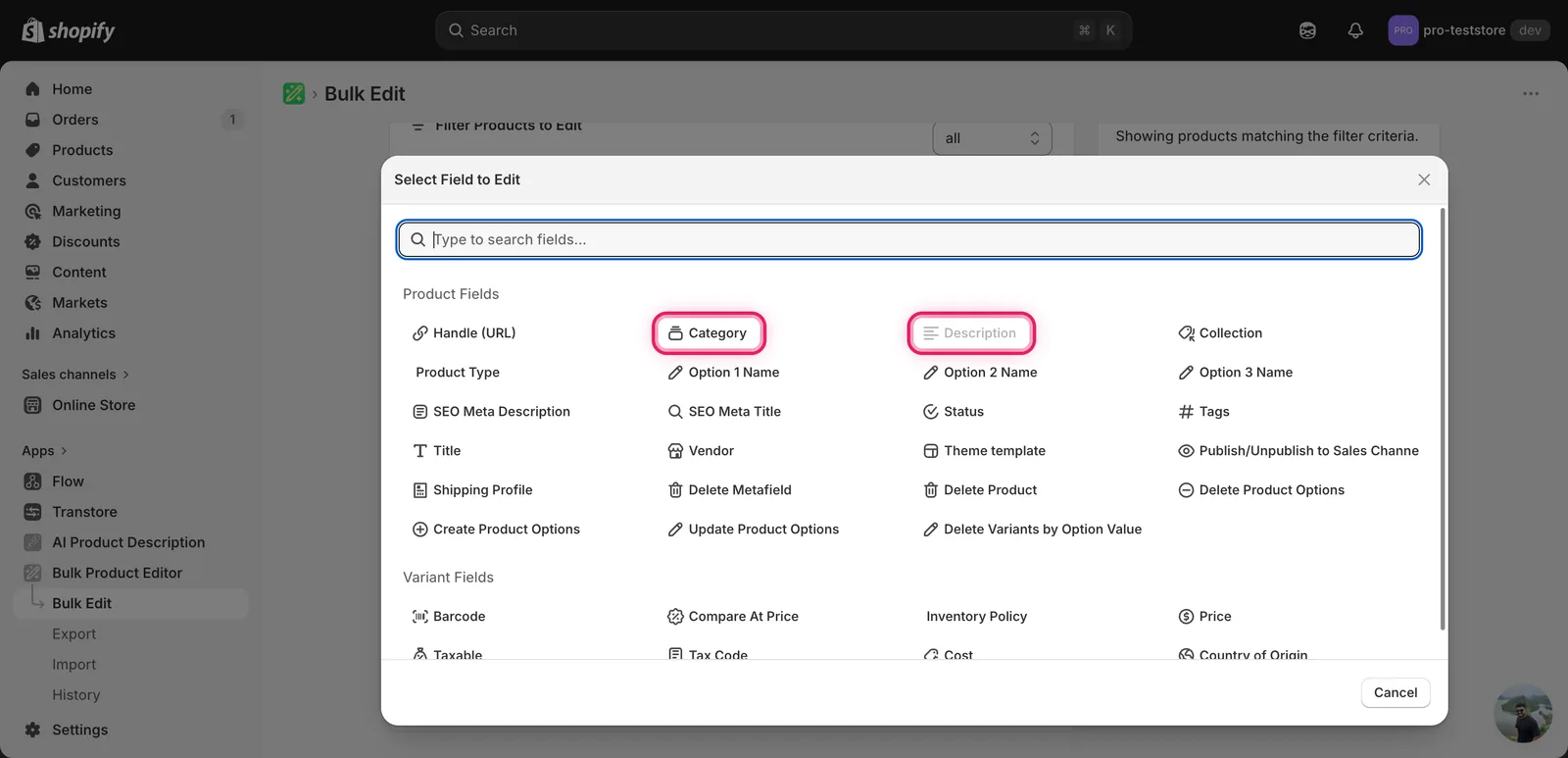
Click it. The configuration panel switches to a Set the category search box.
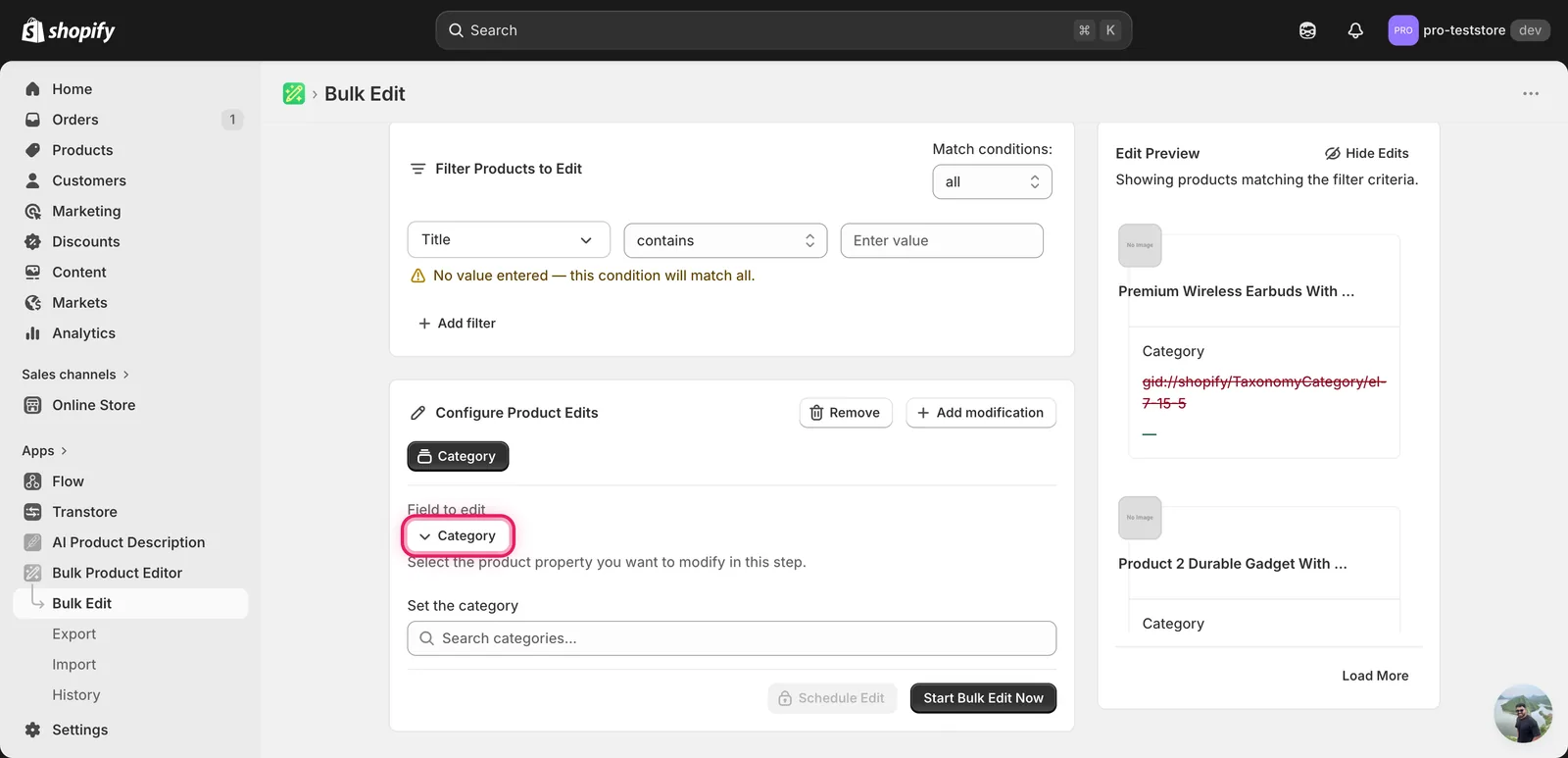
That's the entire form for this field. There's no action dropdown — Category only does one thing.
Step 2: Search the taxonomy
Start typing in the Search categories… input. After a short pause the app queries Shopify's taxonomy and lists matching nodes by their full path.
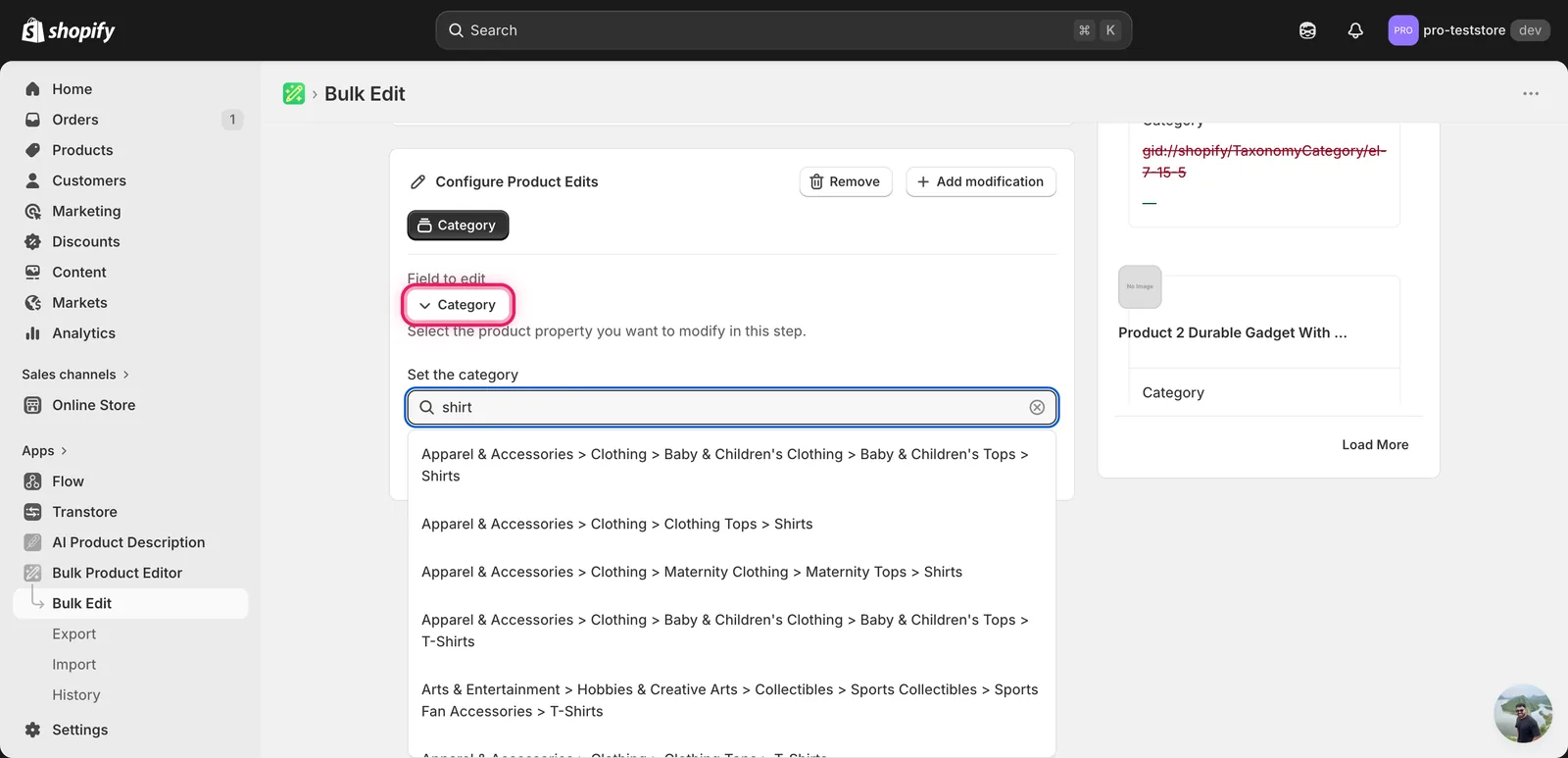
Search the leaf, not the root. Typing
apparelreturns thousands of categories — the dropdown only shows the first batch. Type the most specific word that describes your product (shirt,mug,dumbbell,keyboard) to narrow the list.
Read the whole breadcrumb before clicking. Shopify has multiple "Shirts" — under Baby Tops, under Clothing Tops, under Maternity, under Activewear. They are different IDs and route to different storefront filters. Pick the one whose full path matches your products.
Click the row you want. The input collapses to that category's full path, and the Start Bulk Edit Now button activates.
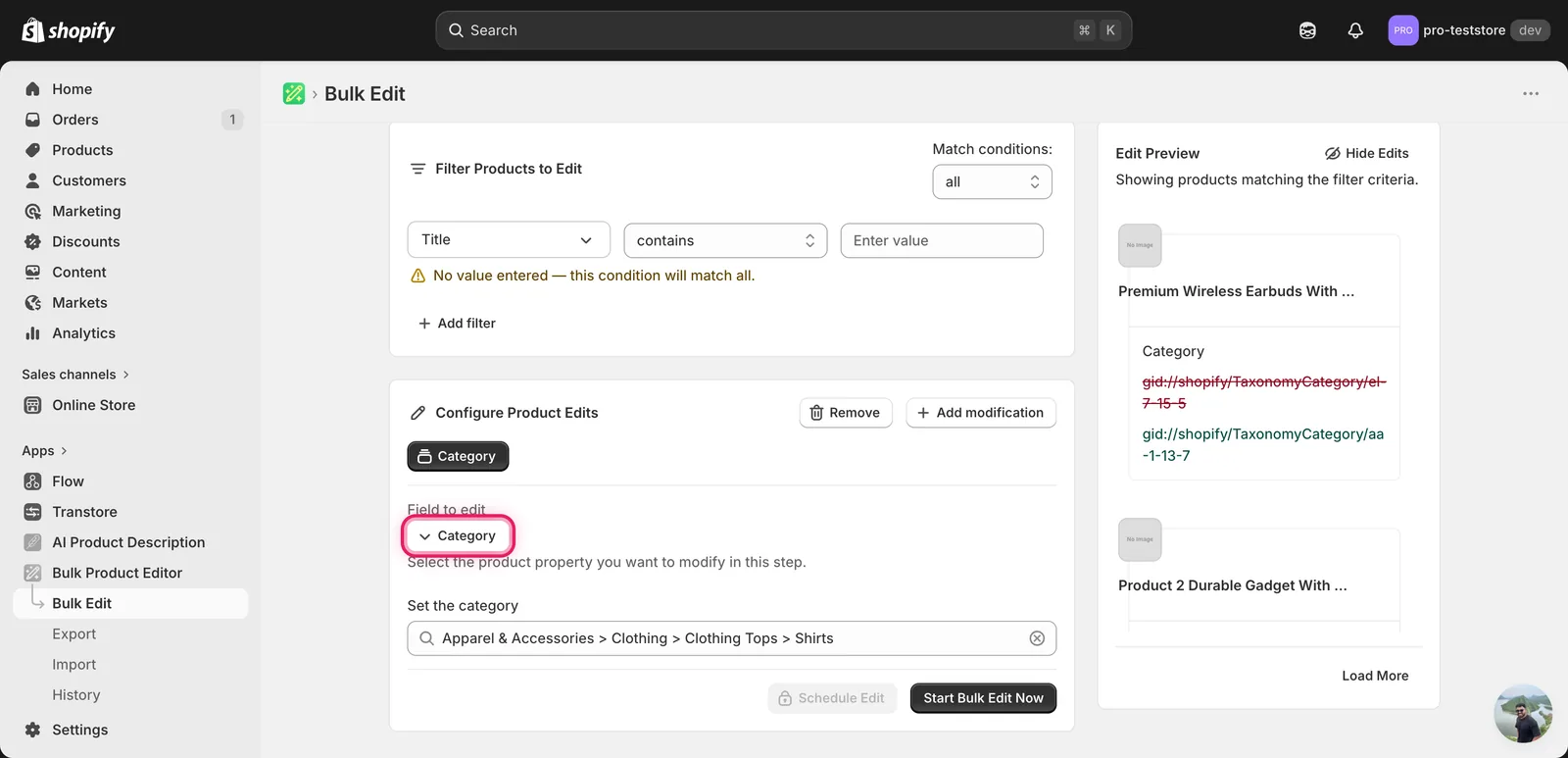
The Edit Preview on the right shows what changes per product: the existing taxonomy GID crossed out, the new GID below it. (See the gotcha note below — the preview shows internal IDs, not human-readable paths.)
After the run
- Category changes are reversible from the History page using Undo.
- Every matched product gets the same category. If you have a mixed catalogue, filter first (by Title, Tags, Type, etc.) so the run only hits products that genuinely belong in that taxonomy node.
- The Edit Preview shows raw taxonomy GIDs like
gid://shopify/TaxonomyCategory/aa-1-13-7, not human-readable paths. They're the truth — the picker maps your selection to that GID — but they're not the easiest sanity check. If you want a friendlier verification, click View … in Shopify admin on a preview row after the run completes; the product page shows the resolved category name. - Products that already have the chosen category are skipped (no-op update).
- A small number of products in older catalogs may have
gid://shopify/TaxonomyCategory/na— that's Shopify's "uncategorised" placeholder and a normal source value to overwrite.
Frequently asked questions
How do I bulk assign a Shopify product category to many products at once?
In EditEngine's Configure Product Edits panel, click Select Field and pick Category under Product Fields. Category is a single typeahead picker — search Shopify's Standard Product Taxonomy, click the node you want, and every matched product gets that same category in one run. There's no prefix, suffix, or find-and-replace for this field.
What happens if I assign the wrong category to my Shopify products?
Category changes are reversible from the History page using Undo, so a wrong run can be rolled back. Before running, check the Edit Preview — it shows the existing taxonomy GID crossed out with the new GID below. For a friendlier check, open a product in Shopify admin after the run to see the resolved category name.
Is the Category field the same as Google Product Category in Shopify?
No. The picker under Product Fields, Category is Shopify's Standard Product Taxonomy — the tree that powers Shop, Markets routing, and downstream channels. The entry under Google Shopping, Category is the legacy Google Product Category attribute. They are different systems with different IDs, and EditEngine lists them as separate fields in the Select Field modal.
Why does the category preview show GIDs instead of names in a Shopify bulk edit?
EditEngine's Edit Preview shows raw taxonomy GIDs like gid://shopify/TaxonomyCategory/aa-1-13-7 rather than human-readable paths. They are the truth — the picker maps your selection to that GID — just not the easiest sanity check. After the run completes, click View in Shopify admin on a preview row; the product page shows the resolved category name.
How do I find the right taxonomy category when Shopify has several with the same name?
Search the leaf, not the root. Typing a broad word like apparel returns thousands of categories, so type the most specific word that describes your product, such as shirt or mug. Then read the whole breadcrumb before clicking — Shopify has multiple Shirts entries under different parents, and each is a different ID routing to different storefront filters.