Variants & options

How to Bulk Edit Tax Code

Last updated

The tax code tells Shopify (and connected tax services like Avalara) which tax rules to apply to a variant. EditEngine's bulk editor lets you stamp the same code across hundreds of Shopify variants in one run instead of opening each product on its own.

Tax Code is a variant field. Each product variant carries its own tax code, so the edit runs once per matched variant. A product with three variants gets three tax-code updates.

It's just a free-text field. Shopify doesn't validate the value or check it against any taxonomy here — whatever you type is what gets saved. If your tax provider expects a specific format (Avalara P0000000, Stripe txcd_99999999, a state code, etc.), enter exactly that.


Step 1: Pick the Tax Code field

In the Configure Product Edits panel, click Select Field.

The Configure Product Edits panel with the Select Field button outlined

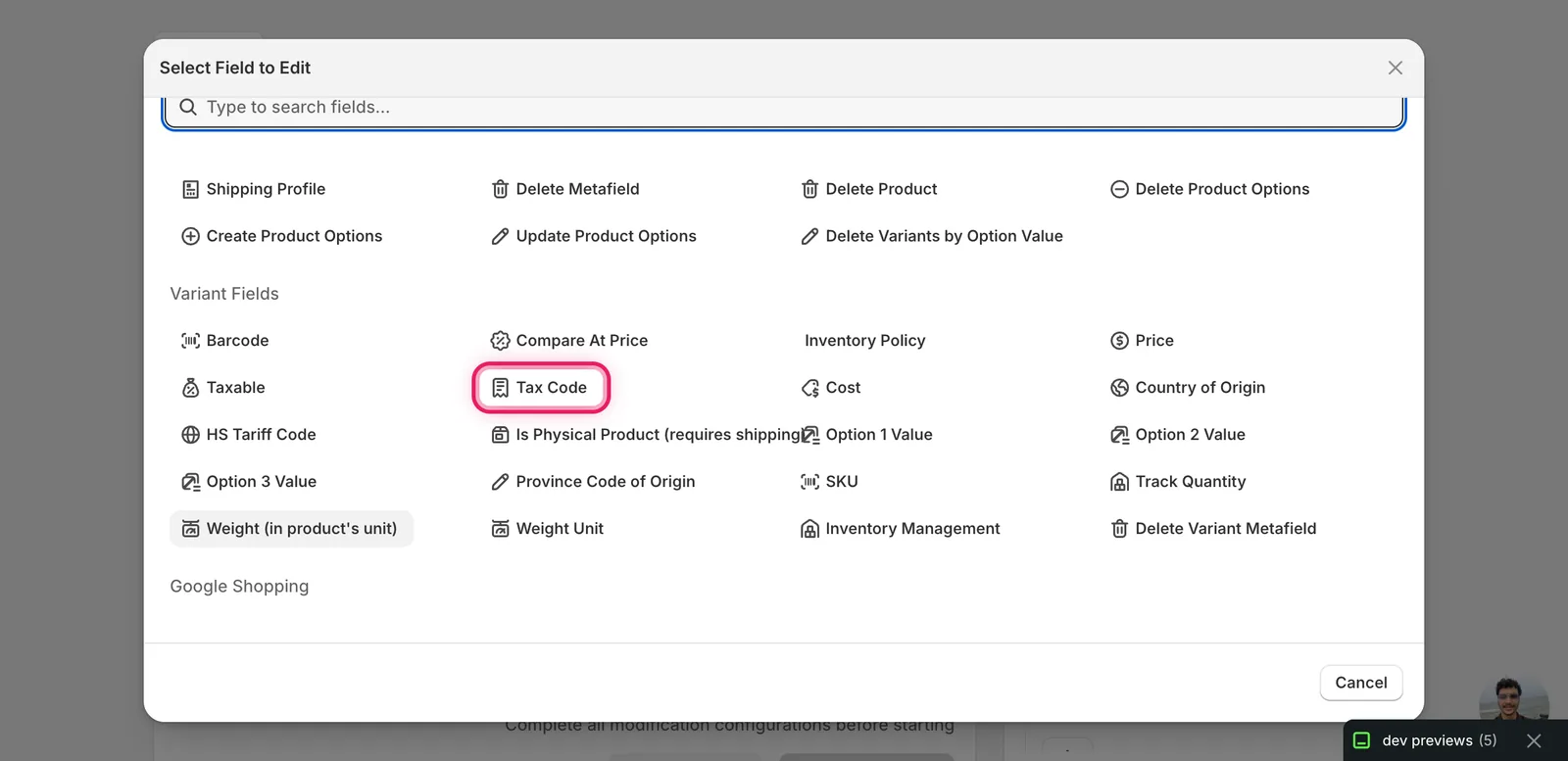
Tax Code lives under Variant Fields in the modal. Scroll down past the Product Fields section — it sits next to Taxable, Cost, and HS Tariff Code.

The Select Field modal with Tax Code marked under Variant Fields

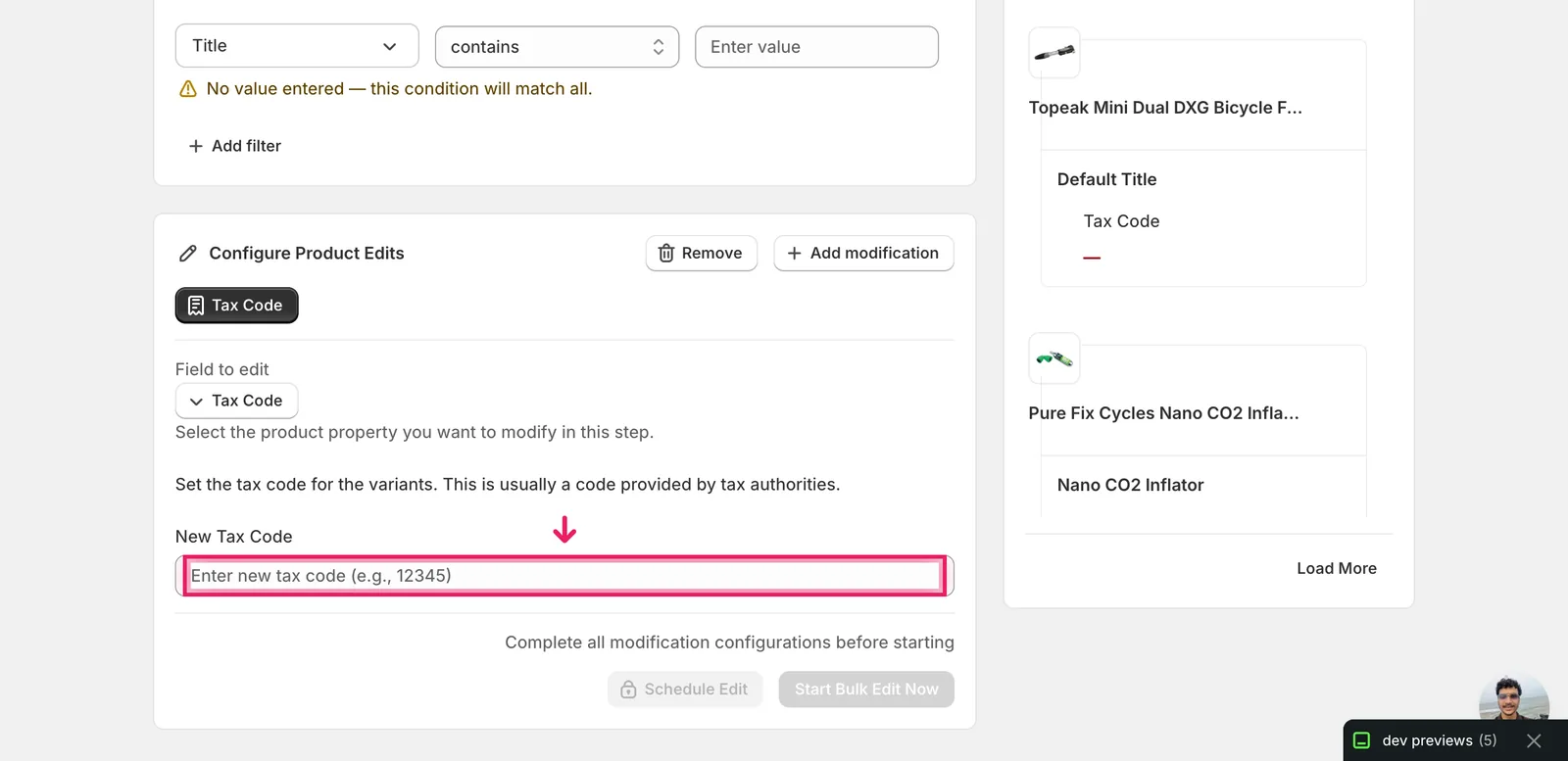
Click Tax Code. The modal closes and the configuration panel switches to a single text input labelled New Tax Code.


Step 2: Enter the tax code

There's only one action available for this field — set every matched variant's tax code to the value you type. No find-replace, no append, no rounding. Just one input.

The Tax Code config panel with the New Tax Code input outlined

Type the code in the New Tax Code box. The placeholder shows Enter new tax code (e.g., 12345). Use whatever format your tax integration expects — common examples:

  • Avalara: P0000000 (general tangible goods), PC040100 (clothing), PC040105 (footwear).
  • Stripe Tax: txcd_99999999 (taxable goods), txcd_20030000 (clothing).
  • Custom / state-level: any string your accounting workflow uses.

Once a value is in the input, Start Bulk Edit Now lights up and the Edit Preview on the right resolves the new code per variant.

New Tax Code input filled with P0000000; preview on the right shows the variant's Tax Code changing from "—" (blank) to P0000000

Setting the same code across the whole catalog is the point. Tax codes group "things that tax the same way" — clothing, food, digital goods. If you sell mixed categories, run separate edits and use the Filter Products to Edit panel (e.g. by collection, product type, or tag) to scope each run to the right variants.

Leaving the input blank doesn't work. The Start Bulk Edit Now button stays disabled. To clear tax codes you'd have to type a single space or empty value via the import flow — the bulk editor here expects a real value.


After the run

  • The change is reversible. Open the History page and hit Undo to roll matched variants back to whatever code (or blank) they had before the run.
  • Re-running is safe. Re-applying the same code to the same variants is a no-op — EditEngine skips variants whose current value already matches the target.
  • Storefront impact is invisible. Tax codes don't show in product titles or descriptions. They flow through to your tax engine at checkout. Test one product with a real order (or a draft order) before assuming the new code routes correctly.
  • Provider sync isn't automatic. If your tax provider (Avalara, TaxJar, Stripe Tax) needs a separate sync to pick up the new codes, run that step after the bulk edit completes.

Frequently asked questions

How do I bulk assign tax codes to Shopify variants?

In EditEngine, click Select Field in the Configure Product Edits panel and pick Tax Code under Variant Fields. Type the code in the New Tax Code box — the single available action sets every matched variant to that value. The Edit Preview resolves the new code per variant, then Start Bulk Edit Now runs the change.

Can I undo a bulk tax code change in Shopify?

Yes. The change is reversible — open EditEngine's History page and hit Undo to roll matched variants back to whatever code, or blank, they had before the run. Re-running is also safe, since EditEngine skips variants whose current value already matches the target.

What tax code format should I use for Avalara or Stripe Tax in Shopify?

Tax Code is a free-text field, so Shopify doesn't validate it — enter exactly what your provider expects. Common examples: Avalara uses codes like P0000000 for general goods or PC040100 for clothing; Stripe Tax uses codes like txcd_99999999. EditEngine saves whatever you type, so match your integration's format precisely.

How do I set different tax codes for different product categories in Shopify?

Run separate edits. Tax codes group things that tax the same way — clothing, food, digital goods — so if you sell mixed categories, scope each run with EditEngine's Filter Products to Edit panel by collection, product type, or tag, then apply the right code to each filtered set of variants.

Will customers see the tax code change on my Shopify storefront?

No — storefront impact is invisible. Tax codes don't show in product titles or descriptions; they flow through to your tax engine at checkout. After an EditEngine bulk edit, test one product with a real or draft order, and run a separate provider sync if Avalara, TaxJar, or Stripe Tax needs one.

Previous
Edit HS tariff code