
Inventory
How to Bulk Edit Inventory Management
Published by Profitonium Apps · Last updated
Manage stock for many variants at once in EditEngine, the Shopify bulk editor: activate or deactivate stock at a location, set or adjust quantities, or turn inventory tracking on or off — all in one run.
Inventory Management is a variant-level field. The action runs once per matched variant, so a product with three variants gets three inventory updates.
Tracking must be on to set or adjust quantities. If a variant has tracking off, it'll be skipped by Set quantity / Adjust quantity. Run Enable/Disable tracking first, then come back and set the numbers.
Step 1: Pick the Inventory Management field
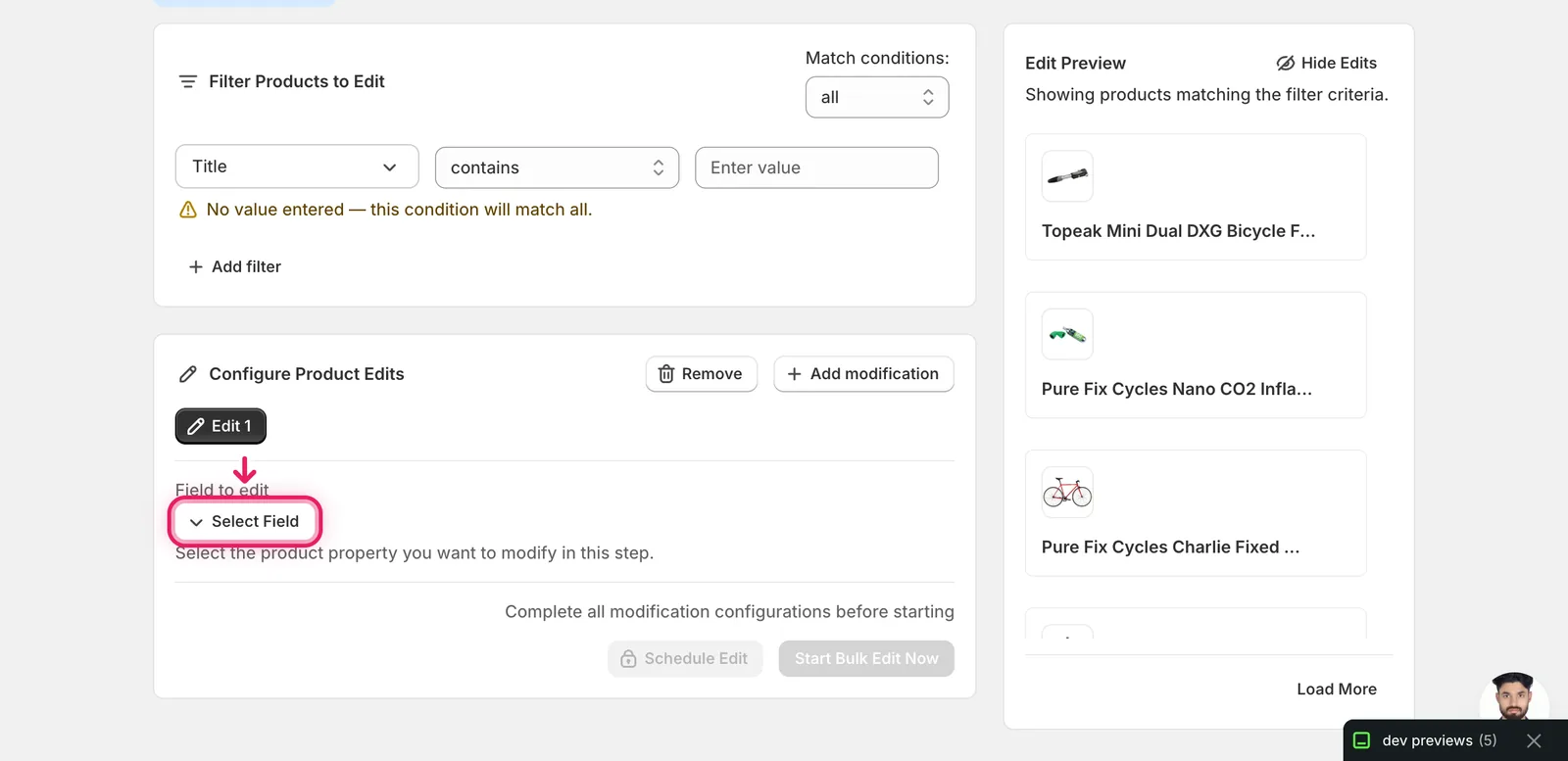
In the Configure Product Edits panel, click Select Field. It's the button under Field to edit.
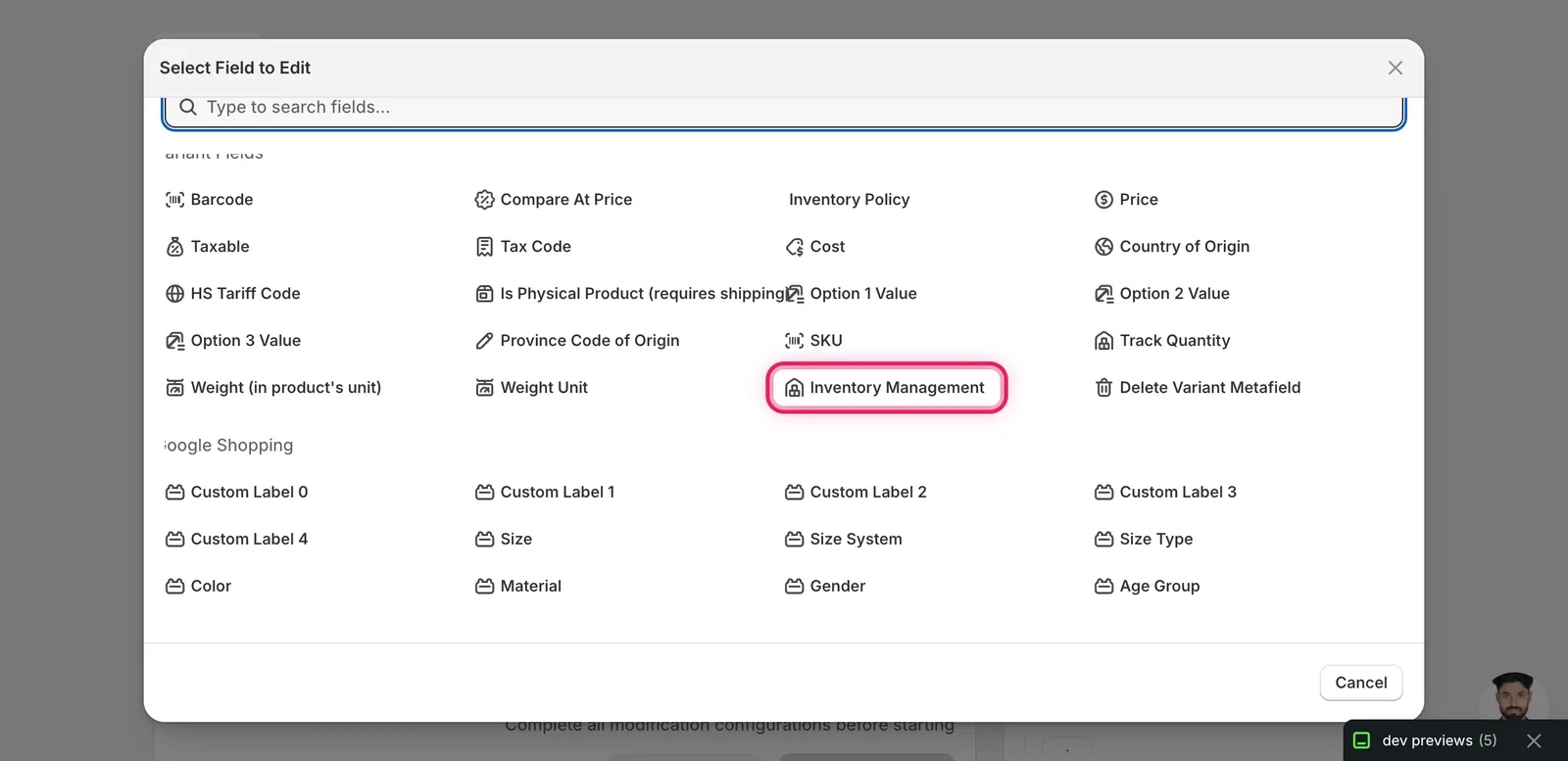
The Select Field modal opens. Inventory Management lives under Variant Fields — search for it or scroll down.
Step 2: Grant inventory access (first time only)
The first time you use Inventory Management on a store, EditEngine asks for two extra Shopify permissions: locations (to read your store locations) and write_inventory (to change stock). Click Request permissions.
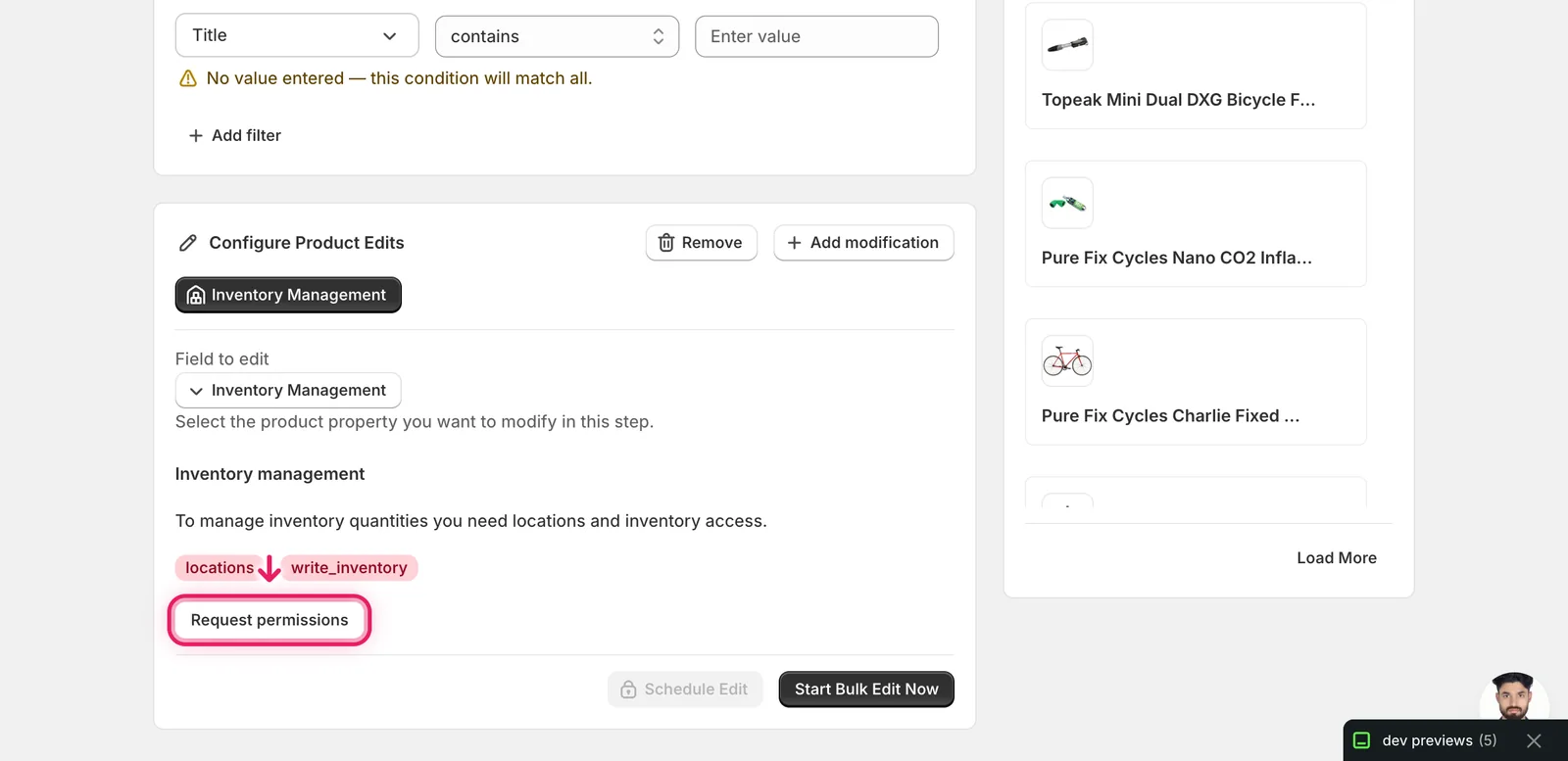
Shopify shows a confirmation dialog. Click Update. Once granted, the permission gate is replaced by the action form. You won't see this gate again on the same store.
Step 3: Choose what to do
The Action dropdown has five options:
- Activate at location — make a variant's inventory live at a specific location. Useful when adding a new warehouse and you want existing variants to start stocking there.
- Deactivate at location — remove a variant from a location entirely. Quantities at that location go away.
- Set quantity — overwrite the on-hand count at a location with a specific number (e.g. set every variant to 100).
- Adjust quantity — change the on-hand count by a delta (e.g. add 5 to every variant, or subtract 10).
- Enable/Disable tracking — turn Shopify inventory tracking on or off for the matched variants. Tracking off means Shopify stops counting stock for that variant.
The form below the Action dropdown changes based on what you pick.
Step 4: Fill in the action form
Activate at location
Pick a Location from your store's locations. Optionally enter an Initial available number — the starting on-hand count when the variant becomes active there. Leave blank to start at 0.
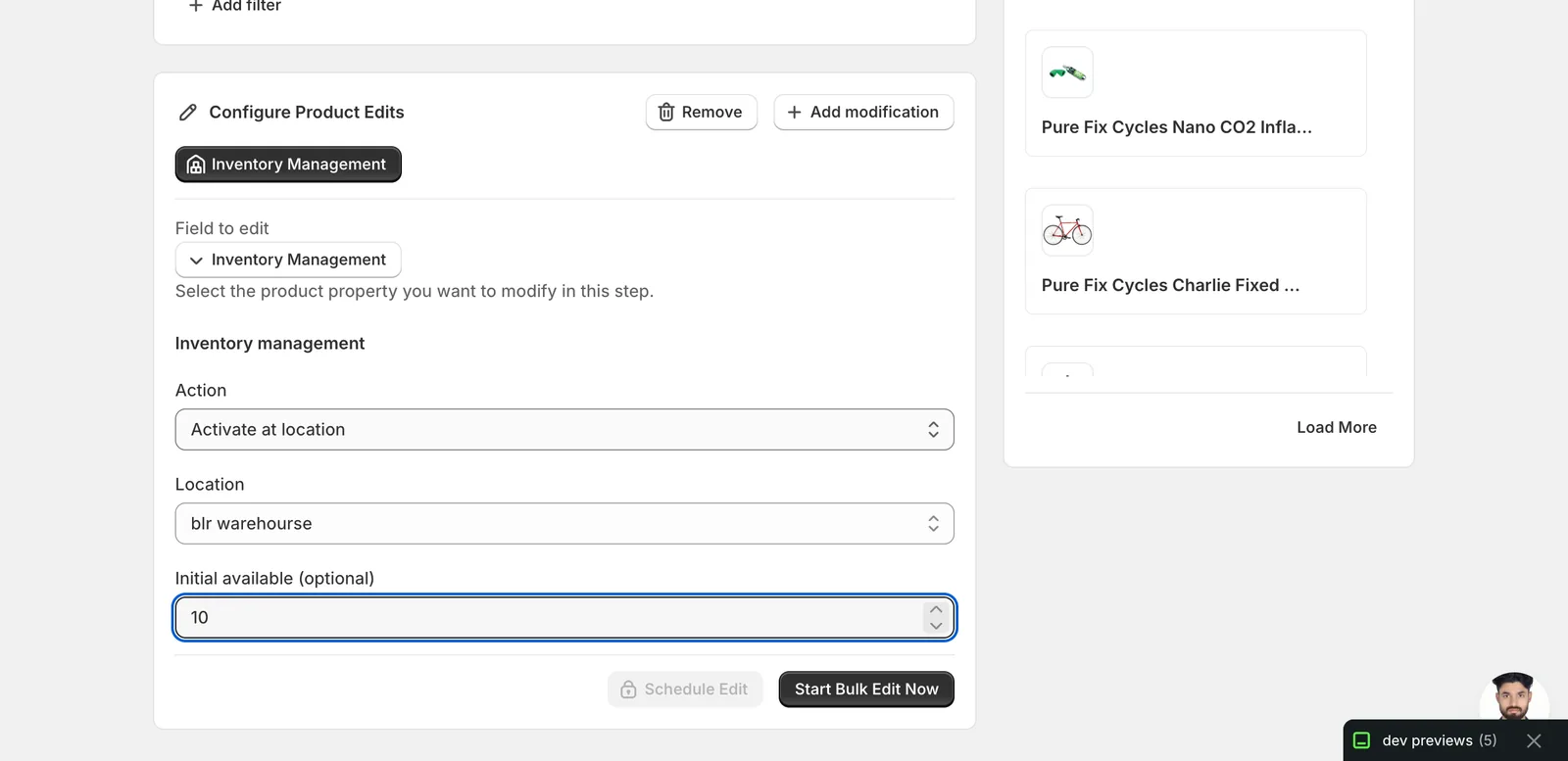
In this example, every matched variant becomes active at blr warehourse with 10 units in stock.
Deactivate at location
Pick the Location. No quantity input — deactivation removes the variant from that location.
Heads up: deactivating loses the on-hand quantity at that location. If you want to keep the count and just stop selling, use the variant's status instead.
Set quantity
Pick the Location and type a Quantity. Every matched variant gets that exact on-hand count at that location.
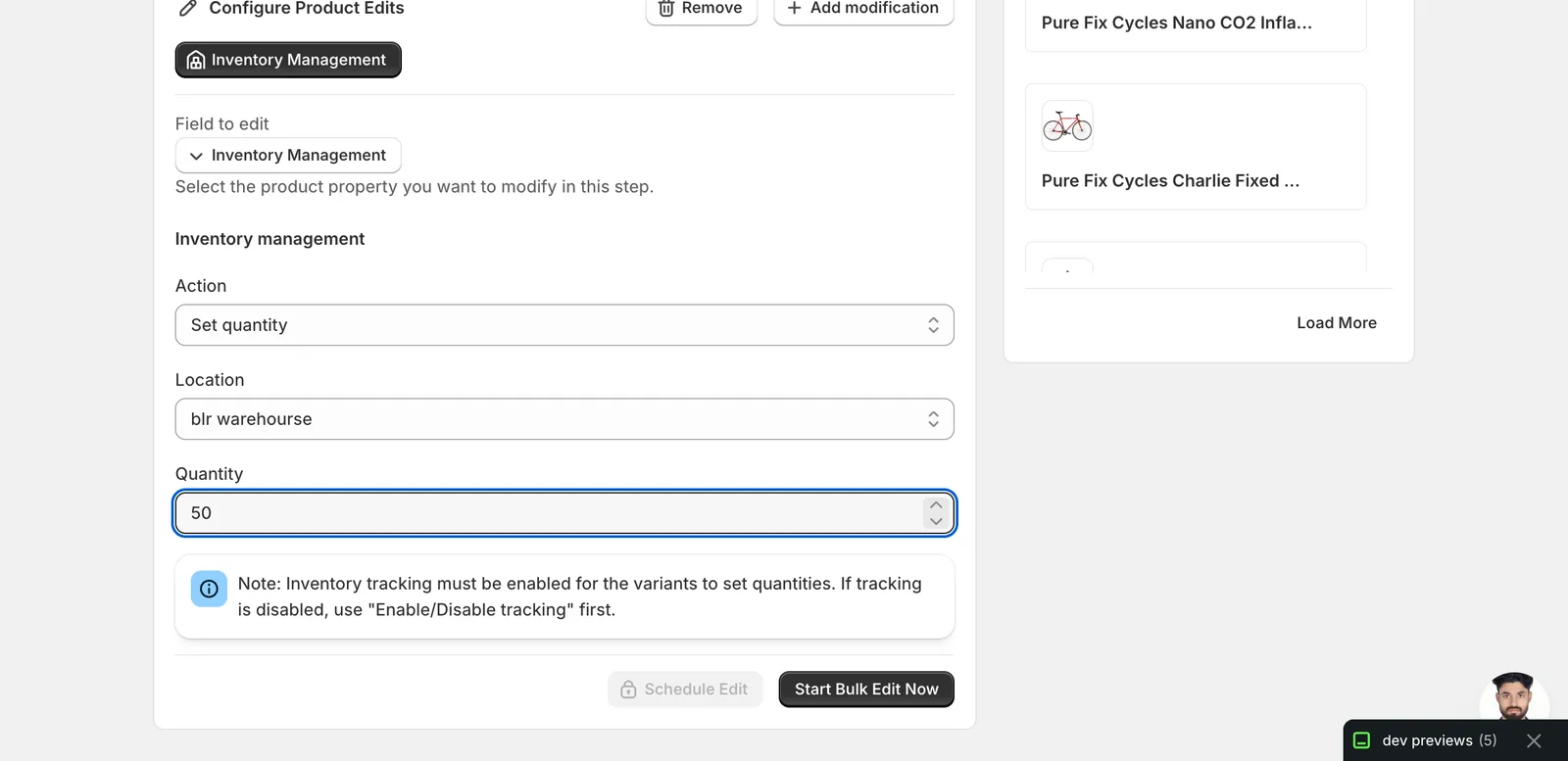
The blue note reminds you: variants with tracking disabled will be skipped. Run Enable/Disable tracking with Enable tracking first if needed.
Adjust quantity
Pick the Location and type a Delta. Positive numbers add stock, negative numbers subtract. So 5 adds 5 units to every matched variant, -5 removes 5.
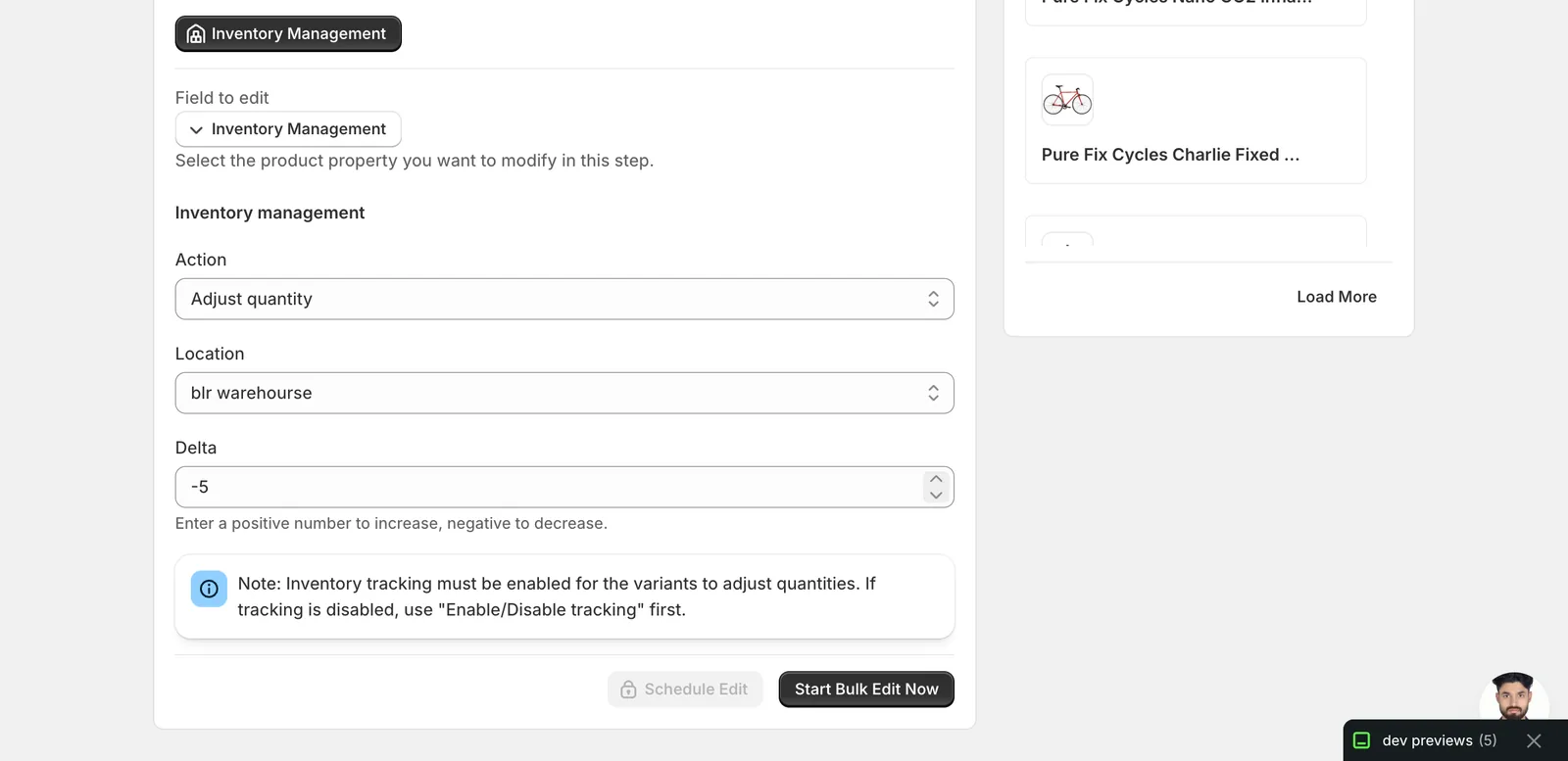
Same tracking caveat applies — variants without tracking are skipped.
Enable/Disable tracking
No location needed. Pick Enable tracking to start counting stock, or Disable tracking to stop.
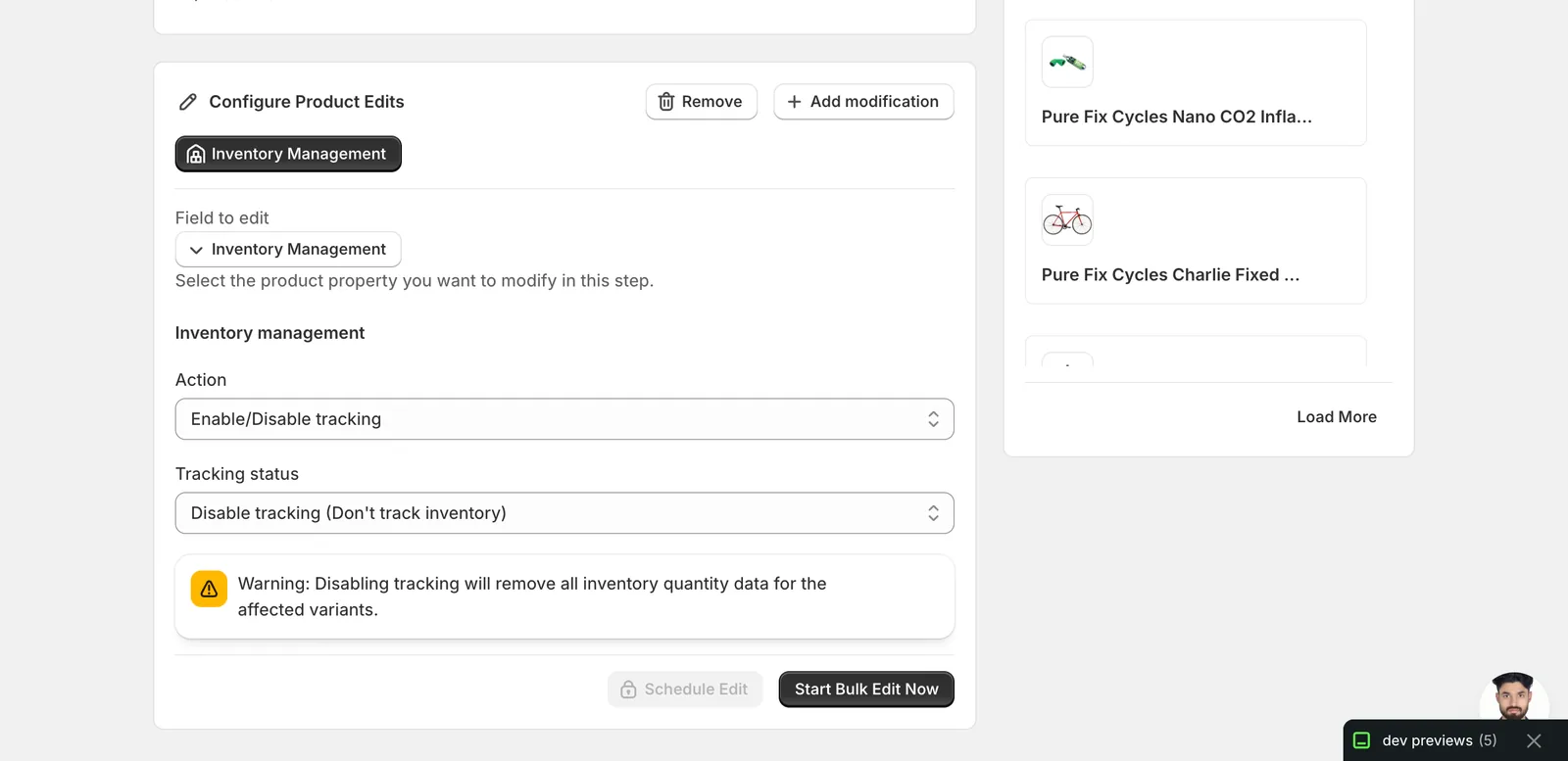
Warning: disabling tracking removes all inventory quantity data for the affected variants. Shopify will treat them as always-in-stock — you can't get the numbers back from EditEngine after that. Only use this for products where stock counting doesn't apply (digital downloads, made-to-order, services).
Step 5: Run it
Confirm your products are filtered correctly using the Edit Preview on the right, then click Start Bulk Edit Now. Or click Schedule Edit to queue it for later.
After the run
- Inventory edits cannot be reverted with one-click Undo the way price edits can. The History page lets you re-open a past edit as a prefilled form so you can manually reverse it (e.g. change
-5to+5to undo an adjustment), but Set quantity has no automatic inverse — you'd have to know the previous numbers. - Activate ↔ Deactivate are inverses of each other and can be undone by re-running the opposite action at the same location.
- Re-running the same Adjust isn't a no-op —
-5re-run subtracts another 5, not zero. Adjust is cumulative. - For Set quantity / Adjust quantity, variants with tracking off are silently skipped (the rest still process). If something didn't change, check tracking first.
Frequently asked questions
How do I bulk update inventory quantities across Shopify variants?
Pick Inventory Management under Variant Fields in EditEngine, then choose Set quantity to overwrite the on-hand count at a location, or Adjust quantity to change it by a delta — positive adds stock, negative subtracts. Each runs once per matched variant. Confirm products in the Edit Preview, then click Start Bulk Edit Now or Schedule Edit.
Can I undo a bulk inventory edit in Shopify?
Not with one-click Undo the way price edits work. EditEngine's History page lets you re-open a past edit as a prefilled form so you can manually reverse it — change -5 to +5 to undo an adjustment — but Set quantity has no automatic inverse, since you'd need to know the previous numbers.
Why were some Shopify variants skipped when I set quantities in bulk?
Tracking must be on to set or adjust quantities. Variants with inventory tracking disabled are silently skipped by Set quantity and Adjust quantity while the rest still process. In EditEngine, run the Enable/Disable tracking action with Enable tracking first, then come back and set the numbers.
What happens if I disable inventory tracking on Shopify variants in bulk?
Disabling tracking removes all inventory quantity data for the affected variants, and Shopify treats them as always in stock — you can't get the numbers back from EditEngine after that. Only use it for products where stock counting doesn't apply, like digital downloads, made-to-order items, or services.
Is re-running an inventory adjustment safe in Shopify?
No — Adjust quantity is cumulative, not a no-op. Re-running a -5 adjustment subtracts another 5 units, not zero. If you need to repeat or correct a run in EditEngine, recheck the delta first, or use Set quantity to overwrite counts with an exact number instead.