
Pricing
Bulk Edit Prices in Shopify: Steps & Examples
Published by Profitonium Apps · Last updated
To bulk edit prices in Shopify with EditEngine, filter the products, select Price, choose a fixed price or an amount/percentage adjustment, and check the proposed price for each variant before running the edit. For example, a 10% increase changes 20.00 to 22.00 before rounding. This guide covers the steps, sale-price settings and common calculation mistakes.
Price is a variant field. Each product variant has its own price; the action runs once per matched variant. A product with three variants gets three price updates.
The currency prefix in the input matches your store's currency. There's no per-variant currency override here.
Quick steps: change Shopify prices in bulk
- In EditEngine, filter the products you want to change, such as one collection or vendor. Start with a small set.
- Open Select Field → Variant Fields → Price.
- Choose Increase by percent, Decrease by percent or another action below. Enter the adjustment; for a 10% increase, enter
10. - Choose rounding deliberately. Leave Don't round the value selected if you want the exact calculation.
- Check the Edit Preview for each matched variant, including any zero prices, then start the bulk edit. Use History → Undo to reverse an app-native price edit if needed.
View EditEngine on the Shopify App Store to try this workflow. For a scheduled sale, see the bulk price editor overview; for different prices on every row, use a product CSV or Excel template.
Price calculation examples
These examples use no rounding and the same store currency throughout.
| Goal | Action and input | Before | After |
|---|---|---|---|
| Increase prices by 10% | Increase by percent: 10 | Price 20.00 | Price 22.00 |
| Reduce prices by 20% | Decrease by percent: 20 | Price 50.00 | Price 40.00 |
| Add a fixed amount | Increase by amount: 2 | Price 20.00 | Price 22.00 |
| Use one selling price | Set to fixed value: 19.99 | Any existing price | Price 19.99 |
| Price at 150% of cost | Set as percent of Cost field: 150 | Cost 10.00 | Price 15.00 |
Percentage of cost is not profit margin. A price of 15.00 on a cost of 10.00 is a 50% markup and roughly a 33.3% gross margin before other costs. Entering 50 in the cost-percentage action would set the price to 5.00. Missing cost values are skipped; confirm the preview before applying.
Step 1: Pick the Price field
In the Configure Product Edits panel, click Select Field. Price lives under Variant Fields.
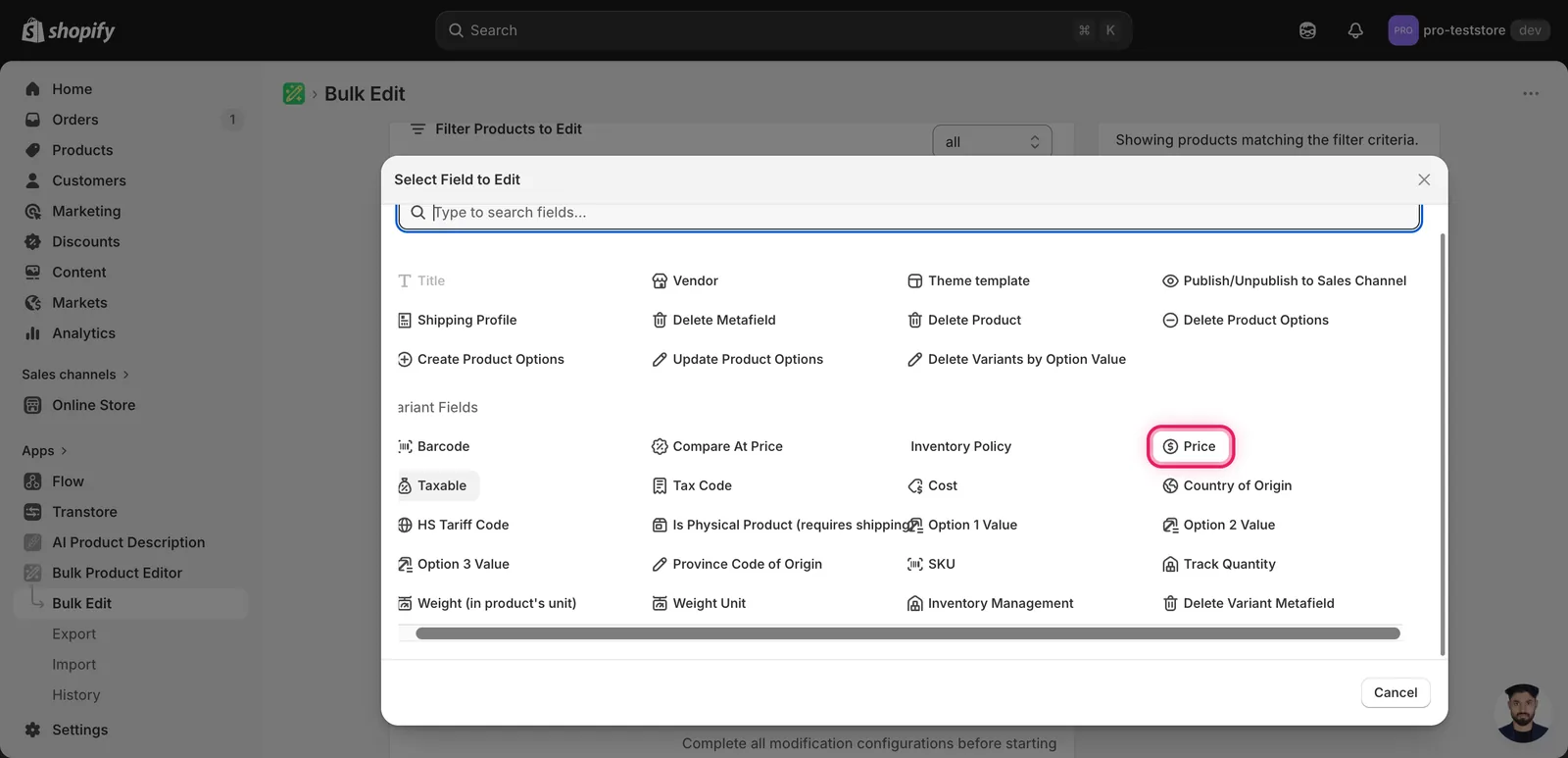
Click Price. The configuration panel switches to a How to edit Price dropdown defaulting to Set to fixed value.
Step 2: Choose how to change the price
Eight actions are available, in three groups.
Direct value
- Set to fixed value — every matched variant becomes this exact price.
- Set to null/blank — requests an empty price value. Do not use this to stop sales; change product status or publishing instead.
Adjust the existing price
- Increase by amount — add a flat amount (e.g. raise every price by 2).
- Decrease by amount — subtract a flat amount.
- Increase by percent — raise by a %.
- Decrease by percent — lower by a %.
Derive from another field
- Set as percent of Compare-at Price — set price = X% of the variant's compare-at price (good for "30% off MSRP" runs).
- Set as percent of Cost field — set price = X% of the variant's cost (useful for cost-based markup rules).
The inputs change based on what you pick.
Step 3: Enter the value (and optional rounding)
Set to fixed value
A single currency-prefixed number input. Type the new price.
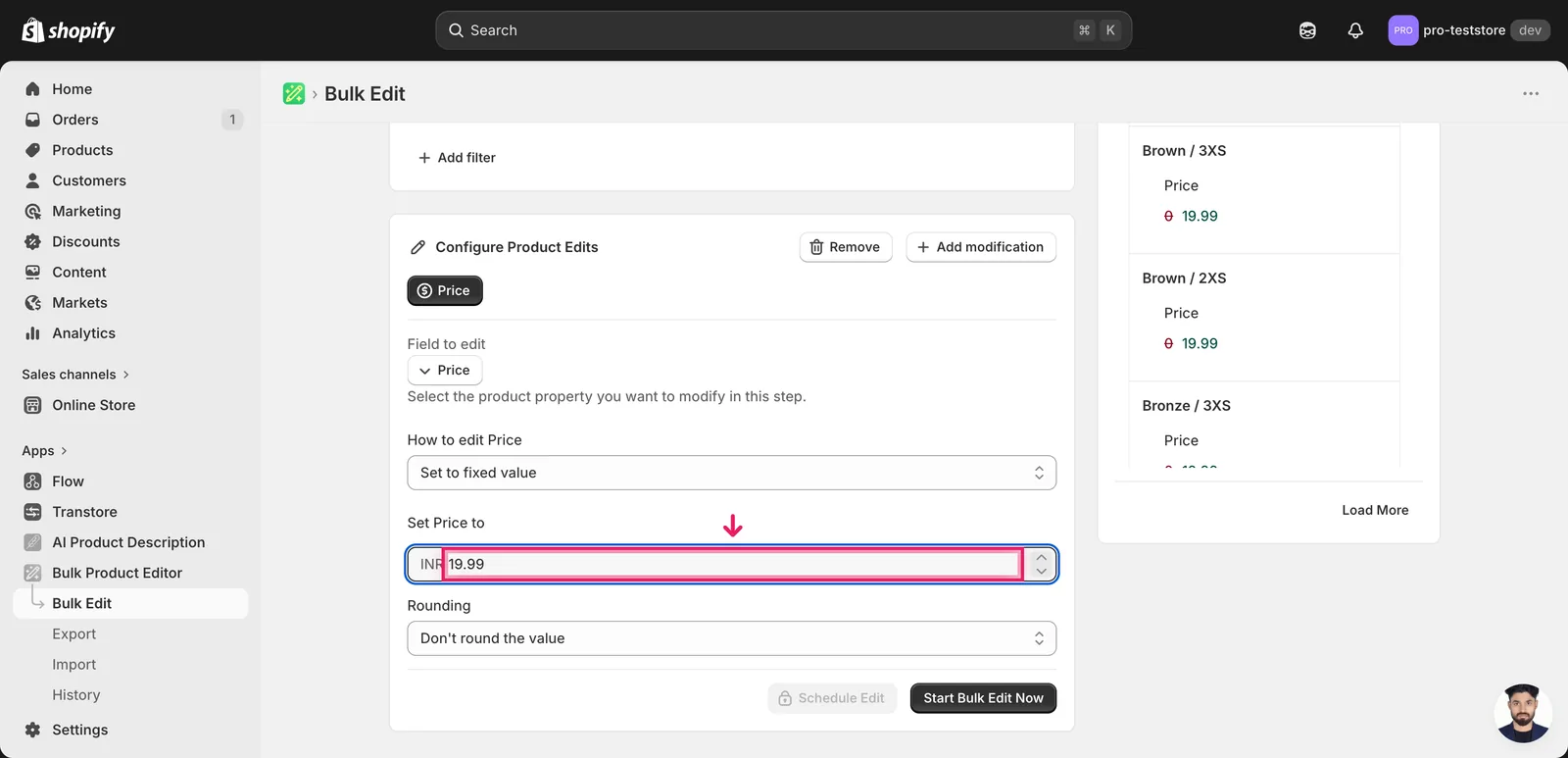
Below the value, a Rounding dropdown lets you snap the result. Useful options:
- End prices in .99 — common retail anchor (
19.34 → 19.99) - End prices in .95 / .90 — same idea, different ending
- Round whole number — drops decimals (
19.99 → 20) - Round whole number up — always rounds up (
19.01 → 20) - Round decimals — to nearest cent
- Custom ending — pick your own decimal (e.g.
0.78for.78endings) - Don't round the value — default. Output is whatever the math produces.
Increase / Decrease by amount or percent
A single number input — amount uses the currency prefix, percent uses a % suffix. The same Rounding dropdown applies.
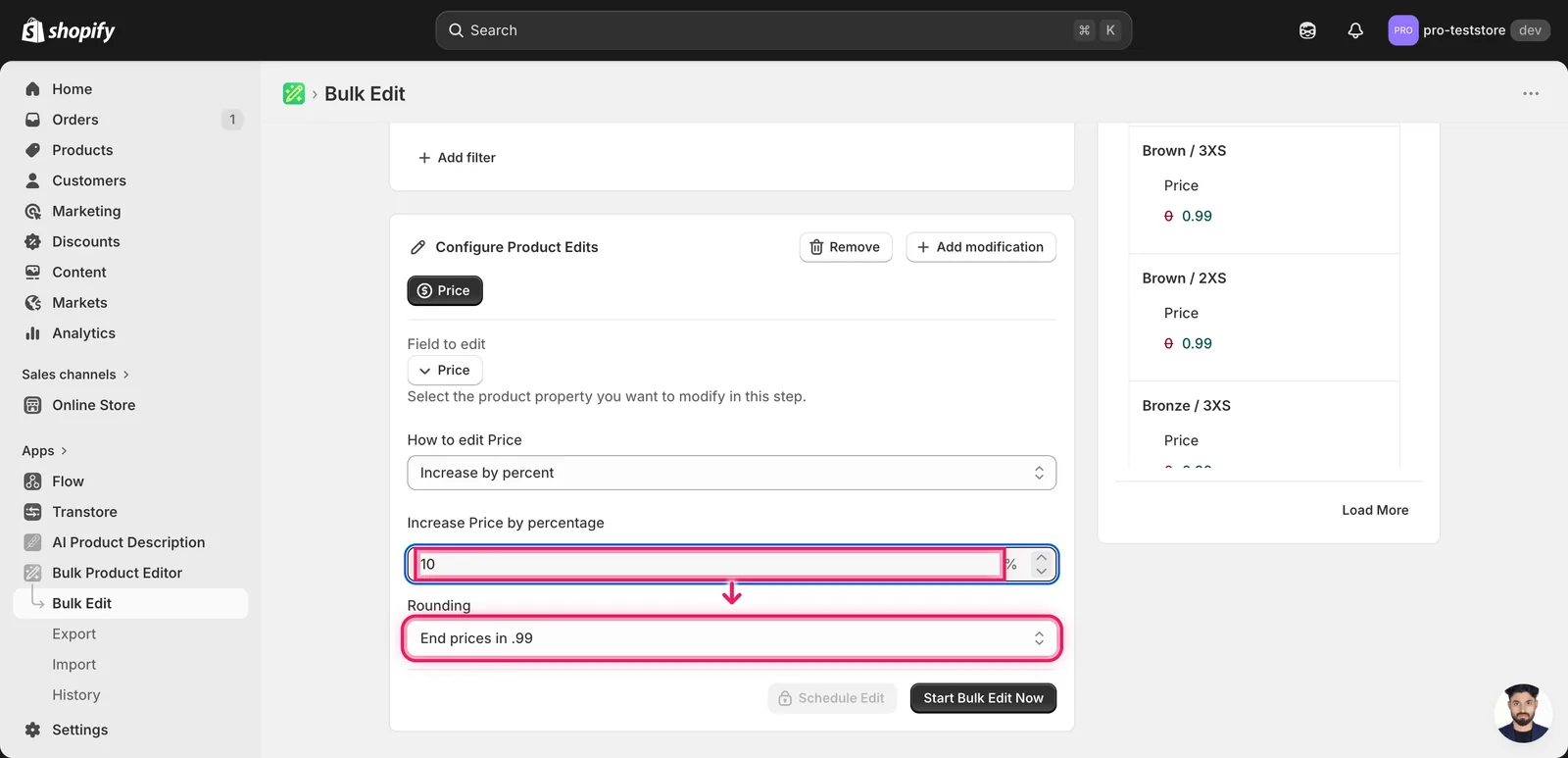
In this example, every matched variant goes up by 10% and the result is rounded to end in .99. So 15.00 → 16.50 → 16.99.
Set as percent of Compare-at Price (or Cost)
A percent input plus a help line under it explaining what gets skipped.
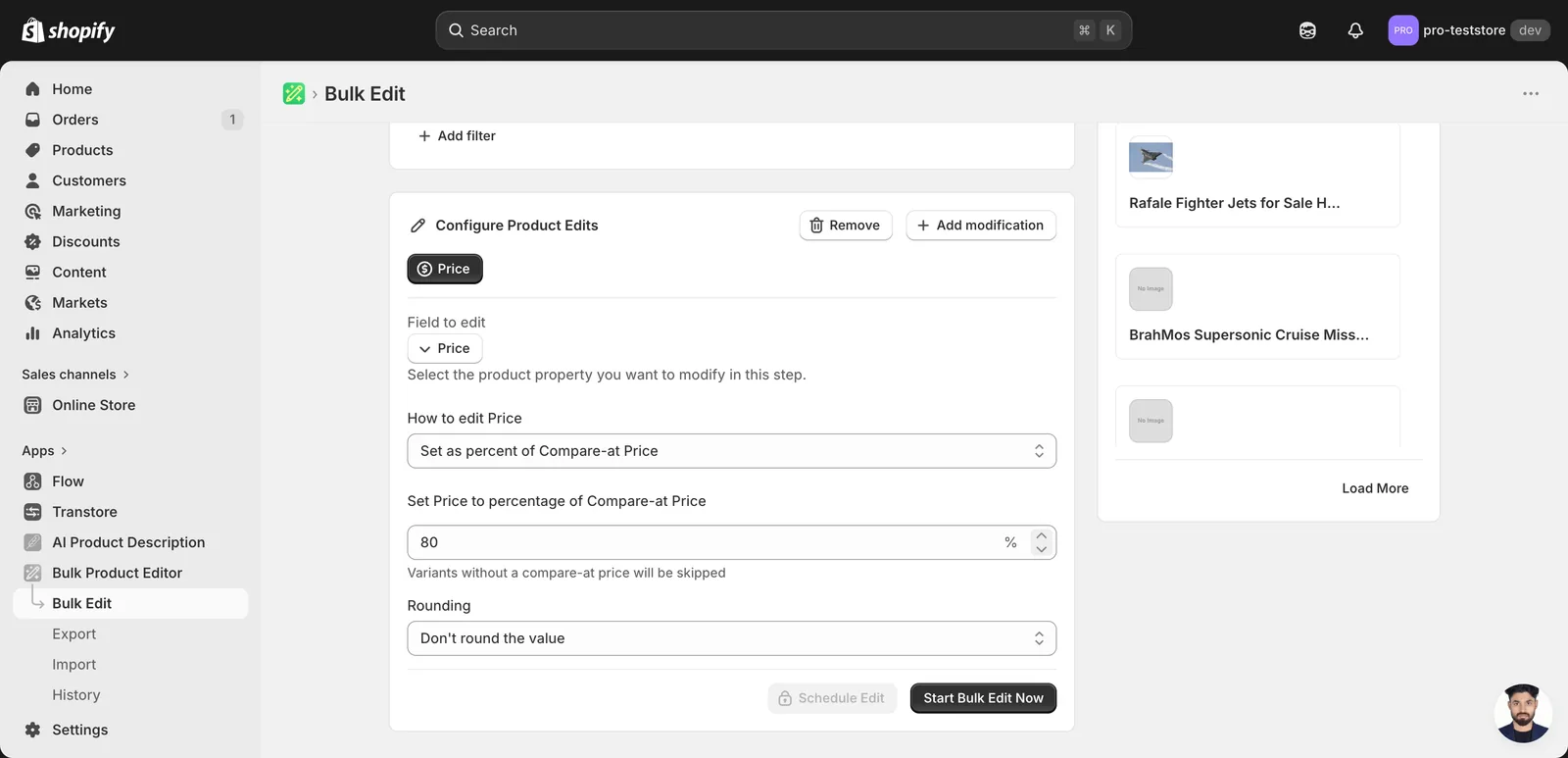
Type the percentage and (optionally) pick a rounding. Skip behaviour:
- Compare-at-based: variants without a compare-at price are skipped — their price stays as-is.
- Cost-based: variants without a cost value are skipped.
Use the Edit Preview on the right to see which variants resolve to a value and which get skipped before you run.
Set to null/blank
No input — the panel just confirms what the action does.
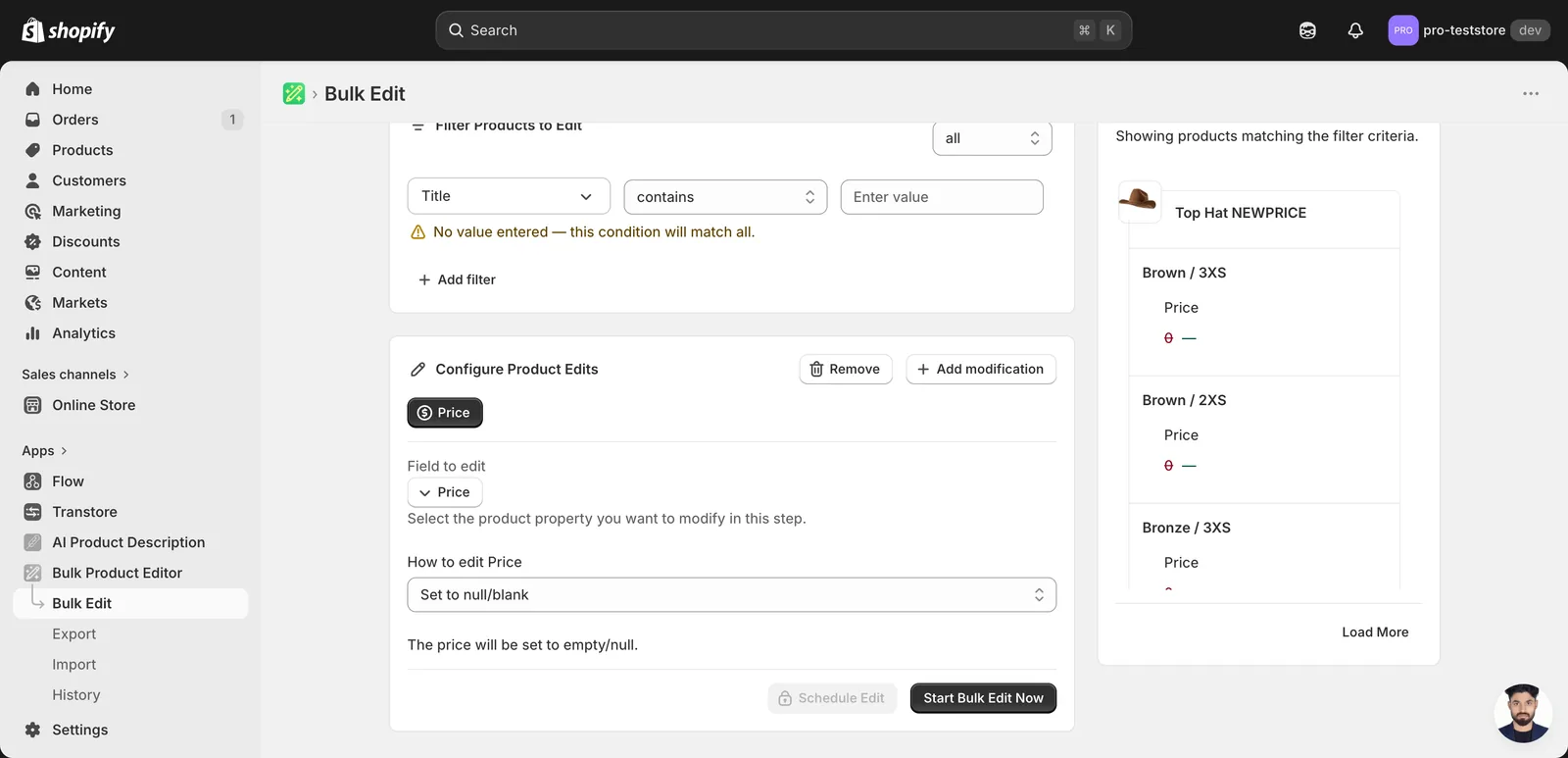
Do not clear prices to stop sales. An empty-price request is not an unpublish action, and a zero price is not a reliable sales block. To take products off sale, change their status to Draft or unpublish them from the relevant sales channels.
Optional: also modify Compare-at Price
Below the value/rounding inputs there's a collapsible Modifications to Compare-at Price section. Open it when you want to update the strike-through price in the same run — useful for setting up a sale.
Three options:
- Don't modify the Compare-at Price — default; only the price changes.
- Set the compare-at price to the current price — moves the old price into the compare-at slot, so the new (lower) price shows discounted. Standard sale-prep move.
- Set the compare-at price to fixed value — type a specific compare-at amount that applies to every matched variant.
After the run
- Price changes are reversible from the History page using Undo.
- For percent-style adjustments, re-running the same edit re-applies the change. A 10% raise re-run produces another 10% raise — it's not idempotent.
- Watch out for variants where the current price is
0and you choose a percent action —0 × anything = 0, then rounding kicks in (e.g. withEnd prices in .99, you'd get0.99). Filter those variants out if that's not what you want.
Frequently asked questions
How do I increase all my Shopify prices by 10% at once?
Pick the Price field in EditEngine's bulk editor, choose Increase by percent, and enter 10. The action runs once per matched variant, and you can add rounding like End prices in .99 — so 15.00 becomes 16.50, then 16.99. Check the Edit Preview, then click Start Bulk Edit Now.
How do I make all my Shopify prices end in .99?
Use the Rounding dropdown below the value input. Options include End prices in .99, .95, or .90, Round whole number, Round whole number up, Round decimals, a Custom ending like .78, or Don't round the value (the default). Rounding applies after the math, so a 10% raise on 15.00 lands at 16.99.
Can I undo a bulk price change in Shopify?
Yes. Price changes are reversible from EditEngine's History page using Undo. That matters for percent adjustments, which aren't idempotent — re-running a 10% raise produces another 10% raise on top of the first. If you applied a percent edit twice by mistake, Undo is how you step back.
How do I set Shopify prices as a percentage of cost or compare-at price?
Choose Set as percent of Compare-at Price or Set as percent of Cost field. Variants without a compare-at price (or without a cost value) are skipped and their price stays as-is. The Edit Preview shows which variants resolve to a value and which get skipped before you run the edit.
What happens if I clear prices or run a percent edit on a zero-price Shopify variant?
Do not use an empty or zero price to stop sales. Change the product status to Draft or unpublish it from the relevant sales channels instead. With percent actions, a price of 0 stays 0 until rounding: End prices in .99 would turn it into 0.99. Filter those variants out if that is not intended.