
Variants & options
How to Bulk Edit Is Physical Product (requires shipping)
Published by Profitonium Apps · Last updated
Mark variants as physical (they ship) or digital (they don't) in one go. Use this when you've added a downloadable, a service, or a gift card to a catalogue full of physical goods — flip the digital ones to No so Shopify stops collecting a shipping address for them at checkout.
This is a variant field. The setting lives on each variant, not the product, so the action runs once per matched variant. A product with three variants gets three updates.
One action, two choices. There's nothing to type — you just pick Yes or No. Filter your products carefully before running so you only flip the variants you mean to.
Step 1: Pick the Is Physical Product field
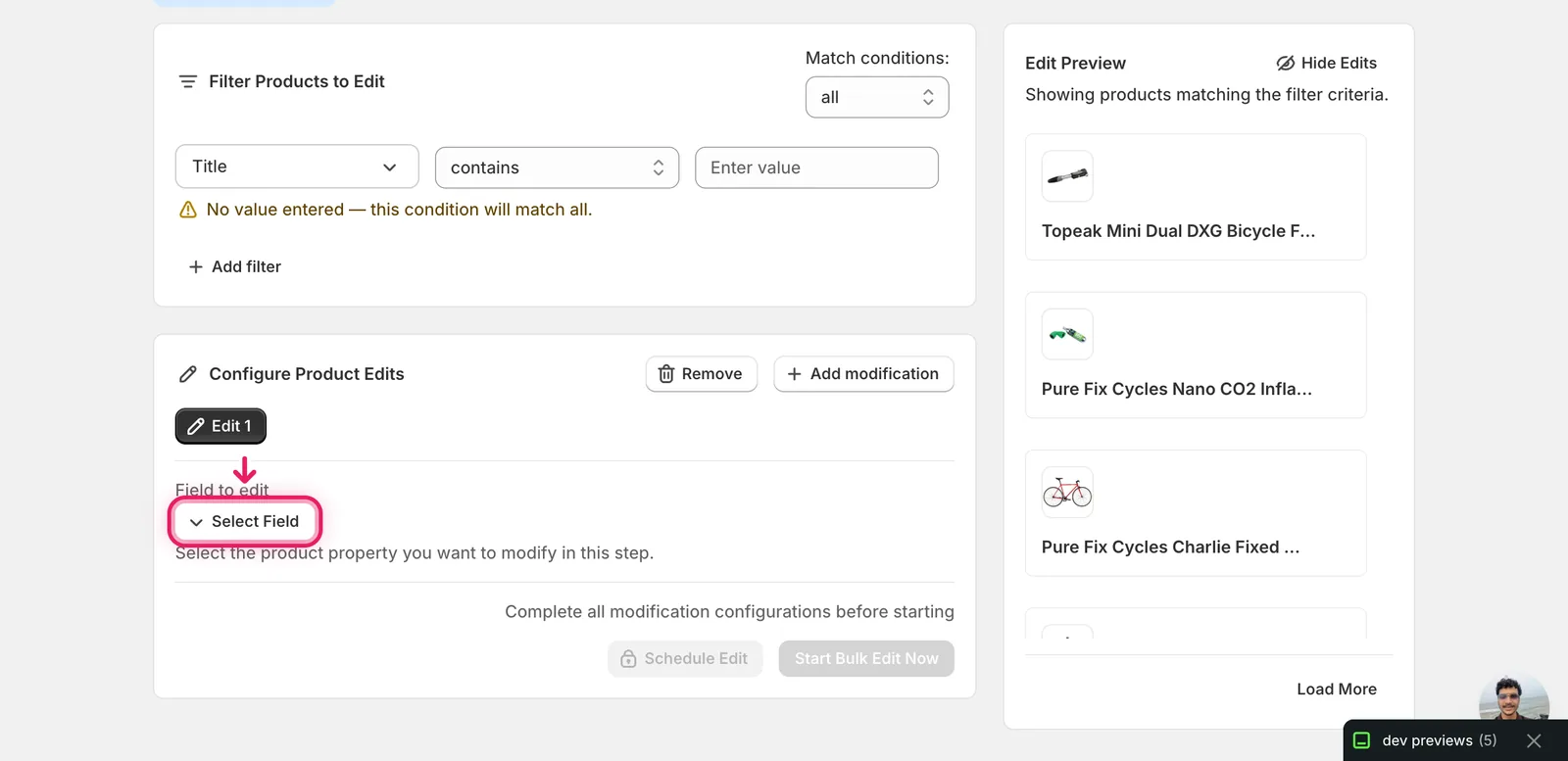
In the Configure Product Edits panel, click Select Field.
The field picker opens. Is Physical Product (requires shipping) lives under Variant Fields — type "physical" into the search box if the list is long.
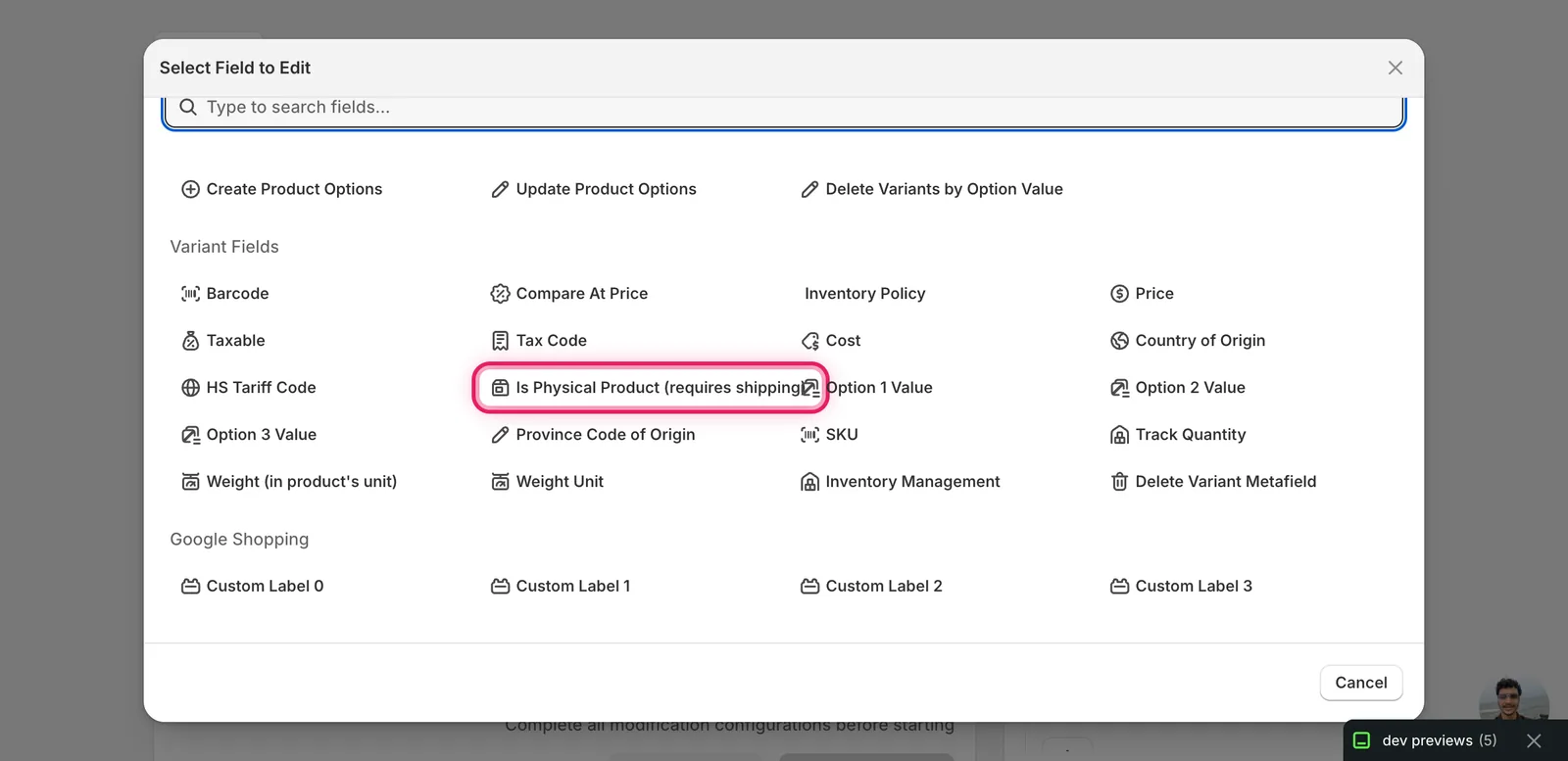
Click it. The modal closes and the configuration panel switches to a two-choice picker headed Is Physical Product.
Step 2: Pick Yes or No
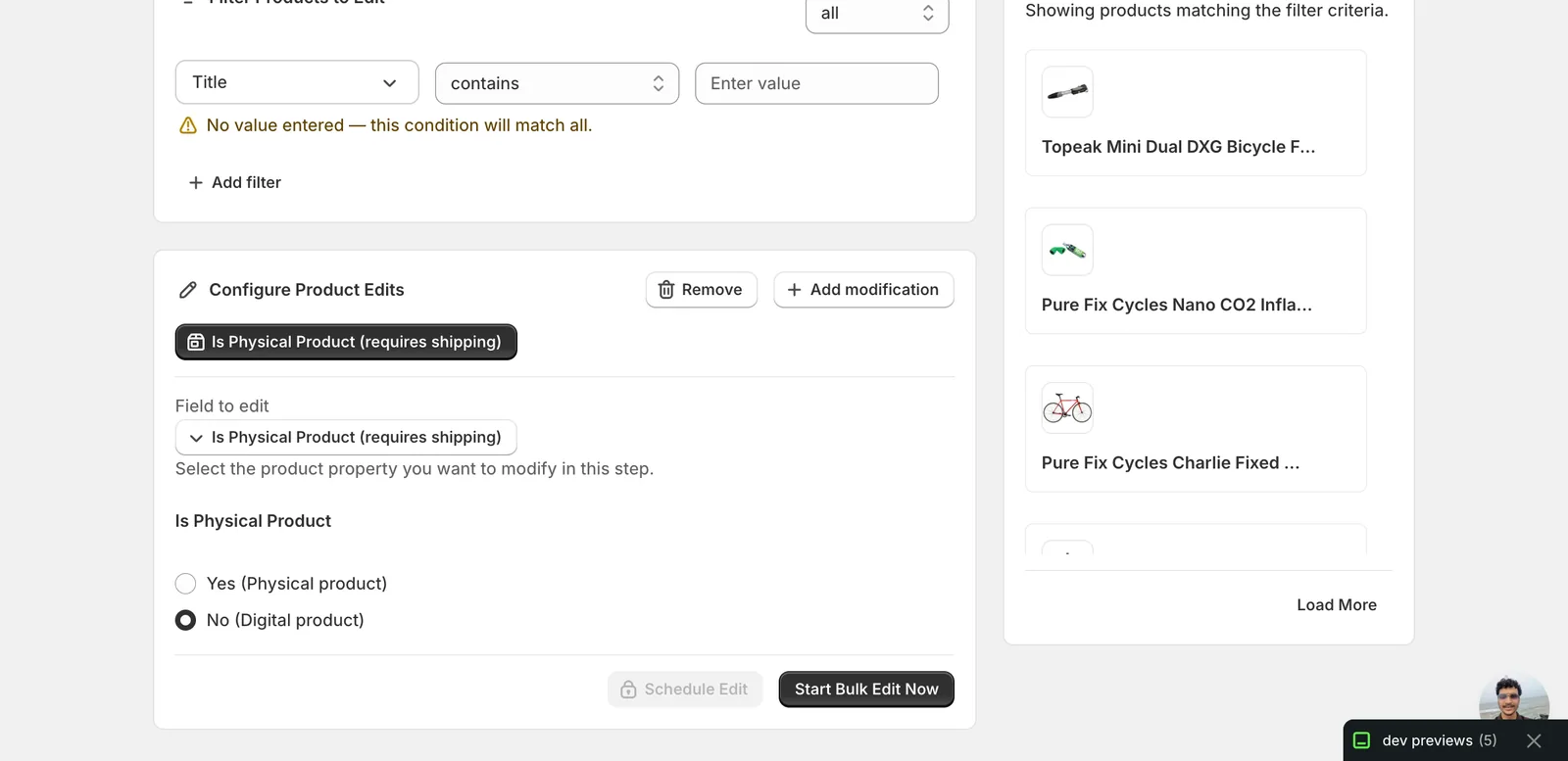
There's no value to type. Two radio choices and that's it.
- Yes (Physical product) — variants get
requiresShipping = true. Shopify will ask for a shipping address at checkout and apply your shipping rates. - No (Digital product) — variants get
requiresShipping = false. Checkout skips the shipping step for those line items.
The form defaults to Yes. Click whichever applies to the variants you've filtered.
Setting No on a variant doesn't make it a "real" digital product on its own. To deliver a file, you still need a digital-delivery app or a fulfilment app that sends the asset. This toggle only controls whether Shopify treats the line as shippable.
Step 3: Check the preview, then run
The Edit Preview on the right resolves your choice against every matched variant before you run. Each row shows the current value struck through and the new value next to it.
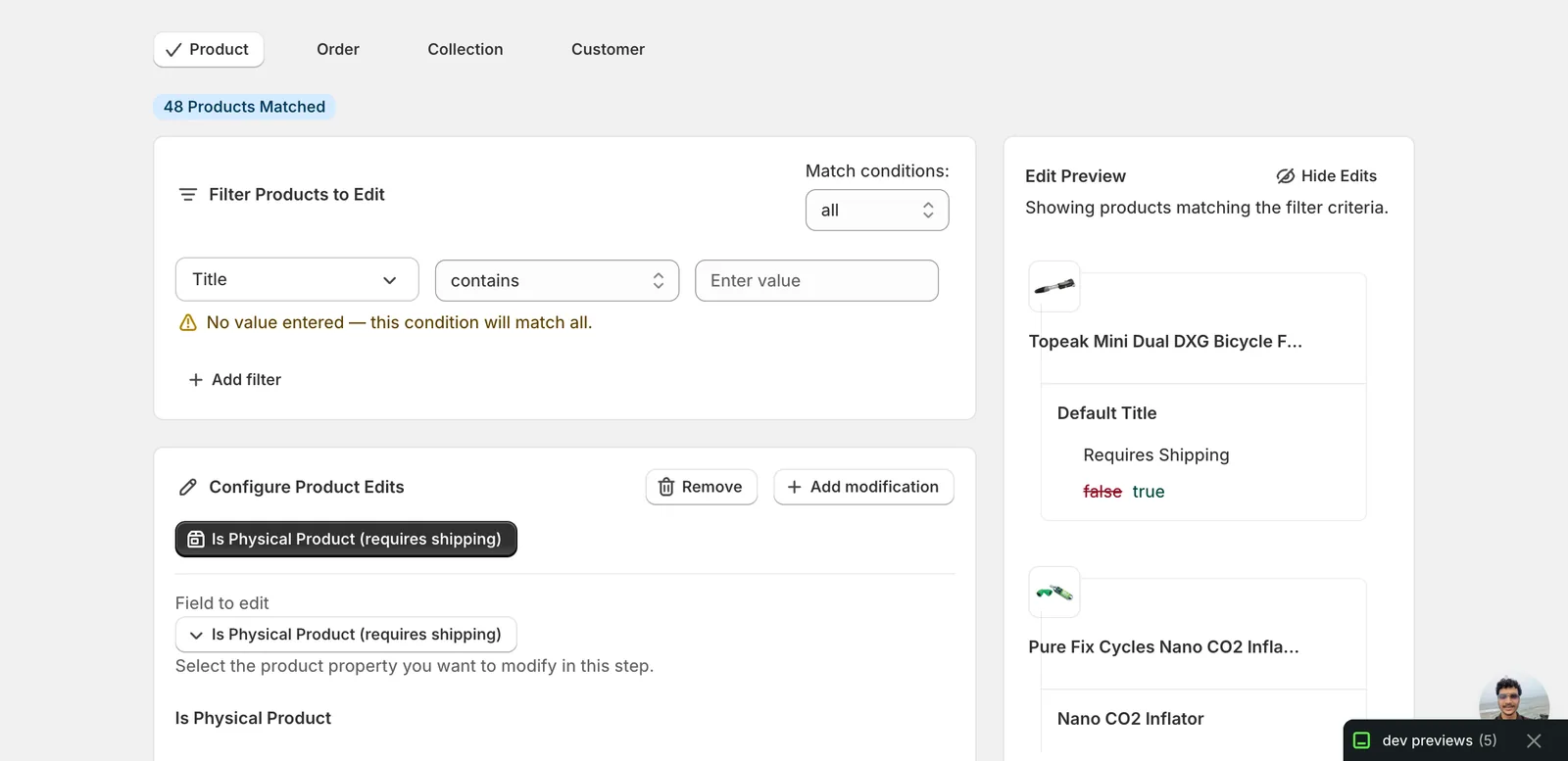
A few things worth noting:
- Variants that already have the value you're setting are skipped — they don't show up in the preview as a change. If you pick No and your catalogue is already entirely digital, the preview shows products but no diff rows.
- This is a one-shot toggle. Re-running the same edit on the same variants does nothing the second time.
When the preview matches what you want, click Start Bulk Edit Now at the bottom of the configuration panel.
After the run
- The change is reversible from the History page using Undo — it puts every flipped variant back to its previous state.
- Variants set to No drop out of shipping calculations: no rates are applied, no address is requested for an order containing only those variants, and Shopify won't print a packing slip for them.
- An order that mixes physical and digital variants still requires a shipping address — the address is collected because of the physical line, and Shopify ships the physical part as normal.
- Tax rules don't change with this toggle. If you also need to mark items as non-taxable, run a Taxable bulk edit alongside this one.
Filter before you flip. Most stores have a few digital outliers in a sea of physical products (or vice versa). Use the Filter Products to Edit panel — by tag, product type, vendor, or title — to narrow down to the variants you actually want to change. Hitting run with a loose filter will mark the entire catalogue as digital, and reverting that one variant at a time afterwards is painful.
EditEngine treats this as a single setValue action against variant.inventoryItem.requiresShipping. There are no per-variant overrides, no rounding, no dynamic values — just the boolean.
Frequently asked questions
How do I mark all my Shopify digital products as not requiring shipping?
In EditEngine's Configure Product Edits panel, click Select Field and choose Is Physical Product (requires shipping) under Variant Fields. Pick No (Digital product), which sets requiresShipping to false on every matched variant so checkout skips the shipping step for those line items. Check the Edit Preview, then click Start Bulk Edit Now.
Can I undo a bulk shipping-requirement change in Shopify?
Yes. The change is reversible from EditEngine's History page using Undo, which puts every flipped variant back to its previous state. Still, filter carefully before you run — hitting run with a loose filter can mark the entire catalogue as digital, and reverting that one variant at a time afterwards is painful.
Does setting a Shopify variant to digital stop shipping rates from applying?
Yes. Variants set to No drop out of shipping calculations: no rates are applied, no address is requested for an order containing only those variants, and Shopify won't print a packing slip for them. An order mixing physical and digital variants still collects a shipping address because of the physical line.
Will making a Shopify product digital deliver the file automatically?
No. Setting the toggle to No only controls whether Shopify treats the line as shippable — it doesn't make the item a real digital product on its own. To deliver a file you still need a digital-delivery app or a fulfilment app that sends the asset to the customer.
What happens if some Shopify variants already have the value I am setting?
Variants that already match are skipped — they don't show up in the Edit Preview as a change. If you pick No and your catalogue is already entirely digital, the preview shows products but no diff rows. It's a one-shot toggle: re-running the same edit on the same variants does nothing the second time.