
Variants & options
How to Bulk Edit HS Tariff Code
Published by Profitonium Apps · Last updated
The HS (Harmonized System) tariff code tells customs what each product is, so duty rates and import paperwork get applied correctly. Setting it on every variant by hand is painful — EditEngine's bulk editor for Shopify lets you stamp the same code across hundreds of variants in one run.
HS Tariff Code is a variant field. Each variant has its own code, so the action runs once per matched variant. A product with three variants gets three updates.
It's a free-text field. Shopify doesn't validate the code or check it against any tariff schedule here — whatever you type is what gets saved. Use the exact code your shipping carrier or customs broker expects (usually a 6, 8, or 10-digit number, sometimes with dots like
8714.99.80).
Step 1: Pick the HS Tariff Code field
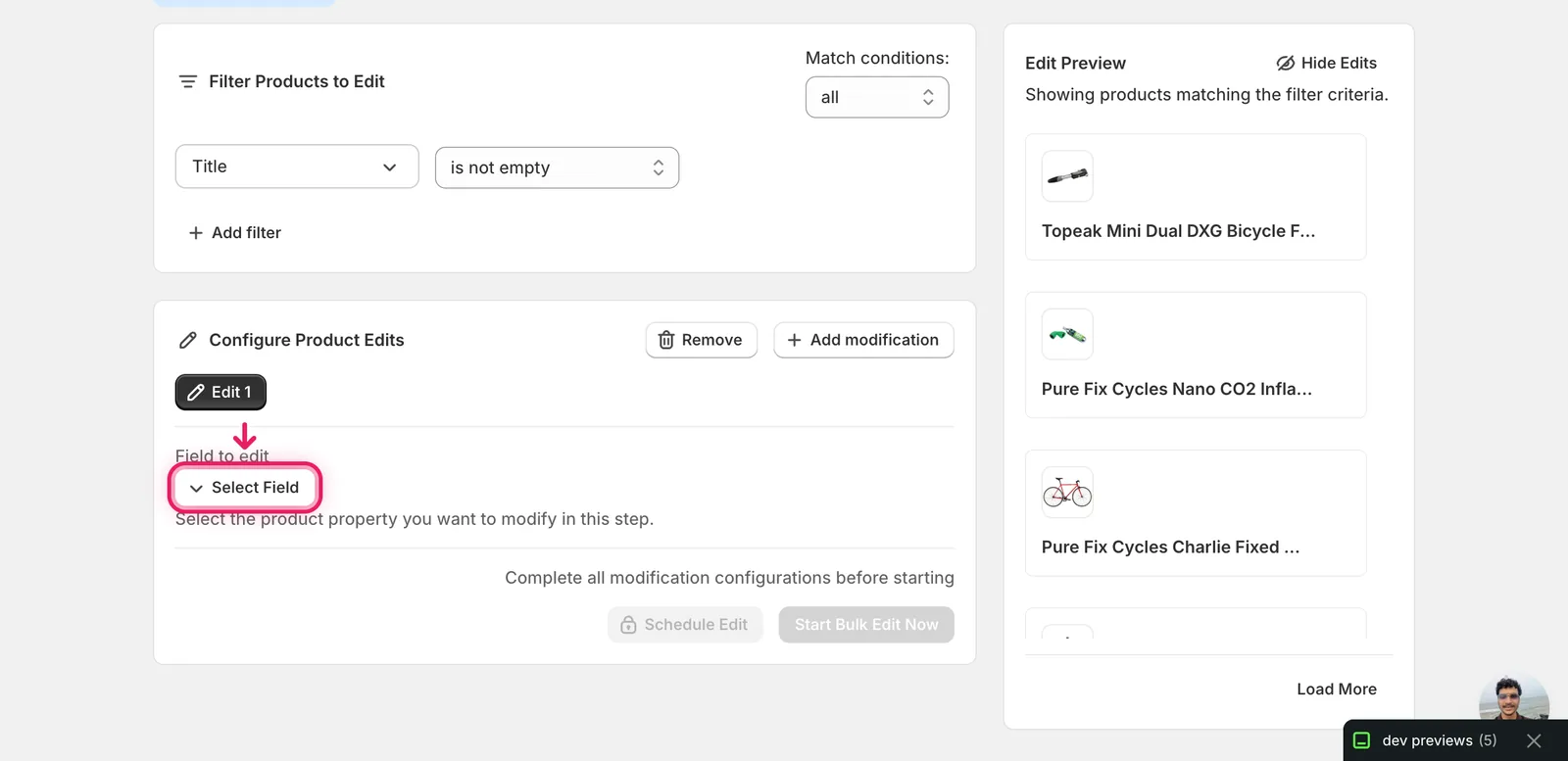
In the Configure Product Edits panel, click Select Field.
HS Tariff Code lives under Variant Fields in the modal — it sits next to Cost, Country of Origin, and Tax Code.
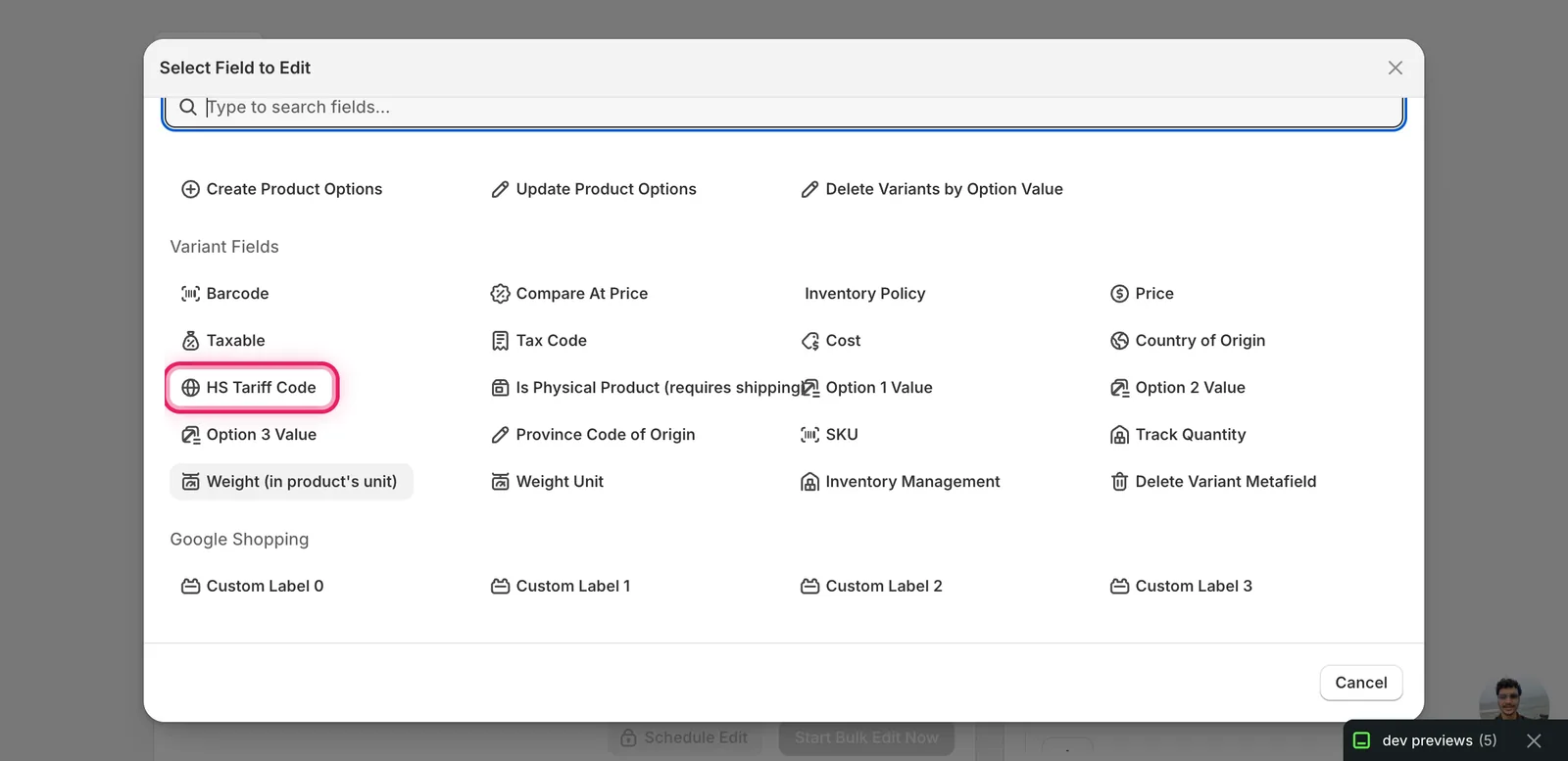
Click HS Tariff Code. The modal closes and the configuration panel switches to a How to edit HS Tariff Code dropdown defaulting to Set HS Tariff Code to value, with a single text input below.
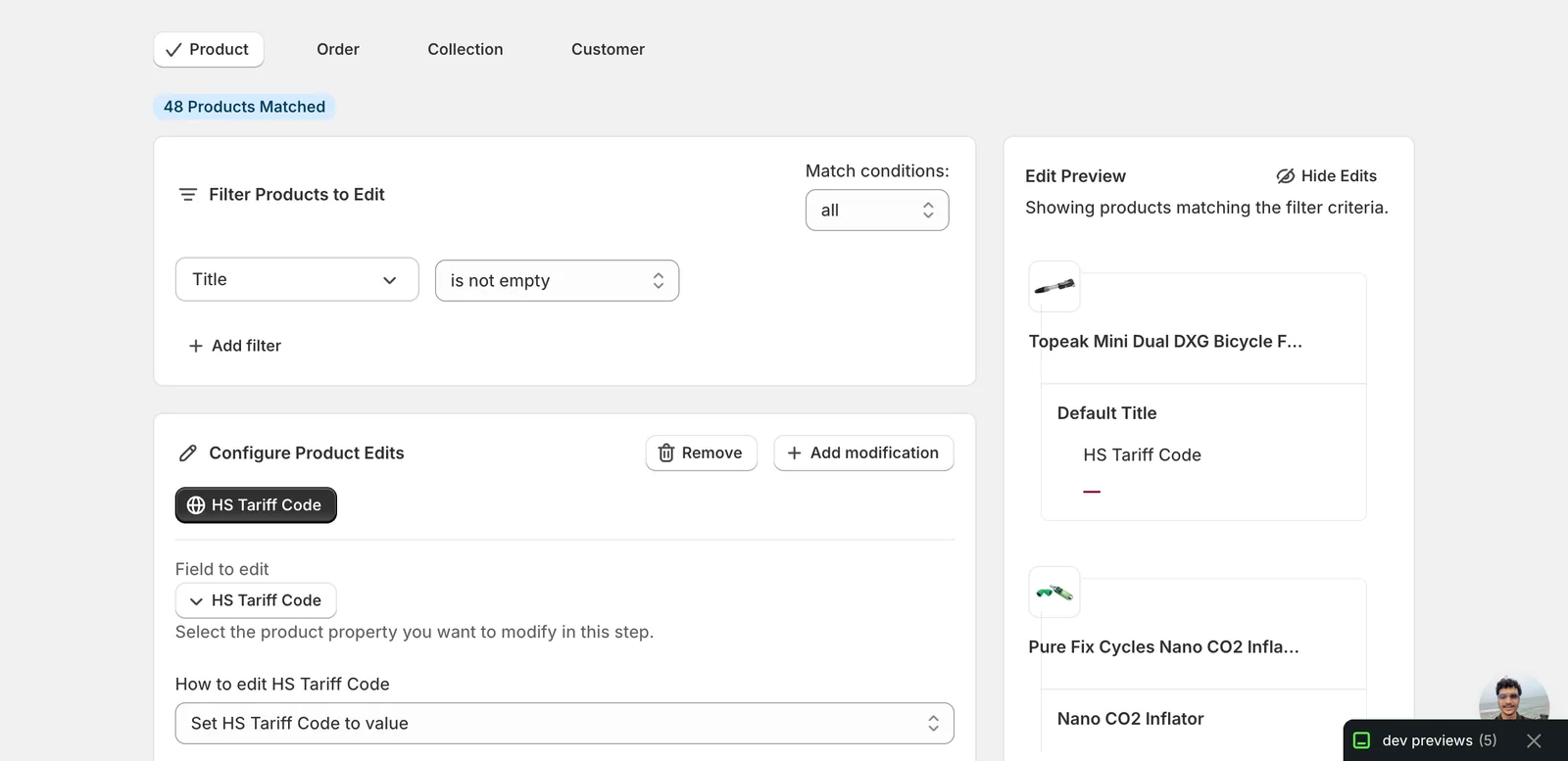
Step 2: Enter the code
There's only one action available for this field — set every matched variant's HS Tariff Code to the value you type. No find-replace, no append, no append-prefix. Just the input.
Type the code in the Set the hs tariff code to this value box. The placeholder reads Enter new hs tariff code or use variables. Use whatever your destination requires — common shapes:
- Six-digit (HS-6) — the international root code, e.g.
871499. - Ten-digit US HTS — what US customs / most carriers want, e.g.
8714.99.80or8714998000. - EU CN-8 — eight digits, e.g.
87149990. - Country-specific HSN/Schedule B — whatever your broker provided.
Once a value is in the input, Start Bulk Edit Now lights up and the Edit Preview on the right resolves the new code for every matched variant — the old value (often a dash because most stores don't set it) is struck through and the new code is shown in green.
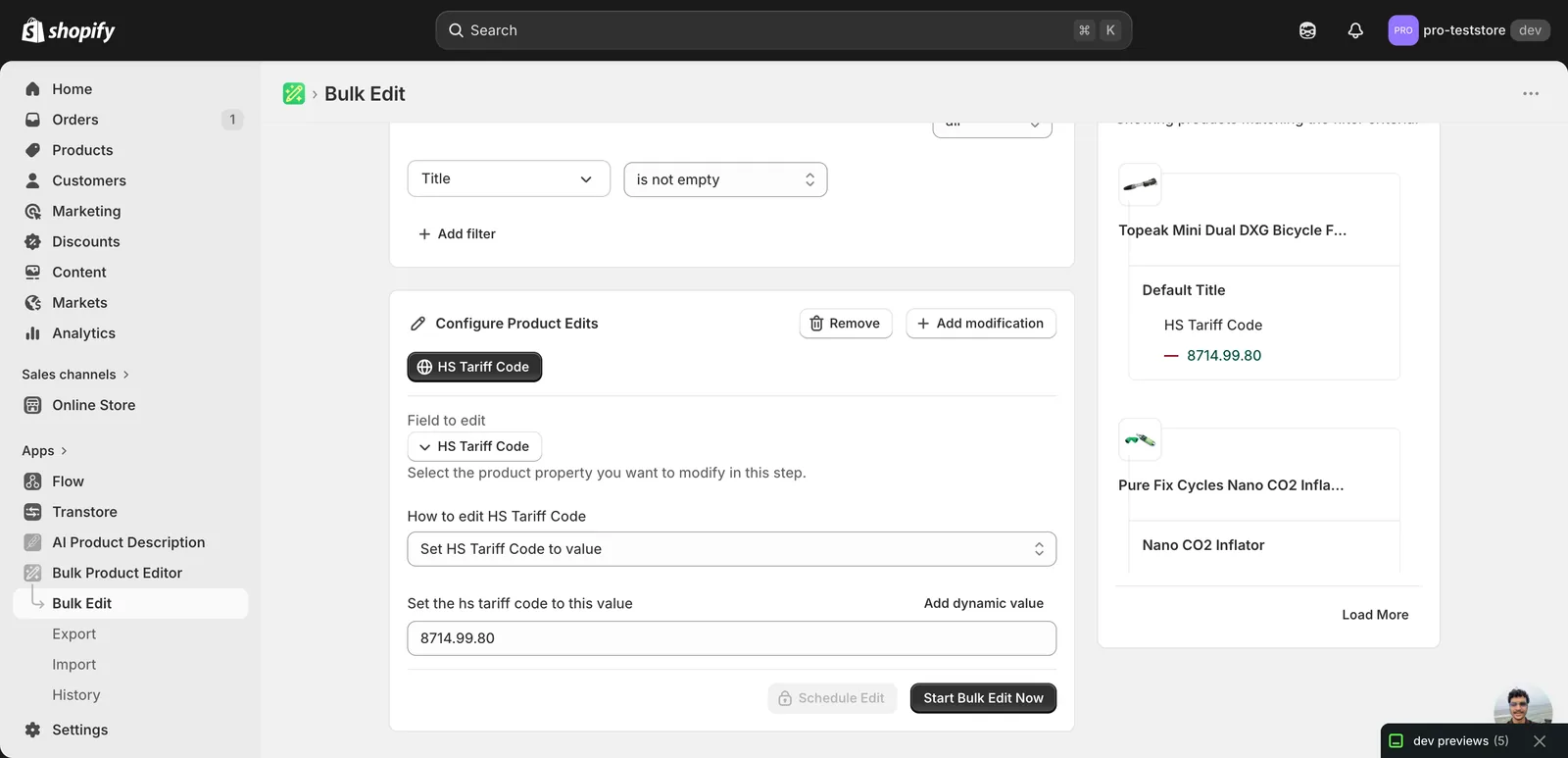
One code, many variants — that's the point. HS codes group "things customs treats the same" — bicycle parts, leather grips, lithium battery banks. If your store sells across categories, run separate edits and use Filter Products to Edit (by collection, product type, vendor, or tag) to scope each run to the right variants. Putting a single bicycle code on every variant in a mixed catalog will cause customs headaches later.
Use a dynamic value if codes already live in a metafield. Click Add dynamic value above the input to insert a token like
{{product.metafield.custom.hs_code}}. EditEngine resolves it per variant, so each one gets its own code in a single run.
Leaving the input blank doesn't work. The Start Bulk Edit Now button stays disabled until you type something. To clear an existing code, the bulk editor here doesn't have a "set to null" action — use the import flow with an empty cell instead.
After the run
- The change is reversible. Open the History page and hit Undo to roll matched variants back to whatever code (or blank) they had before.
- Re-running is safe. Re-applying the same code to the same variants is a no-op — variants whose current value already matches the target are skipped.
- Storefront impact is invisible. HS codes don't show in product titles, descriptions, or anywhere on the storefront. They flow into shipping labels, customs declarations, and Shopify's tax/duty calculations at checkout.
- Carriers and connected apps may need to re-sync. If a shipping app (ShipStation, Easyship, Zonos, etc.) caches variant data, give it a refresh after the bulk edit completes — otherwise old codes will print on labels until its next pull.
- Check one real shipment. Tariff codes are easy to mistype or grab from the wrong row. After the run, generate a real or draft order and a label for one variant before assuming the code is correct everywhere.
Frequently asked questions
How do I bulk update HS tariff codes on Shopify variants?
Open EditEngine's Configure Product Edits panel, click Select Field, and pick HS Tariff Code under Variant Fields. Type the code your carrier or customs broker expects — the only action is setting every matched variant to the value you enter. The Edit Preview resolves the new code per variant before you click Start Bulk Edit Now.
Can I reverse an HS tariff code bulk edit in Shopify?
Yes, the change is reversible. Open EditEngine's History page and hit Undo to roll matched variants back to whatever code, or blank value, they had before the run. Re-running is also safe — re-applying the same code is a no-op because variants whose current value already matches the target are skipped.
What if each Shopify variant needs a different HS tariff code?
Use a dynamic value. Click Add dynamic value above the input to insert a token referencing a metafield where codes already live, and EditEngine resolves it per variant so each one gets its own code in a single run. Alternatively, run separate edits and scope each with Filter Products to Edit by collection, type, vendor, or tag.
Does Shopify validate the HS tariff code I enter?
No. It's a free-text field — Shopify doesn't check it against any tariff schedule, so whatever you type is saved. Use the exact code your carrier or broker expects, usually a 6, 8, or 10-digit number, sometimes with dots. EditEngine recommends generating one real or draft shipment label after the run to verify the code.
How do I clear HS tariff codes from Shopify variants in bulk?
You can't from this screen — the bulk editor has no set-to-null action for HS Tariff Code, and the Start Bulk Edit Now button stays disabled until you type something. To clear existing codes, use EditEngine's import flow with an empty cell in the HS tariff code column instead.