
Variants & options
How to Bulk Edit Weight
Published by Profitonium Apps · Last updated
Set a fixed weight on every matched variant, or shift each variant's existing weight up or down by the same amount. Useful when you've finally weighed your stock, when you're switching units in a way the unit field can't fix on its own, or when packaging changes add the same overhead across a catalog.
Weight is a variant field. Each product variant has its own weight, so the action runs once per matched variant. A product with three variants gets three weight updates.
The number is in each variant's own weight unit (kg, g, lb, or oz). The form shows a plain number with no unit suffix —
1.5means 1.5 in whatever unit the variant is already configured to use. If you need to convert units across the catalog, edit the Weight Unit field separately; values aren't converted automatically.
Step 1: Pick the Weight field
In the Configure Product Edits panel, click Select Field.
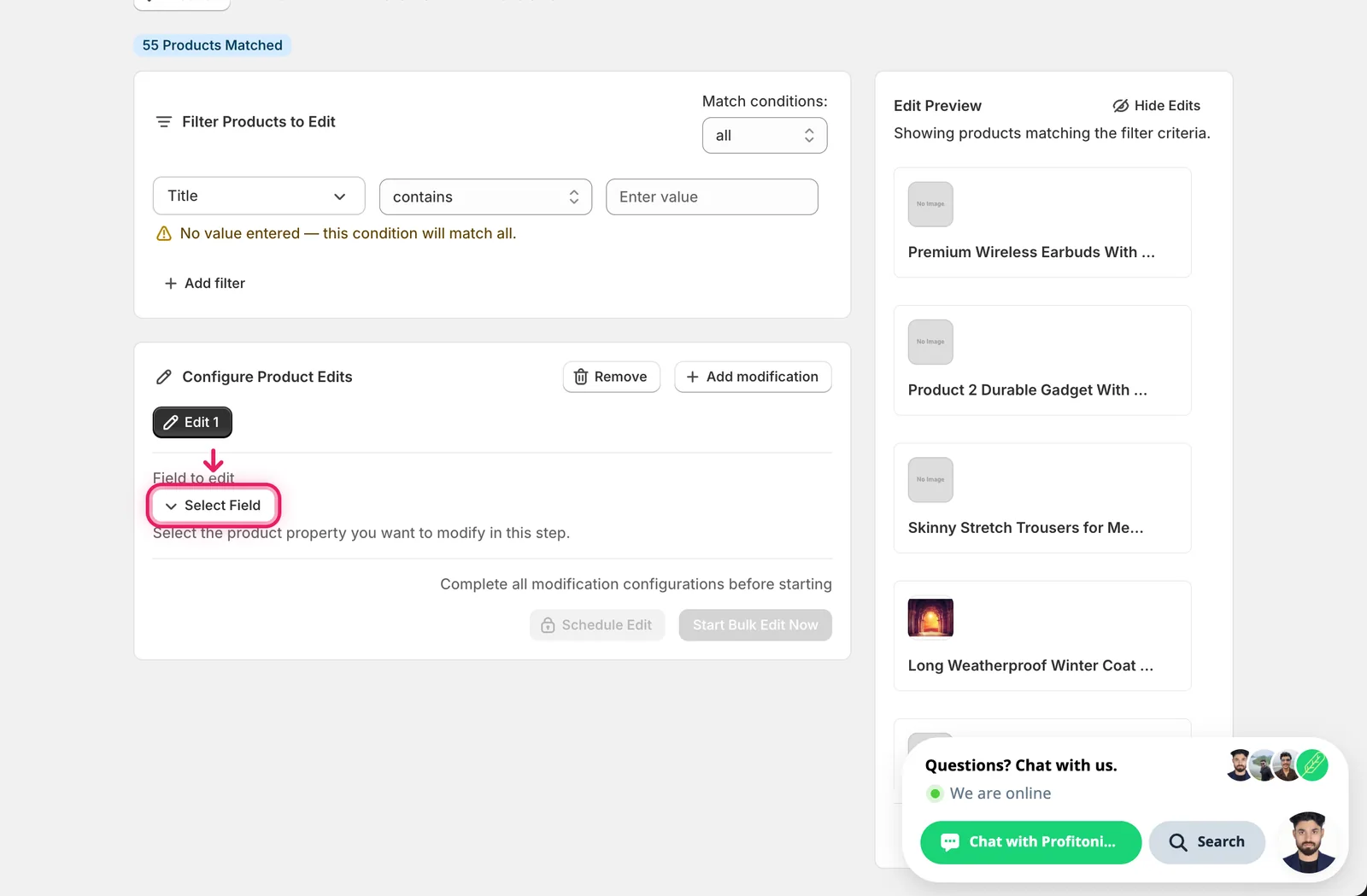
Weight lives under Variant Fields as Weight (in product's unit). Type weight in the search to filter the list down.
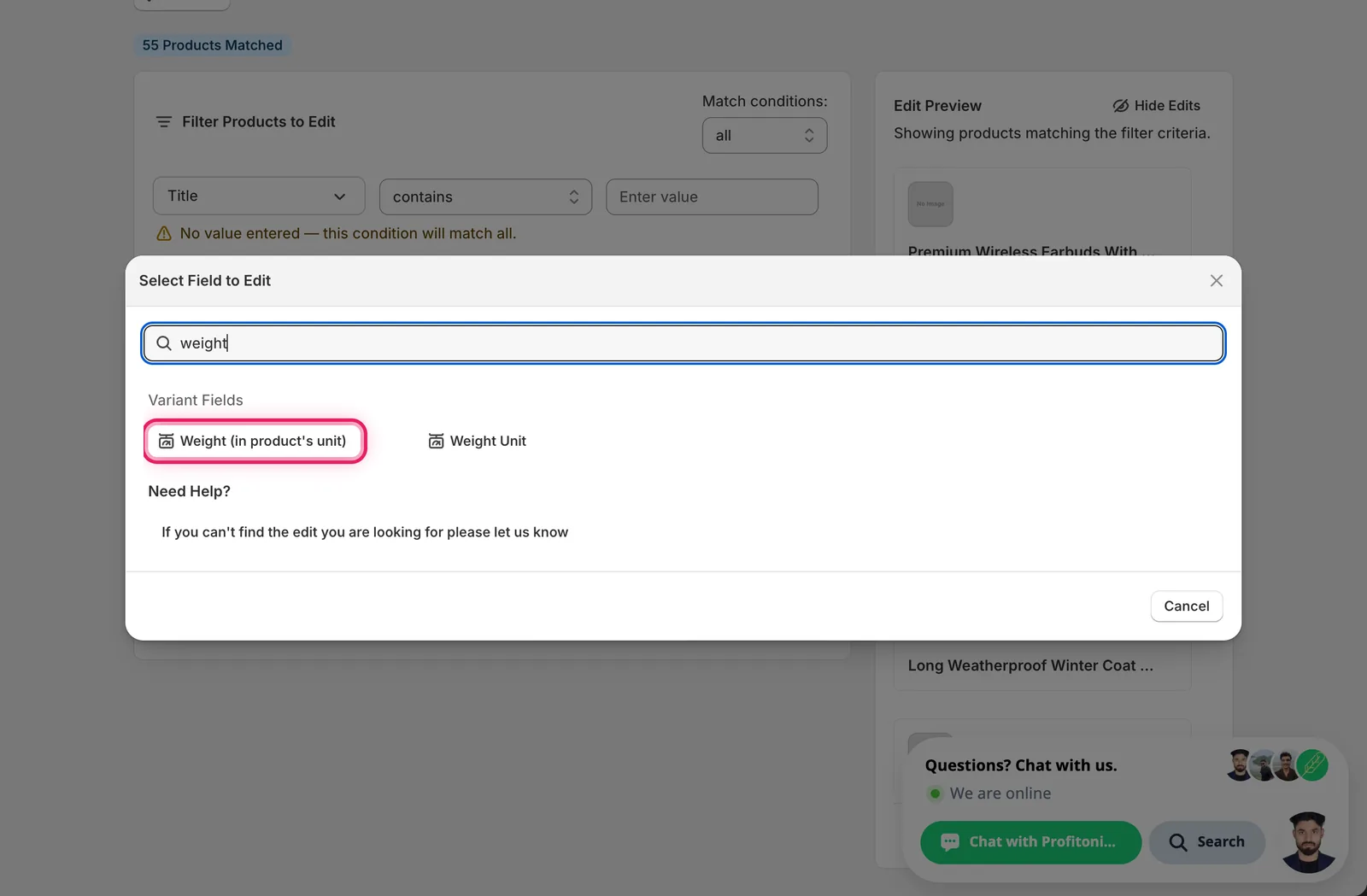
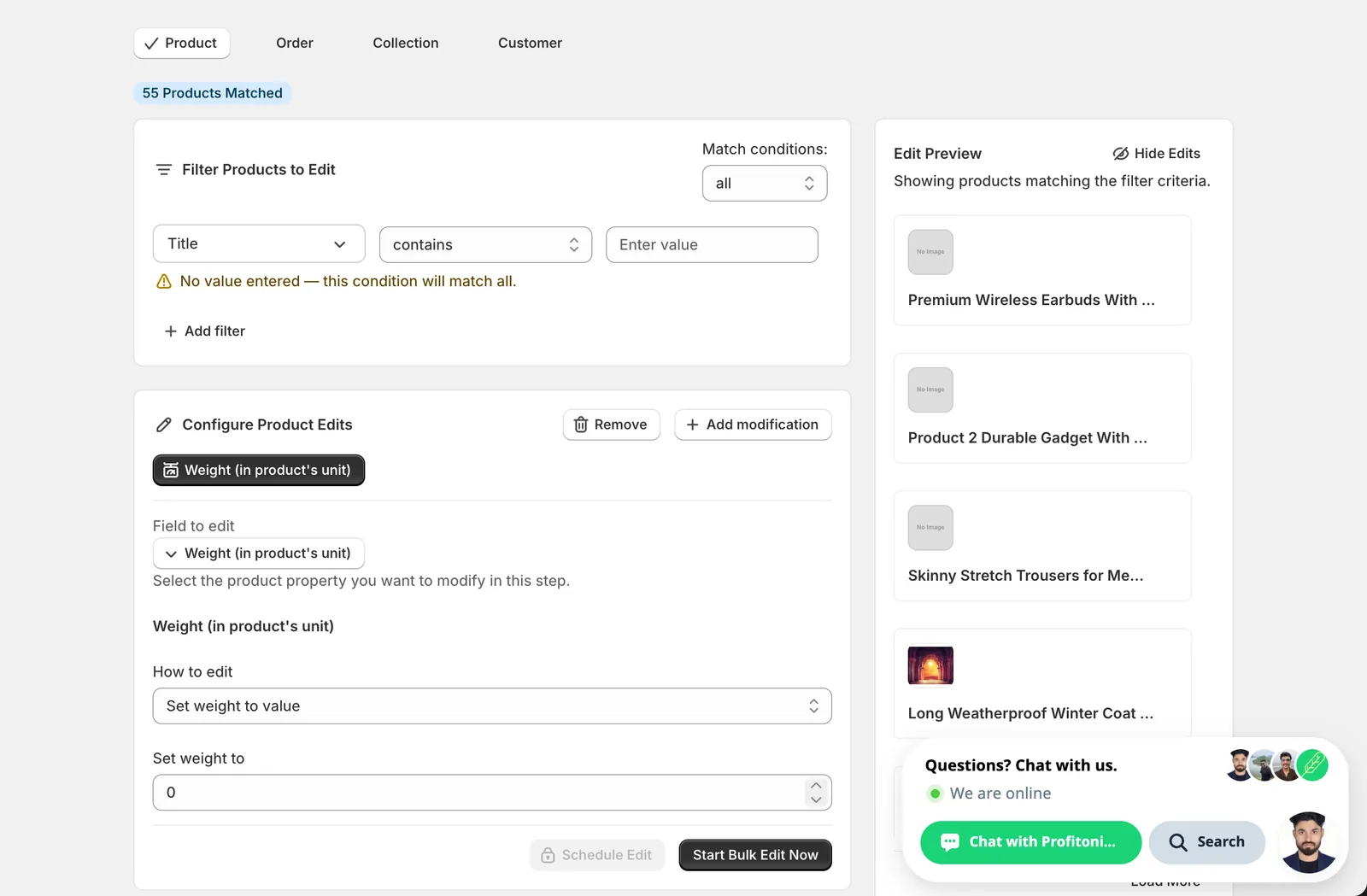
Click Weight (in product's unit). The configuration panel switches to a How to edit dropdown defaulting to Set weight to value, plus a number input.
Step 2: Choose how to change the weight
Two actions are available.
- Set weight to value — every matched variant becomes this exact weight, regardless of its current value.
- Change weight by amount — add a number to each variant's existing weight. Use a negative number to subtract.
That's it — there's no percentage option, no rounding, no "set to null" for weight.
Step 3: Enter the value
Set weight to value
Type the new weight in the Set weight to input. The Edit Preview on the right shows the original value struck through and the new value alongside it for every matched variant.
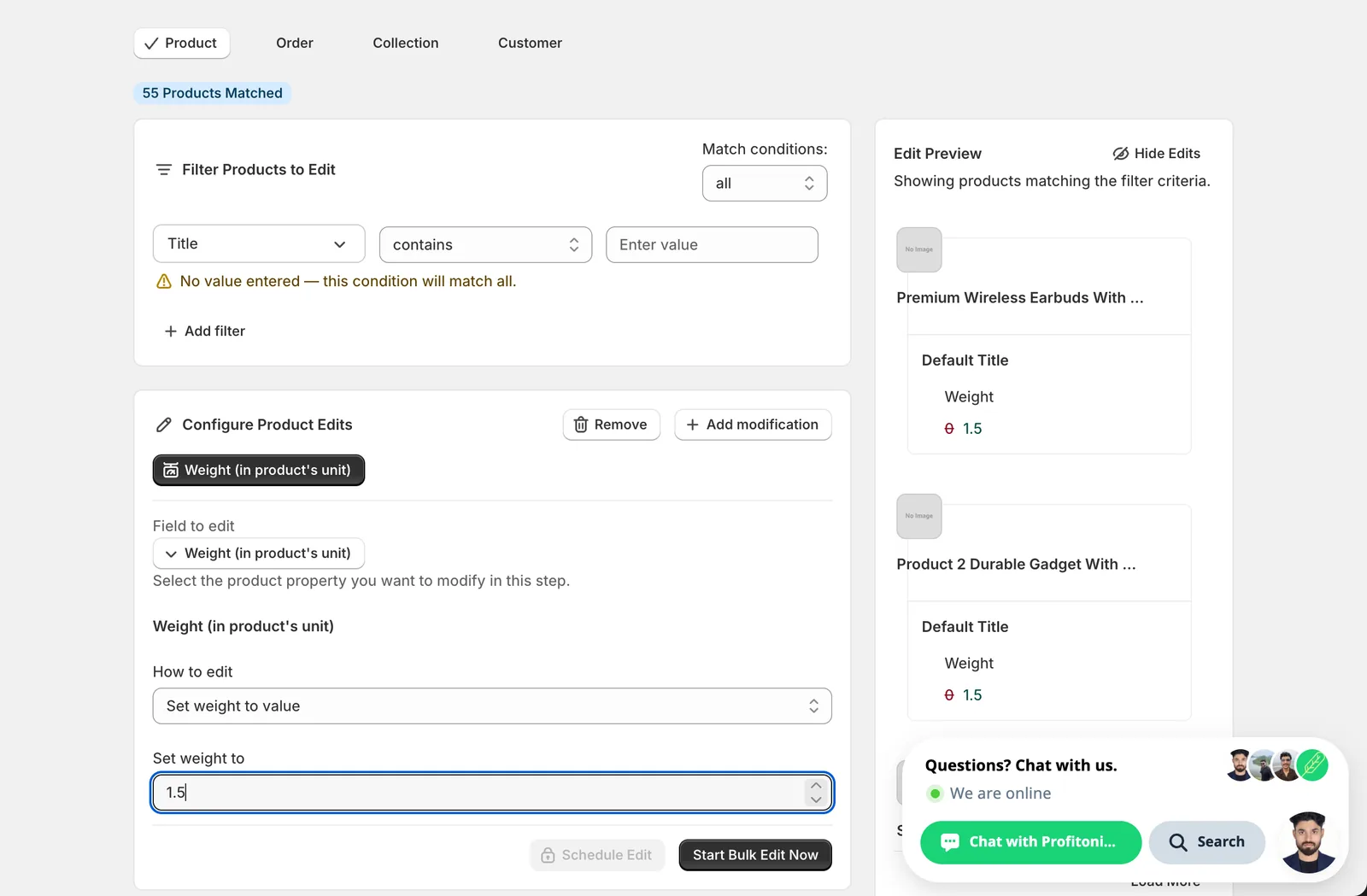
Setting a fixed weight overwrites every matched variant with the same number. If your variants are in mixed units, you'll end up with
1.5 kgfor some and1.5 lbfor others. Filter or check the unit before running.
Change weight by amount
Type the amount to add. The label still reads "Set weight to" — that's just the form label — but the math is additive: current weight + your value. Use a negative number to decrease.
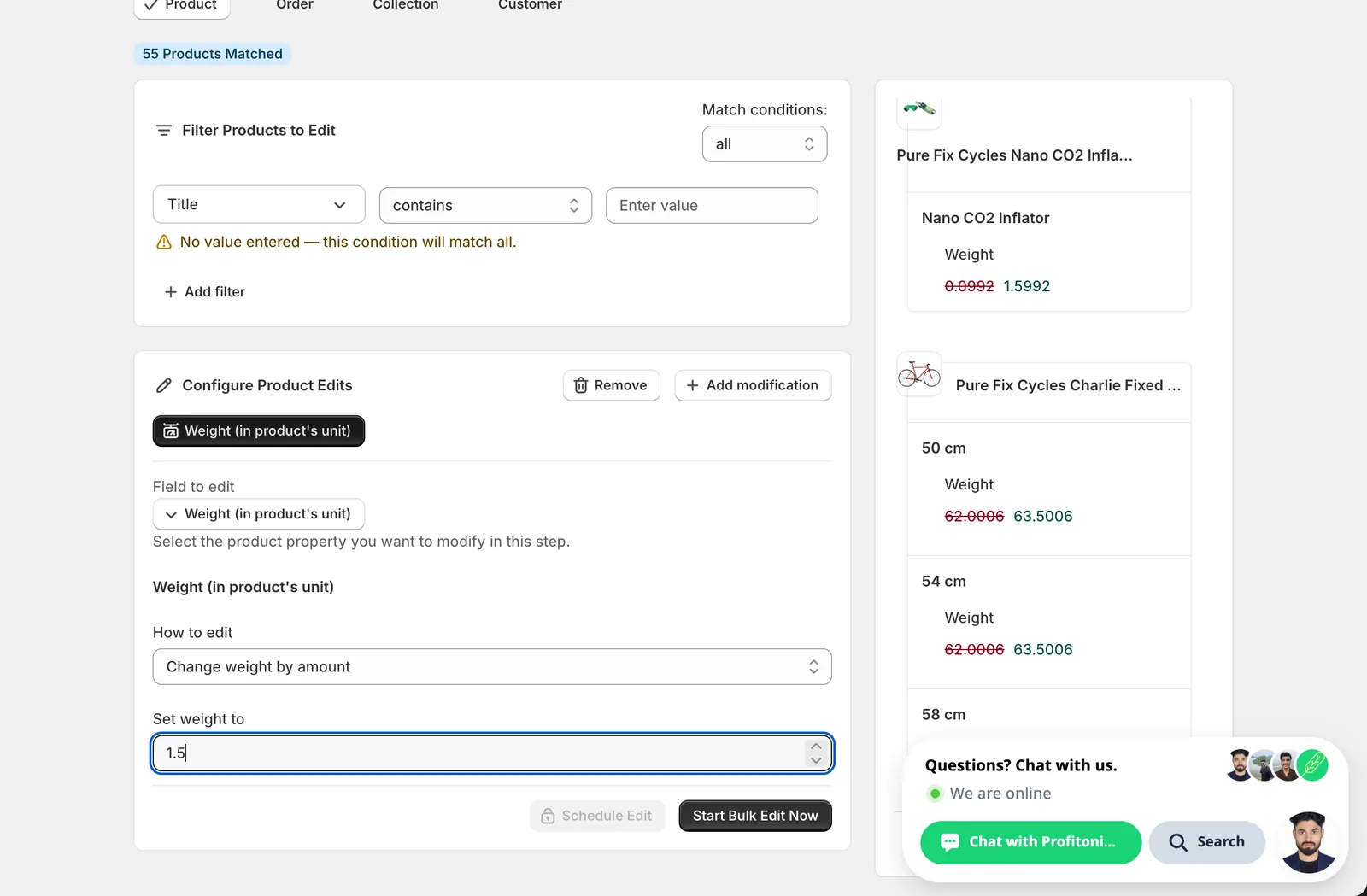
Variants with no weight set (
0) become exactly your input value when you adjust by amount —0 + 1.5 = 1.5. If you don't want to touch un-weighed variants, add a filter that requires Weight to be greater than 0.
After the run
- Weight changes are reversible from the History page using Undo.
- Change weight by amount is not idempotent — re-running it adds the amount again. A
+1.5re-run on a 1.5 kg variant yields 3 kg, then 4.5 kg, etc. - Weight is stored separately from Weight Unit. Editing one doesn't change the other. If you're switching from pounds to kilograms across the catalog, run two edits — one for the unit, one for the value — and remember the value won't be converted automatically.
- Variants with
requiresShipping = false(digital products, services) ignore weight entirely on the storefront, but the field will still be updated in the admin.
Frequently asked questions
How do I bulk edit weights on Shopify variants?
Select Weight (in product's unit) under Variant Fields in EditEngine, then choose one of two actions: Set weight to value, which gives every matched variant the exact weight you type, or Change weight by amount, which adds a number to each variant's existing weight — negative to subtract. The action runs once per matched variant.
Can I undo a bulk weight change in Shopify?
Yes, weight changes are reversible from EditEngine's History page using Undo. Be aware that Change weight by amount is not idempotent — re-running it adds the amount again, so a +1.5 re-run on a 1.5 kg variant yields 3 kg, then 4.5 kg. The Edit Preview shows the original value struck through next to the new one.
What unit does the weight number use when bulk editing Shopify variants?
The number is in each variant's own weight unit — kg, g, lb, or oz. The form shows a plain number with no unit suffix, so 1.5 means 1.5 in whatever unit the variant is already configured to use. Weight is stored separately from Weight Unit, and values aren't converted automatically when you change either field.
How do I add the same packaging weight to every Shopify variant at once?
Use Change weight by amount and type the overhead to add — the math is additive, current weight plus your value. Note that variants with no weight set become exactly your input value, since 0 + 1.5 = 1.5; if you don't want to touch un-weighed variants, add a filter that requires Weight to be greater than 0.
Does bulk editing weight affect digital products in Shopify?
Variants with requiresShipping set to false, such as digital products and services, ignore weight entirely on the storefront, but the field will still be updated in the admin when they match your filter. If you don't want those values changed, narrow the product filter before running the edit in EditEngine.