
Products
How to Bulk Edit Theme Template
Published by Profitonium Apps · Last updated
Switch many products onto a different theme template at once with EditEngine. If you've built an alternate product page in your theme — say product.lookbook.liquid for hero items or product.simple.json for accessories — this is how you assign it to a whole batch of products without opening each one.
Theme template is a product field. One template suffix per product (variants don't have their own template), so each matched product gets a single update.
You're typing the suffix, not the file name. Shopify product templates are named
product.<suffix>.liquidorproduct.<suffix>.json. EditEngine only wants the<suffix>part — forproduct.lookbook.liquid, typelookbook.
Step 1: Pick the Theme template field
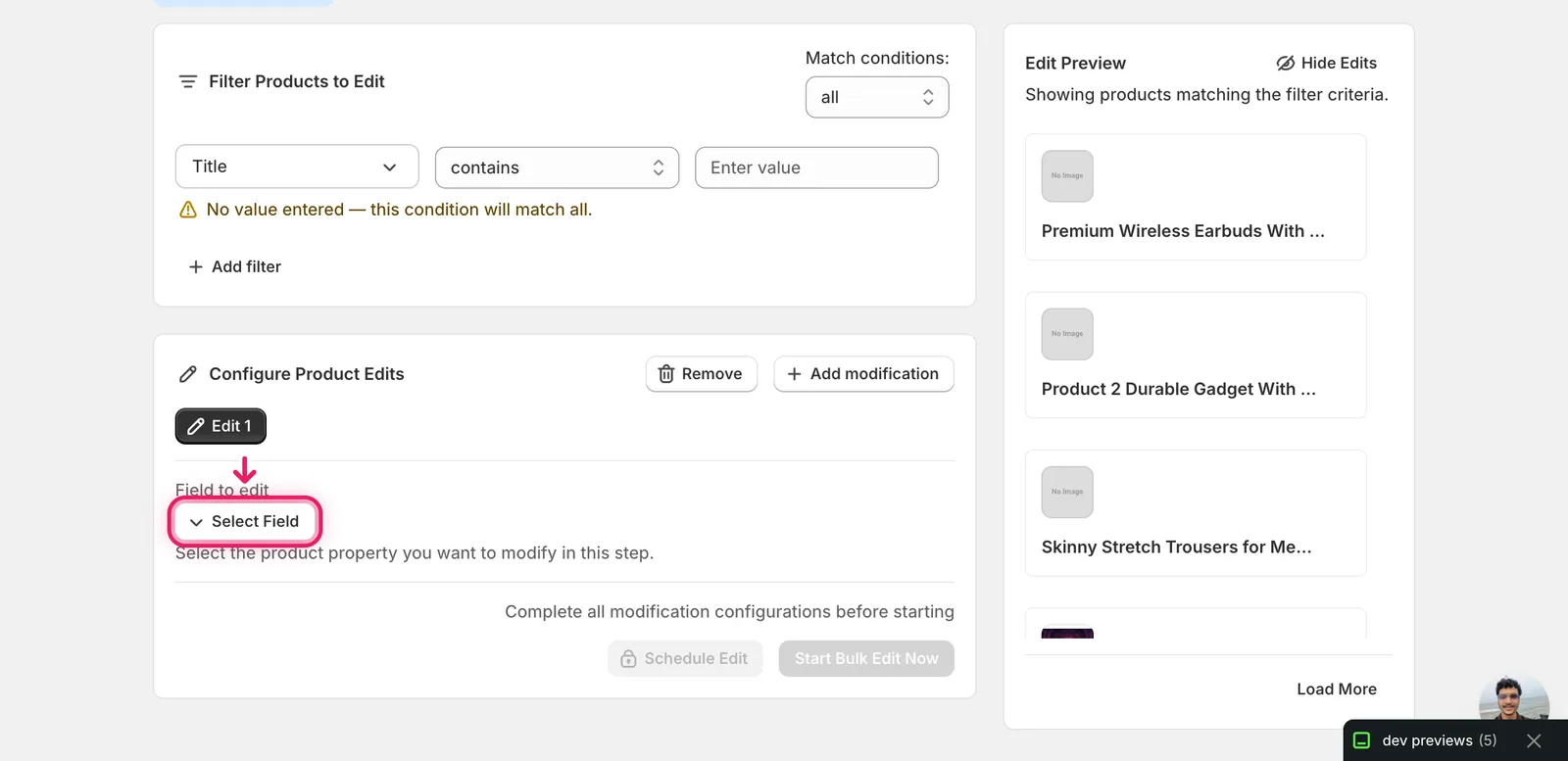
In the Configure Product Edits panel, click Select Field.
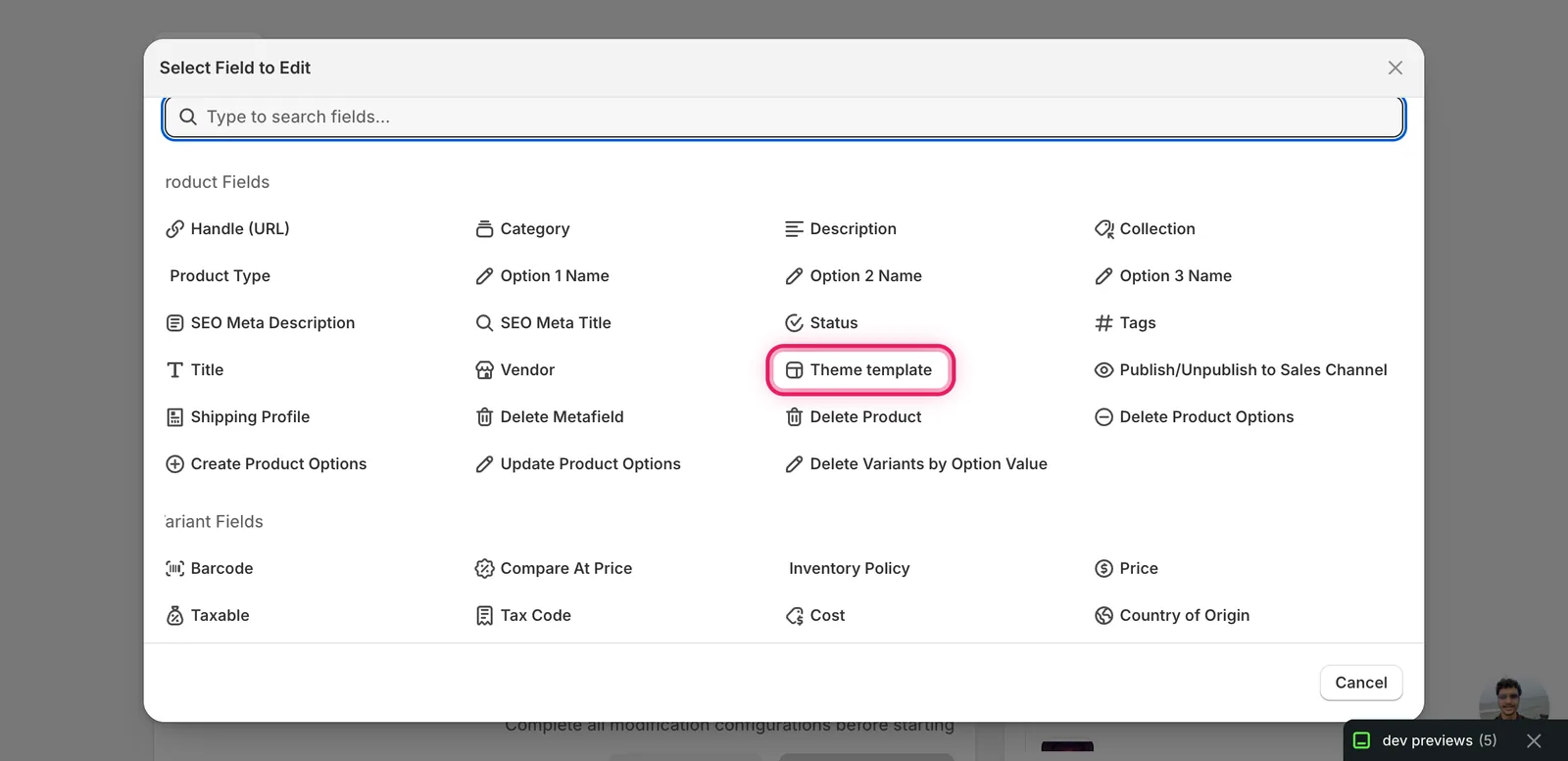
The Select Field modal opens. Theme template lives under Product Fields.
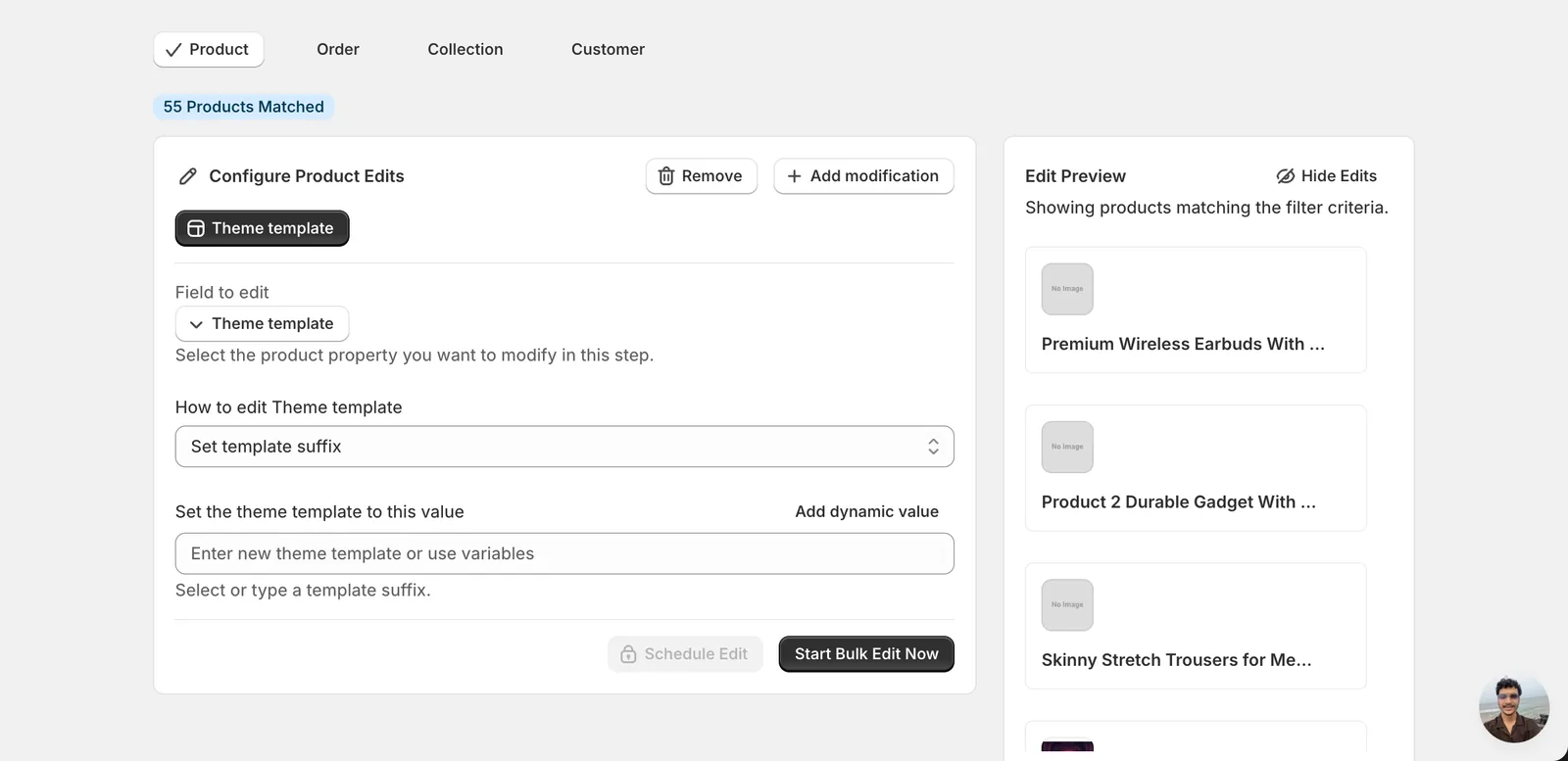
Click it. The configuration panel switches to a How to edit Theme template dropdown with one action — Set template suffix — and a value input below it.
Step 2: Enter the template suffix
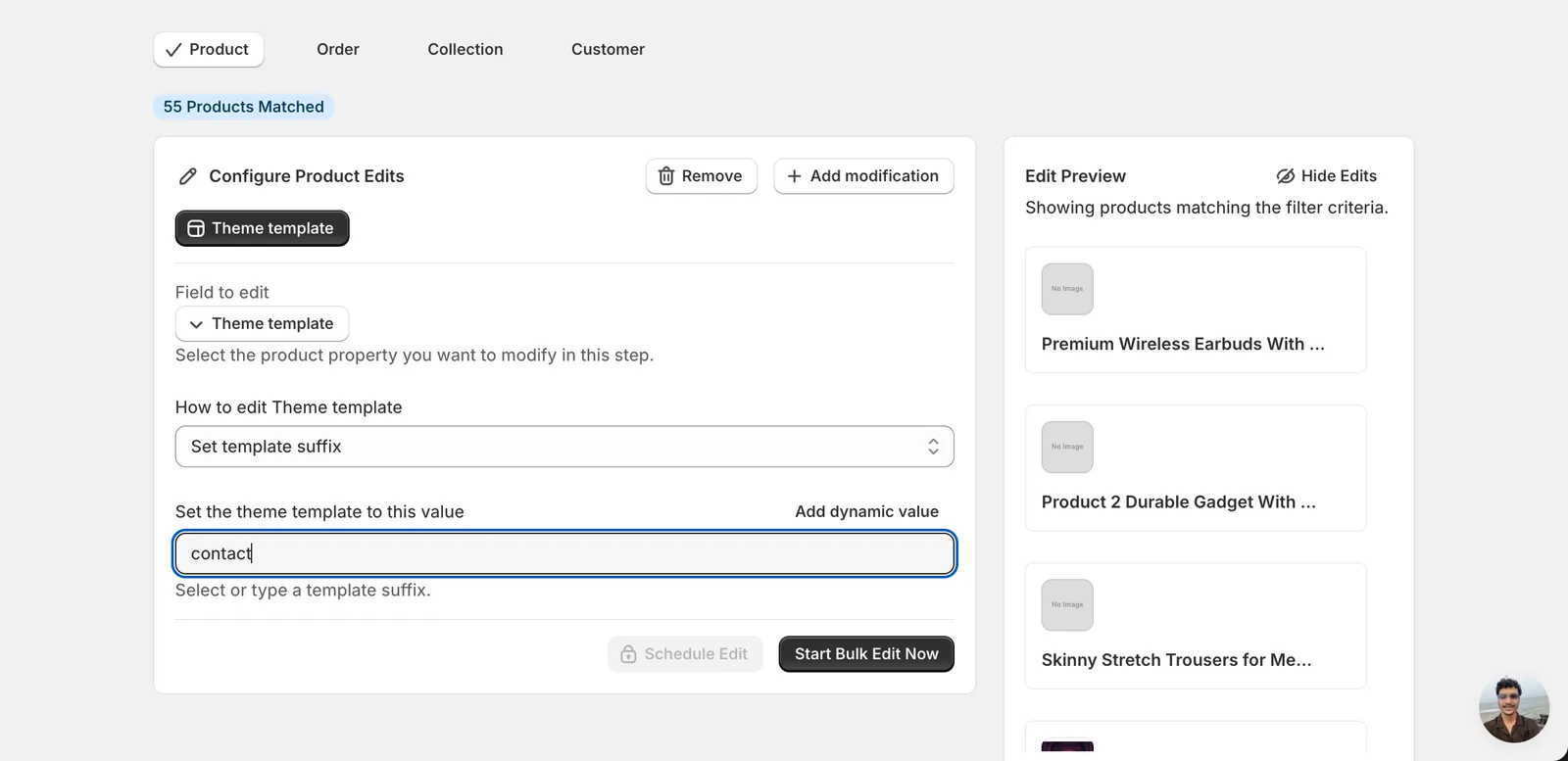
There's one action for this field: Set template suffix. Type the suffix into the value input.
What to type:
- Just the suffix. For
product.contact.liquid, typecontact. Forproduct.alternate.json, typealternate. Noproduct., no file extension. - Leave it blank to put products back on the default
product.liquid/product.jsontemplate. EditEngine treats an empty value as "clear the template suffix". - Case-sensitive. Match the file name exactly —
Lookbookandlookbookare different templates to Shopify.
Once you type a value the Start Bulk Edit Now button activates.
Make sure the template exists in your live theme. Shopify accepts whatever suffix you save, but if no template file matches, the storefront silently falls back to the default product template. Check Online Store → Themes → Customize → Templates for the list of suffixes available in the published theme before you run.
Use the Edit Preview on the right to see which products are about to change. The preview reflects the filter you set, so narrow the filter first if you only want a subset.
After the run
- Theme template changes are reversible from the History page using Undo.
- The change applies on the next storefront page load — no theme republish needed.
- Re-running the same edit is safe; setting
lookbookon a product that already haslookbookis a no-op. - If your theme uses different templates for different product types (e.g. apparel vs. digital), filter by Product Type or Tags before you run so you only retemplate the right group.
Frequently asked questions
How do I change the theme template on multiple Shopify products at once?
In EditEngine's Configure Product Edits panel, click Select Field and choose Theme template under Product Fields. There's a single action, Set template suffix — type the suffix into the value input and the Start Bulk Edit Now button activates. Every matched product switches to that template, and the change applies on the next storefront page load with no theme republish needed.
Do I type the full template file name when bulk editing Shopify theme templates?
No — just the suffix. Shopify product templates follow the pattern product.suffix.liquid or product.suffix.json, and EditEngine only wants the suffix part: for product.lookbook.liquid, type lookbook, with no product. prefix and no file extension. It's also case-sensitive — Lookbook and lookbook are different templates to Shopify, so match the file name exactly.
How do I reset Shopify products back to the default product template in bulk?
Leave the value input blank. EditEngine treats an empty value as clearing the template suffix, which puts matched products back on the default product.liquid or product.json template. Like other theme template edits, the change is reversible from the History page using Undo if you need to roll it back.
What happens if the template suffix I bulk-assign does not exist in my Shopify theme?
Shopify accepts whatever suffix you save, but if no template file matches, the storefront silently falls back to the default product template. Before you run, check Online Store → Themes → Customize → Templates for the suffixes available in the published theme, and use EditEngine's Edit Preview to confirm which products are about to change.
Is it safe to re-run a theme template bulk edit in Shopify?
Yes — re-running the same edit is safe, because setting lookbook on a product that already has lookbook is a no-op. Changes are also reversible from the History page using Undo. If your theme uses different templates for different product types, filter by Product Type or Tags first so you only retemplate the right group.