
Metafields
How to Bulk Delete a Variant Metafield
Published by Profitonium Apps · Last updated
Use this guide when you want to wipe a single metafield — identified by its namespace and key — off every variant of every product matched by your filter. EditEngine runs the delete in one pass: every matching variant on every matching product is cleared in a single bulk job.
This is destructive and per-variant. A product with 50 variants loses the metafield on all 50. The History page records the run but cannot recreate the metafield values — there is no Undo for this action.
Step 1: Filter the products whose variants you want to clean
In the Filter Products to Edit card, set conditions that match the products whose variant metafield you want to remove. The delete still targets variants — but the products you pick decide which variants get touched.
Common filters for variant metafield cleanups:
- Tag is
legacy-2024— clear an old size-spec metafield off variants of last season's products. - Product type contains
Apparel— wipe a fabric-care metafield from every apparel variant. - Title contains
Sample— remove a temp metafield used during a launch from sample products only.
Leaving the filter empty matches every product — and therefore every variant — in the store. That's almost never what you want for a deletion.
Step 2: Open the Select Field modal
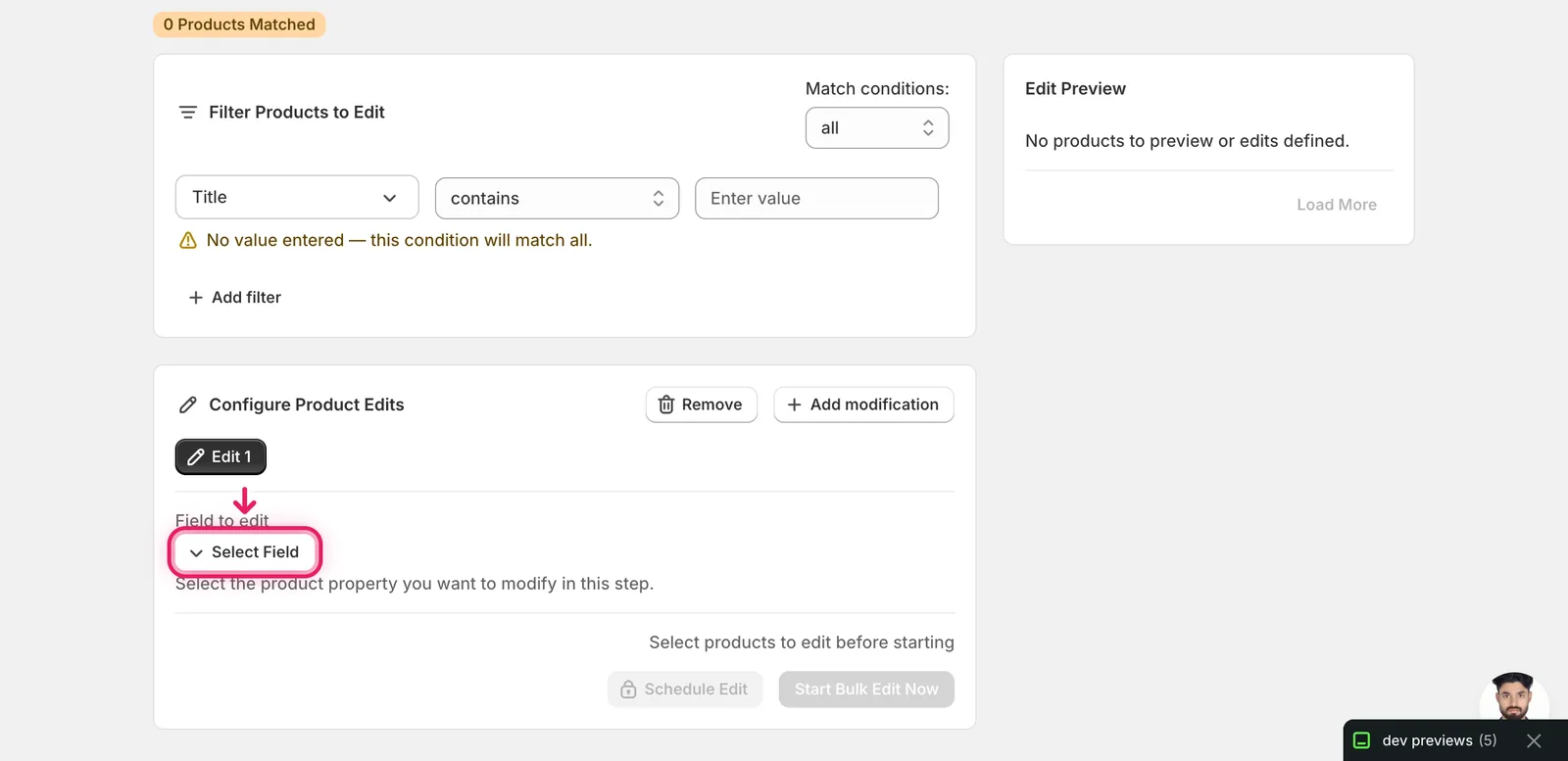
In the Configure Product Edits panel, click Select Field.
Step 3: Choose Delete Variant Metafield
The modal lists every editable property in EditEngine's Bulk Editor, grouped by section. Delete Variant Metafield sits at the bottom of the Variant Fields group, after Inventory Management.
If you can't spot it, type metafield into the search box at the top of the modal — both Delete Metafield (product-level) and Delete Variant Metafield will surface. Pick the variant one.
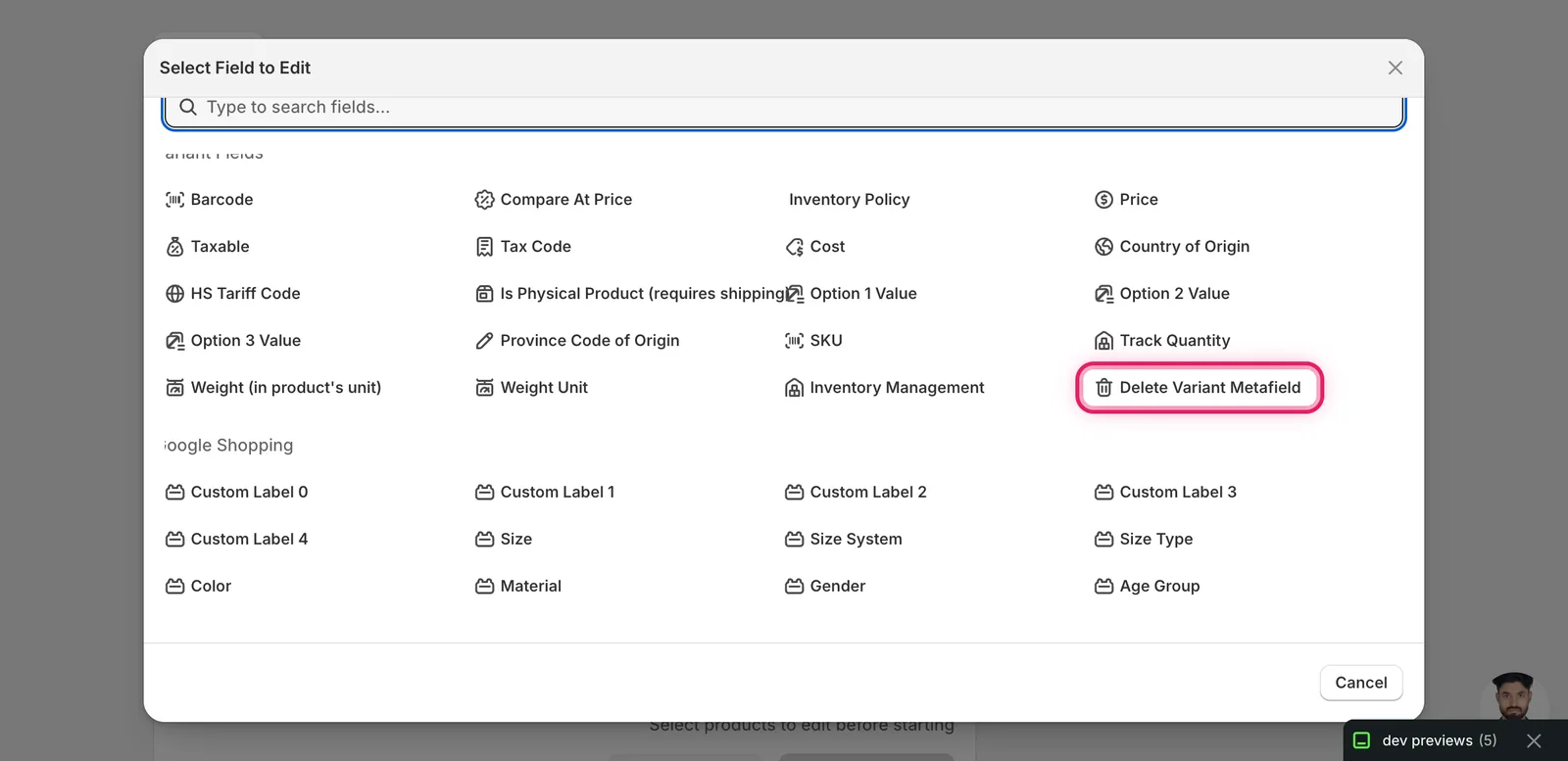
Click it. The configuration panel switches to the Delete Variant Metafield form — a red warning line plus two text inputs: Namespace and Key.
Step 4: Enter the metafield's namespace and key
Every Shopify metafield is identified by two parts. Both are required and must match exactly. There's no fuzzy matching, no autocomplete, no picker — what you type is what gets matched against each variant's metafields.
- Namespace — the group the metafield belongs to. Common values:
custom,my_fields,global, or an app-scoped namespace likeapp--12345--reviews. - Key — the specific field name within that namespace, e.g.
fabric_care,size_chart,barcode_alt.
You can find the exact pair on any variant in Shopify admin: open a product, scroll to a variant's Metafields section, click the metafield, and Shopify shows the namespace and key in the URL or the metafield definition panel under Settings → Custom data → Variants.
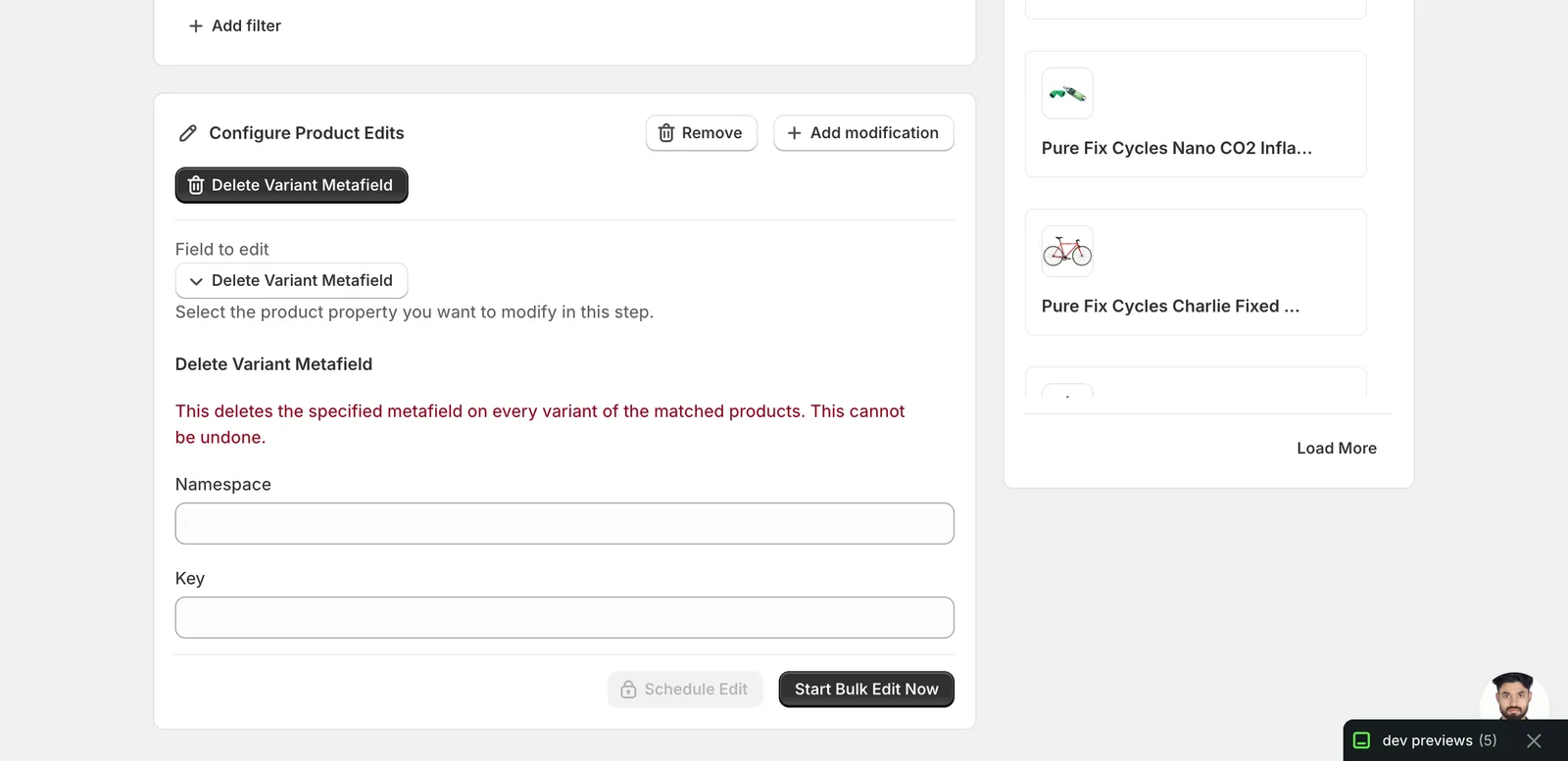
Type the namespace and key. The example below targets the custom.fabric_care metafield — stored under namespace custom with key fabric_care.
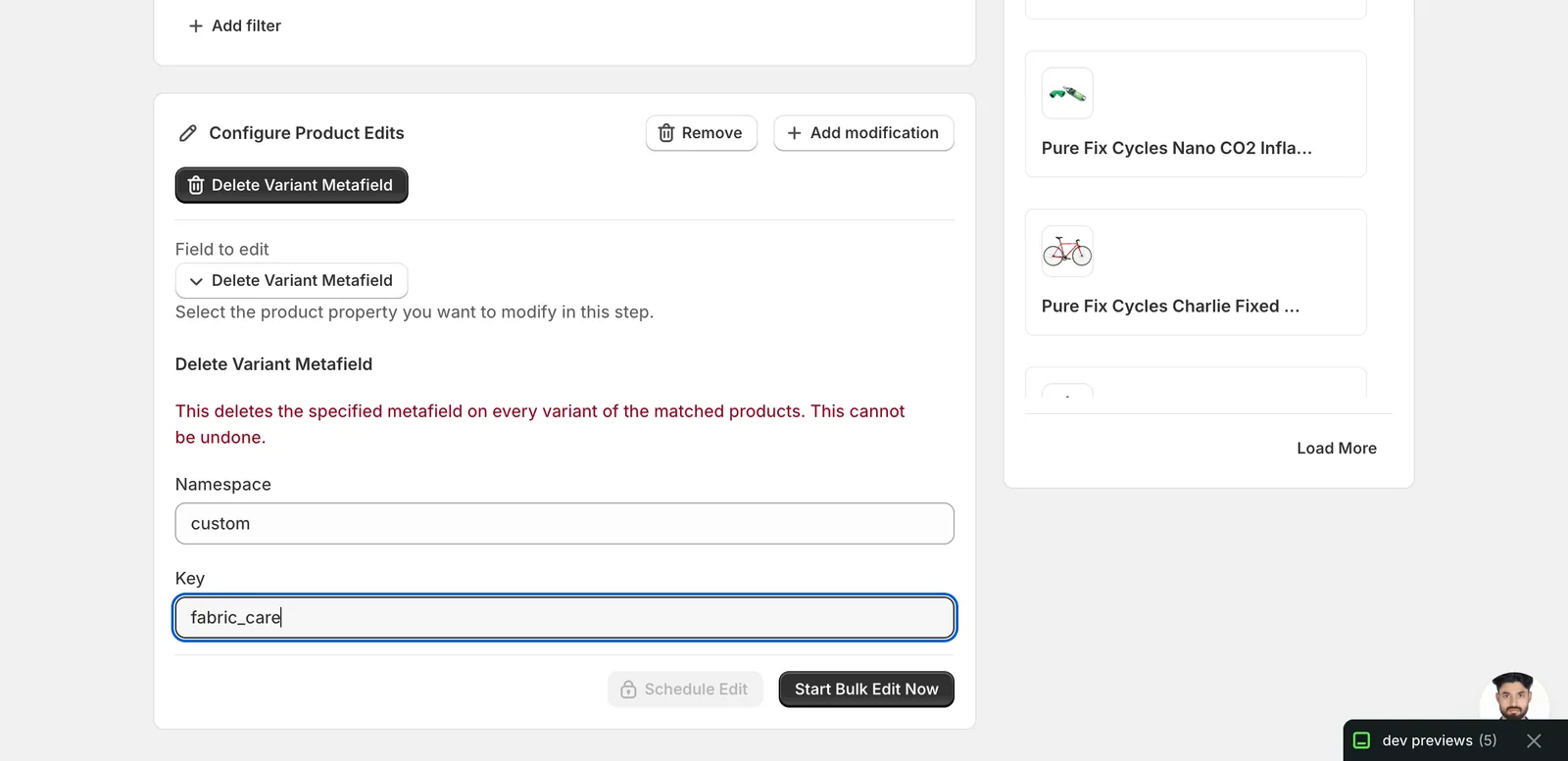
Mismatched namespace or key = nothing deleted. EditEngine walks every variant on every matched product and only removes a metafield if both values match exactly. Variants without that exact metafield are skipped silently — no error, no partial match, no warning. Double-check spelling and case before you run.
Step 5: Run the delete
Re-check the Products Matched count near the top of the page and the list in Edit Preview on the right. That's how many products will be processed — but remember every variant on each of those products is in scope. A 100-product match with 10 variants each means 1,000 variant metafields cleared.
Once you're sure, click Start Bulk Edit Now.
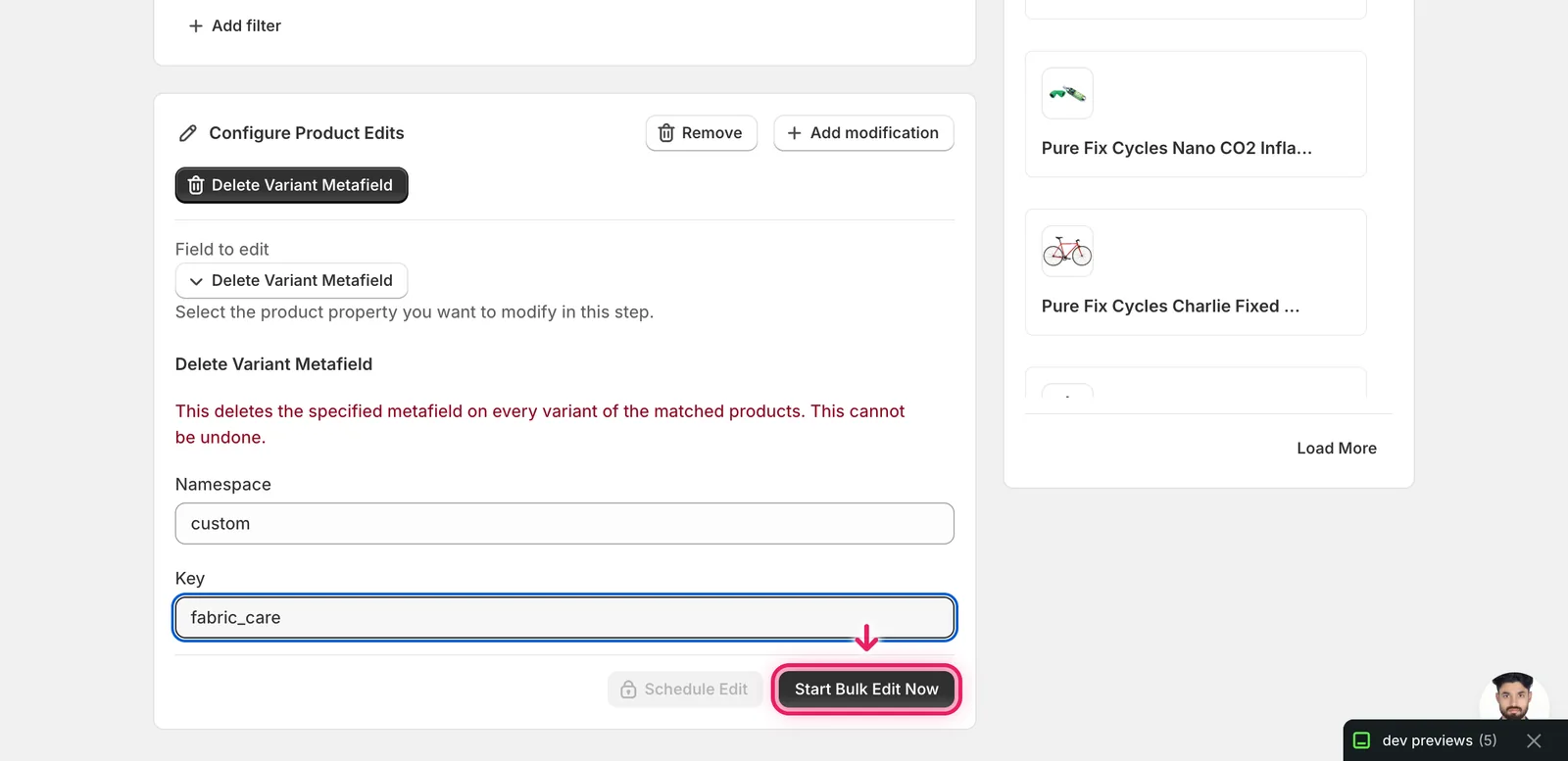
EditEngine queues the job and processes the products in the background. Watch progress on the History page.
After the run
- No undo. Unlike Title or Price edits, deleted metafields cannot be restored from EditEngine's History page. The run is logged for audit, but the values are gone.
- Want a safety net? Run an Export of the matched products with the variant metafield column included before deleting. That CSV is your only way back if you change your mind.
- The definition stays. This action removes the metafield value from each variant. The metafield definition in Settings → Custom data → Variants is untouched — variants will simply have no value for that definition until you fill them again.
- Product-level metafields are not affected. This action only touches variant metafields. To wipe a metafield off the product itself, pick Delete Metafield from the same modal.
- Variants without the metafield are skipped. If only some variants had a value set, the others are simply ignored. The job will not error — it just clears whatever it finds.
Frequently asked questions
How do I delete a variant metafield from all Shopify products at once?
In EditEngine, filter the products whose variants you want to clean, click Select Field, and pick Delete Variant Metafield at the bottom of the Variant Fields group. Enter the metafield's exact namespace and key, then click Start Bulk Edit Now — every matching variant on every matched product is cleared in a single bulk job.
Can I undo a bulk variant metafield delete in Shopify?
No. Unlike Title or Price edits, deleted metafields cannot be restored from EditEngine's History page — the run is logged for audit, but the values are gone. As a safety net, run an Export of the matched products with the variant metafield column included before deleting; that CSV is your only way back.
Why didn't my Shopify variant metafields get deleted?
Namespace and key must both match exactly — there's no fuzzy matching, autocomplete, or picker. EditEngine walks every variant on every matched product and only removes a metafield when both values match; variants without that exact metafield are skipped silently with no error or warning. Double-check spelling and case before you run.
Does deleting variant metafields remove the metafield definition in Shopify?
No. The action removes the metafield value from each variant, but the definition under Settings, Custom data, Variants is untouched — variants simply have no value for that definition until you fill them again. Product-level metafields are also unaffected; EditEngine has a separate Delete Metafield action for those.
How many variants will a bulk metafield delete affect in Shopify?
Every variant on every matched product is in scope — a 100-product match with 10 variants each means 1,000 variant metafields cleared. Before running, re-check the Products Matched count and the Edit Preview in EditEngine, and remember that leaving the filter empty matches every product in the store, which is almost never what you want for a deletion.