
Products
How to Bulk Publish or Unpublish Products to a Sales Channel
Published by Profitonium Apps · Last updated
Use the EditEngine bulk editor to publish (or unpublish) many Shopify products to a single sales channel — Online Store, Point of Sale, an embedded app channel, anything you have installed. Pick the action, pick the channel, run. No spreadsheets, no clicking each product.
This is an action, not a value edit. You're not setting a field — you're either adding products to a channel's listing (Publish) or removing them (Unpublish). One channel per run.
Channel availability is separate from product Status. A product can be Active and still hidden from a channel because it isn't published there. This guide is for fixing that — pointing the right products at the right channel.
Step 1: Pick the Publish/Unpublish field
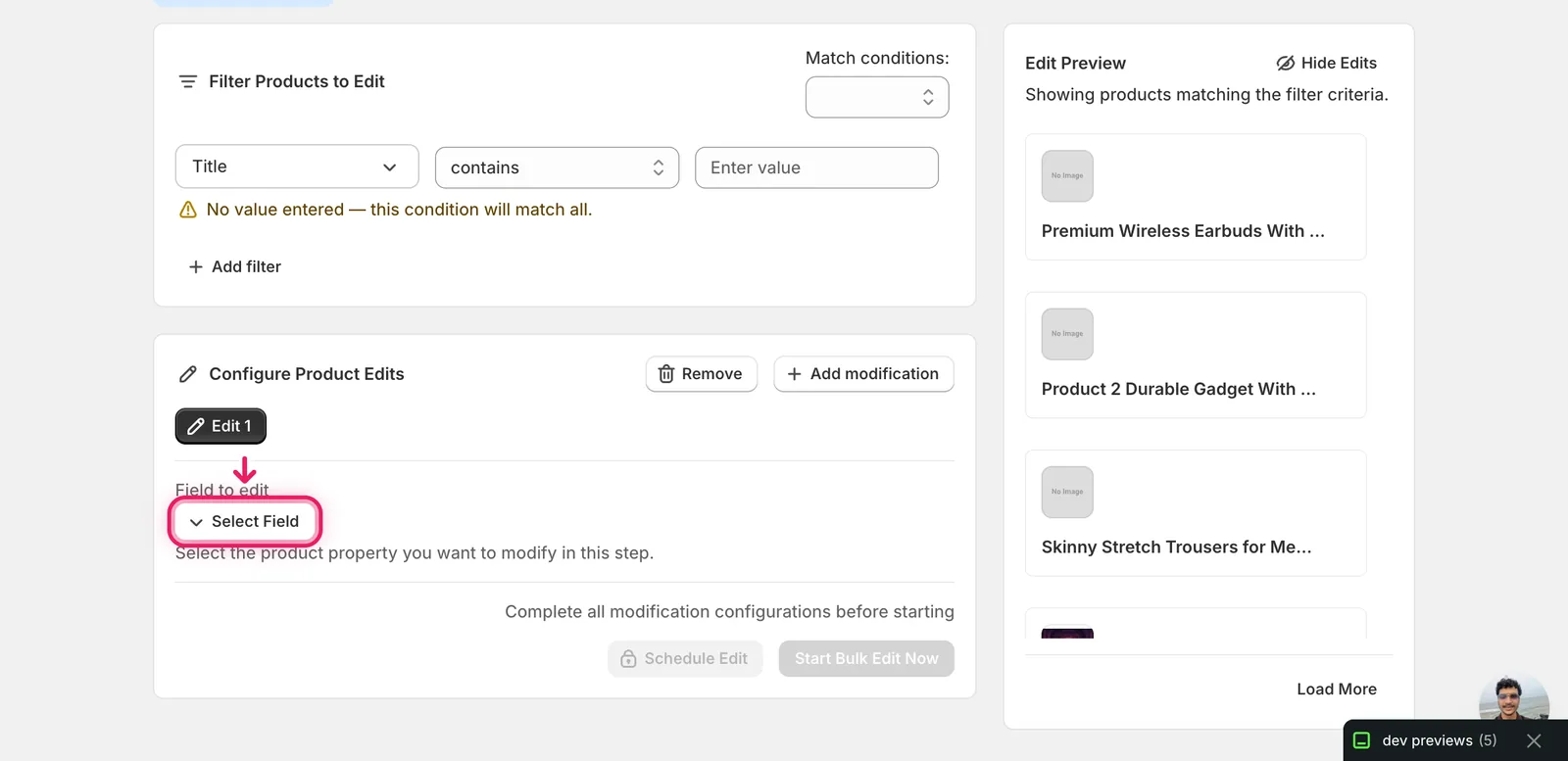
In the Configure Product Edits panel, click Select Field.
The Select Field modal opens. Publish/Unpublish to Sales Channel lives under Product Fields, on the right column near the bottom.
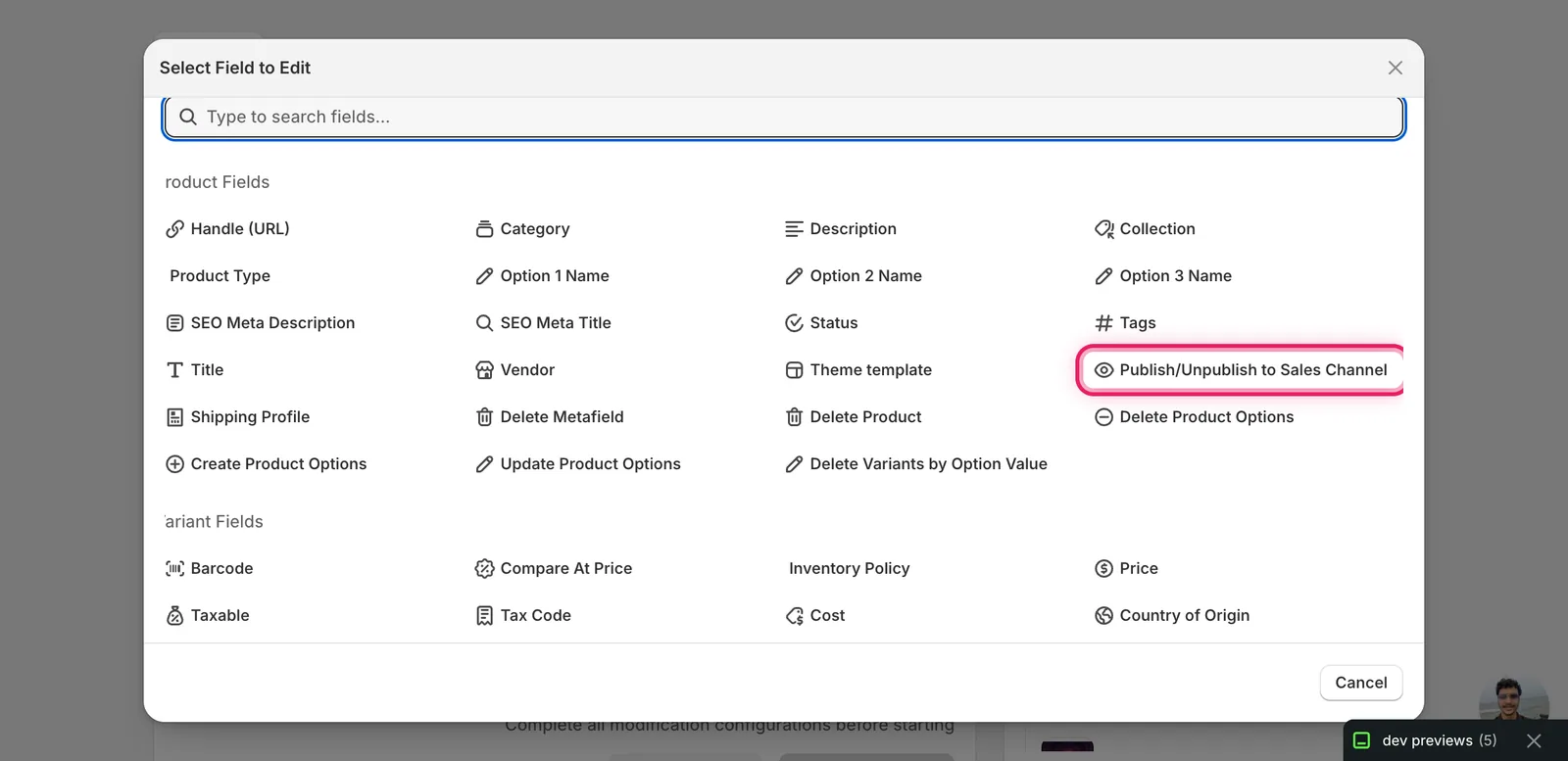
Click it. The configuration panel switches to the Publish/Unpublish form.
Step 2: Grant publications access (one-time)
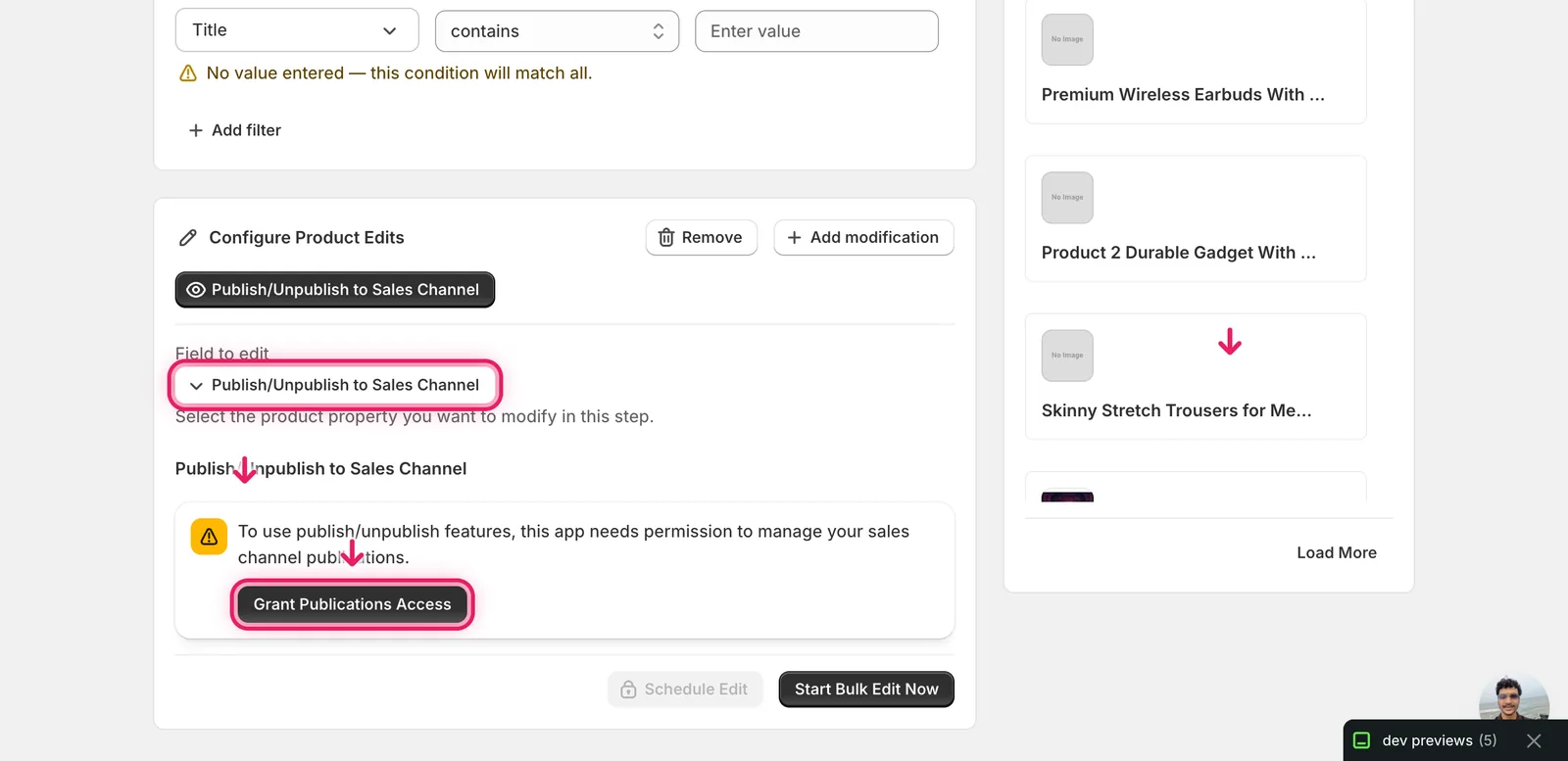
The first time you use this field, EditEngine asks for an extra Shopify scope so it can manage publications on your behalf. You'll see a banner:
To use publish/unpublish features, this app needs permission to manage your sales channel publications.
Click Grant Publications Access.
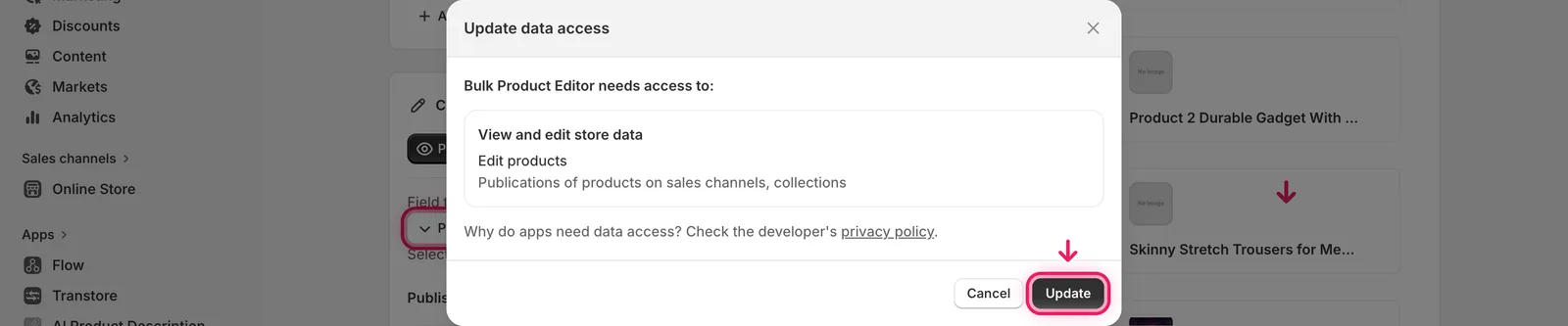
Shopify pops up its standard data-access dialog showing exactly what the app is asking for: Edit products and Publications of products on sales channels, collections. Click Update to approve.
You only do this once per store. After approval the banner disappears and the actual Action/Publication form takes its place. If you ever rotated app permissions or this is a brand-new install, the banner returns and you repeat this step.
No grant, no run. Until you click Update, the rest of the form stays hidden — there's nothing else to fill in.
Step 3: Choose Publish or Unpublish
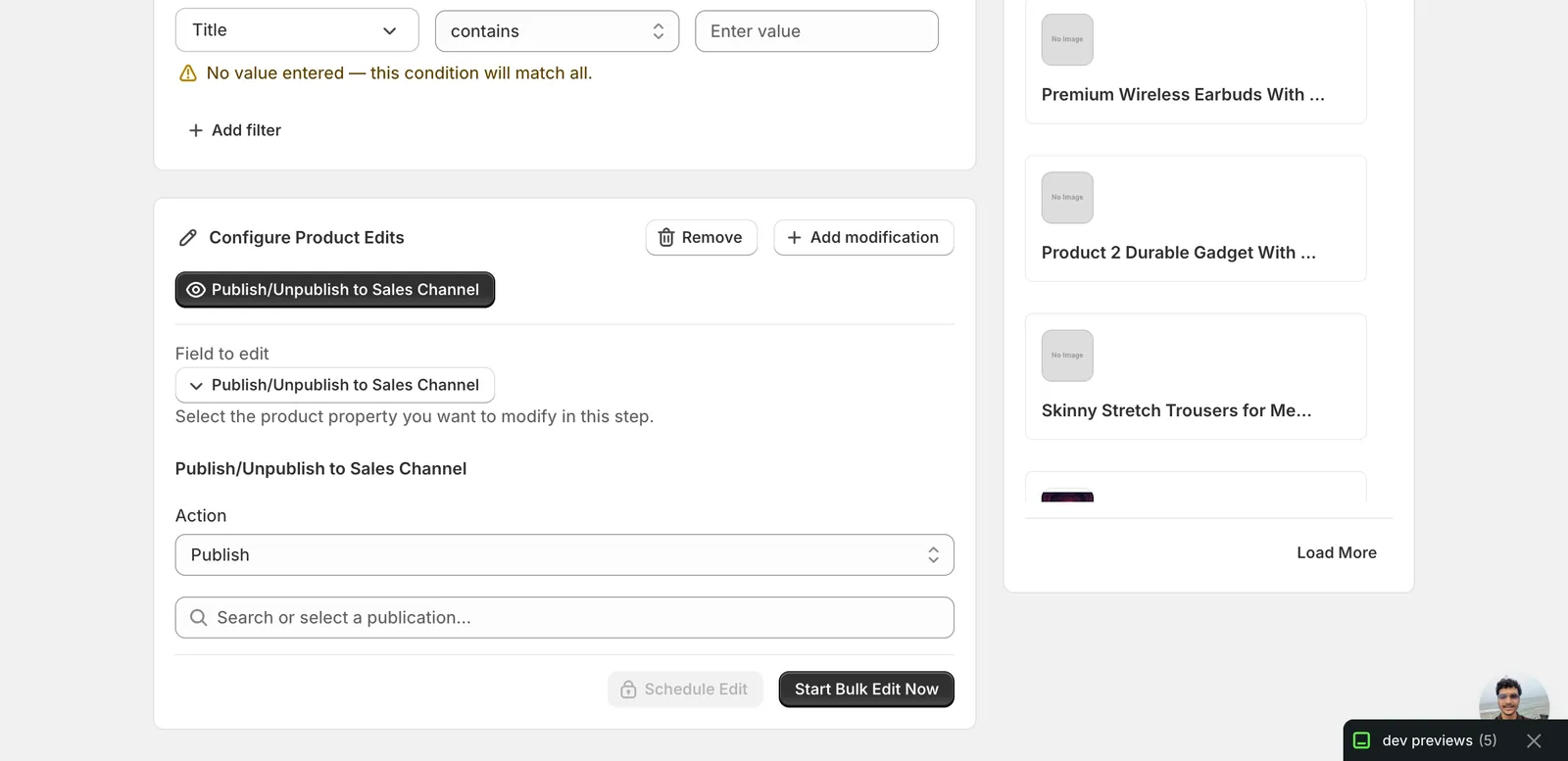
The form has two controls: an Action dropdown and a Publication picker.
The Action select has exactly two options:
- Publish — adds the product to the chosen channel's listings. Customers on that channel can now see it.
- Unpublish — removes the product from the chosen channel's listings. The product still exists and stays available on other channels it's published to.
That's it for actions. There's no "publish to all", no toggle, no schedule-future-date inside the form (use Schedule Edit at the bottom for timed runs).
Step 4: Pick the sales channel
Click the Search or select a publication... field. EditEngine loads every sales channel installed on your store and shows them in a dropdown. Examples: Online Store, Point of Sale, Shop, Google & YouTube, TikTok, Facebook & Instagram, custom storefront apps.
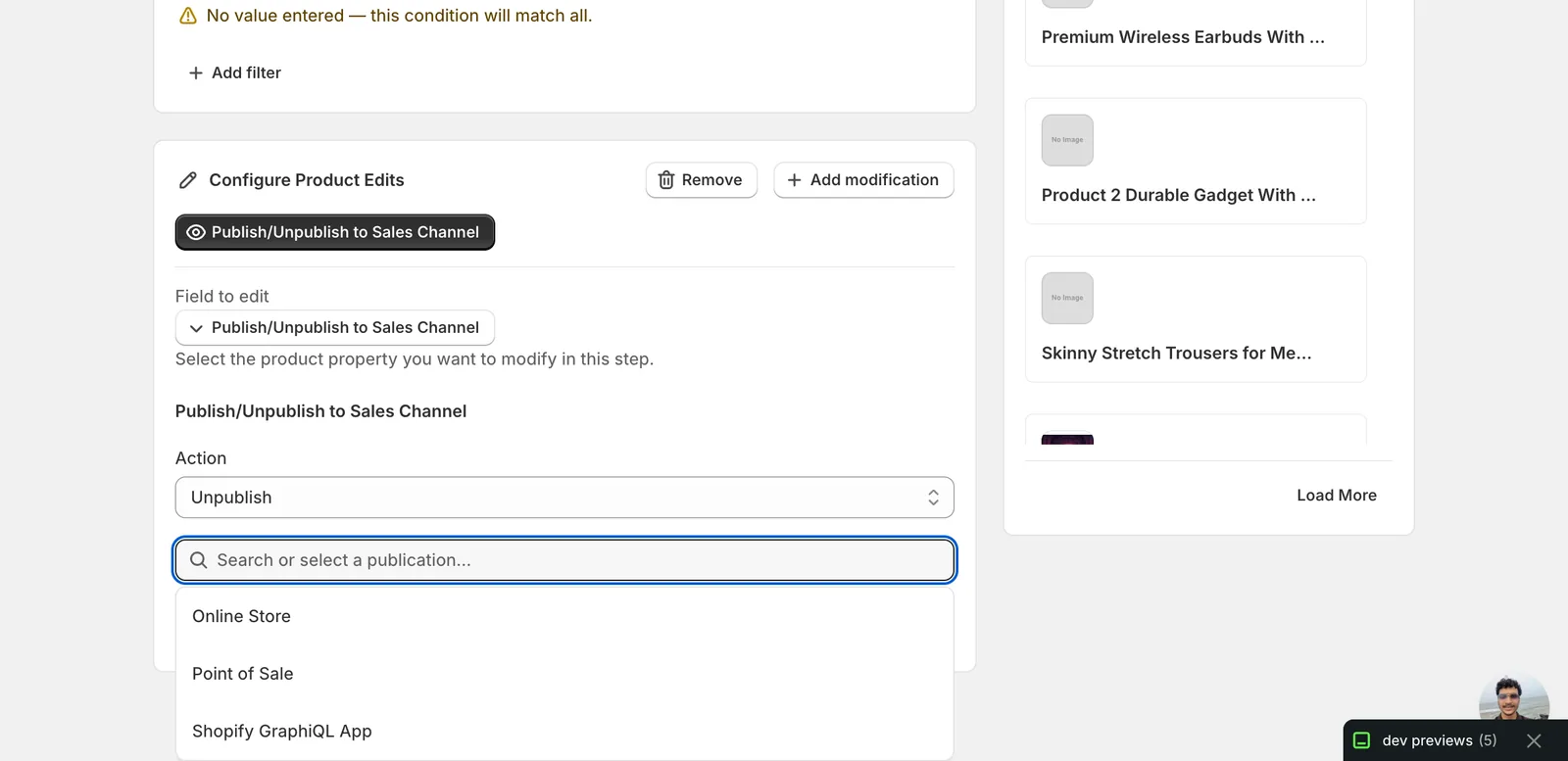
Click the channel you want. You can only pick one channel per edit step. To affect two channels in the same run, click + Add modification to add a second Publish/Unpublish step.
The form starts empty by default — no channel pre-selected, no defaults guessed:
Type to filter. If you have a long channel list, the picker filters as you type —
posjumps to Point of Sale.
Step 5: Run the edit
With both Action and Publication set, Start Bulk Edit Now activates. Click it to apply to every product matched by your filter.
You can also click Schedule Edit to queue it for a specific time — useful for kicking off a launch at midnight or pulling holiday-only items off Online Store on January 2nd.
Skim the Edit Preview first. The right-hand panel lists the products that match your filter. Confirm you've got the right scope before you run — there's no "are you sure?" gate after the click.
After the run
- Reverting is a re-run, not a one-click undo. From the History page, pick the run and use the revert option — EditEngine will create a new bulk edit with the inverse action (Publish becomes Unpublish, and vice versa) targeting the same products. That step still has to be reviewed and run; it isn't a silent undo.
- Re-running the same edit is safe. Publishing an already-published product is a no-op for that channel.
- Unpublishing a product from its last active channel doesn't archive or delete it — the product stays in your catalog with its existing Status. To take a product fully off-sale, change its Status to Draft or Archived in addition to (or instead of) unpublishing.
- Publishing only adds the product to the channel's catalog. It does not change the product's Status, price, or any other field. If a product is in Draft, publishing it to Online Store won't make it visible to shoppers — Status still has to be Active.
Tip for Shopify merchants new to bulk editing: combine Publish/Unpublish with the filter conditions at the top of the page (vendor, tag, collection, status, price band) so you only flip the products you mean to. EditEngine is the bulk editor for the messy real-world case — "everything from this vendor that's currently Active, take it off Point of Sale."
Frequently asked questions
How do I publish hundreds of Shopify products to a sales channel at once?
In EditEngine, click Select Field and choose Publish/Unpublish to Sales Channel under Product Fields. Pick the Publish action, select one channel — Online Store, Point of Sale, Google & YouTube, TikTok, or any installed channel — then click Start Bulk Edit Now to apply it to every product matched by your filter.
Can I undo a bulk publish or unpublish in Shopify?
Reverting is a re-run, not a one-click undo. From EditEngine's History page, pick the run and use the revert option — it creates a new bulk edit with the inverse action (Publish becomes Unpublish, and vice versa) targeting the same products. You still review and run that new step yourself.
Why is my Shopify product still hidden after publishing it to the Online Store?
Publishing only adds the product to the channel's catalog — it doesn't change the product's Status, price, or any other field. If the product is in Draft, it stays invisible to shoppers until Status is Active. Channel availability and Status are separate, so check both when a product isn't showing.
Why does EditEngine ask for publications access before I can bulk publish?
The first time you use this field, EditEngine needs an extra Shopify scope to manage sales channel publications on your behalf. Click Grant Publications Access, then approve Shopify's standard data-access dialog. It's a one-time step per store — until you approve, the rest of the form stays hidden.
Can I unpublish Shopify products from two sales channels in one run?
You can pick only one channel per edit step, but you can add a second Publish/Unpublish step in the same run with the Add modification button. Re-running an edit is also safe — publishing an already-published product is a no-op for that channel.