
Variants & options
How to Bulk Delete Product Options
Published by Profitonium Apps · Last updated
Use Delete Product Options in EditEngine to remove an option (like Size, Color, or Material) from many products in one run. Pick which option positions to delete (1, 2, or 3), choose a delete strategy, and apply across every product that matches your filter.
This action is irreversible. Deleted options — and any variants tied to them — are permanently removed. There is no Undo from the History page for this edit. Filter carefully and check the Edit Preview before you start.
Options are addressed by position, not name. Shopify products store up to three options as Option 1 / Option 2 / Option 3. EditEngine deletes by position number, not by the option name. Two products in your filter set with different option layouts (one with
Sizeat position 1, another withColorat position 1) will both have their position-1 option deleted in the same run.
Step 1: Pick the Delete Product Options field
In the EditEngine bulk editor, open the Configure Product Edits panel and click Select Field.
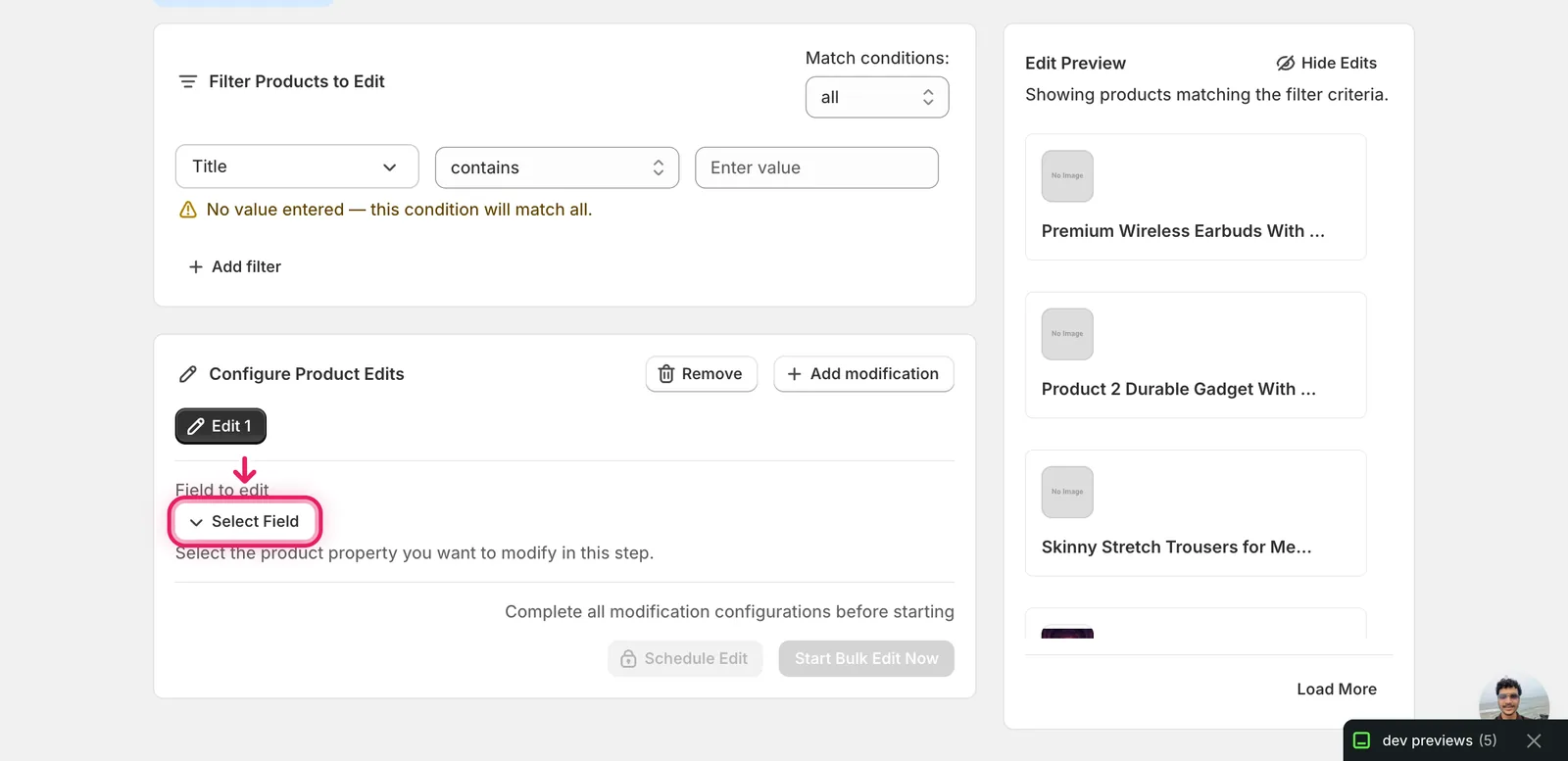
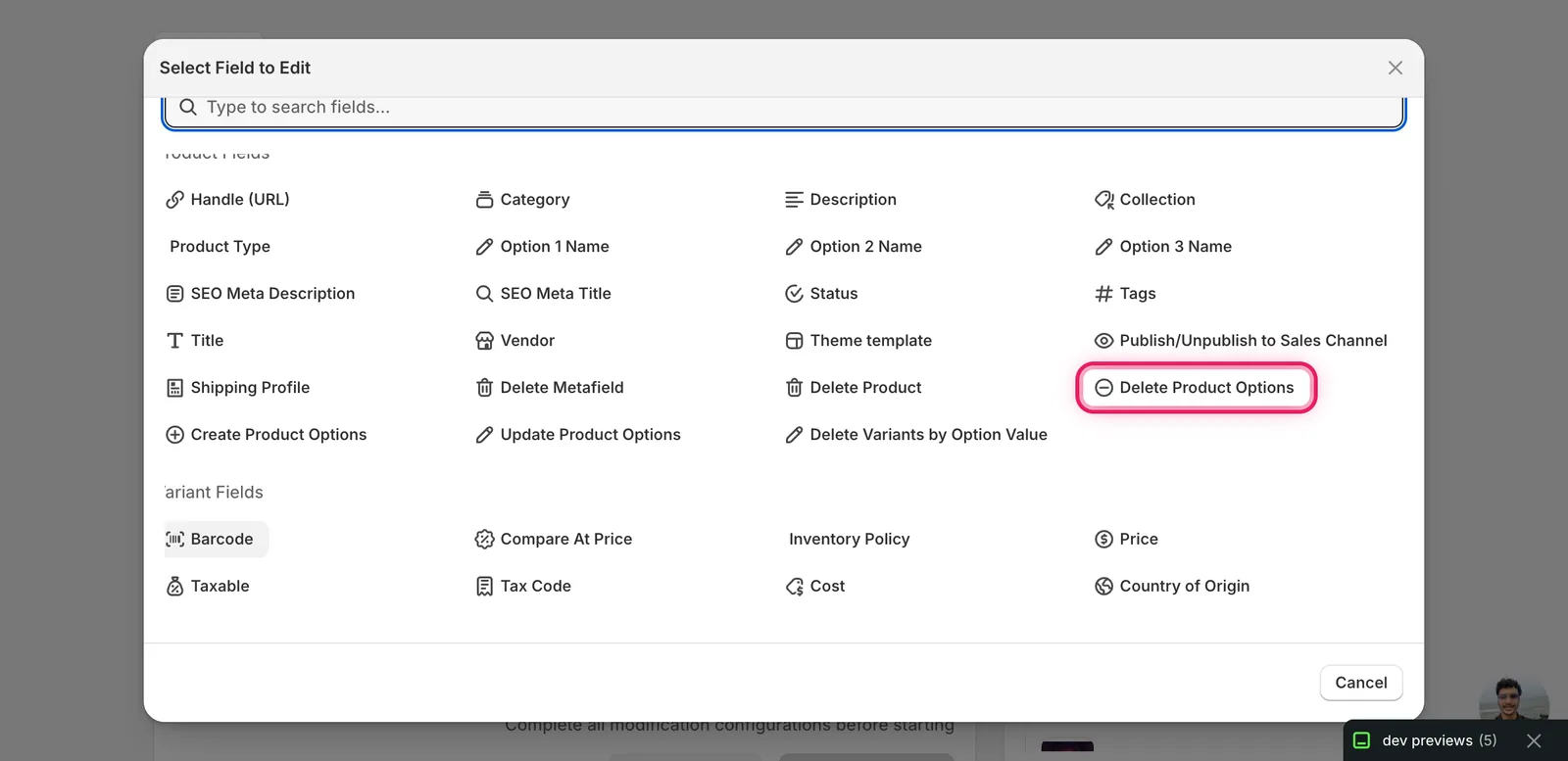
The Select Field modal opens. Scroll to Product Fields and click Delete Product Options — it sits in the row with Create Product Options, Update Product Options, and Delete Variants by Option Value.
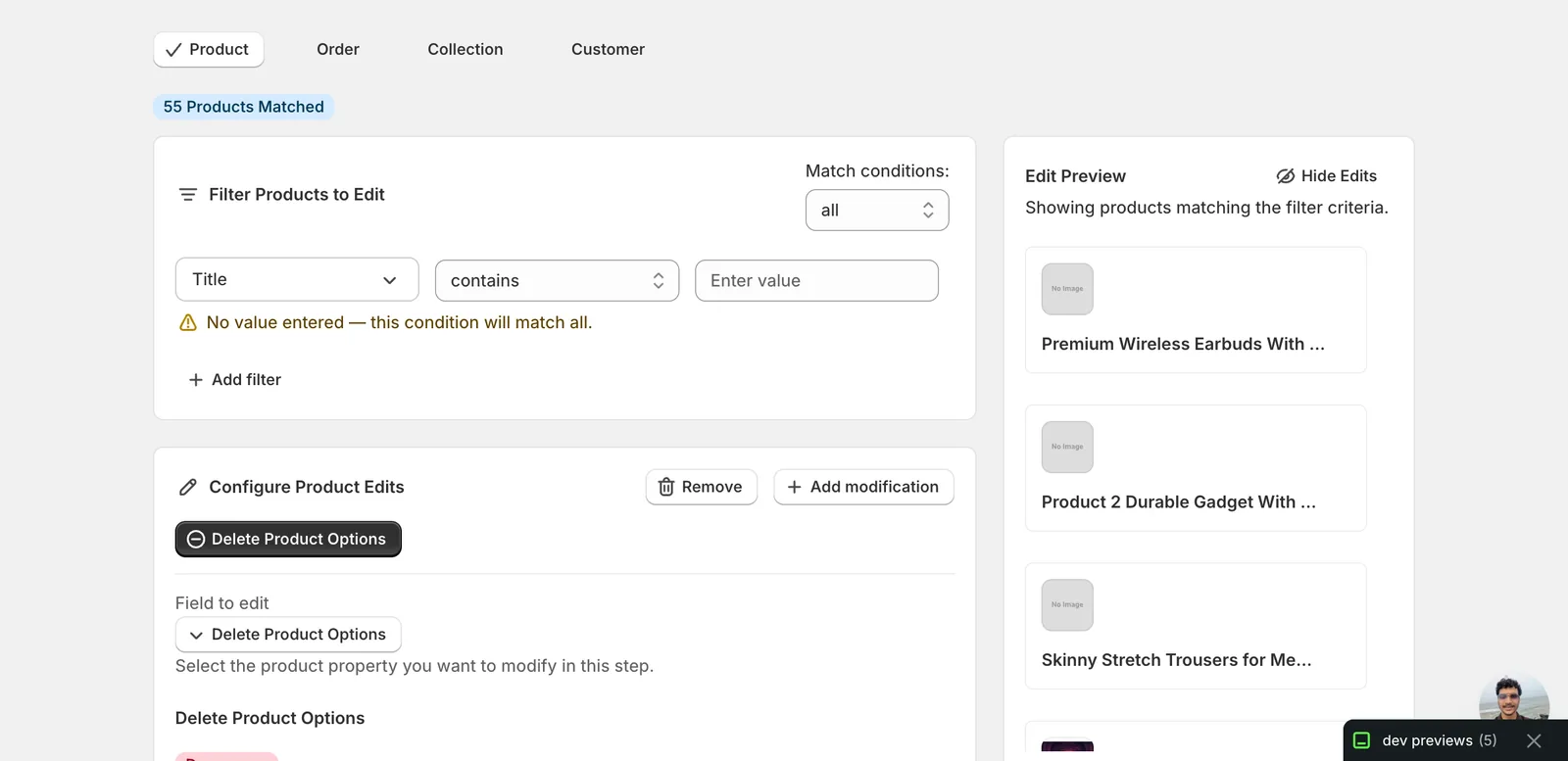
The configuration panel switches over. The field selector now shows Delete Product Options, and the form for this action appears below.
Step 2: Read the form
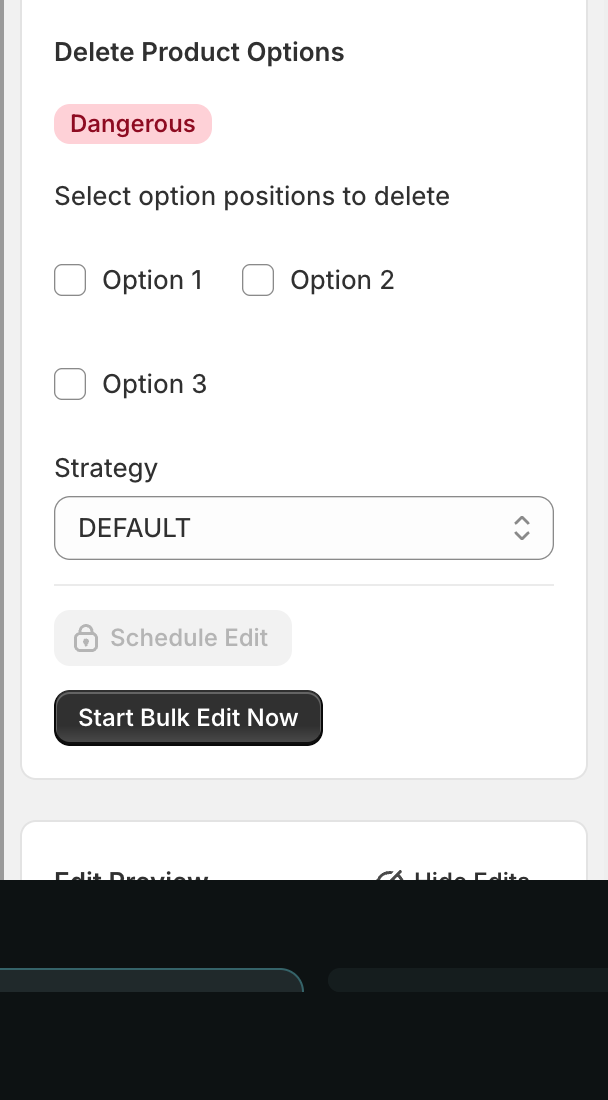
The form is short on purpose — there are only two things to set, and a critical warning.
What gets removed when you run this:
- The product option at the position(s) you pick (e.g. position 1's
Sizeoption). - Every variant that was associated with values of that option.
- The associated images, inventory, SKUs, barcodes, and metafields tied to those deleted variants.
What stays:
- The product itself, its title, description, vendor, type, tags, and other product-level fields.
- The remaining options at other positions.
- Variants tied only to the surviving options (when there are any).
Reminder: EditEngine's History page has no Undo for
productOptionsDelete. The only way to "recover" is to recreate the options and variants from a CSV export taken before the run. Export first if you might want them back.
Step 3: Pick which option positions to delete
Tick the boxes for the position numbers you want gone. You can pick one, two, or all three.
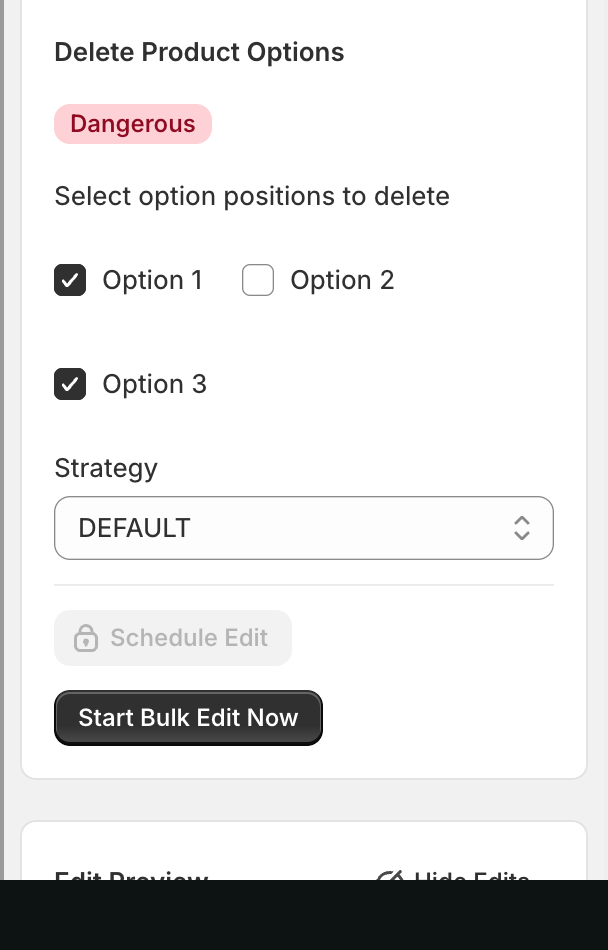
How to think about positions:
- Option 1 — the first option Shopify stored for the product (usually the most prominent one — Size, Color, or whatever the merchant set up first).
- Option 2 — the second option, if the product has one.
- Option 3 — the third option.
Products with fewer options than the positions you select are skipped automatically — Delete Product Options only acts on positions that exist on a given product. So picking Option 3 on a product that only has Option 1 does nothing to that product.
Sanity check before running: open one of the products in your filter in Shopify admin and confirm what each numbered position actually is. Position 1 in your store might be
Sizefor shirts butColorfor shoes. The bulk run treats them all the same.
Step 4: Choose a Strategy
The Strategy dropdown maps directly to Shopify's ProductOptionDeleteStrategy. Two values are exposed:
- DEFAULT — recommended for almost every run. Performs the deletion as Shopify's standard product-option delete: removes the option and its associated variants. Leave this selected unless you have a specific reason to change it.
- POSITION — re-positions the remaining options to fill the gap left by the deleted one. Use this if you need the surviving options to renumber down (e.g. you delete Option 1 and want Option 2 to become Option 1 on every matched product).
If you're not sure, leave it on DEFAULT and run a small filtered test first. The Strategy choice applies to every product in the run; you can't mix per-product.
Step 5: Filter to exactly the products you want changed
This is the most important step. Once you click run, every product matching your filter has the chosen option positions deleted — there is no per-product confirmation prompt.
Use the Filter Products to Edit panel above the configuration to narrow the set:
- Filter by Title contains / does not contain to target a name pattern.
- Filter by Vendor, Product Type, Tags, Status, or any other supported field to scope by attribute.
- Combine multiple conditions with the Match conditions dropdown (
allrequires every condition;anymatches if at least one fits).
The right-hand Edit Preview column lists every product that matches your current filter. Skim it before running. Any product shown there is a product whose options will be deleted.
Run a tiny test first. Filter down to a single product (e.g. by exact title match), run the delete, confirm the result in Shopify admin, then widen the filter for the real run. Five minutes here saves an irreversible mistake later.
Step 6: Run the bulk delete
When the filter shows the right products and you've picked your positions and strategy, click Start Bulk Edit Now.
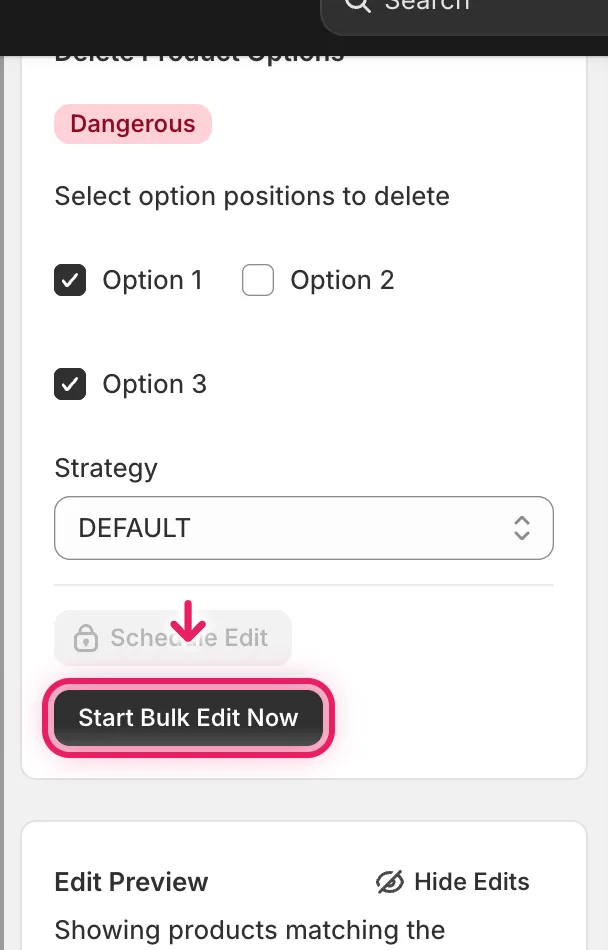
EditEngine queues the run and routes you to the History page where you can watch it progress.
After the run:
- Open the History page to see per-product success and failure counts. The Undo button stays disabled for Delete Product Options runs.
- Each affected product in
admin.shopify.com/store/<store>/products/<id>will show fewer options — and likely fewer variants — than before. - Errors are listed against the run. The most common ones are products where the picked position didn't exist or where the resulting variant set would violate a Shopify rule (e.g. a variant duplicate). Failed products keep their existing options and can be retried after fixing the cause.
If you ran the wrong filter, stop the run from the History page immediately to avoid more deletes. Anything already processed is gone, but stopping prevents the rest.
When you'd reach for this in EditEngine
A few realistic scenarios where Delete Product Options earns its place in the Bulk Editor:
- A vendor change means a
Materialoption no longer applies to a whole catalog of products. - A theme migration consolidates variants and you want to drop an option that was duplicating SKUs.
- A bad import created a meaningless third option (
Option 3 = Default Title) on hundreds of products.
For all of these, opening each product in Shopify admin and removing the option manually is hours of work. EditEngine, the Shopify Bulk Editor for product fields, scopes the delete to the filter and runs it across the matched set.
Frequently asked questions
How do I remove a product option like Size from many Shopify products at once?
In EditEngine, choose Delete Product Options under Product Fields, tick the option positions to remove (1, 2, or 3), pick a strategy, and click Start Bulk Edit Now. Note that options are addressed by position, not name — every matched product has that position's option deleted, whatever it happens to be called on each product.
Can I undo a bulk product option delete in Shopify?
No. Deleting product options is irreversible — the Undo button on EditEngine's History page stays disabled for these runs, and any options and variants removed are permanently gone. The only way to recover is to recreate them from a CSV export taken before the run, so export first and check the Edit Preview carefully.
What happens to variants when I bulk delete an option in Shopify?
Every variant associated with values of the deleted option is removed, along with its images, inventory, SKUs, barcodes, and metafields. The product itself survives — title, description, vendor, type, and tags stay — as do the remaining options at other positions and any variants tied only to the surviving options.
What is the difference between the DEFAULT and POSITION delete strategies?
DEFAULT, recommended for almost every run, performs Shopify's standard product-option delete: it removes the option and its associated variants. POSITION additionally re-positions the remaining options to fill the gap — for example, deleting Option 1 makes Option 2 become Option 1. The strategy applies to every product in the run; you cannot mix per-product.
How do I make sure I only delete options from the right Shopify products?
Narrow the Filter Products to Edit panel, then skim the Edit Preview column — every product listed there will have its options deleted. Run a tiny test on a single product first and verify the result in Shopify admin. If you ran the wrong filter, stop the run from the History page immediately; anything already processed is gone.