
Variants & options
How to Bulk Delete Variants by Option Value
Published by Profitonium Apps · Last updated
Use Delete Variants by Option Value in EditEngine to remove every variant whose option matches a specific value (e.g. drop every XS size variant, every Red color variant, every Cotton material variant) across many products in a single run. Pick the option position the value sits in, type the exact value, and EditEngine deletes those variants on every product matching your filter.
This action is irreversible. Variants deleted by this run are gone — there is no Undo from the History page for
variantOptionValueDelete. Filter carefully and confirm in the Edit Preview before you start. If you might want the variants back, export a CSV first.
The match is exact, case-sensitive, and per-position. Entering
Redwill not deleteredorRED. EnteringRedagainst Option 2 will not touch a variant whoseRedlives at Option 1. The position number is the slot Shopify stores the option in (1, 2, or 3), not the option name.
Step 1: Pick the Delete Variants by Option Value field
In the EditEngine bulk editor, open the Configure Product Edits panel and click Select Field.
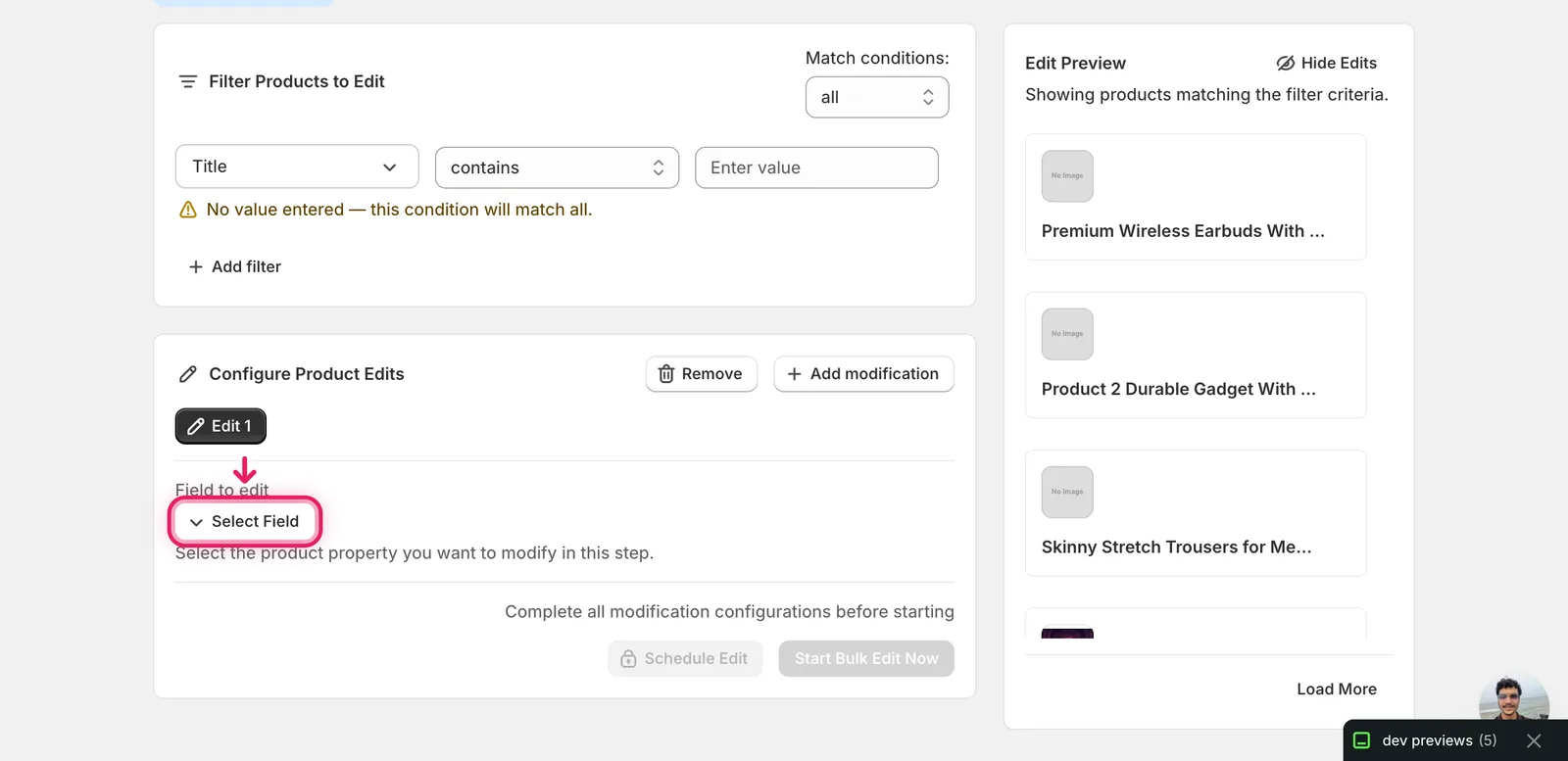
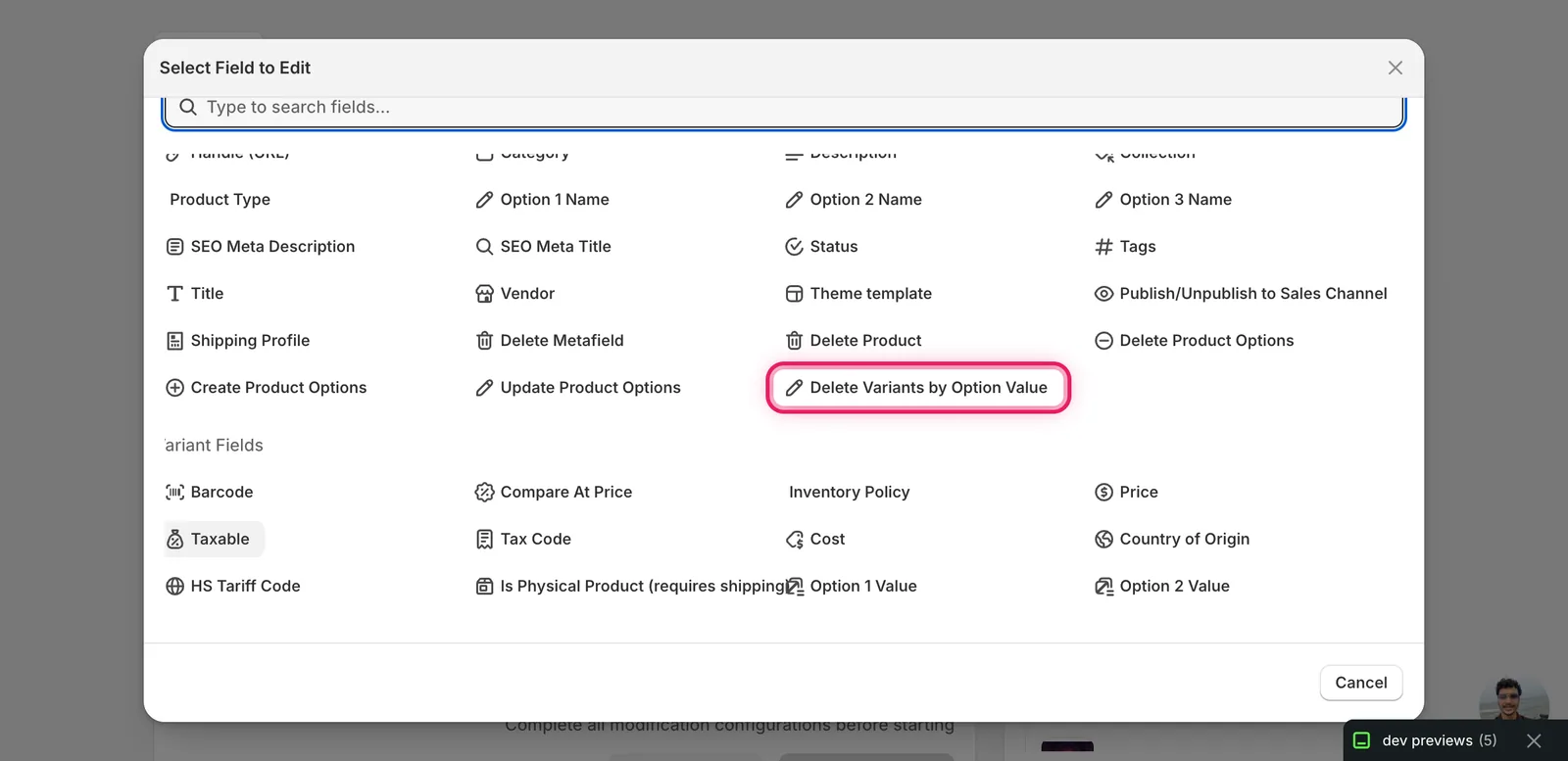
The Select Field modal opens. Scroll to Product Fields and click Delete Variants by Option Value — it sits next to Delete Product Options, Create Product Options, and Update Product Options.
The configuration panel switches over and the destructive form appears.
Step 2: Read the form
The form is short on purpose — there are only two things to set, plus a critical warning.
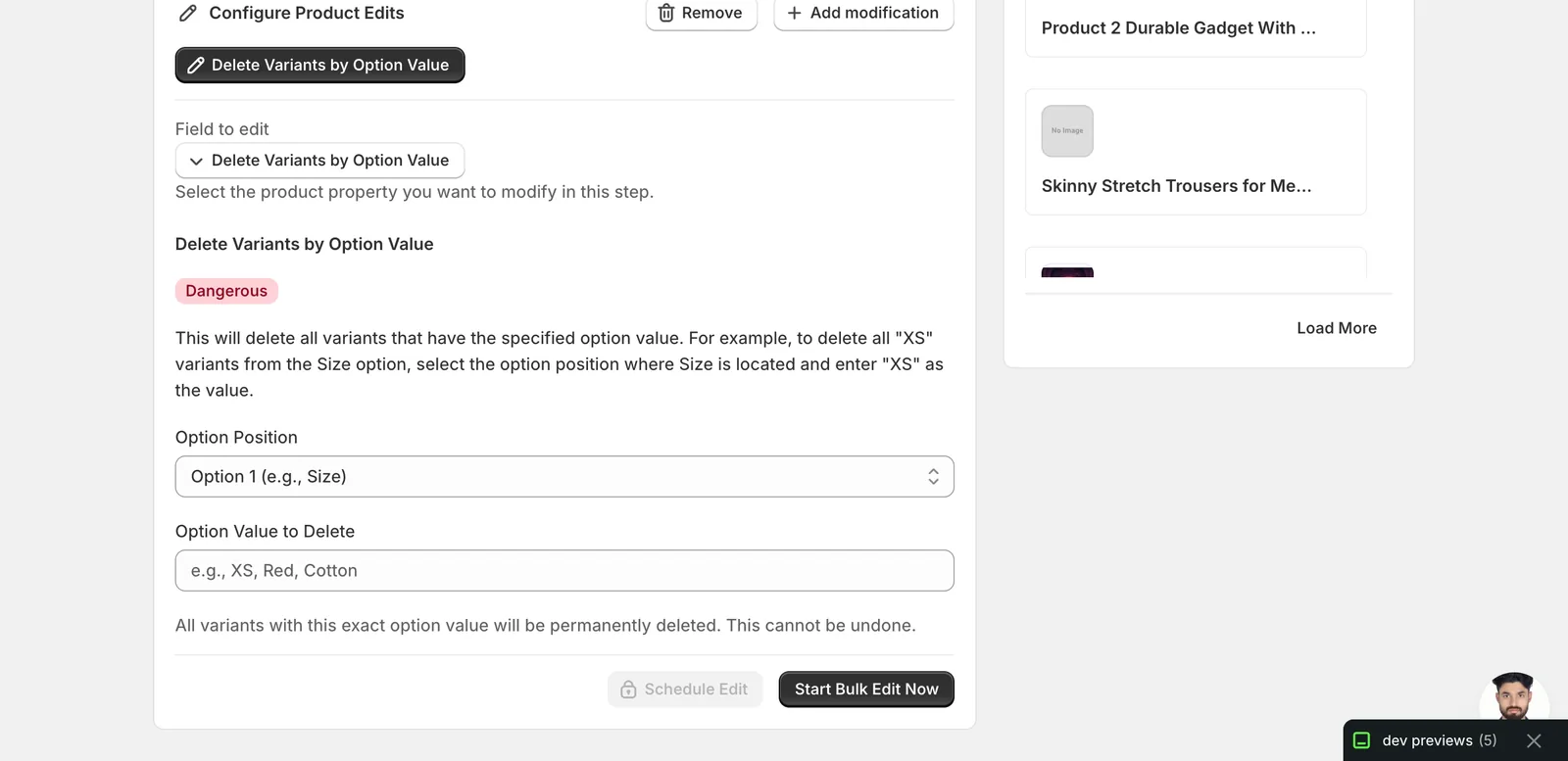
What gets removed when you run this:
- Every variant on every matched product whose option at the chosen position equals the value you typed — exact match.
- The inventory, SKU, barcode, images, and metafields tied to those deleted variants.
What stays:
- The product itself, its remaining variants (those that don't match the value), and all product-level fields.
- The product option definition. The option (e.g.
Size) still exists; only the variants under one of its values are removed. To delete the entire option, use Delete Product Options instead.
Reminder: EditEngine's History page has no Undo for this action. Export the affected products to a CSV before running if you might need to recreate the variants later.
Step 3: Pick the Option Position
Use the Option Position dropdown to tell EditEngine which slot to look in. Shopify stores up to three options per product, ordered as Option 1, Option 2, Option 3.
- Option 1 (e.g., Size) — the first option Shopify stored. Often
Size, but it depends on how the merchant set up the product. - Option 2 (e.g., Color) — the second option, if the product has one.
- Option 3 (e.g., Material) — the third option.
The labels in the dropdown are examples, not promises. Position 1 might be Color for shoes and Size for shirts in the same store. Open one of the products in your filter set in Shopify admin and check which option lives at which position before running. If you pick the wrong position, the value won't match and nothing gets deleted on those products — or worse, it could match a different option entirely.
Products in your filter that have fewer options than the position you select are skipped automatically. Picking Option 3 against a product that only has Option 1 does nothing to that product.
Step 4: Type the Option Value to Delete
Type the exact option value in the Option Value to Delete field. Realistic examples:
XS— to drop the smallest size from a clothing catalogRed— to drop the red colorway across a sneaker lineCotton— to drop a material from a fabric optionOut of Stock— to clean up placeholder variants left over from an import
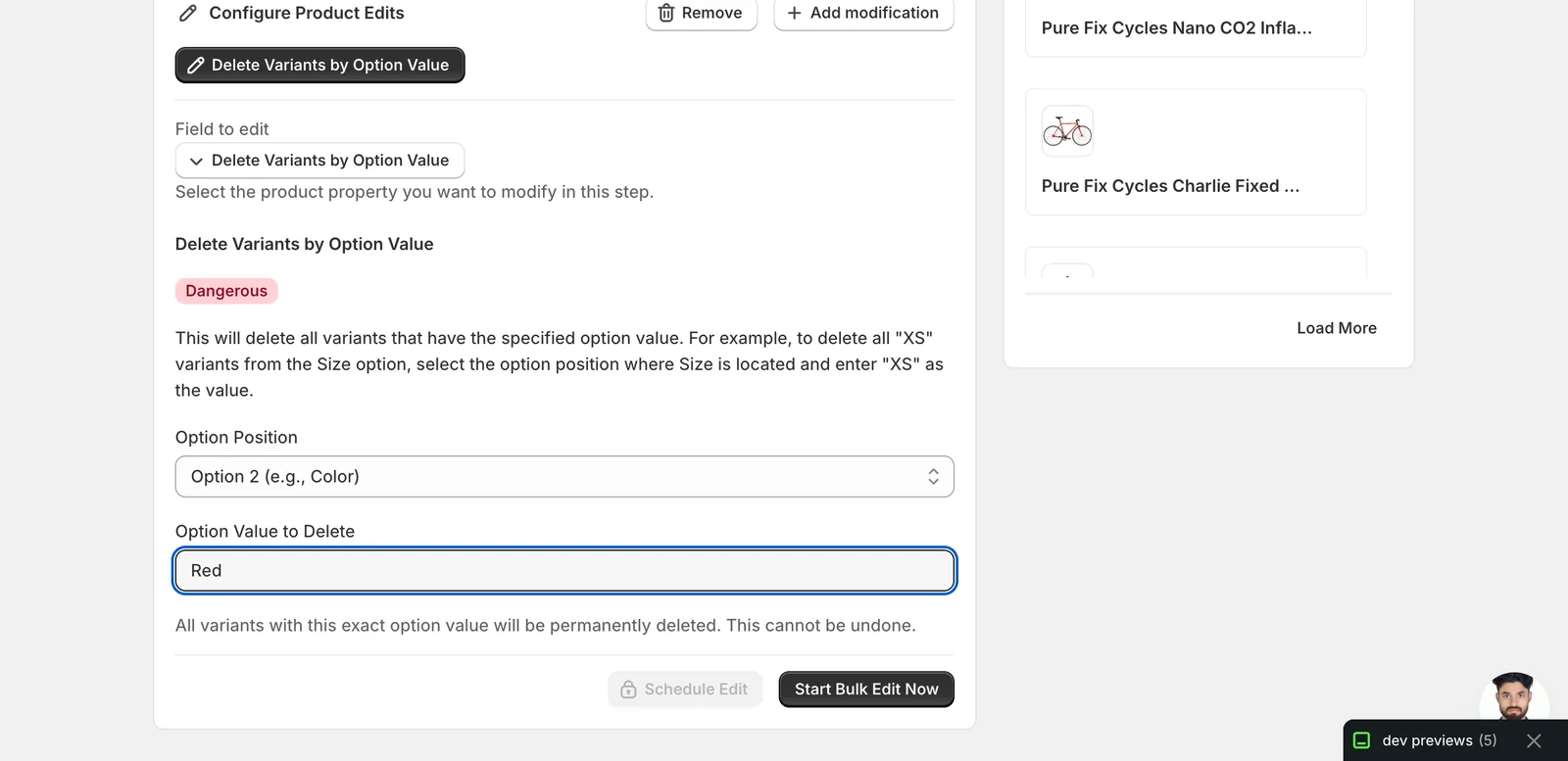
Things to watch:
- Exact match.
Redwill not deletered,RED, orRed. Type the value the way Shopify stores it. - One value per run. To delete
XSandXXLin one pass, you need two separate runs (or two modifications added to the same Bulk Edit via Add modification). - No wildcards. EditEngine does not accept patterns like
*MorRed*. Use the Title or Tag filters at the top of the page to narrow the product set instead.
Step 5: Filter to exactly the products you want changed
This is the most important step. Once you click run, every product matching the filter has its matching variants deleted — there is no per-product confirmation prompt.
Use the Filter Products to Edit panel above the configuration to narrow the set:
- Filter by Title contains / does not contain to target a name pattern.
- Filter by Vendor, Product Type, Tags, Status, or any other supported field to scope by attribute.
- Combine multiple conditions with the Match conditions dropdown (
allrequires every condition;anymatches if at least one fits).
The right-hand Edit Preview column lists every product that matches your current filter. Skim it before running. Any product shown there is a product whose variants will have a deletion attempted against them.
Run a tiny test first. Filter down to a single product (e.g. by exact title match), run the delete, confirm the variant set in Shopify admin, then widen the filter for the real run. Five minutes here saves an irreversible mistake later.
Step 6: Run the bulk delete
When the filter shows the right products and you've picked your position and typed the value, click Start Bulk Edit Now.
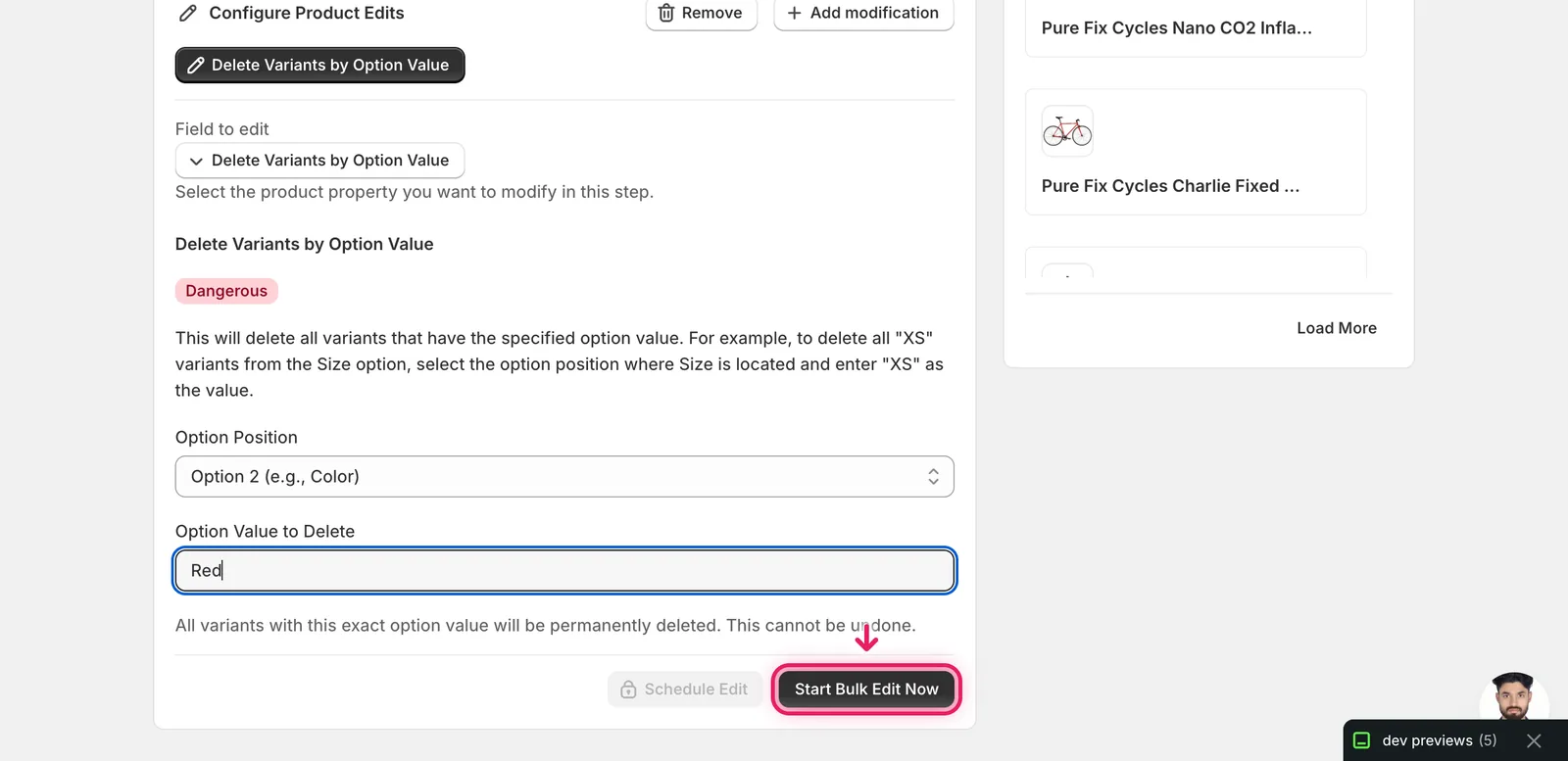
EditEngine queues the run and routes you to the History page where you can watch it progress.
After the run:
- Open the History page to see per-product success and failure counts. The Undo button stays disabled for Delete Variants by Option Value runs.
- Each affected product in
admin.shopify.com/store/<store>/products/<id>will show fewer variants than before — only those whose value at the chosen position did not match. - Errors are listed against the run. The most common ones are products where the value didn't exist at that position (which simply means nothing was deleted on that product) or where deleting all variants would leave the product with zero variants (Shopify rejects that). Failed products keep their existing variants and can be retried after fixing the cause.
If you ran the wrong filter, stop the run from the History page immediately to avoid more deletes. Anything already processed is gone, but stopping prevents the rest.
When you'd reach for this in EditEngine
A few realistic scenarios where Delete Variants by Option Value earns its place in the EditEngine Bulk Editor:
- A discontinued size (
XXS,4XL) needs to come off every clothing product at once. - A vendor stops supplying a color and you need to drop that colorway across hundreds of SKUs.
- An import created variants with a placeholder option value (
Default,N/A,Unknown) that you want cleaned up. - A seasonal material (
Wool) is being phased out across a whole catalog.
For all of these, opening each product in Shopify admin and removing matching variants by hand is hours of repetitive work. EditEngine, the Shopify Bulk Editor for product fields, scopes the delete to the filter and runs it across the matched set — typed once, applied everywhere.
Frequently asked questions
How do I bulk delete Shopify variants with a specific option value, like a discontinued size?
Use Delete Variants by Option Value in EditEngine. Pick the option position (1, 2, or 3), type the exact value such as XS or Red, filter the products you want changed, and click Start Bulk Edit Now. EditEngine deletes every matching variant on every product in your filter in a single run.
Can I undo a bulk variant delete in Shopify?
No. This action is irreversible — the Undo button on EditEngine's History page stays disabled for Delete Variants by Option Value runs. Filter carefully, skim the Edit Preview to confirm exactly which products will be affected, and export the affected products to a CSV first if you might need to recreate the variants later.
Does deleting variants by option value remove the whole product or option in Shopify?
No. The product itself, its remaining variants, and all product-level fields stay, and the option definition (such as Size) still exists — only the variants under the matching value are removed, along with their inventory, SKUs, barcodes, images, and metafields. To delete an entire option, use Delete Product Options instead.
Why didn't my bulk variant delete remove anything in Shopify?
The match is exact, case-sensitive, and per-position. Typing Red will not delete red or RED, and a value entered against Option 2 won't touch variants storing it at Option 1. Products with fewer options than the position you picked are skipped, and Shopify also rejects deletes that would leave a product with zero variants.
What is the safest way to test a bulk variant delete before running it store-wide?
Run a tiny test first. Filter down to a single product, for example by exact title match, run the delete, and confirm the variant set in Shopify admin before widening the filter. If you started the wrong run, stop it from the History page immediately — anything already processed is gone, but stopping prevents the rest.