
Variants & options
How to Bulk Edit Option 2 Value in Shopify
Published by Profitonium Apps · Last updated
Option 2 Value is the second option (e.g. Size if your options are Color / Size / Material) of a product variant — the actual value like Medium or Large, not the option label. This guide shows how to bulk-edit it across many variants at once with EditEngine, the Shopify bulk editor: append text, strip a prefix or suffix, or run a find-and-replace.
Option 2 Value is a variant field. Each variant has its own Option 2 Value, so the action runs once per matched variant. A product with three variants gets up to three updates.
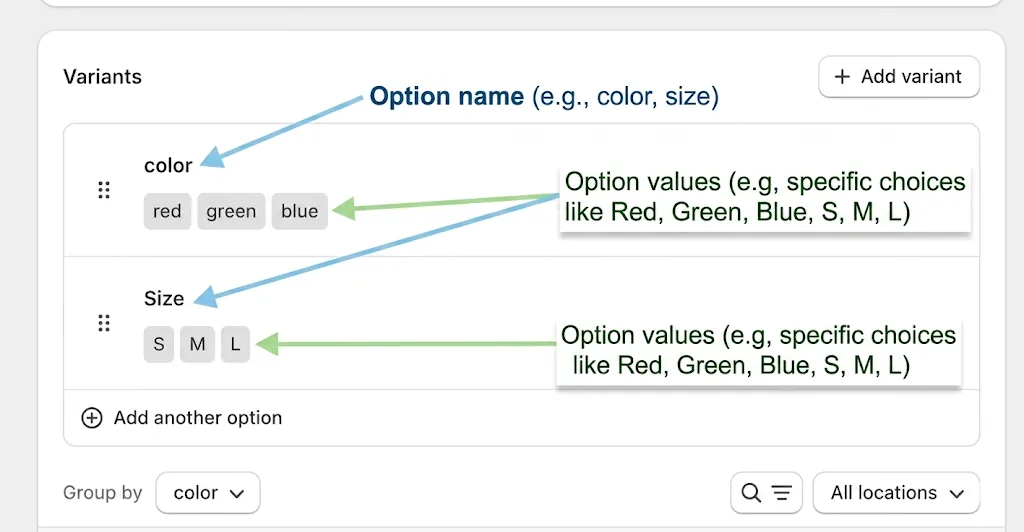
Only products that have two or more options are touched. If a product has just one option (or none), every variant on it is skipped automatically — there's no Option 2 to edit.
Step 1: Pick the Option 2 Value field
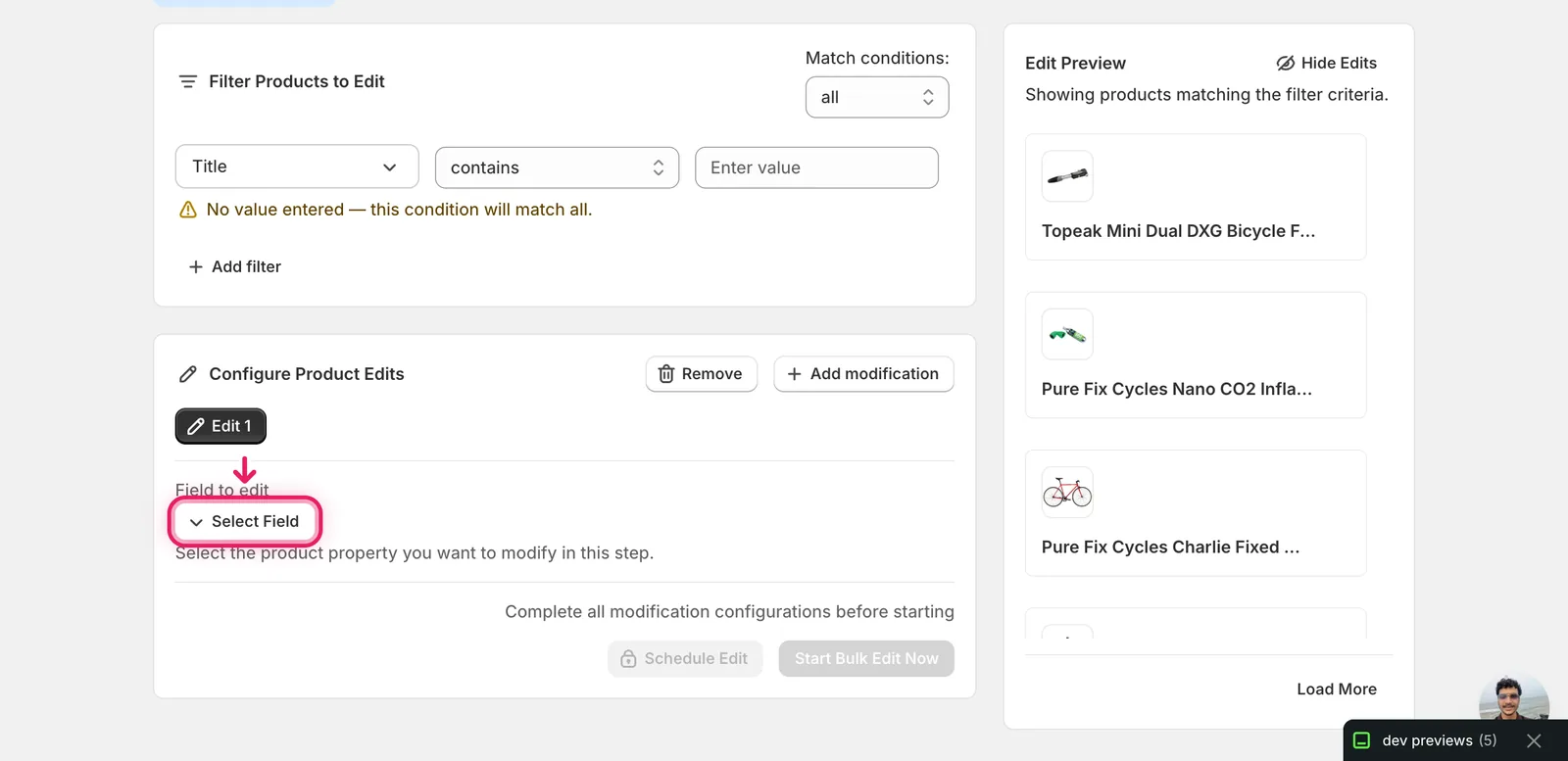
In the Configure Product Edits panel, click Select Field.
The Select Field modal opens. Option 2 Value lives under Variant Fields.
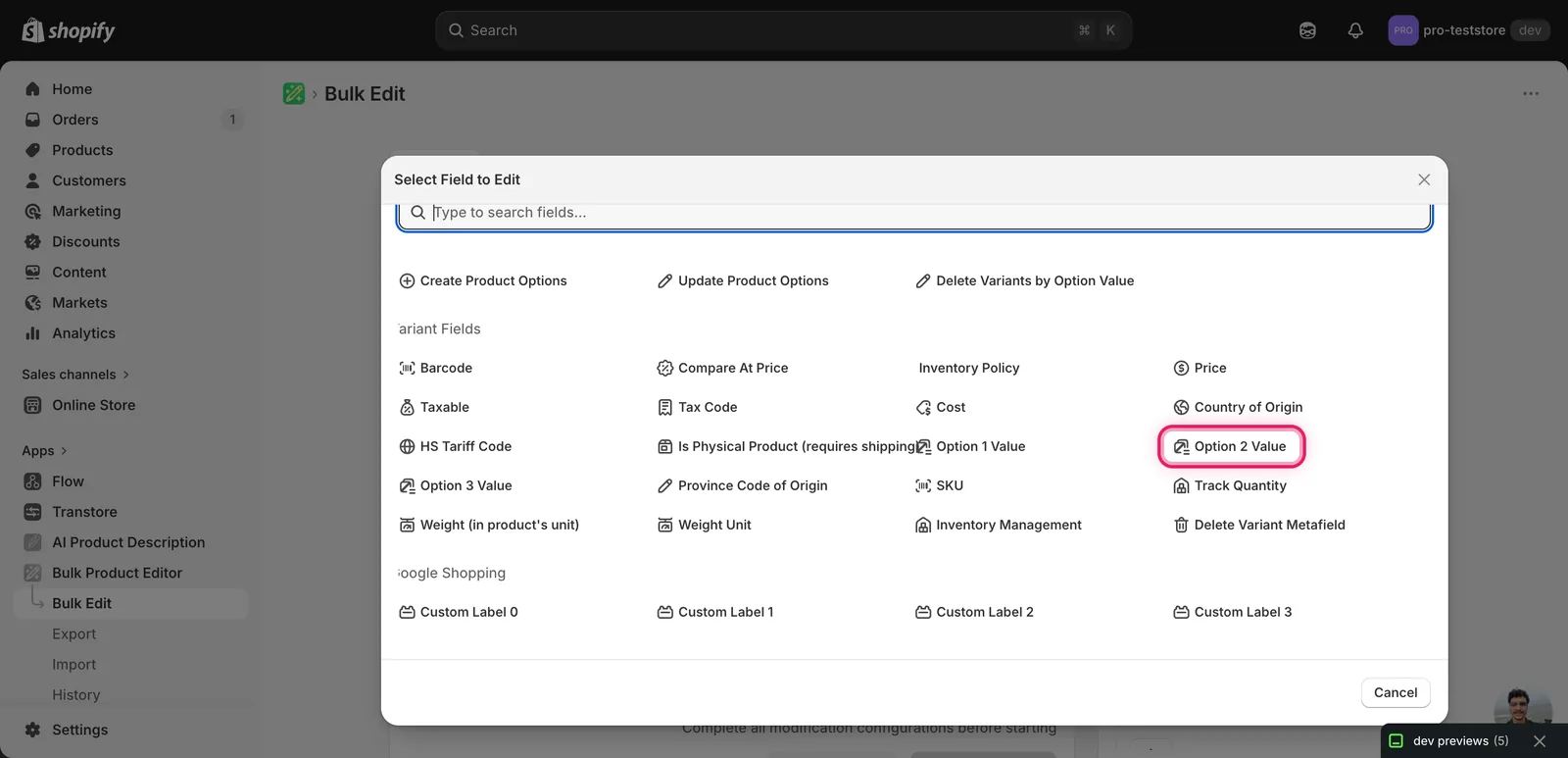
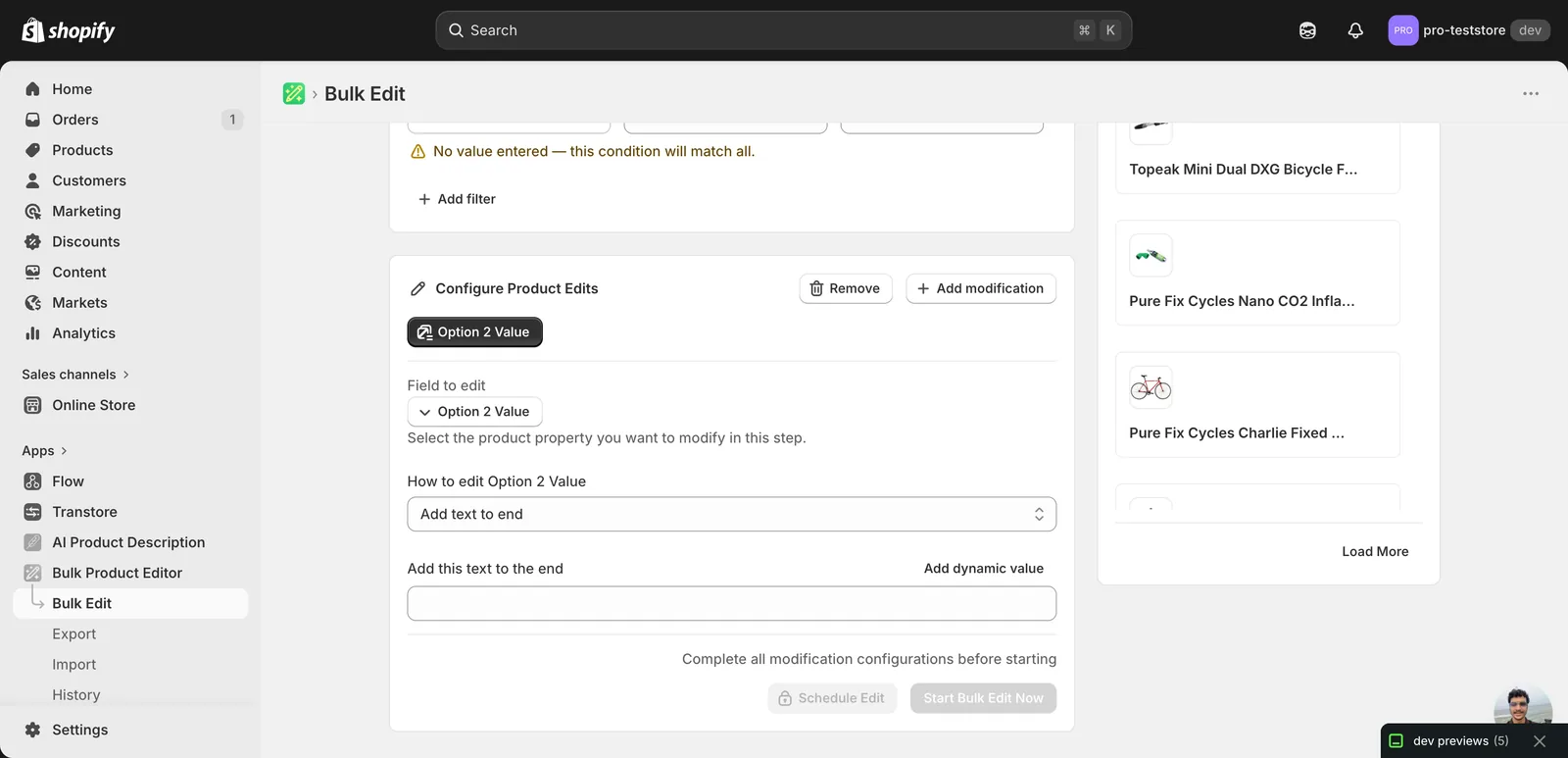
Click Option 2 Value. The configuration panel switches to a How to edit Option 2 Value dropdown.
Step 2: Choose how to change the value
Five actions are available. There's no Set value action here — that's deliberate, since giving every variant the same Option 2 Value would collapse them into duplicates.
- Add text to end — append text to the existing value (e.g.
Medium → Medium (Limited)). - Remove text from end — strip a suffix if it matches exactly.
- Add text to beginning — prepend text (e.g.
Medium → US Medium). - Remove text from beginning — strip a prefix if it matches exactly.
- Find text and replace — swap one substring for another. Most flexible option.
The inputs change based on what you pick.
Step 3: Enter the value
Add text to end / beginning
A single text input. Whatever you type is appended (or prepended) to the variant's current Option 2 Value.
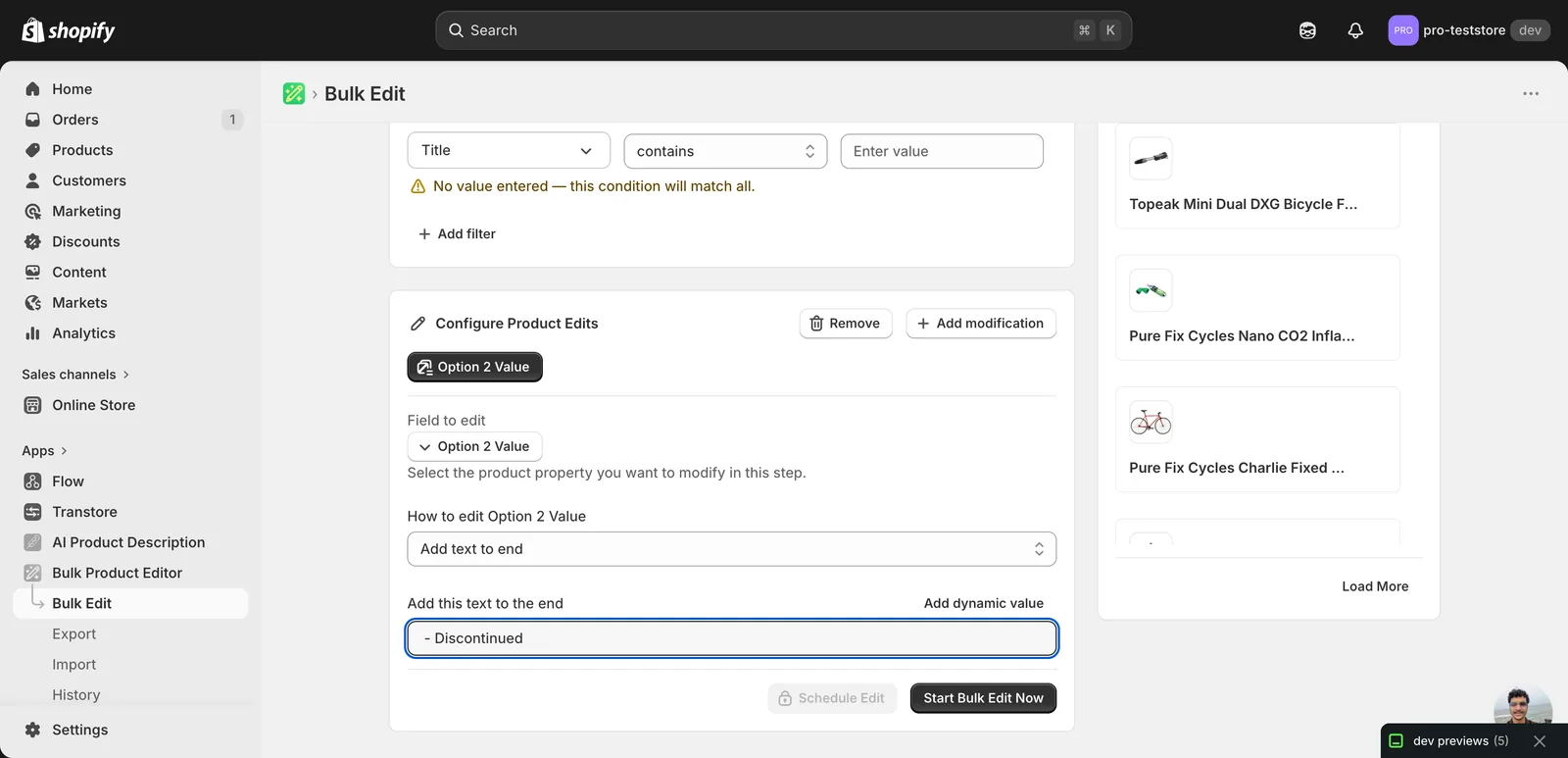
In this example, every matched variant's Option 2 Value gets - Discontinued tacked onto the end. So Medium becomes Medium - Discontinued, Large becomes Large - Discontinued.
Remove text from end / beginning
A single text input. The exact string you type is stripped, but only when it actually matches that end of the value. Variants where the value doesn't start (or end) with the text are left untouched.
Find text and replace
Two inputs — what to search for, and what to replace it with — plus a Case insensitive checkbox. Useful for renaming a value across many variants in one shot, like shortening verbose names.
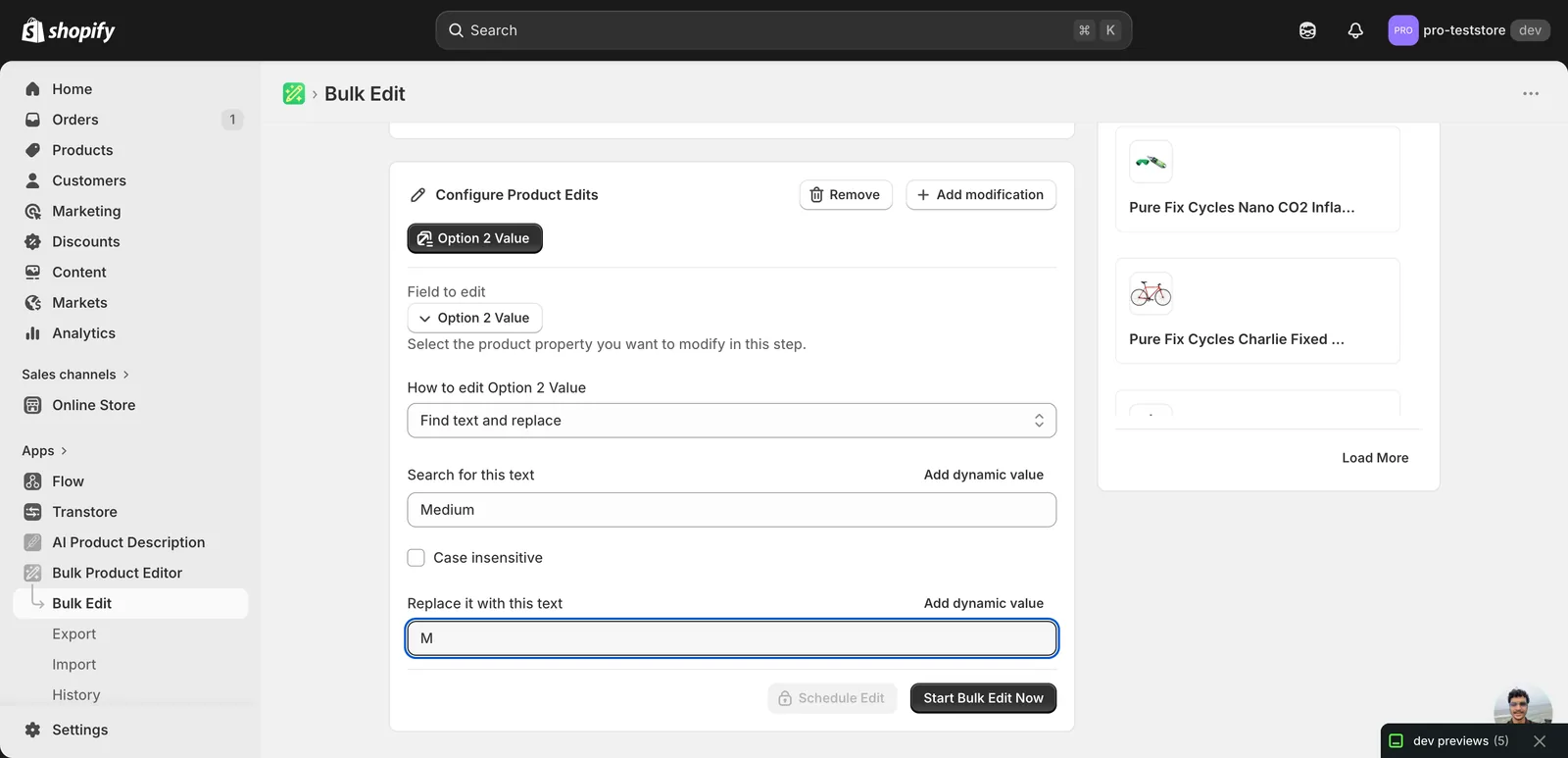
In this example, every variant whose Option 2 Value contains Medium gets that swapped for M — Medium becomes M, Medium Wash becomes M Wash. Leave the replace field blank to delete the matched text outright. Tick Case insensitive if your data mixes cases.
What gets skipped
EditEngine skips a variant silently — without raising an error — in three cases. Use the Edit Preview on the right to see which variants get updated and which don't before you run.
- The product has fewer than 2 options. Single-option products (just Color, just Size) have no Option 2 to edit.
- The new value would create a duplicate variant. Shopify requires each variant to have a unique combination of option values. If your edit would make two variants identical (say, two
Color: Red / Size: Mvariants), the conflicting one is skipped. - The option value is linked to a metafield. Variants with metafield-linked option values are managed by Shopify's metaobject system and aren't editable through this field.
Variants where the result is the same as the original (e.g. Remove text from end on a value that doesn't end with that text) are also skipped.
After the run
- Option 2 Value changes are reversible from the History page using Undo.
- Re-running an Add text or Remove text action stacks: a second run of Add text to end with
(Sale)producesMedium (Sale) (Sale). Use Find text and replace if you need an idempotent edit. - The change rewrites the variant's option value, which Shopify treats as a structural variant change — variant IDs stay the same, but inventory and order history continue to reference the renamed variant.
Frequently asked questions
How do I bulk edit second option values like Medium or Large on Shopify variants?
Pick Option 2 Value under Variant Fields in EditEngine and choose one of five actions — add text to the end or beginning, remove text from either end, or find text and replace. The action runs once per matched variant, so a product with three variants gets up to three updates.
Can I undo a bulk Option 2 value edit on my Shopify store?
Yes. Option 2 Value changes are reversible from EditEngine's History page using Undo. Variant IDs stay the same after the rewrite, so inventory and order history continue to reference the renamed variant. Check the Edit Preview before running to see exactly which variants will be updated and which will be skipped.
How do I shorten Medium to M on every Shopify variant at once?
Use Find text and replace on EditEngine's Option 2 Value field. Enter Medium in the search input and M in the replace input — Medium becomes M and Medium Wash becomes M Wash across all matched variants. Tick Case insensitive if your data mixes cases, or leave the replace field blank to delete matched text.
Why were some Shopify variants skipped during my Option 2 value bulk edit?
EditEngine skips variants silently in three cases: the product has fewer than two options, the new value would create a duplicate variant combination Shopify rejects, or the option value is linked to a metafield. Variants where the result equals the original are skipped too. The Edit Preview shows which variants update before you run.
Why can't I set every Option 2 value to the same text in Shopify?
There is deliberately no Set value action, since giving every variant the same Option 2 Value would collapse them into duplicates. Also note that re-running an Add or Remove text action stacks — a second Add text to end with (Sale) produces Medium (Sale) (Sale). EditEngine's Find text and replace is the alternative when you need an idempotent edit.