
Products
How to Bulk Edit Product Type
Published by Profitonium Apps · Last updated
Product Type is the free-text classification on a product (different from the Shopify taxonomy Category). It surfaces in storefront filters, theme menus, and reports. This guide shows how to set it outright, tack text onto either end, find-and-replace, trim length, or strip everything before/after a marker word.
Product Type is not Category. Product Type is a single text string you type yourself. Category is the Shopify-managed taxonomy picker. They live in different places — this guide only covers Product Type.
Step 1: Pick the Product Type field
In the Configure Product Edits panel, click Select Field. Product Type lives under Product Fields.
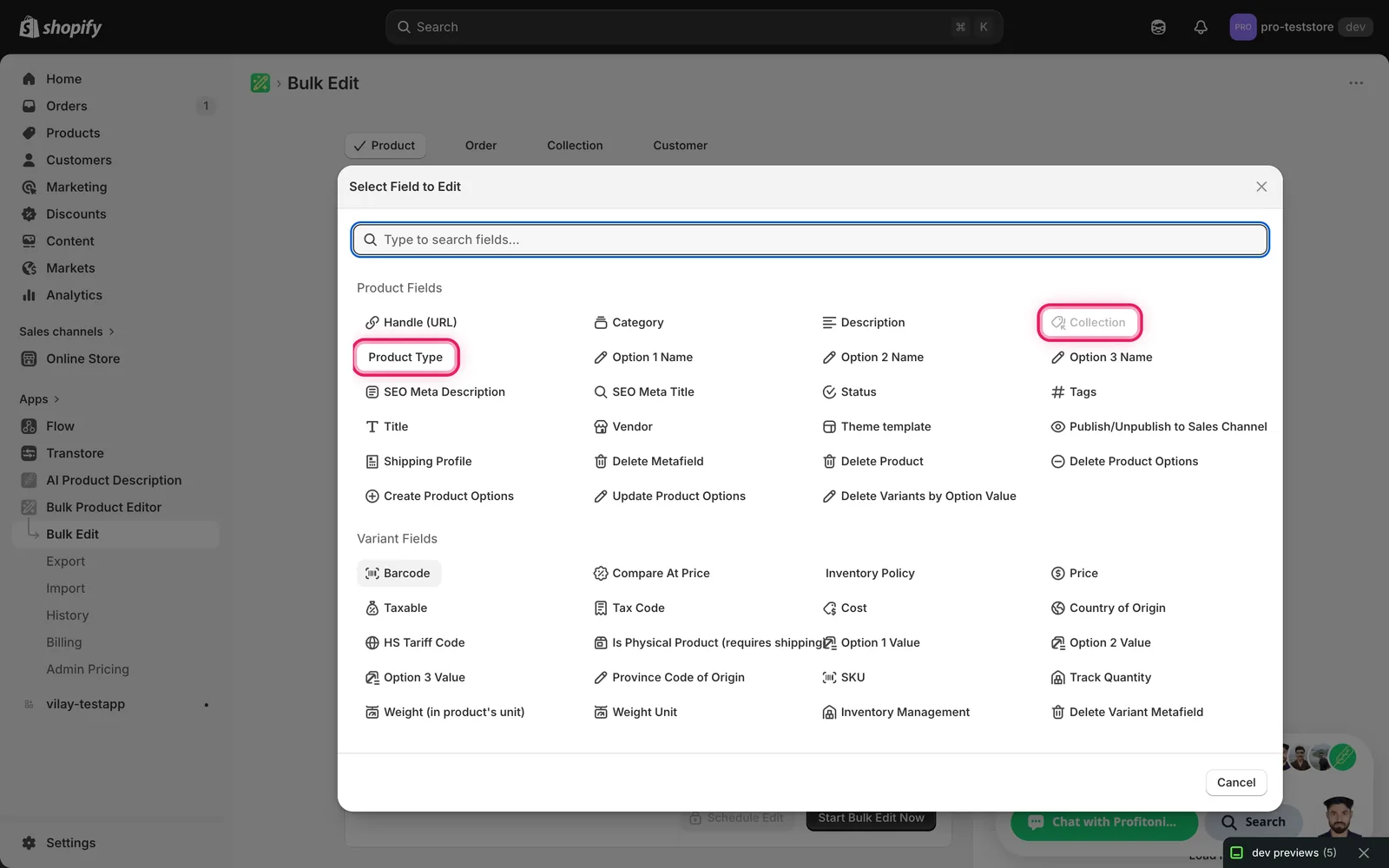
Click it. The configuration panel switches to a How to edit Product Type dropdown defaulting to Set Product Type to value, plus a value input.
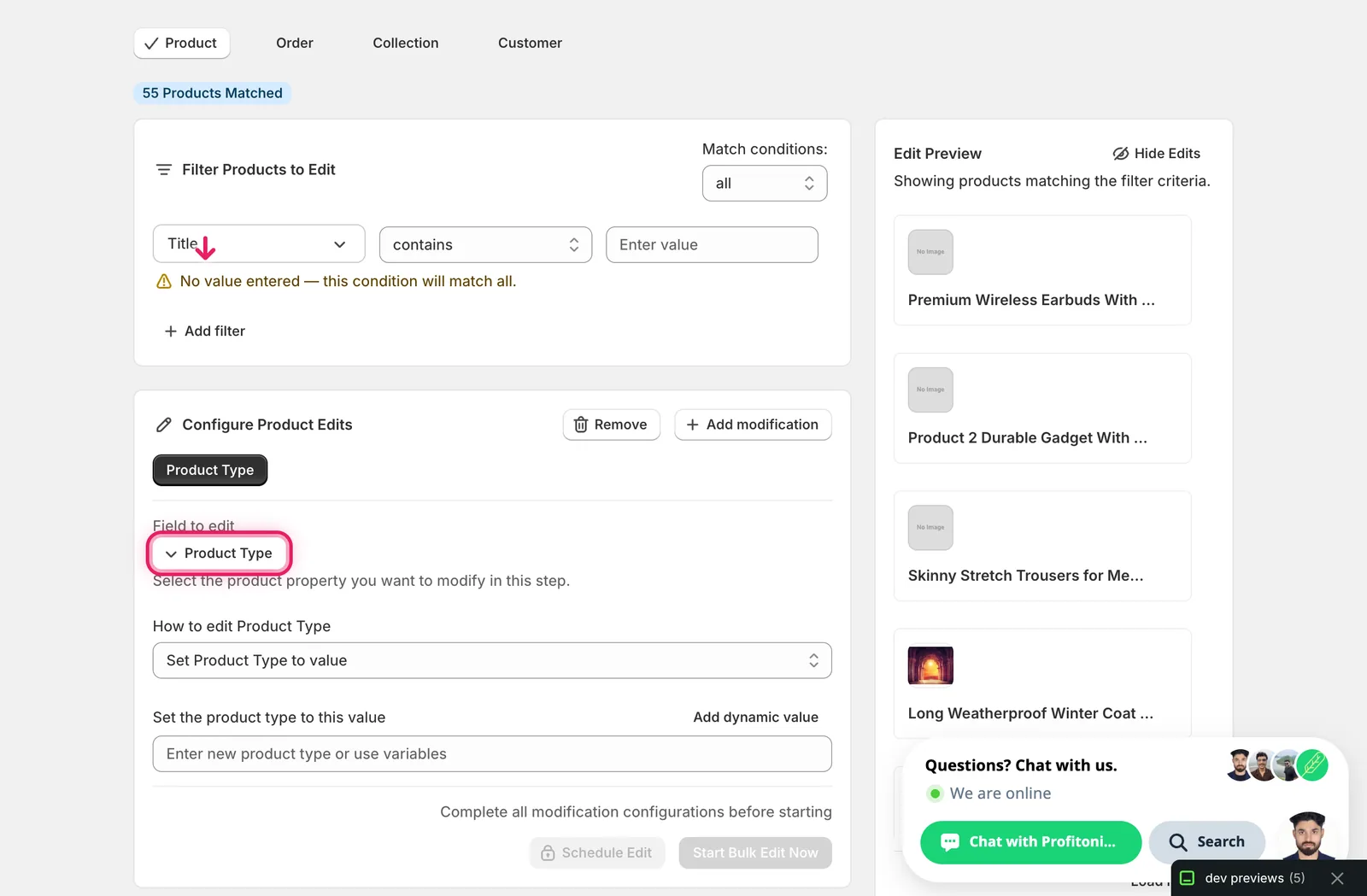
Step 2: Choose how to change the product type
Nine actions are available.
Direct value
- Set Product Type to value — every matched product gets this exact product type. Pair with a dynamic value (see Step 3) to vary it per product.
Adjust the existing product type
- Add text to end — append (e.g.
- Sale). - Add text to beginning — prepend (e.g.
New:). - Remove text from end — strip a suffix.
- Remove text from beginning — strip a prefix.
- Find text and replace — swap one substring for another, optionally case-insensitive. Leave the replace field blank to delete the matched text outright.
- Limit length of text — cap at N characters, with optional
...ellipsis and word-boundary respect. - Remove text from a word to the end — find a word, delete it and everything after.
- Remove text up to and including a word — find a word, delete it and everything before.
The inputs change based on what you pick.
Step 3: Enter the value
Type the new product type in the Set the product type to this value input. The right-hand Edit Preview updates per product so you can verify before running.
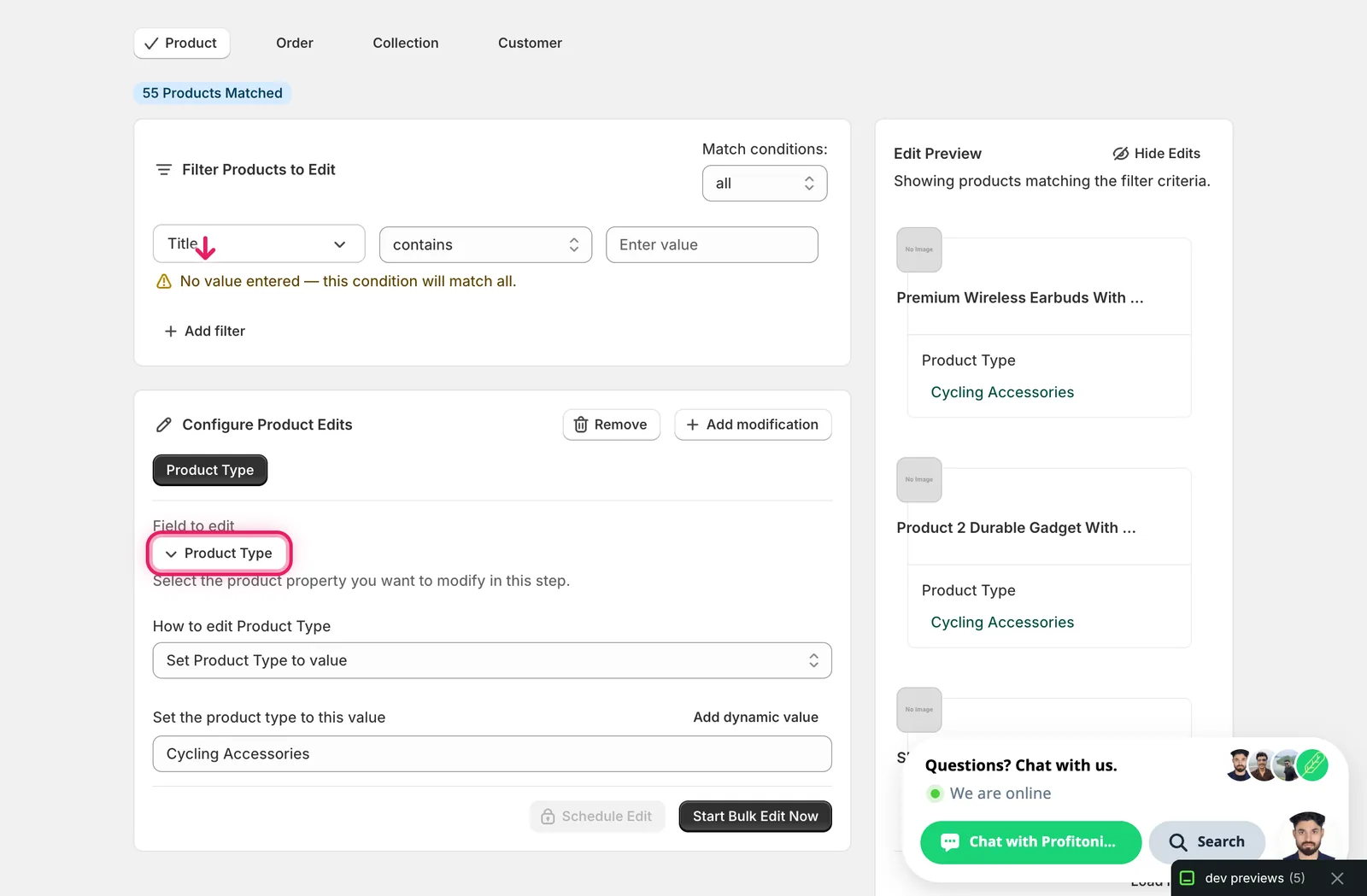
Use dynamic values to keep types meaningful per product. Click Add dynamic value above the input. A modal opens letting you reference product fields (Title, Vendor, Tags, Handle…) and metafields, with optional capitalization. Picking Vendor, for example, inserts
{{product.vendor}}at the cursor — combine with literal text to compose the new product type.
Setting one literal product type across hundreds of products gives every product the same value. That's sometimes what you want (e.g. assigning unclassified products to a single bucket) — but if every product should keep its own classification, use one of the adjust actions instead.
After the run
- Product Type changes are reversible from the History page using Undo.
- Empty values are accepted — Shopify allows products with no Product Type, so clearing the field across products is a valid run.
- The adjust actions (Add / Remove / Find-replace) are not idempotent. Re-running them keeps modifying the product type. Scan the Edit Preview before you run.
- Storefront filters and theme navigation built on Product Type need to be reviewed if you change values en masse — a renamed type leaves old links pointing nowhere.
Frequently asked questions
How do I bulk edit the product type field in Shopify?
In EditEngine's Configure Product Edits panel, click Select Field and pick Product Type under Product Fields. Nine actions are available — set a value, add or remove text at either end, find and replace, limit length, or strip text around a marker word. The Edit Preview updates per product so you can verify before running.
Is product type the same as category in Shopify?
No. Product Type is a free-text string you type yourself, while Category is the Shopify-managed taxonomy picker — they live in different places. This EditEngine guide covers Product Type, which surfaces in storefront filters, theme menus, and reports. Category has its own separate edit flow.
Can I undo a bulk product type change in Shopify?
Yes. Product Type changes are reversible from the History page using Undo. Note that the adjust actions — Add, Remove, and Find-replace — are not idempotent, so re-running them keeps modifying the value. Scan the Edit Preview in EditEngine before you run rather than relying on a re-run to fix things.
Can I clear the product type on many Shopify products at once?
Yes. Shopify allows products with no Product Type, so clearing the field across products is a valid run. Be deliberate, though — storefront filters and theme navigation built on Product Type should be reviewed after mass changes, since a renamed or removed type leaves old links pointing nowhere.
How do I assign the same product type to lots of unclassified Shopify products?
Use Set Product Type to value — every matched product gets that exact type, which is useful for moving unclassified products into a single bucket. If each product should keep its own classification instead, use one of the adjust actions, or insert a dynamic value like {{product.vendor}} to vary the result per product.