
Products
How to Bulk Edit Title
Published by Profitonium Apps · Last updated
The product title is the headline shown on the storefront and in search results. This guide shows how to set it outright, tack text onto either end, find-and-replace, trim length, or strip everything before/after a marker word.
Title is a product field. One title per product (variants don't have their own titles), so each matched product gets a single update.
Step 1: Pick the Title field
In the Configure Product Edits panel, click Select Field. Title lives under Product Fields.
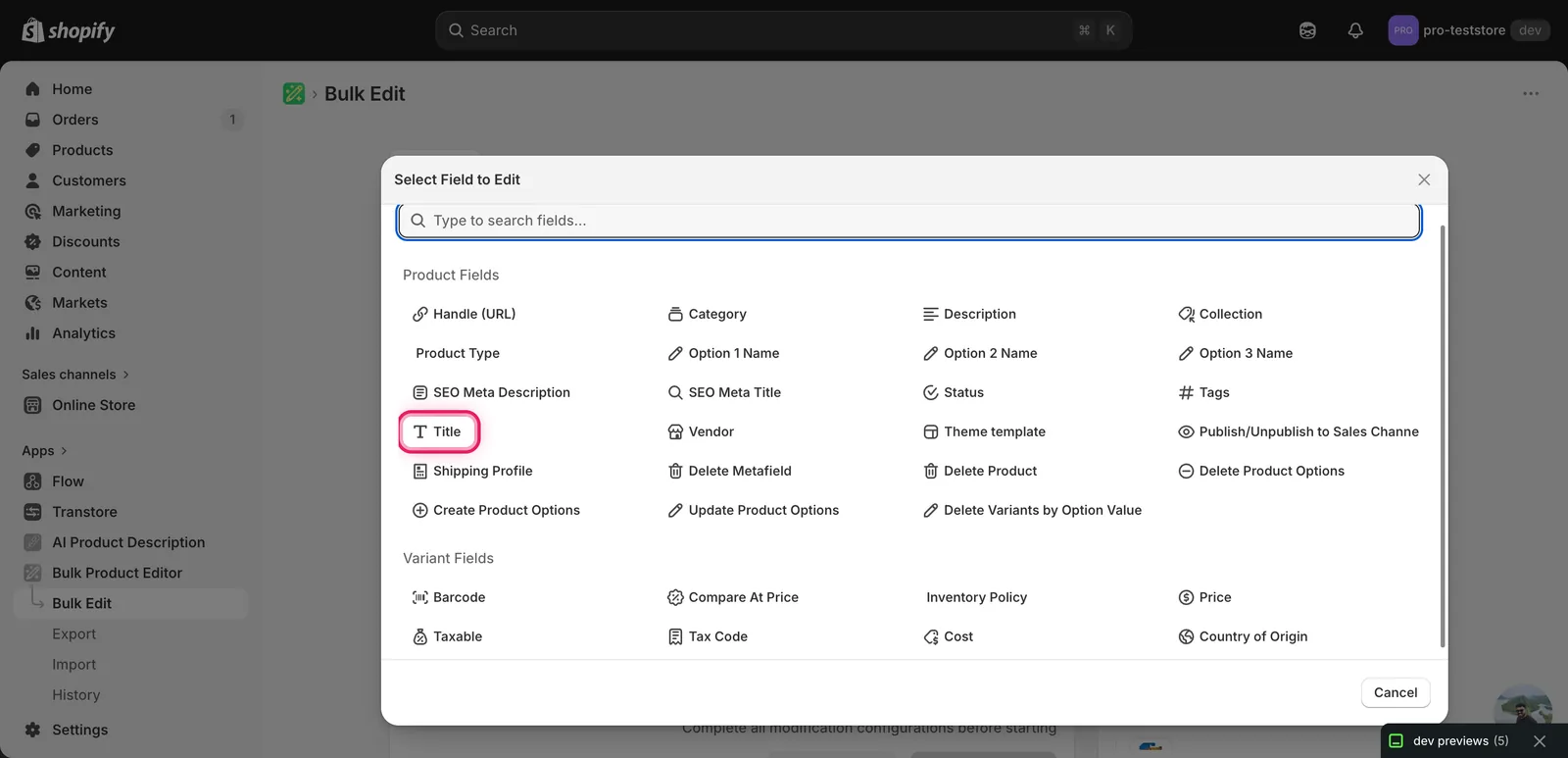
Click it. The configuration panel switches to a How to edit Title dropdown defaulting to Set text to value, plus a value input.
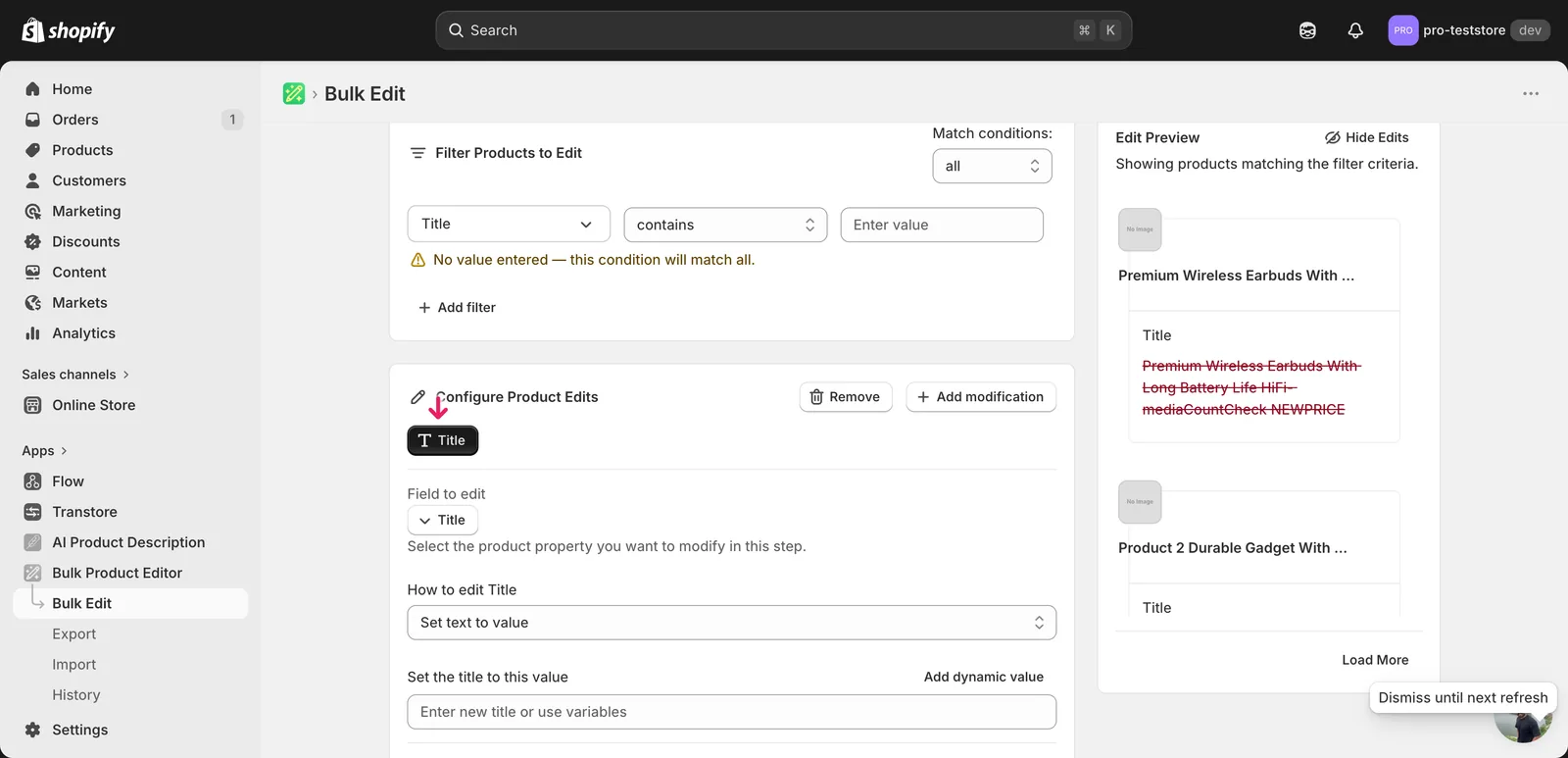
Step 2: Choose how to change the title
Nine actions are available.
Direct value
- Set text to value — every matched product gets this exact title. Pair with a dynamic value (see Step 3) so each product still gets a unique result.
Adjust the existing title
- Add text to end — append text (e.g.
- Sale 2026). - Add text to beginning — prepend (e.g.
[NEW]). - Remove text from end — strip a suffix.
- Remove text from beginning — strip a prefix.
- Search/Replace — swap one substring for another, optionally case-insensitive.
- Limit length of text — cap the title at N characters.
- Remove text from a word to the end — find a word, delete it and everything after.
- Remove text up to and including a word — find a word, delete it and everything before.
The inputs change based on what you pick.
Step 3: Enter the value
Set text to value
Type the new title in the Set the title to this value input.
Use dynamic values to keep titles unique. Click Add dynamic value above the input. A modal opens letting you pick from product fields (Title, Vendor, Tags, Type, Handle...) and metafields, with optional capitalization (UPPER, lower, Title Case).
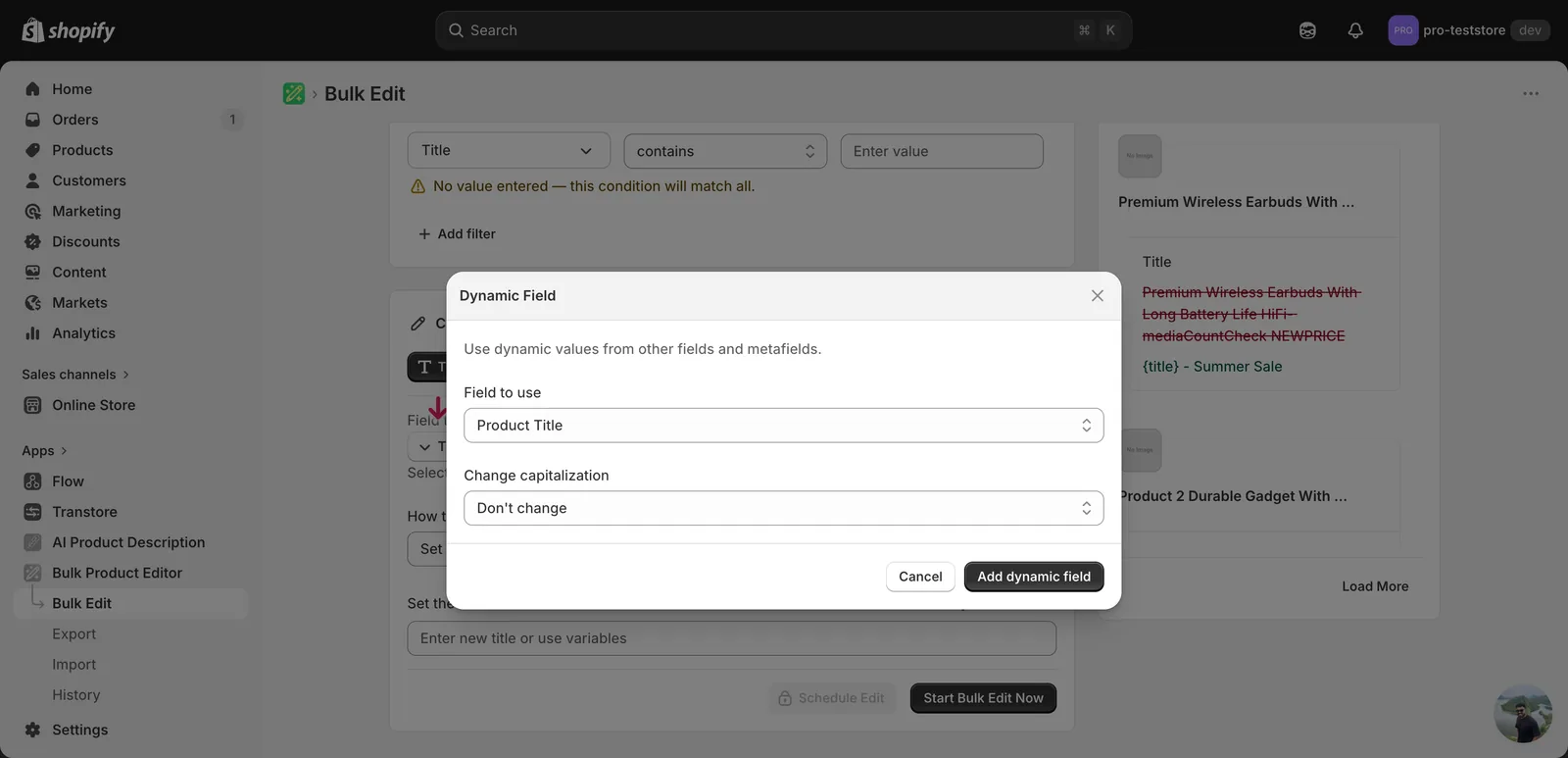
Picking Product Title inserts the token {{product.title}} at the cursor. Combine with literal text to compose new titles.
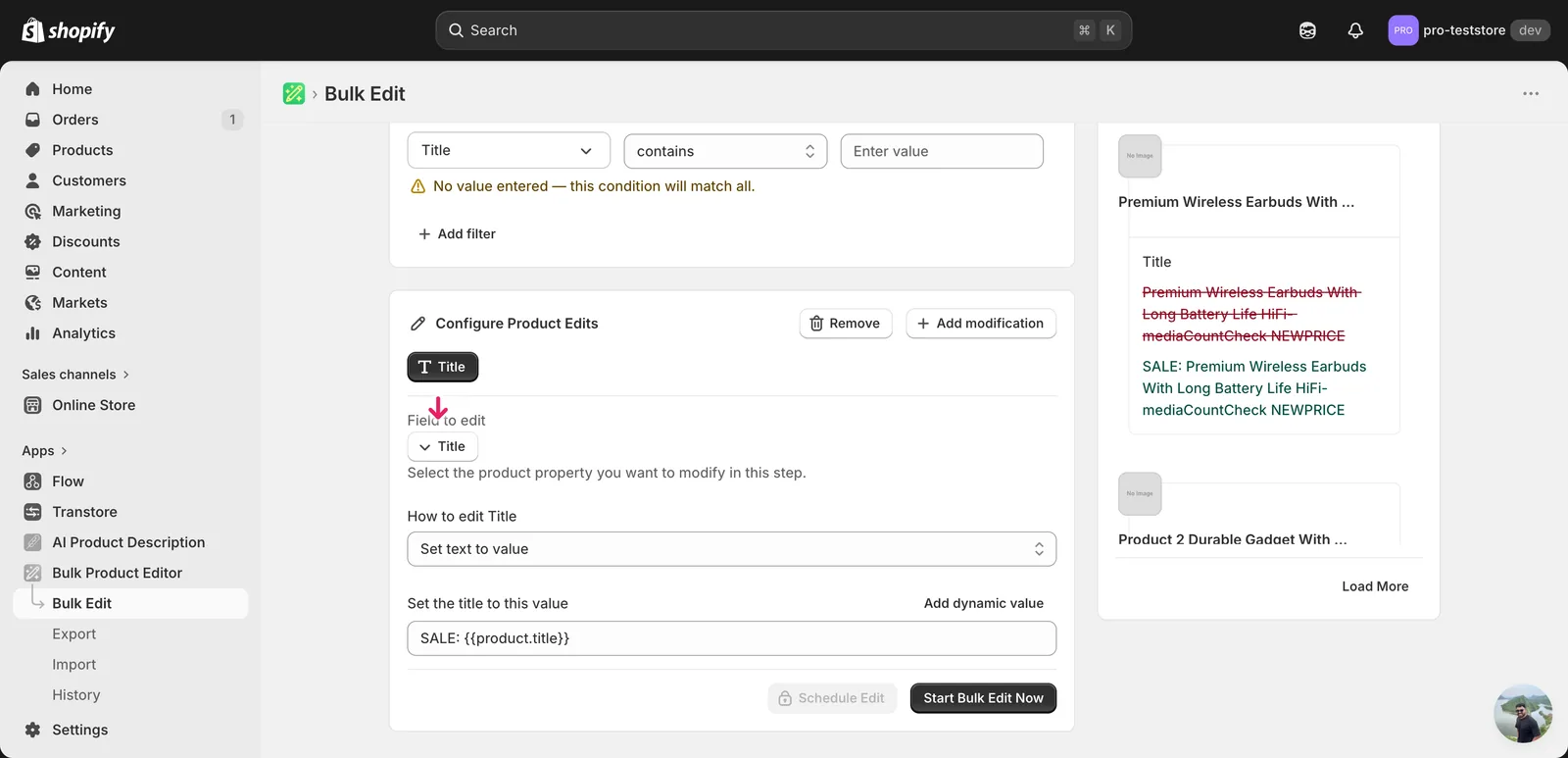
In this example, every matched title becomes SALE: <original title>. The Edit Preview on the right resolves the token per product so you can verify before running.
Setting a literal value with no dynamic token across many products gives every product the same title. That's almost never what you want — Shopify will accept it, but your customers will see duplicates.
Search/Replace
Two inputs — what to look for, and what to replace it with — plus a Case insensitive checkbox.
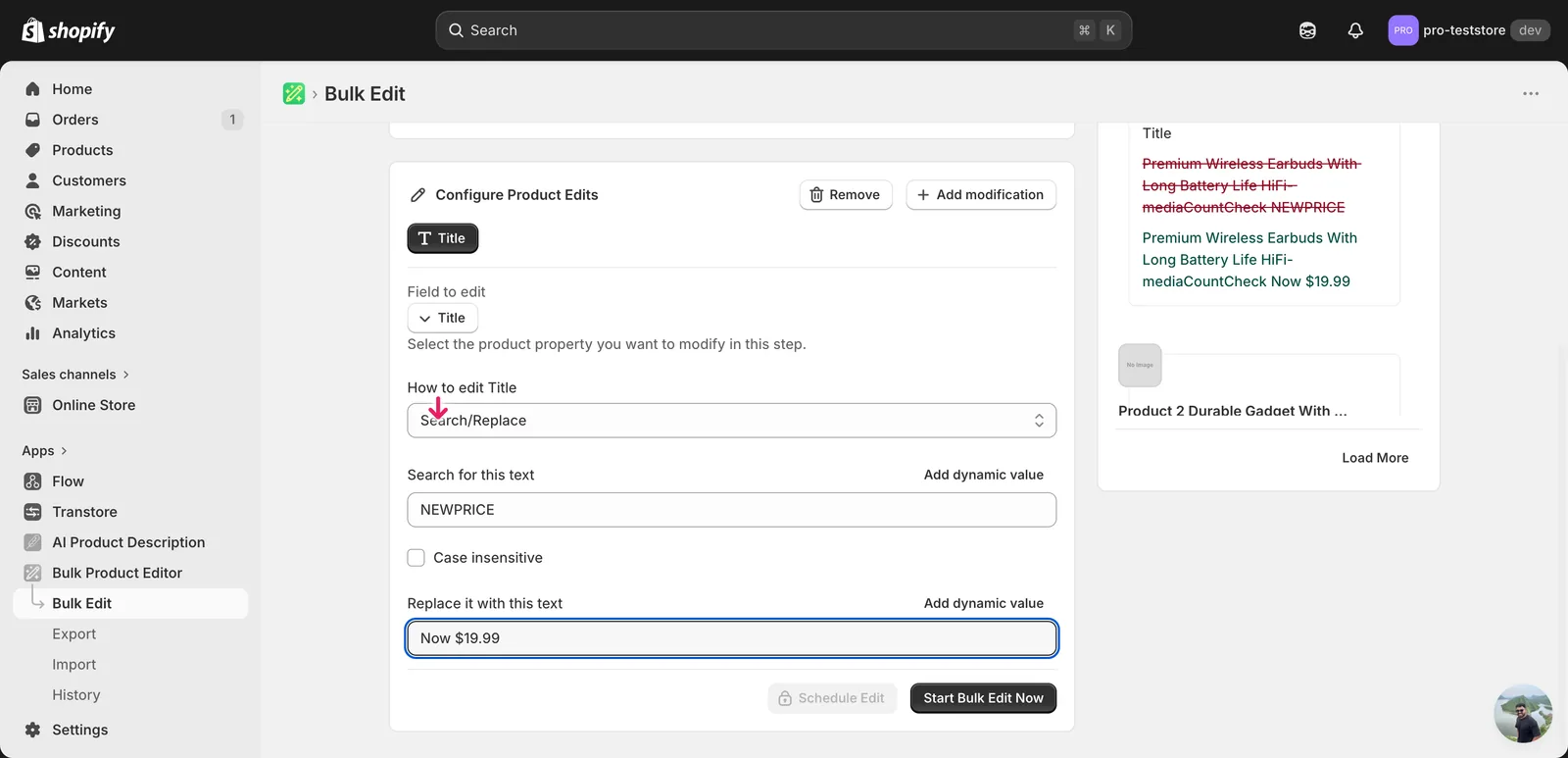
Use this to clean up a temporary marker, retire a season tag, or fix a typo across the catalog. Leave the replace field blank to delete the matched text outright.
Add / Remove text from end or beginning
A single input. Whatever you type gets appended, prepended, or stripped from the matching end of every title.
Limit length of text
A number input plus two checkboxes:
- If the text is trimmed, include '...' at the end — adds an ellipsis when truncation happens.
- Don't trim the text in the middle of a word — pulls the cut back to the previous word boundary so titles don't end mid-word.
The form notes that the recommended length is up to 70 characters (Shopify accepts up to 255, but search-result snippets cut off well before that).
Remove text from a word to the end / up to and including a word
A single input — the marker word. Everything from that word onward (or up to and including it, depending on the action) is stripped. Useful when titles share a trailing or leading boilerplate phrase.
After the run
- Title changes are reversible from the History page using Undo.
- Watch out for empty titles: Shopify rejects updates that would produce a blank title, and that product is skipped.
- Search/Replace and the Add/Remove actions are not idempotent — re-running them keeps modifying the title. The Edit Preview on the right shows the proposed new title per product; scan it before you run.
Frequently asked questions
How do I bulk edit product titles in Shopify?
In EditEngine's Configure Product Edits panel, click Select Field and choose Title under Product Fields. A How to edit Title dropdown appears with nine actions — set a value, add or remove text at either end, search and replace, limit length, or strip text around a marker word. Enter your value and the Edit Preview shows each new title before you run.
Can I undo a bulk title change in Shopify?
Yes. Title changes made with EditEngine are reversible from the History page using Undo. Before running, check the Edit Preview on the right — it shows the proposed new title for every matched product, so you can catch problems before any change touches your store.
How do I add a prefix or suffix to many Shopify product titles at once?
Pick the Title field, then choose Add text to beginning or Add text to end. Whatever you type is prepended or appended to every matched title — for example "[NEW] " in front or " - Sale 2026" at the end. These actions are not idempotent, so re-running them keeps adding the text again; use Undo instead.
Will every product get the same title if I use Set text to value?
Yes, unless you include a dynamic value. A literal value with no dynamic token gives every matched product an identical title — Shopify accepts it, but customers see duplicates. In EditEngine, click Add dynamic value to insert a token like {{product.title}} so each product composes a unique result, such as "SALE: Cotton Trail Jacket".
What happens if a bulk edit would leave a Shopify product title blank?
Shopify rejects updates that would produce a blank title, and that product is skipped. This can happen with remove actions that strip all of the text. Scan the Edit Preview before running so you can spot any titles that would come out empty and adjust the action first.