
Inventory
How to Bulk Update Shopify Damaged Inventory Per Location
Last updated
Need to bulk update Shopify damaged inventory per location so your sellable totals reflect what is actually intact on each shelf? With EditEngine Bulk Product Editor, you export your variants to a spreadsheet, write a damaged count for every location column, and import the file back. Per-location damaged state is one number per variant per location, so a spreadsheet is the right tool when you have more than a handful of variants to reconcile.
What you'll learn
- Export every product with its current damaged inventory
- Edit damaged inventory per row in a spreadsheet
- Import the updated file back to Shopify
What you'll need
- The EditEngine Bulk Product Editor app installed in your Shopify store
- At least one product with inventory tracked across one or more Shopify locations
- Inventory tracking enabled on the variants you plan to edit
- The Advanced import flow — per-location inventory state columns are advanced-import only
- A spreadsheet editor (Excel, Google Sheets, Numbers — anything that opens CSV)
Shopify tracks inventory states — on hand, committed, available, damaged, quality control, and safety stock — separately at each location. The damaged state is what you write off as unsellable: water damage, dropped boxes, returns that came back broken. Editing those numbers in the Shopify admin means opening the inventory drawer for one variant at a time, which is why the export → edit → import flow exists.
Step 1 — Export your Shopify damaged inventory
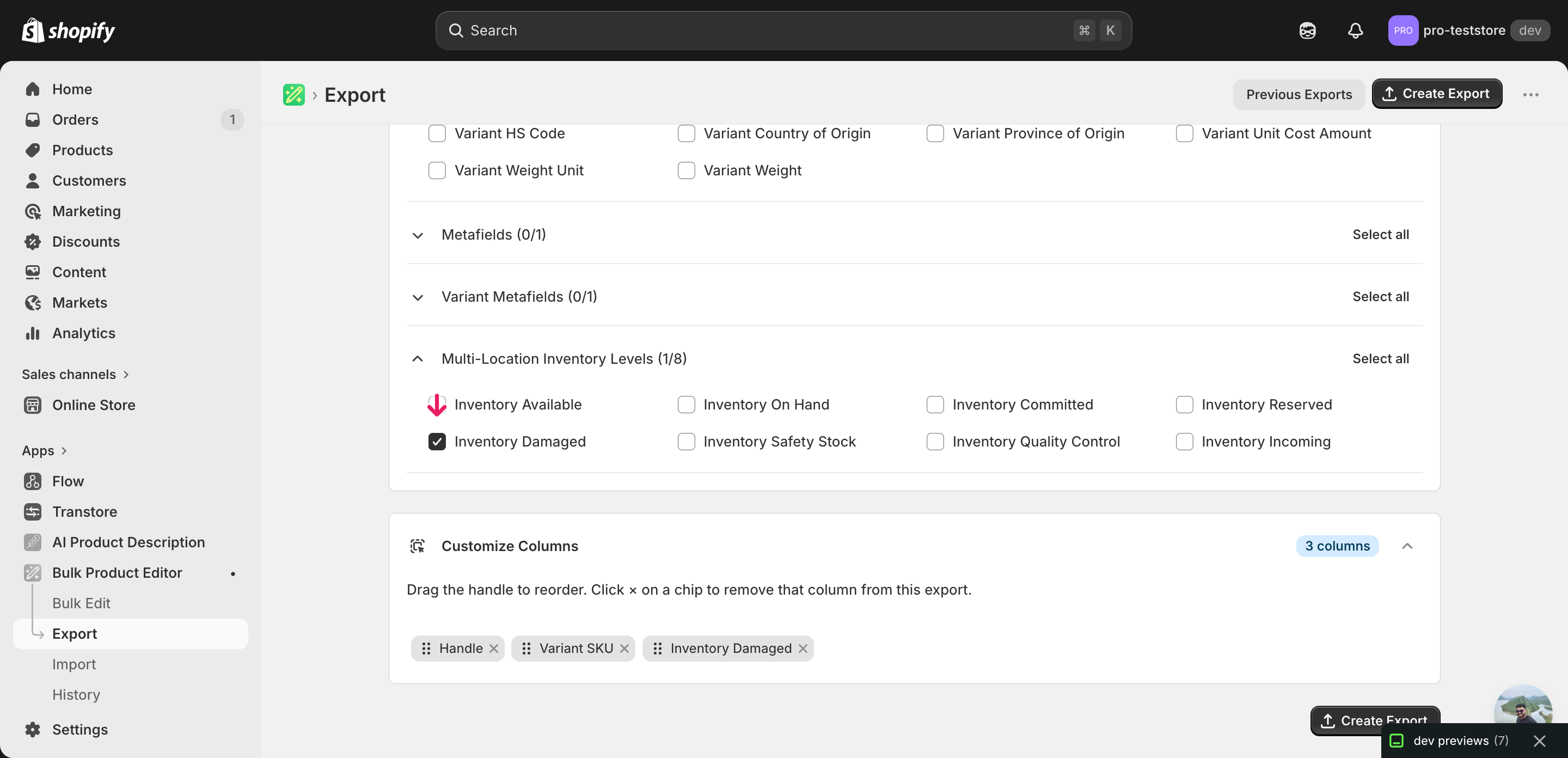
Open EditEngine and go to the Export page. This is where you pick which inventory state columns land in your spreadsheet.
Pick the right columns
- Handle — the unique product identifier the importer uses to match each row back to the right product.
- Variant SKU — identifies the specific variant on each row, so multi-variant products land on the correct line when you edit.
- Inventory Damaged: Shop Location — the column you edit. EditEngine writes one of these per active location — expand the Inventory group and tick Damaged for every location you want to update.
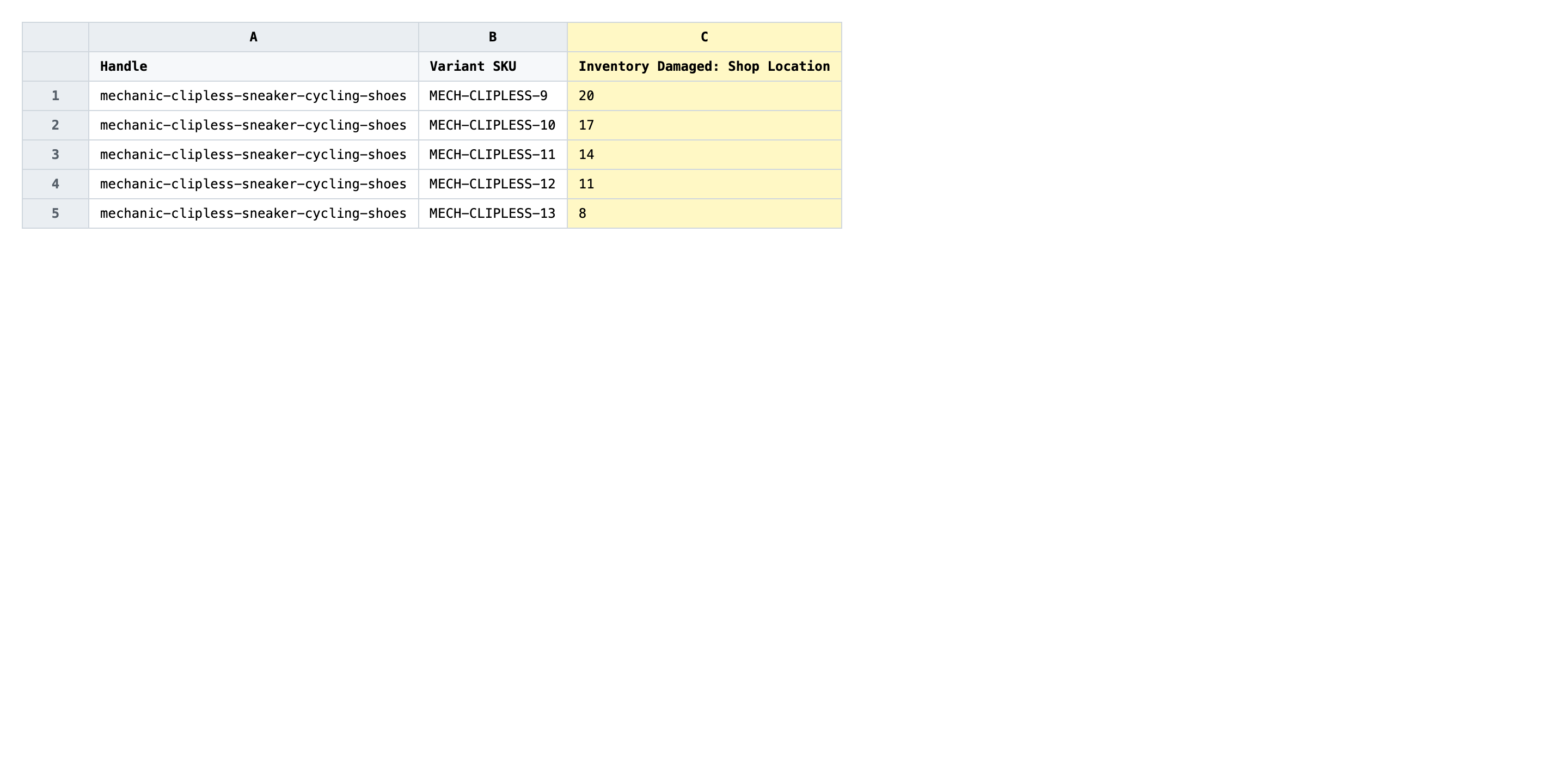
When the export completes, click Download. You get one row per variant with a separate Inventory Damaged: <Location> column for each location you ticked — that is the shape the advanced importer reads back.
New to exporting? This guide assumes you know how to run an export and focuses only on the columns and edit unique to this workflow.
Step 2 — Bulk update Shopify damaged inventory per location in your spreadsheet
Open the downloaded CSV in Excel or Google Sheets. Each Inventory Damaged: <Location> column holds the current damaged count at that location, with one row per variant.
Type a whole number into the Inventory Damaged: <Location> column for each variant and location you are reconciling. The value is an absolute count of damaged units at that location, not a delta — if a variant has 3 damaged units at the warehouse and you find 2 more, write 5, not +2. Leave the column blank to keep the existing count, and write 0 to clear it.
- ✅
5 - ❌
+2 damaged
Leave Handle and Variant SKU exactly as exported — those are the matching keys, and editing them points the row at a different variant or nothing at all. Also leave the other inventory state columns (Inventory Available, Inventory On Hand, Inventory Committed) alone unless you intend to overwrite them; the importer writes whatever you put in those cells, so an accidental edit can silently move stock between states. Rows for variants you are not touching can be left as-is or deleted entirely.
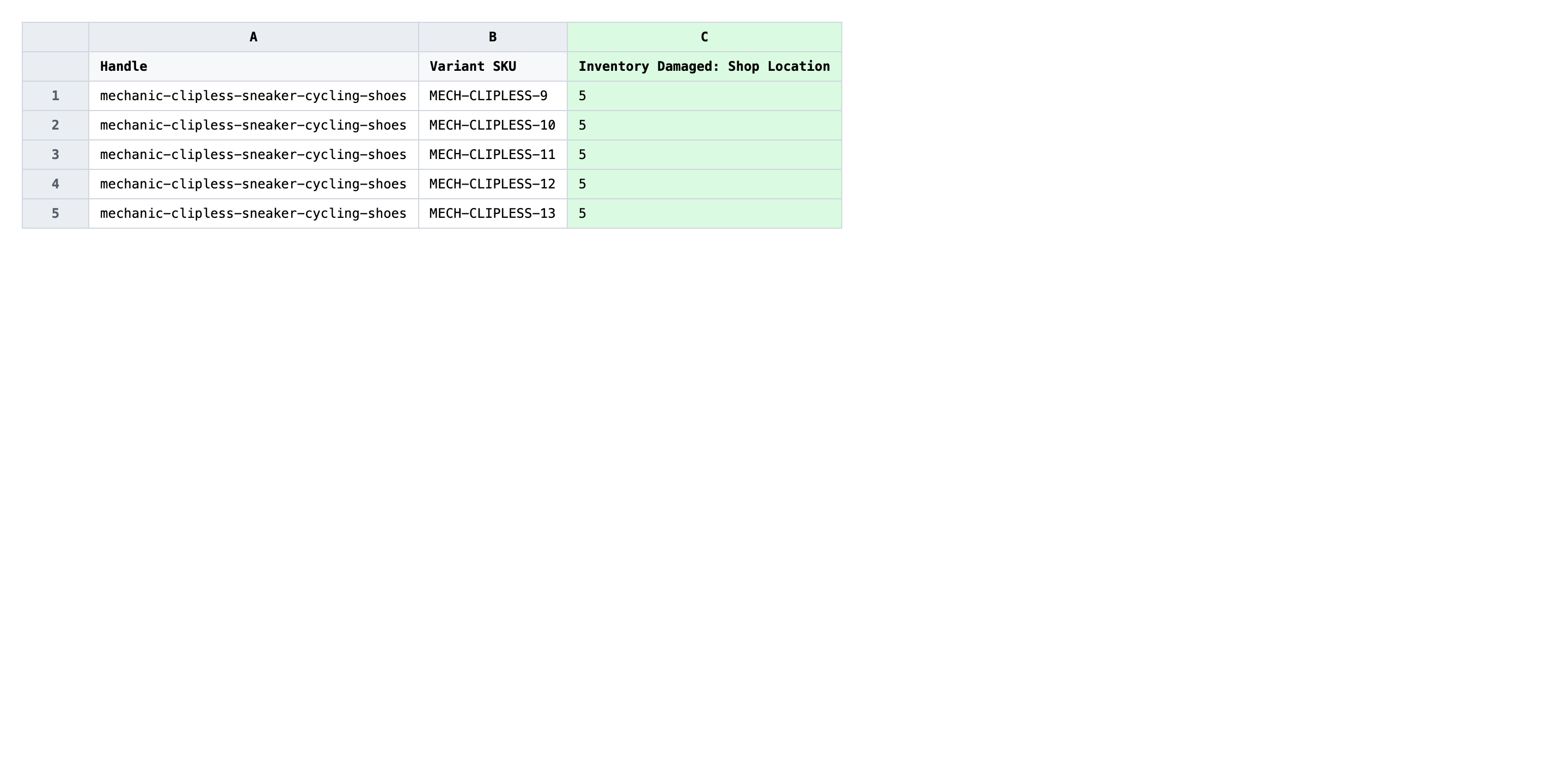
Save the file as CSV when you're done, and keep the original export handy in case you want to revert.
Tip: Damaged is a per-location state, not a per-variant one. A variant stocked at three locations has three damaged columns and three independent numbers — updating one location does not change the other two.
Step 3 — Import the edited file back to Shopify
Open EditEngine → Import and select Advanced import. Then upload the file you just edited.
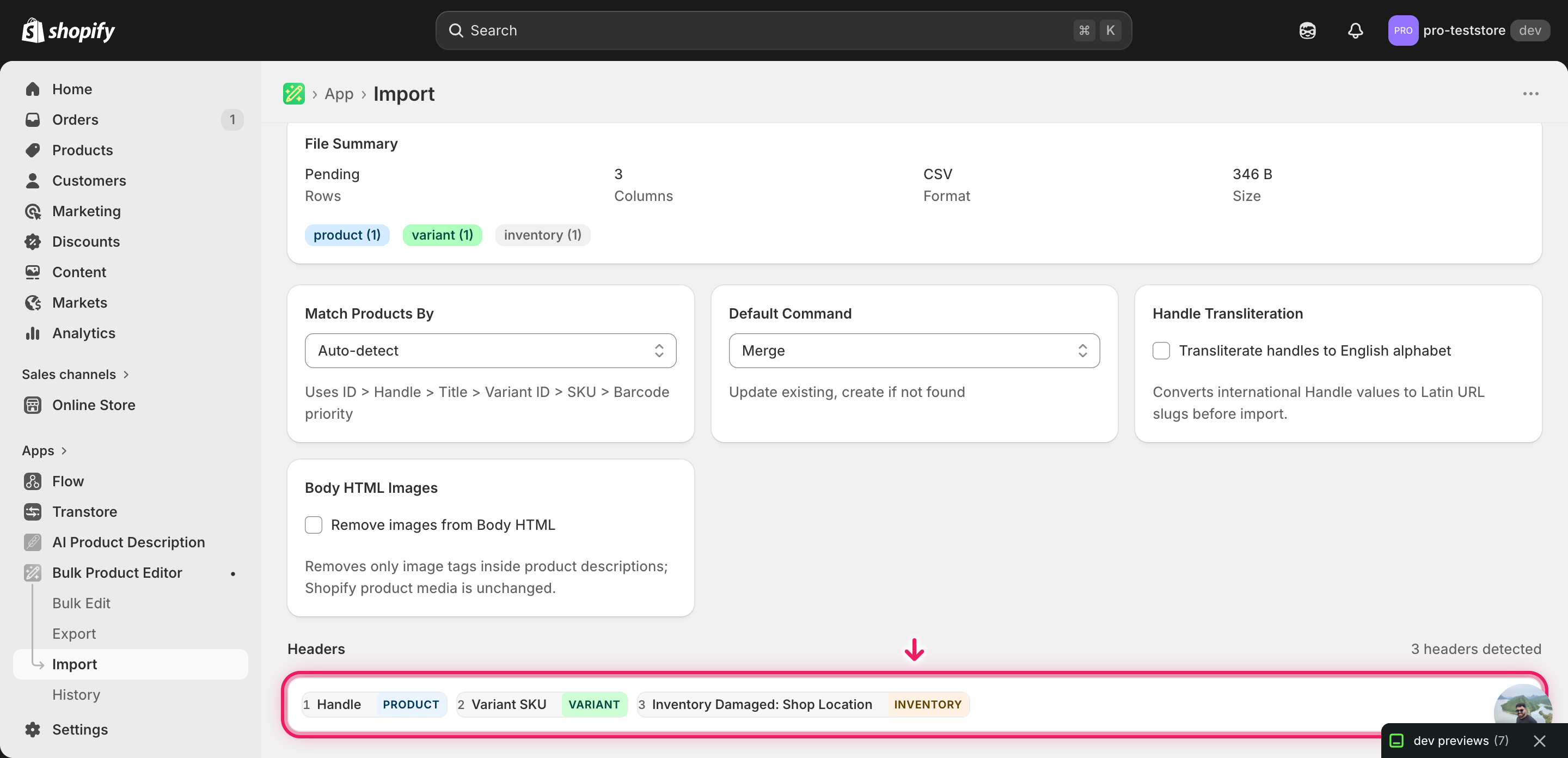
EditEngine reads the file and shows a summary. Check the Headers panel: every Inventory Damaged: <Location> column should carry the INVENTORY badge, which confirms the importer matched each header to a real location in your store. Leave Match Products By on Auto-detect and Default Command on Merge. If a location header shows up as unmapped, the location name in the header does not match a Shopify location — fix the spelling and re-upload.
Note: This is a destructive write — the importer overwrites the damaged count at each location with whatever number you put in the cell, and there is no dry-run toggle. Run a first import with two or three rows, open one of those variants in the Shopify admin, confirm the damaged state matches what you typed, then import the rest of the file. That tiny pilot catches a mistyped header or a wrong location before you commit the whole catalog.
Click Start Import and wait for the job to finish — a small file takes seconds, larger catalogs a couple of minutes. When it completes, EditEngine shows a per-row summary.
Download the results CSV. It lists every row with a pass/fail status — that file is your proof the change went through, and the new values are now live in your Shopify admin.
Tips and troubleshooting
Don't confuse damaged with available or on hand. The inventory state columns sit next to each other on the export, and it's easy to type a damaged count into the wrong column. Damaged units are still part of on-hand stock — they just are not sellable. If you mean to write off 5 units, set Inventory Damaged: <Location> to 5; do not subtract them from Inventory Available or Inventory On Hand, because Shopify recalculates available from on-hand minus committed and damaged automatically.
Reconcile against a physical recount, not memory. Damaged counts drift fastest in stores that handle returns or fragile goods. Before you bulk update Shopify damaged inventory per location, do a quick physical sweep per location and write the actual count of broken or unsellable units. Importing yesterday's guesses on top of last week's guesses just compounds the error.
Pilot with three rows before the full file. There is no dry-run for this import, and the write is destructive. Cut a copy of the spreadsheet down to two or three variants, import it, then open those variants in the Shopify admin and confirm the damaged number on each location matches your cell. Once that round-trip works, import the full file with confidence.
One row per variant, one column per location. Multi-variant products export as several rows; multi-location stores export several damaged columns. Edit the cell at the intersection — variant row × location column — and leave the rest alone. Blank cells are ignored, so you only need to fill the cells you actually want to change.
Frequently asked questions
How do I bulk update damaged inventory in Shopify?
Export your products from EditEngine with the per-location inventory state columns, set a numeric damaged count for each variant in the spreadsheet, then import the file back through the advanced import flow. That round-trip is how you bulk update Shopify damaged inventory per location instead of clicking through the inventory state drawer one variant at a time.
Can I edit Shopify damaged inventory in a spreadsheet?
Yes. EditEngine exports one column per location for the damaged state, so you can edit those numbers in Excel, Google Sheets, or any CSV editor and import the file back. The Shopify admin only lets you adjust damaged counts one variant at a time, which is why the spreadsheet workflow exists.
How long does a bulk damaged inventory import take in Shopify?
A handful of variants finishes in seconds. A few thousand variants across two or three locations typically completes in a couple of minutes, and EditEngine streams larger files so even multi-location catalogs do not time out. The results CSV reports the exact duration for your job.
What format does Shopify accept for damaged inventory imports?
A CSV or XLSX with a Handle column, a Variant SKU column to identify each variant, and one Inventory Damaged: <Location> column per location holding an integer. EditEngine's advanced import reads that shape directly when you bulk update Shopify damaged inventory per location.
Can I undo a bulk Shopify damaged inventory update?
There is no one-click undo, but the workflow is its own backup: keep the original export, and re-import that unedited file to roll the damaged counts back. Because the import only writes to the damaged state, your on-hand, available, and committed totals stay untouched.
Related tutorials
- How to Bulk Update Shopify Inventory Quantities Across Multiple Locations
- How to Bulk Adjust Shopify Inventory Deltas Across Locations
- How to Bulk Update Shopify On Hand Stock Per Location
About EditEngine: EditEngine Bulk Product Editor helps Shopify merchants bulk edit, bulk import, and bulk export their product catalog in minutes instead of days. Install on Shopify →