
Pricing
How to Bulk Round All Shopify Prices to .99 / .95 Endings
Last updated
Want to bulk update Shopify all prices to .99 / .95 endings so every variant lands on a clean charm-pricing point instead of a random number from a cost-plus markup? With EditEngine Bulk Product Editor, you export every variant to a spreadsheet, apply one rounding formula across the Variant Price column, and import the file back. EditEngine matches each row by Handle and Variant SKU, so the rounded price lands on the right variant every time.
What you'll learn
- Export every product with its current all prices
- Edit all prices per row in a spreadsheet
- Import the updated file back to Shopify
What you'll need
- The EditEngine Bulk Product Editor app installed in your Shopify store
- Products with Variant Price values already set in Shopify
- A spreadsheet tool that preserves decimals as text (Google Sheets, Excel with the Price column formatted as Text or Number with two decimals)
- A spreadsheet editor (Excel, Google Sheets, Numbers — anything that opens CSV)
Charm pricing — endings like $24.99 or $19.95 — is one of the oldest pricing levers in retail because shoppers anchor on the leftmost digit. Shopify stores Variant Price as a plain decimal, so the ending is just a formatting choice you control in the spreadsheet. Doing it variant-by-variant in the Shopify admin is the slow path; doing it as a CSV round-trip is what this tutorial is for.
Step 1 — Export your Shopify all prices
Open EditEngine and go to the Export page. This is where you pick which variant fields land in your spreadsheet.
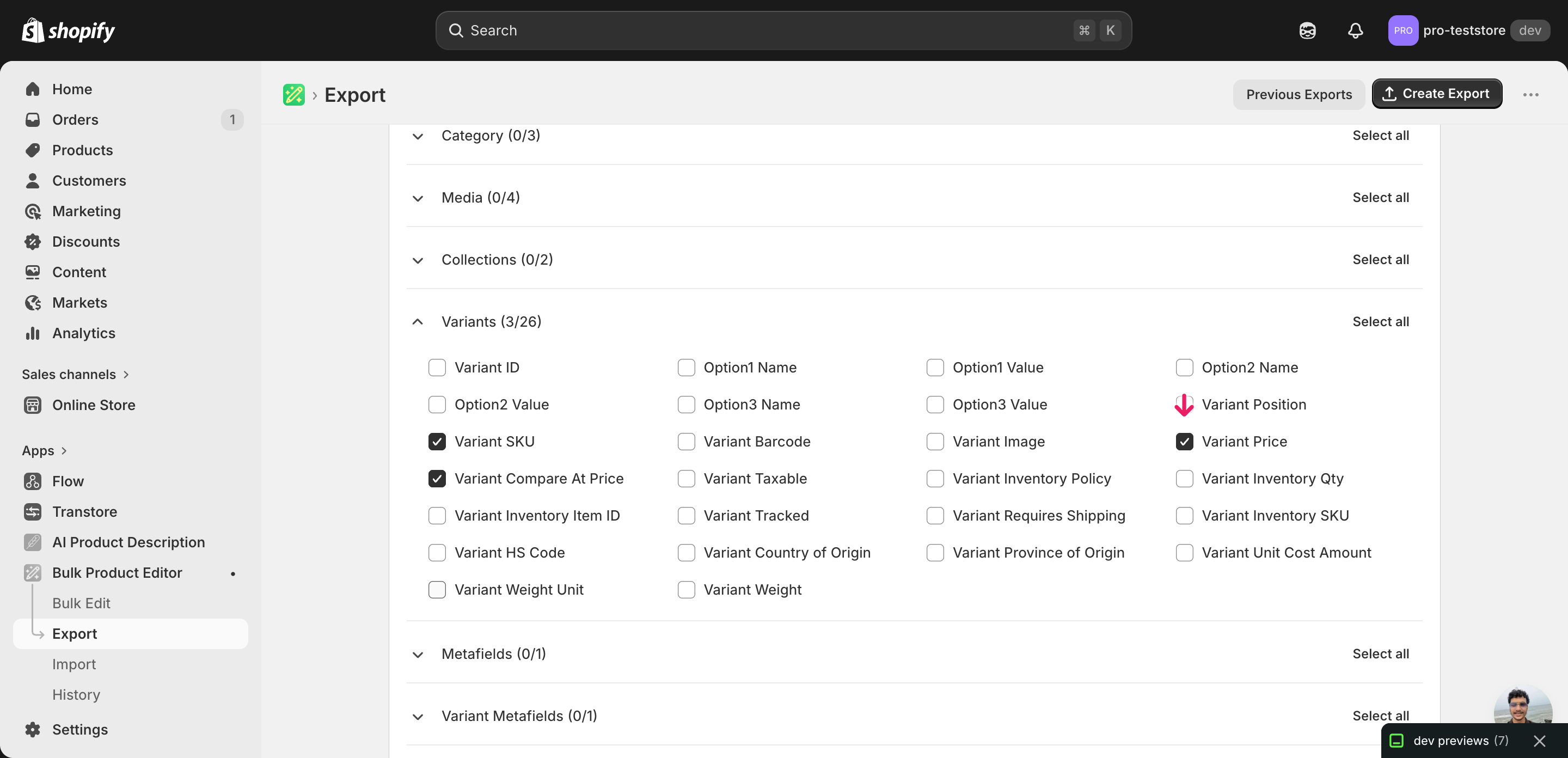
Pick the right columns
- Handle — the unique product identifier the importer uses to match each row back to the right product.
- Variant SKU — the variant-level matching key. When a product has multiple variants, Handle alone is not enough — the importer needs Variant SKU to write the new price onto the correct variant.
- Variant Price — the column you'll edit. This is the variant's selling price; expand the Variant Pricing group and tick it.
- Variant Compare At Price — optional, only if you also want to round the strikethrough price. Tick it only if you plan to edit it — otherwise leave the column out so a blank cell doesn't accidentally clear an existing compare-at value.
When the export completes, click Download. You'll get one row per variant: a product with three sizes exports as three rows, each with its own Variant SKU and Variant Price ready to round.
New to exporting? This guide assumes you know how to run an export and focuses only on the columns and edit unique to this workflow.
Step 2 — Bulk update Shopify all prices to .99 / .95 endings in your spreadsheet
Open the downloaded CSV in Excel or Google Sheets. The Variant Price column holds each variant's current selling price — that's the column you're going to round.
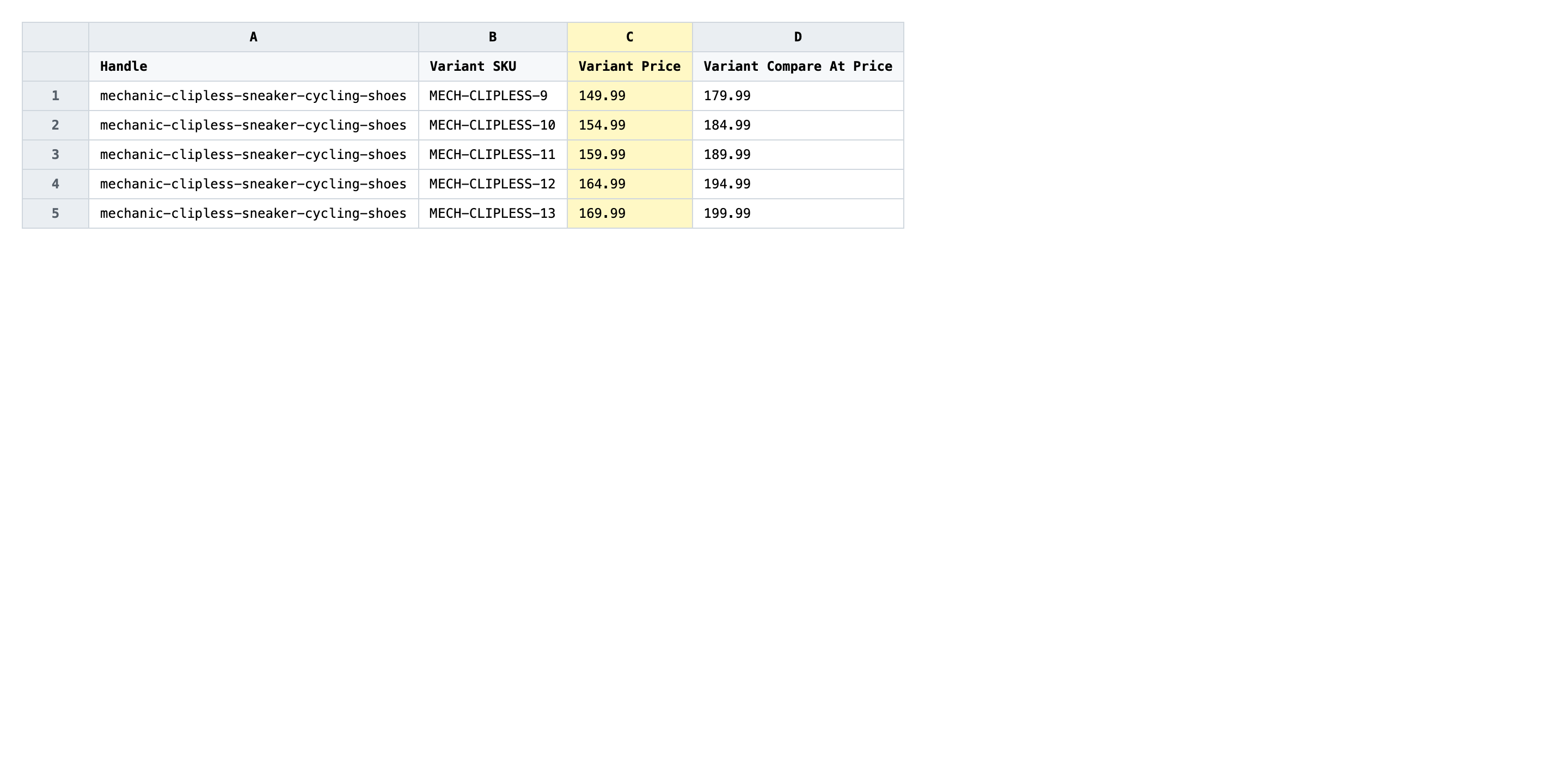
In an empty column next to Variant Price, write a rounding formula. The cleanest pattern is =FLOOR(C2, 1) + 0.99 to drop every price down to the next .99 ending, or =FLOOR(C2, 1) + 0.95 for .95. Once the formula is right for one row, drag it down the column, then copy the results back over Variant Price as values. Delete the helper column before you save so only the rounded prices remain.
- ✅
24.99 - ❌
$24.99 or 24,99 or 24.9
Leave Handle and Variant SKU exactly as exported — those are the matching keys that decide which variant each price lands on. Do not add a currency symbol, do not use a comma as the decimal separator, and watch for spreadsheet auto-formatting that turns 24.90 into 24.9: format the column as Number with two decimals (or Text) before you paste rounded values in. Blank cells in Variant Compare At Price will overwrite existing compare-at prices to empty, so either fill that column for every row or remove it from the file entirely.
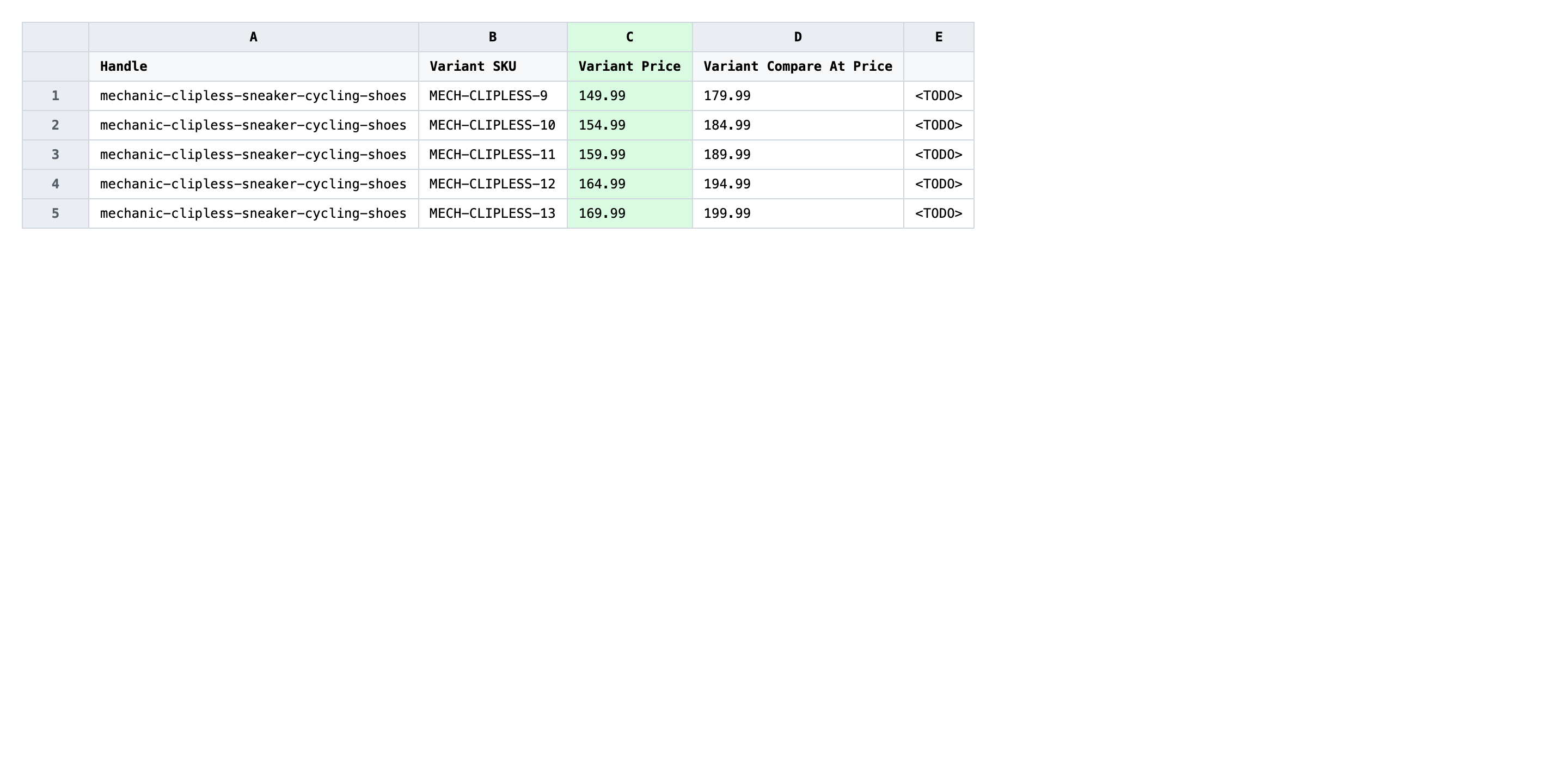
Save the file as CSV when you're done, and keep the original export handy in case you want to revert.
Tip: Pick one ending and stick to it across the catalog. Mixing .99 and .95 on similar products looks inconsistent on a collection page — decide which one fits your brand before you write the formula.
Step 3 — Import the edited file back to Shopify
Open EditEngine → Import and select Advanced import. Then upload the file you just edited.
EditEngine reads the file and shows a summary. Check the Headers panel: Variant Price (and Variant Compare At Price if you included it) should be detected as variant-level price columns. Leave Match Products By on Auto-detect and Default Command on Merge so existing fields you didn't include are left alone.
Note: This is a destructive edit — once the import commits, the old prices are gone and the new rounded values are live on your storefront. Before you upload the whole file, copy two or three rows into a separate test CSV, import that first, and check the variants in the Shopify admin. If the rounded prices show correctly there, come back and import the full catalog file.
Click Start Import and wait for the job to finish — a small file takes seconds, larger catalogs a couple of minutes. When it completes, EditEngine shows a per-row summary.
Download the results CSV. It lists every row with a pass/fail status — that file is your proof the change went through, and the new values are now live in your Shopify admin.
Tips and troubleshooting
Spreadsheets silently strip trailing zeros. Excel and Google Sheets treat 24.90 as the number 24.9 and drop the zero on display and on save. Shopify accepts both, but if you want the storefront to render $24.90 rather than $24.9 (Shopify's price formatter handles this for you on most themes), still format the Variant Price column as Number with two decimals before you save the CSV. That keeps the file readable when you reopen it tomorrow.
Decide whether compare-at price gets the same treatment. If you sell at .99 endings but leave compare-at prices at round dollars, the discount looks intentional — $24.99 from $30.00 reads as a $5 saving. If you round both, you get $24.99 from $29.99, which reads as a $5 saving with less visual contrast. Pick one approach and apply it to the column with the same formula; don't mix the two within a single import.
Round a tiny batch first, then the rest. Variant Price is a high-stakes column — a typo or a stripped decimal goes straight to the storefront. Filter the export to one collection or five SKUs, run the full round-trip on that subset, and verify in the Shopify admin that the rounded prices show up correctly. Once the formula and the import behave as expected, run the same workflow on the full catalog.
Frequently asked questions
How do I bulk update all prices in Shopify?
Export your variants from EditEngine with the Handle, Variant SKU, and Variant Price columns, apply a rounding formula in your spreadsheet, then import the file back through Advanced import. That round-trip is how you bulk update Shopify all prices to .99 / .95 endings without touching each variant in the admin.
Can I edit Shopify all prices in a spreadsheet?
Yes. EditEngine exports one row per variant with the Variant Price column you can edit in Excel or Google Sheets. Save as CSV and re-import to push the rounded prices back — Shopify's admin has no built-in spreadsheet editor for variant prices.
How long does a bulk all prices import take in Shopify?
A few dozen variants finishes in seconds, and a few thousand usually completes in a minute or two. EditEngine streams the file so even large catalogs don't time out when you bulk update Shopify all prices to .99 / .95 endings in one shot.
What format does Shopify accept for all prices imports?
A CSV or XLSX with a Handle column to match the product, a Variant SKU column to match the variant, and the price columns you want to change — Variant Price and optionally Variant Compare At Price. Use a dot as the decimal separator and no currency symbol.
Can I undo a bulk Shopify all prices update?
There is no one-click undo, but the original export is your safety net. Keep that pre-edit file, and to roll the catalog back just re-import it — that restores every variant price to what it was before you ran the rounding.
Related tutorials
- How to Bulk Markup Shopify Pricing From Cost
- How to Bulk Markdown Shopify Sale Pricing
- How to Bulk Convert Shopify Prices For A New Currency Market
About EditEngine: EditEngine Bulk Product Editor helps Shopify merchants bulk edit, bulk import, and bulk export their product catalog in minutes instead of days. Install on Shopify →