
Products
How to Bulk Update Shopify Product Type Per Product
Last updated
Need to bulk update Shopify product type per product so your catalog groups items the way your team, your theme, and your reports actually look at them? With the EditEngine Bulk Product Editor, you export your products to a spreadsheet, set the Type column for each row, and import the file back. Because every product gets a different value, the spreadsheet round-trip beats clicking through the admin one item at a time.
What you'll learn
- Export every product with its current product type
- Edit product type per row in a spreadsheet
- Import the updated file back to Shopify
What you'll need
- The EditEngine Bulk Product Editor app installed in your Shopify store
- A Shopify store with products that already have a Handle (any product saved at least once qualifies)
- A short list of the product types you intend to use — pick the names before you open the spreadsheet so you don't invent variants on the fly
- The EditEngine Bulk Product Editor installed, with the Advanced import flow available
- A spreadsheet editor (Excel, Google Sheets, Numbers — anything that opens CSV)
Product type is the custom, free-text bucket you assign to a product — separate from Shopify's standard product taxonomy. Themes use it to drive filters and collection logic, and your reports group sales by it, so consistency matters: T-Shirt and T-Shirts are two different buckets in Shopify's eyes. The spreadsheet workflow below is what lets you reconcile those values across the whole catalog at once.
Step 1 — Export your Shopify product type
Open EditEngine and go to the Export page. This is where you pick which fields land in your spreadsheet.
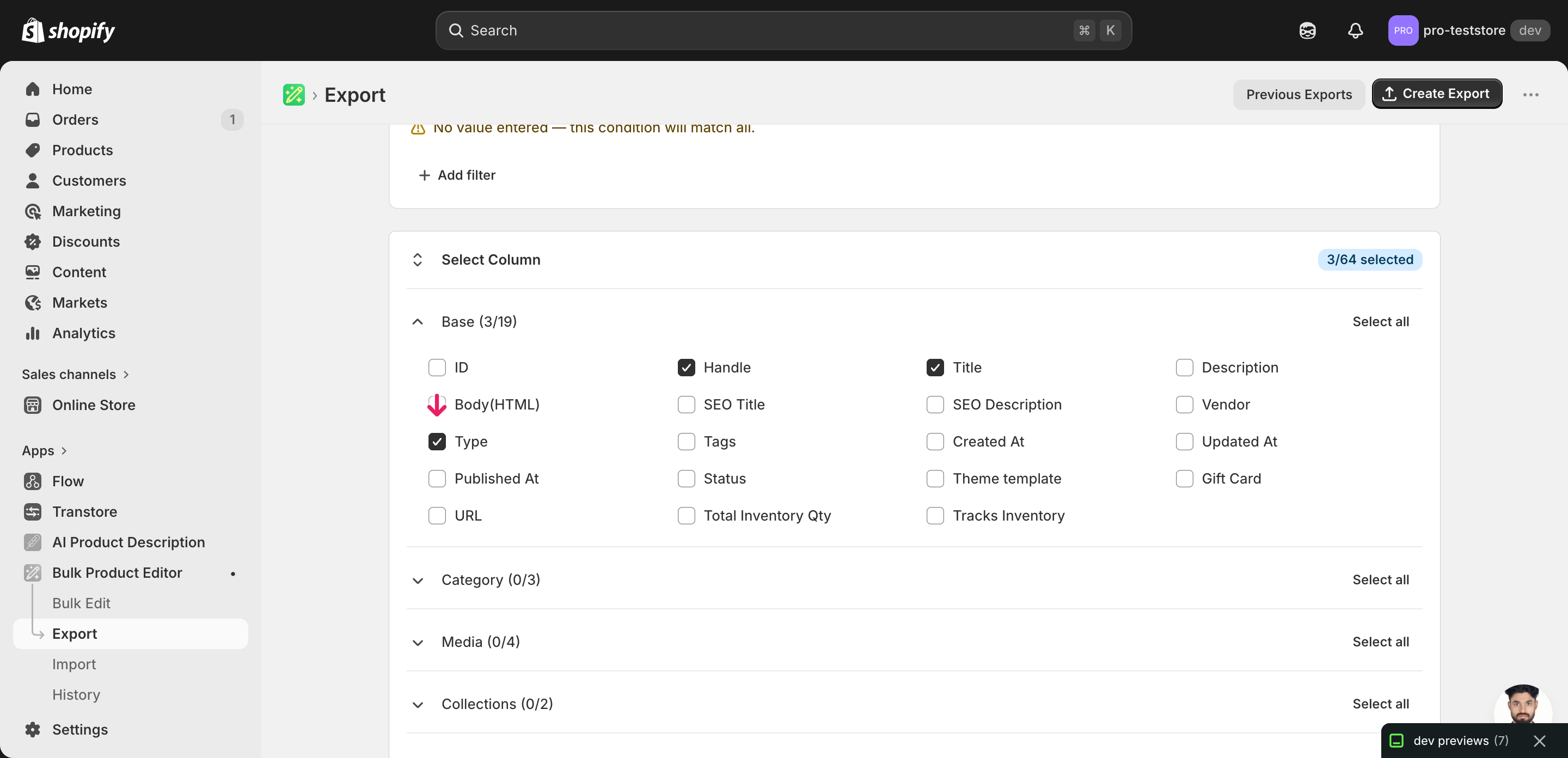
Pick the right columns
- Handle — the unique product identifier the importer uses to match each row back to the right product. Never edit it.
- Title — context only, so you can see which product a row belongs to while you're deciding what type to assign.
- Type — the column you'll edit. It holds the current custom product type and is the only value the import actually changes.
When the export finishes, click Download. You'll get one row per product, with the current Type value already filled in for products that have one and blank for products that don't — that blank is a clean canvas to write into.
New to exporting? This guide assumes you know how to run an export and focuses only on the columns and edit unique to this workflow.
Step 2 — Bulk update Shopify product type per product in your spreadsheet
Open the downloaded CSV in Excel or Google Sheets. The Type column holds the current custom product type for each product, and that is the only column you'll change.
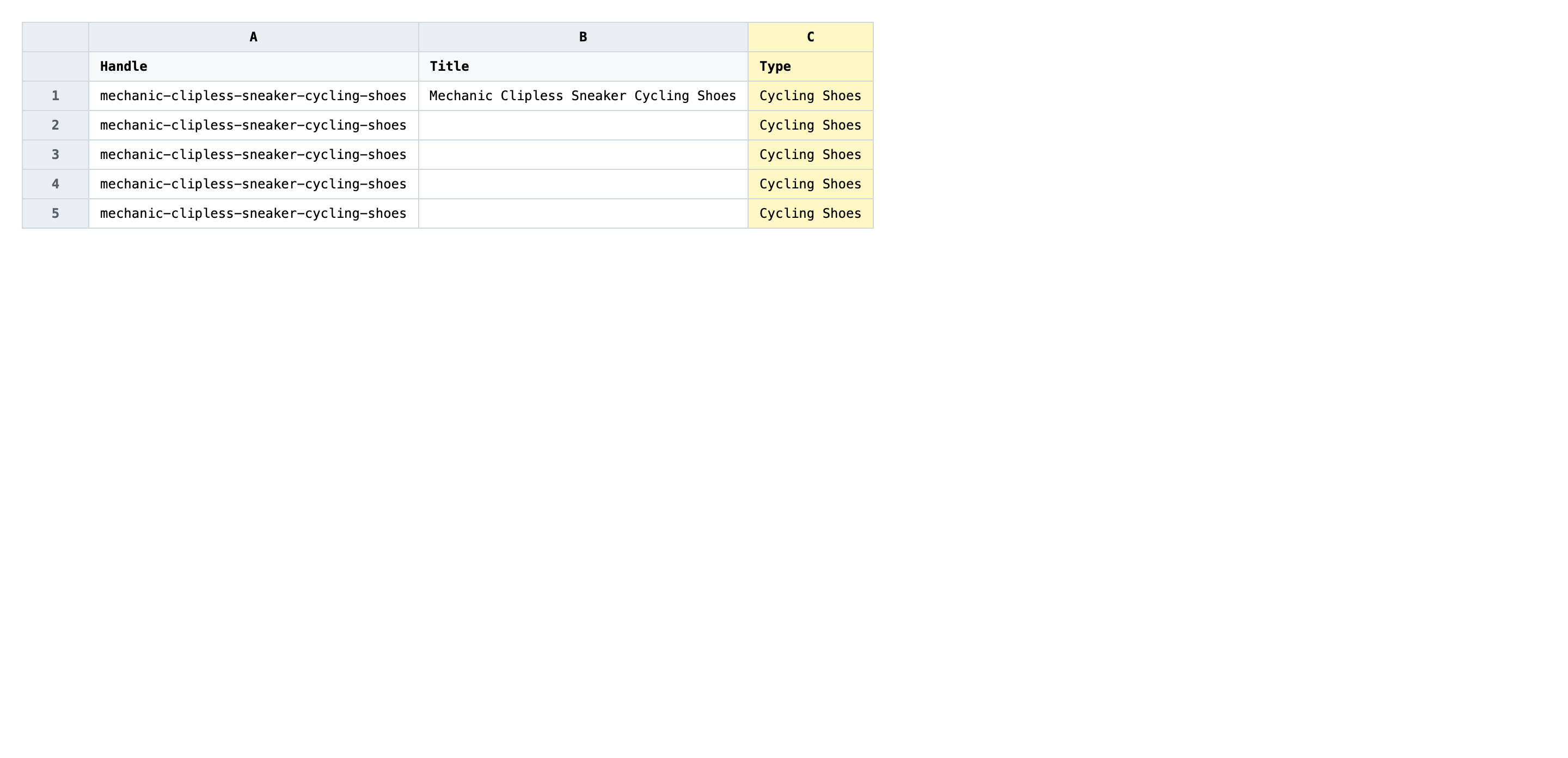
Write the new product type into Type for each row. Keep your wording consistent — Cycling Shoes and cycling shoe will become two separate buckets in collections, filters, and reports. Use a short noun phrase, match the capitalization you've already standardized on, and resist the urge to invent a new type unless it represents a real merchandising group.
- ✅
Cycling Shoes - ❌
cycling shoe / Cycling-Shoes / Shoes (Cycling)
Leave every other column exactly as exported. Do not edit Handle — that's the matching key, and changing it either creates a new product or fails the row. If a product should have no custom type at all, you can clear the cell, but blank cells still overwrite the existing value, so only clear them on purpose. Keep your list of allowed types open in another tab as you go, and paste from it instead of retyping.
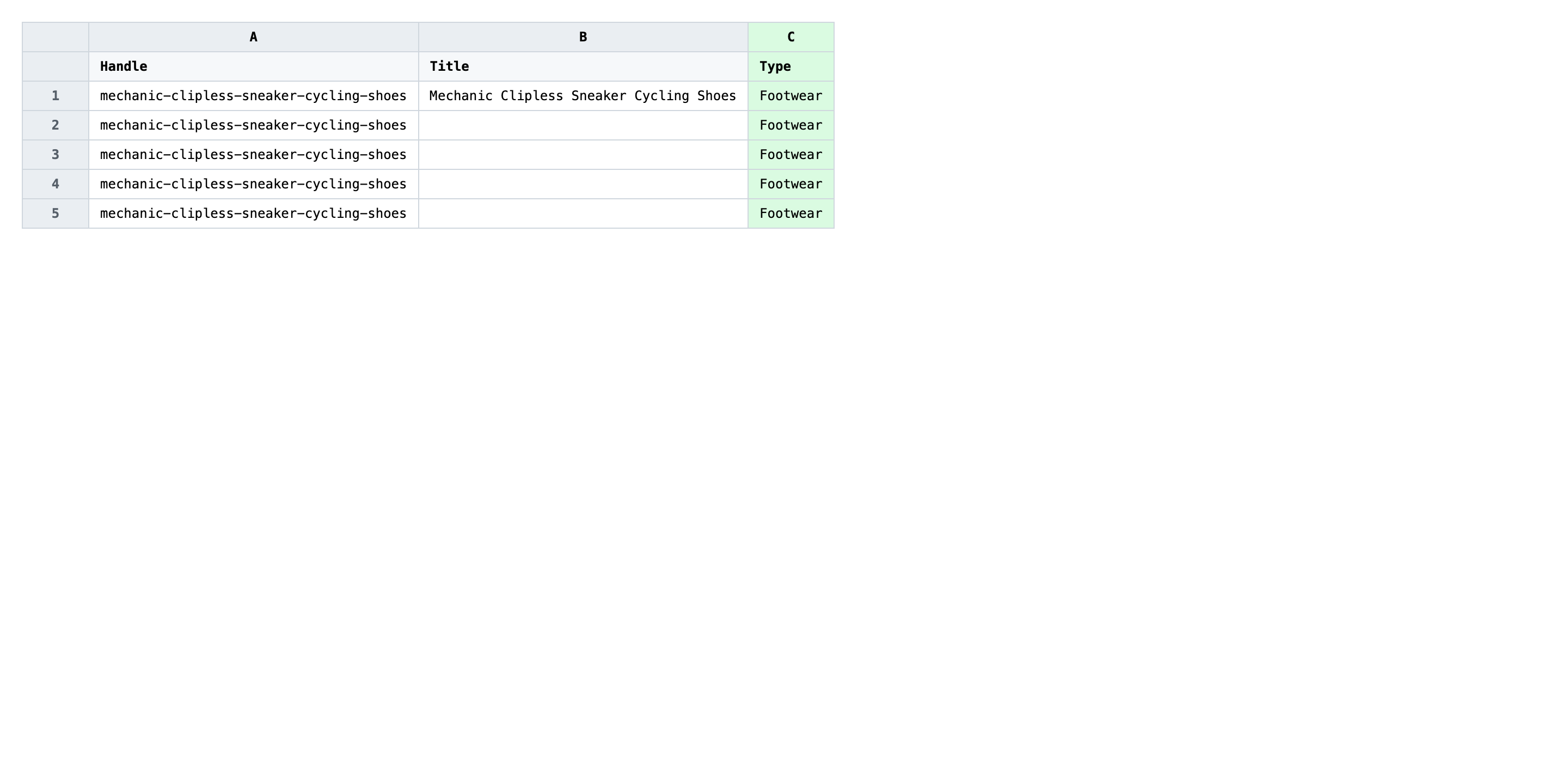
Save the file as CSV when you're done, and keep the original export handy in case you want to revert.
Tip: Sort the sheet by Type before you start editing — products that should share a type cluster together visually, and you can spot odd ones out instead of typing the same value sixty times.
Step 3 — Import the edited file back to Shopify
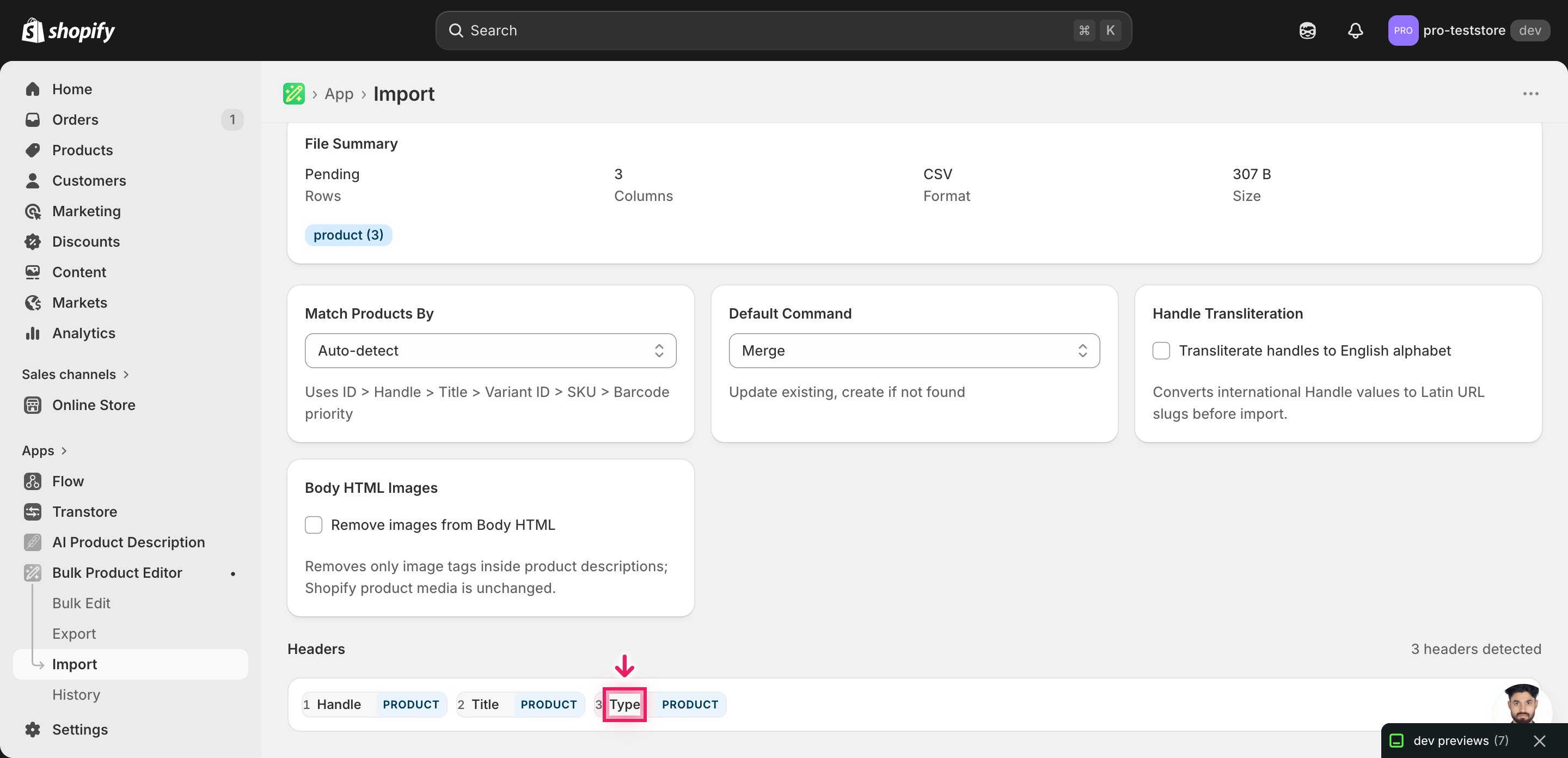
Open EditEngine → Import and select Advanced import. Then upload the file you just edited.
EditEngine reads the file and shows a summary. Check the Headers panel: Handle should carry the KEY badge and Type should be recognized as a product field. Leave Match Products By on Auto-detect and Default Command on Merge so existing data on other fields stays untouched.
Note: This Advanced import does not have a dry-run toggle. A product type change is recoverable — re-importing the original export restores it — but you're still overwriting a field on every row, so run a first import with just two or three rows, confirm the new values look right in the Shopify admin, and only then import the full file. That catches a renamed header or a stray blank cell before you commit the whole catalog.
Click Start Import and wait for the job to finish — a small file takes seconds, larger catalogs a couple of minutes. When it completes, EditEngine shows a per-row summary.
Download the results CSV. It lists every row with a pass/fail status — that file is your proof the change went through, and the new values are now live in your Shopify admin.
Tips and troubleshooting
Type is free text — typos become new buckets. Shopify does not validate the Type field against any list, so T-Shirt, T-Shirts, and t-shirt are three different product types as far as your theme and reports are concerned. Decide on the exact spelling and capitalization before you start editing, and use Find-and-Replace in your spreadsheet to enforce it across every row.
Don't confuse custom product type with the Shopify standard Category. Type is the legacy custom field your theme has always read from. The newer Category field (Shopify's standard product taxonomy) is separate and lives in different columns. This tutorial only touches Type — if you also want to reassign the standard taxonomy, that's a different export with different columns.
Test on a tiny batch before the full catalog. There is no dry-run on the Advanced import. Filter the spreadsheet to two or three products with distinct types, save that as a separate CSV, and import it first. Open those products in the Shopify admin to confirm the new value displays correctly, then import the full file.
Re-export when you're done to lock in the new state. After a successful import, run one more export with the same columns. That file is now your new baseline — the snapshot you'd re-import to revert any future change. Storing it alongside the original gives you both a before and after if you ever need to audit what shifted.
Frequently asked questions
How do I bulk update product type in Shopify?
Export your products from EditEngine with the Handle, Title, and Type columns, set each row's Type in a spreadsheet, then import the file back through the Advanced import flow. That is how you bulk update Shopify product type per product without touching the admin one product at a time.
Can I edit Shopify product type in a spreadsheet?
Yes. EditEngine exports one row per product with the current value in the Type column, and you can edit Shopify product type in Excel, Google Sheets, or any CSV editor. Shopify's own admin only lets you reassign one product at a time, so the spreadsheet round-trip is what makes a bulk update Shopify product type per product workflow practical.
How long does a bulk product type import take in Shopify?
A few dozen products import in seconds, and a few thousand typically finish in a minute or two. EditEngine streams the file row by row, so a bulk update Shopify product type per product job on a large catalog completes without hitting Shopify's admin timeouts. The results CSV records the exact duration.
What format does Shopify accept for product type imports?
A CSV or XLSX with a Handle column to match each product and a Type column with the new product type string. EditEngine's Advanced import reads this format directly, which is the same shape you use for any bulk update Shopify product type per product job.
Can I undo a bulk Shopify product type update?
There is no one-click undo, but the workflow is its own backup — keep the original export and re-import it to restore the previous types. Because a bulk update Shopify product type per product only overwrites a text field, nothing is deleted and no media is moved.
Related tutorials
About EditEngine: EditEngine Bulk Product Editor helps Shopify merchants bulk edit, bulk import, and bulk export their product catalog in minutes instead of days. Install on Shopify →