
Variants & options
How to Bulk Update Shopify Country of Origin Per Variant
Last updated
Need to bulk update Shopify country of origin per variant so customs forms, duty calculators, and tax reports all show the right manufacturing source? With EditEngine Bulk Product Editor, you export every variant to a spreadsheet, type the ISO country code on each row, and import the file back. Because each variant can ship from a different factory, per-variant editing is the only honest way to keep customs data accurate at scale.
What you'll learn
- Export every variant with its current country of origin
- Edit country of origin per row in a spreadsheet
- Import the updated file back to Shopify
What you'll need
- The EditEngine Bulk Product Editor app installed in your Shopify store
- Products with multiple variants that ship internationally and need per-variant customs data
- The list of ISO 3166-1 alpha-2 country codes you plan to assign (US, CN, VN, IT, and so on)
- The Advanced import flow — per-variant customs fields write through the advanced importer
- A spreadsheet editor (Excel, Google Sheets, Numbers — anything that opens CSV)
Country of origin is the two-letter ISO code that tells Shopify — and downstream customs systems — where a variant was manufactured. It feeds duty estimates, harmonized system reports, and the commercial invoice on every international shipment. The value lives on the variant, not the product, because the same hoodie can be sewn in Vietnam in one color and Portugal in another.
Step 1 — Export your Shopify country of origin
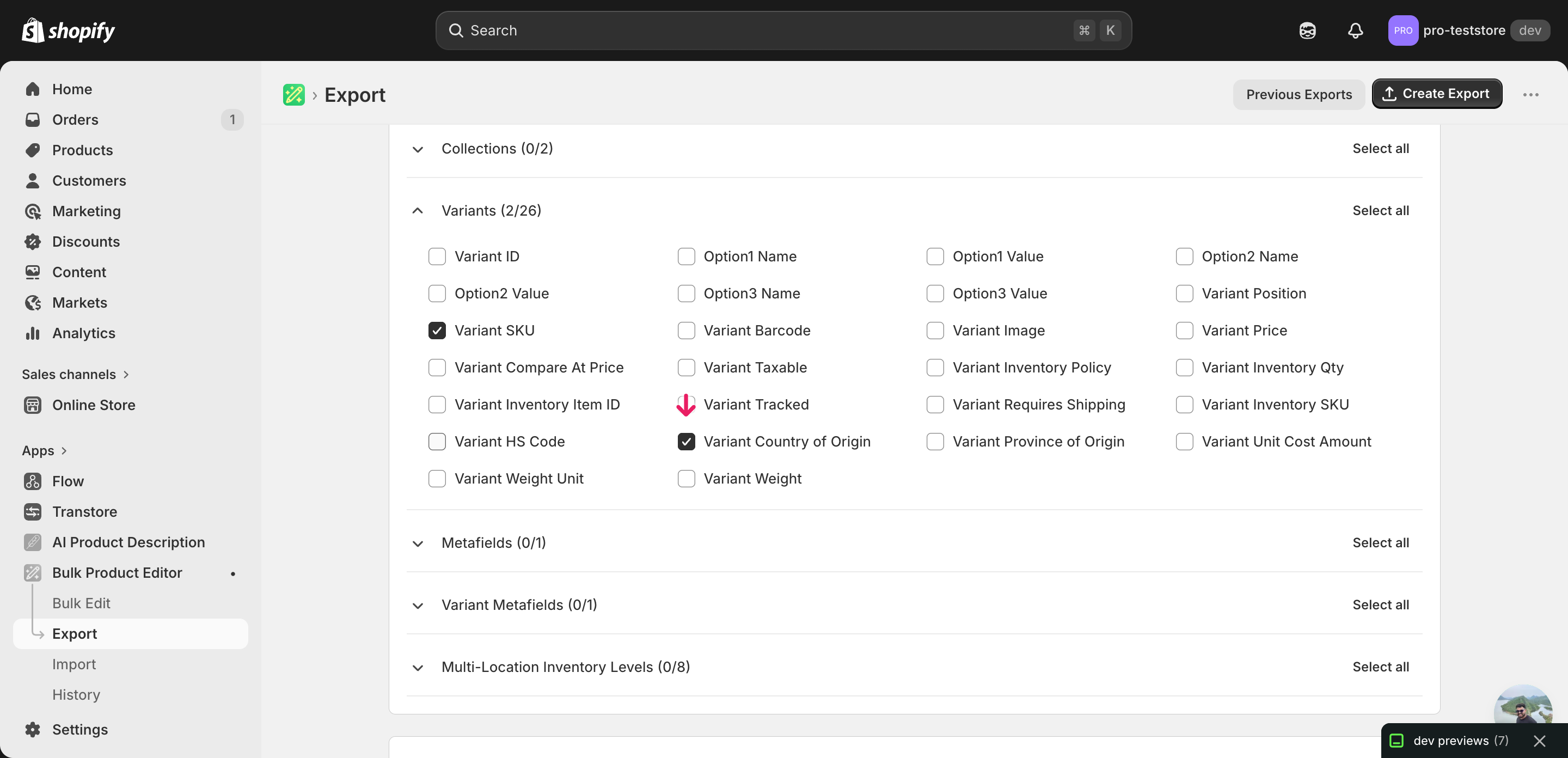
Open EditEngine and go to the Export page. This is where you pick the columns that will land in your spreadsheet.
Pick the right columns
- Handle — the product-level identifier the importer uses to find the right product for each row.
- Variant SKU — the variant-level matching key. Combined with Handle, it pins each row to one specific variant so the country code lands on the right one.
- Variant Country of Origin — the column you'll edit. Expand the Variants group and tick Variant SKU and Variant Country of Origin so both ride along with Handle.
When the export finishes, click Download. You get one row per variant: a product with five sizes and three colors exports as fifteen rows, and the Handle repeats across every variant of the same product — that's how the importer ties them back together.
New to exporting? This guide assumes you know how to run an export and focuses only on the columns and edit unique to this workflow.
Step 2 — Bulk update Shopify country of origin per variant in your spreadsheet
Open the downloaded CSV in Excel or Google Sheets. The Variant Country of Origin column holds whatever code each variant has today — often blank for stores that never set it.
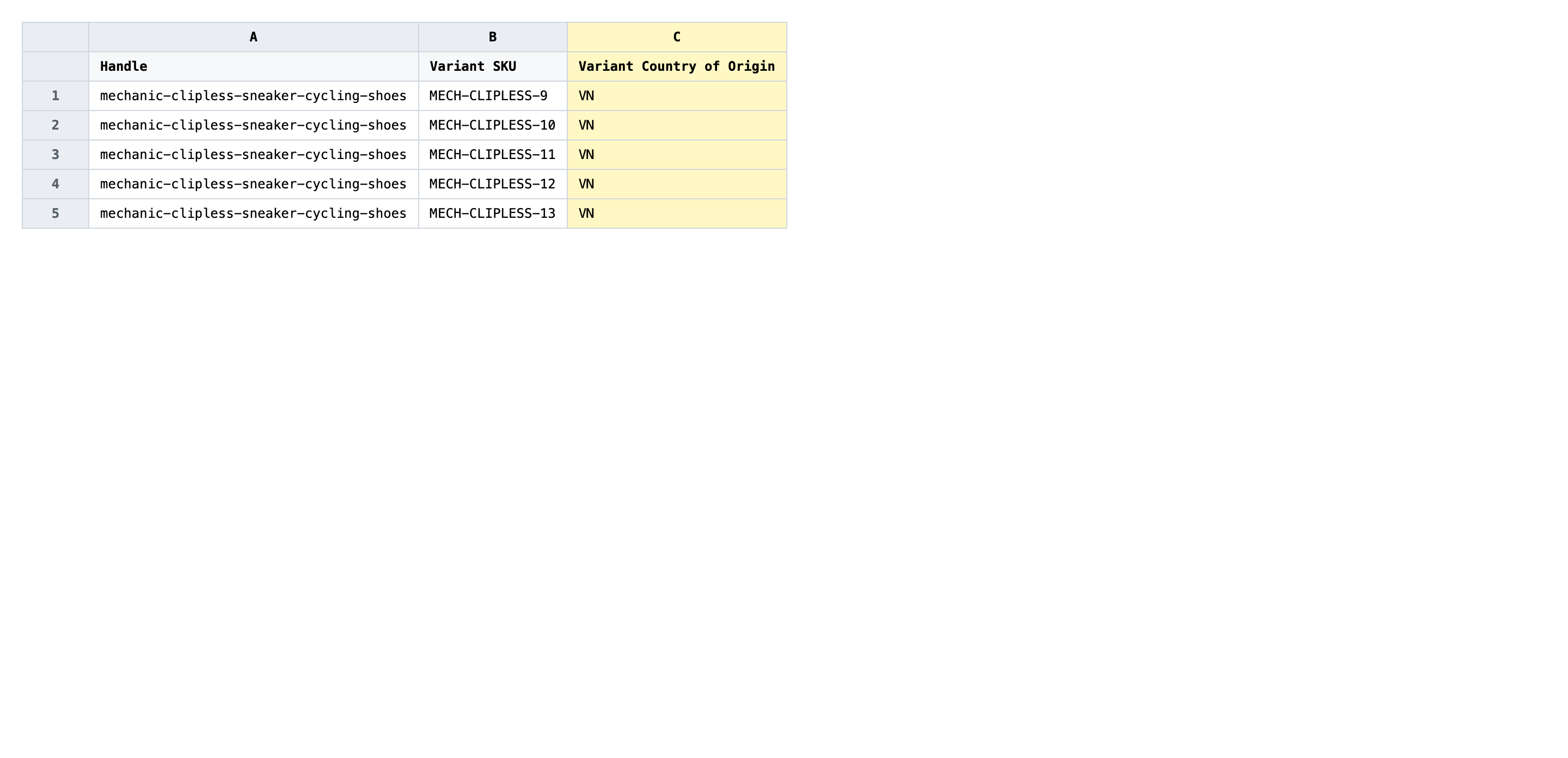
Type the correct ISO 3166-1 alpha-2 country code in Variant Country of Origin for every variant row. Codes are exactly two letters, uppercase: US for the United States, CN for China, VN for Vietnam, IT for Italy, DE for Germany. Sort or filter by SKU prefix to group variants from the same factory together — you can then paste the same code down a whole block at once.
- ✅
VN - ❌
Vietnam, Made in Vietnam, vn, or VNM
Leave every other column exactly as exported. Do not edit Handle or Variant SKU — together they are the matching key, so changing either points the row at a different variant or at nothing at all. If a variant is truly drop-shipped from an unknown source, leave the cell blank rather than guessing; a wrong code on a customs form is worse than a missing one.
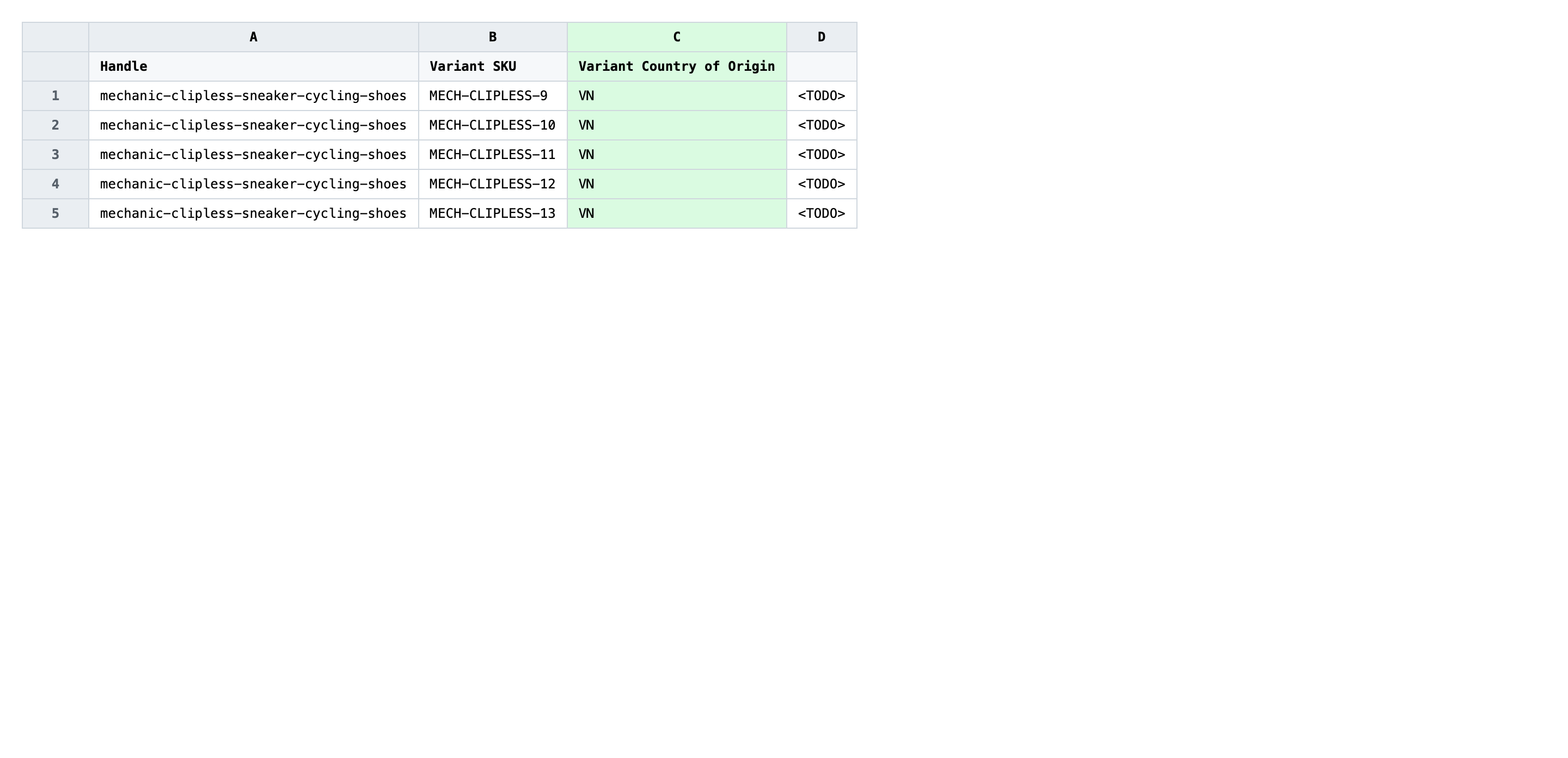
Save the file as CSV when you're done, and keep the original export handy in case you want to revert.
Tip: Country of origin lives on the variant, not the product — even if every variant of a product ships from the same country, you still write the same code on every row. There is no product-level shortcut.
Step 3 — Import the edited file back to Shopify
Open EditEngine → Import and select Advanced import. Then upload the file you just edited.
EditEngine reads the file and shows a summary. Check the Headers panel: Variant SKU and Variant Country of Origin should both carry the VARIANT badge, which confirms the importer recognized them as per-variant fields. Leave Match Products By on Auto-detect and Default Command on Merge so existing data is preserved on columns you didn't include.
Note: This advanced import does not have a dry-run toggle. Country of origin is overwriting data that customs systems consume, so the safe path is a two-row test: import a copy of the file containing just two variants first, open those variants in the Shopify admin to confirm the codes wrote correctly, then run the full file. That catches a typo like
Vietnaminstead ofVNbefore it lands on the whole catalog.
Click Start Import and wait for the job to finish — a small file takes seconds, larger catalogs a couple of minutes. When it completes, EditEngine shows a per-row summary.
Download the results CSV. It lists every row with a pass/fail status — that file is your proof the change went through, and the new values are now live in your Shopify admin.
Tips and troubleshooting
Use ISO 3166-1 alpha-2 codes, not full country names. Shopify's customs fields only accept the two-letter ISO code — US, CN, VN, IT, DE. Typing United States, Made in USA, or even the three-letter USA makes the row fail validation, and the importer will skip it. Keep an ISO code chart open in another tab while you edit; it saves a round of fixes when you bulk update Shopify country of origin per variant for the first time.
Group variants by manufacturing source before you start typing. Sort the spreadsheet by SKU prefix, factory column, or supplier name so all variants from the same country sit together. You can then select a whole block of cells and paste one code down them instead of typing the same CN two hundred times. Mistakes drop sharply once the data is sorted.
Test a two-row batch before importing the full catalog. Country of origin feeds customs declarations, duty estimates, and tax reports — a wrong code on a thousand variants can show up as wrong duties charged to shoppers. Save a copy of the file with two rows, import that first, spot-check both variants in the Shopify admin, and only then run the full file. The five minutes of caution catches header-mapping mistakes and typos before they hit production.
Frequently asked questions
How do I bulk update country of origin in Shopify?
Export your variants from EditEngine with the Variant Country of Origin column, type the correct ISO code on each row in a spreadsheet, then import the file back through the advanced import flow. That round-trip lets you bulk update Shopify country of origin per variant in one pass instead of opening each variant in the admin.
Can I edit Shopify country of origin in a spreadsheet?
Yes. EditEngine exports one row per variant with its current country code in the Variant Country of Origin column, and you can edit that column in Excel, Google Sheets, or any CSV editor. Shopify's own admin only exposes country of origin one variant at a time, which is why the spreadsheet workflow exists for bulk edit Shopify country of origin jobs.
How long does a bulk country of origin import take in Shopify?
A handful of variants imports in seconds, and a few thousand rows typically finishes in two to three minutes. EditEngine streams the file row by row, so even a large catalog completes without a timeout when you bulk update Shopify country of origin per variant.
What format does Shopify accept for country of origin imports?
A CSV or XLSX with Handle and Variant SKU as the matching keys plus a Variant Country of Origin column holding ISO 3166-1 alpha-2 codes such as US, CN, or VN. EditEngine's advanced importer reads this format directly and rejects rows where the code is not a valid two-letter country.
Can I undo a bulk Shopify country of origin update?
There is no one-click undo, but the export you started with is your rollback file. Keep that original CSV; to revert a bulk update Shopify country of origin per variant change, re-import the unedited copy and every variant snaps back to its previous code.
Related tutorials
About EditEngine: EditEngine Bulk Product Editor helps Shopify merchants bulk edit, bulk import, and bulk export their product catalog in minutes instead of days. Install on Shopify →