
Variants & options
How to Bulk Update Shopify HS Tariff Codes Per Variant
Last updated
Need to bulk update Shopify hs tariff codes per variant so every SKU declares the right customs class at checkout and on shipping labels? With the EditEngine Bulk Product Editor, you export your variants to a spreadsheet, type the correct HS code on each row, and import the file back. Because every variant can have its own tariff classification, the spreadsheet round-trip is the practical way to handle this at catalog scale.
What you'll learn
- Export every product with its current hs tariff codes
- Edit hs tariff codes per row in a spreadsheet
- Import the updated file back to Shopify
What you'll need
- The EditEngine Bulk Product Editor app installed in your Shopify store
- A Shopify store with products that have variants needing customs classification
- Access to the EditEngine Bulk Product Editor app installed on your store
- Your HS tariff codes ready — six- or ten-digit numbers from the World Customs Organization schedule for each variant's category
- A spreadsheet editor (Excel, Google Sheets, Numbers — anything that opens CSV)
An HS code (Harmonized System code) is the six- to ten-digit number customs authorities use to classify what you're shipping and decide the duty rate. Shopify stores it on the variant — not the product — because two variants of the same product (say, a leather shoe and a synthetic shoe) can fall into different tariff classes. Setting these one variant at a time in the admin is slow, which is exactly what the spreadsheet workflow below fixes.
Step 1 — Export your Shopify HS tariff codes
Open EditEngine and go to the Export page. This is where you choose which variant fields land in your spreadsheet.
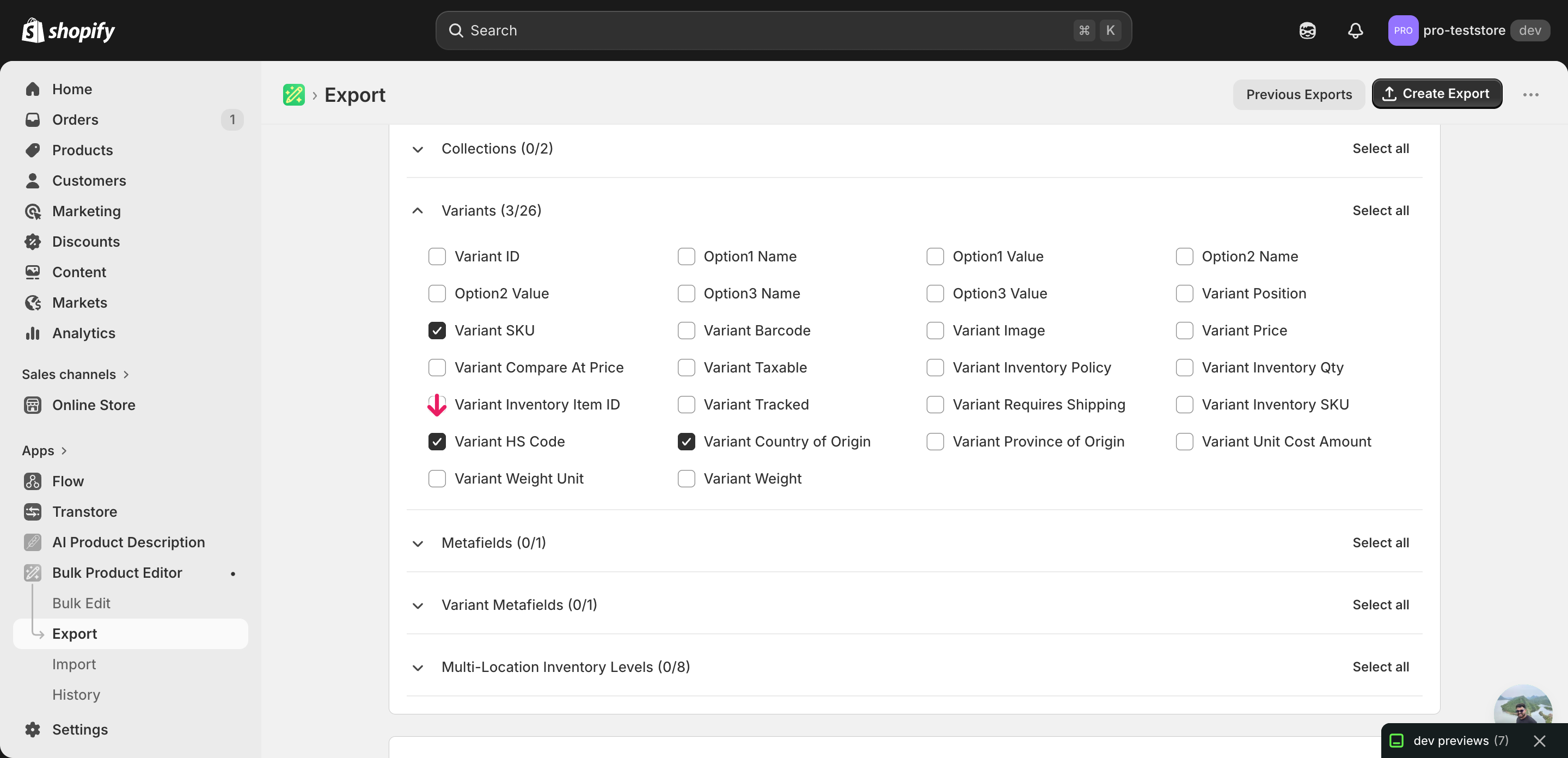
Pick the right columns
- Handle — the unique product identifier the importer uses to match each row back to the right product.
- Variant SKU — identifies which variant within the product the row belongs to. The importer pairs Handle plus Variant SKU to land the HS code on the correct variant.
- Variant HS Code — the column you'll edit. Holds the Harmonized System tariff code for that variant — digits only, six or ten characters.
- Variant Country of Origin — the two-letter country code where the variant is manufactured. Customs systems read HS code and origin together, so keep this column in the export and update it on the same import when origin changes.
When the export completes, click Download. You'll get one row per variant: products with several variants repeat across rows, and the second and later rows leave product-level columns like Title blank — that's normal and you don't need to refill them.
New to exporting? This guide assumes you know how to run an export and focuses only on the columns and edit unique to this workflow.
Step 2 — Bulk update Shopify HS tariff codes per variant in your spreadsheet
Open the downloaded CSV in Excel or Google Sheets. The Variant HS Code column holds whatever code each variant has today, often empty for newer products.
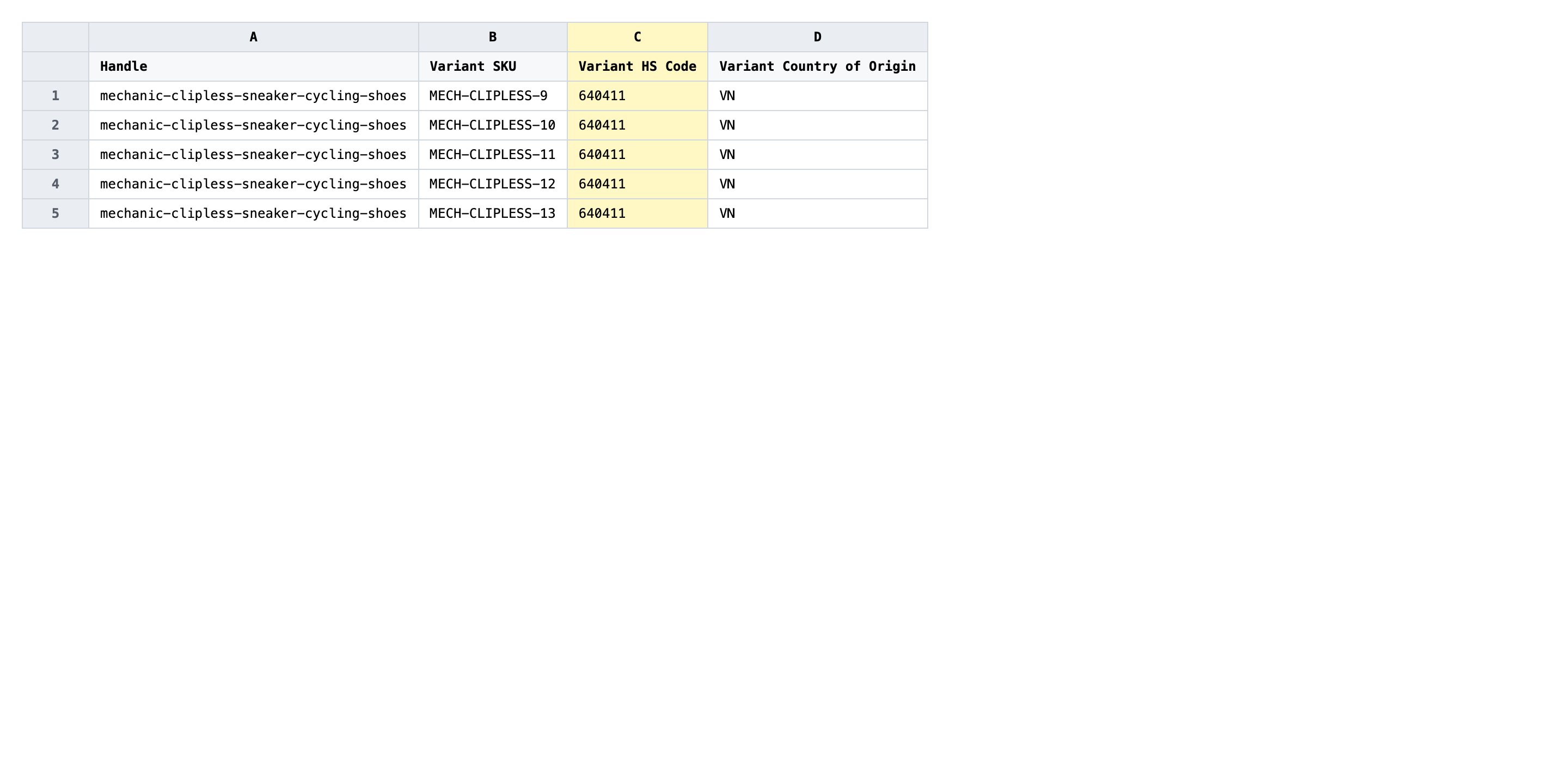
Type the correct HS tariff code into Variant HS Code for every variant row. Use digits only — six digits for the international root code, or ten digits if you've classified down to the country-specific subheading. Leave out dots, spaces, and any leading prefix; Shopify stores the raw number. Update Variant Country of Origin in the same pass if the manufacturing country has changed, using the two-letter ISO code (US, CN, IT, etc.).
- ✅
6404119000 - ❌
6404.11.90.00 (footwear)
Leave Handle and Variant SKU exactly as exported — those two columns are the matching keys, so renaming or reformatting either one points the row at the wrong variant or no variant at all. Rows where Variant SKU is blank are product-level rows from the export; you can leave their HS Code blank because there is no variant to attach the code to.
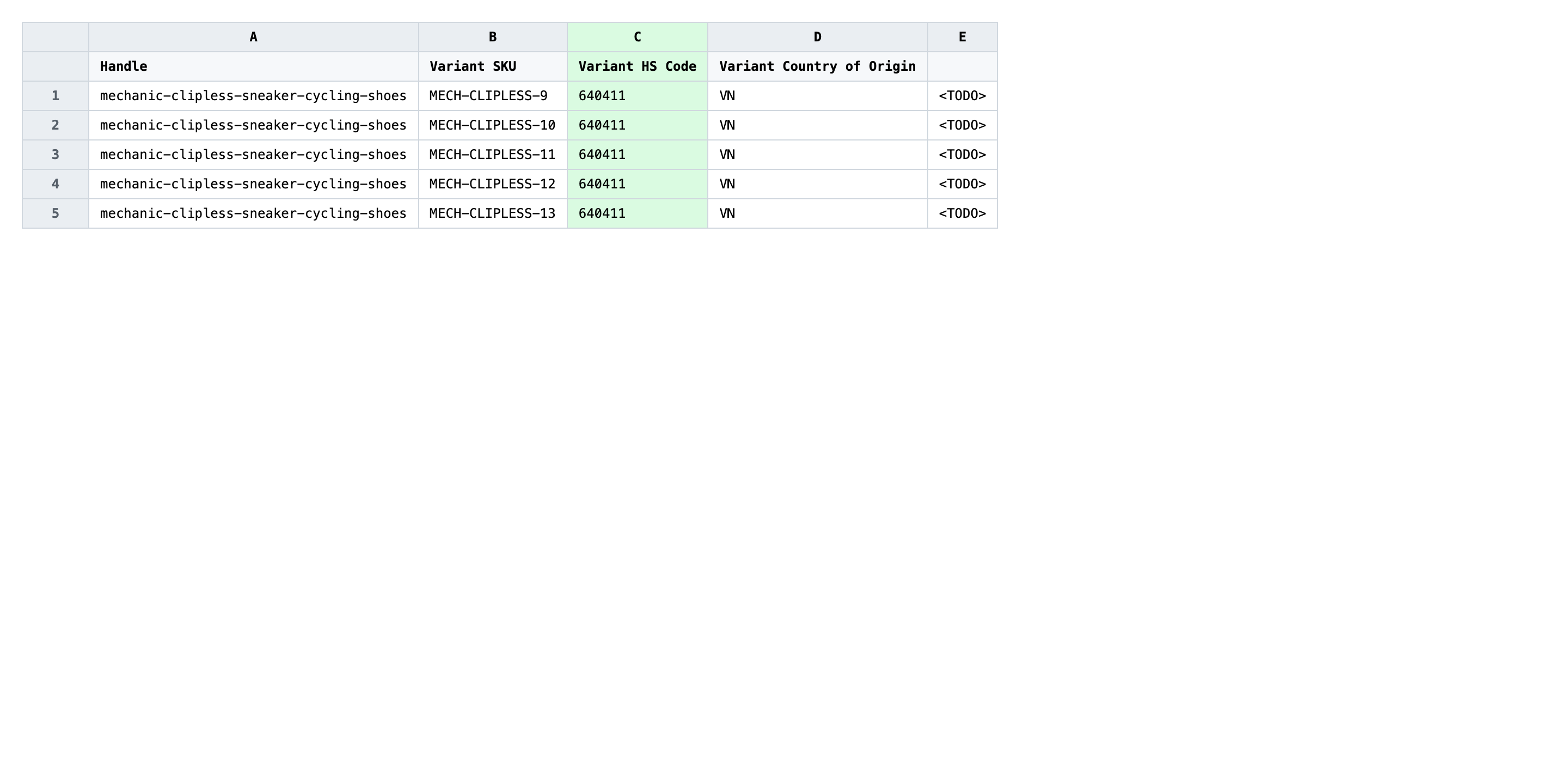
Save the file as CSV when you're done, and keep the original export handy in case you want to revert.
Tip: Variant HS Code is a variant attribute, not a product one. A product with five variants needs five separate codes — even if four of them happen to share the same classification, you still type the value on each row.
Step 3 — Import the edited file back to Shopify
Open EditEngine → Import and select Advanced import. Then upload the file you just edited.
EditEngine reads the file and shows a summary. Check the Headers panel: Variant HS Code and Variant Country of Origin should both be recognized as variant fields, and Variant SKU should be flagged as a variant identifier. Leave Match Products By on Auto-detect and Default Command on Merge so existing variant data stays in place.
Note: This advanced import does not offer a dry-run toggle. HS code updates only overwrite a text field — they never move stock, change prices, or delete variants — but a malformed code can still propagate to every row. Run a first import with two or three rows, open one variant in the Shopify admin to confirm the code looks right, then import the full file.
Click Start Import and wait for the job to finish — a small file takes seconds, larger catalogs a couple of minutes. When it completes, EditEngine shows a per-row summary.
Download the results CSV. It lists every row with a pass/fail status — that file is your proof the change went through, and the new values are now live in your Shopify admin.
Tips and troubleshooting
Don't shorten or reformat the HS code. Shopify stores the HS code as a raw string of digits. Leave dots and spaces out of the spreadsheet — 6404.11 becomes a different value than 640411, and customs integrations downstream will reject the formatted version. If your reference table prints the code with separators, strip them before pasting into Variant HS Code.
Pair the HS code with Country of Origin in the same import. Duty calculation at checkout uses HS code and Country of Origin together. If you're cleaning up tariff classifications, it's worth confirming the origin on each variant in the same pass — they tend to drift apart over time, and a correct HS code paired with an outdated origin still gives shoppers the wrong landed cost.
Run a tiny test batch before the full catalog. Export your full catalog so you have the baseline, then copy two or three rows into a separate file and import that first. Open one of the variants in the Shopify admin afterwards and confirm the HS Code field shows what you typed. Only after that small batch lands cleanly should you import the rest — it's the cheapest way to catch a stripped leading zero or a swapped column.
Variant SKU is the matching key — guard it. EditEngine uses Handle plus Variant SKU to find the variant your row belongs to. If a row's SKU is blank or has been edited, the importer either skips the row or applies the HS code to the wrong variant. Sort by Variant SKU before editing so you can spot blanks fast, and never let a sheet's auto-format turn a SKU like 00734 into 734.
Frequently asked questions
How do I bulk update hs tariff codes in Shopify?
Export your products from EditEngine with the Handle, Variant SKU, and Variant HS Code columns, edit the code on each variant row in a spreadsheet, then import the file back through the advanced import flow. That round-trip is how you bulk update Shopify hs tariff codes per variant without opening each product one at a time.
Can I edit Shopify hs tariff codes in a spreadsheet?
Yes. EditEngine exports one row per variant with the current Variant HS Code, and you edit it in Excel, Google Sheets, or any CSV editor. Shopify's admin does not offer a native spreadsheet view for HS codes, so a bulk edit Shopify hs tariff codes workflow has to go through export and import.
How long does a bulk hs tariff codes import take in Shopify?
A few dozen variants import in seconds. A catalog of a few thousand variants typically finishes in a minute or two when you bulk update Shopify hs tariff codes per variant, and EditEngine streams the file so very large jobs complete without timing out. The results CSV shows the exact duration.
What format does Shopify accept for hs tariff codes imports?
A CSV or XLSX with a Handle to match the product, a Variant SKU to identify the variant, and a Variant HS Code column with the digits only — no dots, no spaces, no prefix. EditEngine's advanced import reads that shape directly when you bulk update Shopify hs tariff codes per variant.
Can I undo a bulk Shopify hs tariff codes update?
There is no one-click undo, but the workflow is its own backup. Keep the original export untouched, and if you need to revert the bulk update Shopify hs tariff codes per variant change, re-import that file to restore every prior value. Only the HS code column is overwritten, so nothing else is at risk.
Related tutorials
About EditEngine: EditEngine Bulk Product Editor helps Shopify merchants bulk edit, bulk import, and bulk export their product catalog in minutes instead of days. Install on Shopify →