
Pricing
How to Bulk Recalculate Shopify Margins From Cost
Last updated
Need to bulk update Shopify margin recalculation across hundreds of variants after a cost change from your supplier? With the EditEngine Bulk Product Editor, you export Variant Price and Variant Cost into one spreadsheet, write a single margin formula across every row, and import the new prices back to Shopify. EditEngine handles the round-trip so you can reprice a whole catalog in fifteen minutes instead of clicking through variants one at a time.
What you'll learn
- Export every product with its current margin recalculation
- Edit margin recalculation per row in a spreadsheet
- Import the updated file back to Shopify
What you'll need
- The EditEngine Bulk Product Editor app installed in your Shopify store
- Every variant you plan to reprice has a Cost per item value set in Shopify — rows with a blank cost can't be recalculated
- A target margin percentage decided ahead of time (for example 60% gross margin = price ÷ cost ratio of 2.5)
- The Advanced import flow so price changes apply at the variant level
- A spreadsheet editor (Excel, Google Sheets, Numbers — anything that opens CSV)
Gross margin is the gap between what a variant costs you and what it sells for, expressed as a percentage of the sale price. Shopify stores cost as Cost per item on every variant, but it won't recalculate prices for you when costs shift — you have to push new prices yourself. The spreadsheet round-trip below is how merchants apply one consistent margin formula across an entire catalog without touching the admin UI.
Step 1 — Export your Shopify margin recalculation
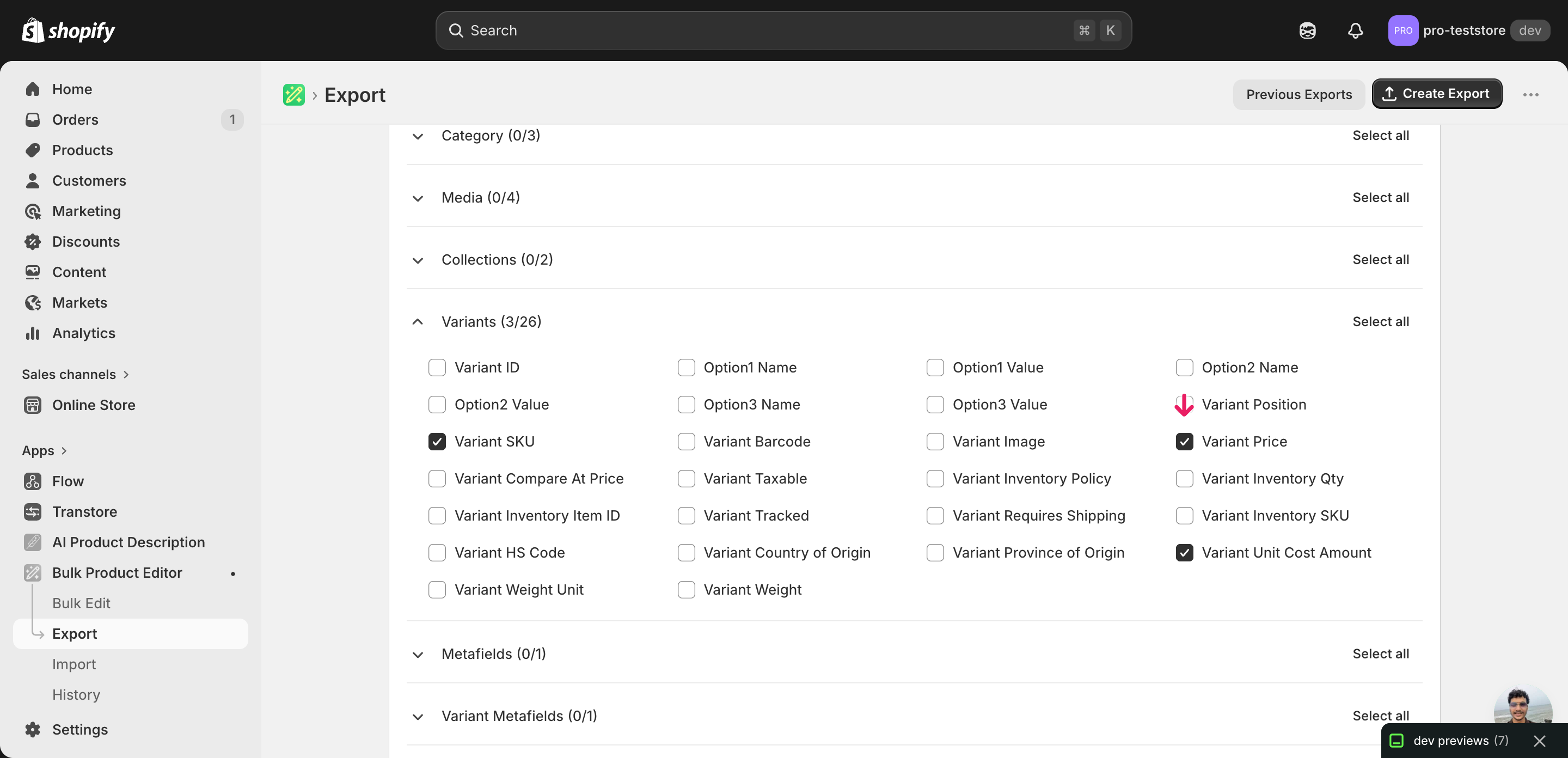
Open EditEngine and go to the Export page so you can pull Variant Price and Variant Cost into one CSV.
Pick the right columns
- Handle — the unique product identifier the importer uses to match each row back to the right product.
- Variant SKU — the per-variant key that pairs each price row with the correct variant on a multi-variant product.
- Variant Price — the column you'll overwrite with the recalculated price. Expand the Pricing group and tick this one.
- Variant Cost — the input to your margin formula. EditEngine reads it for context but only Variant Price writes back to Shopify.
When the export completes, click Download. You'll get one row per variant — a product with five variants exports as five rows, each with its own cost and price, which is exactly what the margin formula needs.
New to exporting? This guide assumes you know how to run an export and focuses only on the columns and edit unique to this workflow.
Step 2 — Bulk update Shopify margin recalculation in your spreadsheet
Open the downloaded CSV in Excel or Google Sheets. Variant Cost and Variant Price sit next to each other — Variant Cost is your input, and Variant Price is the column you'll recalculate.
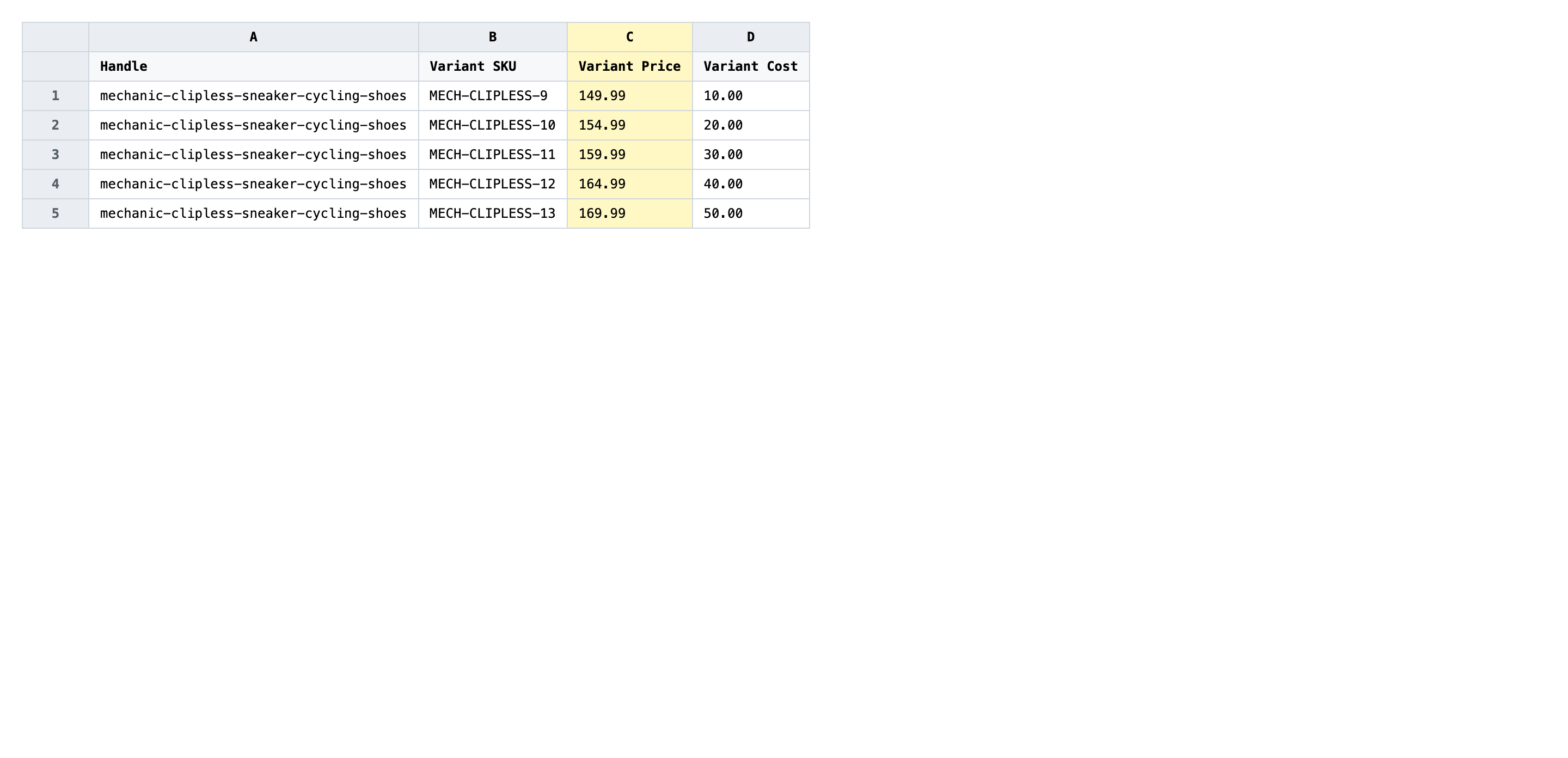
In Variant Price, write a formula that divides Variant Cost by (1 - target_margin) and rounds the result. For a 60% gross margin with cost in column D and price in column C, the formula is =ROUND(D2/(1-0.60), 2). Fill the formula down every row, then paste-as-values over the formulas so the importer sees plain numbers, not spreadsheet expressions.
- ✅
=ROUND(D2/(1-0.60), 2) → 49.99 for a $20 cost at 60% margin - ❌
=D2*1.6 (that's a 60% markup, not a 60% margin — it produces a 37.5% margin instead)
Leave Handle and Variant SKU exactly as exported — those are the matching keys, and an edited handle points the row at the wrong product or nothing at all. Don't write back to Variant Cost either; this workflow recalculates the sell price from cost, not the other way around. Rows where Variant Cost is blank produce a divide-by-zero or a wrong price — filter them out before importing.
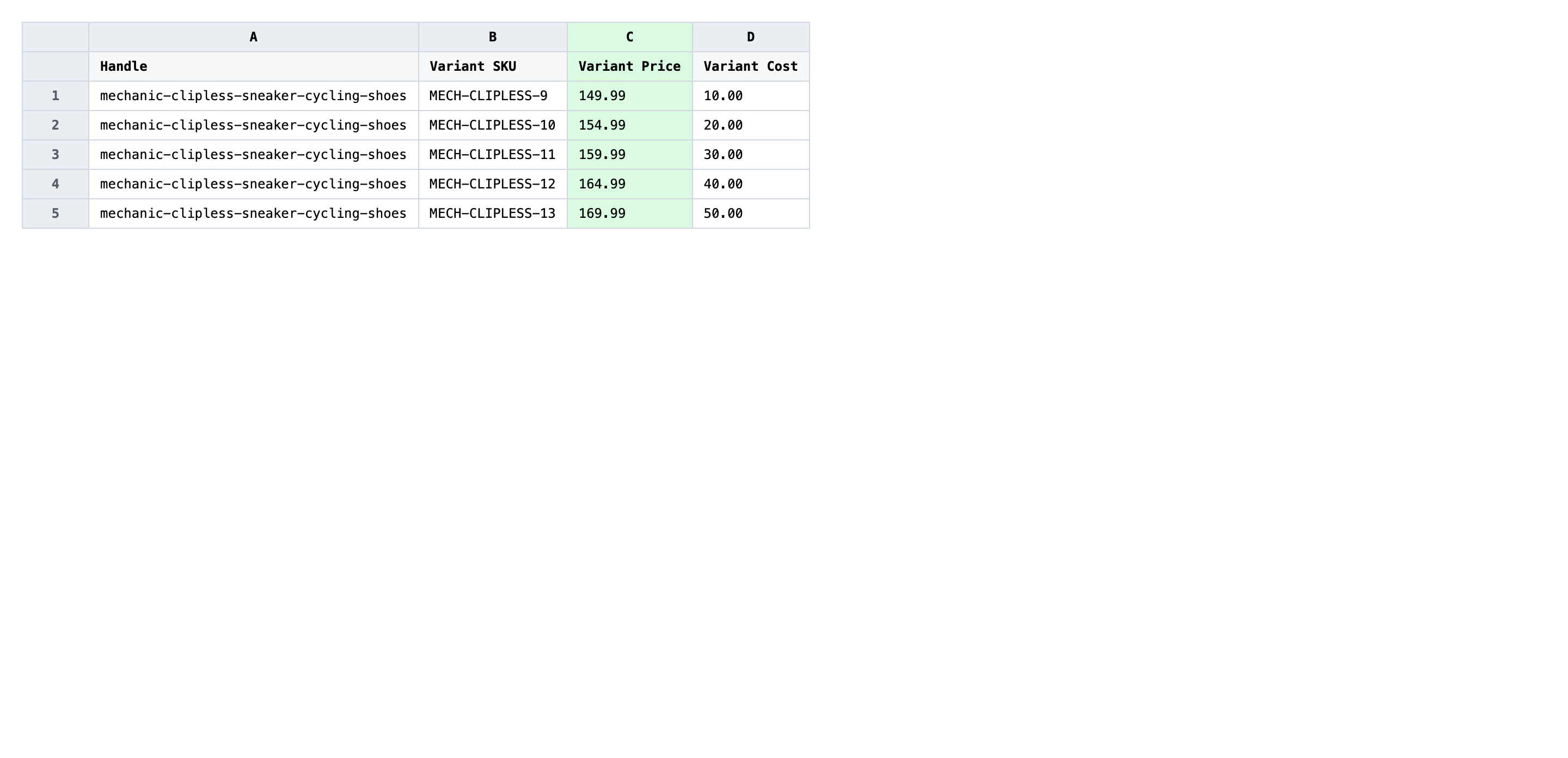
Save the file as CSV when you're done, and keep the original export handy in case you want to revert.
Tip: Paste your formula results as values before saving. A spreadsheet cell that still contains
=D2/(1-0.6)exports as the literal text of the formula, and the import will reject every row.
Step 3 — Import the edited file back to Shopify
Open EditEngine → Import and select Advanced import. Then upload the file you just edited.
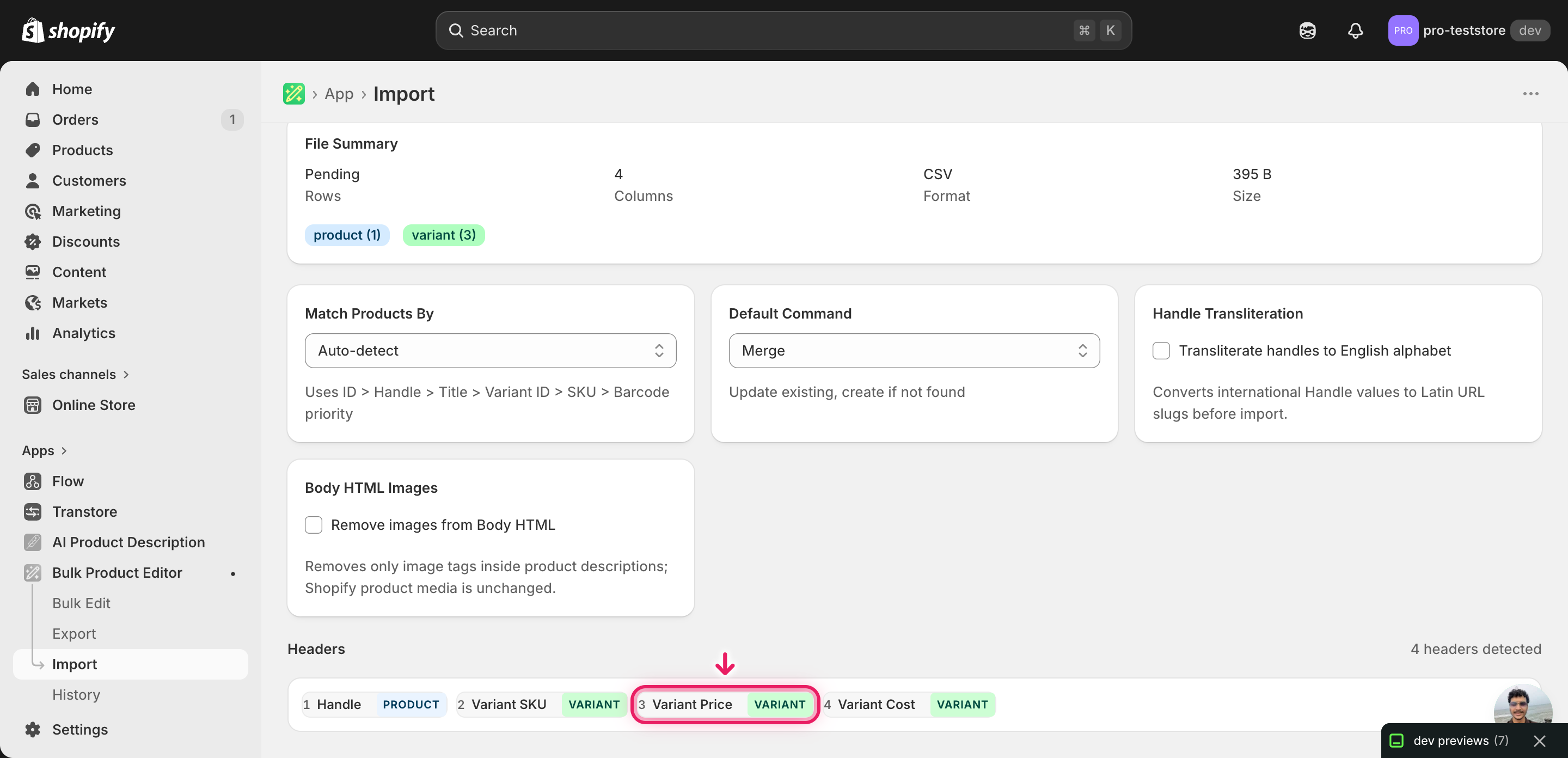
EditEngine reads the file and shows a summary. In the Headers panel, confirm Variant Price is detected as a variant pricing column and that Handle plus Variant SKU are flagged as matching keys. Leave Match Products By on Auto-detect and Default Command on Merge so existing data on every other field stays untouched.
Note: Pricing changes overwrite live storefront values — there is no built-in dry-run for the advanced import flow, so test on a tiny batch first. Filter the spreadsheet to ten variants, import that slice, spot-check the new prices in the Shopify admin, and only then run the full file. If anything looks off (rounding wrong, formula wrong, margin wrong), you've caught it on ten rows instead of ten thousand.
Click Start Import and wait for the job to finish — a small file takes seconds, larger catalogs a couple of minutes. When it completes, EditEngine shows a per-row summary.
Download the results CSV. It lists every row with a pass/fail status — that file is your proof the change went through, and the new values are now live in your Shopify admin.
Tips and troubleshooting
Margin and markup are not the same number. A 60% markup multiplies cost by 1.6 and gives a 37.5% gross margin. A 60% gross margin divides cost by 0.4 (which is 1 minus 0.60) and gives a 2.5x multiplier. Decide which one your business actually uses before you write the formula, because mixing them up understates revenue on every single variant.
Round to your store's price endings. A raw margin formula produces values like 49.8347. Wrap it in ROUND(..., 2) for clean cents, or use a CEILING/FLOOR pattern to land on .99 or .95 endings if that's your store convention. Importing un-rounded prices technically works but makes your storefront look amateur.
Filter out variants with no cost before importing. If Variant Cost is blank, the formula either errors out or produces a zero-dollar price. Sort the spreadsheet by Variant Cost, delete the cost-blank rows from the import file (don't leave them with an empty Variant Price), and patch those variants' costs in the Shopify admin before the next recalculation run.
Keep the original export as your rollback. The unedited CSV from Step 1 is a complete snapshot of every variant's old price. If a supplier sends a corrected cost sheet a week later, or the new margin lands wrong, re-importing the original file restores every price in one job — no manual undo needed.
Frequently asked questions
How do I bulk update margin recalculation in Shopify?
Export your products with the Variant Price and Variant Cost columns, then in a spreadsheet write a formula that divides each cost by (1 minus your target margin) and rounds the result. Import the file back with EditEngine to bulk update Shopify margin recalculation across every variant in one job.
Can I edit Shopify margin recalculation in a spreadsheet?
Yes — that's the whole point of the workflow. EditEngine exports one row per variant with Variant Price and Variant Cost side by side, so a single Excel or Google Sheets formula handles the margin recalculation for thousands of variants at once.
How long does a bulk margin recalculation import take in Shopify?
A few hundred variants finish in under a minute, and a full mid-size catalog of several thousand variants typically completes in two to three minutes. EditEngine streams the file row by row, so a bulk margin recalculation import won't time out even on large stores.
What format does Shopify accept for margin recalculation imports?
A CSV or XLSX with Handle, Variant SKU, and Variant Price is the minimum EditEngine needs to apply a Shopify margin recalculation. Keep the cost column in the file as a working reference, but only Variant Price actually writes back to your store.
Can I undo a bulk Shopify margin recalculation update?
There's no one-click undo, but your original export is the rollback file. Keep the untouched CSV from Step 1, and if a margin recalculation goes wrong, re-import that file to restore every variant's previous price.
Related tutorials
- How to Bulk Markup Shopify Pricing From Cost
- How to Bulk Markdown Shopify Sale Pricing
- How to Bulk Round Shopify All Prices To 99 95 Endings
About EditEngine: EditEngine Bulk Product Editor helps Shopify merchants bulk edit, bulk import, and bulk export their product catalog in minutes instead of days. Install on Shopify →