
Variants & options
How to Bulk Rename Shopify Option Values Across Products
Last updated
Need to bulk rename Shopify option values across products so "Small" becomes "S" or "Navy Blue" becomes "Navy" on every variant in one pass? With EditEngine Bulk Product Editor, you export the variants to a spreadsheet, rewrite each value in the right column, and import the file back. Because Shopify stores option values per variant, EditEngine is the cleanest way to keep labels consistent across the whole catalog.
What you'll learn
- Export every product with its current option values
- Edit option values per row in a spreadsheet
- Import the updated file back to Shopify
What you'll need
- The EditEngine Bulk Product Editor app installed in your Shopify store
- Products with at least one option axis (Size, Color, Material, etc.) already configured in Shopify
- The Advanced import flow — option value rewrites require the advanced importer so the matching key stays intact
- A spreadsheet editor (Excel, Google Sheets, Numbers — anything that opens CSV)
Option values are the labels that sit under each option axis — "Small", "Medium", "Large" under Size, or "Navy", "Red", "Olive" under Color. Shopify stores them per variant, which means renaming a single label across hundreds of products requires editing each variant by hand in the admin. The spreadsheet round-trip below replaces that with one find-and-replace pass.
Step 1 — Export your Shopify option values
Open EditEngine and go to the Export page. This is where you pick the option columns that will become your spreadsheet.
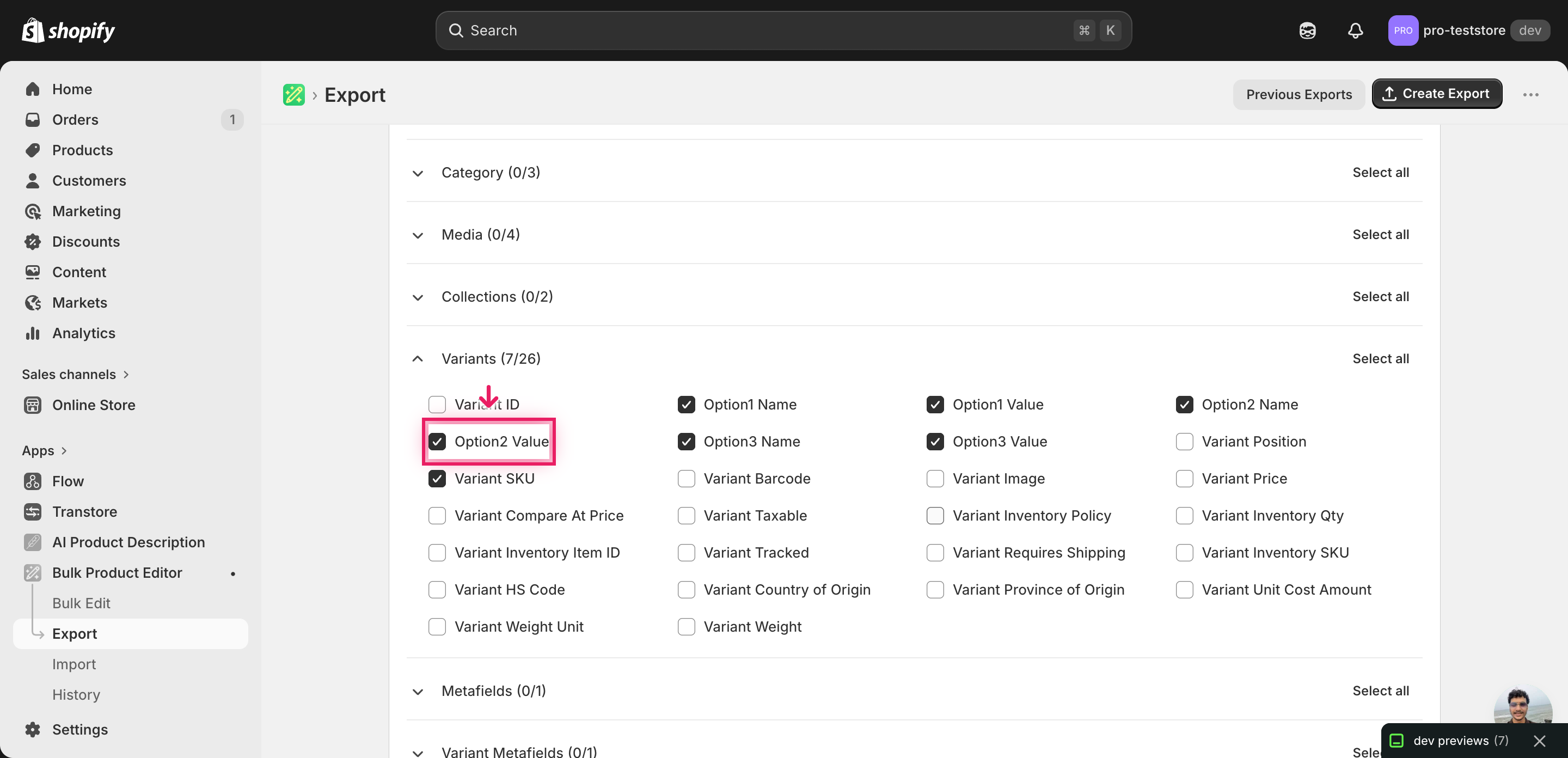
Pick the right columns
- Handle — the unique product identifier the importer uses to match each row back to the right product.
- Variant SKU — the variant identifier. EditEngine matches each row to an existing variant by SKU, so it is the key that ties your rewritten option value to the correct variant.
- Option1 Name — context only — the name of the first option axis (e.g., Size). Leave this column untouched.
- Option1 Value — the label under Option1 (e.g., Small). This is one of the columns you'll rewrite.
- Option2 Name — the second option axis name (e.g., Color) if the product has one. Leave it untouched.
- Option2 Value — the second option's value (e.g., Navy). Edit this cell when the rename targets the second axis.
- Option3 Name — the third option axis name (e.g., Material) if present. Leave it untouched.
- Option3 Value — the third option's value. Edit only when the rename targets this axis.
When the export completes, click Download. You'll get one row per variant: a product with twelve size/color combinations exports as twelve rows, and the same Option1 Value (e.g., "Small") will repeat across every product that uses it — that repetition is what lets a single rewrite hit every variant in the catalog.
New to exporting? This guide assumes you know how to run an export and focuses only on the columns and edit unique to this workflow.
Step 2 — Bulk rename Shopify option values across products in your spreadsheet
Open the downloaded CSV in Excel or Google Sheets. The Option1 Value, Option2 Value, and Option3 Value columns hold the labels you'll rewrite — pick the column that matches the axis you're renaming (Size lives in Option1 Value on most catalogs).
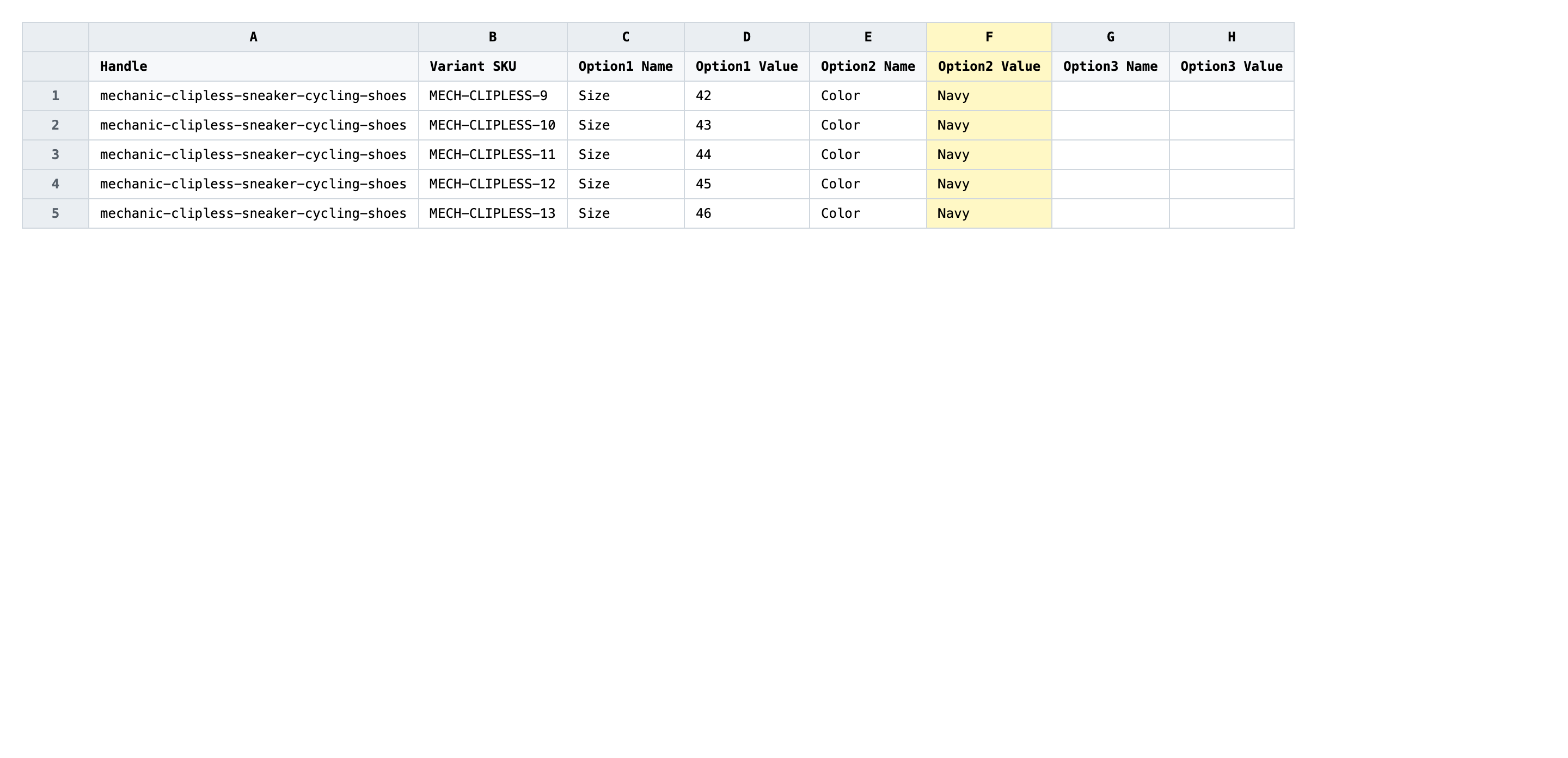
Use your spreadsheet's find-and-replace on the Option Value column you're rewriting. Match the value exactly, including capitalization, and replace it with the new label. Keep the new value short (one or two words is the norm for Size and Color) and make sure the rewritten label doesn't collide with another existing value on the same product — Shopify rejects duplicate option values within a single product.
- ✅
Small → S - ❌
Small → Small / S (slash-separated combos break uniqueness)
Leave the Handle, Variant SKU, and Option Name columns exactly as exported. The Handle plus SKU pair is the matching key — change them and the importer either misses the variant or rewrites the wrong one. Renaming the Option Name (e.g., changing "Size" to "size") is a different operation entirely and will create a brand-new option axis rather than rename the existing one, so don't touch it from this tutorial.
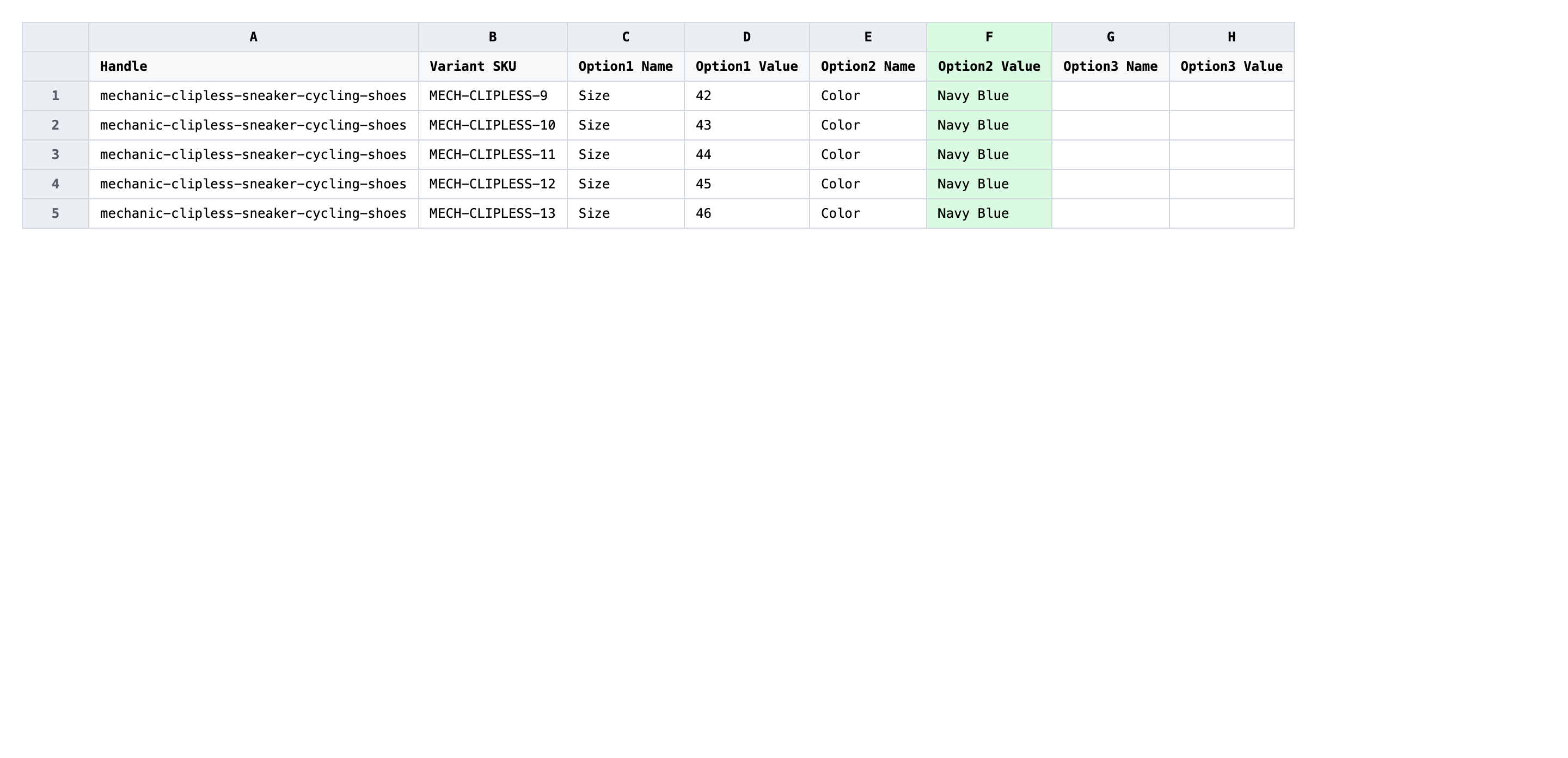
Save the file as CSV when you're done, and keep the original export handy in case you want to revert.
Tip: Apply the same rewrite to every row where the old value appears, not just the products you happened to scroll past — a partial rename leaves "Small" and "S" coexisting in your catalog and breaks size-based collections.
Step 3 — Import the edited file back to Shopify
Open EditEngine → Import and select Advanced import. Then upload the file you just edited.
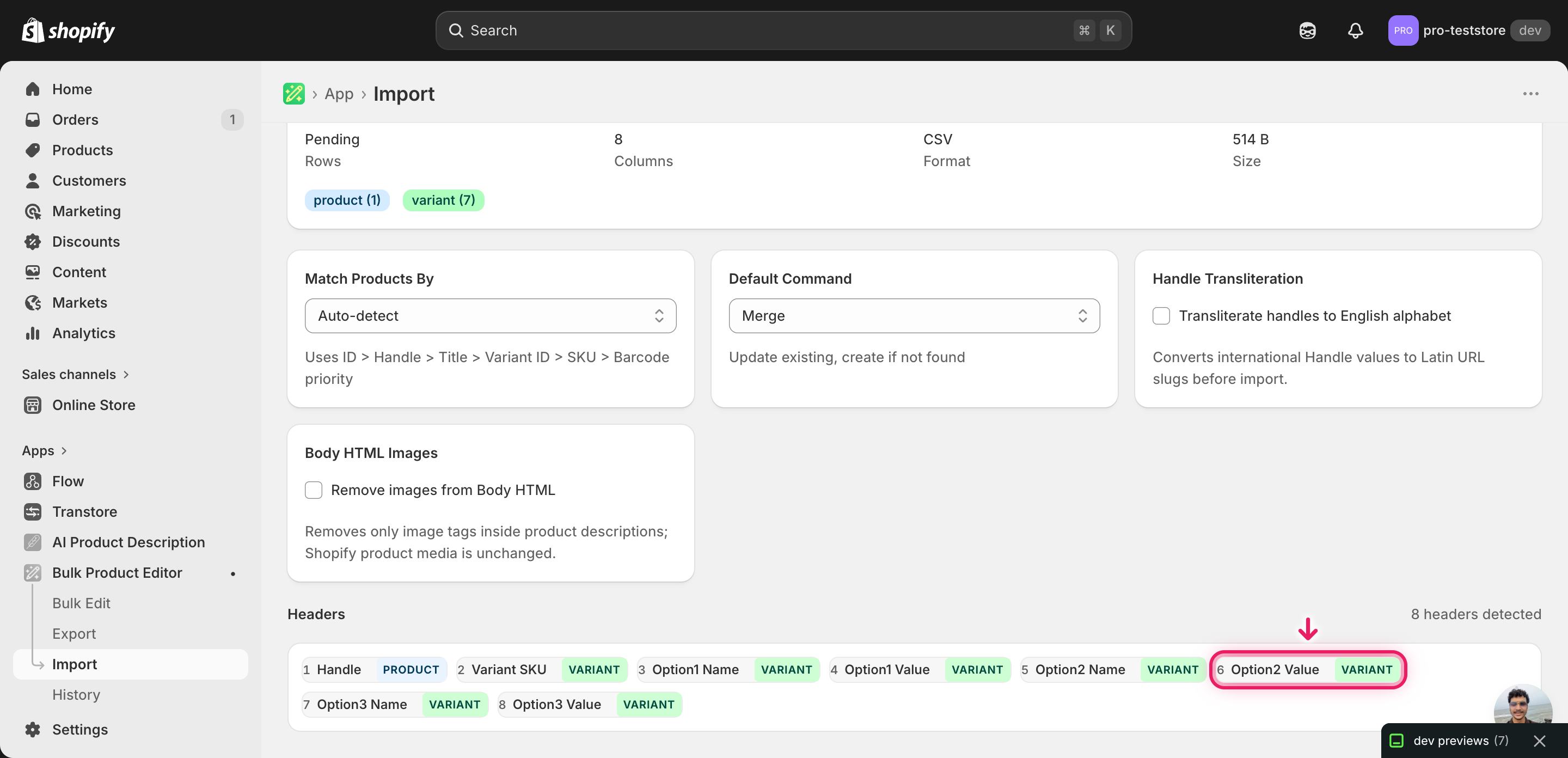
EditEngine reads the file and shows a summary. Check the Headers panel: Handle, Variant SKU, Option1 Name, and Option1 Value (plus any other axes you edited) should all be detected. Leave Match Products By on Auto-detect and Default Command on Merge so existing variants get rewritten in place rather than recreated.
Note: Renaming option values is a destructive rewrite — the old label is overwritten on every matched variant and there is no built-in dry-run. Before importing the full file, duplicate one product in your spreadsheet, import that single row first, and check the variant in the Shopify admin. Only once that test product looks right should you import the rest of the catalog.
Click Start Import and wait for the job to finish — a small file takes seconds, larger catalogs a couple of minutes. When it completes, EditEngine shows a per-row summary.
Download the results CSV. It lists every row with a pass/fail status — that file is your proof the change went through, and the new values are now live in your Shopify admin.
Tips and troubleshooting
Rewrite the value, never the option name. The Option Name column ("Size", "Color") defines the axis itself. Changing it from "Size" to "size" or to "Sizing" doesn't rename the axis — Shopify treats it as a new option and orphans the existing variants. Only edit the Option Value columns when you bulk rename Shopify option values across products.
Match the case exactly on find-and-replace. Shopify stores option values case-sensitively, so a spreadsheet replace of "small" won't catch the "Small" rows. Tick the case-sensitive box in Excel or Google Sheets' find dialog, and confirm the row count of replacements before saving.
Watch for value collisions inside one product. A product can't have two variants with the same option value — if you rewrite "X-Small" to "S" on a product that already has an "S" variant, the import fails for that row. Sort the spreadsheet by Handle and scan for duplicates inside each handle group before importing.
Import one product first when the rewrite is large. Renaming "Navy Blue" to "Navy" across 800 variants is fast to do in a spreadsheet and slow to undo if the new label collides with anything. Cut a one-product test file, import it, eyeball that product's variants in the Shopify admin, and only then run the full file.
Frequently asked questions
How do I bulk rename option values in Shopify?
Export your products from EditEngine with the Option Name and Option Value columns, change the value text in each row of your spreadsheet, then import the file back through the advanced import flow. This is how you bulk rename Shopify option values across products without opening every variant individually in the admin.
Can I rename Shopify option values in a spreadsheet?
Yes. EditEngine exports one row per variant with the live Option1 Value, Option2 Value, and Option3 Value columns. Edit those cells in Excel or Google Sheets and import the file back — that round-trip is the supported way to bulk rename Shopify option values across products at scale.
How long does a bulk option value rename import take in Shopify?
A handful of variants imports in seconds. A few hundred typically finishes in a minute or two, and EditEngine streams larger files so even thousands of variants complete without timing out. The results CSV reports the exact duration for your job.
What format does a Shopify option value rename import need?
A CSV or XLSX with a Handle column, a Variant SKU column to match each variant, and the Option Name plus Option Value columns you want to rewrite. EditEngine's advanced import reads this format directly when you bulk rename Shopify option values across products.
Can I undo a bulk Shopify option value rename?
There is no one-click undo, but the workflow is its own backup: keep the original export and re-import it to restore the previous labels. Because the rewrite only changes text on existing variants, no inventory, prices, or media are touched.
Related tutorials
About EditEngine: EditEngine Bulk Product Editor helps Shopify merchants bulk edit, bulk import, and bulk export their product catalog in minutes instead of days. Install on Shopify →