
Products
How to Bulk Fix Shopify Duplicate SEO Titles Across Catalog
Last updated
Need to bulk fix Shopify duplicate seo titles across catalog before Google starts collapsing your product pages in search results? With EditEngine Bulk Product Editor, you export every product with its current SEO Title, sort the spreadsheet to surface duplicates, rewrite each repeated meta title so every product has a unique one, and import the file back. The spreadsheet view makes duplicates obvious in a way the Shopify admin never does.
What you'll learn
- Export every product with its current duplicate seo titles
- Edit duplicate seo titles per row in a spreadsheet
- Import the updated file back to Shopify
What you'll need
- The EditEngine Bulk Product Editor app installed in your Shopify store
- At least a handful of products in your Shopify store, ideally enough that you suspect duplicate meta titles exist
- A spreadsheet editor such as Excel, Google Sheets, or Numbers to sort and de-duplicate the SEO Title column
- A spreadsheet editor (Excel, Google Sheets, Numbers — anything that opens CSV)
The SEO Title is the headline Google shows in search results for each product page. When two products share the same SEO Title, Google often picks one and hides the other under "omitted results," which is lost traffic. The fix is mechanical — give each product a unique title — but doing it in the Shopify admin means clicking into one product at a time. Exporting to a CSV makes the duplicates visible in a single sort.
Step 1 — Export your Shopify duplicate SEO titles
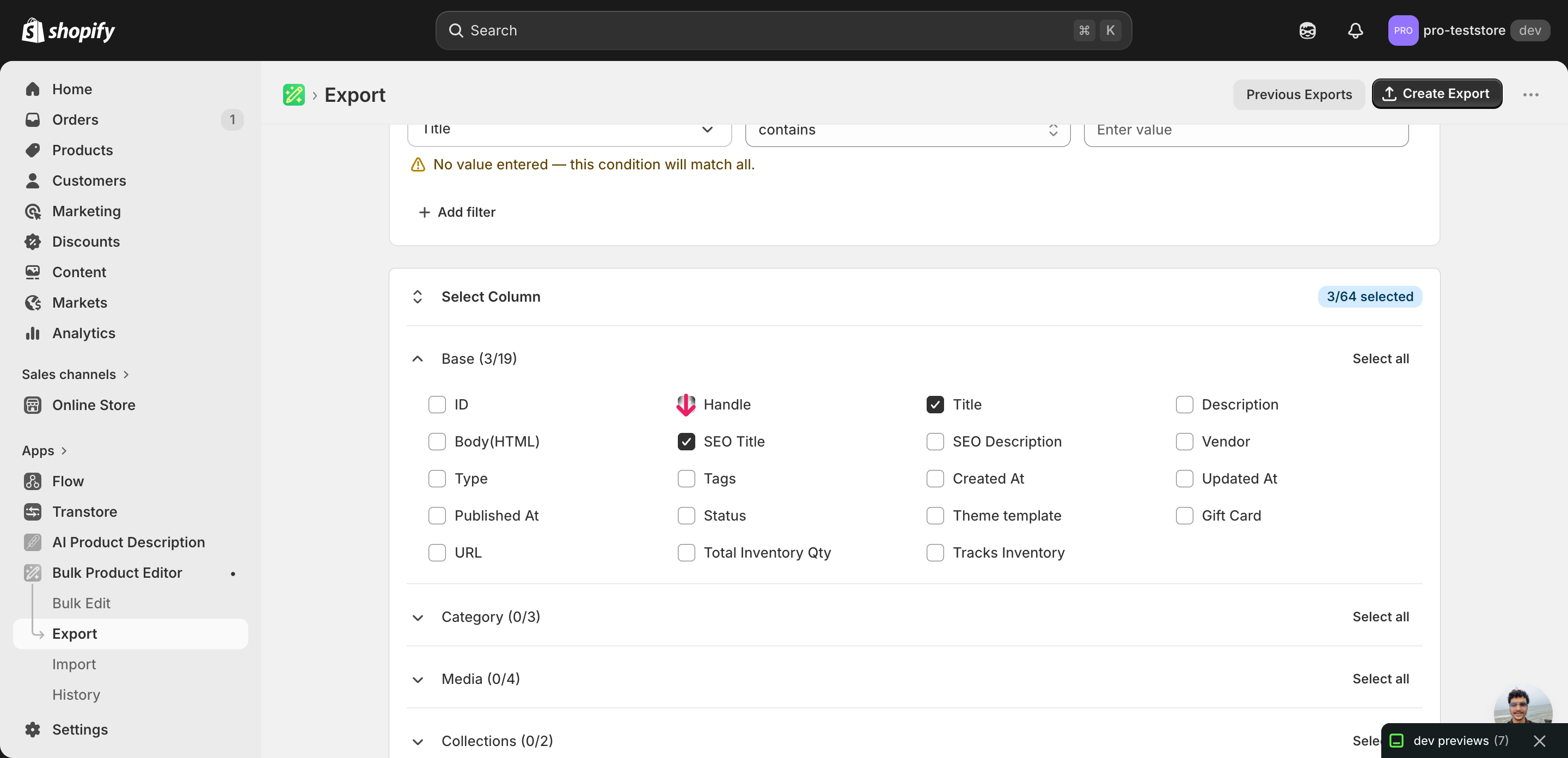
Open EditEngine and go to the Export page. This is where you choose which product fields land in your spreadsheet.
Pick the right columns
- Handle — the unique product identifier the importer uses to match each row back to the right product on import.
- Title — the product name, included for context so you can tell which product a row belongs to while editing.
- SEO Title — the column you'll edit. Expand the SEO group and tick it — this holds the meta title Google shows in search results.
When the export completes, click Download. You'll get one row per product with its current SEO Title in plain text — empty cells mean Shopify is falling back to the product title, which itself can be a duplicate source.
New to exporting? This guide assumes you know how to run an export and focuses only on the columns and edit unique to this workflow.
Step 2 — Bulk fix Shopify duplicate SEO titles across catalog in your spreadsheet
Open the downloaded CSV in Excel or Google Sheets. The SEO Title column is where the duplicates live — sort the whole sheet by that column so identical values stack together.
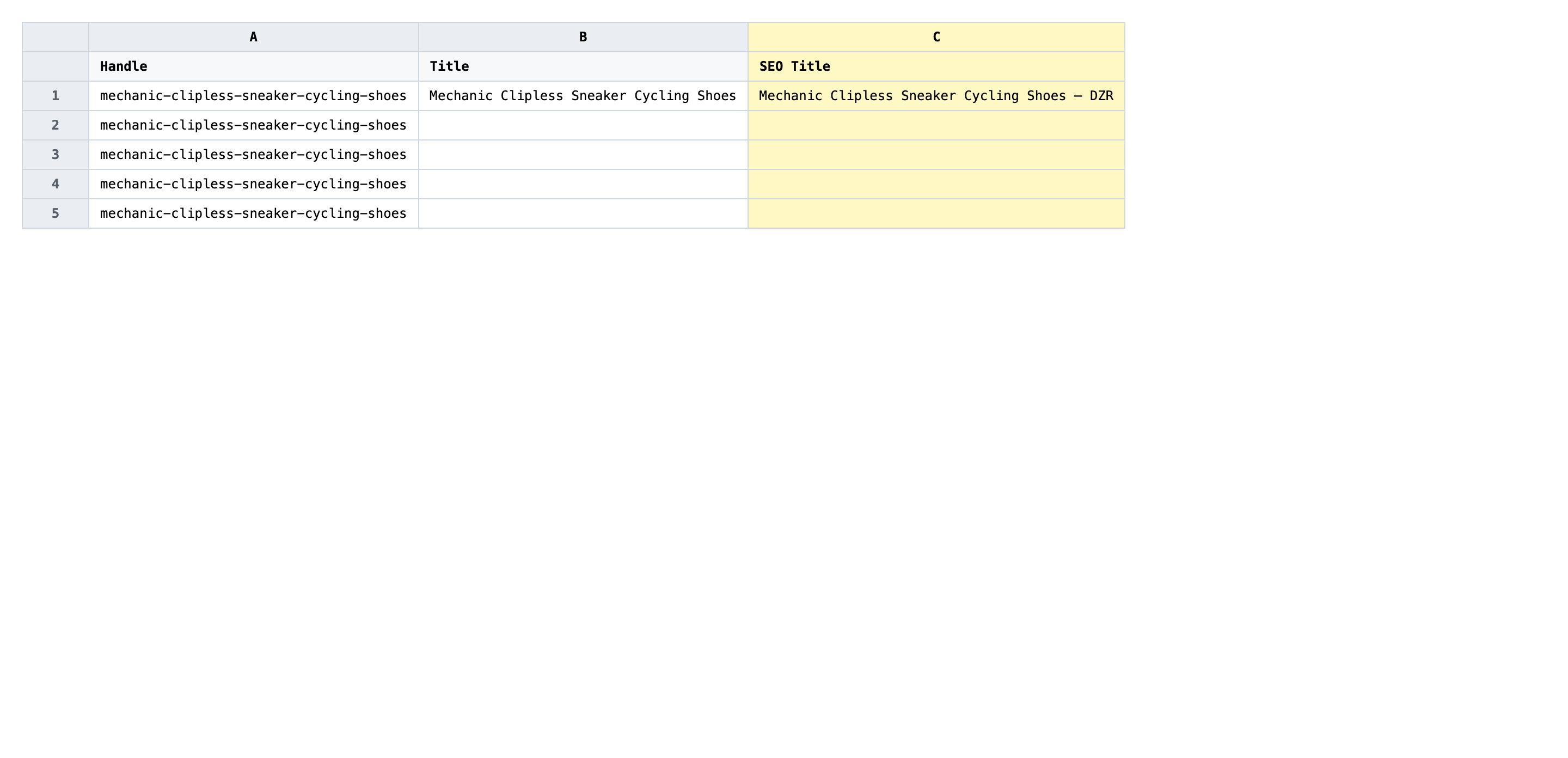
Now walk the duplicate clusters and rewrite each repeated SEO Title with a unique value. Keep each title under 60 characters so Google does not truncate it, lead with the most specific words (model, colour, key feature), and end with your brand if there's room. Empty cells should also be filled — a blank SEO Title means Shopify uses the product title, which is often where the duplication started.
- ✅
DZR Mechanic Clipless Cycling Sneakers — Navy | DZR - ❌
Cycling Shoes
Leave Handle exactly as exported — it is the matching key, and editing it sends the new SEO Title to the wrong product or no product at all. Title is also read-only for this workflow; if you want to rename products, do that in a separate pass. Watch for invisible duplicates too: a trailing space or a different dash character makes two titles look identical to a human but distinct to the spreadsheet, so paste with Values only when copying between cells.
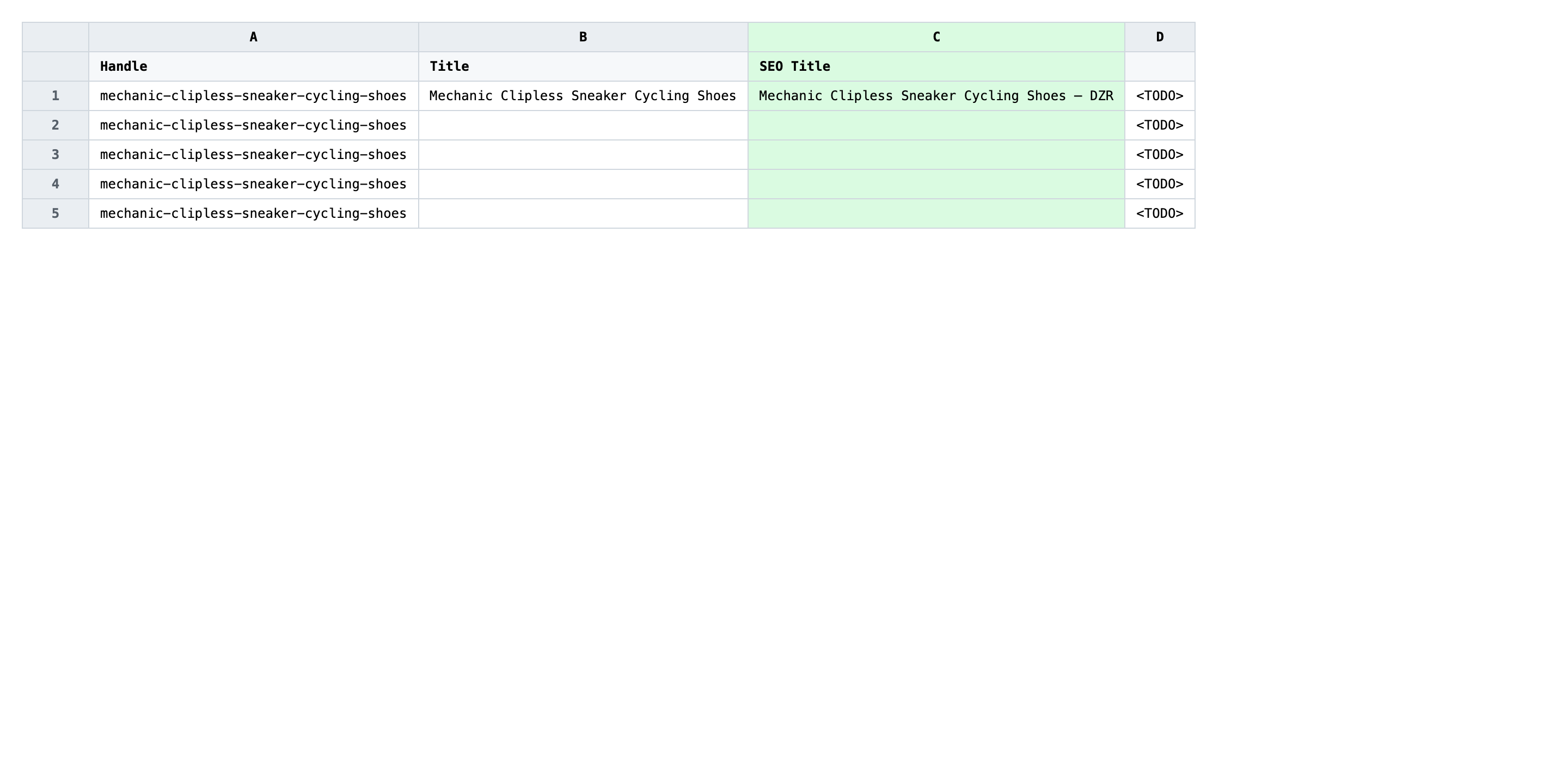
Save the file as CSV when you're done, and keep the original export handy in case you want to revert.
Tip: Add a temporary helper column with
=COUNTIF(C:C, C2)(where C is SEO Title) and filter for values greater than 1 — that surfaces every remaining duplicate in one click before you import.
Step 3 — Import the edited file back to Shopify
Open EditEngine → Import and select Advanced import. Then upload the file you just edited.
EditEngine reads the file and shows a summary. Confirm the Headers panel lists Handle as the match key and SEO Title as a recognised SEO column. Leave Match Products By on Auto-detect and Default Command on Merge so existing fields you did not export are left untouched.
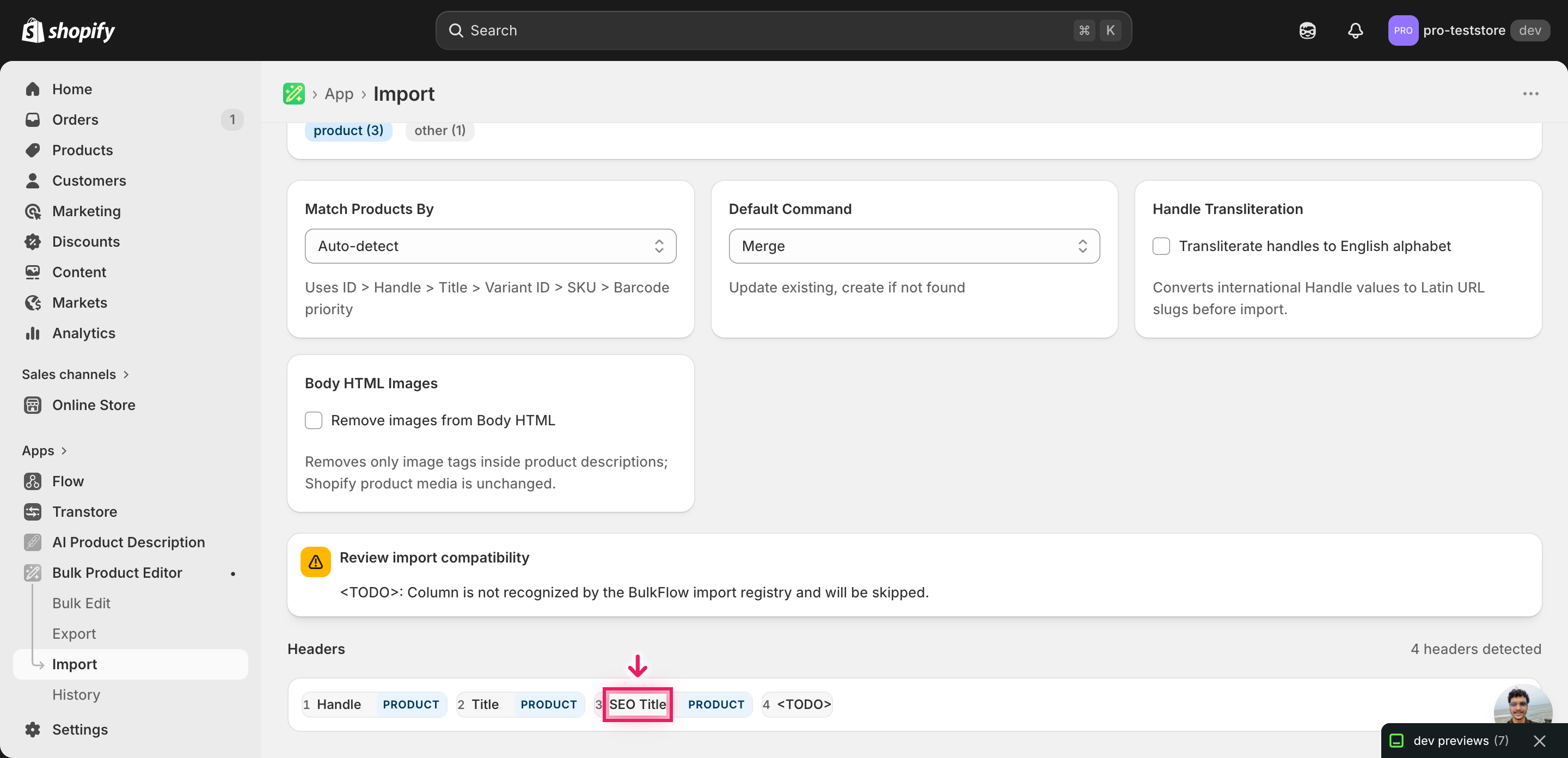
Note: This advanced import has no dry-run toggle, and SEO Title is an overwrite — the new value replaces whatever was there before. Run a first import with just two or three rows, confirm the new titles show up in Products → [a product] → Search engine listing, then come back and import the rest. That two-row test catches a renamed header or a stray duplicate before you commit the full catalog.
Click Start Import and wait for the job to finish — a small file takes seconds, larger catalogs a couple of minutes. When it completes, EditEngine shows a per-row summary.
Download the results CSV. It lists every row with a pass/fail status — that file is your proof the change went through, and the new values are now live in your Shopify admin.
Tips and troubleshooting
Sort before you edit, or you'll miss duplicates. Duplicates rarely sit next to each other in export order — the same SEO Title can appear on row 12 and row 487. Sort the whole sheet by the SEO Title column first so identical values stack, then walk top-to-bottom. A COUNTIF helper column on the side surfaces anything you might still miss.
Stay under 60 characters per title. Google truncates SEO titles at roughly 60 characters on desktop and even shorter on mobile. If you rewrite a duplicate as "DZR Mechanic Clipless Cycling Sneakers — Premium Navy Edition with Black Laces", the part that matters gets cut. Lead with the specifics, leave the brand for the end, and use a character count formula in the spreadsheet as a guardrail.
Test on two rows before the whole catalog. Because this is an overwrite, a typo in the header row or a column shift can blank out every SEO Title in one import. Save a copy of the file with only two product rows, run that through the advanced import first, open both products in the Shopify admin and confirm the new title appears under Search engine listing, then import the full file.
Fill the empty cells too. Products with a blank SEO Title fall back to the product Title, and if you have several products called "T-Shirt" or "Mug" you've just created another set of duplicates. Treat empty cells the same as repeated cells — write a unique meta title for every row, even the ones that look fine in the export.
Frequently asked questions
How do I bulk fix duplicate seo titles in Shopify?
Export every product with the Handle, Title, and SEO Title columns from EditEngine, sort the spreadsheet by SEO Title so duplicates sit next to each other, then rewrite the repeats with unique values and import the file back. That round-trip is how you bulk fix Shopify duplicate seo titles across catalog without opening each product in the admin.
Can I edit Shopify duplicate seo titles in a spreadsheet?
Yes — EditEngine exports the SEO Title field as a regular column, so you can edit Shopify duplicate seo titles in Excel or Google Sheets and re-import. Shopify's admin has no spreadsheet view for meta titles, which is why the export-edit-import flow is faster than clicking through each product.
How long does a bulk duplicate seo titles import take in Shopify?
A few dozen products import in under a minute, and a catalog of a few thousand finishes in a couple of minutes. The bulk fix Shopify duplicate seo titles across catalog flow only writes one text field per product, so it is one of the faster import jobs EditEngine runs.
What format does Shopify accept for duplicate seo titles imports?
A CSV or XLSX with a Handle column to match each row to a product and an SEO Title column with the new value. EditEngine's advanced import reads this format directly, which is the same shape you used to bulk fix Shopify duplicate seo titles across catalog on export.
Can I undo a bulk Shopify duplicate seo titles update?
There is no single-click undo, but the original export file is your backup — keep it, and re-import it to restore the previous SEO Title on every row. Because the bulk fix Shopify duplicate seo titles across catalog flow only overwrites a text field, nothing else on the product is touched.
Related tutorials
About EditEngine: EditEngine Bulk Product Editor helps Shopify merchants bulk edit, bulk import, and bulk export their product catalog in minutes instead of days. Install on Shopify →