
Pricing
How to Bulk Convert Shopify Prices For a New Currency / Market
Last updated
Launching a new region means you need to bulk update Shopify prices for a new currency / market across every variant — not one product at a time. The EditEngine Bulk Product Editor turns that job into an export, a spreadsheet formula, and an import. You pull current prices into a CSV, multiply by your FX rate plus any margin, round to local endings, and push the file back. EditEngine handles the round-trip in minutes, even on thousands of variants.
What you'll learn
- Export every product with its current prices
- Edit prices per row in a spreadsheet
- Import the updated file back to Shopify
What you'll need
- The EditEngine Bulk Product Editor app installed in your Shopify store
- A working Shopify Markets configuration (or a planned launch) for the destination region
- An FX rate plus any market-specific margin or rounding rules decided up front
- The Advanced import flow — variant pricing updates run on this importer
- A spreadsheet editor (Excel, Google Sheets, Numbers — anything that opens CSV)
Shopify Markets lets you sell internationally with currency-specific pricing, but the admin only exposes percentage adjustments or per-product overrides through the UI — neither is practical when your FX rate has shifted, your margin differs by product category, or you want clean local price endings like 9.95 or 990. Exporting prices to a spreadsheet, applying the conversion formula you actually want, and importing back gives you precise control the native tools don't offer.
Step 1 — Export your Shopify prices
Open EditEngine and go to the Export page. This is where you choose which product fields land in your spreadsheet.
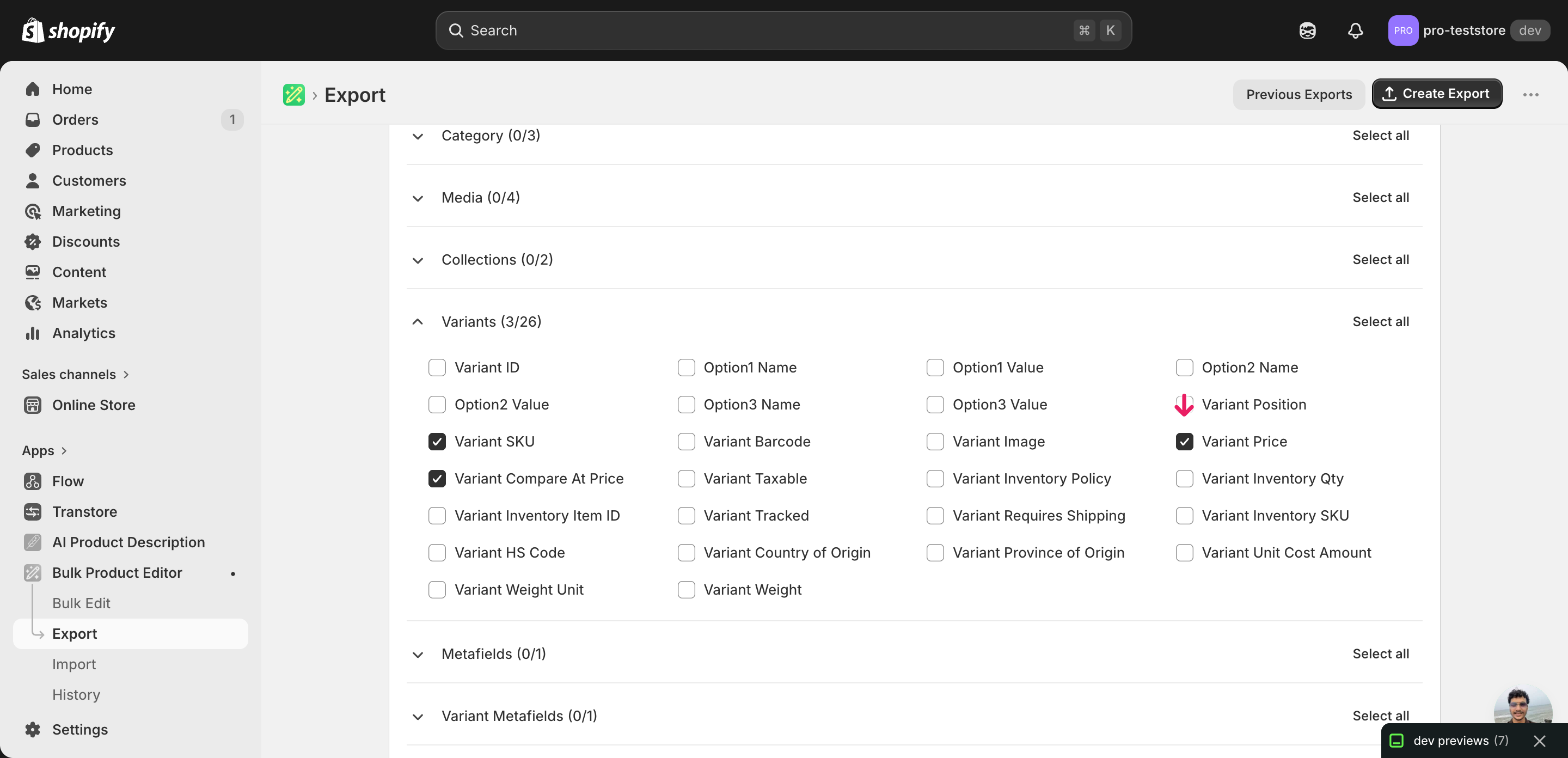
Pick the right columns
- Handle — the unique product identifier the importer uses to match each row back to the right product.
- Variant SKU — the per-variant key that pinpoints which exact size, color, or option each price belongs to.
- Variant Price — the column you'll recalculate. This is the live selling price on each variant and the field your FX conversion writes into.
- Variant Compare At Price — the strike-through price. Convert it alongside Variant Price so your discount math stays consistent in the new currency.
When the export completes, click Download. You'll get one row per variant: a product with five sizes exports as five rows, and each row already carries the current Variant Price you'll be converting. Note that EditEngine's export emits your base-currency prices — Shopify Markets per-market overrides aren't exported as separate columns yet, so this workflow targets your primary catalog prices (or constructs a fresh price set you can then assign to a Market).
New to exporting? This guide assumes you know how to run an export and focuses only on the columns and edit unique to this workflow.
Step 2 — Bulk update Shopify prices for a new currency / market in your spreadsheet
Open the downloaded CSV in Excel or Google Sheets. The Variant Price and Variant Compare At Price columns hold each variant's current value in your base currency.
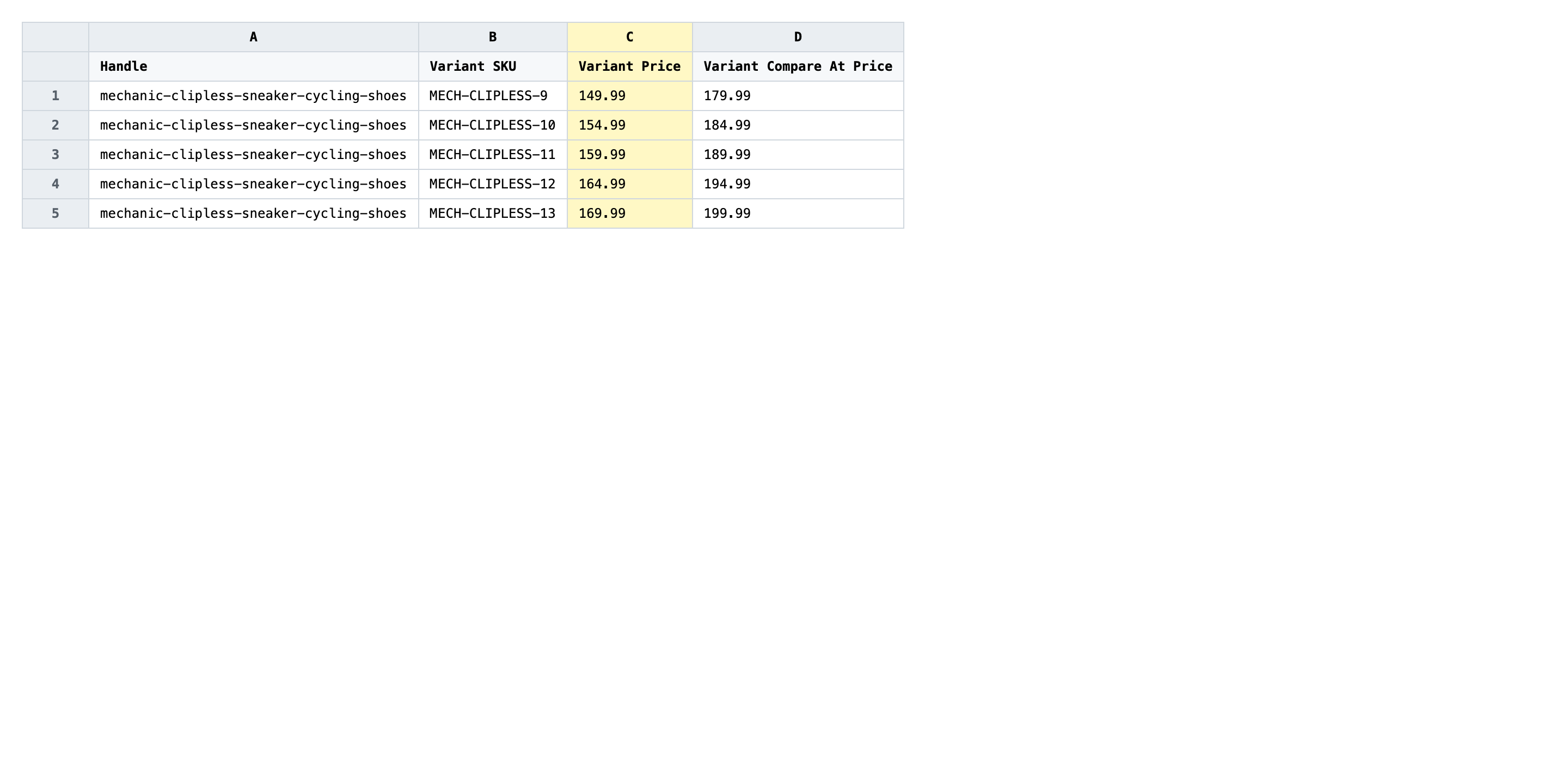
Add a formula column that multiplies Variant Price by your FX rate, layers any market-specific margin, and rounds to the local endings you want (for example =ROUND(C2*1.18*1.05, 2)-0.05 for a EUR conversion at 1.18, plus 5% market margin, rounding to .95). Then paste the formula's values back over Variant Price and repeat for Variant Compare At Price. Use plain decimal numbers — no currency symbols, no thousands separators.
- ✅
129.95 - ❌
€129,95
Leave Handle and Variant SKU exactly as exported — they are the matching keys that tell the importer which variant each new price belongs to. If you change a SKU mid-edit, that row either creates a new variant or fails to match, depending on your settings. Rows where Variant SKU is blank are option-only or product-level rows; skip those unless you know your catalog uses blank-SKU pricing intentionally.
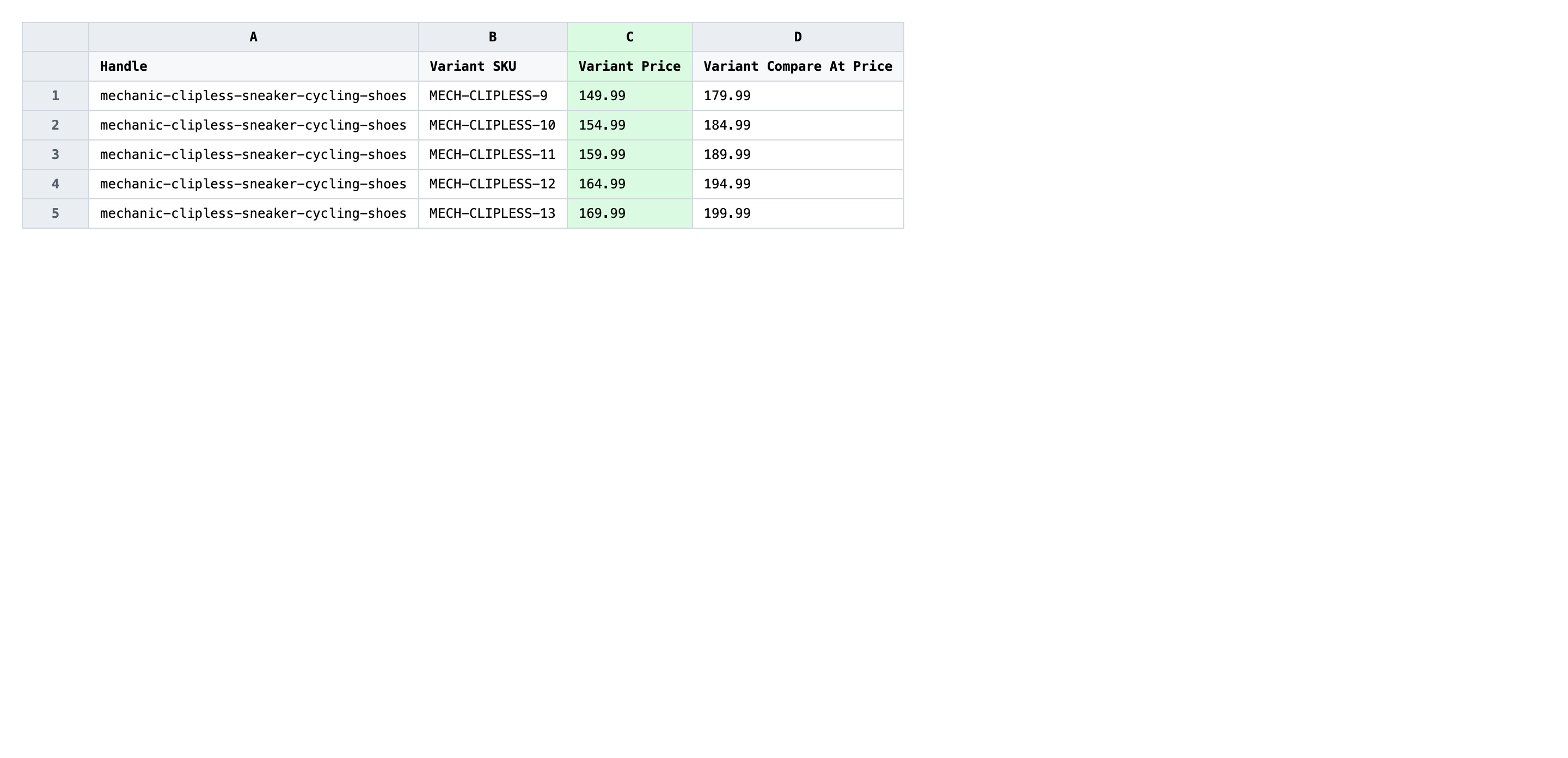
Save the file as CSV when you're done, and keep the original export handy in case you want to revert.
Tip: Build the FX conversion as a formula in a helper column, not in-place on Variant Price — that way you can adjust the rate or the rounding rule and regenerate the whole sheet in one pass instead of re-typing values.
Step 3 — Import the edited file back to Shopify
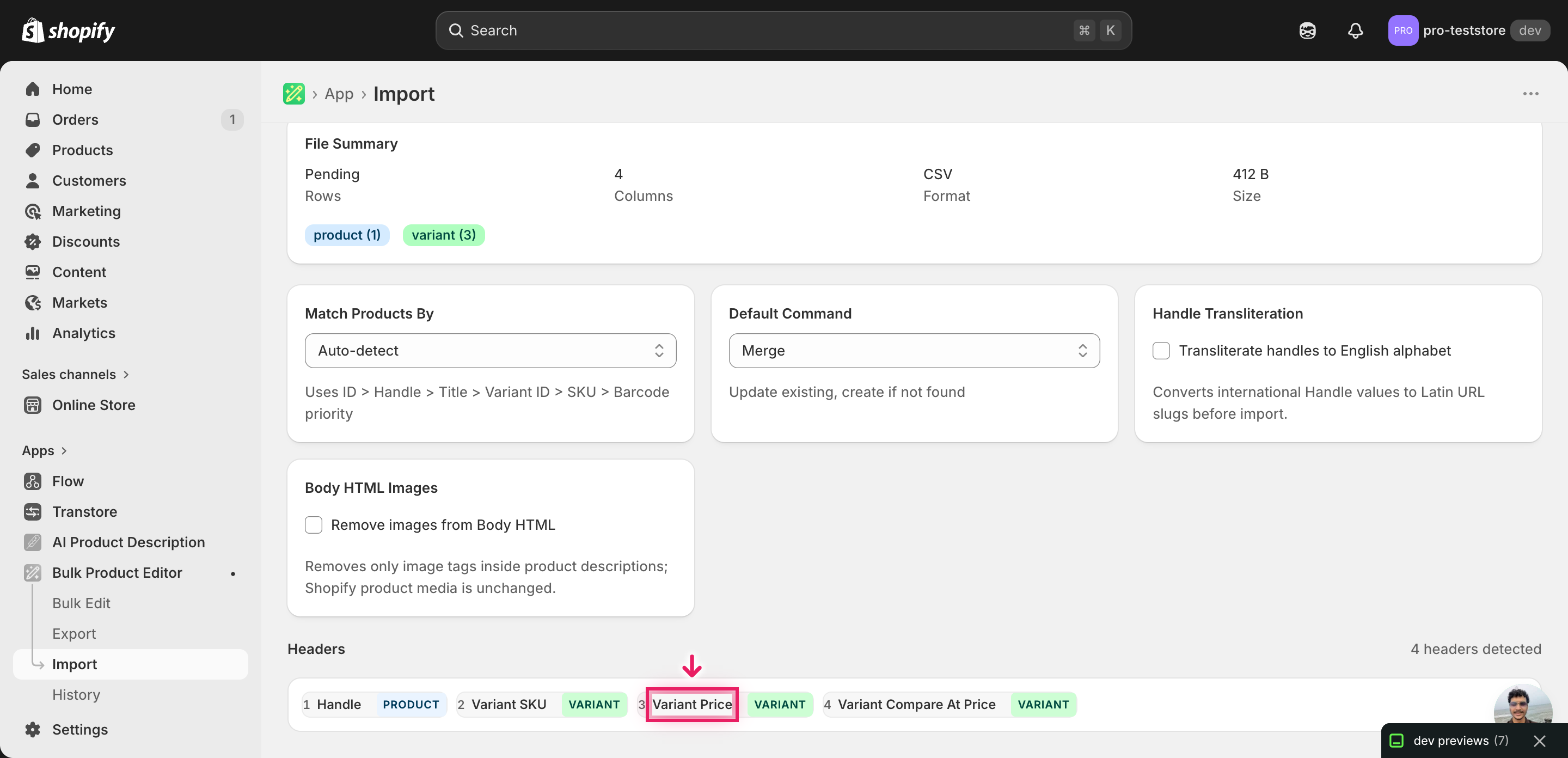
Open EditEngine → Import and select Advanced import. Then upload the file you just edited.
EditEngine reads the file and shows a summary. Check the Headers panel: Variant Price and Variant Compare At Price should both carry the VARIANT badge, confirming the importer recognized them as variant fields. Leave Match Products By on Auto-detect and Default Command on Merge so existing variants update in place instead of being recreated.
Note: Price overwrites are destructive — once the import runs, your old prices are gone unless you re-import the original export. Before you import the whole catalog, run a first pass with two or three rows, open those variants in the Shopify admin, and confirm the converted values landed exactly as the formula intended. Once a single batch checks out, run the full file with confidence.
Click Start Import and wait for the job to finish — a small file takes seconds, larger catalogs a couple of minutes. When it completes, EditEngine shows a per-row summary.
Download the results CSV. It lists every row with a pass/fail status — that file is your proof the change went through, and the new values are now live in your Shopify admin.
Tips and troubleshooting
Don't mix currencies in a single import file. Shopify stores Variant Price as a single decimal — it doesn't know which currency that number represents. If you mix converted EUR prices with leftover USD rows in the same import, both go into the same Variant Price column and you end up with a catalog priced in a Frankenstein currency. Run one file per target currency, and label the file accordingly before you upload.
Round per price band, not globally. Rounding everything to .99 looks fine on a $19.99 sneaker but odd on a $1,299 jacket where shoppers expect $1,295 or $1,300. Build your spreadsheet formula to apply different rounding rules by price band — for example, .95 endings under 100, whole numbers above 500 — so the converted catalog reads naturally to a local shopper.
Validate the math on five rows before you import a thousand. Export, edit, and import just five representative variants first — one cheap, one mid, one expensive, one with a Compare At Price, one without. Spot-check those five in the Shopify admin. If the conversion, rounding, and compare-at math all look right, run the full catalog. A formula error caught on five rows is a five-row rollback; the same error caught on three thousand rows is a Saturday afternoon.
Archive the pre-conversion export. The original export is the rollback file for the entire job. Save it with a dated filename like prices-pre-EUR-2026-06-05.csv the moment it downloads, before you touch anything. If the FX rate moves, the margin needs to change, or you decide to back out of the new market, re-importing that file is the one-step reverse.
Frequently asked questions
How do I bulk update prices in Shopify?
Export your catalog from EditEngine with the Variant Price and Variant Compare At Price columns, apply your FX conversion in a spreadsheet, then import the file back through the advanced import. This is the practical way to bulk update Shopify prices for a new currency / market without retyping each variant in the admin.
Can I edit Shopify prices in a spreadsheet?
Yes. EditEngine exports one row per variant with the current Variant Price and Variant Compare At Price, which you can recalculate with a formula in Excel or Google Sheets. That spreadsheet workflow is what makes a bulk update Shopify prices for a new currency / market job realistic across thousands of SKUs.
How long does a bulk prices import take in Shopify?
A few dozen variants finish in seconds, and a catalog of several thousand typically completes in a couple of minutes. EditEngine streams the file row by row, so a full bulk update Shopify prices for a new currency / market import won't time out the way the native admin sometimes does.
What format does Shopify accept for prices imports?
A CSV or XLSX with a Handle column to identify the product, a Variant SKU to pinpoint the right variant, and Variant Price (plus optional Variant Compare At Price) as decimal numbers without currency symbols. EditEngine's advanced import reads this shape directly for a bulk update Shopify prices for a new currency / market.
Can I undo a bulk Shopify prices update?
There is no one-click undo, but the export file itself is your rollback — re-import the original unedited CSV and prices revert. Keep that original export archived whenever you run a bulk update Shopify prices for a new currency / market in case the FX math or rounding needs to be reversed.
Related tutorials
- How to Bulk Markup Shopify Pricing From Cost
- How to Bulk Markdown Shopify Sale Pricing
- How to Bulk Round Shopify All Prices To 99 95 Endings
About EditEngine: EditEngine Bulk Product Editor helps Shopify merchants bulk edit, bulk import, and bulk export their product catalog in minutes instead of days. Install on Shopify →