
Variants & options
How to Bulk Reorder Shopify Option Values
Last updated
Want to bulk reorder Shopify option values so Size shows Small, Medium, Large instead of a random alphabetical sort? With EditEngine Bulk Product Editor, you export your variants to a spreadsheet, resequence the rows in the order you want them displayed, and import the file back. EditEngine reads row order as display order, which makes a catalog-wide option reorder a five-minute spreadsheet edit instead of a per-product click marathon.
What you'll learn
- Export every product with its current option values
- Edit option values per row in a spreadsheet
- Import the updated file back to Shopify
What you'll need
- The EditEngine Bulk Product Editor app installed in your Shopify store
- At least one product with two or more variants that share the option you want to reorder (Size, Color, Material, etc.)
- The Advanced import flow — variant option reordering is advanced-import only
- The original option names (
Option1 Name,Option2 Name) already set up in Shopify - A spreadsheet editor (Excel, Google Sheets, Numbers — anything that opens CSV)
Shopify uses variant order to drive how option pickers render on the storefront — the first variant for a given option value sets where that value appears in the dropdown or swatch row. There's no "sort option values" button in the admin, so reordering at scale means rewriting the order of variant rows in a CSV. EditEngine is built around that exact flow.
Step 1 — Export your Shopify option values
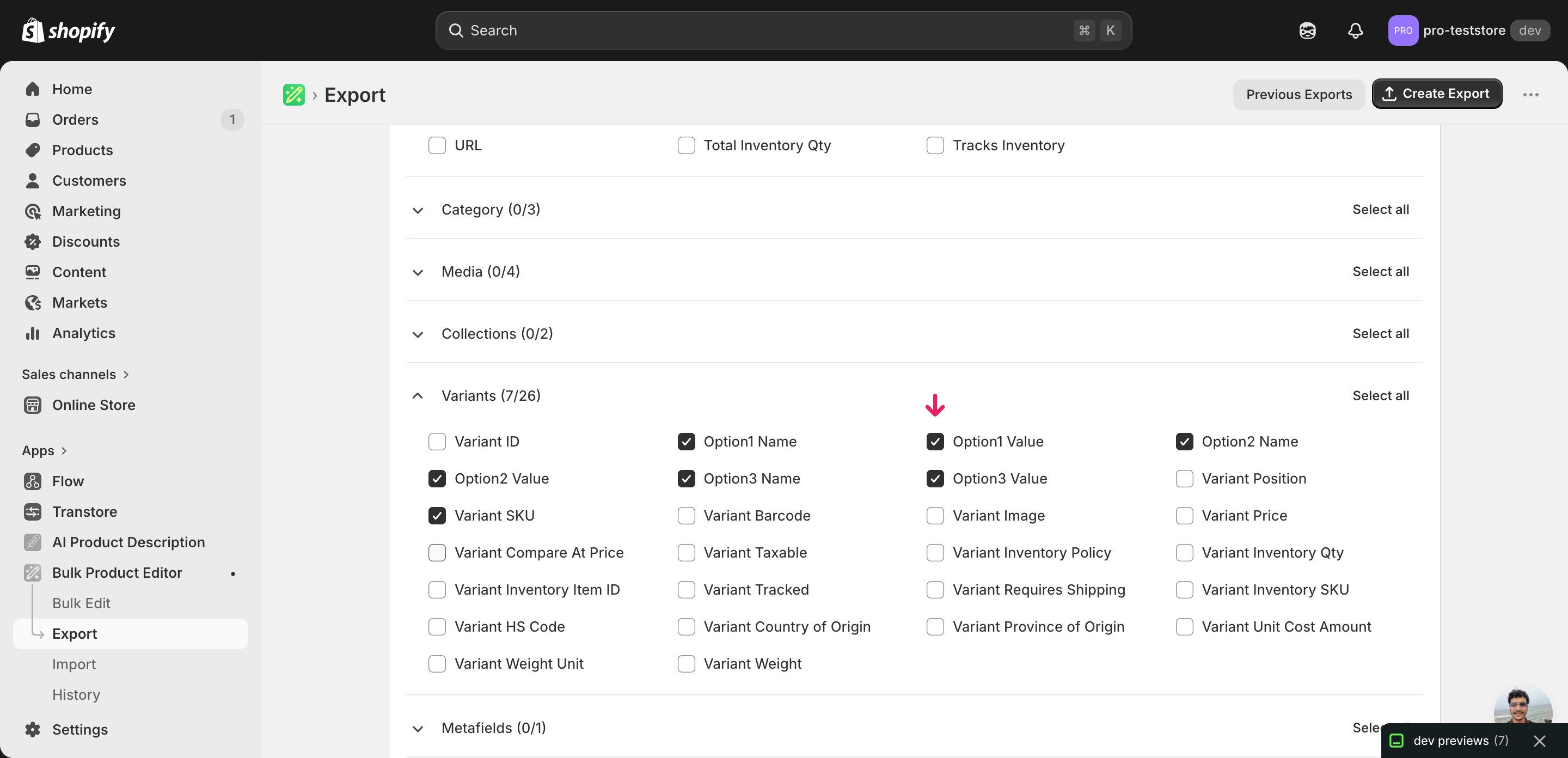
Open EditEngine and go to the Export page. This is where you choose which product fields land in your spreadsheet.
Pick the right columns
- Handle — the unique product identifier the importer uses to match each row back to the right product.
- Option1 Name — the name of the first option axis (Size, Color, Material). Export it so you know which option you're reordering and so the importer keeps the axis intact.
- Option1 Value — the actual value on each variant (Small, Navy, Cotton). This is what you'll reorder — by moving rows up or down — not by retyping the value.
- Option2 Name / Option2 Value — include these if your products use a second option axis. The Shopify option values CSV needs every axis present so the variant set isn't accidentally collapsed.
- Option3 Name / Option3 Value — same idea for products with three axes. If you don't use a third option, skip these columns.
- Variant SKU — the per-variant identifier. It's how the importer matches each row to an existing variant so nothing gets duplicated or deleted while you reorder.
When the export completes, click Download. You'll get one row per variant: a product with twelve variants shows up as twelve rows, grouped by Handle and ordered the way Shopify currently displays them on the storefront.
New to exporting? This guide assumes you know how to run an export and focuses only on the columns and edit unique to this workflow.
Step 2 — Bulk reorder Shopify option values in your spreadsheet
Open the downloaded CSV in Excel or Google Sheets. The variant rows for each product are grouped by Handle, and the Option1 Value column (with Option2 / Option3 if used) shows the current display order.
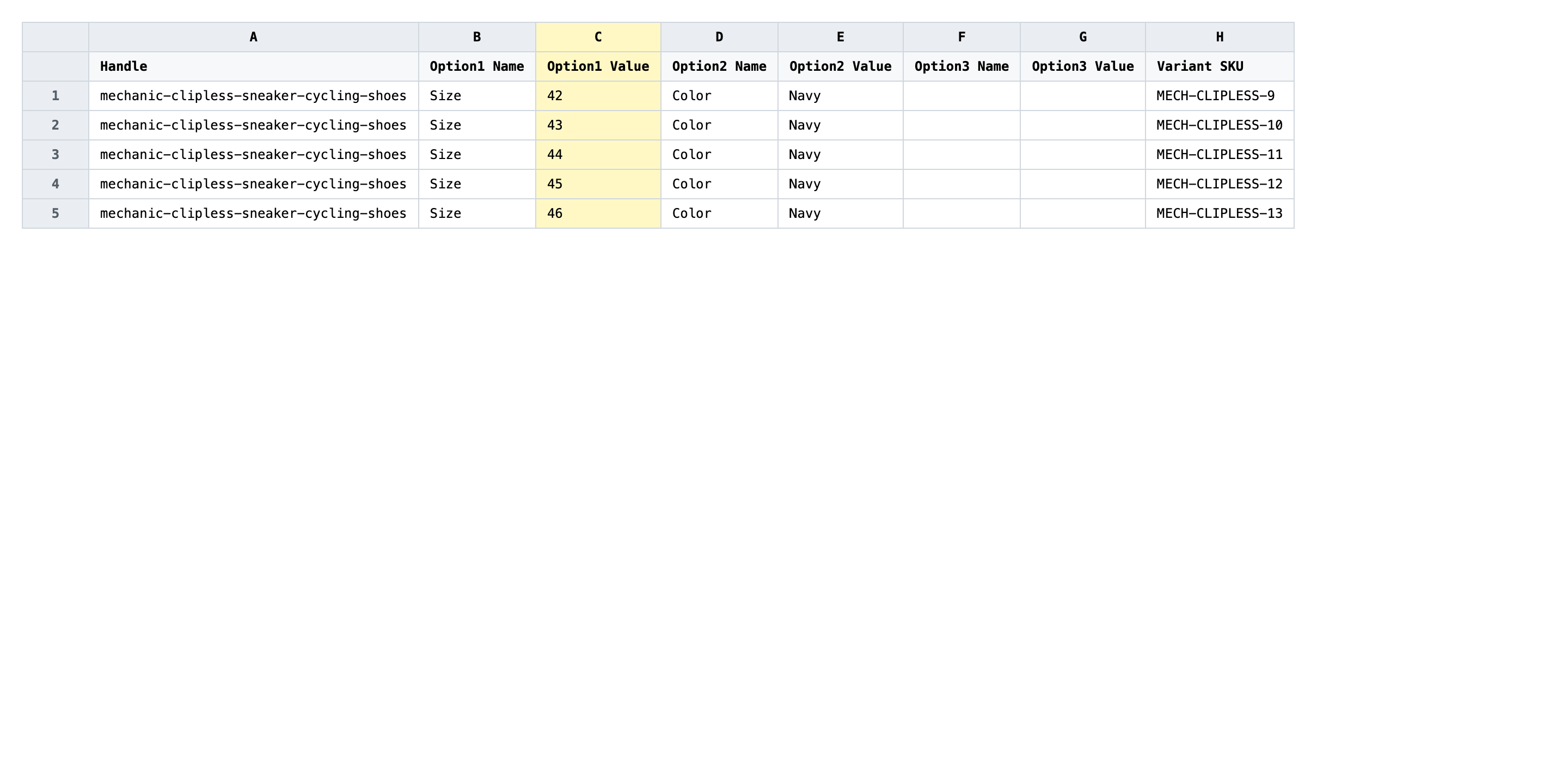
Reorder the rows within each Handle group so the option values appear in the sequence you want on the storefront. The first row for a value sets that value's position. The cleanest way is to sort or cut-and-paste whole rows — don't retype the values in place. Keep every column intact on each row you move; you're rearranging rows, not editing cells.
- ✅
Move theSmallrow aboveMediumaboveLargefor the same Handle, so the storefront picker reads Small / Medium / Large - ❌
RetypingLargetoSmallin the Option1 Value column — that renames the value instead of reordering it and will create or merge variants
Leave Handle, Variant SKU, and the Option Name columns exactly as exported. Variant SKU is the matching key — change it and the importer will treat the row as a new variant. Don't split a product's variant rows across non-contiguous blocks in the file either; keep all rows for one Handle together, in the order you want them displayed.
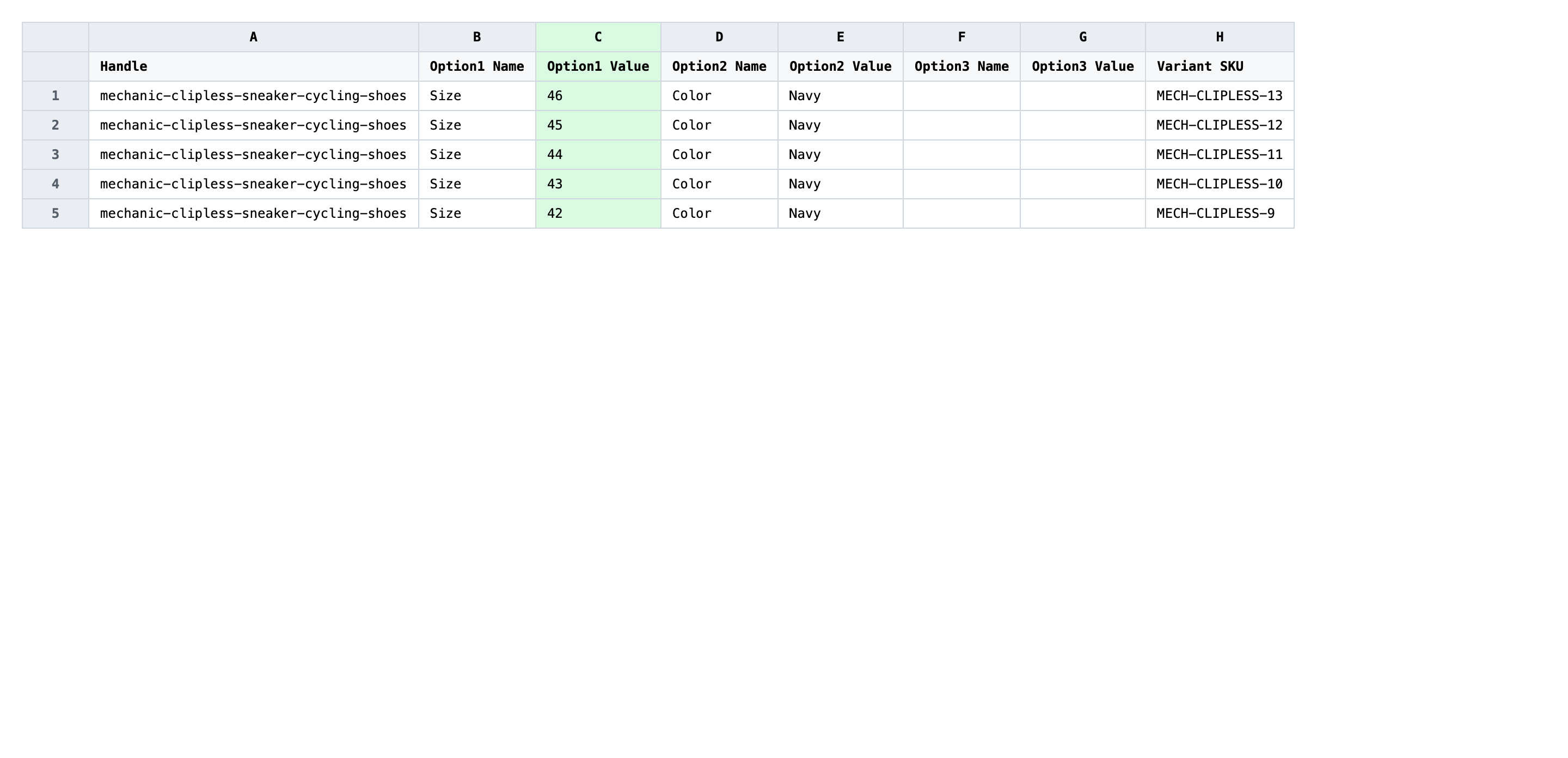
Save the file as CSV when you're done, and keep the original export handy in case you want to revert.
Tip: Row order is the only signal Shopify reads for option value display order — the cell values themselves don't carry a position number. Sort within each Handle group, then save.
Step 3 — Import the edited file back to Shopify
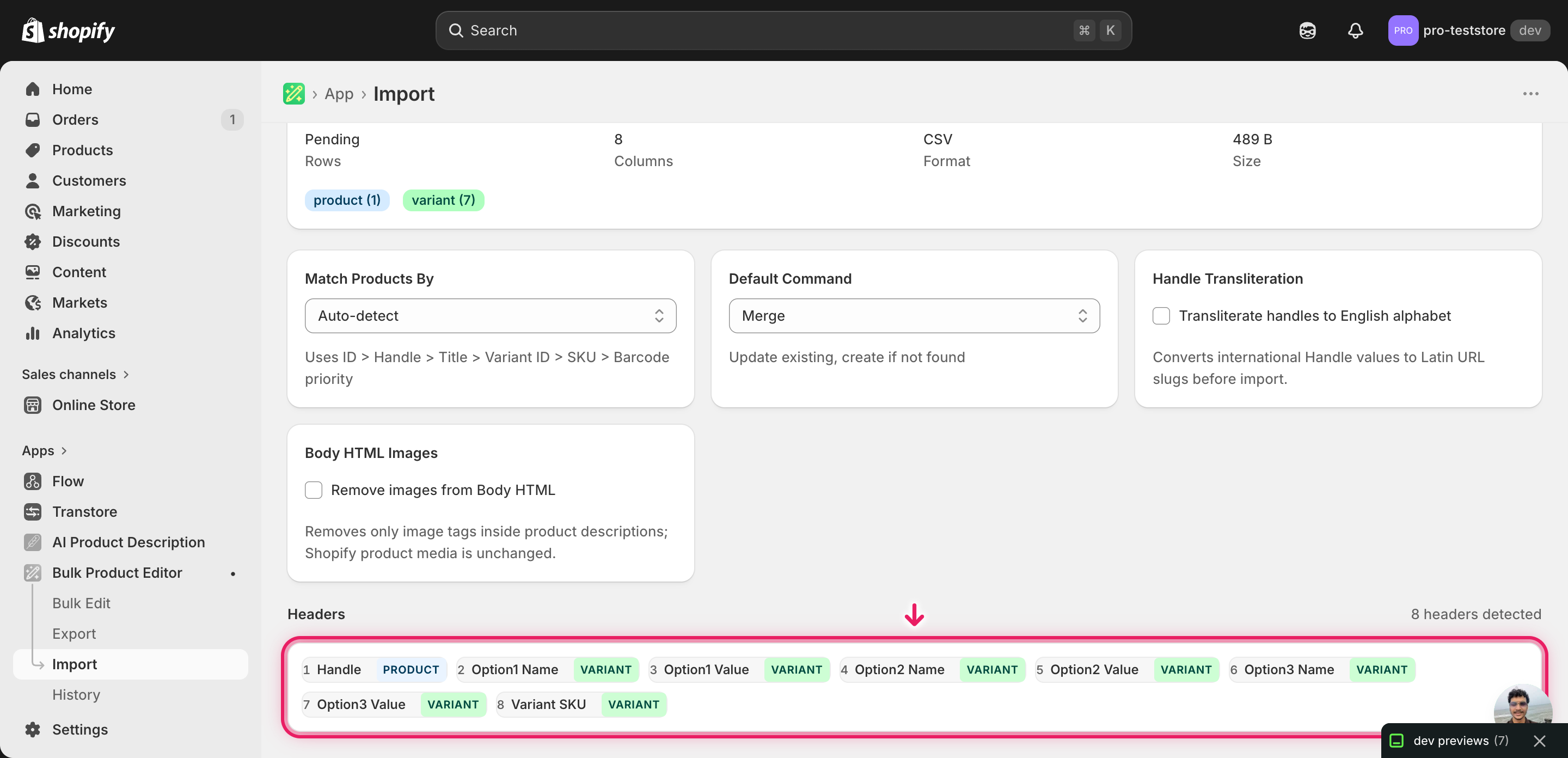
Open EditEngine → Import and select Advanced import. Then upload the file you just edited.
EditEngine reads the file and shows a summary. Confirm that Handle maps as the product key, the Option1 Name / Option1 Value pair (and Option2 / Option3 if present) are recognized as variant option columns, and Variant SKU maps as the variant key. Leave Match Products By on Auto-detect and Default Command on Merge so existing variants are updated in place rather than recreated.
Note: Reordering option values rewrites variant positions on every affected product, so test on a tiny batch first. Filter the CSV down to one or two Handles, import that, and check the storefront picker for those products before you run the full file. If a Variant SKU or option name is mis-mapped you'll see it on the small batch instead of across the catalog.
Click Start Import and wait for the job to finish — a small file takes seconds, larger catalogs a couple of minutes. When it completes, EditEngine shows a per-row summary.
Download the results CSV. It lists every row with a pass/fail status — that file is your proof the change went through, and the new values are now live in your Shopify admin.
Tips and troubleshooting
Reorder rows, don't rename cells. The most common mistake is retyping option values in place — changing Large to Small in the cell instead of moving the Small row above the Large row. Renaming creates a different option value, which can merge variants you didn't mean to merge or leave orphaned ones behind. Always move whole rows.
Row order is the display order. Shopify decides where each option value appears on the storefront based on which variant row comes first in the import. Sort your variant rows inside each Handle group with the order you want shoppers to see, then save the CSV. Don't expect a hidden position field to override your row order — there isn't one.
Pilot one product, then run the catalog. Before importing the full file, slice the CSV down to a single Handle and import just those rows. Open the product on the storefront and confirm the option picker matches what you intended. Once one product looks right, import the rest with confidence — this is the dry-run substitute for a flow that has no built-in preview.
Keep Variant SKU stable. Variant SKU is how EditEngine matches each row to an existing variant. If a SKU is blank or accidentally edited, the importer treats the row as a new variant and you'll end up with duplicates. Re-export if you've changed SKUs recently so you're working from current values.
Frequently asked questions
How do I bulk reorder option values in Shopify?
Export your products from EditEngine with the Handle, Option Name, Option Value, and Variant SKU columns, then reorder the variant rows in the spreadsheet so each option value sits in the sequence you want. Import the file back through the advanced import flow and Shopify will redraw the option pickers in that new order — that's how you bulk reorder Shopify option values without touching each product by hand.
Can I reorder Shopify option values in a spreadsheet?
Yes. EditEngine exports one row per variant with the Option Name and Option Value columns filled in, so you can edit or resequence them in Excel, Google Sheets, or any CSV editor. The Shopify admin has no native bulk reorder for option values, which is why the spreadsheet round-trip exists.
How long does a bulk option value reorder import take in Shopify?
A handful of products imports in seconds. A few hundred typically finishes in a minute or two, and EditEngine streams larger files so a bulk reorder of Shopify option values across the whole catalog completes without timing out. The results CSV shows the exact duration for your job.
What format does a Shopify option value reorder import need?
A CSV (or XLSX) with a Handle column to match the product, the Option1 Name / Option1 Value pair (plus Option2 and Option3 if you use them), and a Variant SKU column to identify each variant. EditEngine's advanced import reads this format directly and uses the row order in the file to set the storefront display order.
Can I undo a bulk Shopify option value reorder?
There's no one-click undo, but the workflow is its own backup. Keep the original export and re-import that file to put the option values back in their old order. Because you're only resequencing existing values, no variants are created or deleted in the process.
Related tutorials
- How to Bulk Rename Shopify Option Values Across Products
- How to Bulk Add Shopify Or Remove Option Axes
About EditEngine: EditEngine Bulk Product Editor helps Shopify merchants bulk edit, bulk import, and bulk export their product catalog in minutes instead of days. Install on Shopify →