
Metafields
How to Bulk Update Shopify list.* Metafields
Last updated
Need to bulk update Shopify list.* metafields across hundreds of products without clicking into each one in the admin? With EditEngine Bulk Product Editor, you export your products to a spreadsheet, rewrite the comma-separated list values per row, and import the file back. Because list.* metafields are arrays — list of strings, list of product references, list of files — the spreadsheet round-trip is the right tool for changing the same list across many products.
What you'll learn
- Export every product with its current
list.*metafields - Edit
list.*metafields per row in a spreadsheet - Import the updated file back to Shopify
What you'll need
- The EditEngine Bulk Product Editor app installed in your Shopify store
- At least one product with a
list.*metafield definition already created in Settings → Custom data → Products (for examplecustom.materialsof typelist.single_line_text_field, or alist.product_reference) - The Advanced import flow — list metafields ship the full list per row and rely on advanced-import parsing
- A spreadsheet editor (Excel, Google Sheets, Numbers — anything that opens CSV)
A list.* metafield is a metafield whose value is an array — list.single_line_text_field, list.product_reference, list.file_reference, and so on. Shopify stores the whole array as a single value, which means an import overwrites the list as a whole rather than appending to it. EditEngine flattens the array into a comma-separated cell in your spreadsheet, you edit that cell, and the importer rebuilds the array on the way back in.
Step 1 — Export your Shopify list.* metafields
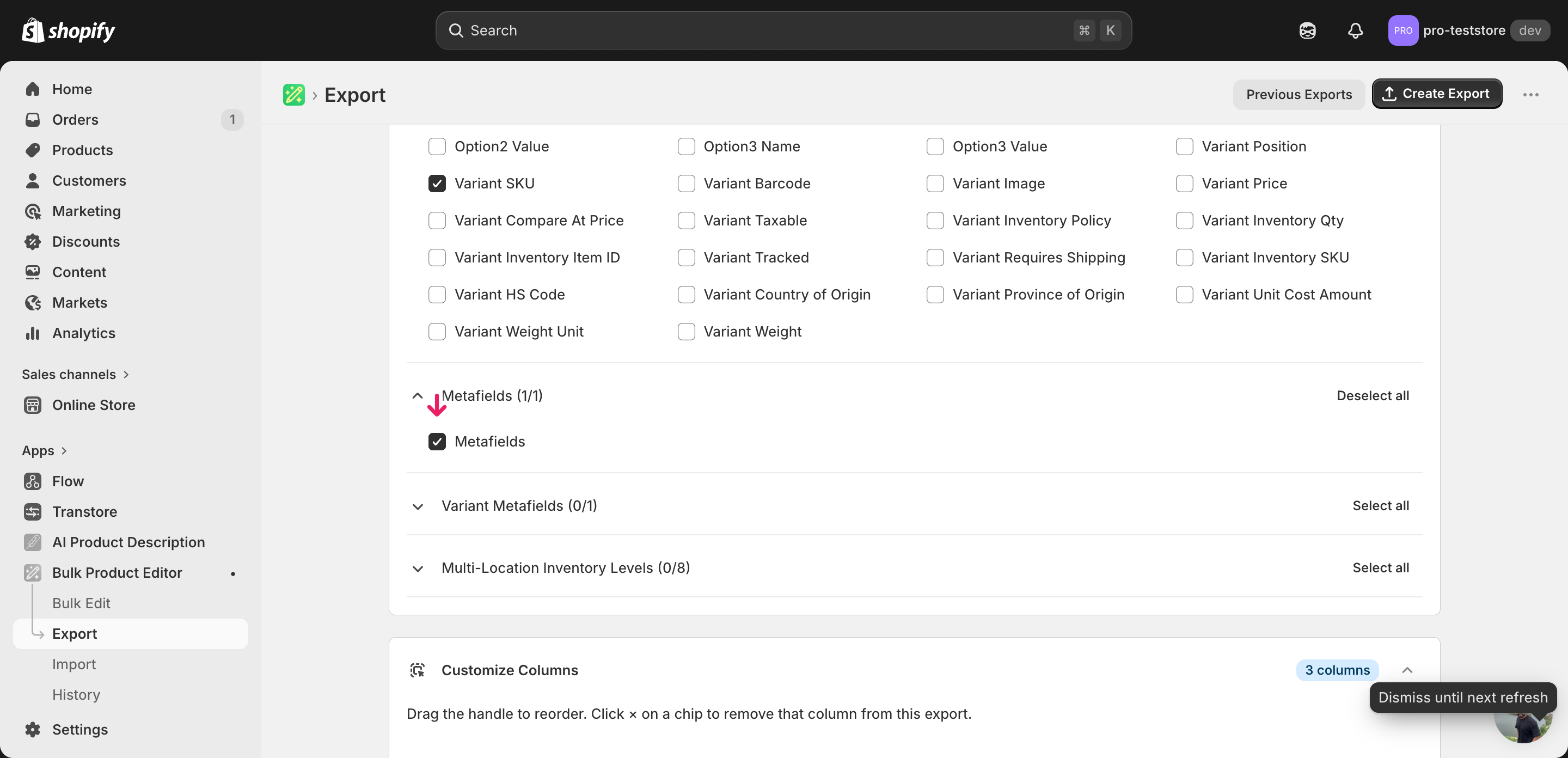
Open EditEngine and go to the Export page. This is where you pick which list.* metafield columns ship with your spreadsheet.
Pick the right columns
- Handle — the unique product identifier the importer uses to match each row back to the right product. Always include it.
- Variant SKU — context only on the variant rows so you can see which variant a row belongs to while scanning the file. Product metafields apply at the product level regardless.
- Metafield: custom.materials [list.single_line_text_field] — an example
list.*metafield column. Expand the Metafields group in the column picker and tick everylist.*definition you want to edit — each one gets its own column with the type bracketed in the header. - Metafield: custom.related_products [list.product_reference] — a reference-list metafield. The cell holds comma-separated GIDs like
gid://shopify/Product/1234567890,gid://shopify/Product/9876543210— not titles or handles.
When the export completes, click Download. You'll get one row per product (variant rows repeat the same metafield values because list.* product metafields live at the product level), and each list.* column shows the current array as a comma-separated string.
New to exporting? This guide assumes you know how to run an export and focuses only on the columns and edit unique to this workflow.
Step 2 — Bulk update Shopify list.* metafields in your spreadsheet
Open the downloaded CSV in Excel or Google Sheets. Each list.* metafield column holds the current array as a comma-separated value — that's the column you'll edit.
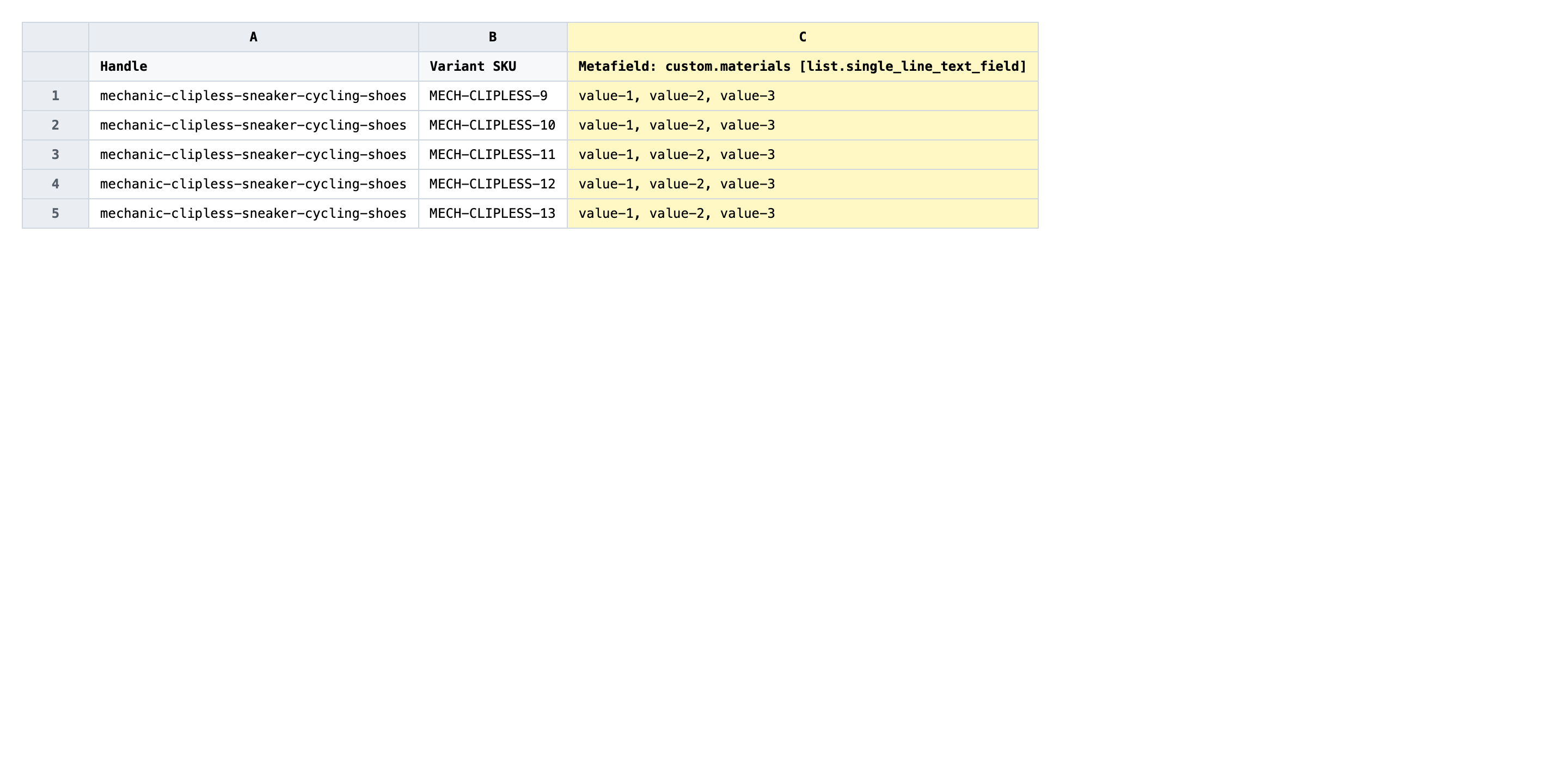
Rewrite the cell with the full new list, comma-separated. The importer replaces the entire array, so type every item you want to keep — anything you drop disappears from the product. For list.single_line_text_field use plain strings (leather, mesh, rubber). For list.product_reference and other reference lists, use the GID format (gid://shopify/Product/1234567890). Order matters: Shopify displays the list in the order you list items in the cell.
- ✅
leather, recycled mesh, vulcanized rubber, EVA foam - ❌
["leather","mesh","rubber"]
Leave Handle untouched — it's the matching key and changing it points the row at a different product or no product at all. Don't rename the metafield column header either; EditEngine matches the column to the metafield definition by the exact Metafield: namespace.key [type] string, so any tweak to the namespace, key, or bracketed type breaks the mapping. If you want to clear a list.* metafield rather than overwrite it, leave the cell empty — but be aware an empty cell wipes the whole array.
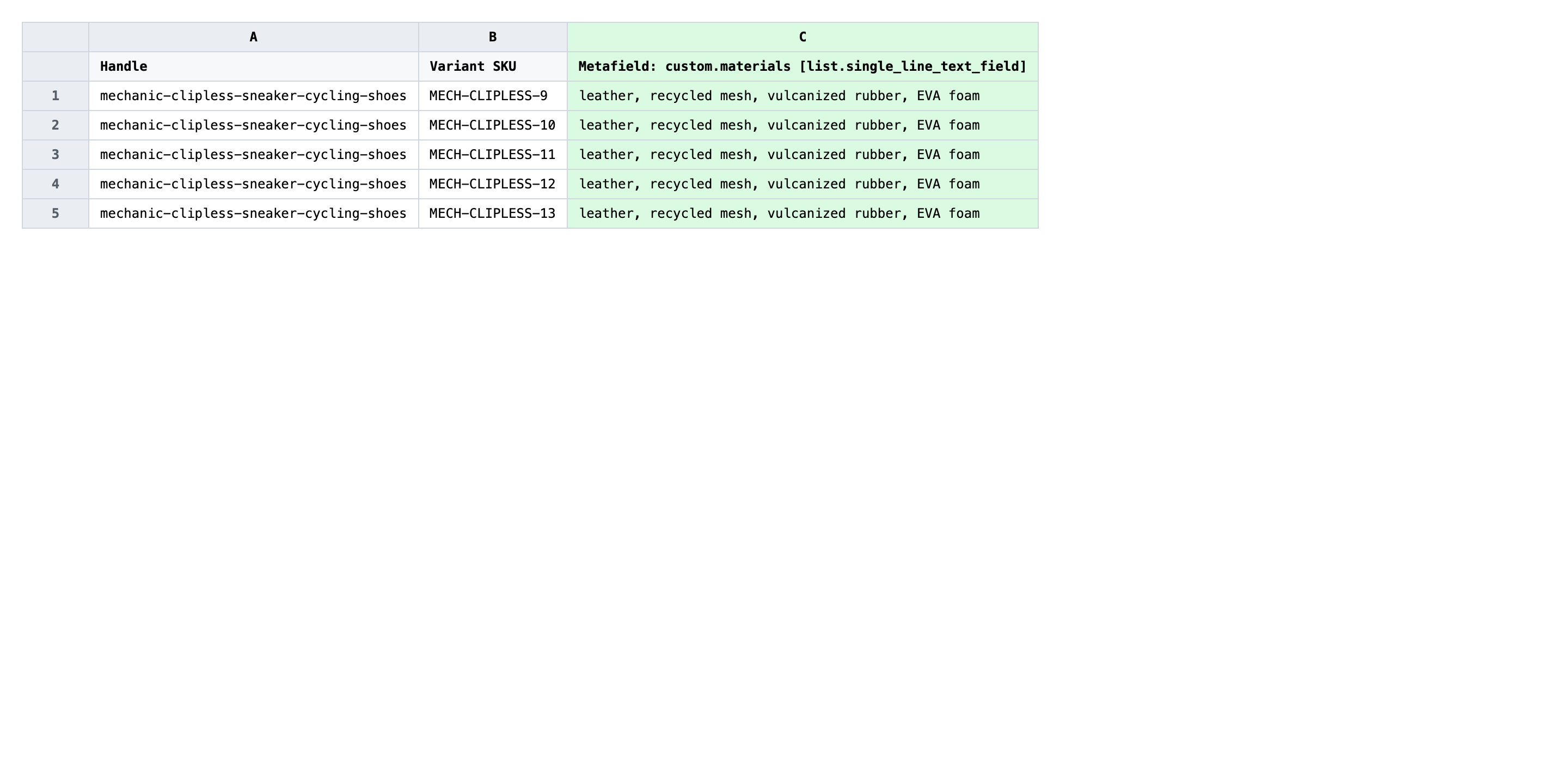
Save the file as CSV when you're done, and keep the original export handy in case you want to revert.
Tip: Reference lists fail silently if you paste a handle or a product title instead of a GID — Shopify just stores nothing for that row. Always copy the GID from the metafield in the admin (or from a fresh export) before pasting it into a
list.*_referencecell.
Step 3 — Import the edited file back to Shopify
Open EditEngine → Import and select Advanced import. Then upload the file you just edited.
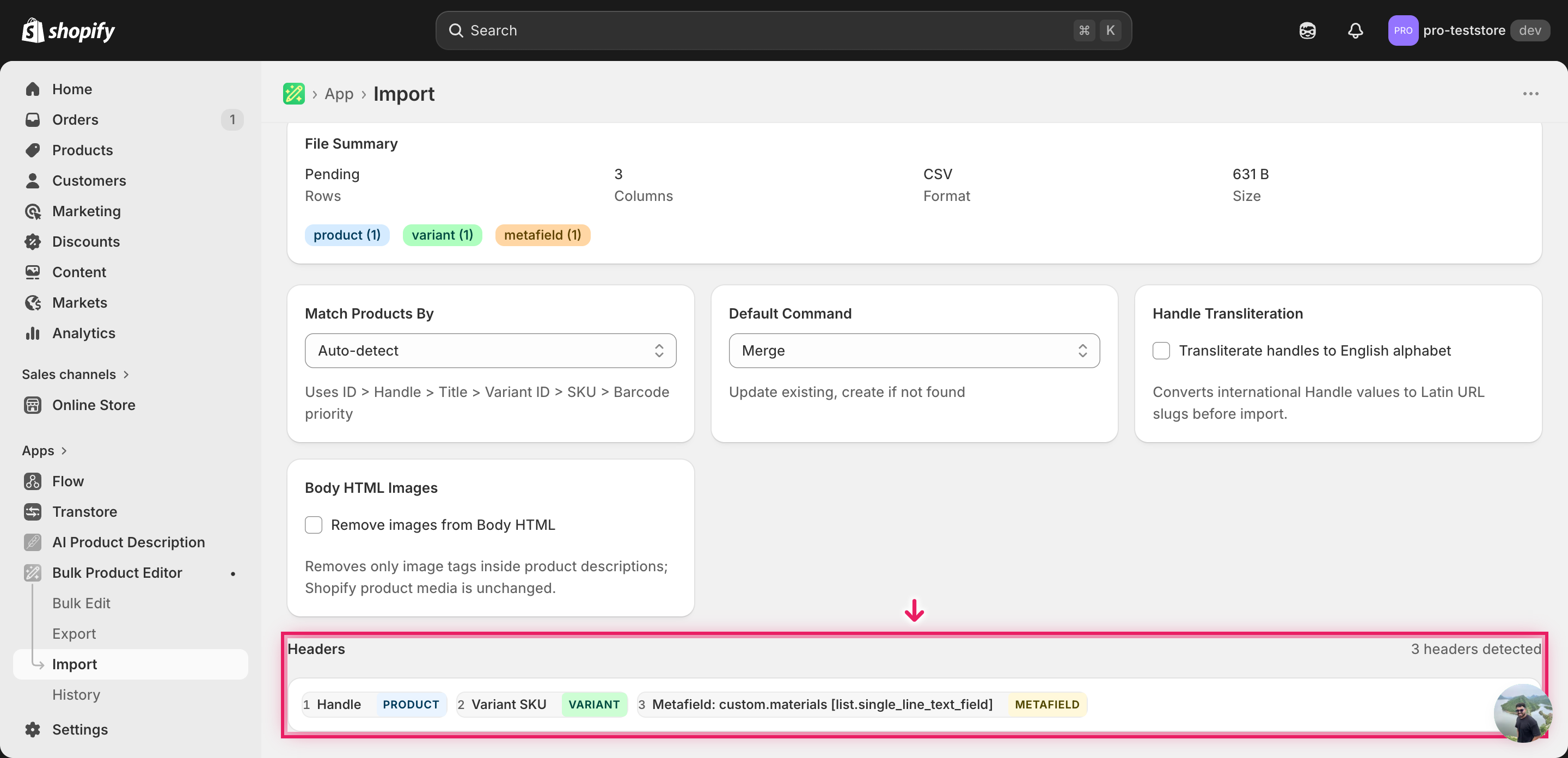
EditEngine reads the file and shows a summary. In the Headers panel, every list.* metafield column should carry the METAFIELD badge — that confirms the importer parsed the Metafield: namespace.key [type] header and bound it to the right definition. Leave Match Products By on Auto-detect (it'll use Handle) and Default Command on Merge so untouched columns stay as they are.
Note: Because each
list.*metafield is overwritten as a whole array, a bad cell silently wipes the existing list for that product. Before you import the full file, run a first import with two or three rows — pick products you can spot-check in the admin, confirm the new arrays land in the right order, then upload the rest. That catches a stray bracket, a wrong GID, or a renamed header before you commit the whole catalog.
Click Start Import and wait for the job to finish — a small file takes seconds, larger catalogs a couple of minutes. When it completes, EditEngine shows a per-row summary.
Download the results CSV. It lists every row with a pass/fail status — that file is your proof the change went through, and the new values are now live in your Shopify admin.
Tips and troubleshooting
The list is overwritten, not merged. Every list.* metafield import replaces the entire array with whatever's in the cell. If you only want to add one new item, you still have to type out the existing items plus the new one — otherwise the old values vanish. Export first, edit the existing comma-separated value in place, then import.
Reference lists need GIDs. For list.product_reference, list.variant_reference, list.collection_reference, and similar types, each item in the cell must be a Shopify GID — gid://shopify/Product/1234567890. Product handles, titles, or numeric IDs alone won't resolve and the import will reject the row or silently drop the value. Pull the GIDs from a fresh export when in doubt.
Header names are exact, brackets and all. EditEngine matches each metafield column to its definition by the full header string Metafield: namespace.key [type]. Renaming the column to Materials, dropping the bracketed type, or changing the namespace breaks the mapping and the importer treats the column as unknown. Verify the METAFIELD badge appears on every metafield column on the mapping screen before you start the import.
Watch for commas inside string values. Because the cell uses commas as separators, a string item containing a comma (Black, white striped) gets split into two items. Either rewrite the value to remove the comma (Black-and-white striped) or use a different separator-safe approach — for reference lists this isn't a problem because GIDs never contain commas.
Frequently asked questions
How do I bulk update list.* metafields in Shopify?
Export your products from EditEngine with the Handle column and the list.* metafield columns you want to change, edit the comma-separated list values per row in a spreadsheet, then import the file back through the advanced import flow. That round-trip is the practical way to bulk update Shopify list.* metafields without opening each product in the admin.
Can I edit Shopify list.* metafields in a spreadsheet?
Yes. EditEngine writes each list.* metafield into its own column and serializes the array as comma-separated values, so you can bulk edit Shopify list.* metafields in Excel, Google Sheets, or any CSV editor. Save the file as CSV and import it back through EditEngine's advanced flow.
How long does a bulk list.* metafields import take in Shopify?
A few dozen products finish in seconds. A few thousand rows usually completes in a couple of minutes when you bulk update Shopify list.* metafields, and EditEngine streams larger files so big catalogs don't time out. The results CSV shows the exact duration for your job.
What format does Shopify accept for list.* metafields imports?
A CSV (or XLSX) with a Handle column to match the product and one column per metafield, named exactly as exported — for example Metafield: custom.materials [list.single_line_text_field]. Inside that column, items are separated by commas; reference lists use GIDs like gid://shopify/Product/1234567890. EditEngine's advanced import reads this Shopify list.* metafields CSV directly.
Can I undo a bulk Shopify list.* metafields update?
There's no one-click undo, but the workflow is its own backup: keep the original export, and re-import that unedited file to restore the previous lists. Because each list.* metafield is overwritten as a whole, the rollback is exact down to item order.
Related tutorials
About EditEngine: EditEngine Bulk Product Editor helps Shopify merchants bulk edit, bulk import, and bulk export their product catalog in minutes instead of days. Install on Shopify →