
Pricing
How to Bulk Markup Shopify Prices from Cost
Last updated
Want to bulk markup Shopify pricing from cost so every variant earns the same margin without retyping prices one by one? With EditEngine Bulk Product Editor, you export Variant Price alongside Cost per item, multiply cost by your markup factor in a spreadsheet, and import the file back. Because the formula has to run against each variant's real cost, the spreadsheet round-trip is the right tool for this job.
What you'll learn
- Export every product with its current pricing
- Edit pricing per row in a spreadsheet
- Import the updated file back to Shopify
What you'll need
- The EditEngine Bulk Product Editor app installed in your Shopify store
- Cost per item populated on every variant you want to mark up — empty cost cells produce blank prices
- Decide your markup factor before exporting (for example, 2.5x cost for a 60% gross margin)
- The Advanced import flow, so price and cost columns map cleanly
- A spreadsheet editor (Excel, Google Sheets, Numbers — anything that opens CSV)
Cost per item is the wholesale or production cost Shopify tracks per variant; it never appears on the storefront and only feeds margin reports. A markup is just Variant Price = Cost per item × multiplier. Doing that math one variant at a time in the admin is the slow way — exporting both columns and running the formula in Excel or Sheets is what the round-trip is built for.
Step 1 — Export your Shopify pricing
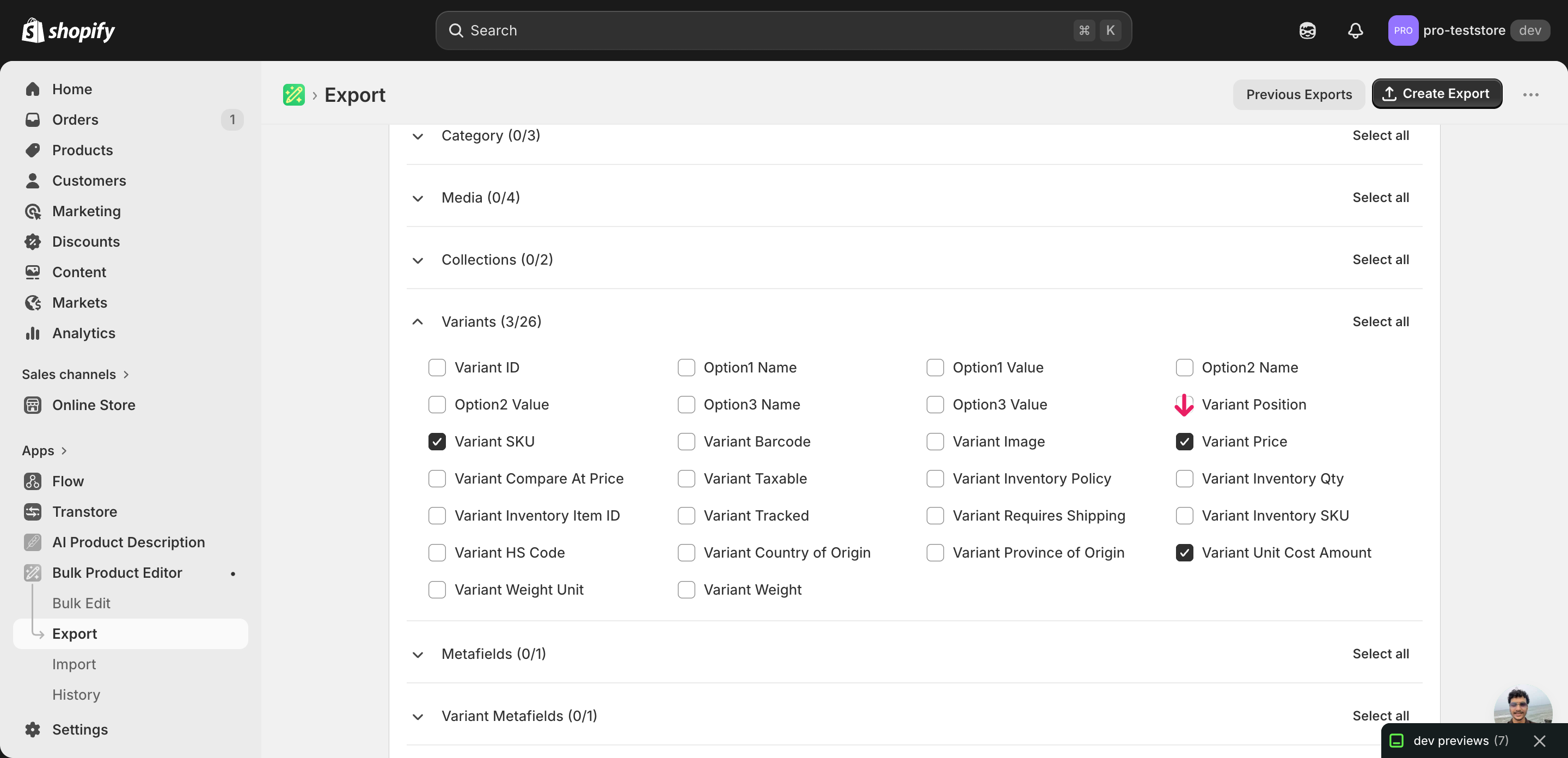
Open EditEngine and go to the Export page. This is where you choose which product fields land in your spreadsheet.
Pick the right columns
- Handle — the unique product identifier the importer uses to match each row back to the right product.
- Variant SKU — the per-variant identifier so multi-variant products line up row for row with their costs and prices.
- Variant Price — the column you'll overwrite. Expand the Variants group and tick Variant Price — this is the value shoppers see at checkout.
- Cost per item — the wholesale cost your markup formula multiplies. Tick Cost per item under the Variants group so each row carries the cost it needs.
When the export completes, click Download. You'll get one row per variant: a product with five sizes exports as five rows, and the second and later rows leave Title blank — that's normal, and your formula still needs Cost per item on every row.
New to exporting? This guide assumes you know how to run an export and focuses only on the columns and edit unique to this workflow.
Step 2 — Bulk markup Shopify pricing from cost in your spreadsheet
Open the downloaded CSV in Excel or Google Sheets. The Cost per item column holds each variant's wholesale cost, and Variant Price is the column you'll replace.
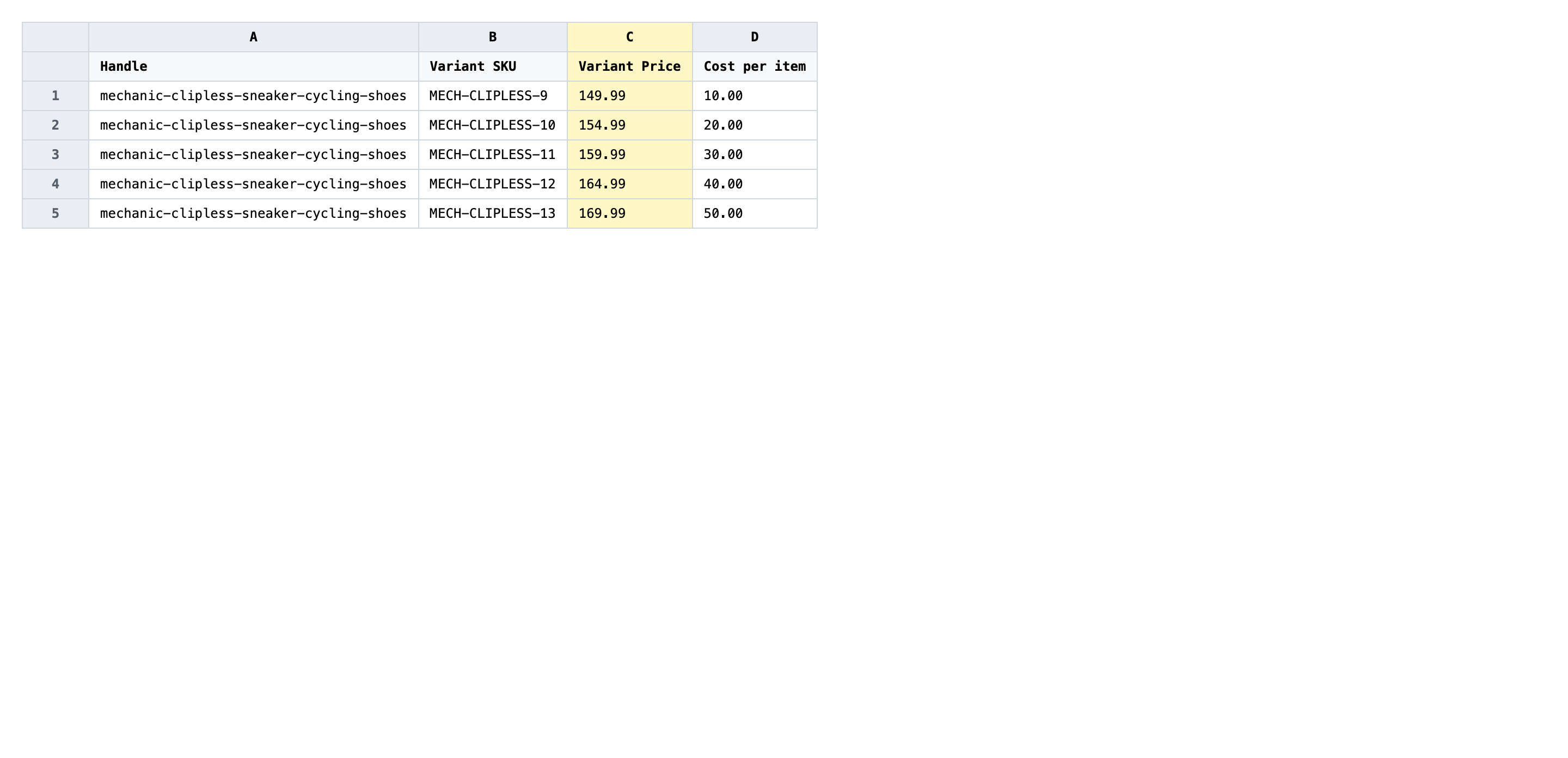
In a scratch column, write =ROUND(<Cost per item cell> * 2.5, 2) (swap 2.5 for your markup factor and pick your rounding). Drag the formula down so every variant inherits it, then copy the scratch column and paste it back into Variant Price as values. Pasting as values matters — if you leave live formulas in Variant Price, the importer writes the formula text instead of the number.
- ✅
149.95 - ❌
=B2*2.5
Leave Handle and Variant SKU exactly as exported — those are the matching keys, and renaming either points the row at a different variant or none at all. Variants with a blank Cost per item produce a blank Variant Price, so either fill in the cost first or filter those rows out of the file before importing.
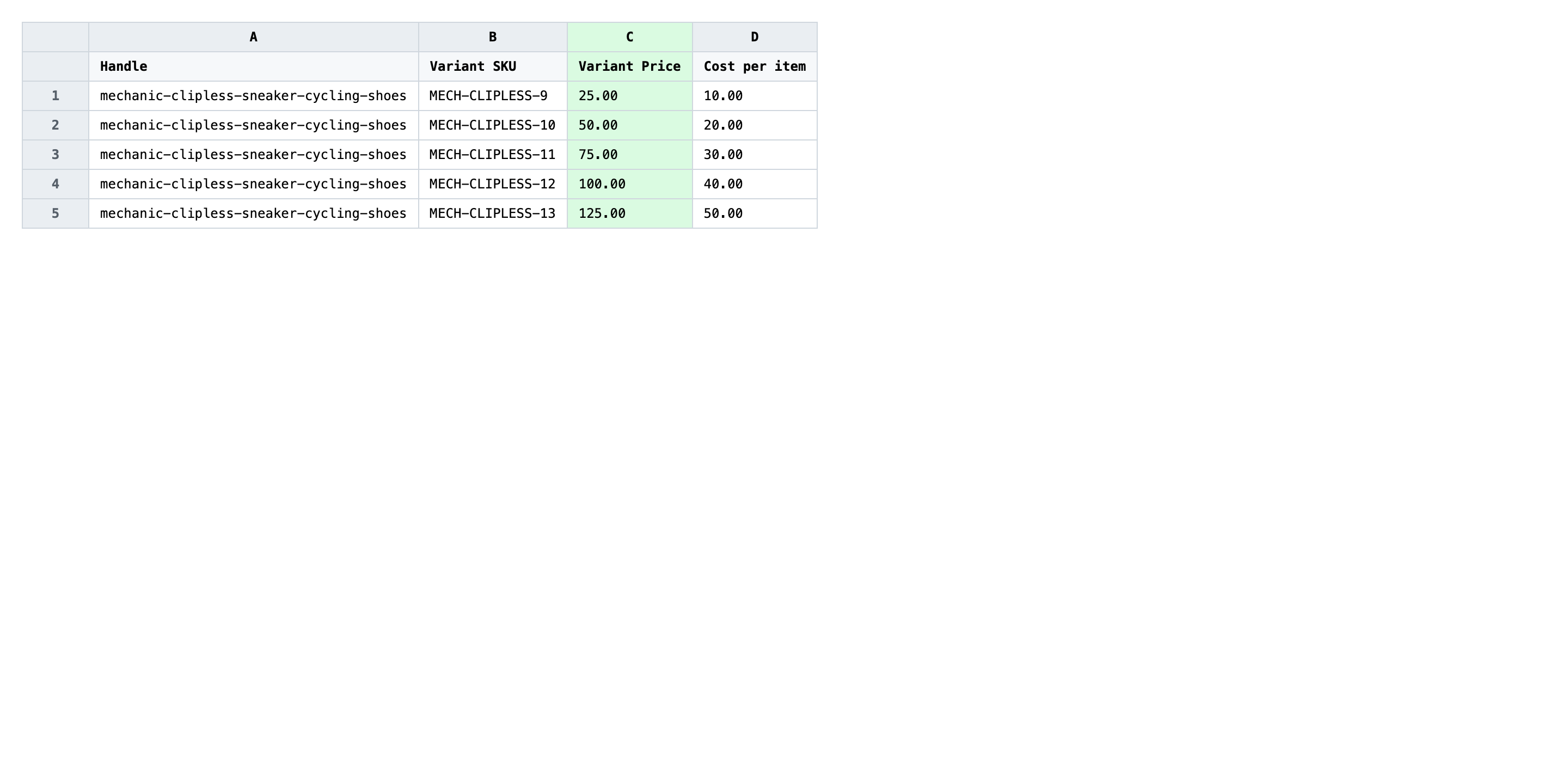
Save the file as CSV when you're done, and keep the original export handy in case you want to revert.
Tip: Run your markup formula in a side column first, eyeball ten rows for sane numbers, then paste-as-values into Variant Price. That single guard catches the case where a stray Cost per item of
0would have shipped a free product.
Step 3 — Import the edited file back to Shopify
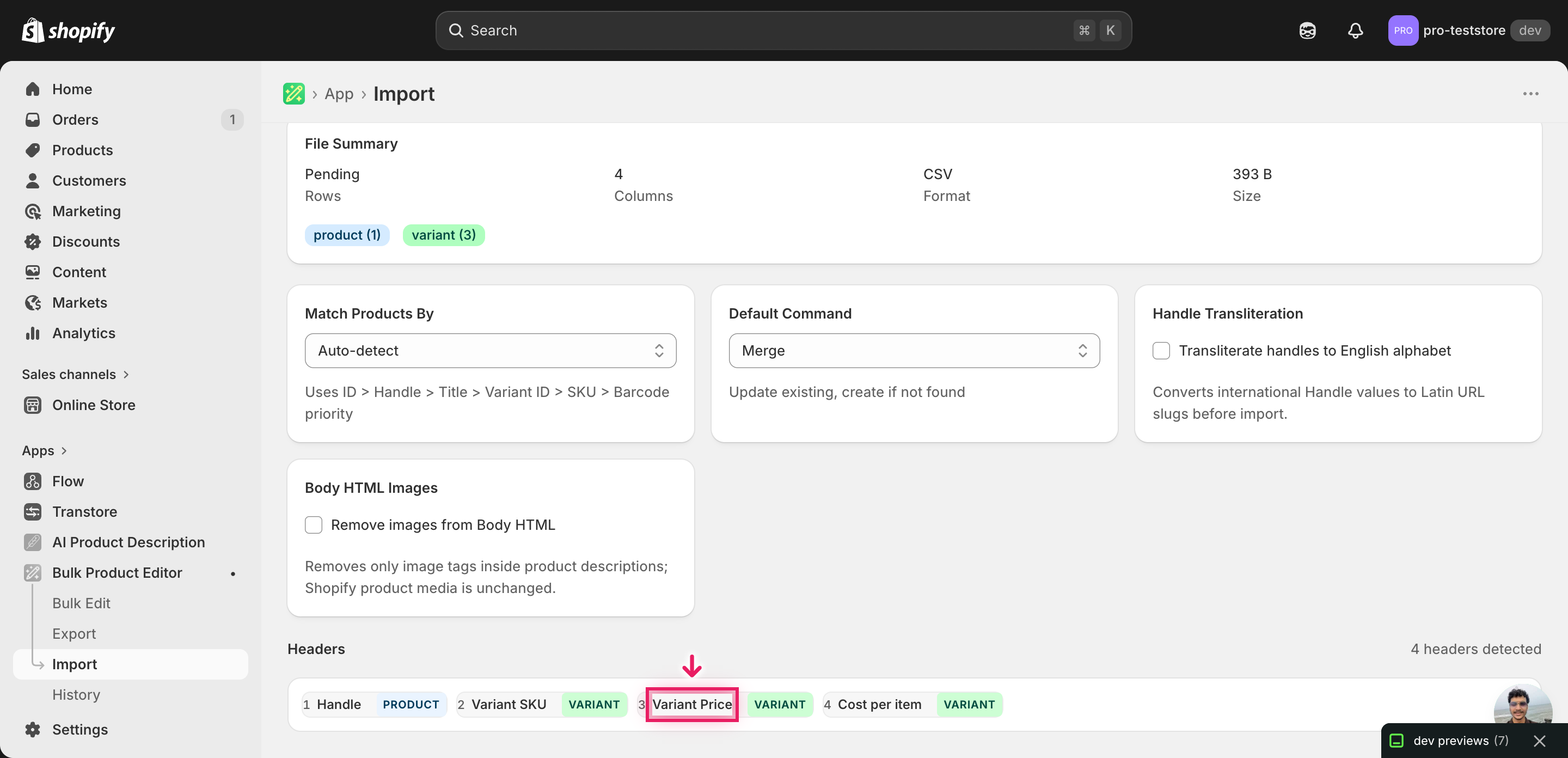
Open EditEngine → Import and select Advanced import. Then upload the file you just edited.
EditEngine reads the file and shows a summary. Check the Headers panel: Variant Price should carry the VARIANT badge, which confirms the importer recognized it as a per-variant field. Leave Match Products By on Auto-detect and Default Command on Merge so the importer only overwrites the columns you changed.
Note: The advanced import has no dry-run toggle, and price changes affect what shoppers actually pay — so test on a tiny batch first. Trim the file down to two or three variants, import that, confirm the new Variant Price in the Shopify admin matches your formula, then come back and import the full catalog. That single guard catches a renamed header, a stray formula, or a multiplier typed as 25 instead of 2.5 before it hits live pricing.
Click Start Import and wait for the job to finish — a small file takes seconds, larger catalogs a couple of minutes. When it completes, EditEngine shows a per-row summary.
Download the results CSV. It lists every row with a pass/fail status — that file is your proof the change went through, and the new values are now live in your Shopify admin.
Tips and troubleshooting
Blank Cost per item produces a blank Variant Price. If a variant has no cost, your markup formula returns either zero or empty — and that empty value will overwrite the existing Variant Price on import. Filter out rows where Cost per item is blank before saving the CSV, or fill those costs in first. Catching this in the spreadsheet is far cheaper than catching it after a customer checks out at $0.
Paste as values, never leave live formulas. Excel and Sheets are happy to save =B2*2.5 as a cell value, but the CSV that EditEngine reads will store the literal formula text. The importer then tries to write =B2*2.5 into Variant Price and either rejects the row or writes the string. Always copy your formula column, paste-special as values into Variant Price, and spot-check that the cells now show numbers.
Round to your store's price convention. A raw Cost per item × 2.5 rarely lands on a clean ending — you get prices like 87.4275. Wrap the formula in ROUND(..., 2) for cent-precision, or use CEILING(..., 0.05) to snap to .95 endings. Pick the convention once and apply it across the whole file so your catalog reads consistently.
Two-row test before the full catalog. Trim the edited CSV down to two variants, import them, and open those two products in the Shopify admin. If Variant Price matches what you expect and Cost per item is unchanged, the formula is sound — then import the full file. This single dry pass costs sixty seconds and catches every mistake worth catching.
Frequently asked questions
How do I bulk markup pricing in Shopify?
Export your products from EditEngine with Variant Price and Cost per item, multiply cost by your markup factor in a spreadsheet, then import the file back through the advanced flow. That round-trip is how you bulk markup Shopify pricing from cost without editing each variant in the admin.
Can I edit Shopify pricing in a spreadsheet?
Yes. EditEngine exports one row per variant with Variant Price and Cost per item, so you can write any formula you want in Excel or Google Sheets and paste the result back as values. Shopify itself has no built-in spreadsheet editor for prices, which is why the bulk markup Shopify pricing from cost workflow runs through EditEngine.
How long does a bulk pricing import take in Shopify?
A few dozen variants finish in seconds. A few thousand typically completes in a minute or two, and EditEngine streams larger files so even big catalogs import without timing out. The results CSV shows the exact duration for your bulk markup Shopify pricing from cost job.
What format does Shopify accept for pricing imports?
A CSV or XLSX with Handle and Variant SKU to identify each variant, plus the Variant Price column you want to write. EditEngine's advanced import reads this directly and pairs well with a Cost per item column when you bulk markup Shopify pricing from cost.
Can I undo a bulk Shopify pricing update?
There is no one-click undo, but the workflow is its own backup. Keep the original export untouched and re-import that file to roll prices back to where they started — the bulk markup Shopify pricing from cost flow only overwrites the Variant Price column, so nothing else moves.
Related tutorials
- How to Bulk Markdown Shopify Sale Pricing
- How to Bulk Round Shopify All Prices To 99 95 Endings
- How to Bulk Convert Shopify Prices For A New Currency Market
About EditEngine: EditEngine Bulk Product Editor helps Shopify merchants bulk edit, bulk import, and bulk export their product catalog in minutes instead of days. Install on Shopify →