
Variants & options
How to Bulk Toggle Requires Shipping Per Variant in Shopify
Last updated
Need to bulk toggle Shopify requires-shipping per variant because half your catalog is digital, service-based, or gift cards that shouldn't trigger a shipping step at checkout? With EditEngine Bulk Product Editor, you export every variant to a spreadsheet, flip the Variant Requires Shipping value to true or false per row, and import the file back. The spreadsheet round-trip turns a per-variant click-fest in the Shopify admin into one pass.
What you'll learn
- Export every product with its current requires-shipping
- Edit requires-shipping per row in a spreadsheet
- Import the updated file back to Shopify
What you'll need
- The EditEngine Bulk Product Editor app installed in your Shopify store
- At least one product with one or more variants in your Shopify store
- A clear list of which variants are physical (require shipping) and which are digital, service, or gift-card style (don't)
- The Advanced import flow so the Variant Requires Shipping column is recognized
- A spreadsheet editor (Excel, Google Sheets, Numbers — anything that opens CSV)
The requires-shipping flag tells Shopify whether a variant is physical. When it's true, checkout collects a shipping address and applies shipping rates; when it's false, the variant is treated as digital or non-shippable and skips that step. The setting lives on the variant, not the product, so a mixed catalog — say, a printed book and its PDF version — needs each variant set individually.
Step 1 — Export your Shopify requires-shipping
Open EditEngine and go to the Export page. This is where you choose which variant fields land in your spreadsheet.
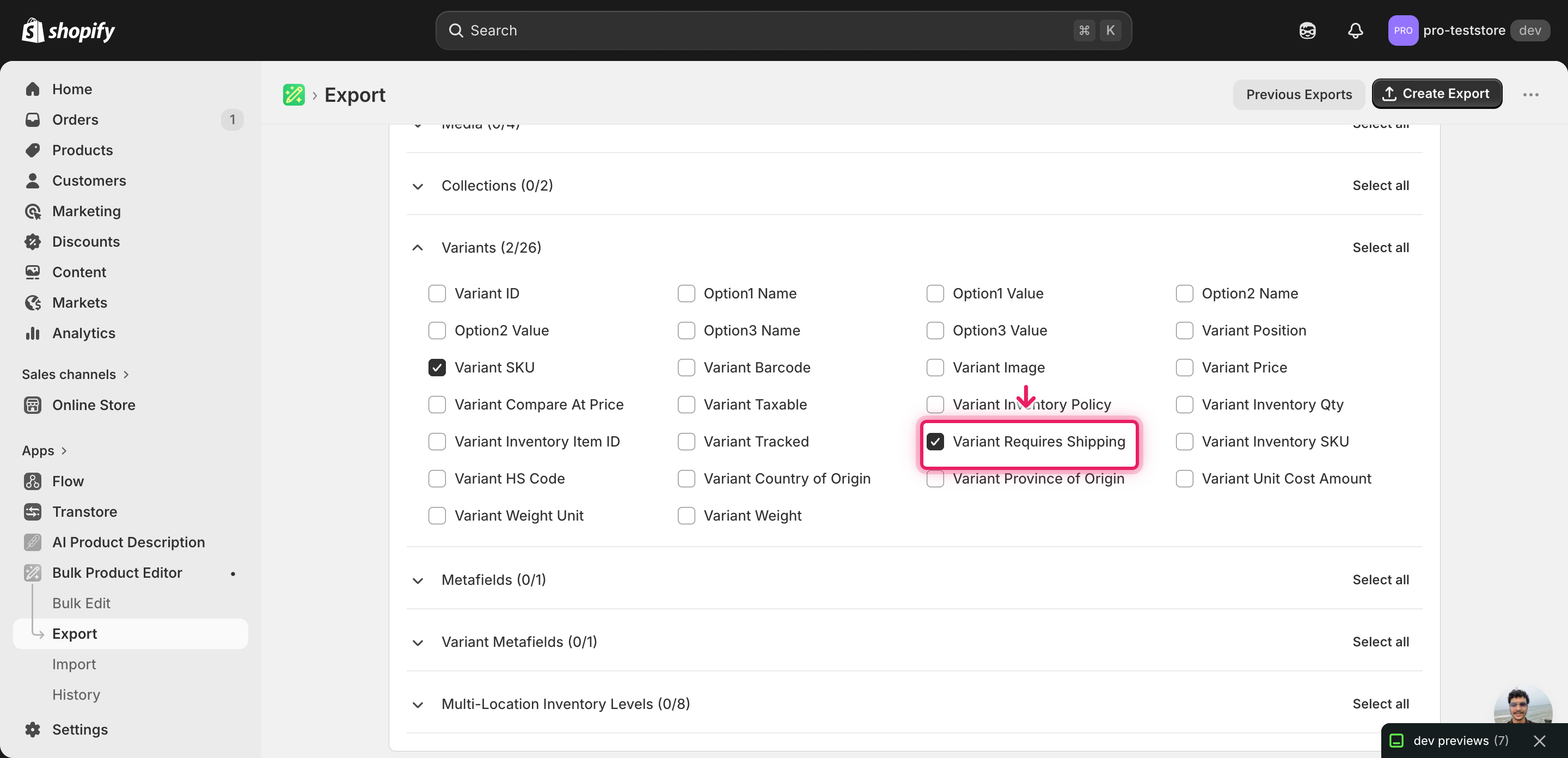
Pick the right columns
- Handle — the unique product identifier the importer uses to match each row back to the right product.
- Variant SKU — the per-variant identifier. EditEngine matches each row to an existing variant by SKU, so it's the key that ties your new requires-shipping value to the correct variant.
- Variant Requires Shipping — the column you'll edit. Expand the Variants group and tick Variant Requires Shipping — it exports as true or false per row.
When the export completes, click Download. You'll get one row per variant: products with several variants repeat across rows, and the second and later rows leave Title blank — that's normal.
New to exporting? This guide assumes you know how to run an export and focuses only on the columns and edit unique to this workflow.
Step 2 — Bulk toggle Shopify requires-shipping per variant in your spreadsheet
Open the downloaded CSV in Excel or Google Sheets. The Variant Requires Shipping column holds true or false for each variant as it stands today.
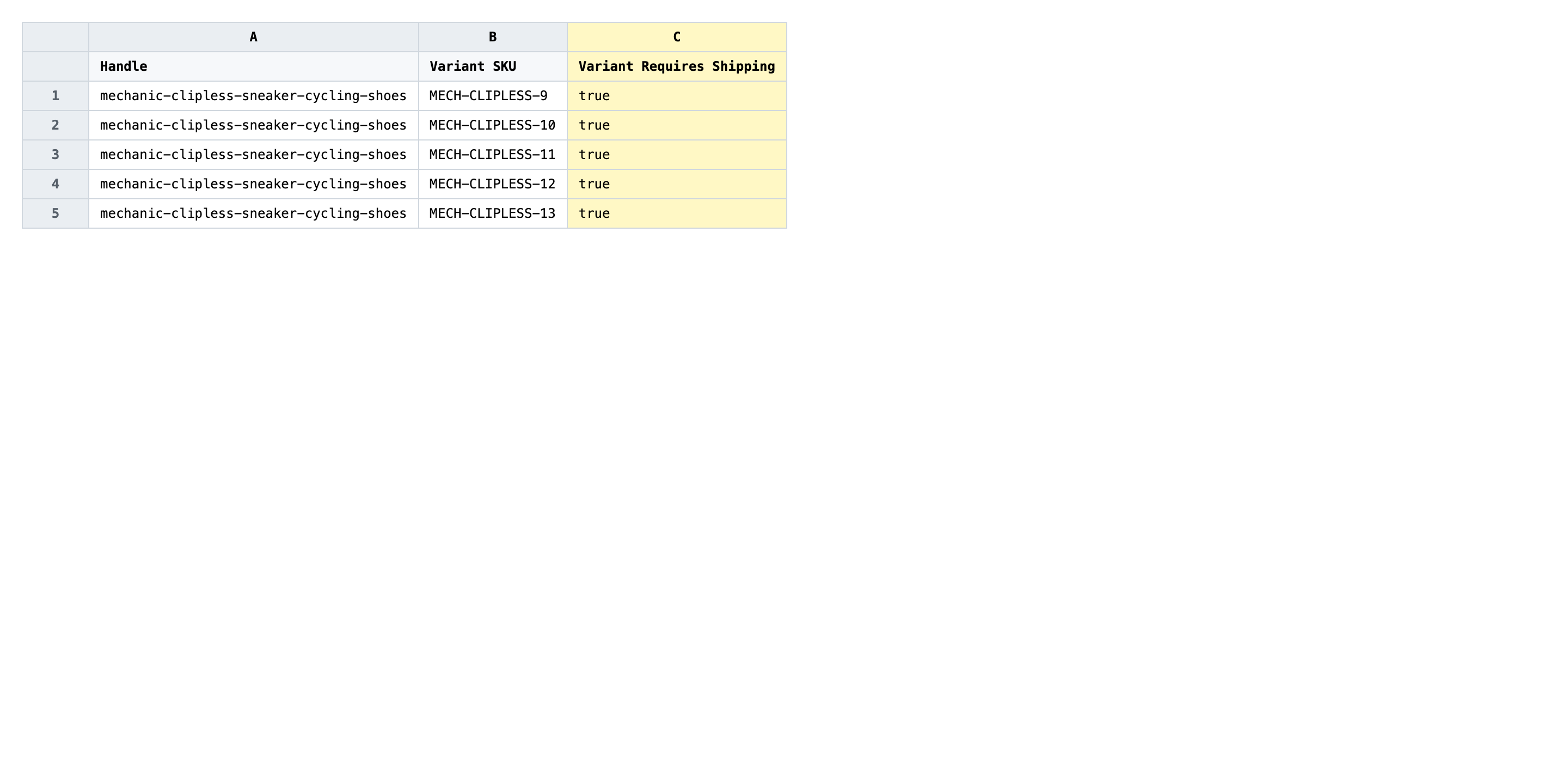
Now set the Variant Requires Shipping value on every variant row. Use true for variants that ship physically and false for variants that don't — digital downloads, services, gift cards, deposits. Shopify accepts the literal strings true and false (lowercase). If a row should stay as exported, leave it untouched.
- ✅
false - ❌
No, FALSE, 0, off, or leaving the cell blank when you meant false
Leave every other column exactly as exported. Do not edit Variant SKU — that value is the matching key, so changing it points the row at a different variant (or none at all). If a variant has no SKU in your store, the importer falls back to Handle plus option values, so don't invent a SKU just to fill the cell.
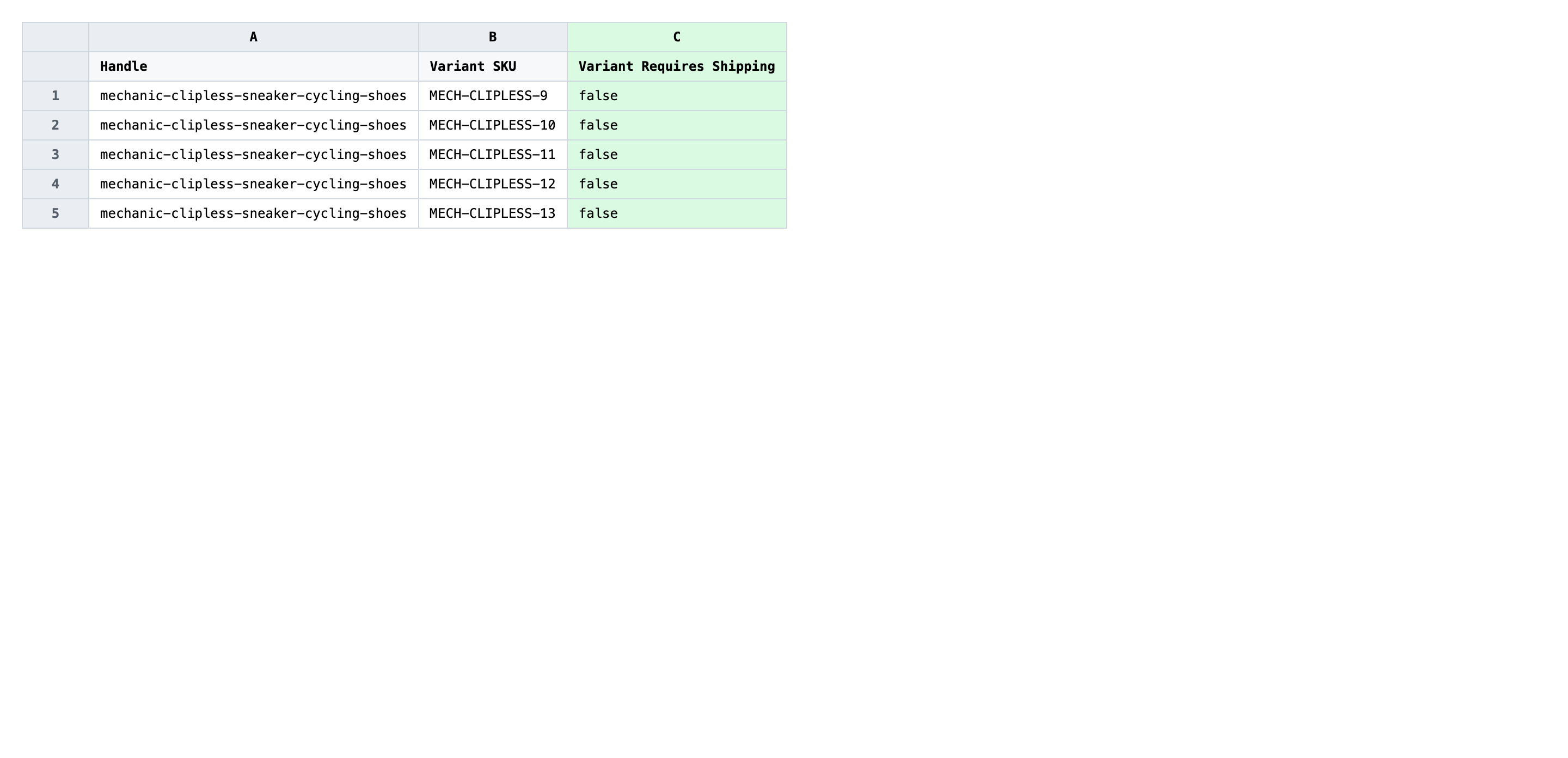
Save the file as CSV when you're done, and keep the original export handy in case you want to revert.
Tip: Requires-shipping is a per-variant flag, not a per-product one. A book product with a physical hardcover variant and a PDF download variant needs the hardcover row set to true and the PDF row set to false — same Handle, different values.
Step 3 — Import the edited file back to Shopify
Open EditEngine → Import and select Advanced import. Then upload the file you just edited.
EditEngine reads the file and shows a summary. Check the Headers panel: Variant Requires Shipping should carry the VARIANT badge, which confirms the importer recognized it as a variant-level field. Leave Match Products By on Auto-detect and Default Command on Merge so existing variants are updated in place.
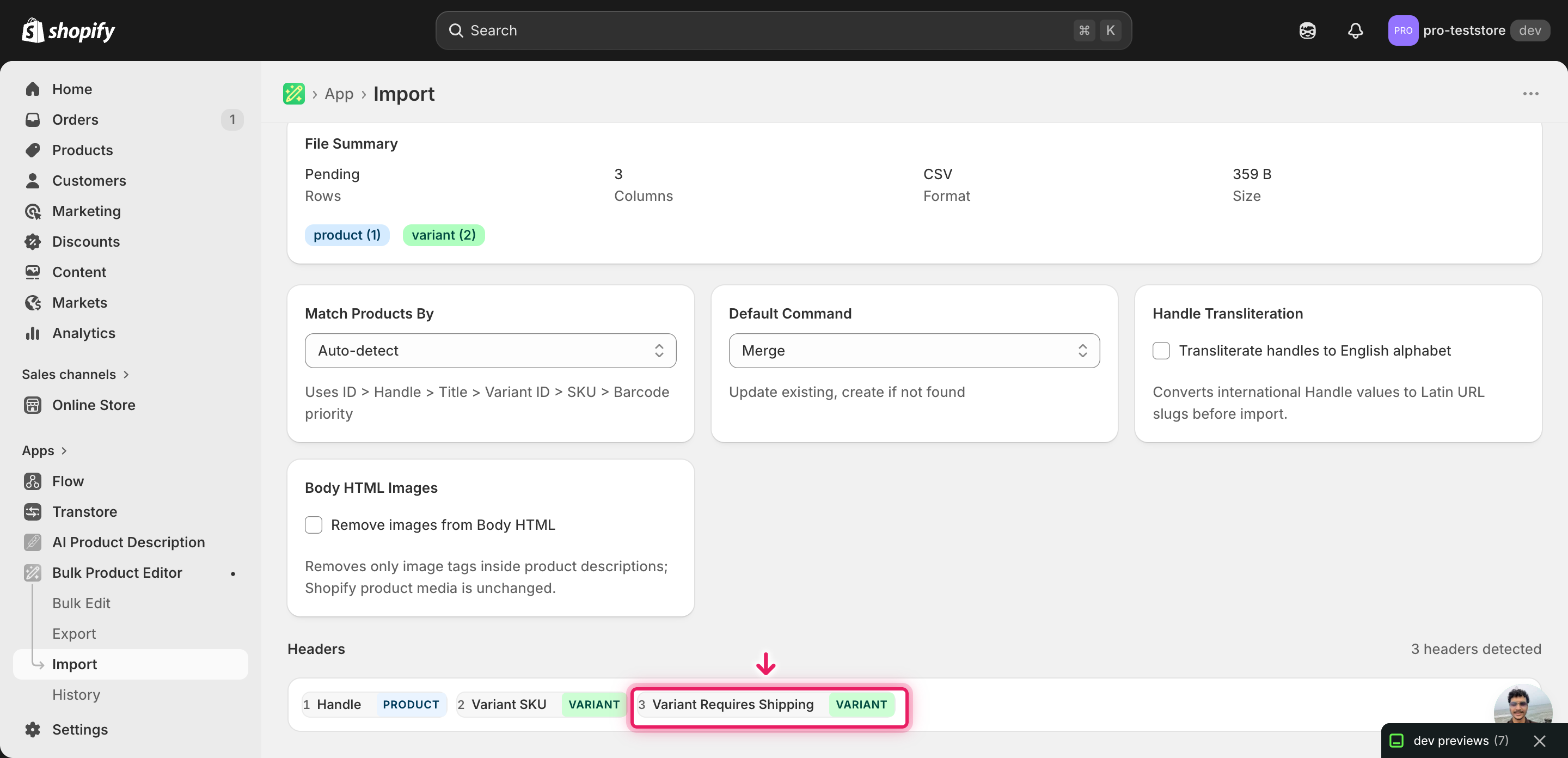
Note: This advanced import has no dry-run toggle. Toggling requires-shipping is reversible — it only flips a boolean, never deletes a variant — but flipping it the wrong way on a physical variant means Shopify stops collecting a shipping address at checkout, which is the kind of mistake you don't want to find from a customer email. Import a two-row test file first, place a test order against one of those variants, confirm the checkout behaves as expected, then run the full file.
Click Start Import and wait for the job to finish — a small file takes seconds, larger catalogs a couple of minutes. When it completes, EditEngine shows a per-row summary.
Download the results CSV. It lists every row with a pass/fail status — that file is your proof the change went through, and the new values are now live in your Shopify admin.
Tips and troubleshooting
Don't flip requires-shipping off on a variant with a tracked weight. Shopify lets you have a variant with weight greater than zero and requires-shipping set to false, but it's almost always a mistake — the weight stops affecting carrier rates, and reports that filter by shippable weight will skip the variant. Before you write false on a row, scan its Variant Grams column. If the weight is non-zero, double-check that the variant really is digital or service-based.
Use Variant SKU as a sanity check before you flip the flag. The Variant SKU is the matching key, so it's also the thing you should eyeball before saving. Sort or filter the spreadsheet by SKU prefix and confirm the rows you're about to set to false match the digital/service SKUs you actually meant. A single mis-toggle on a physical SKU means Shopify checkout skips the shipping address for that variant until you fix it.
Run a two-row test before touching the full catalog. Advanced import has no dry-run, so the safe pattern is: export the catalog, edit two representative rows (one true, one false), import just those two, and place a test order to confirm checkout behaves the way you expect. Once that round-trip works, edit and import the rest with confidence. Skipping this step on a 5,000-variant store is how merchants discover at 2 a.m. that shipping stopped being collected.
Header names are exact. The importer accepts Variant Requires Shipping as exported. A renamed header like Requires Shipping or Shipping? won't be recognized as a variant column — check for the VARIANT badge on the mapping screen before you start the import. The same goes for Variant SKU, which is the matching key and must keep its exact header.
Frequently asked questions
How do I bulk toggle requires-shipping in Shopify?
Export your products from EditEngine with the Variant SKU and Variant Requires Shipping columns, flip each row's value to true or false in a spreadsheet, then import the file back through the advanced import flow. This lets you bulk toggle Shopify requires-shipping per variant in one pass instead of opening each variant in the admin.
Can I edit Shopify requires-shipping in a spreadsheet?
Yes. EditEngine exports one row per variant with the current value in the Variant Requires Shipping column, and you edit that column in Excel, Google Sheets, or any CSV editor. Shopify's own admin only lets you toggle requires-shipping one variant at a time, so the spreadsheet round-trip is how merchants bulk edit Shopify requires-shipping at scale.
How long does a bulk requires-shipping import take in Shopify?
A handful of variants imports in seconds, and a few thousand rows of bulk toggle Shopify requires-shipping per variant typically finishes in a minute or two. EditEngine streams larger files, and the results CSV reports the exact runtime for each job.
What format does Shopify accept for requires-shipping imports?
A CSV or XLSX file with a Handle column to match the product, a Variant SKU column to match the variant, and a Variant Requires Shipping column holding either true or false. EditEngine's advanced import reads this directly and is the path for any bulk toggle Shopify requires-shipping per variant workflow.
Can I undo a bulk Shopify requires-shipping update?
There's no one-click undo, but the workflow is its own backup: keep the original export and re-import it to revert. Because a bulk toggle Shopify requires-shipping per variant change only flips a boolean, reverting is symmetric — the same import path puts the old values back.
Related tutorials
- How to Bulk Update Shopify Inventory Policy Continue Deny Per Variant
- How to Bulk Toggle Shopify Taxable Update Tax Code Per Variant
About EditEngine: EditEngine Bulk Product Editor helps Shopify merchants bulk edit, bulk import, and bulk export their product catalog in minutes instead of days. Install on Shopify →