
Metafields
How to Bulk Update Shopify Metaobject Reference Metafields
Last updated
Need to bulk update Shopify metaobject reference metafields so every product points to the right metaobject entry — a linked material, color swatch, or care instruction? With EditEngine Bulk Product Editor, you export your catalog to a spreadsheet, paste the target metaobject GID into each row, and import the file back. EditEngine validates every reference before writing, so a typo never silently breaks the link in your storefront.
What you'll learn
- Export every product with its current metaobject reference metafields
- Edit metaobject reference metafields per row in a spreadsheet
- Import the updated file back to Shopify
What you'll need
- The EditEngine Bulk Product Editor app installed in your Shopify store
- A product metafield definition of type Metaobject reference already created in Shopify admin (Settings → Custom data → Products)
- At least one published metaobject definition with entries the metafield can point to
- The Advanced import flow — metaobject reference columns are advanced-import only
- A spreadsheet editor (Excel, Google Sheets, Numbers — anything that opens CSV)
A metaobject reference metafield stores a pointer (a GID like gid://shopify/Metaobject/123456789) from a product to a single metaobject entry. The value Shopify expects is not a name or a handle — it's the full GID. That's why the spreadsheet workflow matters: pasting the same GID across hundreds of rows takes seconds, but clicking through the admin to relink each product one at a time takes hours.
Step 1 — Export your Shopify metaobject reference metafields
Open EditEngine and go to the Export page — this is where you pick the metafield column that holds the metaobject reference.
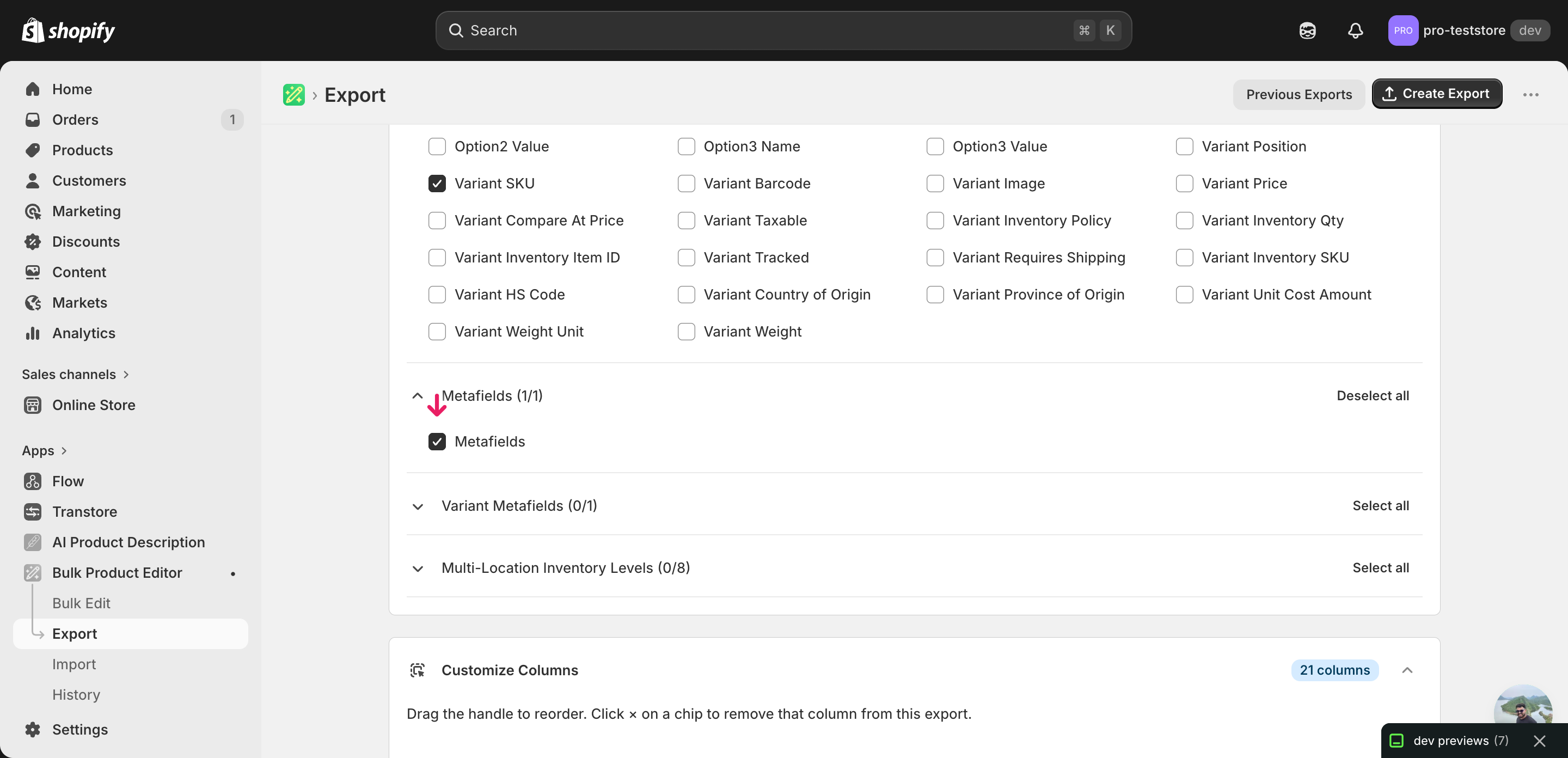
Pick the right columns
- Handle — the unique product identifier the importer uses to match each row back to the right product. Never edit it.
- Variant SKU — context only, so you can see which variant a row belongs to while editing. Useful when several variants of the same product appear in your filter.
- Metafield: custom.linked_material [metaobject_reference] — the column you'll edit. Expand the Metafields group and tick the metafield definition whose type is
metaobject_reference. The header includes the namespace, key, and type so the importer knows exactly which definition to write to.
When the export completes, click Download. You'll get one row per product (or per variant if your metafield is variant-scoped), and the metafield column will already contain the current metaobject GID for every product that has one set — products with no value yet leave the cell blank.
New to exporting? This guide assumes you know how to run an export and focuses only on the columns and edit unique to this workflow.
Step 2 — Bulk update Shopify metaobject reference metafields in your spreadsheet
Open the downloaded CSV in Excel or Google Sheets. The metafield column holds each product's current metaobject GID, and that's the only column you'll change.
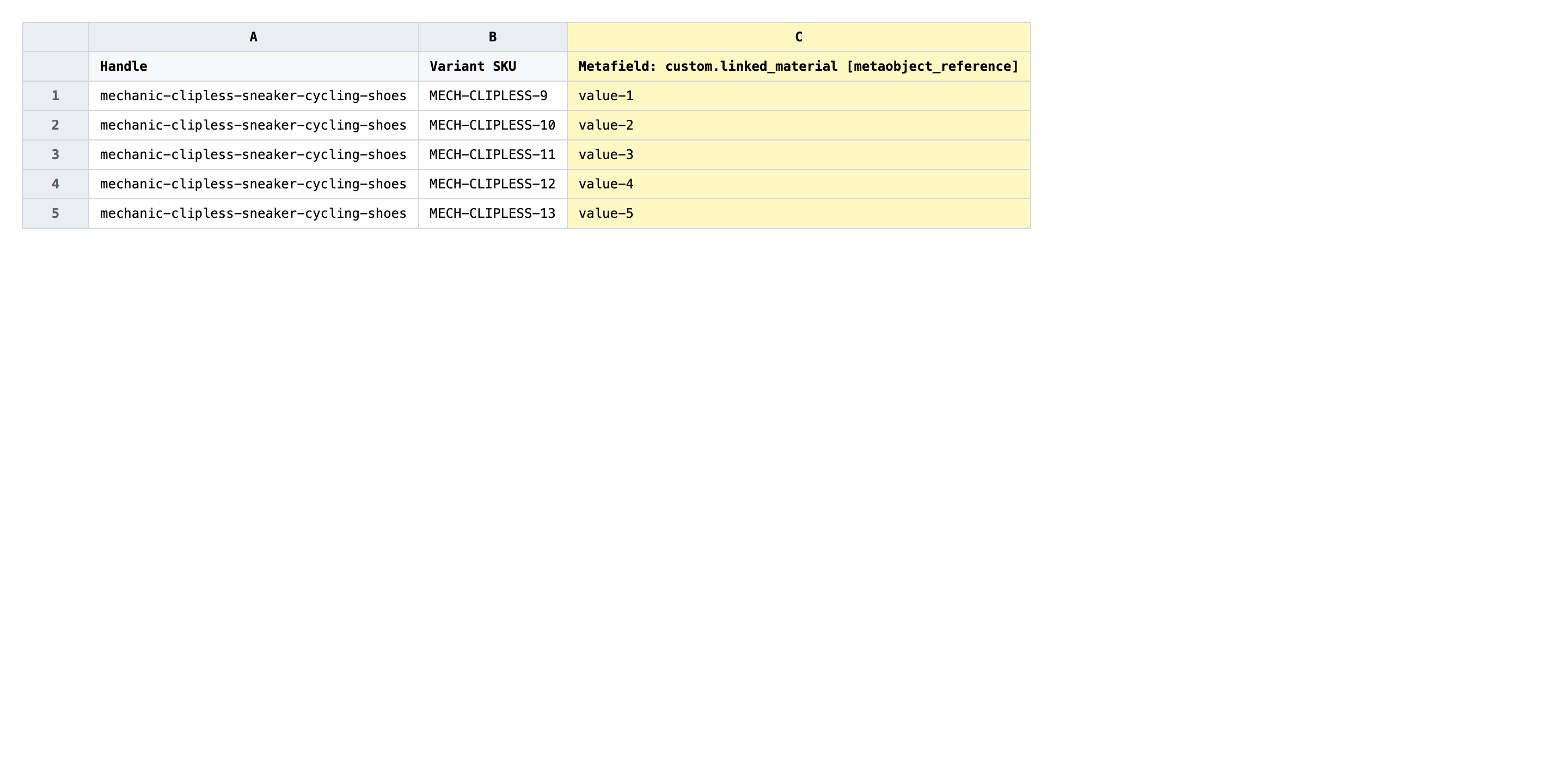
Paste the new metaobject GID into the metafield column for every row you want to relink. The value has to be the full GID string, exactly as Shopify stores it — start with gid://shopify/Metaobject/ and end with the numeric ID. You can grab a GID from the metaobject entry's URL in Shopify admin (/content/entries/<type>/<id>) and prefix it, or copy one from any row that already references the metaobject you want.
- ✅
gid://shopify/Metaobject/123456789 - ❌
leather, or linked_material:leather, or just 123456789
Leave Handle and Variant SKU exactly as exported — Handle is the matching key, and rewriting it points the row at a different product. Don't quote, wrap, or reformat the GID; the importer expects the raw string. If you want to clear a reference rather than replace it, leave the cell empty — the advanced import will null out that metafield rather than guess what you meant.
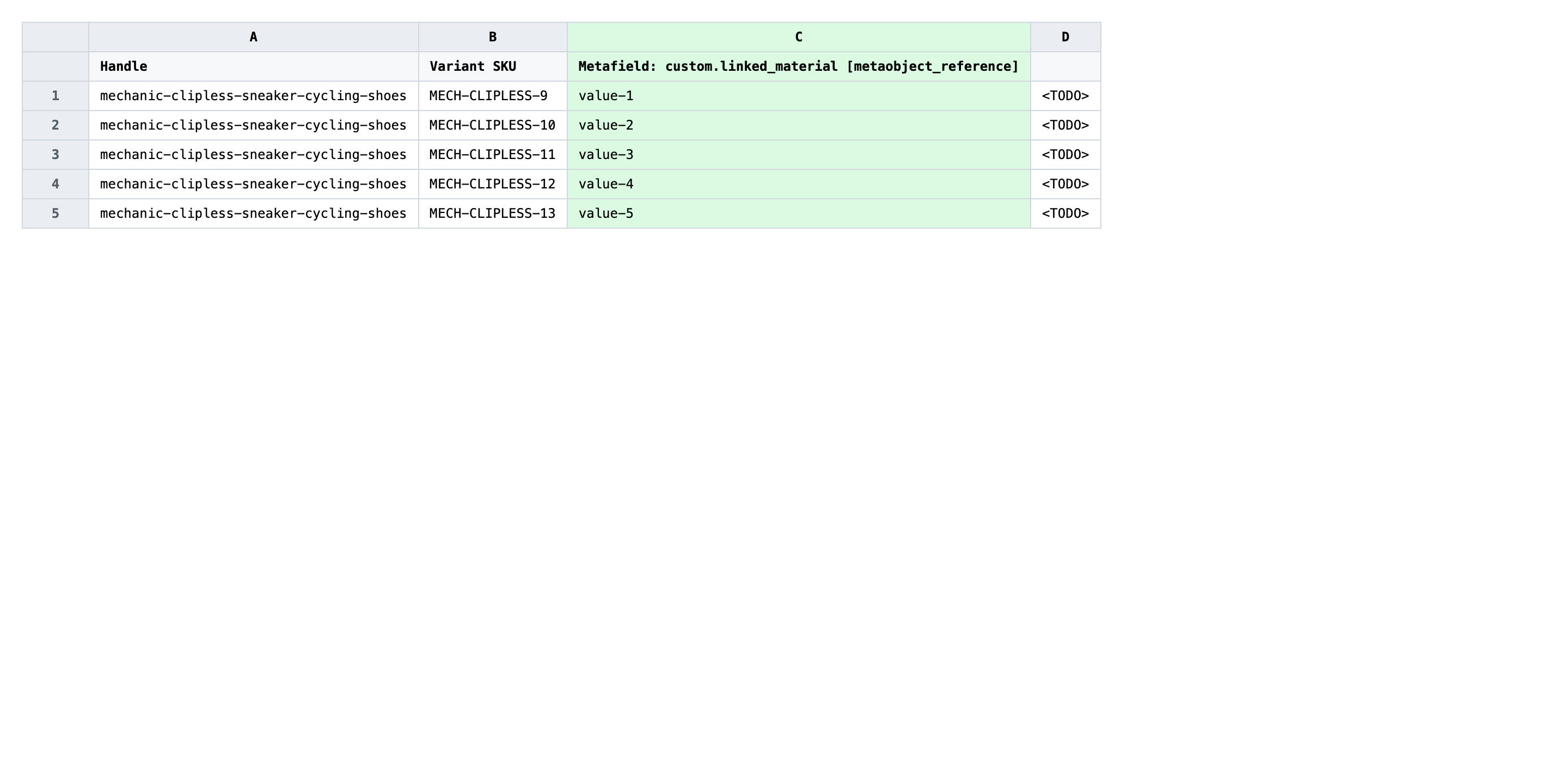
Save the file as CSV when you're done, and keep the original export handy in case you want to revert.
Tip: Open one metaobject entry in a second browser tab, copy the numeric ID from its URL, and build the GID once — then paste the same GID down the column with Ctrl+D. It beats hunting for GIDs row by row.
Step 3 — Import the edited file back to Shopify
Open EditEngine → Import and select Advanced import. Then upload the file you just edited.
EditEngine reads the file and shows a summary. Check the Headers panel: the metafield column should carry the METAFIELD badge with the metaobject_reference type listed underneath, which confirms the importer parsed the header correctly. Leave Match Products By on Auto-detect and Default Command on Merge.
Note: The advanced import does not have a dry-run toggle, and a bad GID overwrites a working reference with an invalid one — so for a destructive metafield rewrite, run a first import with just two or three rows, open those products in Shopify admin, and confirm the linked metaobject shows on the product page before importing the full file. That catches a malformed GID or a wrong namespace before it touches your whole catalog.
Click Start Import and wait for the job to finish — a small file takes seconds, larger catalogs a couple of minutes. When it completes, EditEngine shows a per-row summary.
Download the results CSV. It lists every row with a pass/fail status — that file is your proof the change went through, and the new values are now live in your Shopify admin.
Tips and troubleshooting
Paste the full GID, not the handle. Shopify stores metaobject references as full GIDs (gid://shopify/Metaobject/123456789), not as handles or display names. Pasting leather or linked-material-leather into the cell looks right to a human but fails validation on import — the row comes back as an error and the metafield stays unchanged. Always copy the GID from the metaobject entry's admin URL and build the full string.
The metafield definition has to exist before you import. EditEngine writes values, but it does not create the metafield definition for you. If the column header is Metafield: custom.linked_material [metaobject_reference] and your store has no such definition under Settings → Custom data → Products, every row fails with a definition-not-found error. Create the definition once in admin, then run the bulk update.
Test with three rows before the full catalog. Since this is a destructive rewrite — the new GID overwrites whatever was there — import a tiny slice first. Cut the file down to three rows, run it, open those products in Shopify admin, and confirm the linked metaobject appears on each one. Once you see the storefront showing the right reference, import the full file with confidence.
Empty cell clears the reference; missing column leaves it alone. There's a real difference between exporting the metafield column and leaving a cell blank (which clears that product's reference) versus not exporting the column at all (which leaves every product untouched). If you only want to update a subset, filter your export down to those products first instead of blanking cells you didn't mean to clear.
Frequently asked questions
How do I bulk update metaobject reference metafields in Shopify?
Export your products from EditEngine with the metaobject reference metafield column, paste the target metaobject GID into each row in a spreadsheet, then import the file back through the advanced flow. This is the fastest way to bulk update Shopify metaobject reference metafields without rewiring each product by hand in the admin.
Can I edit Shopify metaobject reference metafields in a spreadsheet?
Yes. EditEngine exports the metafield as a column containing the full metaobject GID (for example gid://shopify/Metaobject/123456789), and you can paste a different GID per row in Excel or Google Sheets. The bulk edit Shopify metaobject reference metafields workflow round-trips through CSV without losing the reference link.
How long does a bulk metaobject reference metafields import take in Shopify?
A few dozen products imports in seconds, and a few thousand rows usually finishes in a couple of minutes. EditEngine validates each GID against your store before writing, so a bulk update Shopify metaobject reference metafields job that touches the full catalog still stays under five minutes for most stores.
What format does Shopify accept for metaobject reference metafields imports?
A CSV or XLSX with a Handle column and a metafield column named Metafield: <namespace>.<key> [metaobject_reference] whose values are full metaobject GIDs. EditEngine's advanced import reads that header shape directly, so the round-trip to bulk update Shopify metaobject reference metafields needs no extra formatting.
Can I undo a bulk Shopify metaobject reference metafields update?
There's no one-click undo, but the unedited export is your backup — re-importing it restores every previous GID. Because a mass update Shopify metaobject reference metafields run only rewrites the reference value, no metaobject entries or definitions are deleted.
Related tutorials
About EditEngine: EditEngine Bulk Product Editor helps Shopify merchants bulk edit, bulk import, and bulk export their product catalog in minutes instead of days. Install on Shopify →