
Variants & options
How to Bulk Update Shopify Option 1 / 2 / 3 Values
Last updated
Need to bulk update Shopify option 1 / 2 / 3 values so every variant axis reads the same way across your catalog? With EditEngine Bulk Product Editor, you export your products to a spreadsheet, rewrite the option values on each variant row, and import the file back. Because every variant carries its own option value, the spreadsheet round-trip is the right tool for renaming or normalizing them in bulk.
What you'll learn
- Export every product with its current option 1 / 2 / 3 values
- Edit option 1 / 2 / 3 values per row in a spreadsheet
- Import the updated file back to Shopify
What you'll need
- The EditEngine Bulk Product Editor app installed in your Shopify store
- At least one product with two or more variants on a shared option axis (Size, Color, Material, etc.)
- The Advanced import flow — option value edits are advanced-import only
- Consistent option names across products you plan to edit (Shopify treats "Size" and "size " as different axes)
- A spreadsheet editor (Excel, Google Sheets, Numbers — anything that opens CSV)
Shopify stores each variant on up to three option axes — Option 1, Option 2, and Option 3 — and the value on each axis is what shoppers see on the product page ("Small", "Navy", "Cotton"). Renaming those values one product at a time in the admin is slow and easy to get wrong. The spreadsheet workflow below rewrites every variant row at once and keeps the option names themselves untouched.
Step 1 — Export your Shopify option 1 / 2 / 3 values
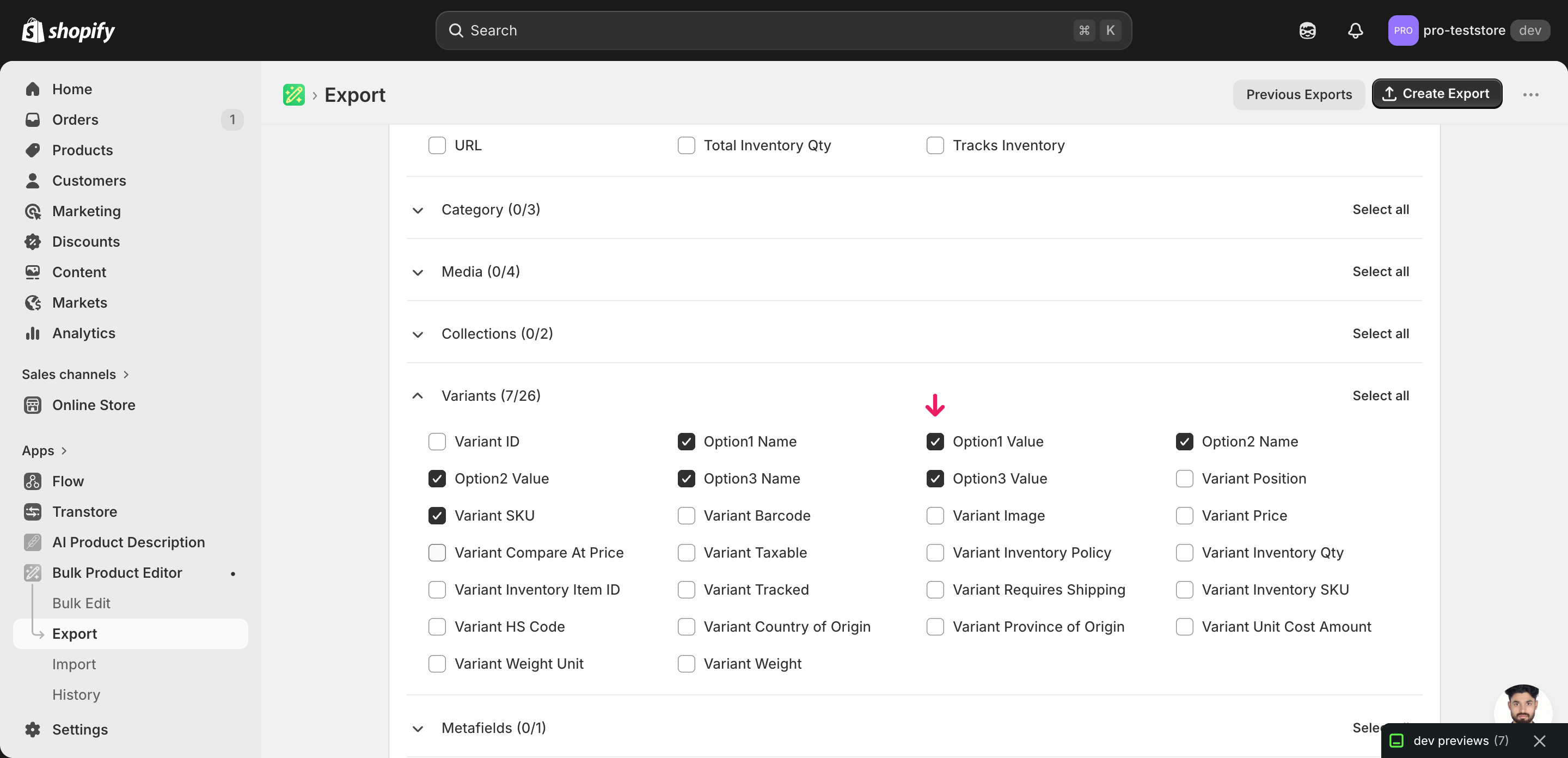
Open EditEngine and go to the Export page. This is where you pick which variant fields land in your spreadsheet.
Pick the right columns
- Handle — the unique product identifier the importer uses to match each row back to the right product.
- Variant SKU — the per-variant key. EditEngine matches each row to an existing variant by SKU, so it's how your edits land on the correct variant.
- Option1 Name — the label for the first axis (often "Size" or "Color"). Leave it alone unless you really mean to rename the axis itself.
- Option1 Value — the column you'll edit on each variant row — the actual axis value like "Small" or "Navy".
- Option2 Name — the label for the second axis if the product has one (often "Color" or "Material"). Blank on single-option products.
- Option2 Value — the editable second-axis value per variant. Blank on products that only use Option 1.
- Option3 Name — the label for the third axis if the product uses one. Most products leave this blank.
- Option3 Value — the editable third-axis value per variant. Blank when the product has fewer than three options.
When the export completes, click Download. You'll get one row per variant: a product with three sizes and two colors exports as six rows, and the second and later rows leave Title blank — that's normal.
New to exporting? This guide assumes you know how to run an export and focuses only on the columns and edit unique to this workflow.
Step 2 — Bulk update Shopify option 1 / 2 / 3 values in your spreadsheet
Open the downloaded CSV in Excel or Google Sheets. The Option1 Value, Option2 Value, and Option3 Value columns hold whatever each variant carries today.
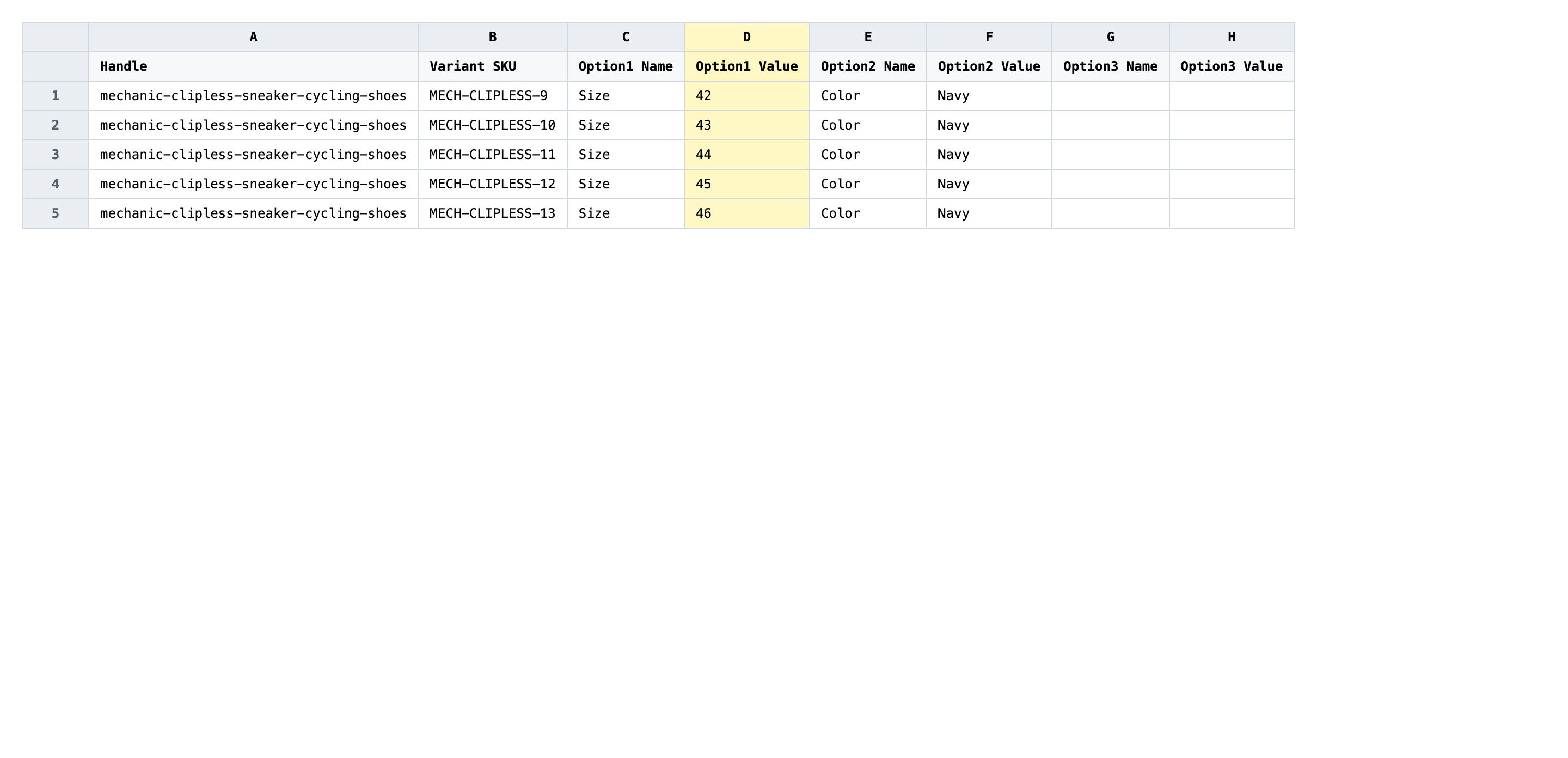
Now rewrite the Option Value columns on each variant row. Use the exact same spelling, casing, and spacing for variants that share a value — "Small" and "small" are treated as different options in Shopify, which fragments your variant grid. Keep each value short (one or two words) and consistent across every product that uses the same axis.
- ✅
Small - ❌
small / SM / sm. / S (size)
Leave the Handle, Variant SKU, and Option1/2/3 Name columns exactly as exported. Variant SKU is the matching key, so changing it points the row at a different variant (or none at all), and renaming an Option Name like "Size" to "size" creates a brand-new axis on the product instead of updating the existing one. Rows that have a Handle but no Variant SKU are product-header rows; you can leave their option values blank.
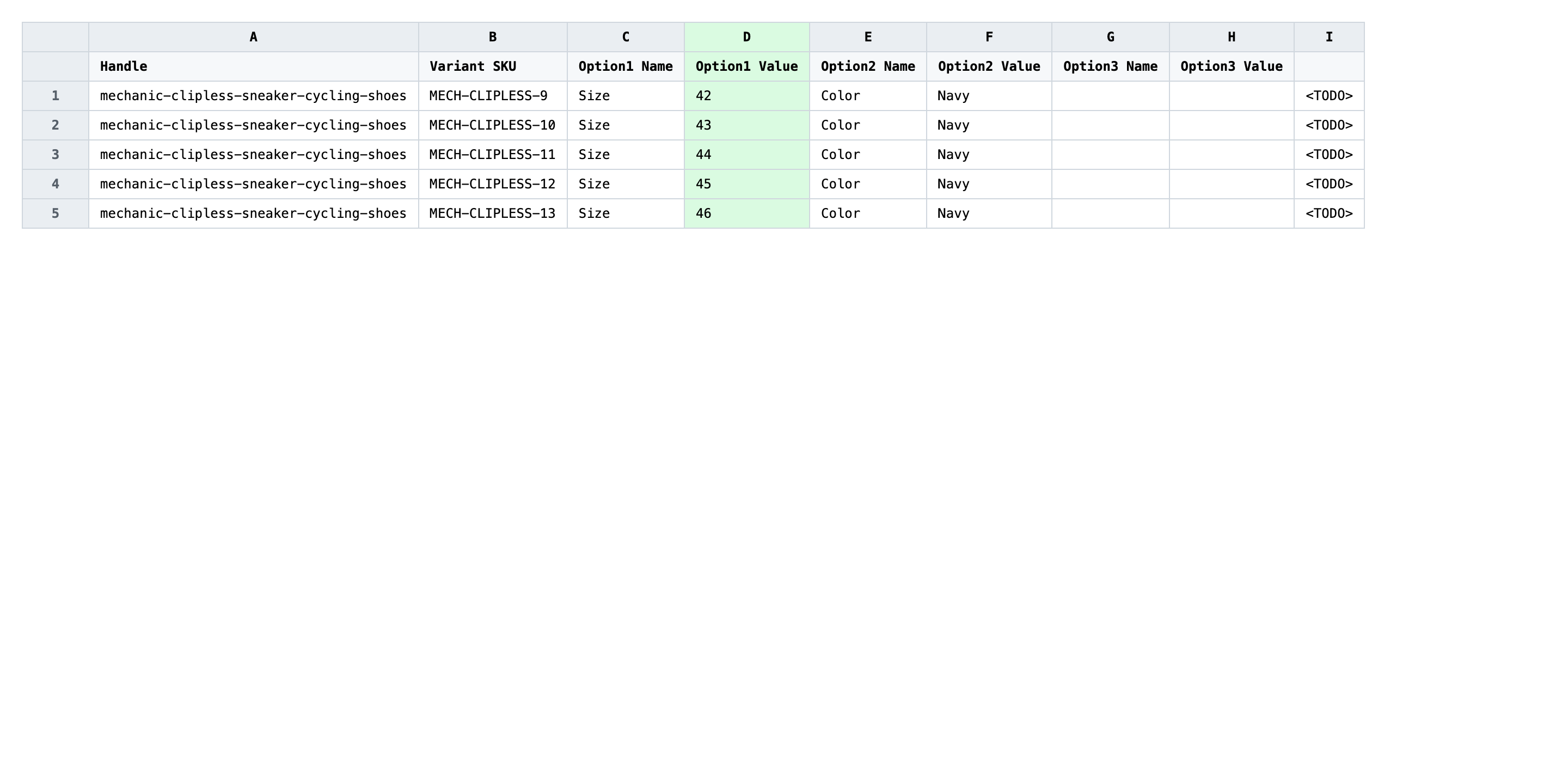
Save the file as CSV when you're done, and keep the original export handy in case you want to revert.
Tip: Every variant of a product that shares an axis must use the identical value string. If three variants are "Navy" and one is "navy", Shopify renders four swatches instead of one.
Step 3 — Import the edited file back to Shopify
Open EditEngine → Import and select Advanced import. Then upload the file you just edited.
EditEngine reads the file and shows a summary. Check the Headers panel: Option1 Value, Option2 Value, and Option3 Value should each carry the VARIANT badge, which confirms the importer recognized them as variant fields. Leave Match Products By on Auto-detect and Default Command on Merge.
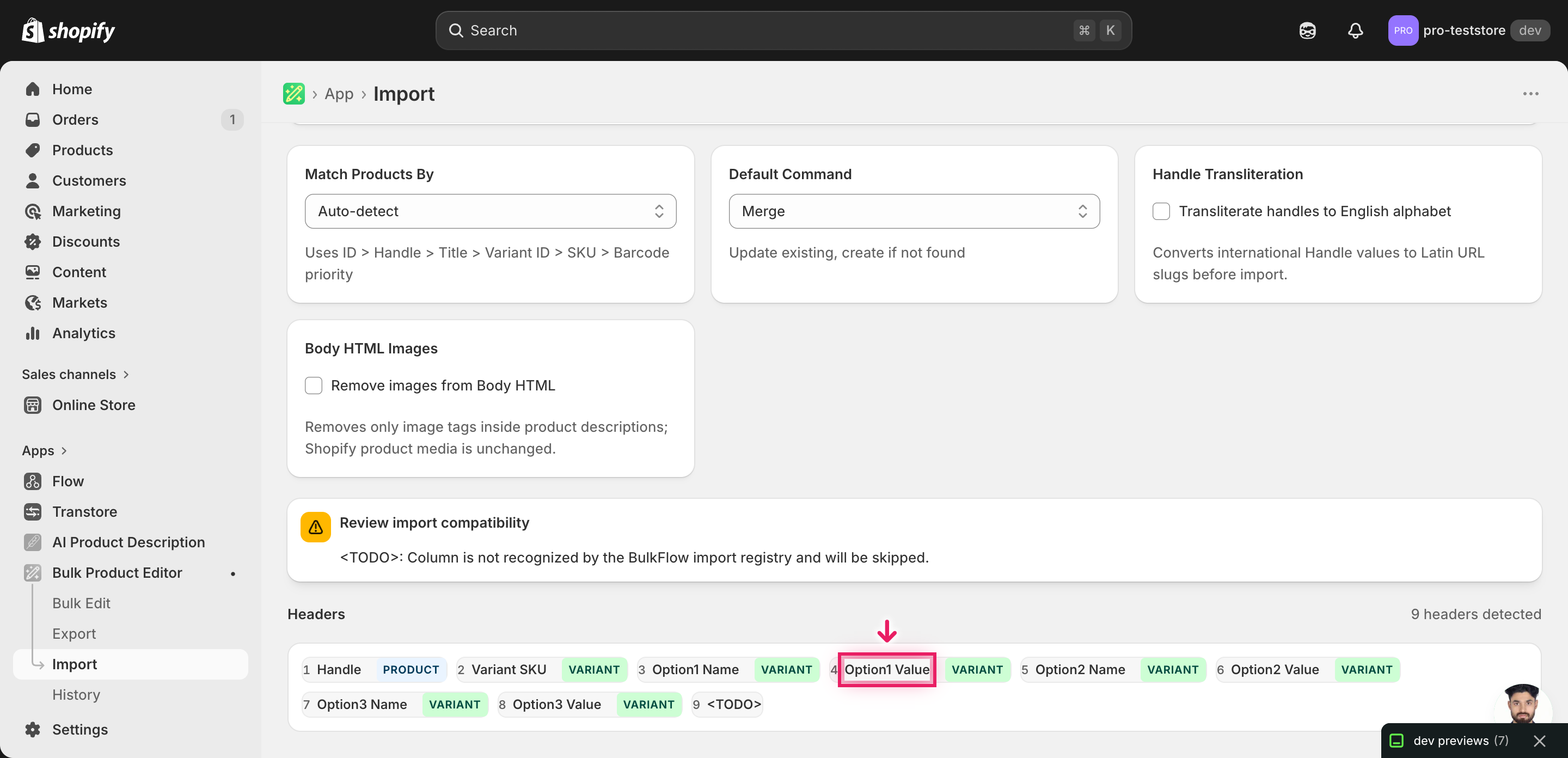
Note: This advanced import does not have a dry-run toggle, and option value edits are destructive — they rewrite the strings shoppers see on the product page and can split a single variant into two if you typo a value. Run a first import with two or three rows from one test product, confirm the swatches look right in the Shopify admin, then import the full file.
Click Start Import and wait for the job to finish — a small file takes seconds, larger catalogs a couple of minutes. When it completes, EditEngine shows a per-row summary.
Download the results CSV. It lists every row with a pass/fail status — that file is your proof the change went through, and the new values are now live in your Shopify admin.
Tips and troubleshooting
Don't rename the Option Name unless you mean to. Option1 Name, Option2 Name, and Option3 Name define the axis ("Size", "Color", "Material"). If you change "Size" to "size" on one variant, Shopify treats that as a new axis and the product ends up with two Size columns — one with most of the variants and one with the orphan you just edited. Edit Option Names only when you genuinely want to rename the axis itself, and do it on every variant of that product in the same import.
Spelling has to match across every variant of a product. Shopify groups variants on the storefront by exact string match. "Navy", "navy", and "Navy " (with a trailing space) render as three separate swatches even though they read the same to a human. Before you save the CSV, sort by Option1 Value and scan for stragglers — a quick find-and-replace catches casing and trailing-space drift in seconds.
Test on one product before committing the catalog. Option value edits flow through to the storefront the moment the import finishes — there's no preview and no draft state. Filter your edited CSV to one product's rows, import that file first, open the product in the Shopify admin and on the storefront, then come back and import the rest. The five extra minutes are worth the safety net when you're touching every variant in the store.
Frequently asked questions
How do I bulk update option 1 / 2 / 3 values in Shopify?
Export your products from EditEngine with the Variant SKU, Option1/2/3 Name, and Option1/2/3 Value columns, edit each variant row in a spreadsheet, then import the file back through Advanced import. That round-trip is the only way to bulk update Shopify option 1 / 2 / 3 values without touching each product in the admin.
Can I edit Shopify option 1 / 2 / 3 values in a spreadsheet?
Yes. EditEngine exports one row per variant with its current Option1/2/3 Value columns ready to edit in Excel or Google Sheets. Save the file as CSV and import it back, and Shopify rewrites those variant axis labels in bulk.
How long does a bulk option 1 / 2 / 3 values import take in Shopify?
A few dozen variants finishes in seconds, and a few thousand typically completes in a couple of minutes. EditEngine streams the file row by row, so a bulk update of Shopify option 1 / 2 / 3 values scales to large catalogs without timing out.
What format does Shopify accept for option 1 / 2 / 3 values imports?
A CSV or XLSX with a Handle column, a Variant SKU column to match each variant, and the Option1 Name / Option1 Value (and 2 / 3 if used) columns. EditEngine's advanced import reads this format directly when you bulk update Shopify option 1 / 2 / 3 values.
Can I undo a bulk Shopify option 1 / 2 / 3 values update?
There's no one-click undo, but the workflow is its own backup: keep the original export, and to revert just re-import that file. Because the import only rewrites the option value strings, no variants or inventory are deleted.
Related tutorials
About EditEngine: EditEngine Bulk Product Editor helps Shopify merchants bulk edit, bulk import, and bulk export their product catalog in minutes instead of days. Install on Shopify →