
Orders and fulfillment
Shopify Orders: Export and Import in Bulk
Published by Profitonium Apps · Last updated
Use the Orders resource to export Shopify orders into a Matrixify-shaped CSV or XLSX file. You can then build a focused spreadsheet for supported updates, new orders, line-item additions, tracking changes, archiving, tags, and existing-order metafields, and upload it through EditEngine's Advanced Import.
Public import limits:
NEW,MERGE,UPDATE, andIGNOREare available. OrderREPLACE,DELETE, refunds, order cancellation, and fulfillment cancellation are restricted to internal test shops. Turning on a destructive-operation option does not enable them for an ordinary merchant store. Exported columns and visible templates can describe operations that public import does not permit.
Orders are not ordinary catalog records. An export can contain many rows for one order, most order data becomes immutable after creation, and several operations cannot be undone. Start from the smallest workflow template that contains the fields you actually intend to change.
This guide follows the official Matrixify Orders column reference, Orders export tutorial, bulk-update tutorial, existing-product order tutorial, unfulfill tutorial, and archive/unarchive tutorial. Where EditEngine differs, this guide states the EditEngine behavior explicitly.
Before you start
- Keep an untouched export as your audit and rollback reference. Shopify order cancellation, refunds, and fulfillment cancellation are consequential; cancellation cannot be reversed.
- Test every workflow on one non-critical order before using a larger file.
- Use Advanced Import only. The worksheet may be named Orders or Order.
- Keep all rows for one order together. Do not sort child rows away from their order group.
- For same-store updates, keep the Order
ID. For a cross-store import, remove source-store IDs and review all customer, product-variant, fulfillment, location, transaction, and metafield references. - Public Orders imports are limited to 50,000 spreadsheet rows.
- Do not re-import a full Orders export unchanged, and never change every exported row to
UPDATE. ExistingLine Itemrows can be interpreted as new lines to append.
Step 1 — Select Orders
Open EditEngine → Export, choose Orders, and select CSV or Excel format.
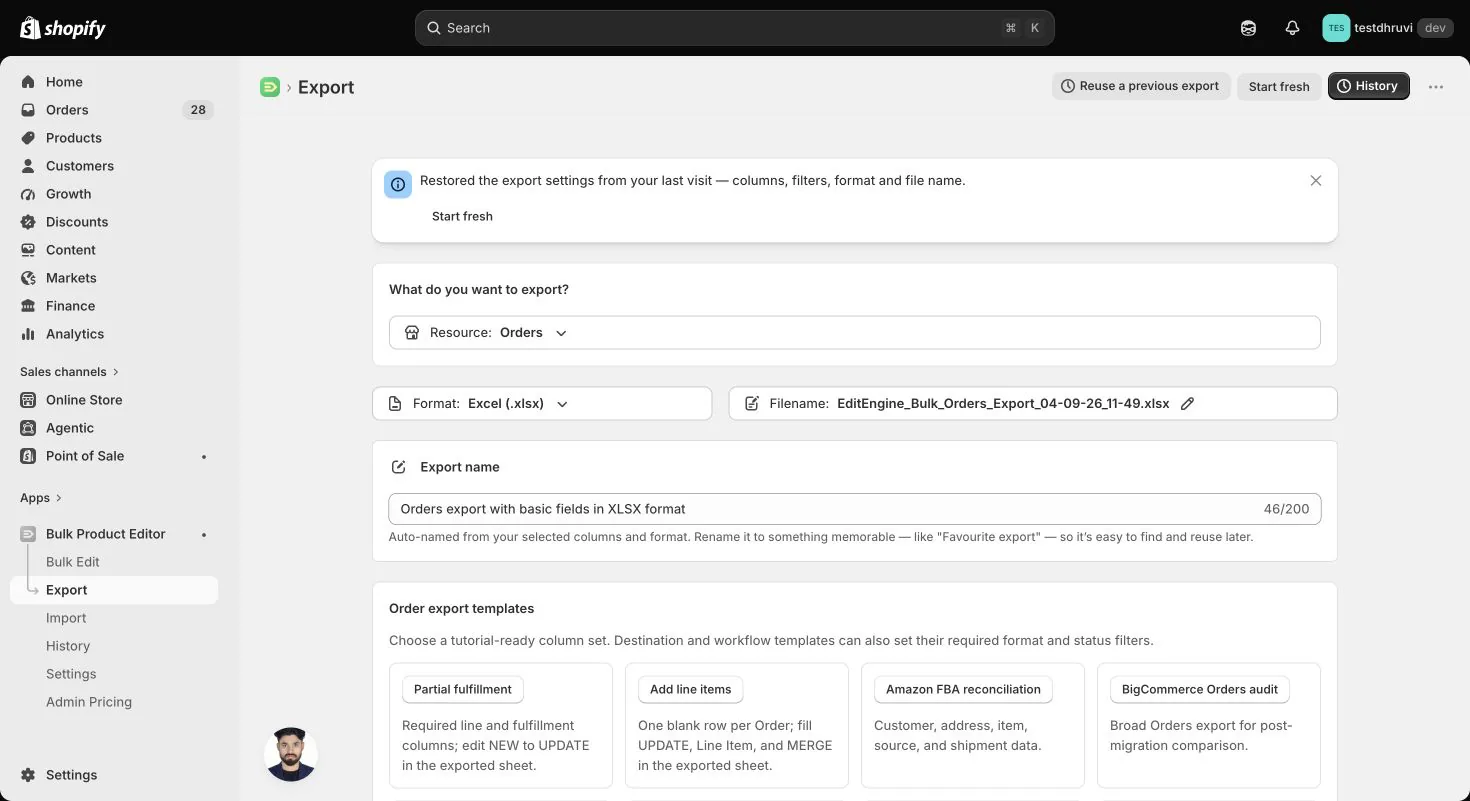
The production Orders panel displays the exact unfiltered count Shopify exposes to the app. Standard Shopify order access covers the last 60 days; older orders require Shopify approval for the protected read_all_orders scope. Adding filters does not change the displayed total.
A filter with no matches can produce a valid header-only file. An XLSX export contains the Orders worksheet plus an Export Summary worksheet describing the selected fields, filters, and row totals.
Step 2 — Choose a workflow template
Orders has 23 production export templates. Prefer one of the focused templates over a full export when you plan to import the sheet again.
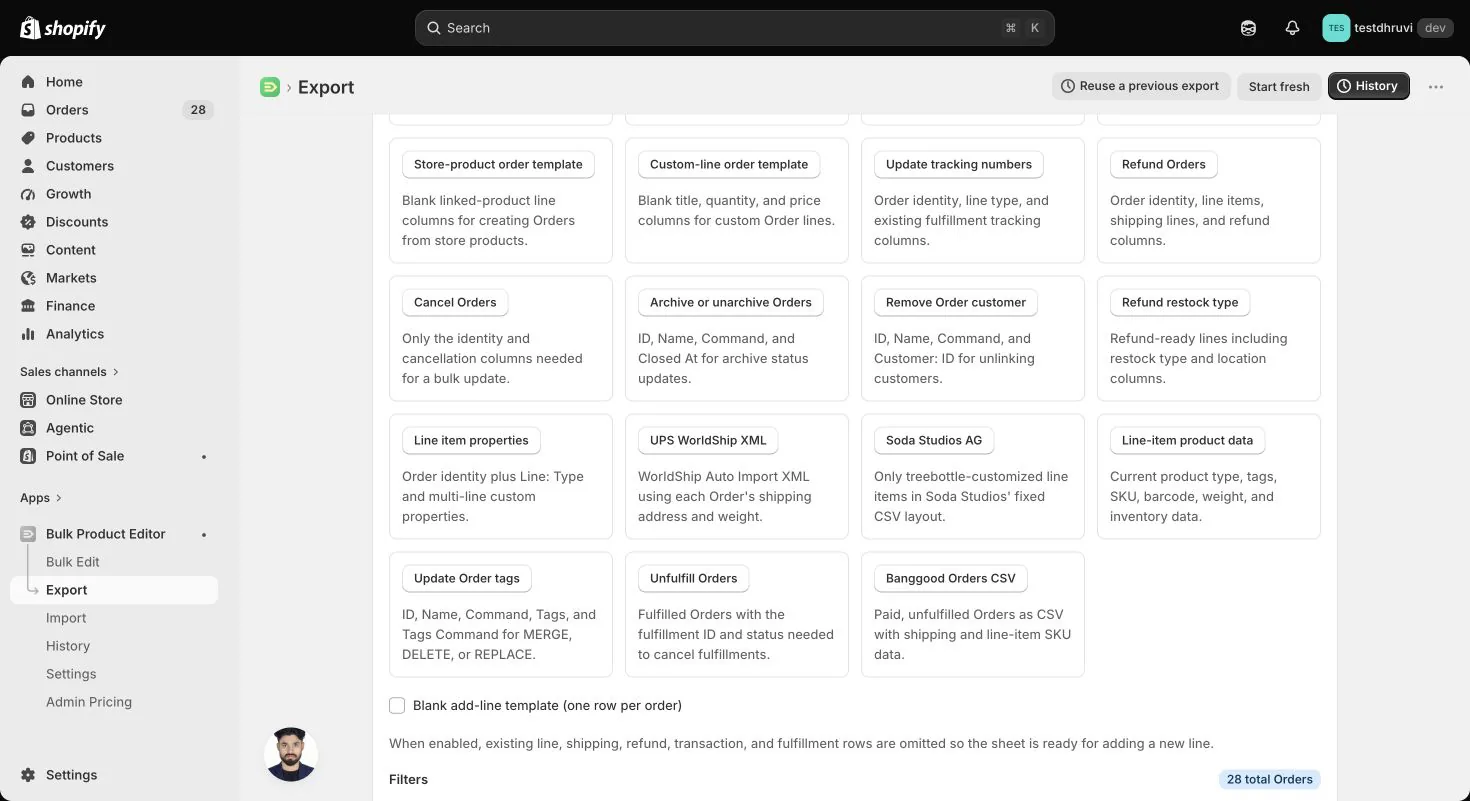
Common round-trip templates include:
| Goal | Template | What to review after export |
|---|---|---|
| Change supported order fields | Bulk update Orders | Keep only fields you intend to update |
| Append a line | Add line items | Fill a single blank line per order |
| Update tracking | Update tracking numbers | Keep the existing Fulfillment ID |
| Review refund data | Refund Orders | Export/reporting only for public stores; refund imports are restricted |
| Review cancellation data | Cancel Orders | Export/reporting only for public stores; cancellation imports are restricted |
| Archive or unarchive | Archive or unarchive Orders | Populate or clear Closed At deliberately |
| Remove or set a customer | Remove Order customer | Treat Customer: ID as a store-scoped reference |
| Review fulfillments | Unfulfill Orders | Do not set CANCELLED in a public import; fulfillment cancellation is restricted |
| Add or remove tags | Update Order tags | Set Tags Command explicitly |
The Blank add-line template emits one row per order and omits existing line, shipping, refund, transaction, and fulfillment rows. This is the safest starting point for line additions.
The Full Orders export is for backup, reporting, and migration analysis. It is not a one-click replace file. The Bulk delete Orders template is visible for format compatibility, but public Advanced Import rejects Order DELETE; do not design a public workflow around it.
Step 3 — Choose the 204 column controls
EditEngine exposes 204 Orders column controls. Only ID and Name are selected by default. The Orders column reference lists every control, including create-only, update-only, export-only, and restricted fields.
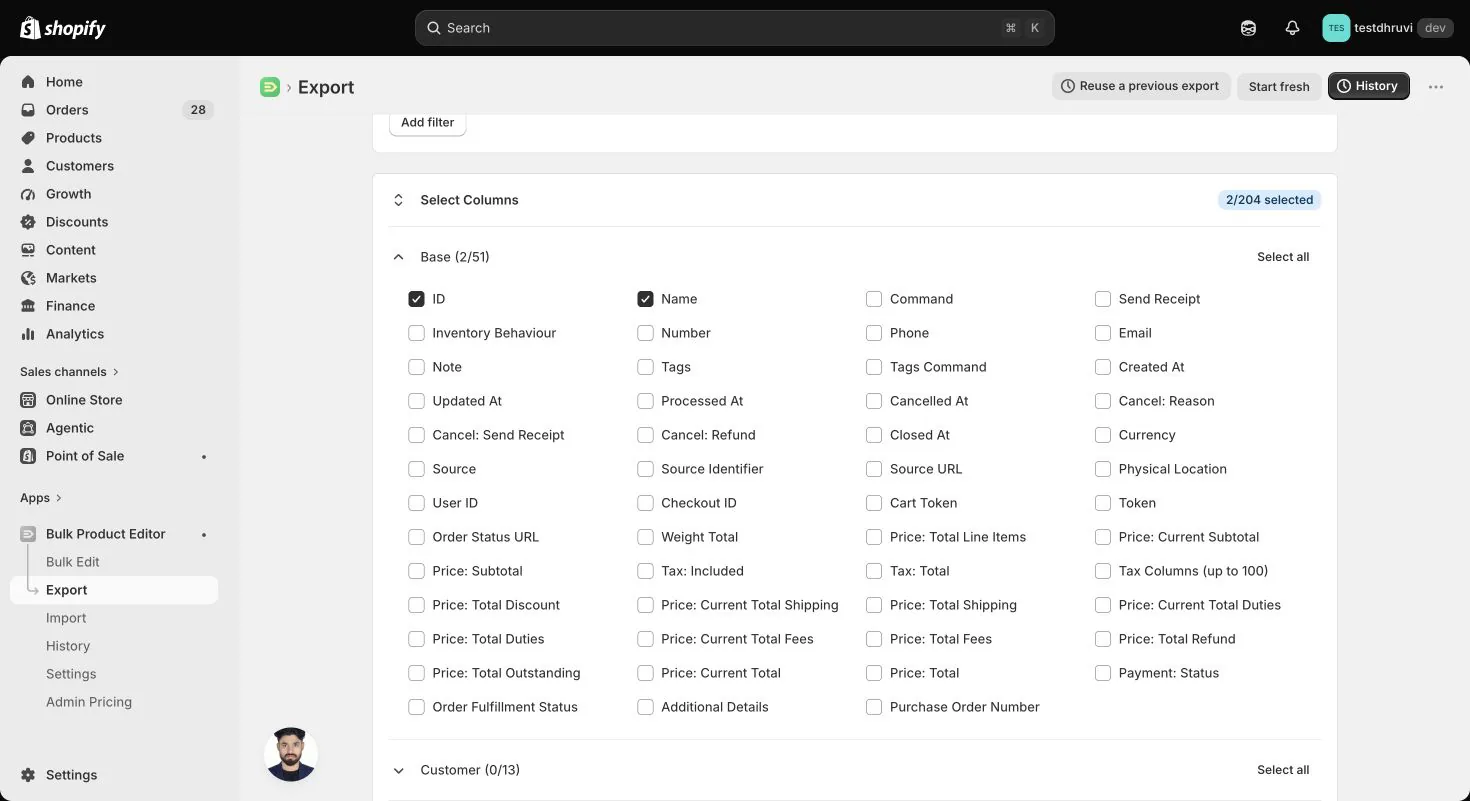
| Group | Controls | What it contains |
|---|---|---|
| Base | 51 | Identity, commands, contact, tags, dates, source, totals, tax controls, and statuses |
| Customer | 13 | Linked customer identity, profile details, marketing states, and totals |
| Addresses and Browser Details | 40 | Billing, shipping, IP, landing, referrer, and UTM values |
| Company | 6 | B2B company and company-location identity |
| Line Items | 31 | Line type, product/variant snapshot, quantity, price, tax, properties, and fulfillment state |
| Line Items Product Data | 13 | Current linked product and variant values |
| Refunds | 8 | Refund identity, date, note, restock reporting, and receipt flags |
| Transactions and Risk | 30 | Payment transactions, card details, device/user references, and risk values |
| Fulfillments | 11 | Fulfillment identity, dates, tracking, location, status, and notification flag |
| Metafields | 1 | Dynamic order metafield columns selected by namespace and key |
The Tax controls can expand to as many as 100 order-level and 100 line-level tax blocks based on observed data. That expansion creates additional output headers without turning each tax field into a separate selector.
The Line Items Product Data group reads the linked product or variant as it exists now. It is different from the order's line-item snapshot and is export-only. Use it for analysis such as SKU, cost, inventory, and weight comparisons; do not expect edits in those columns to change a product or an order.
Some values can be blank because Shopify Admin GraphQL has no faithful equivalent or because optional access is unavailable. For example, order-level User ID and Checkout ID stay blank. Transaction: User ID requires the optional read_users scope and available staff data. Access depends on Shopify's staff-data eligibility requirements and the scope actually granted, not a Plus-only rule. Without that access, the export still succeeds with the cell blank.
Step 4 — Filter the export
Select Add filter to narrow the Orders written to the file.
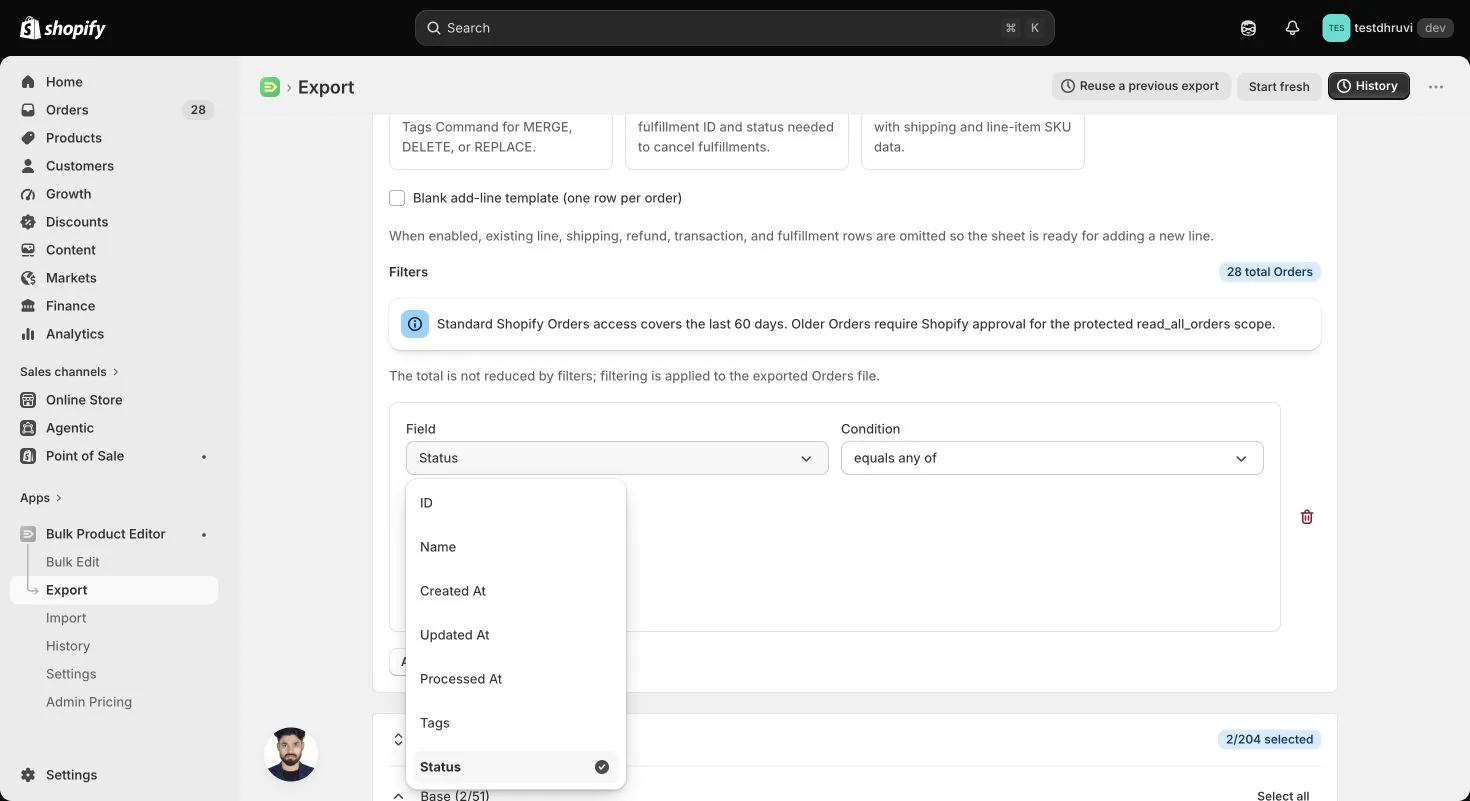
EditEngine exposes 50 production filter fields:
- identity and time: ID, Name, Created At, Updated At, and Processed At;
- order state: Tags, Status, Payment Status, Fulfillment Status, Test Order, Return Status, Chargeback Status, and Sales Channel;
- source and commerce: Source, Source Identifier, Discount Code, Payment Gateway, Purchase Order Number, and Confirmation Number;
- customer and address: Customer ID, Email, Phone, Tax Exempt, shipping country/province/method, billing country, Delivery Method, Fulfillment Location, and Physical Location;
- line data: Line Type, title, name, product handle, variant ID/title/inventory quantity/barcode, SKU, vendor, total line-item quantity, and weight;
- fulfillment and refund dates: Fulfillment Created At, Fulfillment Updated At, and Refund Created At;
- risk and payment: Risk Level, Risk Recommendation, Transaction CC Last 4, and Price Total; and
- order metafield value by namespace, key, and text or number type.
Date filters use the store's time zone and support on/after, on/before, ranges, and full relative periods. Numeric filters support comparisons and ranges. Text filters support comma-separated matching, empty/not-empty checks, and * patterns where offered.
Multiple filters can match all or any. A blank condition matches everything and shows a warning. An unusable numeric condition is ignored instead of silently removing every order.
When you use a line-level or Line Type filter, EditEngine can show Include only matching line items. Leave it off to keep all selected child rows for each matching order; turn it on only when the file should contain the matching line subset. A Delivery Method filter requires one of Shopify's fulfillment-order access scopes, and EditEngine blocks submission until that access is granted.
Matrixify's current Orders documentation lists the core identity, date, status, customer, line, fulfillment, refund, and metafield filters. EditEngine adds fields such as Delivery Method, totals, quantities, PO/confirmation numbers, test, risk, locations, returns, chargebacks, card last four, and sales channel.
Step 5 — Understand the multi-row order shape
One order can expand into these Line: Type rows:
Line ItemDiscountShipping LineRefund LineRefund ShippingTransactionFulfillment Line
EditEngine writes line items first, then an order-level discount row when present, shipping rows, refund rows, transaction rows, and fulfillment rows. It repeats order identity and ordinary order fields on child rows, but keeps order totals, order taxes, Note, Order Status URL, and order metafields on the top row only. Top Row = TRUE marks the first row and Row # preserves spreadsheet order.
Exports set Command = NEW, Tags Command = REPLACE, Send Receipt = FALSE, and Inventory Behaviour = bypass. Those values match the exported record shape; they are not permission to re-create or rewrite an existing order.
For an update, build a minimal sheet with one intentional row group per order. If a focused export still contains child rows you do not intend to execute, remove them before import.
Step 6 — Choose identity and Command explicitly
EditEngine resolves an existing order by:
ID, when present; then- exact
Namewhen ID is absent.
Order Name is not guaranteed to be unique. More than one exact match fails as ambiguous. If an ID is present but does not resolve, MERGE and UPDATE fail instead of falling back to Name.
| Command | Public Advanced Import behavior |
|---|---|
NEW | Creates only when no matching order exists; otherwise fails |
MERGE | Updates a verified match; a public Name-only miss does not create |
UPDATE | Updates an existing match and never creates |
REPLACE | Rejected before any Shopify request |
DELETE | Rejected before any Shopify request |
IGNORE | Skips the row group |
Use UPDATE for normal same-store changes and NEW for deliberate creation. Although Matrixify documents a blank Command as NEW, EditEngine defaults a missing row and file command to UPDATE.
Matrixify also documents MERGE as create-on-miss. EditEngine deliberately refuses a public Name-only MERGE miss because standard Shopify access may hide an older order with the same Name. Use explicit NEW when you intend to create, or UPDATE with an Order ID when you intend to modify.
Matrixify's Orders REPLACE deletes and recreates an order, and its DELETE removes one. EditEngine's public Orders importer disables both commands. This safety boundary takes precedence over the compatible export columns and templates.
Step 7 — Create new orders carefully
For a new order, use Command = NEW and include at least one valid line. EditEngine can create variant-backed lines or custom lines, along with supported contact, note, tags, financial status, currency, processed time, shipping and billing addresses, additional details, fulfillment status, source fields, transactions, and shipping lines.
Important creation rules:
- A variant line with blank
Line: Priceuses the current catalog price. An explicit zero remains zero. - A custom line without a Variant ID uses a blank price as
0.00. Explicit-price and custom lines can use the store currency when Currency is omitted; providing Currency explicitly makes the intended amount easier to review. - A Shipping Line needs Currency.
- Transaction rows need an amount and either
Transaction: Currencyor the orderCurrency, with supported kind, status, gateway, and optional processing/authorization values. - Send Receipt defaults to false, Inventory Behaviour defaults to bypass, and fulfillment receipt sending is false.
- Referenced products, variants, customers, fulfillments, and locations must belong to the destination store.
Customer: IDand order metafields are applied only when updating an existing order, not byNEW. Do not rely on them to link a customer or set metafields during creation.Created Atis a fallback input forProcessed Atwhen the Processed At header is absent. Remove it if you do not intend to supply that historical processing time.- Use destination-store
Line: Variant IDto link a catalog item. Product ID, product handle, SKU, and variant title do not resolve a variant in this importer. Without a Variant ID, an item title or SKU describes a custom item. Source Identifier, explicit tax blocks, line discounts, andLine: Propertiesare not written by the current Orders importer. A compatible exported column is not necessarily supported on creation.
Matrixify can use Number to separate multiple new unnamed orders. EditEngine's current Orders adapter does not use Number for grouping. Give each new multi-row order a repeated, unique Name; rows without ID or Name join the preceding order group.
Step 8 — Update only supported existing-order data
Existing orders support these focused changes:
| Change | EditEngine behavior |
|---|---|
| Email, Phone, Note | Non-empty values update the order contact or note |
| Tags | MERGE adds, DELETE removes, REPLACE replaces the listed set |
| Shipping address | Supplied address fields update the order shipping address |
| Additional Details | name: value lines update custom attributes |
| Customer ID | Non-empty sets that destination-store customer; an explicitly blank Customer ID column removes the current customer |
| Metafields | Non-empty dynamic cells set values; an explicitly blank selected metafield cell deletes that metafield |
| Closed At | Non-empty archives an open order now; blank unarchives an archived order |
| Line Item | Appends a variant or custom line through Shopify order editing |
| Fulfillment tracking | Updates number, URL, company, and notification choice for an existing Fulfillment ID |
Fulfillment Status CANCELLED | Not available in public imports; internal-test-only |
| Cancelled At | Non-empty cancellation requests are not available in public imports |
| Refund row | Not available in public imports; internal-test-only |
Blank Email, Phone, Note, Tags, shipping fields, or Additional Details do not clear the existing value. Closed At, Customer ID, and selected metafield columns have explicit blank semantics, so review those columns separately.
Customer: Email acts as an order-contact Email alias only when the Email header is absent. It does not look up a customer or change the customer's profile. Customer: Phone and other customer-profile columns are reporting fields; use the Customers resource for profile changes.
Order list metafields export as comma-separated display values, but the Orders importer does not convert that text back into a list. Before an existing-order list update, use the correct typed header and a valid JSON array, such as ["priority","gift"]. Review destination references and other structured metafield values as well; an untouched exported cell is not always import-ready.
For existing orders, non-refund Transaction rows and shipping-line changes are create-only and fail. Billing-address edits, payment status, processed/source fields, Send Receipt, Inventory Behaviour, and some fulfillment fields are also create-only. Currency belongs on new orders or a custom-line append; remove it from ordinary contact, tag, and tracking update files.
Step 9 — Handle tags, lines, and tracking
Tags
Always populate Tags Command. EditEngine currently defaults a missing Orders Tags Command to REPLACE, while Matrixify documents MERGE as its default. A populated Tags cell with no Tags Command can therefore replace all existing tags. A blank Tags cell performs no tag change, including with REPLACE.
To add reviewed while retaining the existing tags, export the intended Order IDs and current Tags, keep that export untouched, and make this separate minimal file. Replace the sample ID with an actual ID from your store:
ID,Command,Tags,Tags Command
1234567890,UPDATE,reviewed,MERGE
Save it as Orders.csv or use an XLSX sheet named Orders. Follow Step 10 with one non-critical order first, then confirm that the old tags remain and reviewed was added. Do not include copied Line Item rows in this file. Removing the added tag later requires a separate targeted change; do not remove it if it already existed before your import.
Add a line item
Use the blank add-line template, keep the order ID, set Command = UPDATE, use Line: Type = Line Item, and fill the new variant or custom-line values. The template includes Line: Command = MERGE, but EditEngine does not use that column to edit or remove lines: existing-order Line Item inputs are additions. Never use Line: Command = DELETE expecting to remove an existing line.
A variant append uses current catalog pricing; changing Line: Price does not override the appended variant's price. A custom append uses Line: Price, defaults a blank price to 0.00, and needs an explicit Currency. Quantity must be a positive whole number and defaults to 1 when blank. Re-running the same file can append the item again.
Tracking
Tracking updates require the existing Fulfillment: ID. Tracking numbers and URLs accept semicolon-separated values. Fulfillment: Send Receipt controls Shopify's tracking notification.
Export the intended orders with the Update tracking numbers template and keep a backup. Prepare one row per fulfillment you intend to update. The example IDs, tracking number, carrier, and URL below are placeholders: replace all of them with the intended existing order/fulfillment and real tracking details before uploading.
ID,Command,Line: Type,Fulfillment: ID,Fulfillment: Tracking Number,Fulfillment: Tracking URL,Fulfillment: Tracking Company,Fulfillment: Send Receipt
1234567890,UPDATE,Fulfillment Line,3456789012,TRACKING-NUMBER,https://carrier.example/track/TRACKING-NUMBER,CARRIER-NAME,FALSE
Use Orders.csv or an Orders XLSX worksheet, then follow Step 10 with one fulfillment first. Keep FALSE when you do not want this update to notify the customer. Check the exact fulfillment in Shopify after completion. This updates tracking on an existing fulfillment; it does not create one. Blank tracking values do not clear the existing number, URL, or carrier.
Do not set Fulfillment: Status = CANCELLED: fulfillment cancellation is not enabled for public imports.
Refunds and cancellation are not public import workflows
Matrixify documents refund and cancellation imports. EditEngine currently restricts those operations to internal test shops, including refund Transaction rows and fulfillment cancellation. Use these export fields for reporting, and perform a merchant refund or cancellation through Shopify Admin's own reviewed workflow. Do not re-import refund rows, non-empty Cancelled At, or cancellation flags from a full export.
This is a product availability difference, not a missing spreadsheet setting. Adding a destructive-operation option does not bypass the restriction.
Step 10 — Import through Advanced Import
Open EditEngine → Import, choose Advanced import, and upload the edited CSV or XLSX file.
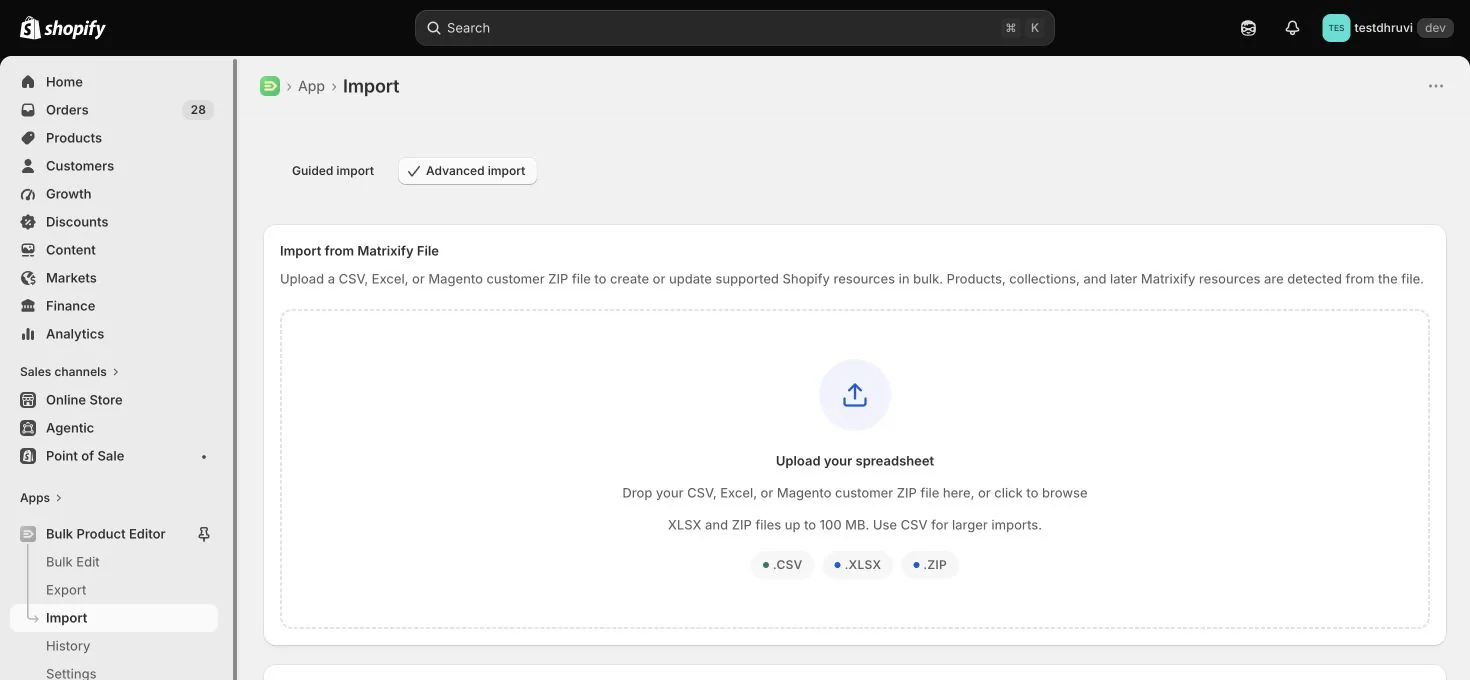
Before starting the import:
- Confirm that EditEngine detects the Orders resource and the intended worksheet.
- Review the detected headers and total spreadsheet row count.
- Confirm every order group's ID or unique Name.
- Confirm every explicit Command; do not rely on a blank default.
- Review Tags Command and every blank Customer ID, Closed At, and metafield cell.
- Confirm that only intended new Line Item, creation-only transaction/shipping, and tracking rows remain.
- Remove refund rows, non-empty
Cancelled At, and fulfillment-cancellation inputs. These operations cannot be enabled for a public store. - Start with one safe order and inspect its result before scaling up.
Advanced Import requires order read/write access, order-edit access, and the relevant fulfillment-order write scopes.
Review the detected sheet, headers, command, row-count information, and any sample rows shown. A sample is not a full-file or before-and-after validation. Inspect the spreadsheet separately, then verify one completed test order before expanding the batch.
Step 11 — Verify the result
After the import completes:
- Download the result file and investigate every failed or warning row.
- Open each sample order in Shopify Admin and verify contact, note, tags, shipping address, customer, line items, metafields, archive state, and totals.
- For tracking changes, open the exact fulfillment and verify company, number, URL, and notification choice.
- Re-export the same Order IDs with the smallest relevant column set and compare the new state with your intended values.
- Keep the untouched source export and result file with your operational audit trail.
Common mistakes
Changing a full export to UPDATE. Every exported Line Item row can become an appended line. Use a workflow template and keep only intentional child rows.
Leaving Command blank. EditEngine defaults missing Orders commands to UPDATE, unlike Matrixify's documented NEW default.
Leaving Tags Command blank. EditEngine defaults it to REPLACE for Orders, unlike Matrixify's documented MERGE default.
Using MERGE as create-on-miss. Public Name-only MERGE misses are blocked because older orders may be outside Shopify's accessible history.
Using REPLACE or DELETE. Public Orders imports reject both before a Shopify request, even though compatible export controls and templates exist.
Keeping source-store IDs. Order, customer, variant, fulfillment, and location IDs do not transfer between stores.
Using Number to group unnamed orders. The current EditEngine adapter groups by ID, then Name, then the preceding row; it does not split groups by Number.
Expecting all 204 export controls to be writable. Most are reporting or creation-only fields. Current product data, totals, risk, browser, and generated identity fields are not existing-order updates.
Blanking ordinary cells to clear them. Most blank order fields mean no update, but blank Customer ID, Closed At, and selected metafield cells have deliberate actions.
Trying to enable refunds or cancellations. Public Advanced Import does not permit refunds, order cancellation, or fulfillment cancellation, even when the columns or templates are visible.
Assuming the count includes all history. Without protected all-orders access, Shopify exposes only the last 60 days to EditEngine.
Related tutorials
- Bulk update Shopify order tracking — a focused existing-fulfillment workflow with a minimal CSV and notification checks.
- Orders column reference — exact fields, examples, blank-cell behavior, and public import restrictions.
- Export and import Shopify Draft Orders — work with editable drafts before they become real orders.
- Export and import Shopify customers — prepare destination-store customer identities before linking orders.
- Export and import Shopify companies — review B2B company and company-location references carried by orders.
- Export and import Shopify discounts — manage discount definitions separately from historical order discount rows.
- Export the Shopify Admin Activity log — audit order-related events after a controlled update.
About EditEngine: EditEngine Bulk Product Editor helps Shopify merchants bulk edit, import, and export store data from spreadsheets. Install on Shopify →