
Metafields
How to Export Shopify Metafields
Published by Profitonium Apps · Last updated
To export Shopify metafields, open EditEngine → Export, choose the standalone Metafields resource, select the owner types and columns you need, and download the result as CSV or Excel. Every exported row identifies the metafield owner, namespace, key, type, and value, making the file suitable for auditing, editing, or importing back into Shopify.
This is different from selecting a Metafields column group inside a Products, Customers, Companies, Pages, or Shop export. Those resource sheets keep one item per row and put metafields in columns. The standalone Metafields sheet puts every metafield in its own row.
EditEngine follows the Matrixify row-based Metafields import format, then extends it with a direct owner-spanning export and an optional Command column. Matrixify primarily exports metafields on their owner sheets; EditEngine's standalone export is designed to round-trip through EditEngine Advanced Import.
Quick Shopify metafield export workflow
- Open EditEngine → Export and select Metafields.
- Choose CSV or Excel and select only the owner types you need, such as Products or Variants.
- Keep the identity columns:
Owner,Owner ID,Namespace,Key,Type, andValue. - Add a namespace, key, type, or value filter when you need a focused export.
- Create the export, download the file, and keep an untouched copy before making spreadsheet changes.
Before you start
- Use Advanced import, not Guided import, for the exported file.
- Keep one untouched, access-controlled export. Advanced imports do not have one-click undo.
- Start with one namespace or key and a small set of owners.
- Keep the required identity and payload columns unchanged.
- Treat every blank
Valuecell as a delete instruction. - Grant only the read and write scopes required by the selected owner types.
Metafield export must be included in your EditEngine plan. Shopify also restricts app-owned namespaces such as app--<app_id>--...; only the owning app can manage those values.
Step 1 — Select the Metafields resource
Open EditEngine → Export, choose Metafields, and select CSV or Excel format.
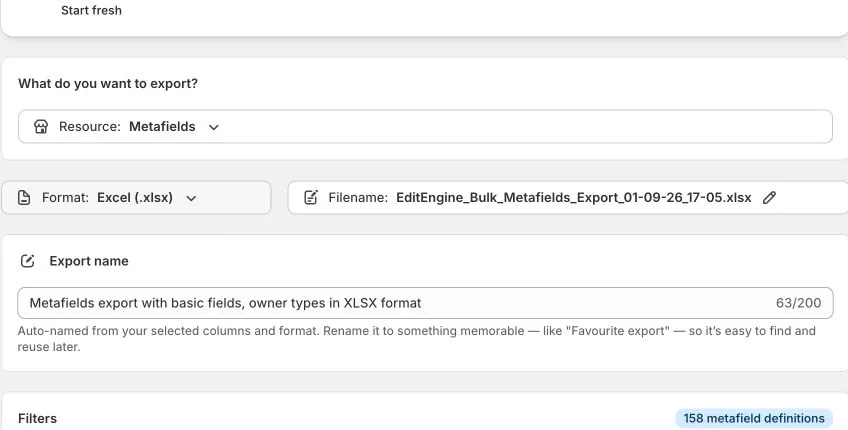
The standalone export produces a sheet named Metafields. Every data row represents one metafield on one Shopify owner.
By default, EditEngine selects Products, Variants, and Collections as owner types. At least one owner type must remain selected or the export cannot run.
Step 2 — Keep the round-trip columns
EditEngine always includes these six columns because removing any of them can make the file unsafe to re-import:
OwnerOwner IDNamespaceKeyTypeValue
Owner Handle and Command are optional but selected by default.
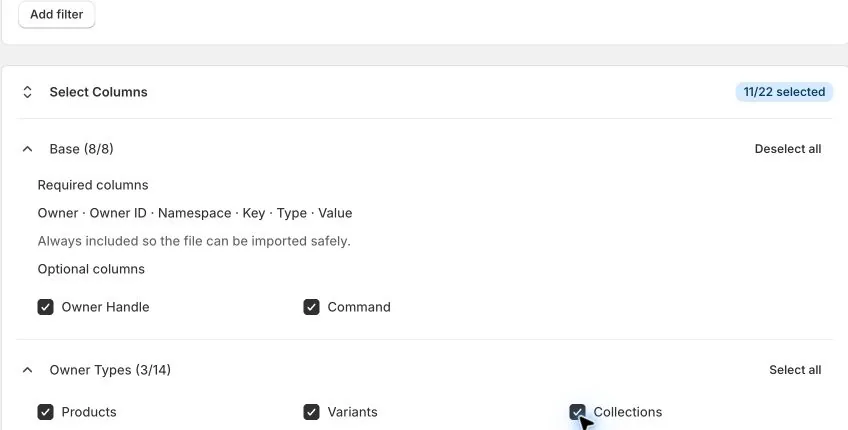
The exported columns are:
| Column | Purpose |
|---|---|
Owner | The Shopify resource type that owns the metafield. |
Owner ID | The owner's numeric Shopify ID. A full Shopify GID is also accepted on import. |
Owner Handle | A readable secondary identity used when Owner ID is unavailable or removed for a cross-store import. |
Command | Exported as MERGE; can also be changed to DELETE or IGNORE. |
Namespace | The first part of namespace.key. Blank imports default to global, but keep the exported value. |
Key | The second part of namespace.key; required. |
Type | The Shopify metafield type, such as single_line_text_field or list.product_reference. |
Value | The value to set. A blank cell deletes the metafield. |
For a safe same-store round trip, leave all eight columns in place.
Step 3 — Choose owner types and permissions
Open Owner Types and select only the resources you need. The 14 switches can produce these canonical Owner values:
| Owner type in Export | Owner value in the sheet | Extra export scope | Import write scope |
|---|---|---|---|
| Products | product | None | write_products |
| Variants | variant | None | write_products |
| Collections | collection | None | write_products |
| Customers | customer | read_customers | write_customers |
| Pages | page | read_online_store_pages | write_content |
| Blogs | blog | read_online_store_pages | write_content |
| Blog Posts | article | read_online_store_pages | write_content |
| Orders | order | read_orders | write_orders |
| Draft Orders | draft_order | read_draft_orders | write_draft_orders |
| Companies | company | read_companies | write_companies |
| Company Locations | company_location | read_companies | write_companies |
| Locations | location | read_locations | write_locations |
| Markets | market | read_markets | write_markets |
| Shop | shop | None | No separate Shop write scope |
If EditEngine shows an access banner, grant the requested scope before continuing. The Advanced Import preview derives scope banners from the sampled Owner rows. For a mixed-owner file, review the whole Owner column and make sure every required write scope in the table above is granted, even when an owner type is outside the preview sample.
Without Shopify's protected
read_all_ordersscope, Order metafield export is limited to the order data Shopify exposes to the app, normally the most recent 60 days.
Step 4 — Filter the export before downloading
Use filters to reduce the file to the exact namespace, key, type, or value you intend to work with. Select owner families in Owner Types; do not use a text filter as a substitute for owner selection.
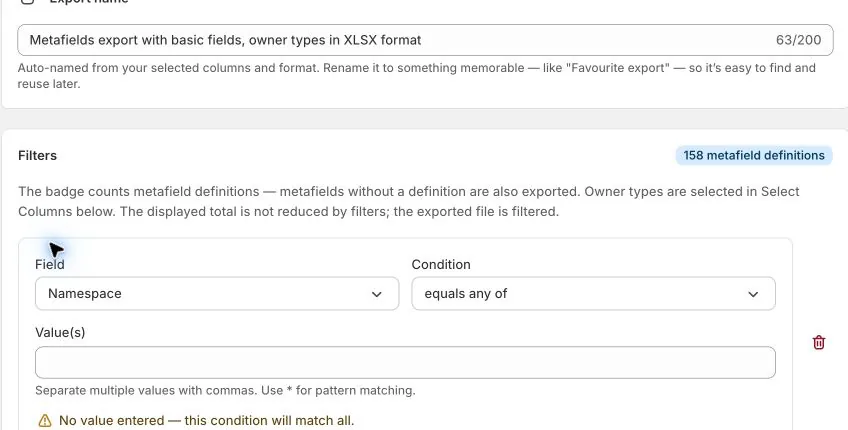
Useful focused exports include:
- Namespace equals
custom - Key equals
care_instructions - Type equals
product_reference - Value contains a known handle or label
The badge shows metafield definitions, not the number of rows that will be exported. Metafields without definitions are still included when they match. The displayed badge total is not reduced by filters; the exported file is.
An empty filter condition matches everything. Remove unused filter rows instead of leaving them blank.
Step 5 — Understand owner identity
For a same-store update, keep Owner ID. It is the fastest and least ambiguous identity. If both Owner ID and Owner Handle are present, EditEngine uses the ID.
For a cross-store copy, source-store IDs are not portable. Clear or remove Owner ID, keep Owner, and use the destination owner's exact handle format:
Owner | Owner Handle format | Example |
|---|---|---|
product | Product handle | winter-jacket |
variant | product-handle.Variant Title | winter-jacket.Small / Blue |
collection | Collection handle | winter-sale |
customer | Customer email | buyer@example.com |
company | Exact Company name | Acme Wholesale |
company_location | Company Name.Company Location Name | Acme Wholesale.Main Office |
page | Page handle | contact-us |
blog | Blog handle | news |
article | blog-handle.blog-post-handle | news.launch-update |
order | Order name | #1001 |
draft_order | Draft Order name | #D42 |
location | Exact Location name | Snow City Warehouse |
market | Market handle | canada |
shop | Current destination Shop | The export shows its .myshopify.com domain |
EditEngine also accepts product_variant, custom_collection, smart_collection, and blog_post as import aliases, but its standalone export uses the canonical values shown above.
Names and emails are matched case-insensitively, but they still need to resolve to one unambiguous destination record. If a handle or name is missing or matches more than one owner, that row fails rather than guessing.
Step 6 — Create or update values with MERGE
Keep Command as MERGE and enter a nonblank Value:
Owner,Owner ID,Owner Handle,Command,Namespace,Key,Type,Value
product,123456789,winter-jacket,MERGE,custom,care_instructions,multi_line_text_field,Wash cold
customer,,buyer@example.com,MERGE,custom,tier,single_line_text_field,Gold
shop,,,MERGE,custom,support_url,url,https://example.com/support
If the metafield already exists, Shopify updates it. If it does not exist, Shopify creates it when the type and value are valid. Keep an explicit Type for new metafields and preserve the type from an export when updating existing ones.
Use the value structure required by the type. Lists should remain valid list data; EditEngine's export keeps structured list values losslessly. Reference values must resolve in the destination store, so review Product, Variant, Collection, Page, File, Metaobject, Order, Customer, Company, and Blog Post references before a cross-store import.
For values close to Excel's 32,767-character cell limit, use CSV and avoid opening and re-saving the file in Excel, which can truncate the value.
Step 7 — Delete only intentional metafields
There are two deletion forms:
Owner,Owner ID,Command,Namespace,Key,Type,Value
product,123456789,DELETE,custom,old_label,single_line_text_field,anything-here
product,123456789,MERGE,custom,obsolete_note,multi_line_text_field,Command=DELETEdeletes the identified metafield regardless of theValuecell.- A blank
Valueon aMERGErow also deletes the identified metafield.Command=IGNOREskips the row instead.
To leave a metafield unchanged, remove its entire row. Do not clear its Value cell.
Avoid duplicate rows with the same owner, namespace, and key. EditEngine runs set operations before delete operations, so a duplicate delete row can remove a value another row set in the same import.
Step 8 — Use only supported commands
| Command | Behavior |
|---|---|
MERGE | Sets a nonblank value; deletes when Value is blank. This is the normal default. |
DELETE | Deletes the metafield identified by owner, namespace, and key. |
IGNORE | Skips the row and counts it as intentionally ignored. |
Do not use resource commands such as NEW, UPDATE, or REPLACE in the standalone Metafields sheet.
A blank or absent Command follows the selected Default Command. Keep that setting at MERGE for a normal round trip, or use explicit row commands. A selected default of DELETE deletes matching metafields even when their Value cells are populated; a default of IGNORE skips them.
Step 9 — Upload through Advanced Import
Open EditEngine → Import, select Advanced import, and upload the edited CSV or XLSX file.
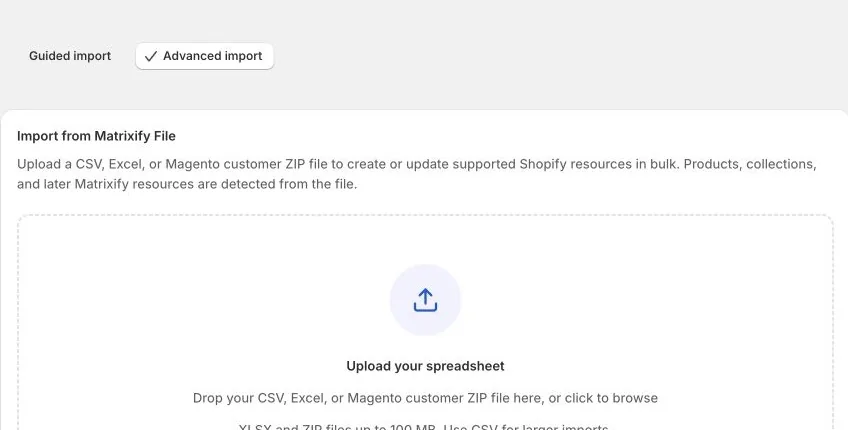
After analysis, verify:
- The detected resource is Metafields.
- Only the intended sheet and rows are selected.
- The supported commands show
MERGE,DELETE, andIGNORE. - Destructive mode is enabled only because every blank value and DELETE row is intentional.
- Previewed write scopes match the sampled owner types, and you have checked the whole
Ownercolumn for any additional scopes. - Same-store rows still have their correct
Owner ID, or cross-store rows have a resolvableOwner Handle. - There are no duplicate owner + namespace + key identities.
Run a small test first. Review the results file before importing the remaining rows. A bad identity, invalid value, missing scope, or Shopify validation error is reported against the affected row so you can correct and re-import it.
Step 10 — Verify with a fresh export
Create another focused Metafields export after the import:
- Select the same owner types.
- Filter to the changed namespace and keys.
- Compare the fresh values and types with your intended file.
- Confirm that only planned blank values or DELETE rows removed data.
- Keep the results file with the untouched pre-import export.
The original export is your manual recovery source, not an automatic rollback. To restore a deleted or incorrect value, put its saved type and value back into a new MERGE row and import again.
Common mistakes
Using the wrong metafield workflow. Use an owner sheet when you want metafields alongside that resource's normal fields. Use the standalone Metafields sheet for one-row-per-metafield work across owner types.
Assuming the definition badge is the export row count. It counts definitions and does not change with filters.
Deselecting every owner type. At least one Owner Type is required. Products, Variants, and Collections are the defaults.
Leaving an unrelated Value blank. Blank means delete. Remove the whole row to leave it unchanged.
Keeping source IDs during a cross-store import. Clear Owner ID and use a destination-store Owner Handle.
Using a display name where a handle is required. Products, Collections, Pages, Blogs, Articles, and Markets use handle-based identity; Variants and Company Locations use a two-part identity.
Ignoring optional scope banners. Export needs read access and import needs the owner resource's write access.
Expecting all historical Orders. Without read_all_orders, older Order metafields may be absent from the export.
Expecting one-click undo. Advanced import has no automatic undo. Keep the untouched export and test a small batch.
Related tutorials
- Bulk edit Shopify product metafields — use EditEngine's bulk editor instead of a spreadsheet for Product-level value changes.
- Export Shop details and import Shop metafields — use the one-row Shop sheet for Shop-only metafields.
- Export and import Shopify Customers — round-trip customer records and their metafield columns.
- Export and import Shopify Companies — round-trip Companies, Company Locations, and their metafields.
About EditEngine: EditEngine Bulk Product Editor helps Shopify merchants bulk edit, import, and export store data from spreadsheets. Install on Shopify →