
Store content
Shopify Files: Export and Import
Published by Profitonium Apps · Last updated
Availability: Files export is available to merchant stores with the required Shopify access. Files Advanced Import is currently restricted to internal test shops; it is not enabled for ordinary merchant stores. The import steps below describe that restricted workflow. A working test-shop screenshot does not mean this import is publicly available.
Use the Files resource to export or import the images, documents, videos, and 3D models managed under Shopify Admin → Content → Files. EditEngine writes one row per file in a Matrixify-shaped CSV or XLSX spreadsheet.
You can use that sheet to audit file status and size, update a file name or alt text, add files from public URLs, replace supported file content, or delete files in bulk.
This guide follows the Matrixify Files sheet format and its bulk URL import tutorial. The spreadsheet is compatible, but the command details below describe EditEngine's current Advanced Import behavior. The most important difference is REPLACE: Matrixify documents delete-and-create behavior, while EditEngine replaces the source of an existing supported file in place.
Before you start
- Use Advanced import, not Guided import, for a Files spreadsheet.
- Keep one untouched, access-controlled export. Advanced imports do not have one-click undo.
- Test one non-critical file before replacing content, renaming files, or importing a large set.
- Make every HTTP or HTTPS source URL publicly reachable until Shopify finishes processing it.
- Treat
DELETEas permanent. A deleted file can break product media, theme content, metafields, and other references. - Do not place FTP or SFTP credentials in a shared spreadsheet. EditEngine can stage those links, but the cell itself contains the credentials.
Export needs Shopify's read_files scope. Import also needs write_files.
Step 1 — Export Files
Open EditEngine → Export, choose Files, and select CSV or Excel format.
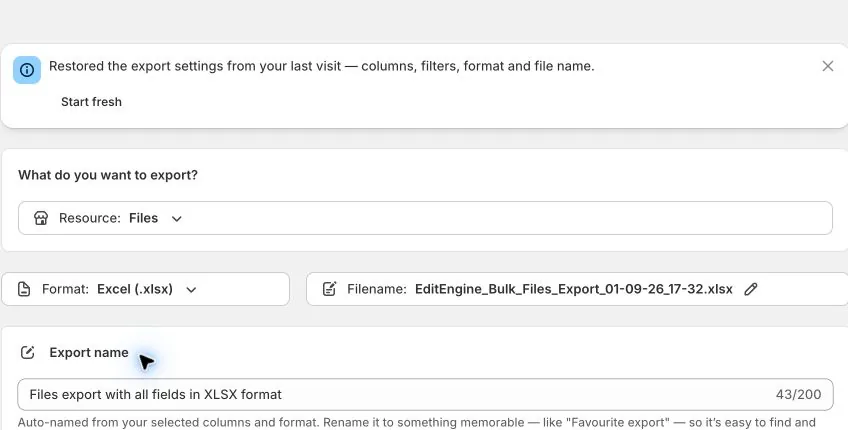
The export reads every supported Shopify File subtype through one resource and writes one Files worksheet:
IMAGEfor Shopify media imagesFILEfor generic documents and other filesVIDEOfor Shopify-hosted videosMODEL_3Dfor 3D models
The count shown in the export panel is the store's total Files count. It is not reduced when you add filters; the generated file is filtered.
Step 2 — Choose the round-trip columns
EditEngine selects all 16 Files columns by default.
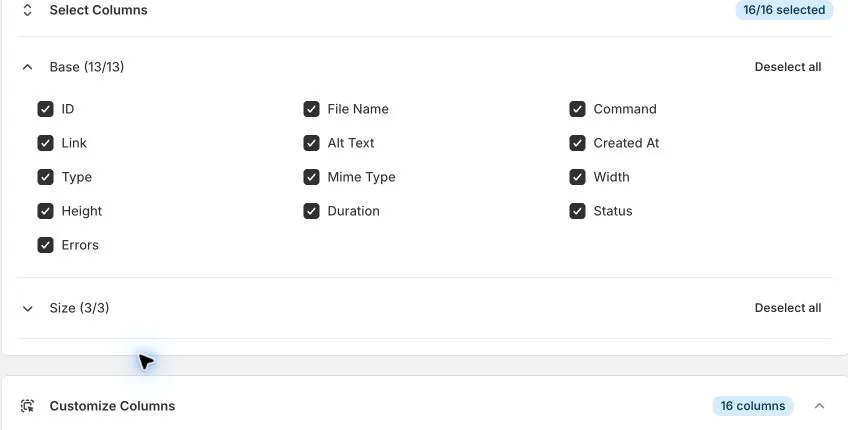
| Column | Round-trip meaning |
|---|---|
ID | Shopify's store-specific file ID. Keep it for the safest same-store update. |
File Name | Secondary identity and editable file name. When creating, EditEngine can derive it from Link. |
Command | Exports as MERGE; controls the import operation. |
Link | Public Shopify CDN URL on export, or a new source URL on import. |
Alt Text | Editable accessibility and SEO text. Mainly meaningful for visual media. |
Created At | Export-only creation timestamp in the store's timezone. |
Type | IMAGE, FILE, VIDEO, or MODEL_3D. Helps classify new imports. |
Mime Type | Export-only MIME type when Shopify exposes one. |
Width, Height | Export-only dimensions for images and videos. |
Duration | Export-only video duration in HH:MM:SS. |
Status | Export-only processing state: Failed, Uploaded, Processing, or Ready. |
Errors | Export-only Shopify processing messages, joined with semicolons when there are several. |
Size Bytes | Export-only original size in bytes. |
Size MB | Export-only decimal megabytes, rounded to three decimal places. |
Size | Export-only human-readable decimal size such as 3.74 KB. |
EditEngine always emits ID and File Name, even if they are removed from the visible selection, because they are the update keys. Keep all 16 columns in the untouched recovery copy. In the working copy, you can remove export-only columns that you do not need.
Step 3 — Filter to a safe working set
Use Add filter before exporting a large or risky batch.
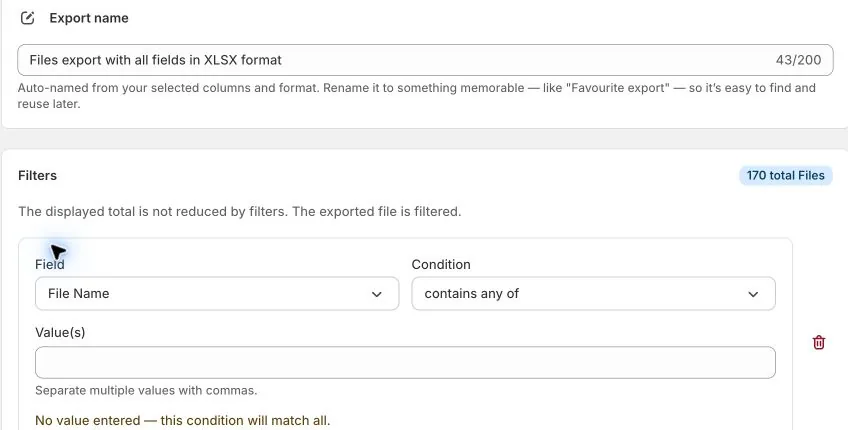
Available filter fields include File Name, ID, Created At, Updated At, Type, Size MB, Status, Original Upload Size, Alt Text, Product ID, and Used In.
Useful examples:
- File Name contains
.pdf - Type is
Image,File,Video, orModel_3D - Status is
Failed,Uploaded,Processing, orReady - Created At is on or after a known date
- Size MB is greater than a chosen limit
- Product ID or Used In matches a known association
Multiple normal filters can match all conditions or any condition. Product ID and Used In association filters require all-condition matching. A free-text filter with no value matches everything, so remove unfinished filters instead of leaving them blank.
Step 4 — Understand file identity
EditEngine identifies a Files row in this order:
ID- exact
File Name, matched case-insensitively - the file name derived from
Link
A full Shopify file GID is accepted. A numeric ID is also accepted; EditEngine checks the supported File subtypes when Type is not available.
Shopify's file-name search can return partial token matches. EditEngine narrows those results to one exact file name and fails if several exact matches remain. It does not silently choose one.
For a same-store update, keep ID. To rename an existing file, keep its ID and change File Name. If you remove ID and change File Name, EditEngine searches for the new name; under MERGE, a miss can create another file from Link instead of renaming the original.
Rows that repeat the same raw identity are combined only when their ID, File Name, Command, Link, Alt Text, and Type do not conflict. Conflicting duplicates fail. Rows that resolve to the same Shopify file are also rejected rather than touching one file twice in the same import.
Step 5 — Use MERGE for a normal round trip
MERGE is the exported and default command.
For an existing file, EditEngine can update File Name and non-blank Alt Text. An untouched exported Shopify CDN Link pointing back to the same file name is recognized as a round-trip link and is not re-uploaded.
ID,File Name,Command,Link,Alt Text,Type
33351235212327,red-shirt.jpg,MERGE,https://cdn.shopify.com/s/files/.../red-shirt.jpg,Red shirt on a hanger,IMAGE
If you put a different external Link on an existing MERGE or UPDATE row, EditEngine treats it as new content and asks Shopify to update the file source. That is a content replacement, not a harmless reference change.
If no file matches, MERGE creates one. Creation requires Link.
A blank
Alt Textcell is a no-op in EditEngine's Files importer; it does not clear existing alt text. Use a tested Shopify-supported workflow if you need to remove alt text completely.
Step 6 — Create Files from URLs
For each new file, supply a direct source URL in Link. File Name and Alt Text are optional.
ID,File Name,Command,Link,Alt Text,Type
,summer-lookbook.pdf,NEW,https://example.com/files/summer-lookbook.pdf,,FILE
,red-shirt.jpg,NEW,https://example.com/images/red-shirt.jpg,Red linen shirt,IMAGE
The URL must point to the actual file rather than a web page that displays it. If File Name is blank, EditEngine derives the name from the URL path.
Type accepts IMAGE, FILE, VIDEO, or MODEL_3D. When Type is blank, EditEngine infers common formats from the file name or URL: JPEG, PNG, GIF, WebP, and SVG as images; MP4, MOV, and WebM as videos; GLB, GLTF, and USDZ as 3D models; and other recognizable extensions as generic files. Shopify still validates the uploaded content and its limits.
After create or content update, EditEngine waits for Shopify to reach a terminal processing result. Large media can remain Uploaded or Processing for a while. A failed processing state and its Shopify file error are reported in the import result.
Step 7 — Choose the right Command
| Command | EditEngine behavior |
|---|---|
MERGE | Updates a match or creates a file when no match exists. Creation requires Link. Default. |
NEW | Creates a file and fails if the ID, File Name, or Link-derived name already matches. Requires Link. |
UPDATE | Updates an existing file and fails when no match exists. A different external Link requests a content update. |
REPLACE | Replaces the source of a matched supported file in place, preserving its Shopify ID and associations. Creates when absent. Requires Link. |
DELETE | Deletes the whole matched file and fails when no match exists. |
IGNORE | Skips the row without changing Shopify. |
EditEngine REPLACE differs from Matrixify REPLACE
Matrixify documents its Files REPLACE as deleting and recreating the file. EditEngine deliberately uses Shopify's in-place file update for an existing match. This preserves the existing file ID and associations instead of deleting the record first.
ID,File Name,Command,Link,Alt Text,Type
33351235212327,red-shirt.jpg,REPLACE,https://example.com/replacements/red-shirt.jpg,Updated red shirt,IMAGE
Shopify supports source replacement only for eligible file types and inputs. If Shopify rejects the request synchronously, EditEngine reports the error without first deleting the merchant's file. EditEngine also waits for Shopify's processing result after an accepted content update. Test one representative file type before a large replacement batch.
Use MERGE or UPDATE for metadata-only changes. Use REPLACE only when the Link is intentionally new content.
Step 8 — Prepare a cross-store Files import
Shopify file IDs belong to one store. To copy Files into another store:
- Clear the source
IDvalues. - Keep File Name, Link, Alt Text, and Type.
- Confirm every exported Link is still publicly reachable from Shopify.
- Use
NEWwhen every row must be absent, or a carefully reviewedMERGEwhen matching destination names may be updated. - Test one image, document, video, and 3D model that represents the formats you plan to move.
- Import the Files before importing metafields, metaobjects, products, or theme content that will reference them.
Remember that File Name is the fallback identity. If the destination already has the same exact name, MERGE updates that record and NEW fails. Rename intentionally or split collisions into a separate review file.
Step 9 — Upload through Advanced import
Open EditEngine → Import, select Advanced import, and upload the edited CSV or XLSX.
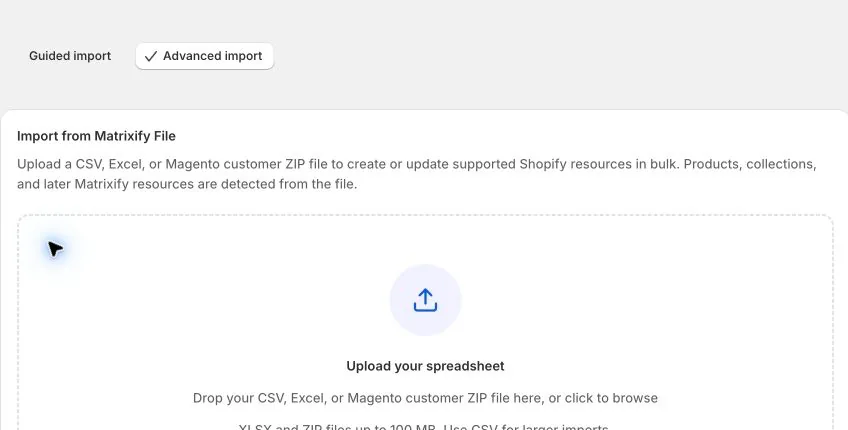
For XLSX, keep the worksheet named Files or File. A CSV has one logical sheet; keep standard Files headers and use a descriptive file name.
After analysis, verify:
- The detected resource is Files.
- The sheet and row count match the intended working file.
read_filesandwrite_filesare granted.- Every create or replacement row has a reachable Link.
- Existing same-store rows retain the correct ID.
- Cross-store rows do not contain source-store IDs.
- Every
DELETEand content-changing Link is intentional.
Run the smallest test file first. Download the result and review Import Status and Import Comment for every failed row before importing more Files.
Step 10 — Verify the round trip
Do not treat a completed job status as the only verification:
- Open Shopify Admin → Content → Files and find every test file.
- Confirm File Name, Alt Text, Type, and preview or download behavior.
- For created or replaced content, wait until Shopify shows the file as Ready.
- Check any product, theme section, metafield, or metaobject that references an updated file.
- Create a fresh focused Files export and compare ID, File Name, Link, Status, Errors, and size with the intended result.
- Keep the result file beside the untouched pre-import export.
The untouched export is a manual recovery source, not an automatic rollback. A deleted file may need to be re-created from its Link, and any broken references may need separate repair.
Common mistakes
Using Guided import. Files use the Matrixify-shaped Advanced Import path.
Changing File Name after removing ID. EditEngine searches for the new name and can create a duplicate under MERGE. Keep ID when renaming.
Leaving an external Link on an update unintentionally. A non-round-trip Link can update the file's content. Remove Link for a metadata-only working file when you do not want content replaced.
Blanking Alt Text to clear it. Blank Alt Text is ignored for Files updates; it does not remove the existing value.
Assuming EditEngine REPLACE deletes and recreates. Unlike Matrixify's documented behavior, EditEngine updates an existing supported file in place and preserves its ID.
Keeping source IDs during a store migration. Clear them; Shopify IDs are store-specific.
Importing a webpage instead of a direct file URL. Link must resolve to the media or document Shopify should process.
Deleting a referenced file without an impact review. DELETE removes the file record and can leave storefront or custom-data references broken.
Assuming a completed import means media is ready. Review processing status and errors, then verify the file in Shopify and with a fresh export.
Related tutorials
- Bulk update file alt text — a metadata-only task without renaming or re-uploading; import remains restricted.
- Import and export resource availability — check public, restricted, and export-only workflows.
- Export and import Shopify Metaobjects — import Files before metaobject fields that reference them.
- Export and import Shopify Pages — round-trip Online Store page content and metafields.
- Export and import Shopify Blog Posts — round-trip article images, content, comments, and metafields.
About EditEngine: EditEngine Bulk Product Editor helps Shopify merchants bulk edit, import, and export store data from spreadsheets. Install on Shopify →